Dropbox Storage Provider Setup
The Dropbox Storage Provider allows end-users to map in their OneDrive storage into container-based sessions. Access is provided via Dropbox's OAuth interface and leveraging the Rclone Docker volume plugin.
Reference Docs:
Creating a Dropbox OAuth App
- Login to the Dropbox App Console: https://www.dropbox.com/developers/apps/create .
- Select Scoped Access, Full Dropbox, give the app a name (e.g
Kasm-Example), then click Create app.
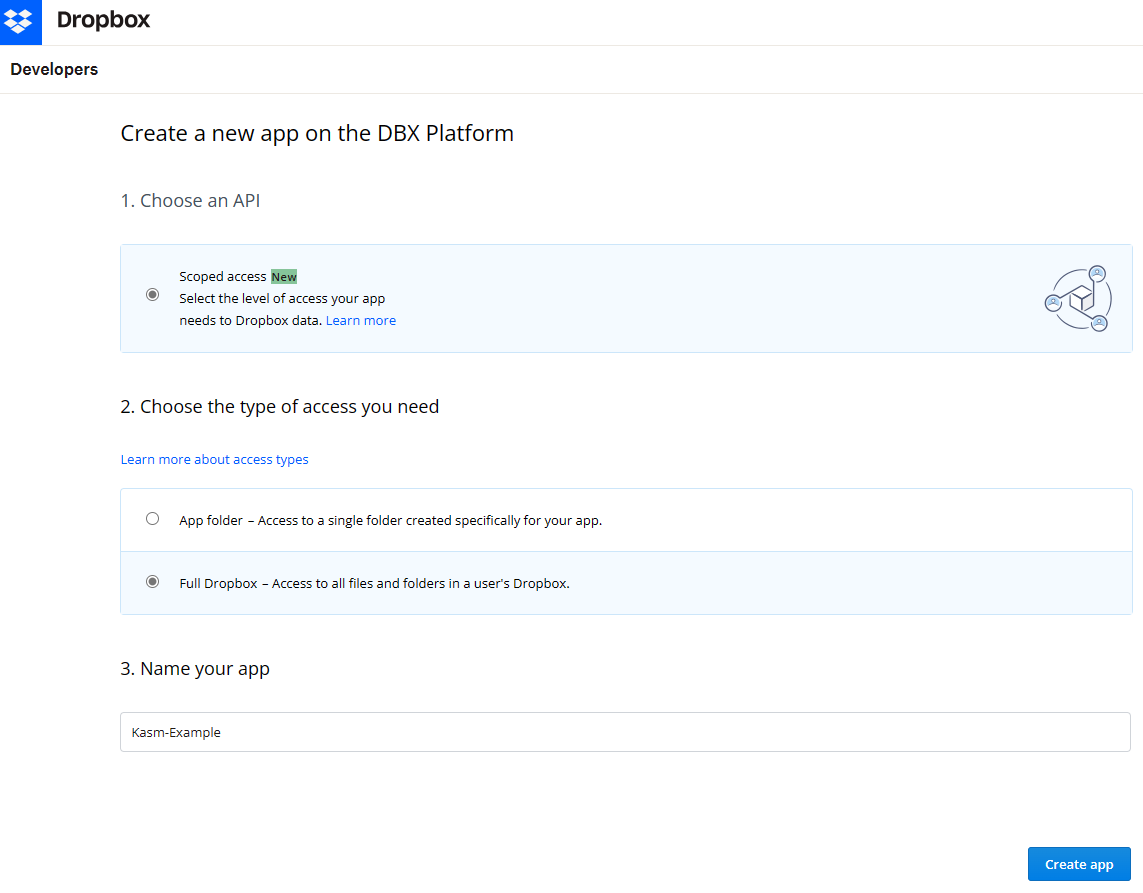
- On the next screen take note of the App key and App Secret , these will be used as the Client ID and Client Secret in the Storage Provider Configuration.

- In the Development users section, click Enable additional users to allow additional accounts to use this app.

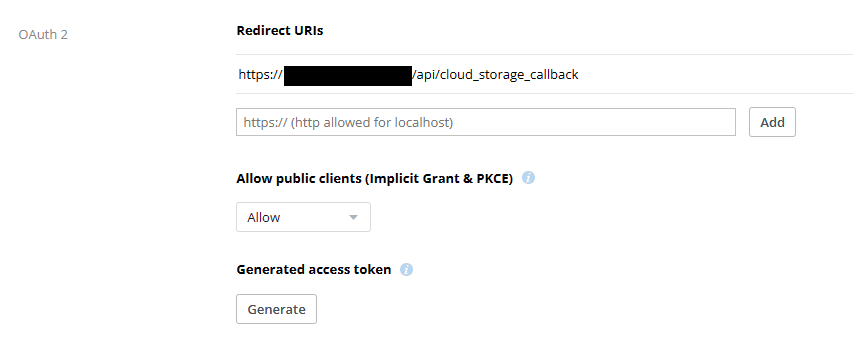
- In the OAuth 2 section, enter the following URL for Redirect URI , substituting the hostname of the Kasm
deployment
https://kasm.example.com/api/cloud_storage_callback, then click Add.
-
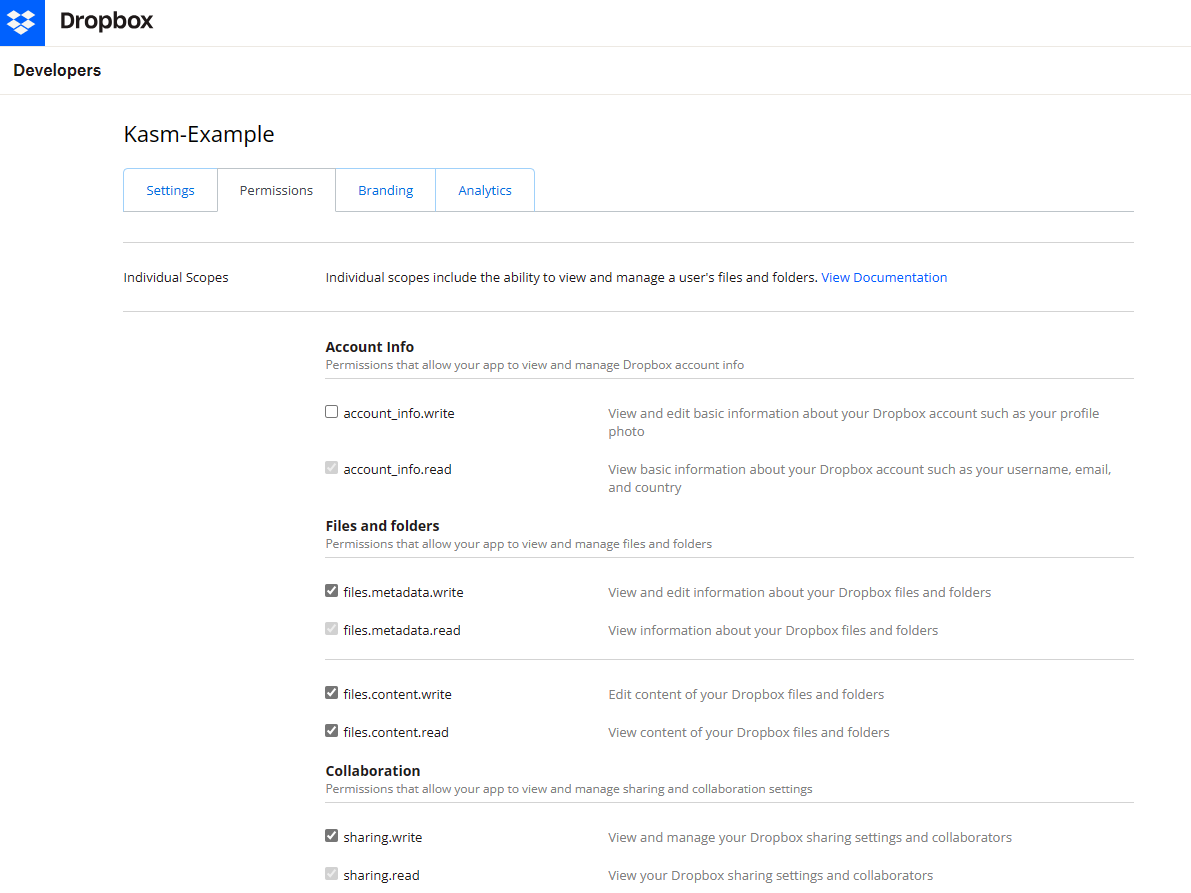
Select the Permissions tab and ensure the following permissions are selected, then click Submit.
account_info.readfiles.metadata.readfiles.metadata.writefiles.content.writefiles.content.readsharing.readsharing.write
Kasm Storage Provider Config
- Log into the Kasm UI as an administrator.
- Select Settings -> Storage -> Add.
- Update the form with the following entries, using the Client ID and Client Secret gathered in the previous section.
| Name | Dropbox |
|---|---|
| Storage Provider Type | Dropbox |
| Enabled | checked |
| Client ID | <client id> |
| Client Secret | <client secret> |
| Authorization URL | https://www.dropbox.com/1/oauth2/authorize |
| Authorization URL Options | {"include_granted_scopes" : "user", "access_type" : "offline", "token_access_type" : "offline"} |
| Token URL | https://api.dropboxapi.com/1/oauth2/token |
| Redirect URL | https://<hostname>/api/cloud_storage_callback |
| Scope | .. code-block:: text files.metadata.read files.metadata.write files.content.read files.content.write sharing.read sharing.write account_info.read |
| Default Target | /dropbox |
| Volume Config | { "driver" : "rclone", "driver_opts" : { "type" : "dropbox", "uid" : "1000", "gid" : "1000", "allow_other" : "true" } } |
| Mount Config | {} |
- Click Save to save the changes.
Dropbox storage mapping configuration
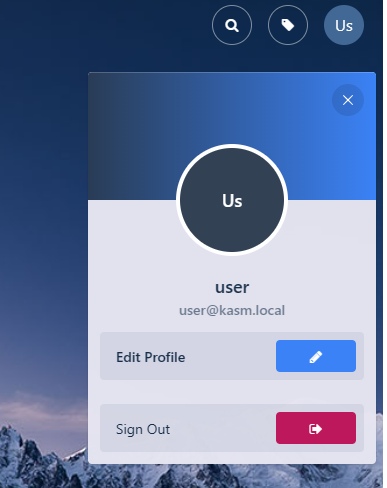
- From any page, select the profile icon at the top right.
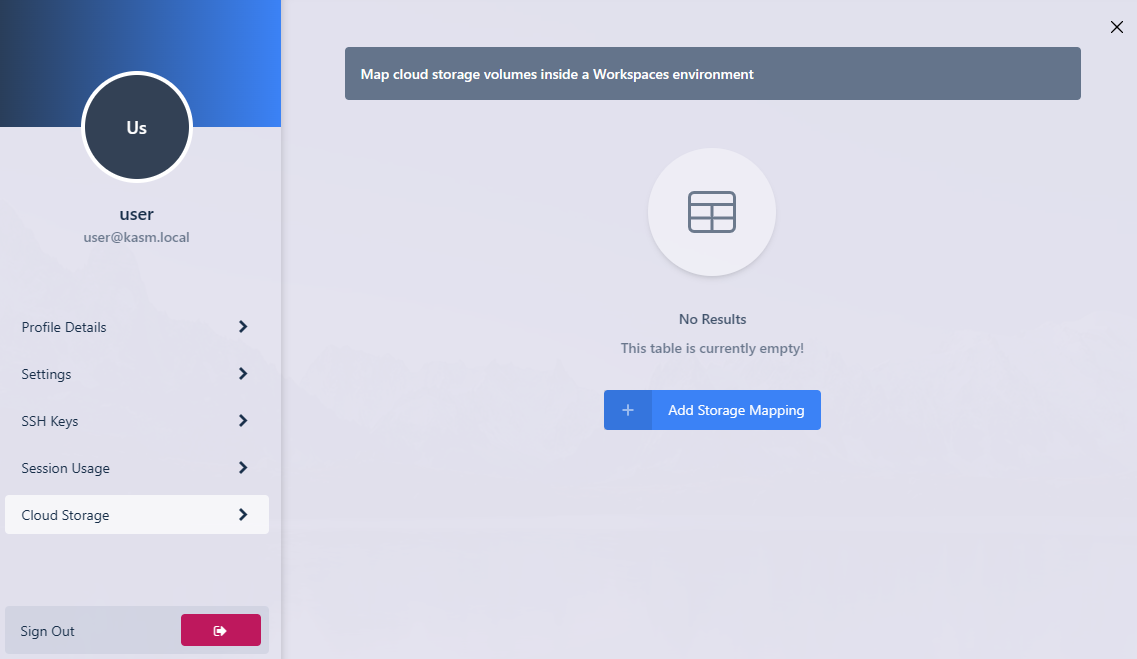
- Select the Cloud Storage section, then Add Storage Mapping.
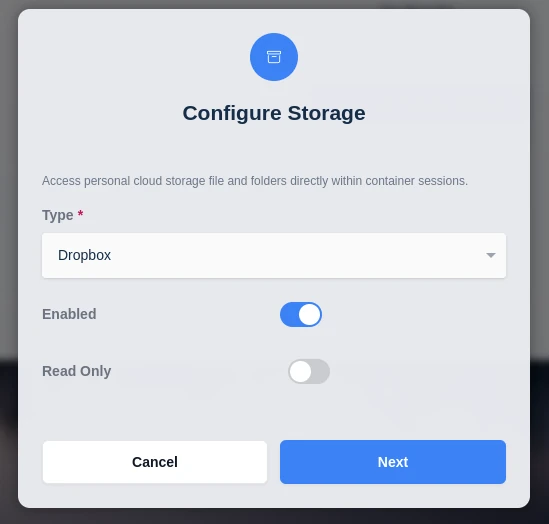
- Select Dropbox from the drop-down, then select Next.
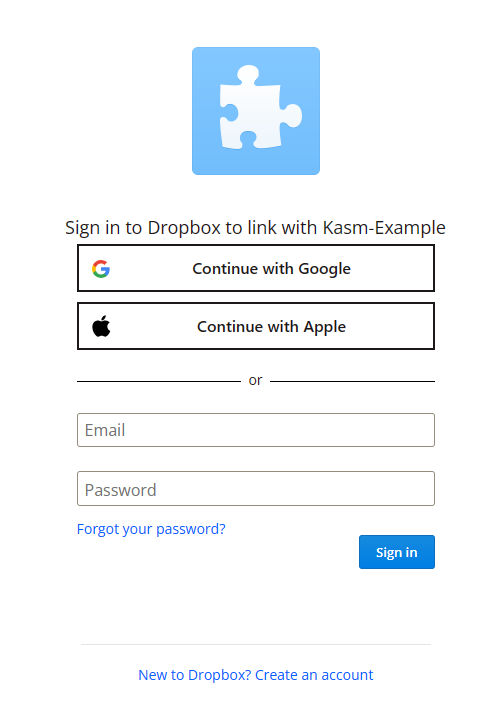
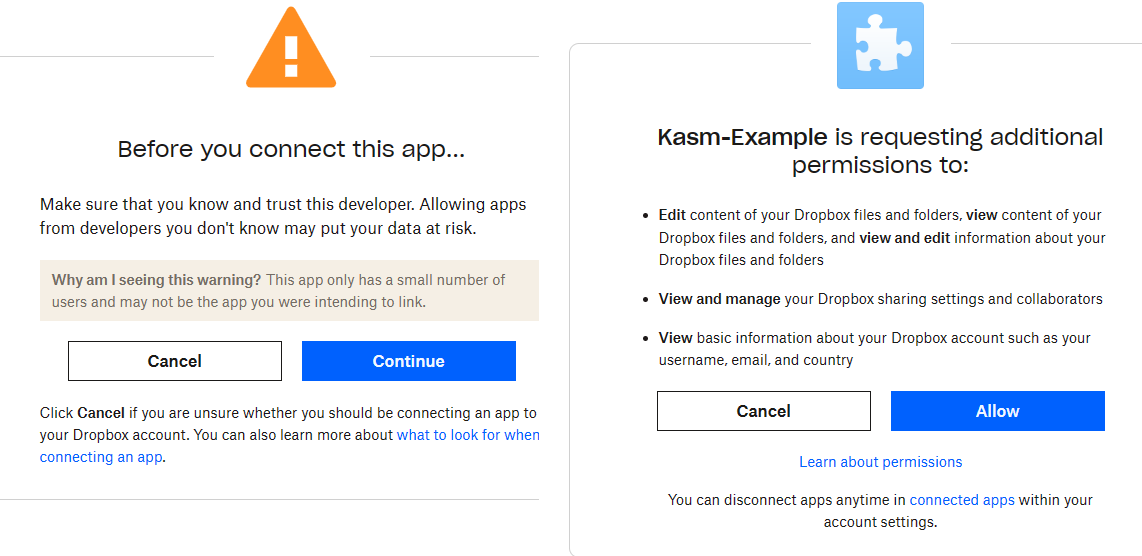
- The Dropbox login page appears. Log in with the desired account.
- Dropbox asks for consent to provide access to the account. Approve the request.
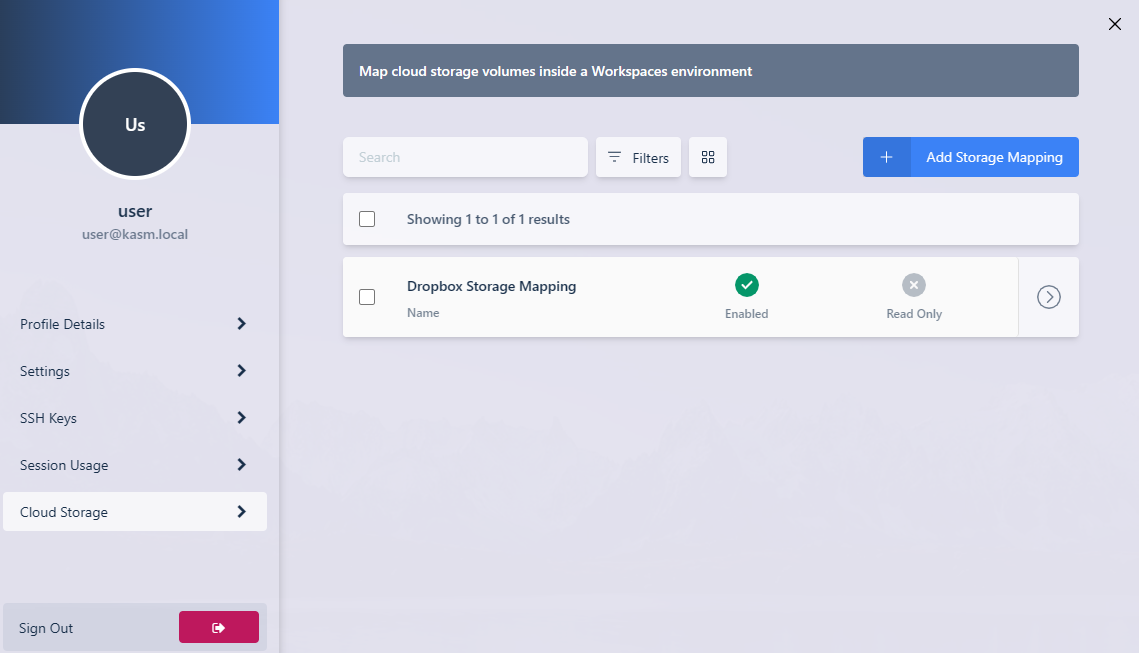
- On success, Kasm redirects you to the Workspaces dashboard. The new storage mapping appears in the Cloud Storage section of the profile.
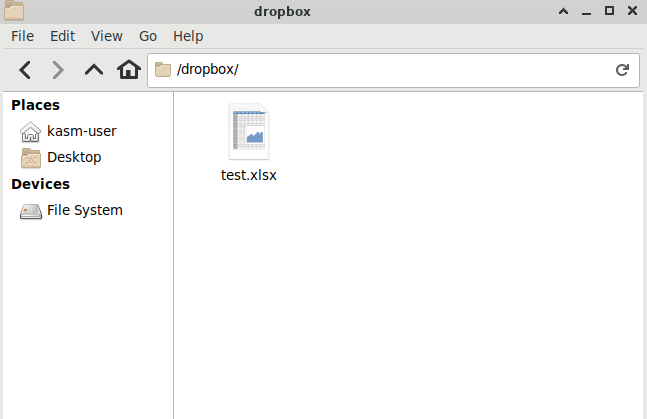
- Launch a new container-based session. Confirm that Dropbox is mapped inside the session at the
/dropboxlocation.