Gateway-based Egress Overview
Gateway-based providers route workspace traffic through selectable egress gateways.
Supported providers in this model:
The following is an example of the new Egress Selection menu presented when a User launches a Workspace:
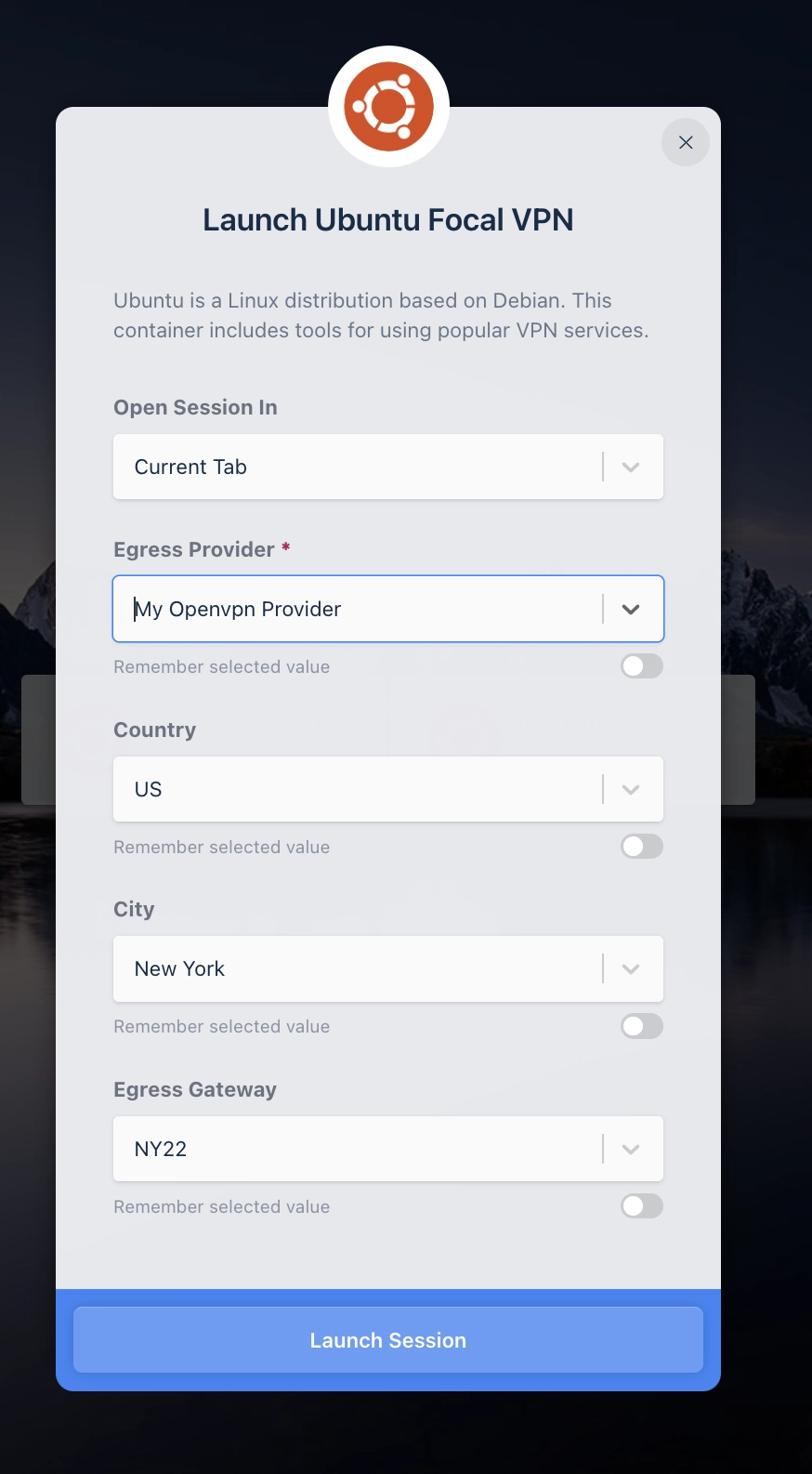
Gateway Selection Behavior
Egress Providers and Egress Credentials can be applied to users, groups, and workspaces.
When users launch a workspace, they are presented with available gateways.
Gateways are shown only when:
- The gateway is enabled.
- A credential exists for the same provider mapped to the selected workspace, user, or one of the user's groups.
A credential can be paired with a gateway even if they are mapped to different resources. For instance the User "user@kasm.local" can use a Gateway attached to "All Users" group with a credential attached to "user@kasm.local".
The first matching, enabled credential in a list credentials sorted by their egress_credential_id will be automatically selected to be used when a user specifies an Egress Gateway when launching a Workspace. Manually specifying an Egress Credential on Workspace launch is not currently supported.
If a Credential has Limit Active Connections enabled and the number of concurrent connections using that credential has reached the limit it will not be available to be used on a new Egress credential until a Kasm Session using the credential have ended.
Configuration Workflow
In this example we will be configuring an OpenVPN provider, but Wireguard is also supported.
Create Provider and Gateways
- Log into the Kasm Web UI as an administrator
- Click Infrastructure -> Egress
- Click Add
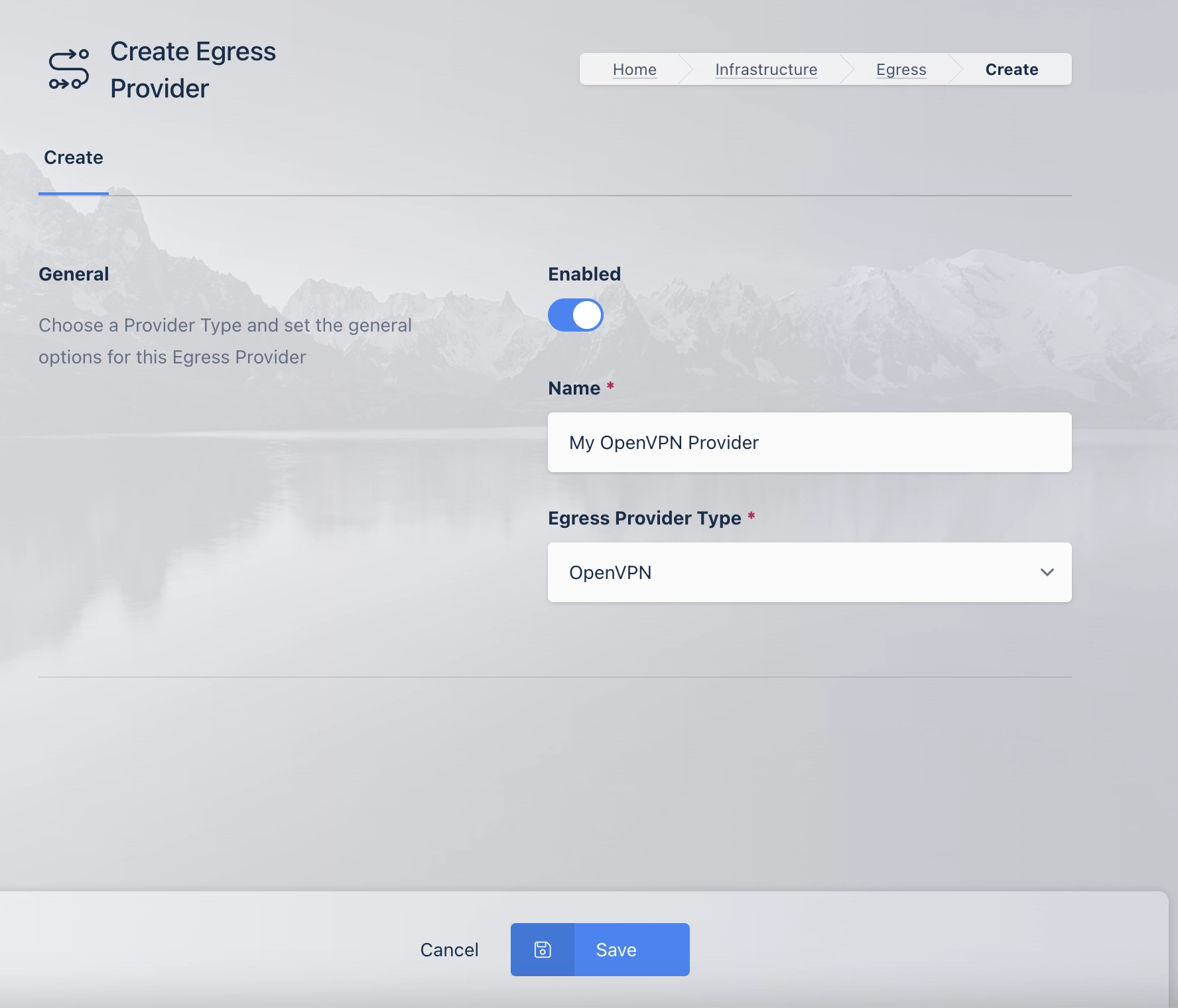
| Name | Description |
|---|---|
| Enabled | Enable or disable this configuration |
| Name | The Unique Name for the Egress Provider |
| Egress Provider Type | The type of Egress Provider Configuration |
| Enable New Managed Gateways | (Managed Egress Provider Only) When enabled any new Egress Gateways sent by the Egress Plugin Service will be automatically enabled. |
- Fill out the form and click Save
- A list of all Egress Providers is shown.
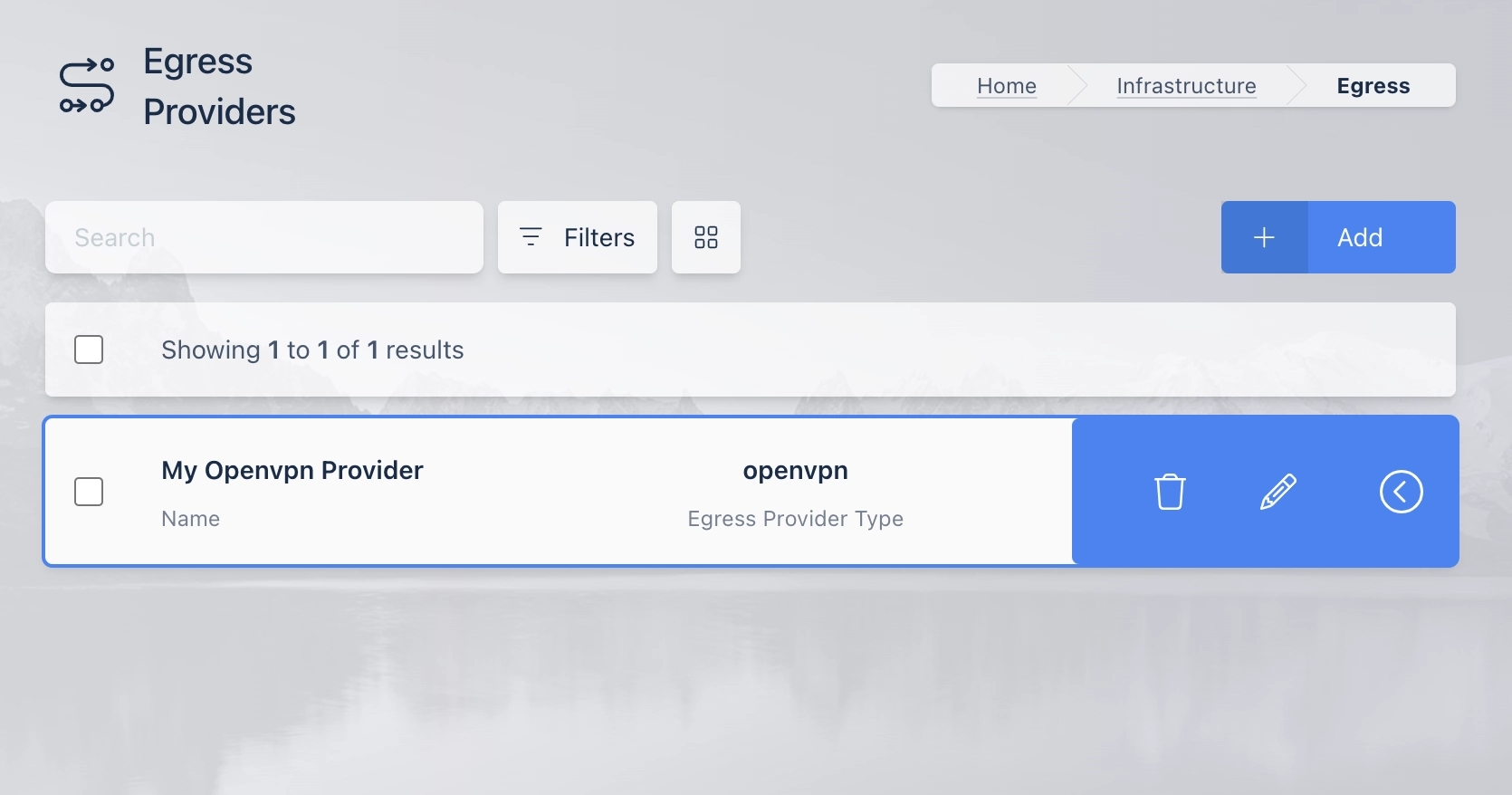
- Click the arrow menu on the OpenVPN Provider and Select Edit
- Select the Egress Gateway tab and click Add
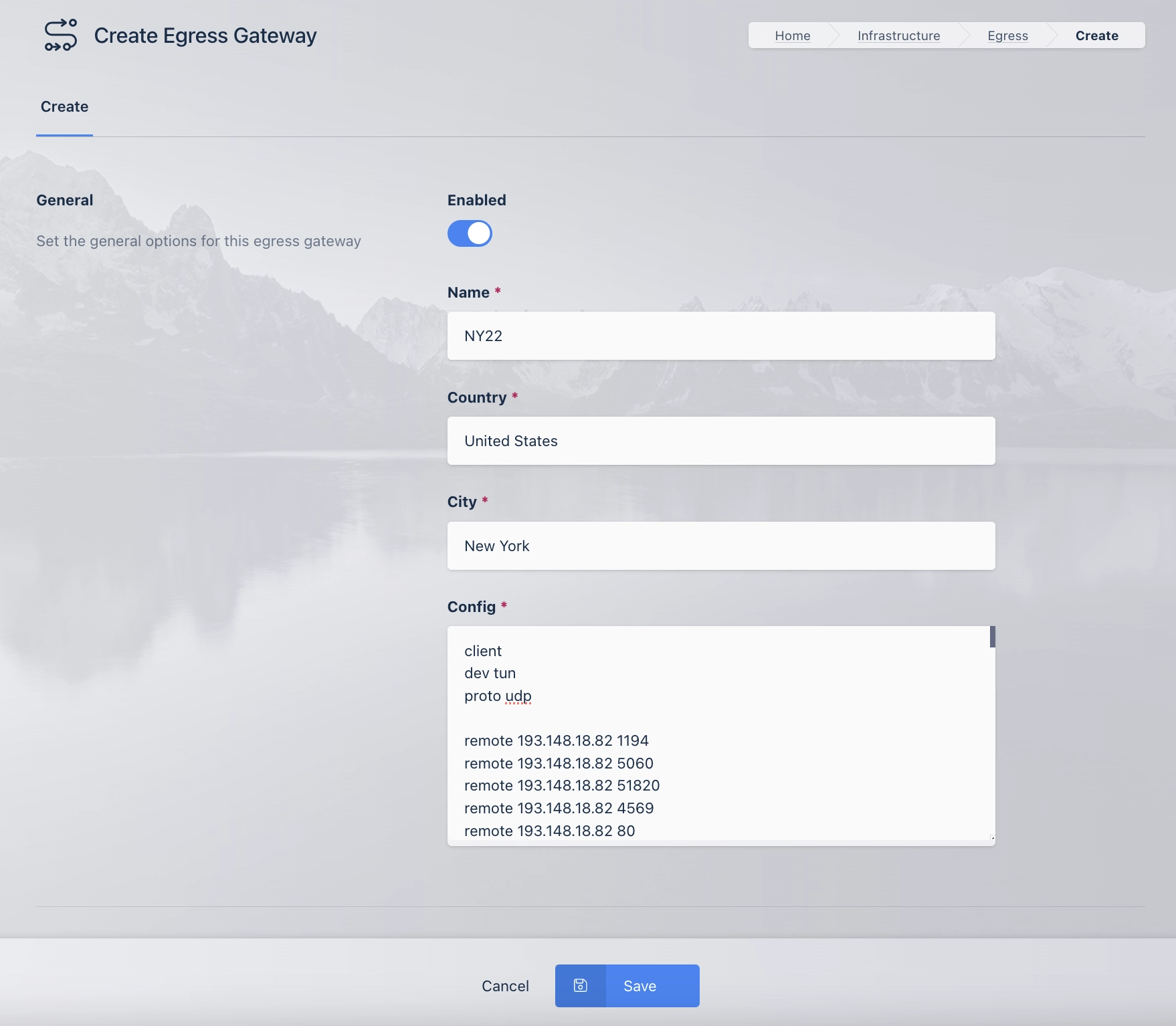
| Name | Description |
|---|---|
| Enabled | Enable or Disable this configuration. |
| Name | The Unique Name for the Egress Gateway |
| Country | The Country for the Egress Gateway |
| City | The City for the Egress Gateway |
| Config | The Egress Gateway Config (OpenVPN, Wireguard or Custom) |
For Wireguard Configurations the PrivateKey value in Config is set by the Egress Credential.
Assigning Provider and Credentials
Provider Assignments and Credential creation can be done on Users, Groups and Workspaces. In this example we will be performing an Assignment on the User user@kasm.local.
- Log in to the Kasm Web UI as Administrator
- Click Access Management -> Users
- Click the arrow menu on user@kasm.local and select Edit.
- Click on the Egress tab and select Add
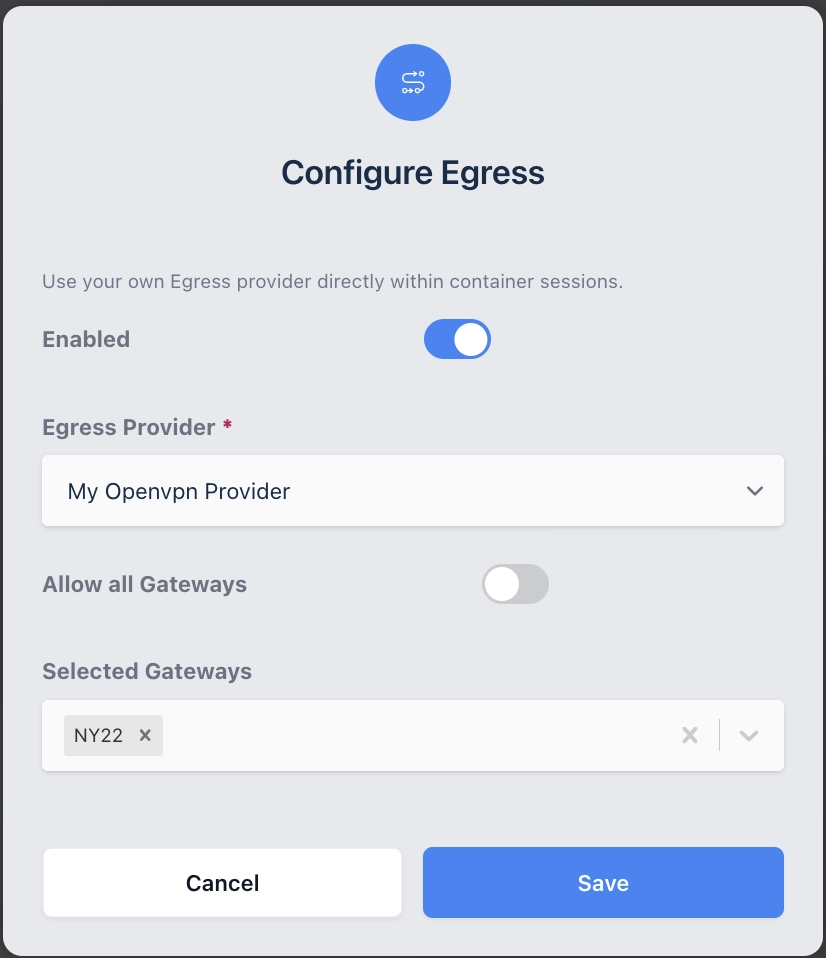
| Name | Description |
|---|---|
| Enabled | Enable or Disable this configuration. |
| Egress Provider | The name of the Egress Provider to Map. |
| Allow All Gateways | When Enabled, all Egress Gateways in the selected Provider will be mapped. Disabling requires that the Admin specify which gateways to map in the Selected Gateways field. |
| Selected Gateways | When Allow All Gateways is enabled this setting sets the gateways that apply to this mapping. |
- Fill out the form and click Save
- Click on the Egress Credential tab.
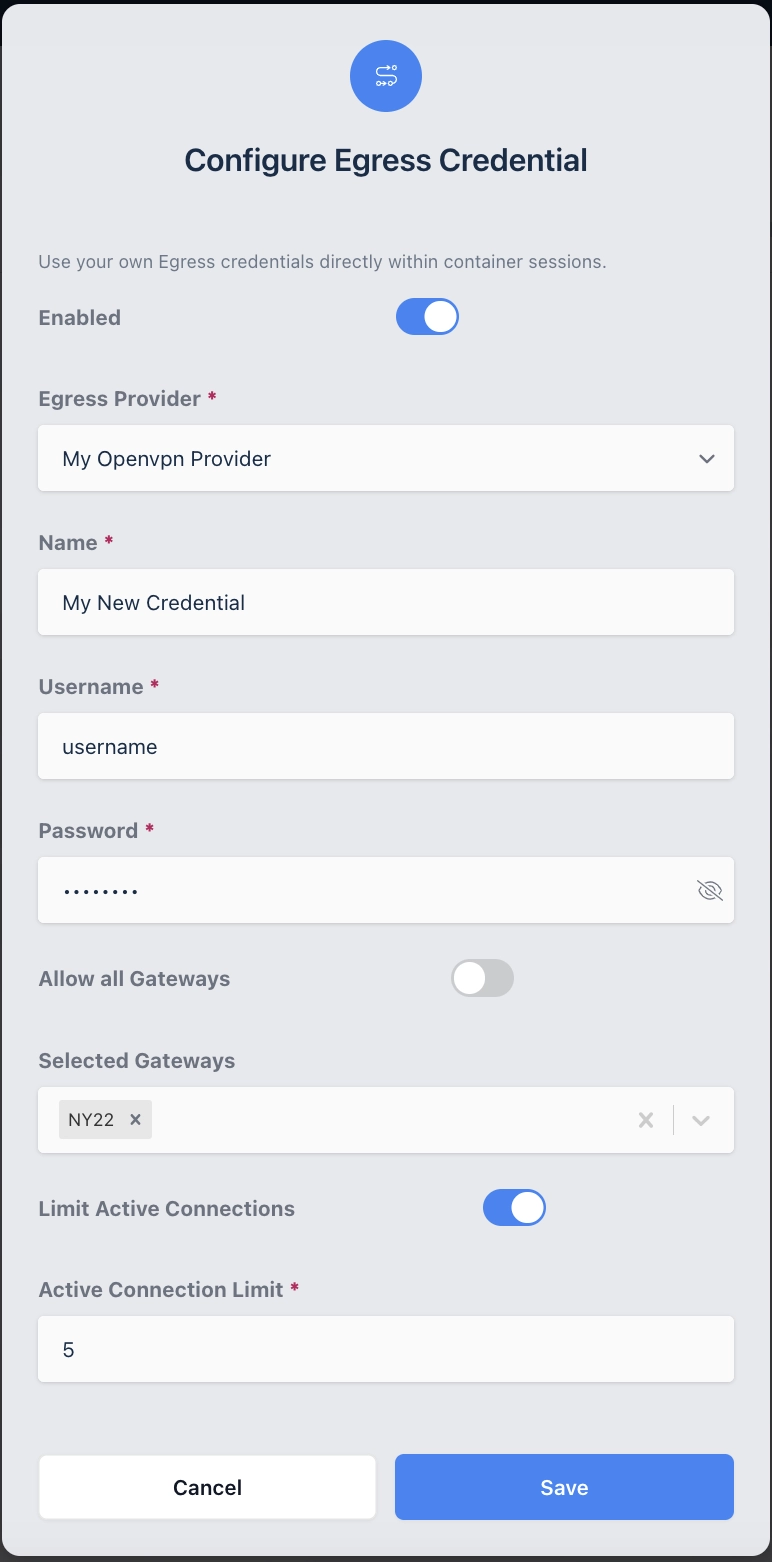
| Name | Description |
|---|---|
| Enabled | Enable or Disable this configuration. |
| Egress Provider | The name of the Egress Provider for this Credential. |
| Name | The name of this Egress Credential. |
| Username | The Username for the Egress Credential (OpenVPN Provider) |
| Password | The Password for the Egress Credential (OpenVPN Provider) |
| Private Key | The Wireguard Private Key for the Egress Credential (Wireguard Provider) |
| Custom Credential | The Custom Credential for the Egress Credential (Custom Provider) |
| Allow All Gateways | When Enabled, the Credential will apply to all Egress Gateways in the selected Provider. Disabling requires that the Admin specify which gateways to map in the Selected Gateways setting. |
| Selected Gateways | When Allow All Gateways is enabled, this sets the gateways that this Credential can be used with. |
| Limit Active Connections | When Enabled, the number of concurrent connections that this Egress Credential can be used in is limited to the setting in Active Connection Limit. |
| Active Connection Limit | When Limit Active Connections is enabled, this value sets the maximum number concurrent connections the credential can be used in. |
Now that the Egress Provider and Credential are assigned to this user, they may select the Egress Gateway when launching a Container Workspace.