Group Settings
Group settings may be changed for the specific group by selecting the groups tab, clicking the edit icon on the desired group and the Add Settings button in the Group Settings card. There are delete setting and edit setting icons to the right of the Setting. If a user belongs to mulitple groups, the setting on the group with the lowest priority takes effect. For settings like volume_mapping, all settings are combined from all groups a user is a member of.
Here is a video that has an overview Groups and Group settings.
To configure group settings:
- Log into the UI as an administrator.
- Select Groups
- Next to the desired group select View from the actions menu.
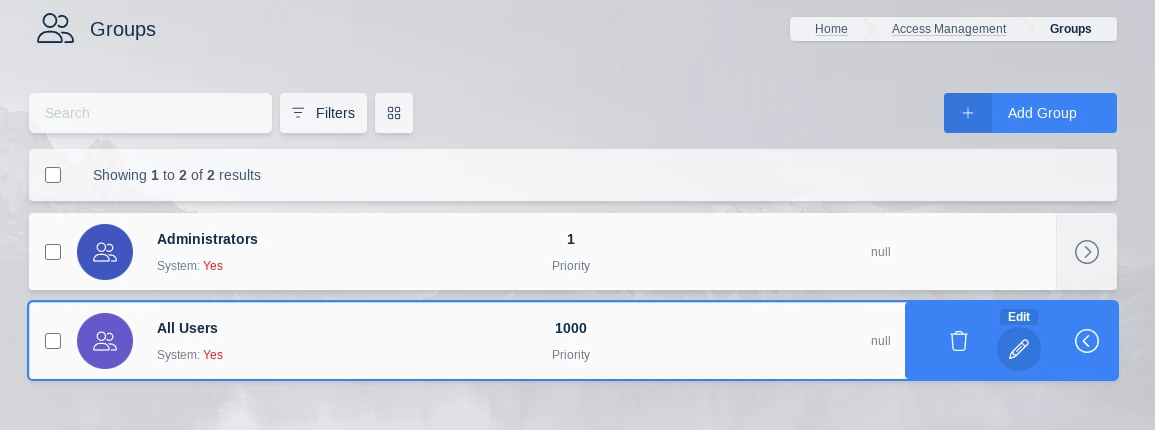
- Scroll down to the Group Settings panel. Update settings as desired.
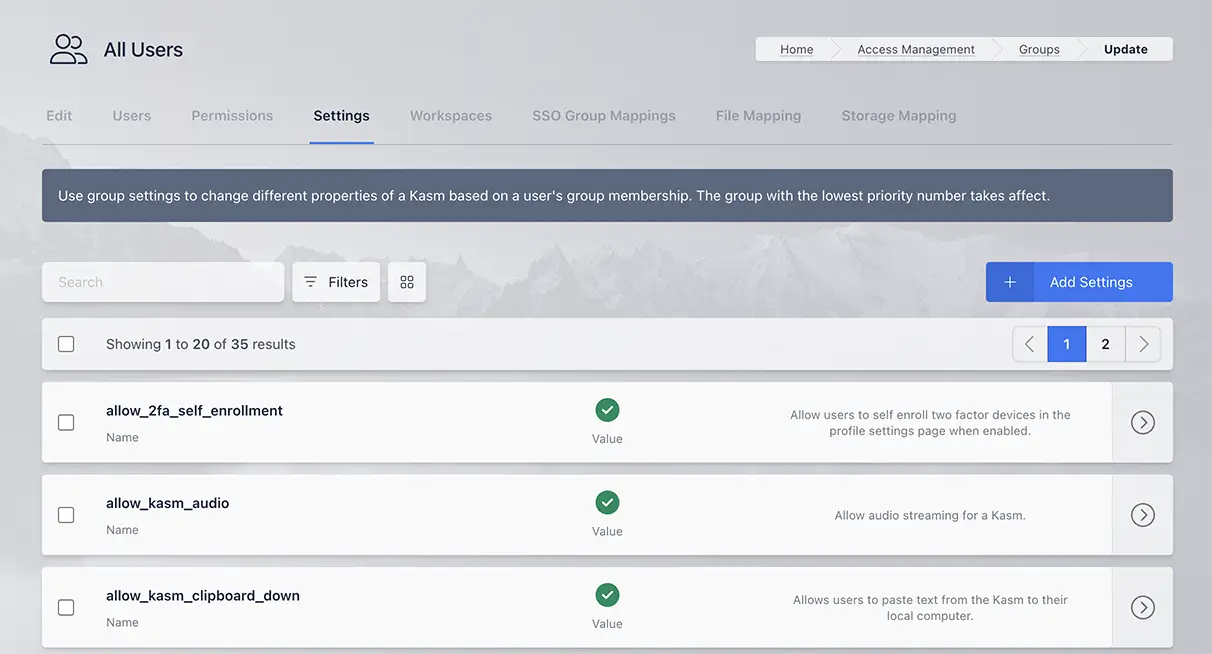
| Variable Name | Description |
|---|---|
| allow_2fa_self_enrollment | Allow users to self enroll two factor devices in the profile settings page when enabled. |
| allow_kasm_audio | Allow audio streaming for a Kasm. |
| allow_kasm_clipboard_down | Allows users to paste text from the Kasm to their local computer. |
| allow_kasm_clipboard_seamless | Allows users to copy and paste text without using Kasm control panel. This feature is only available on Chrome and Chromium-based client browsers |
| allow_kasm_clipboard_up | Allow users to paste from their local computer to the Kasm. |
| allow_kasm_delete | If enabled, users are allowed to delete their running sessions. |
| allow_kasm_downloads | Allow users to download files from a Kasm. On RDP local client workspaces this has no effect see allow_kasm_rdp_client_file_transfer_clipboard. |
| allow_kasm_gamepad | Allow users to pass local gamepads into the Kasm session. See Gamepad Passthrough for more details. |
| allow_kasm_microphone | Allow microphone passthrough to a Kasm. When enabled, users can pass their local microphone through to the Kasm session. On RDP local client workspaces this only works with desktop editions of Windows. |
| allow_kasm_rdp_client_file_transfer_clipboard | This setting only applies to RDP client Kasm sessions. In RDP file transfers are part of the clipboard and independent directional control of file transfers is not possible. This setting will enable file transfer in the directions that text clipboard has been enabled via allow_kasm_clipboard_down and allow_kasm_clipboard_up. |
| allow_kasm_rdp_map_local_drives | Allow sessions using the RDP Gateway to map client local drives into the RDP target. This setting is an all or nothing setting. When enabled it will map all client drives into the rdp session. |
| allow_kasm_smart_card_passthrough | Allow sessions to pass smart cards through for authentication and signing. Supports RDP sessions via RDP Gateway or web native client, and container workspaces with the Kasm Native Smartcard Client. See Smart Card Passthrough for details. |
| allow_kasm_rdp_webauthn_passthrough | Allow sessions using the RDP Gateway to pass webauthn requests from the RDP target to the client. This only works for Windows clients running the builtin mstsc.exe RDP client. |
| allow_kasm_webcam | Allow webcam passthrough to a Kasm. When enabled, users can pass their local webcam through to the Kasm session. On RDP local client workspaces this only works with desktop editions of Windows. |
| allow_kasm_printing | Allow printing of documents using local printers |
| allow_kasm_pause | If enabled, users are allowed to pause their running sessions. |
| allow_kasm_sharing | Allow the user to share access to their session with other users. See Session Sharing for more details. |
| allow_kasm_stop | If enabled, users are allowed to stop their running sessions. |
| allow_kasm_uploads | Allow users to upload files to a Kasm. On RDP local client workspaces this has no effect see allow_kasm_rdp_client_file_transfer_clipboard. |
| allow_persistent_profile | Allow the use of persistent profiles if configured on the Workspace. See Persistent Profiles for details |
| allow_point_of_presence | Allow the user to use point of presence features for certain Workspaces. |
| allow_totp_2fa | Allow for TOTP tokens (e.g.: Google Authenticator) to be used as a two factor authentication method for the group. |
| allow_user_storage_mapping | When enabled the user is allowed to configure their own Storage Mappings via their profile. When disabled, new user configurations will not be allowed, nor will using any previously configured mappings be allowed when new sessions are created. |
| allow_webauthn_2fa | Allow for WebAuthn devices (e.g. YubiKeys) to be used as a two factor authentication method for the group. |
| allow_zone_selection | Allow the user to specify the deployment zone when creating a session. A dropdown will appear on the user dashboard with the available Zones. Auto represents the default behavior which is to provision in current Zone. If a Zone is specified, the request will not search alternate zones if no resources are available in the requested Zone. |
| auto_add_local_user | When enabled, local users will automatically be added to this group when created and upon each authentication. |
| auto_login_to_kasm | Sends users directly to kasm using default workspace after login |
| control_panel. advanced_settings. show_game_mode | Whether the game mode option is present in the advanced menu on the Kasm Session control panel. |
| control_panel. advanced_settings. show_ime_input_mode | Whether the ime input mode option is present in the advanced menu on the Kasm Session control panel. |
| control_panel. advanced_settings. show_keyboard_controls | Whether the keyboard controls option is present in the advanced menu on the Kasm Session control panel. |
| control_panel. advanced_settings. show_pointer_lock | Whether the pointer lock option is present in the advanced menu on the Kasm Session control panel. |
| control_panel. advanced_settings. show_prefer_local_cursor | Whether the prefer local cursor option is present in the advanced menu on the Kasm Session control panel. |
| control_panel.show_fullscreen | Whether the fullscreen option is present on the Kasm Session control panel. |
| control_panel. show_delete_session | Whether the delete session option is present on the Kasm Session control panel. |
| control_panel. show_display_manager | Whether the display manager is present on the Kasm Session control panel. The display manager allows the user to add and remove additional displays. |
| control_panel.show_logout | Whether the logout option is present on the Kasm Session control panel. |
| control_panel. show_return_to_workspaces | Whether the return to workspaces option is present on the Kasm Session control panel. |
| control_panel. show_streaming_quality | Whether the show streaming quality workspaces option is present on the Kasm Session control panel. |
| control_panel.pwa_install_option | Whether the user must be presented with the option to install per-workspace PWAs. |
| dashboard_redirect | If configured, standard users will be redirected to the defined external website instead of being shown the main dashboard screen. |
| default_image | The default Workspace used when the /go url is called. This is also used for the auto_login_to_kasm setting. The system will create a Workspace if one does not exist. If the user already has a Workspace, the session is resumed |
| default_ui_language | The default UI language to set for the group. This is applied at next user login and is also overridden if the user sets the language in their profile. |
| display_ui_errors | If enabled, detailed information will be displayed on the client browser in the event of an error. |
| enable_container_logging | If enabled, each workspace container will log to the database. |
| enable_ui_server_logging | If enabled, log messages will be sent from client browser to the Kasm Workspaces server. |
| expose_user_environment_vars | Expose KASM_USER and KASM_USER_ID environment variables inside the Kasm. |
| idle_disconnect | Disconnect the Kasm connection if idle for this long. Time specified in minutes. |
| inject_ssh_keys | When enabled the system will inject the user's SSH public and private keys into new sessions automatically. Users can update their keys via the Profile. |
| kasm_audio_default_on | Default to audio enabled on Kasm start |
| kasm_ime_mode_default_on | Default to IME enabled on Kasm start |
| keepalive_expiration | The number of seconds a Kasm will stay alive unless a keeplive request is sent from the client. |
| keepalive_expiration_action | The action the system should take when a session expires according to the keepalive_expiration. Valid options are delete, stop, and pause. stop and pause actions are only valid for container based Workspaces. All other Workspaces will utilize delete regardless of what is defined. |
| keepalive_interval | The number of seconds in between keepalive requests from the client when the user is actively in a session. |
| lock_sharing_video_mode | Locks video quality to static resolution of 720p when sharing is enabled. Recommended for best performance. |
| max_kasms_per_user | The maximum number of simultaneous sessions a users is allowed to provision. |
| max_user_storage_mappings | The maximum number of Storage Mappings a user is allowed to have registered to their account. |
| read_only_user_storage_mappings | When enabled, any storage mappings configured on the user account will be forced to read-only. |
| require_2fa | Enables two factor authentication for group. Users will be prompted to set Key on next log on. |
| run_config | Specify arbitrary docker run params. The settings for run_config on a group will override the run_config settings on an image. See Docker Run Config for more details |
| session_time_limit | The amount of time (in seconds) a session will automatically expire. A countdown timer will be displayed to the user. |
| staged_session_language_and _timezone_preference_override | When launching a workspace Kasm will by default try to match the user language and timezone to a staged session. If a staged session does not exist that has the matching language and timezone then Kasm will create a new session with the specified language and timezone. If the override is set to true then Kasm will use a staged session for the selected workspace even if the language and timezone do not match. This overrides the user setting in the user profile. |
| usage_limit | Limits the total number of hours a user or group can have running sessions. See the usage_limit_ documentation below for more details. Type - Per User - Each user of the group has their own limit. - Per Group - All members share the usage limit. Interval - Daily , Weekly , Monthly , Total. Hours - The number of hours allowed during each interval. |
| volume_mapping | Map a local server directory to Kasm. Details available in the Volume Mapping Guide |
| web_filter_policy | Enabled web filtering and sets the Web Filter Policy to be used. Policies can also be set or force disabled on Workspaces. Policies assigned to Workspaces take priority over those defined via Group Settings. |
The allow_kasm_clipboard_up setting (Control Panel clipboard) is subject to browser-side limitations. Very large clipboard payloads (typically above ~ 15 MiB) may overwhelm the browser WebSocket send buffer and delay client heartbeats, resulting in a temporary session disconnect and automatic reconnection. This does not affect Seamless Clipboard behavior. For best reliability, administrators should consider enabling allow_kasm_clipboard_seamless for workflows that require pasting very large text payloads.
Session Time Limits
There are a multiple settings in the table above that control Kasm session lifetime. We will go into more detail about them and their relationship to each other below:
keepalive_expiration
This can also be described as the session timeout. This value determines how long Kasm will wait before destroying, stopping or pausing a session if no keepalive is received from the client. Keepalives are sent whenever a user is connected to a Kasm session even if the user is not actively using the Kasm Session.
This value should be at least twice the keepalive_interval. This setting is 1 hour by default in the "All Users Group". The action taken is determined by the
keepalive_expiration_action Group Setting.
keepalive_expiration_action
Administrators can decide what happens to sessions once they expire. Valid options are:
delete- The session is destroyed.pause- The session is paused, preserving the disk, process and memory state. Paused sessions will still consume resources in physical memory and/or swap. Sessions resumed from a paused state will still have the previous programs launched and active. This action is valid for container-based sessions only. All other types will utilize thedeleteaction.stop- The session is stopped, preserving the disk state. Sessions resumed from a stopped state will have the previous files intact, but previously running programs will need to be restarted. This action is valid for container-based sessions only. All other types will utilize thedeleteaction.
When sessions are stopped or paused, the CPU/RAM resources on the Agent become available for other requests to create new sessions.
This may lead to a user not being able to resume a paused/stopped session if the Agent's resources become consumed by other running sessions.
When using Cloud Autoscaling, the system will not destroy Agents that have stopped/paused sessions and will similarly allow other sessions to be provisioned on the Agent.
If this is undesirable, the admin can ensure users are not given the allow_kasm_pause and allow_kasm_stop permissions.
keepalive_interval
The keepalive_interval is how often the client will send a keepalive request to Kasm when the user is actively using a session. This setting is 300 seconds by default for the "All Users Group".
idle_disconnect
This setting is the number of minutes Kasm will wait when the user is idle before taking an action. This action will depend on the user context. If the user is in a Kasm session when the idle timeout expires the user is disconnected from the Kasm session and sent back to the dashboard. Any Kasm sessions that the user was connected to will be disconnected and those sessions will be subject to the keepalive_expiration. If the user is at the dashboard when the idle timeout expires the user is logged out of Kasm. This setting is set to 20 minutes by default in the "All Users Group". This setting must be higher than the keepalive_interval setting to function properly.
usage_limit
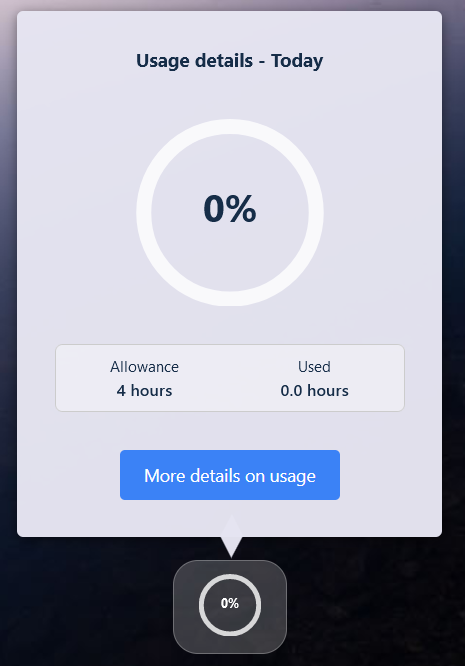
The usage_limit setting is a highly flexible option allowing the administrator to configure a maximum usage number of hours either for each user in the group or for the entire group collectively to use over a set time period. This setting is a decimal value. When using the usage_limit setting all time that a Kasm session is running is counted against the total, this includes when the user is not actively connected to the session but the session is still running. This setting is for use cases where user workspace access should be metered. This setting is not enabled by default.
Accounting for paused/stopped sessions are left as is. Users are "charged" for the full duration of the session, even if the session is paused or stopped.
The user can see how much time they have used/have remaining on the user dashboard:
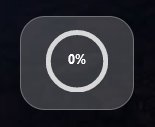
Clicking on this icon will bring up a more detailed display.
session_time_limit
The session_time_limit is a set amount of time that a workspace will be allowed to run once that workspace is created. This time limit is irrespective of whether the user is actively using the session or if the session is disconnected and running in the background. When session_time_limit is configured, the keepalive_expiration setting is not used. This setting is not enabled by default
