GPU Acceleration
This document outlines our officially supported GPU integration using the Nvidia container runtime.
Kasm Workspaces supports passing GPUs through to container sessions. GPUs can be used for development of machine learning, data science, video encoding, graphics acceleration, and a number of other reasons. All uses of GPUs will require special host configurations. This guide will walk through preparing a bare VM with the default installation of Ubuntu 24.04LTS for GPU acceleration within Kasm Workspaces.
If Kasm is a multi-server deployment, these steps need to be performed on each Agent component only. If you are installing Kasm Workspaces on a single server, these steps would only need to be performed on that single instance.
The security of multi-tenant container GPU acceleration is not well established. This feature should be used with caution and with full understanding of the potential security implications. Kasm Workspaces 1.19.0 and higher supports NVIDIA MIG, which allows you to create multiple instances of a single GPU. This is the only secure way to share a GPU between multiple users.
Video Tutorial
Installation steps
Note: NVIDIA recommends installing the driver by using the package manager for your distribution and Kasm also recommend the same.
- Install Kasm Workspaces (if not already installed)
- NVIDIA CUDA-capable graphics card. For Kasm AI workspaces the minimum required CUDA version is currently
560.28.03). Please check that your NVIDIA card supports at least this version on the NVIDIA website before continuing. - NVIDIA drivers
- NVIDIA Container Toolkit.
Warning: Installing NVIDIA drivers via multiple installation methods can result in your system not booting correctly.
Ubuntu 24.04 LTS
For Ubuntu 24.04 systems we provide the following script that will add the Ubuntu graphics-drivers PPA repository, install the latest NVIDIA driver through the ubuntu-drivers tool and install the NVIDIA Container Toolkit. The driver installation will require a system reboot and the NVIDIA Container Toolkit will require Docker to be restarted.
#!/bin/bash

# Check for NVIDIA cards
if ! lspci | grep -i nvidia > /dev/null; then
    echo "No NVIDIA GPU detected"
    exit 0
fi

add-apt-repository -y ppa:graphics-drivers/ppa

curl -fsSL https://nvidia.github.io/libnvidia-container/gpgkey | sudo gpg --dearmor -o /usr/share/keyrings/nvidia-container-toolkit-keyring.gpg \
  && curl -s -L https://nvidia.github.io/libnvidia-container/stable/deb/nvidia-container-toolkit.list | \
    sed 's#deb https://#deb [signed-by=/usr/share/keyrings/nvidia-container-toolkit-keyring.gpg] https://#g' | \
    sudo tee /etc/apt/sources.list.d/nvidia-container-toolkit.list

apt update
apt install -y ubuntu-drivers-common

# Run ubuntu-drivers and capture the output
DRIVER_OUTPUT=$(ubuntu-drivers list 2>/dev/null)
# Extract server driver versions using grep and regex
# Pattern looks for nvidia-driver-XXX-server
SERVER_VERSIONS=$(echo "$DRIVER_OUTPUT" | grep -o 'nvidia-driver-[0-9]\+-server' | grep -o '[0-9]\+' | sort -n)
# Check if any server versions were found
if [ -z "$SERVER_VERSIONS" ]; then
    echo "Error: No NVIDIA server driver versions found." >&2
    exit 1
fi
# Find the highest version number
LATEST_VERSION=$(echo "$SERVER_VERSIONS" | tail -n 1)
# Validate that the version is numeric
if ! [[ "$LATEST_VERSION" =~ ^[0-9]+$ ]]; then
    echo "Error: Invalid version number: $LATEST_VERSION" >&2
    exit 2
fi
# Output only the version number
echo "Latest version is: $LATEST_VERSION"
ubuntu-drivers install "nvidia:$LATEST_VERSION-server"
apt install -y "nvidia-utils-$LATEST_VERSION-server"
# Install NVIDIA toolkit + configure for docker
apt-get install -y nvidia-container-toolkit
nvidia-ctk runtime configure --runtime=docker
Reboot your system once the drivers are installed, or if you already had the drivers then restart Docker (sudo systemctl restart docker).
Confirm Kasm GPUs
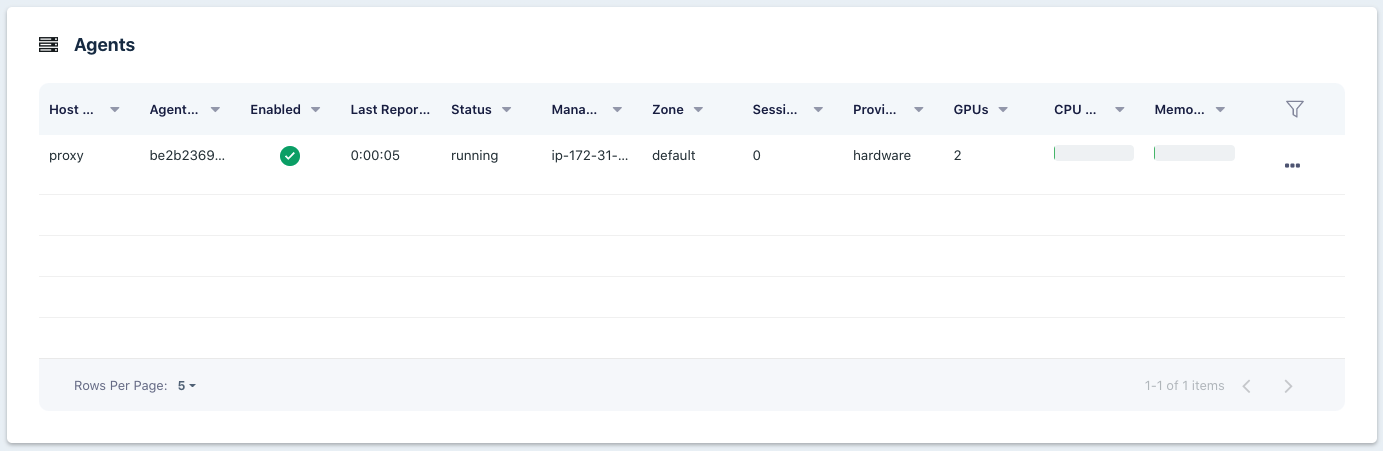
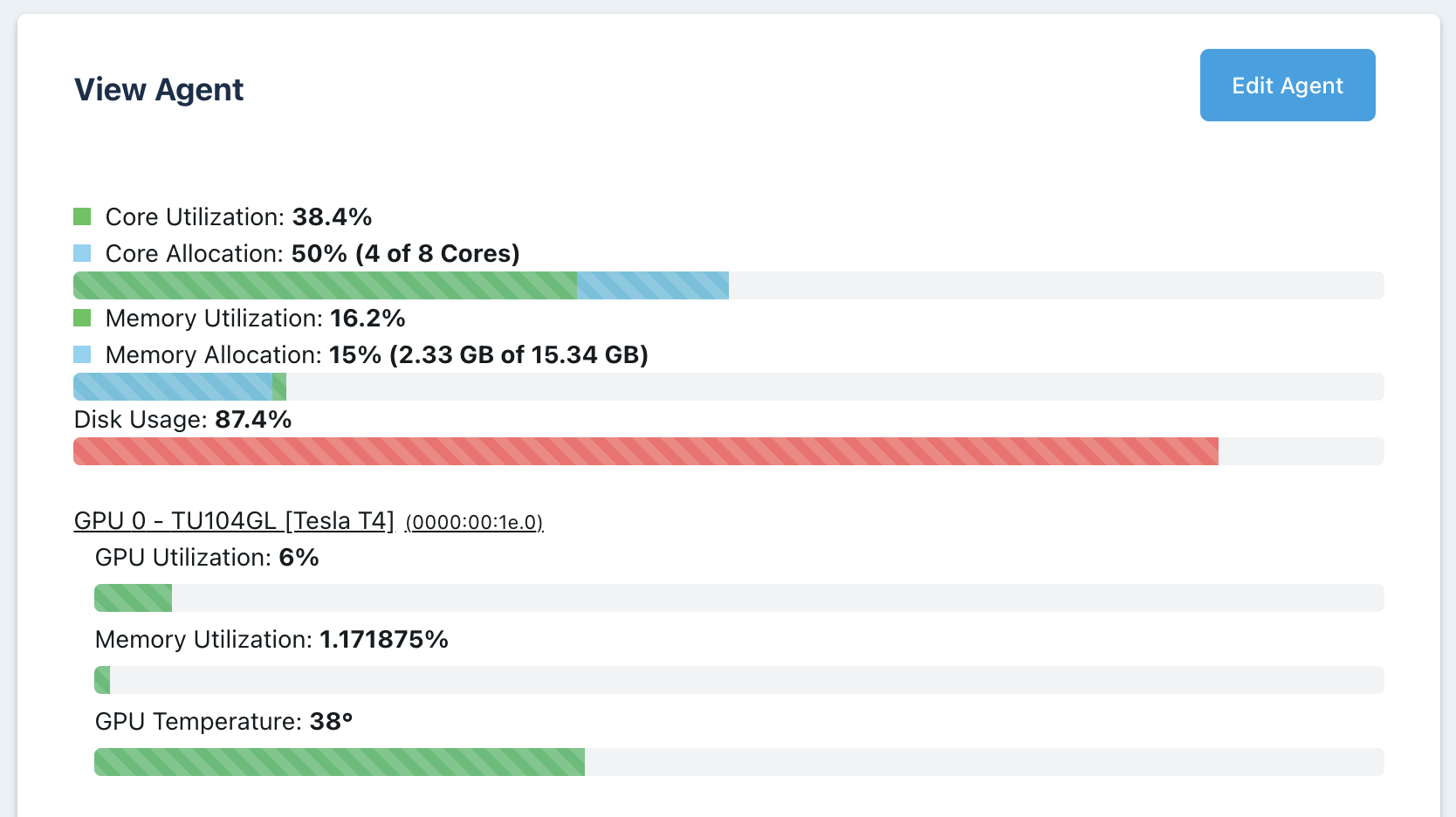
After installing Workspaces, the GPU driver, and GPU container toolkit; confirm Kasm is picking up the GPUs. Log into Kasm as an administrator, navigate to the Agents view under the Admin section. Here you will see a list of agents in the cluster, since this is a single server installation, there will only be one agent listed. Confirm that the agent shows 1 or more GPUs. If the agent lists 0 GPUs, see the troubleshooting section.
Verification steps
- Run
nvidia-smion the Agent host to confirm the CUDA driver version (shown in the top-right of the output) is correctly installed. - Launch a CUDA-enabled Kasm Workspace, for example, the Kasm PyTorch image. Open a Terminal and execute the following commands:
cd torch
python
import torch
torch.cuda.is_available()
torch.cuda.device_count()
torch.cuda.get_device_name(0)
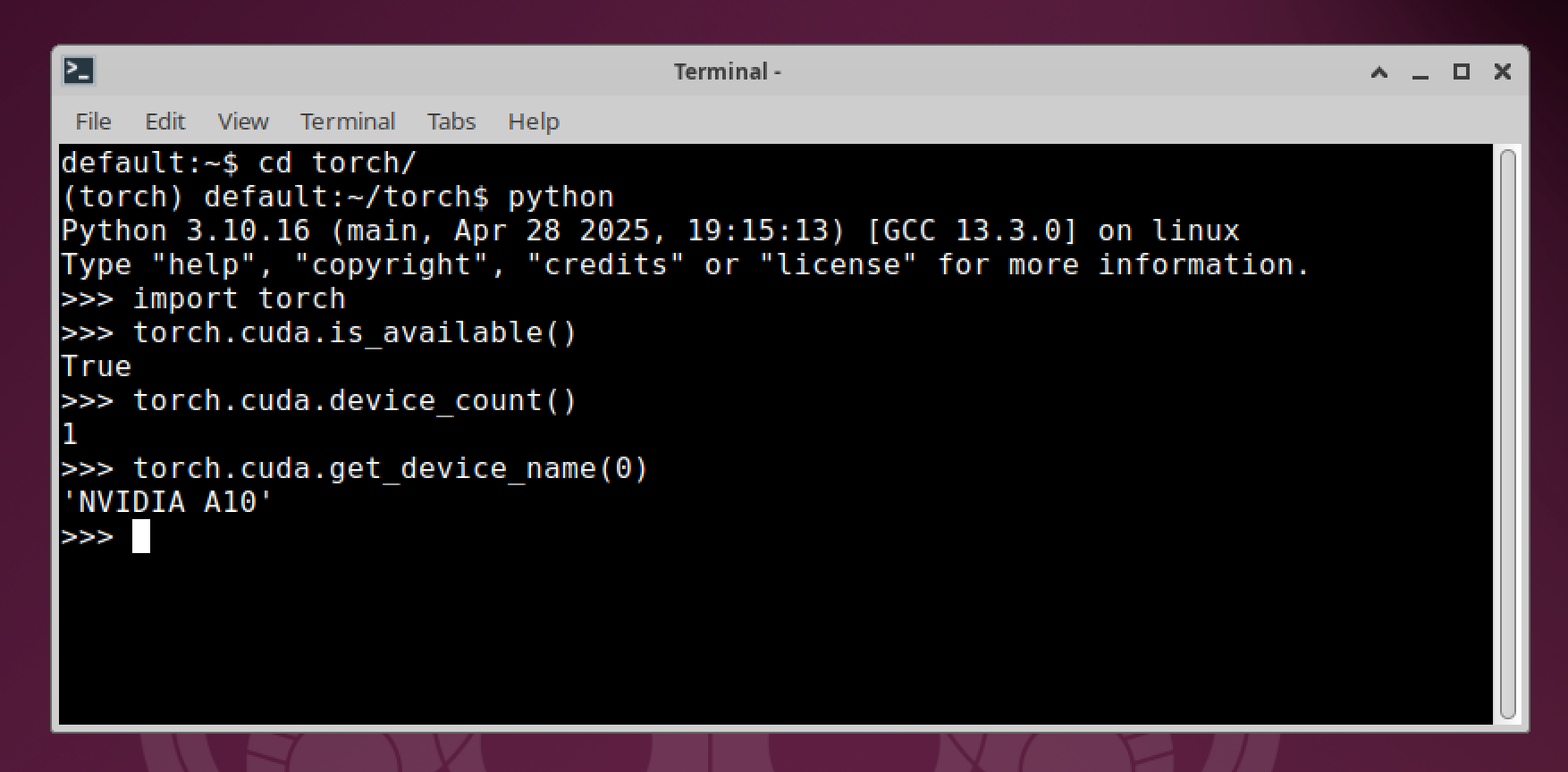
This should confirm that your GPU is successfully configured with CUDA support and that CUDA is available inside a Kasm Workspaces session.
Managing GPU Resources
GPUs are treated similar to CPU cores within Kasm Workspaces. Each agent reports the number of CPUs, RAM, and GPUs available to share between containers. By default, a Workspace set to 1 require 1 GPU will mean that an agent with 1 GPU will only be able to support a single session of that workspace. Kasm can allow a single GPU to be shared between multiple containers, this is known as overriding, see the CPU / Memory / GPU Override for more details. Overriding the agent to have 4 GPUs would allow up to 4 containers with the GPU passed through, if each were assigned a single GPU. In the context of graphics acceleration, only a single GPU can be passed through. Only non-graphics applications support multiple GPUs per container to be used.
Assigning GPUs to Workspace images
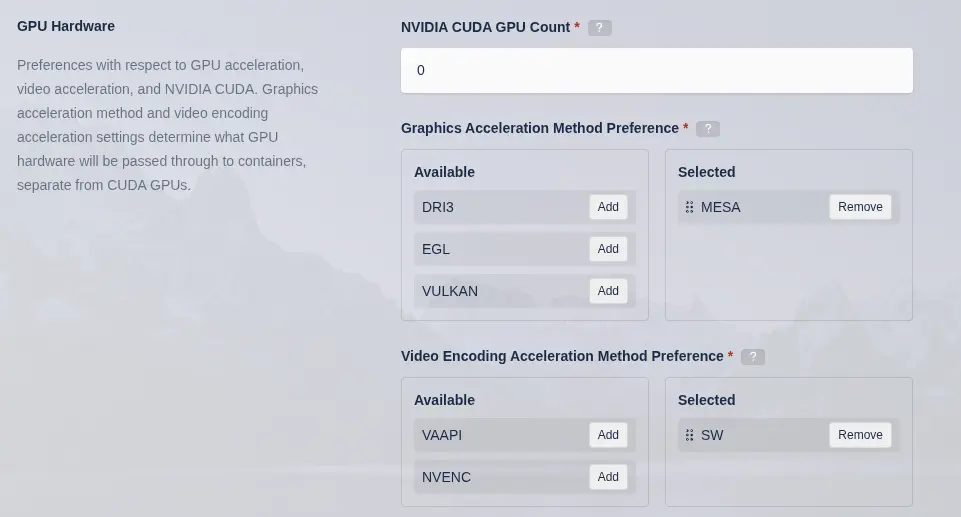
In order for sessions to utilize a GPU, the Workspace must be set to require a GPU. Login as administrator, navigate to Workspaces, in the Workspace list find the target Workspace. Expand the menu by clicking the arrow icon next to the Workspace you want to have a GPU and click Edit. Change the NVIDIA CUDA GPU count to the desired number.
GPU Graphics and Video Acceleration
Kasm Workspace Images must be on version 1.19.0 or higher to support automatic configuration of graphics and video acceleration covered below.
Graphics and video acceleration are separate from passing through GPUs for compute (CUDA). If you select a graphics method
supported by the NVIDIA GPU that was passed through for CUDA, the same device will be passed through for graphics. KasmVNC natively supports DRI3
and does not require the use of a translation layer, however, DRI3 is not supported by NVIDIA. Most NVIDIA GPUs support both EGL, which uses VirtualGL, and Vulkan, which uses Zink as a translation layer. Kasm handles the configuration of the container to
use the selected method and to pass through the appropriate device. If the agent has multiple compatible GPUs for the selected
method, a GPU is selected at random and passed through to the container. If you do not want a specific GPU to be used for graphics,
you can disable graphics on that GPU in the Kasm Agent settings. The MESA option means to use the llvmpipe software-based GPU. Kasm will attempt to use compatible hardware according to the order of graphics acceleration methods in the Selected list, which may be re-ordered by the admin.
KasmVNC supports VAAPI for hardware accelerated h.264 and h.265 video encoding of the session stream. Selecting VAAPI for video acceleration will pass through the appropriate DRM device. KasmVNC will automatically detect and use that hardware for encoding if the user selects it. See the Kasm Performance page for more details. KasmVNC does not support NVENC, however it can still be passed through to the container for use by other software.