How Document a Good Support Ticket
When reporting an issue or asking for help with Kasm Workspaces — whether through a support ticket, a Reddit post, or a GitHub issue — providing complete and accurate information helps our team and the community resolve your issue faster.
This guide walks you through how to collect and export logs, version details, and other key system information to create a well-documented support request.
Index
- Basic System Information to Include
- Host Environment Details
- Network Activity Logs (HAR files)
- Kasm Logs
- Kasm Logs with Context
- Container logs
Basic System Information to Include
When reaching out for help, always include the following basic details to help our team quickly understand your environment and Kasm version.
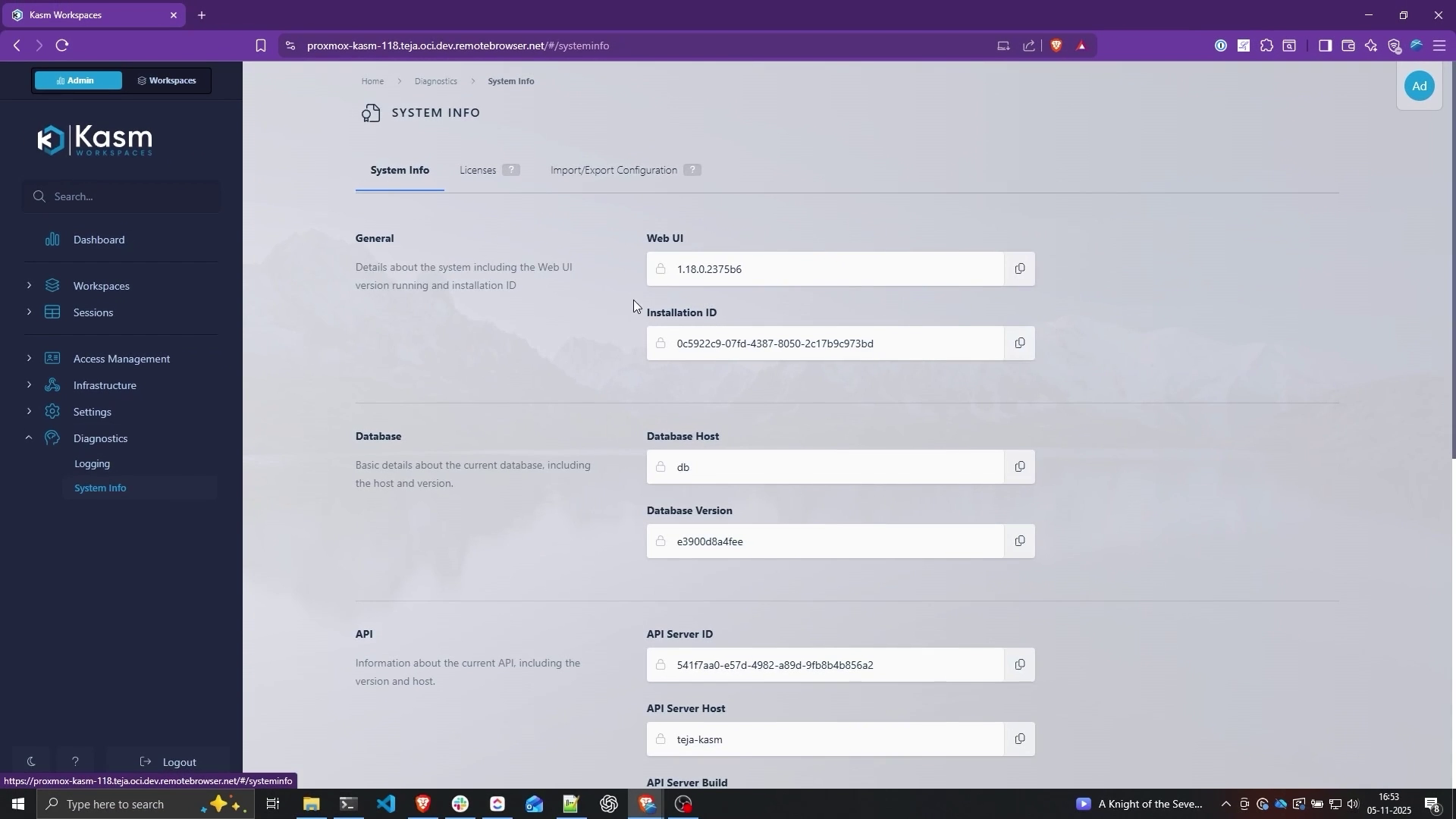
On your Kasm Admin panel, go to “Diagnostics” → “System Info”. Extract the following information from this page:
- Web UI version
- Database Version
- API Server Build
If you’re a licensed user and you have questions about a licensed feature, please also include:
- Installation ID (found the the same System Info page)
- License ID (go to the “Licenses” tab in System Info page to find this)
Please do not include your Installation ID and License ID if you’re making a support request on a public platform (like Reddit or GitHub). Instead, only include these details when creating a support ticket directly through our portal.
Please also include your web browser version in the support ticket.
Host Environment Details
It is also very helpful to include details about your host environment like your OS, Kernel, Docker version, Kasm service image versions.
Please execute the following commands on your Kasm host to extract these details:
# Show kernel and system info
uname -a

# Show OS details
cat /etc/os-release

# Show Docker info
sudo docker info

# List running Kasm containers
sudo docker ps | grep kasm

# List Docker plugins
sudo docker plugin ls
Network Activity Logs (HAR files)
If you're facing connectivity issues with sessions or failed API requests, exporting network logs (HAR files) can be extremely helpful.
Security Reminder: HAR files may contain sensitive data such as tokens or session information.
Only share them through official support tickets, never on public forums.
After submitting your HAR logs, log out and change your password for security.
To export your HAR logs:
- Open your browser’s Developer Tools (usually
F12orCtrl + Shift + I). - Go to the Network tab.
- Enable Preserve Log.
- Reproduce the issue on your Kasm deployment.
- Once done, click the Download/Export button to save the log as a
.harfile. - Attach this file when submitting your ticket.

Kasm Logs
If Kasm is producing errors, timeouts, or unexpected behavior, include system logs from your deployment.
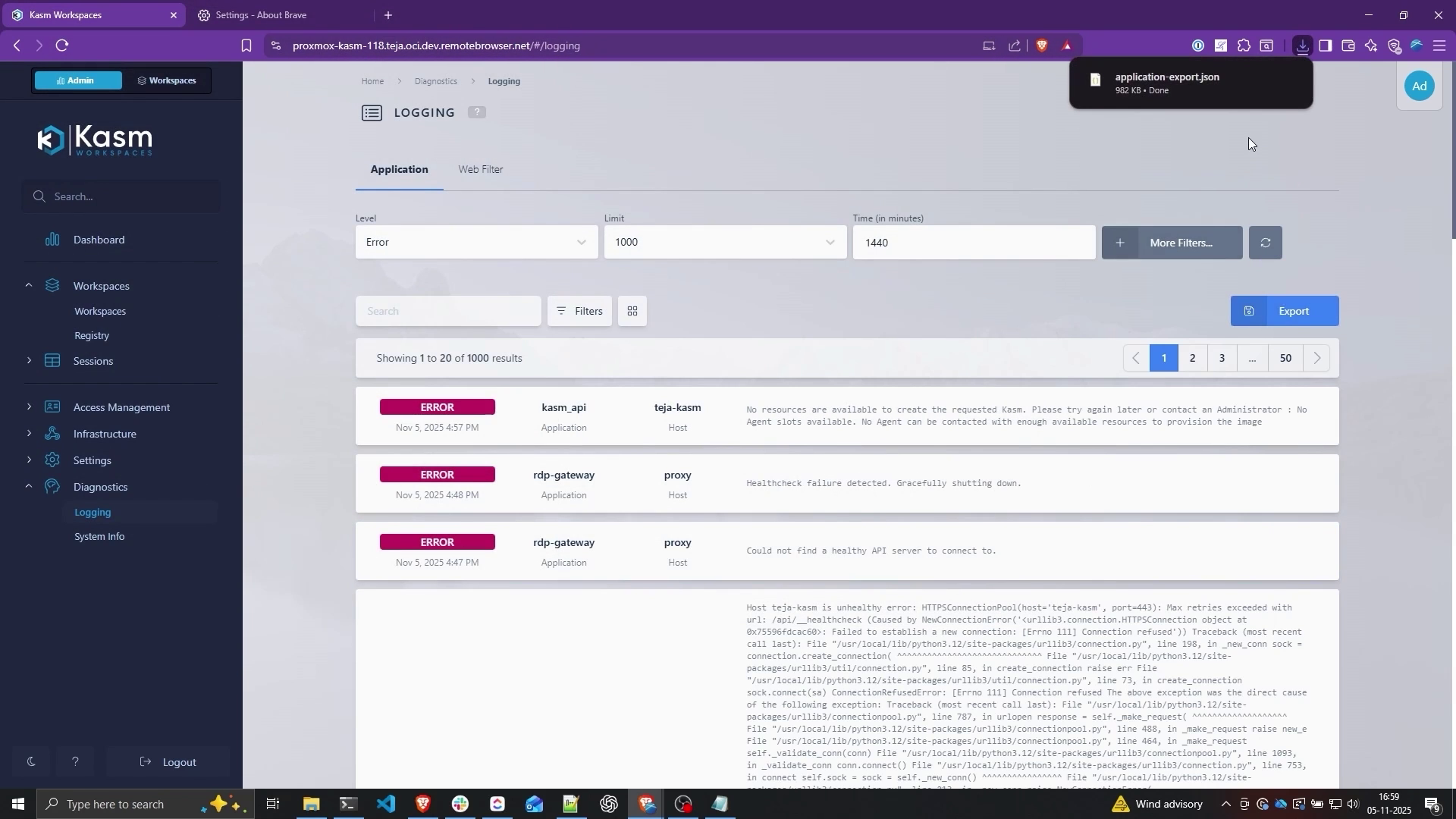
- Go to Diagnostics → Logging.
- Set:
- Level:
error - Limit:
1000 - Time:
1440(minutes)
- Level:
- Click Export to download logs as a
.jsonfile. - Attach this file in your support request.
Kasm Logs with Context
For targeted troubleshooting, you can export logs surrounding a specific event or error.
For example, if you notice an error related to an Autoscale configuration:
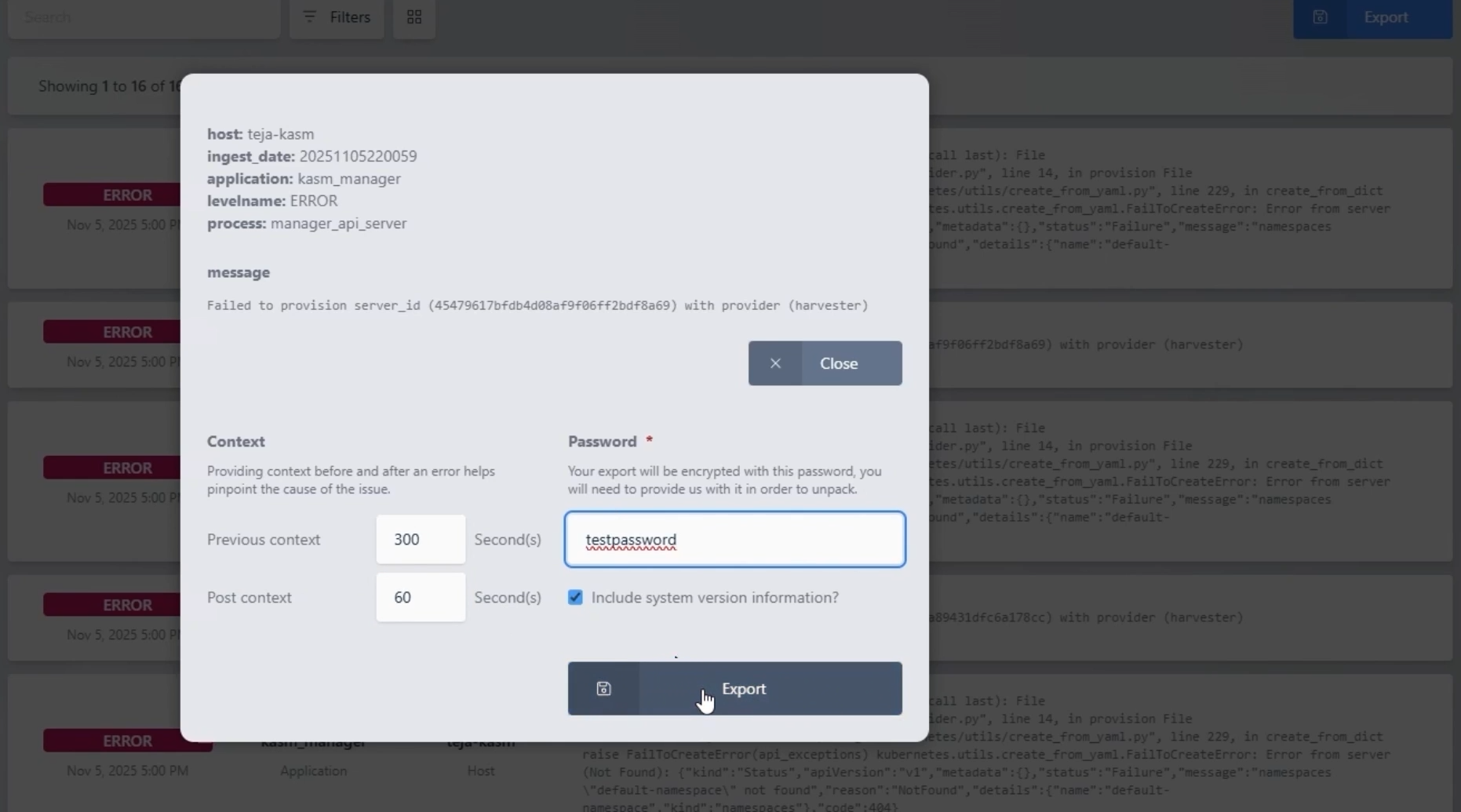
- Locate the relevant log entry in Diagnostics → Logging.
- Select the entry and click Export.
- Specify:
- Context Window Before (example: 300 seconds)
- Context Window After (example: 60 seconds)
- Set a Password for the exported log file.
- Click Export and attach both the file and password in your support ticket.
Container Logs
If your containers fail to start, container logs are critical for diagnosing startup failures.
- SSH into your Kasm Host.
- Stop Kasm services:
sudo /opt/kasm/bin/stop
- Edit the agent configuration file (
/opt/kasm/current/conf/app/agent.app.config.yaml) Change remove_failed_containers to false:
remove_failed_containers: false
- Restart Kasm services:
sudo /opt/kasm/bin/start
- Try launching a workspace on Kasm – if it fails, list all containers:
sudo docker ps -a
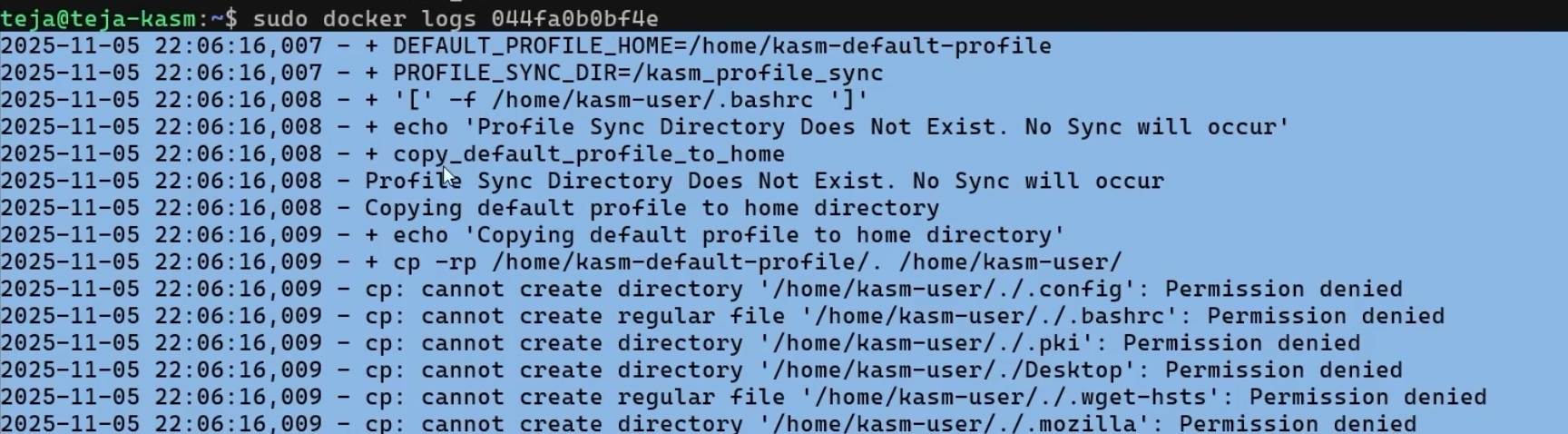
- Copy the Container ID of the failed container, then view logs:
sudo docker logs <container_id>
- Save and attach the output in your support ticket.
After exporting logs, revert the cleanup setting:
- Stop Kasm services:
sudo /opt/kasm/bin/stop
- Edit the agent configuration file (
/opt/kasm/current/conf/app/agent.app.config.yaml) Change remove_failed_containers back to true:
remove_failed_containers: true
- Remove the nginx configs of existing containers (please note that this will delete all existing Kasm sessions)
sudo rm -rf /opt/kasm/current/www/nginx/conf.d/*
- Start Kasm services
sudo /opt/kasm/bin/start
That’s it! By including accurate version information, host details, HAR logs, and Kasm logs, you make it much easier for the team to identify and resolve issues quickly.