Kasm Customer Support Portal Guide
The Kasm Customer Support Portal (support.kasm.com) is where customers can submit support requests and access self-help resources.
An active support package is required for engineer support. Support packages are available for enterprise customers with 25+ licenses.
The following self-help resources are freely available without an account:
- Documentation
- Knowledge Base
- KasmGPT AI Chatbot
- Community Channels:
Before You Begin
Before starting registration, have the following ready:
- Your email address
- An authenticator app on your mobile device (e.g., Google Authenticator, Microsoft Authenticator) — MFA setup is required
- A hardware security key (optional alternative to an authenticator app)
Part 1: Registering for the Support Portal
Step 1 – Go to support.kasm.com
Navigate to support.kasm.com.
Self-help resources are accessible directly from this page without an account.
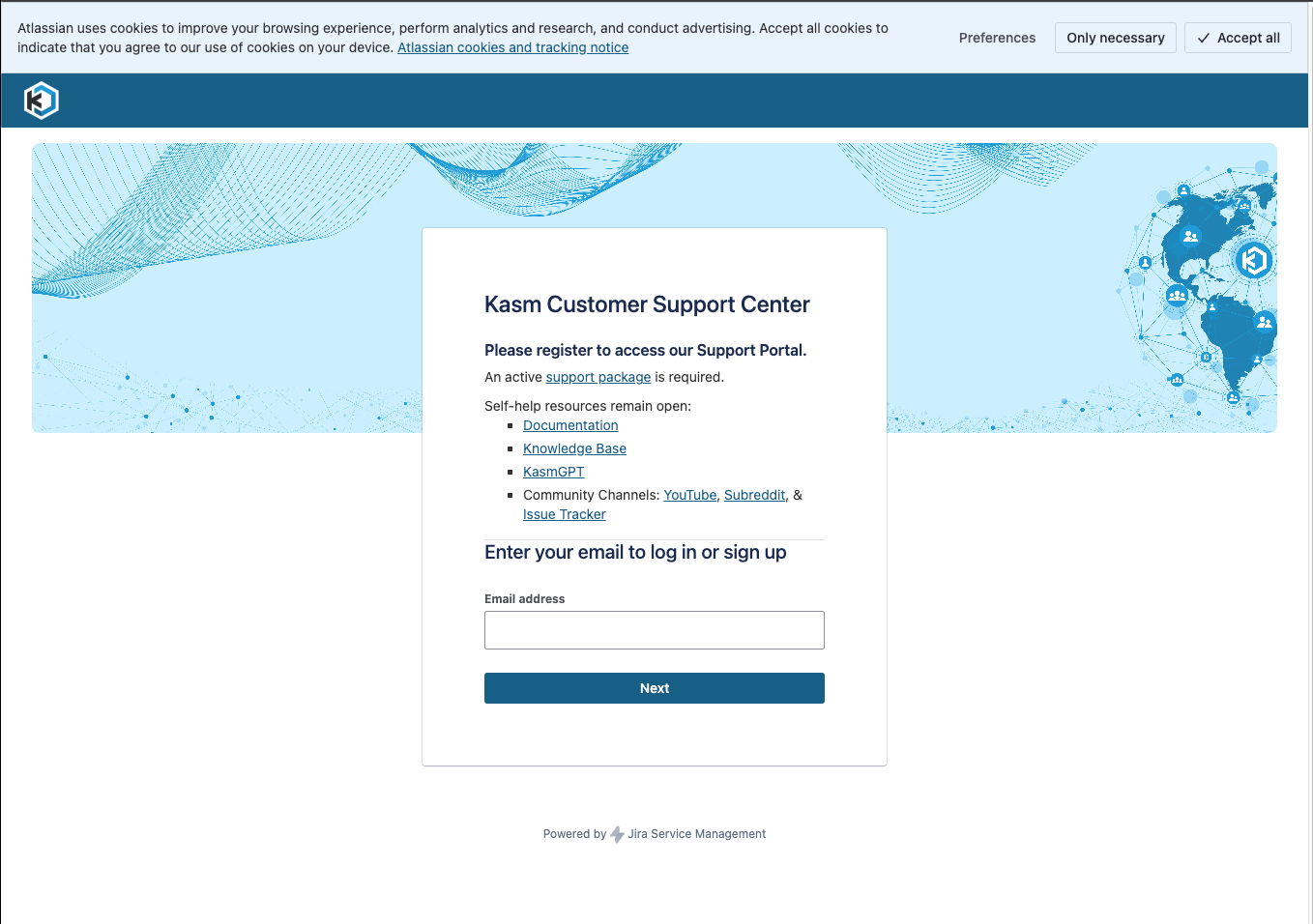
Step 2 – Enter your email and click Next
Enter your email address and click Next.
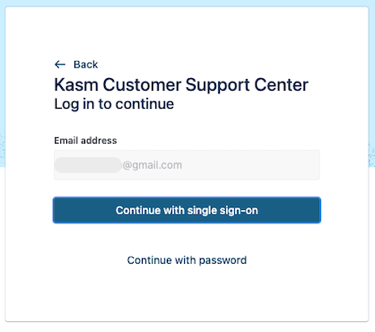
Step 3 – Click “Continue with single sign-on”
On the next screen, click Continue with single sign-on.
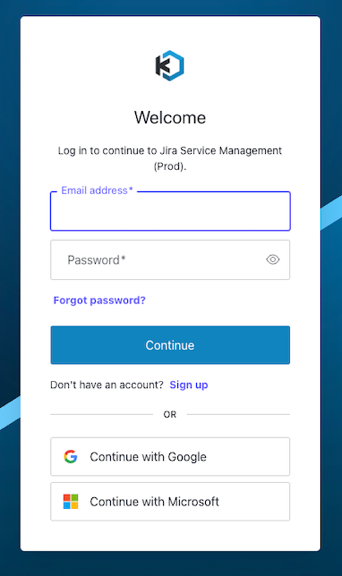
Step 4 – Register on Kasm Passport
You will be redirected to Kasm Passport, the Kasm SSO system.
If you do not already have an account:
- Click Sign up
- Or use Google or Microsoft sign-in
Step 5 – Enter your email and create a password
Password must be at least 8 characters and meet the complexity requirements shown. Click Continue.
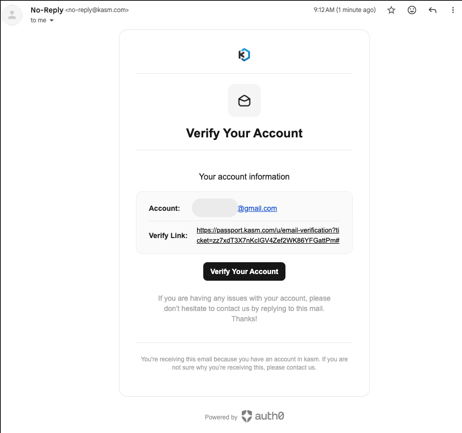
Step 6 – Verify your email
A verification email will arrive from no-reply@kasm.com. Click Verify Your Account in the email, then click Continue on the confirmation screen.
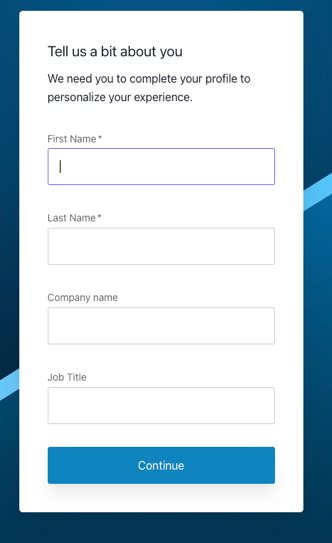
Step 7 – Complete your profile
Enter your First Name, Last Name, Company Name, and Job Title. Click Continue.
Step 8 – Set up multi-factor authentication
Choose an authenticator app or hardware security key and follow the on-screen instructions. This step is required.
Have your authenticator app open and ready on your mobile device before this step.
Step 9 – Trust this device (optional)
Choose whether to enable faster future logins via fingerprint or face recognition on this device.
Step 10 – Registration complete
You are now logged in. Future logins will be faster, especially if you trusted your device.
Part 2: Navigating the Support Portal
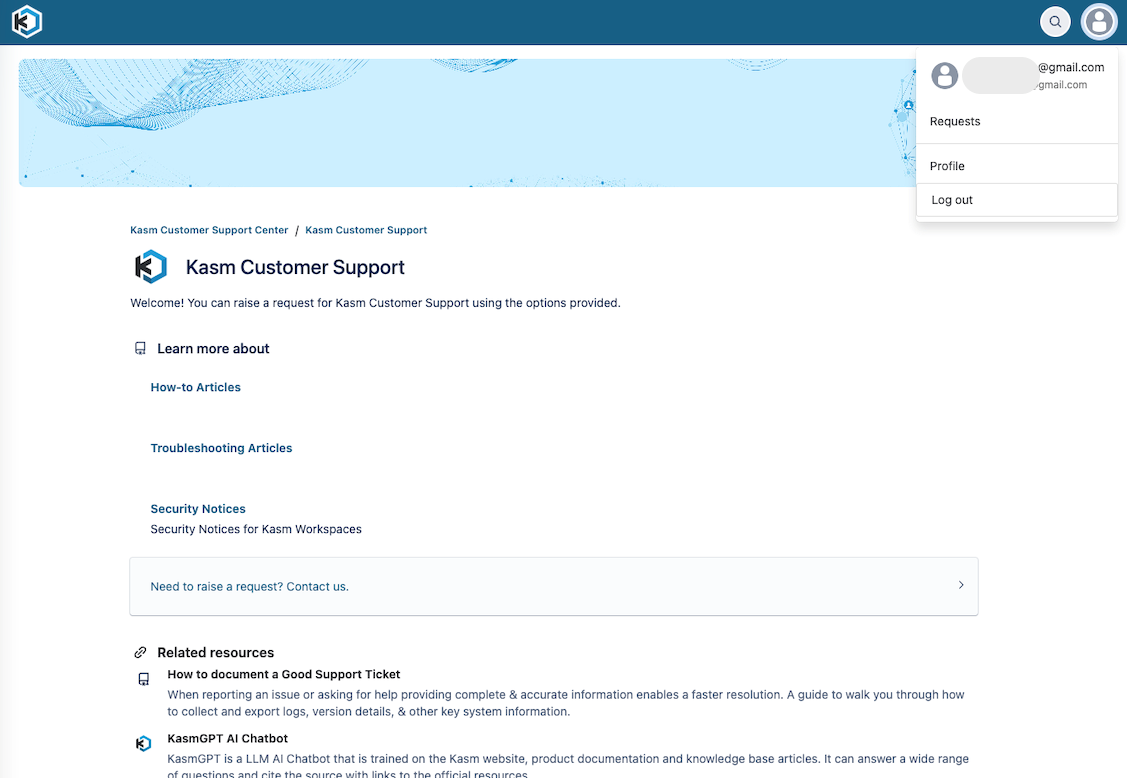
Your Account
Click the profile icon in the upper-right corner to access:
- Requests – View all open and closed tickets linked to your email, including tickets submitted before registration
- Profile – Update your name and account details
Self-Help Resources
The portal includes the following self-help resources:
- How-to & Troubleshooting Articles – Guides for common tasks and known issues
- Security Notices – Security announcements for Kasm Workspaces
- How to Document a Good Support Ticket – Guide and video for collecting logs and system information before submitting a ticket
- KasmGPT AI Chatbot – AI chatbot trained on Kasm documentation and knowledge base that answers questions and cites official sources
- Product Maintenance Lifecycle – Supported Kasm versions and maintenance status
- Official Documentation
Part 3: Submitting a Support Ticket
Step 1 – Click “Need to raise a request? Contact us.”
To begin, click Need to raise a request? Contact us.
Step 2 – Select a request type
Choose the request type that best matches your issue:
- Report a bug
- Technical support
- Licensing and billing questions
- Suggest an improvement or new feature
- Other questions
Step 3 – Fill out the ticket form
Complete the support ticket form with the required details.
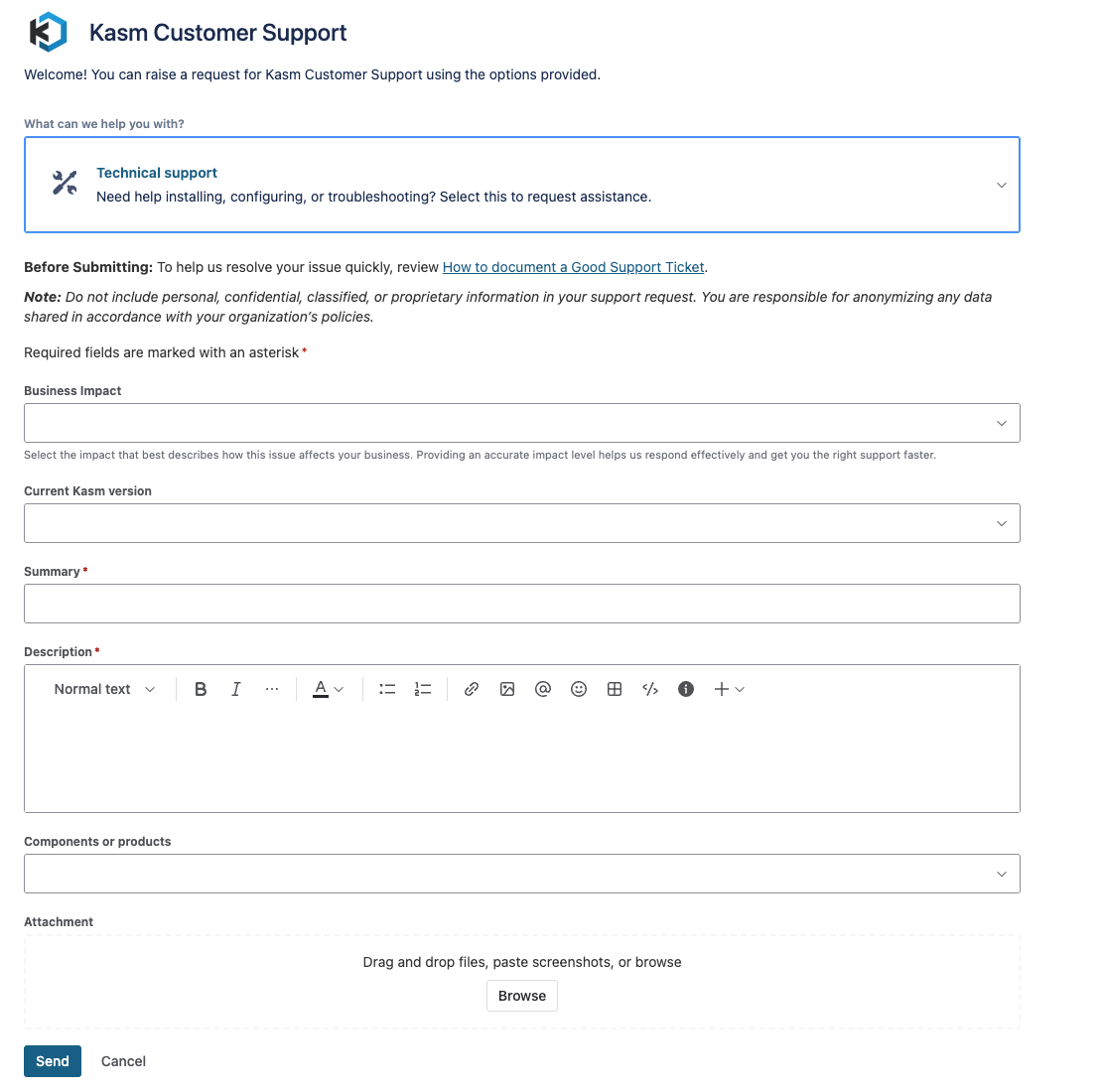
Do not include personal, confidential, classified, or proprietary information. You are responsible for anonymizing data per your organization's policies.
Business Impact
Select the option that best describes how the issue affects your organization.
Current Kasm Version
Select your version. Versions outside the maintenance window may only receive an upgrade recommendation.
Summary
Enter a brief title. The portal will suggest related knowledge base articles — review them before continuing.
Description
Include: what you're experiencing, expected behavior, and troubleshooting steps already taken (and results). The more detail you provide, the faster we can help.
Review the How to Document a Good Support Ticket guide and include the relevant logs before submitting.
Components or Products
Select the relevant Kasm product or component, if applicable.
Attachments
Attach screenshots, logs, or other relevant files by dragging and dropping or clicking Browse.
Step 4 – Click Send
Your ticket will appear under Requests in your account. Our support team will respond within Eastern Standard business hours per your support package SLAs. See kasm.com/support-subscriptions for details.