Exporting System Configurations
The export interface provides four distinct export modes, each suited to different use cases. All exports produce a password-protected AES256 ZIP file containing an export_data.yaml file with the exported configuration data.
To access the export interface:
- Log into the Workspace UI as an administrator.
- From the Admin panel, select Diagnostics -> System Info from the menu.
- Navigate to the Import/Export Config tab.
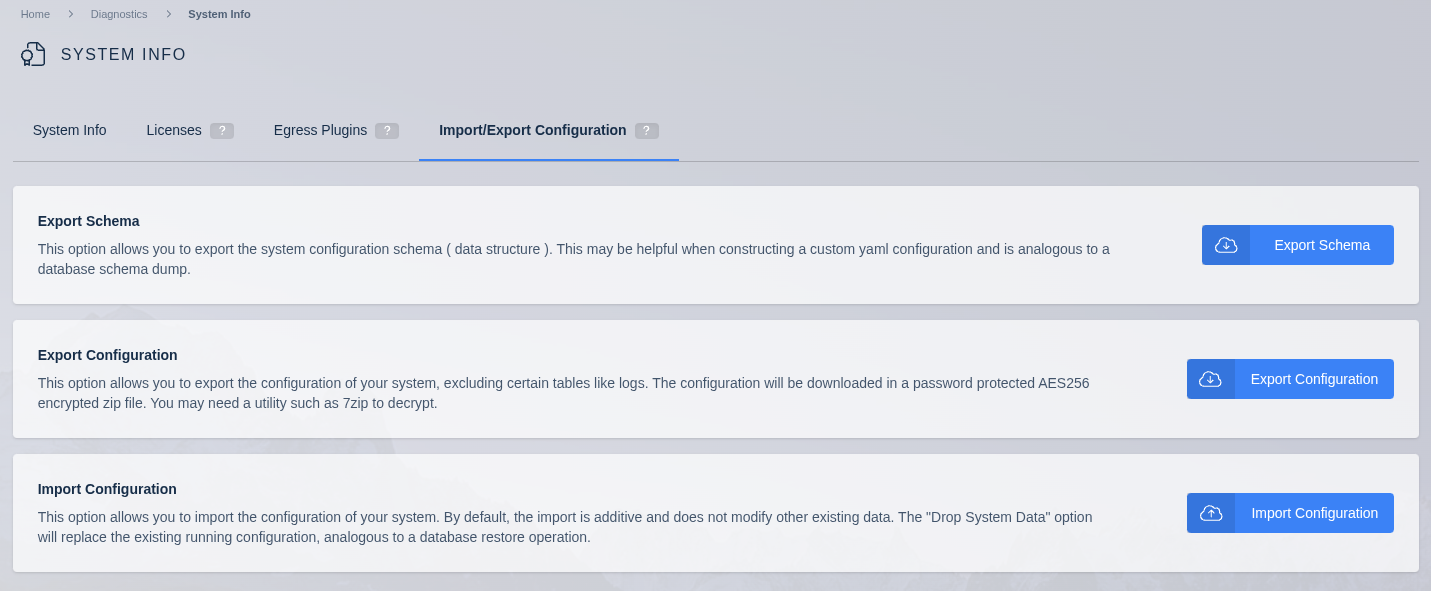
- Select "Export Configuration"
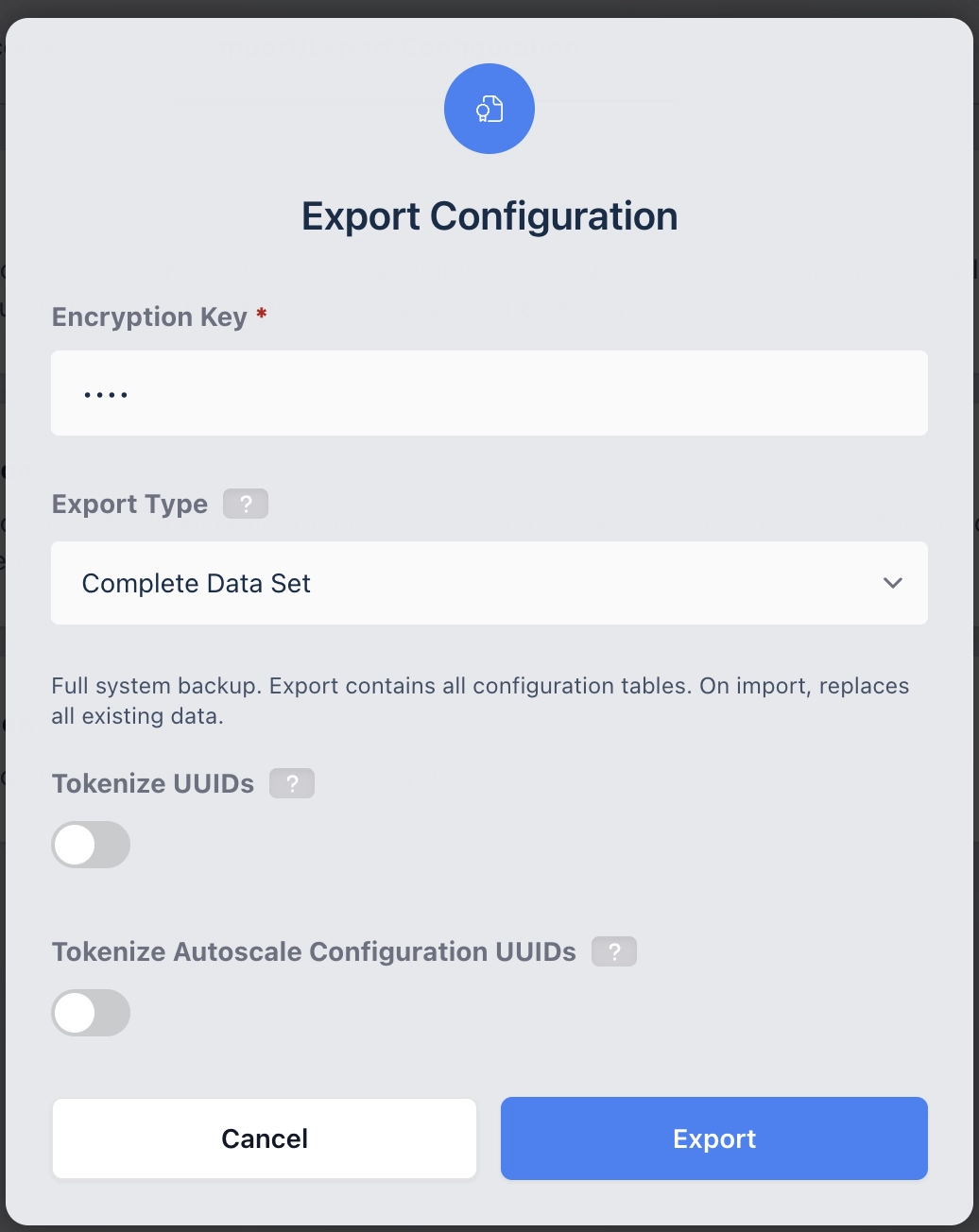
Export Modes
Complete Data Set
A full system backup containing all configuration tables. Use this mode for disaster recovery or system restore.
- Import behavior: Replaces ALL existing data. This is a destructive operation.
- Supports UUID tokenization (optional).
- Exports all configuration tables (excluding logs and license data).
Partial Data Set
A selective export allowing you to choose specific database tables. Use this mode for targeted operations where only certain configuration data is needed.
- Import behavior: Data is merged additively with existing system data.
- Supports UUID tokenization (optional).
- Includes table selection to choose which tables to export.
Table Selection
Click "Show" to expand the list of exported tables. By default, all tables are exported. The table selection interface will automatically select or deselect secondary tables as you interact with it. This behavior maintains required relationships between tables, ensuring that the data is valid for import into a Kasm system as-is.
Autoscale Configs
Exports autoscale configurations along with their referenced zones and LDAP configurations. Use this mode for sharing or copying autoscale setups between deployments.
- Import behavior: Data is merged with existing system data. Name conflicts are resolved through automatic renaming. Zone and LDAP mapping is available during import.
- Automatically includes dependent zones and LDAP configurations referenced by the autoscale configs.
- See Autoscale Config Import for details on the import workflow including zone/LDAP mappings and conflict resolution.
Deployment Configuration
A full deployment migration mode that exports all configuration data while excluding ephemeral runtime state. Use this mode when migrating a deployment to new infrastructure or creating a replica for A/B Deployments.
- Import behavior: Replaces existing non-ephemeral data. Options are available to preserve manager tokens and API key pairs.
- Excludes runtime state: sessions, ephemeral servers, agents, and connection proxies.
- See Deployment Configuration Import for details on the import options.
UUID Tokenization
UUID tokenization is available when using the Complete Data Set or Partial Data Set export modes. The Autoscale Configs and Deployment Configuration modes handle UUID management automatically.
This feature modifies exported UUIDs to indicate that new ones should be created when the data is imported into Kasm. The original UUIDs are present in the exported data, for ease of troubleshooting.
- UUIDs prefixed with
&will be regenerated upon import. The UUID following the&symbol is the original UUID from the export system. - UUIDs prefixed with
*refer to the same UUID prefixed with&in the export. These will be replaced with the respective newly generated UUID on import.
Certain tables never have their primary UUIDs included in tokenization, either because they are static components or because tokenization is not appropriate:
- connection_proxies
- kasms
- managers
- servers
- session_tokens
Additionally, the "All Users" group ID tokenization is ignored on import, as the group has a static UUID.
Records in the accounting table only have their accounting_id UUIDs modified. Other UUIDs are left unchanged, as they
do not have Foreign Key relationships to other tables and represent historical data about sessions.
AutoscaleConfig Tokenization
By default in the "Complete Data Set" and "Partial Data Set" modes, the Autoscale Configurations are not tokenized when UUID tokenization is enabled. On import, the system gains an exact copy of the state of each Autoscale Configuration as it exists in the export system, including provisioned resources. This means that the import system will begin operating on the Autoscale Configurations; if the export system is still operational, the two systems will compete for control and conflict. If you plan to use exported AutoscaleConfiguration data as a template rather than system restore, select the "Tokenize Autoscale Configuration UUIDs" option. This causes the import to generate new AutoscaleConfigurations that are separate from the ones owned by the export system. In this mode, provisioned cloud resources like Servers are not exported, since the importing system will create its own. An example of when to use this mode is when creating side-by-side deployments, such as for a blue/green deployment strategy.
If you are specifically looking to export and import autoscale configurations, consider using the dedicated Autoscale Configs export mode instead, which provides a streamlined workflow with zone/LDAP mapping and automatic conflict resolution on import.
Tokenizing Autoscale Configuration UUIDs means that the import system will not have control over the old configurations and associated resources. Ensure that the old system maintains or tears down the original configurations, otherwise the original cloud resources will be orphaned.
Export File Format
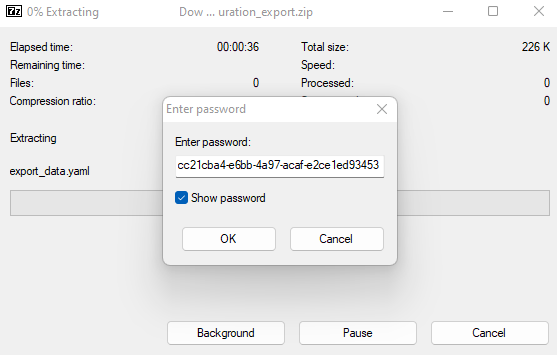
All exports are downloaded as a password-protected ZIP file utilizing AES256 encryption. A utility such as 7zip is needed to extract the data, as many zip utilities built into operating systems like Windows and MacOS do not support AES256 for zip files. A file named export_data.yaml resides inside and contains the configurations.
Example Export
Below is a short example snippet of the yaml based configuration export.
 alembic_version: 52136dd39702
 export_metadata:
   export_mode: complete
 images:
   - allow_network_selection: false
     available: false
     categories:
     - Development
     cores: 2.0
     cpu_allocation_method: Inherit
     description: The Collaboration Platform for API Development.
     docker_registry: https://index.docker.io/v1/
     docker_token: null
     docker_user: null
     enabled: false
     exec_config: {}
     filter_policy_force_disabled: false
     filter_policy_id: null
     friendly_name: Postman
     gpu_count: 0
     hash: null
     hidden: false
     image_id: 2ba504c975654fd18c554905478fc5a1
     image_src: img/thumbnails/postman.png
     image_type: Container
     link_url: null
     memory: 2768000000
     name: kasmweb/postman:develop
     notes: null
     persistent_profile_path: null
     require_gpu: false
     restrict_network_names: []
     restrict_to_network: false
     restrict_to_server: false
     restrict_to_zone: false
     run_config: {}
     server_id: null
     server_pool_id: null
     session_time_limit: null
     volume_mappings: {}
     x_res: 800
     y_res: 600
     zone_id: null
Example: Complete Data Set Export
-
Log into the Workspace UI as an administrator.
-
From the Admin panel, select Diagnostics -> System Info from the menu.
-
Navigate to the Import/Export Config tab.
-
Select Complete Data Set as the export mode.
-
Enter the password you would like the export zip file to utilize.
-
(Optional) Enable Tokenize UUIDs if you plan to use this export as a template rather than a direct restore. See UUID Tokenization for details.
-
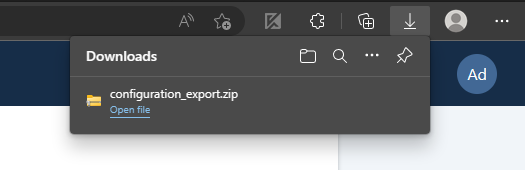
Click Export. The configuration will be downloaded as a password-protected zip file.
Example: Autoscale Configuration Export
This example assumes that the Kasm system has one or more preexisting Autoscale Configurations.
-
Log into the Workspace UI as an administrator.
-
From the Admin panel, select Diagnostics -> System Info from the menu.
-
Navigate to the Import/Export Config tab.
-
Select Autoscale Configs as the export mode.
-
Enter the password you would like the export zip file to utilize.
-
Click Export.
The export will automatically include all autoscale configurations and their dependent zones and LDAP configurations. No manual table selection is needed.
Example: Deployment Configuration Export
-
Log into the Workspace UI as an administrator.
-
From the Admin panel, select Diagnostics -> System Info from the menu.
-
Navigate to the Import/Export Config tab.
-
Select Deployment Configuration as the export mode.
-
Enter the password you would like the export zip file to utilize.
-
Click Export.
The export will include all deployment configuration data while automatically excluding runtime state such as active sessions, ephemeral servers, agents, and connection proxies.