Export system configuration
Overview
The export interface backs up and migrates a Kasm Workspaces deployment by writing its configuration to a portable file. It provides four export modes, each suited to a different use case, from full disaster-recovery backups to deployment migrations. Every export produces a password-protected AES256 ZIP file that contains an export_data.yaml file with the configuration data. This guide describes the modes, explains UUID tokenization, and walks through worked examples for the most common exports.
Prerequisites
Before you begin, confirm the following:
- Administrator access to the Kasm Workspaces deployment.
- A utility that supports AES256 ZIP extraction, such as 7-Zip, to open the exported file.
- A password to protect the exported ZIP file.
To open the export interface:
- Log into the Workspaces UI as an administrator.
- From the Admin panel, select Diagnostics > System Info.
- Open the Import/Export Config tab.
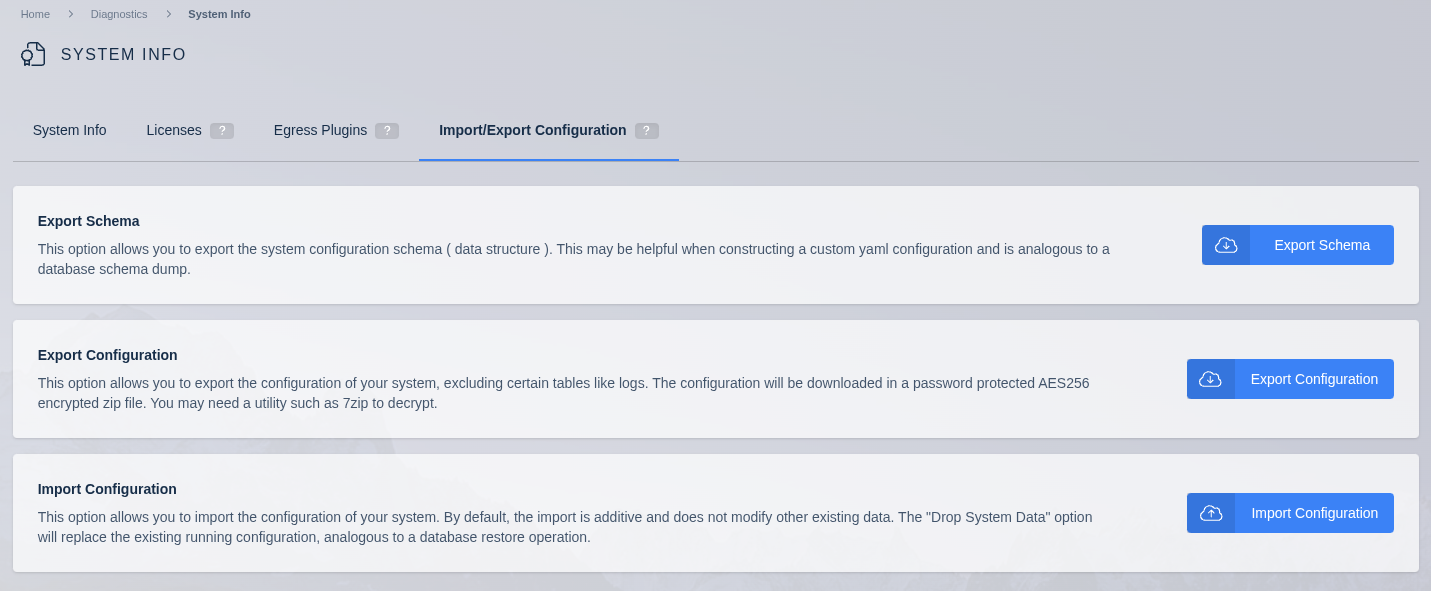
- Select Export Configuration.
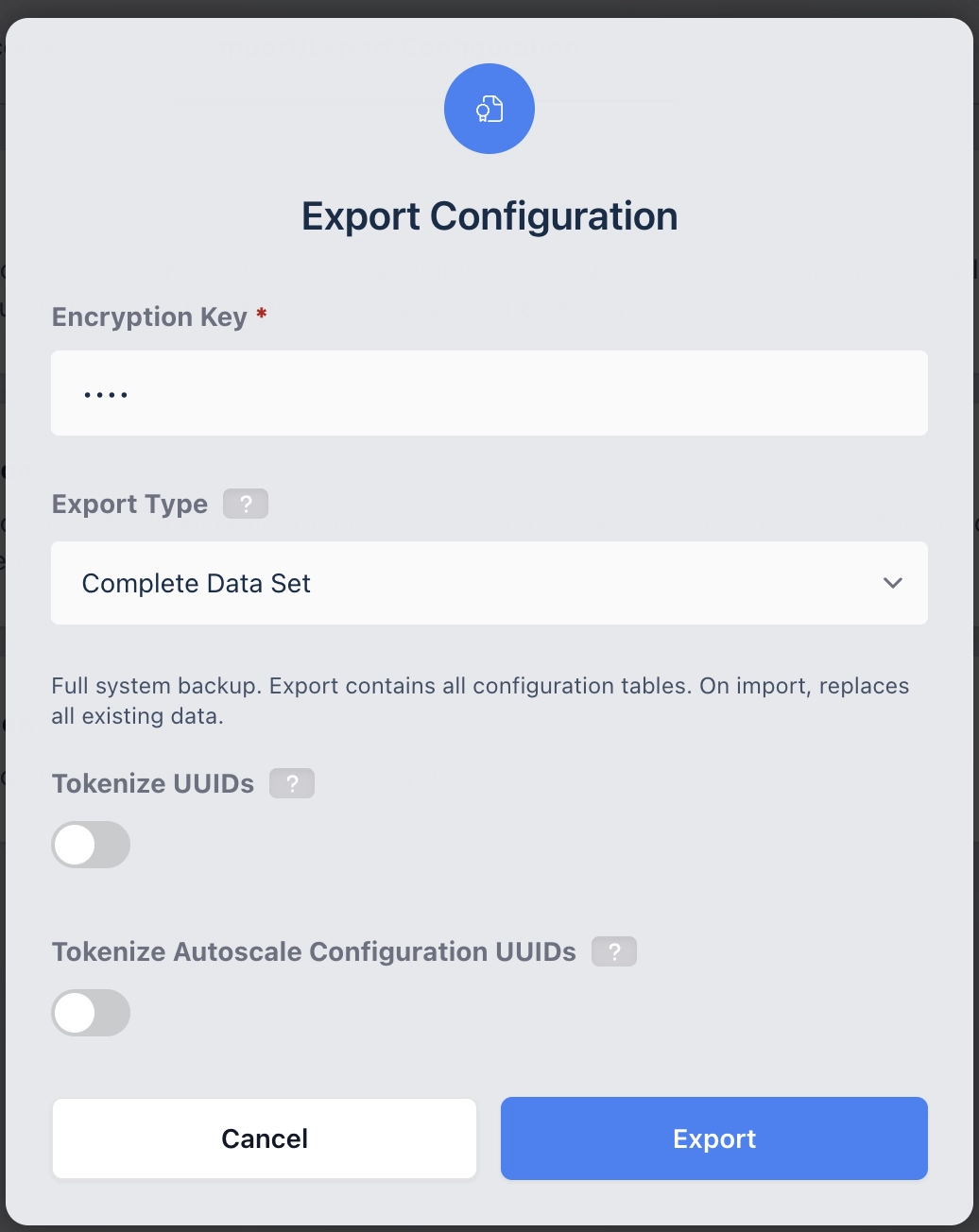
Export modes
Complete data set
A full system backup that contains all configuration tables. Use this mode for disaster recovery or system restore.
- Import behavior: replaces ALL existing data. This is a destructive operation.
- Supports UUID tokenization, optionally.
- Exports all configuration tables, excluding logs and license data.
Partial data set
A selective export that lets you choose specific database tables. Use this mode for targeted operations where only certain configuration data is needed.
- Import behavior: merges data additively with existing system data.
- Supports UUID tokenization, optionally.
- Includes table selection to choose which tables to export.
Table selection
Click Show to expand the list of exported tables. By default, all tables are exported. The table selection interface automatically selects or deselects secondary tables as you interact with it. This behavior maintains required relationships between tables, so the data stays valid for import into a Kasm system as-is.
Autoscale configs
Exports AutoScale configurations along with their referenced zones and LDAP configurations. Use this mode to share or copy AutoScale setups between deployments.
- Import behavior: merges data with existing system data. Automatic renaming resolves name conflicts. Zone and LDAP mapping is available during import.
- Automatically includes the dependent zones and LDAP configurations referenced by the AutoScale configs.
- For the import workflow, including zone and LDAP mappings and conflict resolution, see AutoScale config import.
Deployment configuration
A full deployment migration mode that exports all configuration data while excluding ephemeral runtime state. Use this mode to migrate a deployment to new infrastructure or to create a replica for A/B deployments.
- Import behavior: replaces existing non-ephemeral data. Options are available to preserve manager tokens and API key pairs.
- Excludes runtime state: sessions, ephemeral servers, agents, and connection proxies.
- For the import options, see Deployment configuration import.
UUID tokenization
UUID tokenization is available in the Complete Data Set and Partial Data Set export modes. The Autoscale Configs and Deployment Configuration modes handle UUID management automatically.
UUID tokenization modifies exported UUIDs to signal that Kasm should create new ones on import. The original UUIDs remain in the exported data for ease of troubleshooting.
- UUIDs prefixed with
&are regenerated on import. The UUID following the&symbol is the original UUID from the export system. - UUIDs prefixed with
*refer to the same UUID prefixed with&in the export. Kasm replaces them with the newly generated UUID on import.
Certain tables never have their primary UUIDs included in tokenization, either because they are static components or because tokenization is not appropriate:
- connection_proxies
- kasms
- managers
- servers
- session_tokens
The "All Users" group ID tokenization is ignored on import, because the group has a static UUID.
Records in the accounting table have only their accounting_id UUIDs modified. Other UUIDs stay unchanged, because they do not have foreign key relationships to other tables and represent historical data about sessions.
AutoScale Config tokenization
By default, the Complete Data Set and Partial Data Set modes do not tokenize AutoScale configurations when UUID tokenization is enabled. On import, the system gains an exact copy of each AutoScale configuration as it exists in the export system, including provisioned resources. As a result, the import system begins operating on those AutoScale configurations. When the export system is still operational, the two systems compete for control and conflict.
To use exported AutoScale configuration data as a template rather than a system restore, select the Tokenize Autoscale Configuration UUIDs option. This generates new AutoScale configurations on import that are separate from the ones owned by the export system. In this mode, provisioned cloud resources such as Servers are not exported, because the importing system creates its own. Use this mode when creating side-by-side deployments, such as a blue/green deployment strategy.
To export and import AutoScale configurations specifically, consider the dedicated Autoscale Configs export mode instead. It provides a streamlined workflow with zone and LDAP mapping and automatic conflict resolution on import.
Tokenizing AutoScale configuration UUIDs means the import system does not control the original configurations and associated resources. Confirm that the old system maintains or tears down the original configurations. Otherwise, the original cloud resources are orphaned.
Export file format
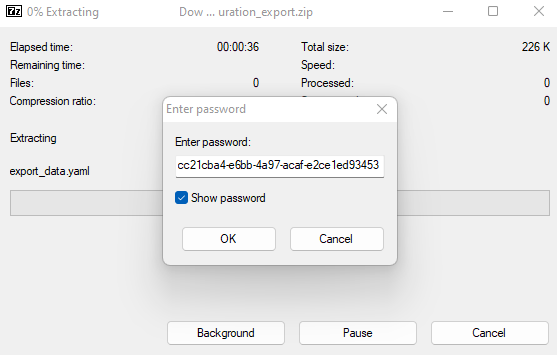
Every export downloads as a password-protected ZIP file that uses AES256 encryption. A utility such as 7-Zip is needed to extract the data, because many ZIP utilities built into operating systems such as Windows and macOS do not support AES256 for ZIP files. The extracted archive contains a file named export_data.yaml that holds the configurations.
Example export
Below is a short example snippet of the YAML-based configuration export.
 alembic_version: 52136dd39702
 export_metadata:
   export_mode: complete
 images:
   - allow_network_selection: false
     available: false
     categories:
     - Development
     cores: 2.0
     cpu_allocation_method: Inherit
     description: The Collaboration Platform for API Development.
     docker_registry: https://index.docker.io/v1/
     docker_token: null
     docker_user: null
     enabled: false
     exec_config: {}
     filter_policy_force_disabled: false
     filter_policy_id: null
     friendly_name: Postman
     gpu_count: 0
     hash: null
     hidden: false
     image_id: 2ba504c975654fd18c554905478fc5a1
     image_src: img/thumbnails/postman.png
     image_type: Container
     link_url: null
     memory: 2768000000
     name: kasmweb/postman:develop
     notes: null
     persistent_profile_path: null
     require_gpu: false
     restrict_network_names: []
     restrict_to_network: false
     restrict_to_server: false
     restrict_to_zone: false
     run_config: {}
     server_id: null
     server_pool_id: null
     session_time_limit: null
     volume_mappings: {}
     x_res: 800
     y_res: 600
     zone_id: null
Example: Complete data set export
- Log into the Workspaces UI as an administrator.
- From the Admin panel, select Diagnostics > System Info.
- Open the Import/Export Config tab.
- Select Complete Data Set as the export mode.
- Enter the password to protect the export ZIP file.
- Optional: enable Tokenize UUIDs to use this export as a template rather than a direct restore. For details, see UUID tokenization.
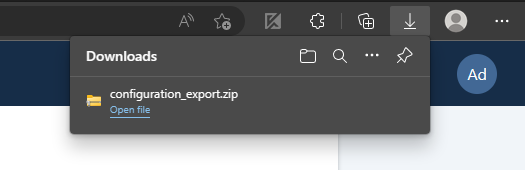
- Click Export. The configuration downloads as a password-protected ZIP file.
Example: Autoscale configuration export
This example assumes the Kasm system has one or more existing AutoScale configurations.
- Log into the Workspaces UI as an administrator.
- From the Admin panel, select Diagnostics > System Info.
- Open the Import/Export Config tab.
- Select Autoscale Configs as the export mode.
- Enter the password to protect the export ZIP file.
- Click Export.
The export automatically includes all AutoScale configurations and their dependent zones and LDAP configurations. No manual table selection is needed.
Example: Deployment configuration export
- Log into the Workspaces UI as an administrator.
- From the Admin panel, select Diagnostics > System Info.
- Open the Import/Export Config tab.
- Select Deployment Configuration as the export mode.
- Enter the password to protect the export ZIP file.
- Click Export.
The export includes all deployment configuration data and automatically excludes runtime state such as active sessions, ephemeral servers, agents, and connection proxies.
Common troubleshooting steps
- The exported ZIP file will not open. Use a utility that supports AES256 encryption, such as 7-Zip. The built-in extractors on Windows and macOS often cannot open these files.
- Imported AutoScale configurations conflict with the source system. Enable Tokenize Autoscale Configuration UUIDs to create separate configurations, and confirm the source system tears down the originals to avoid orphaned cloud resources.
- A partial export fails to import cleanly. Keep the automatic secondary-table selections in place, because they maintain the table relationships required for a valid import.