Importing System Configurations
Administrators can import system configuration data through a two-step workflow. The import interface expects a password-protected ZIP
package that contains a file named export_data.yaml, which contains system configuration data in YAML format.
This is the same output format provided by the configuration export. See Exporting System Configurations for more details.
Only tables from the same application/database version are compatible. Please see Configuration Schema Versioning and Details for more info.
Import Workflow
Step 1: Upload and Decrypt
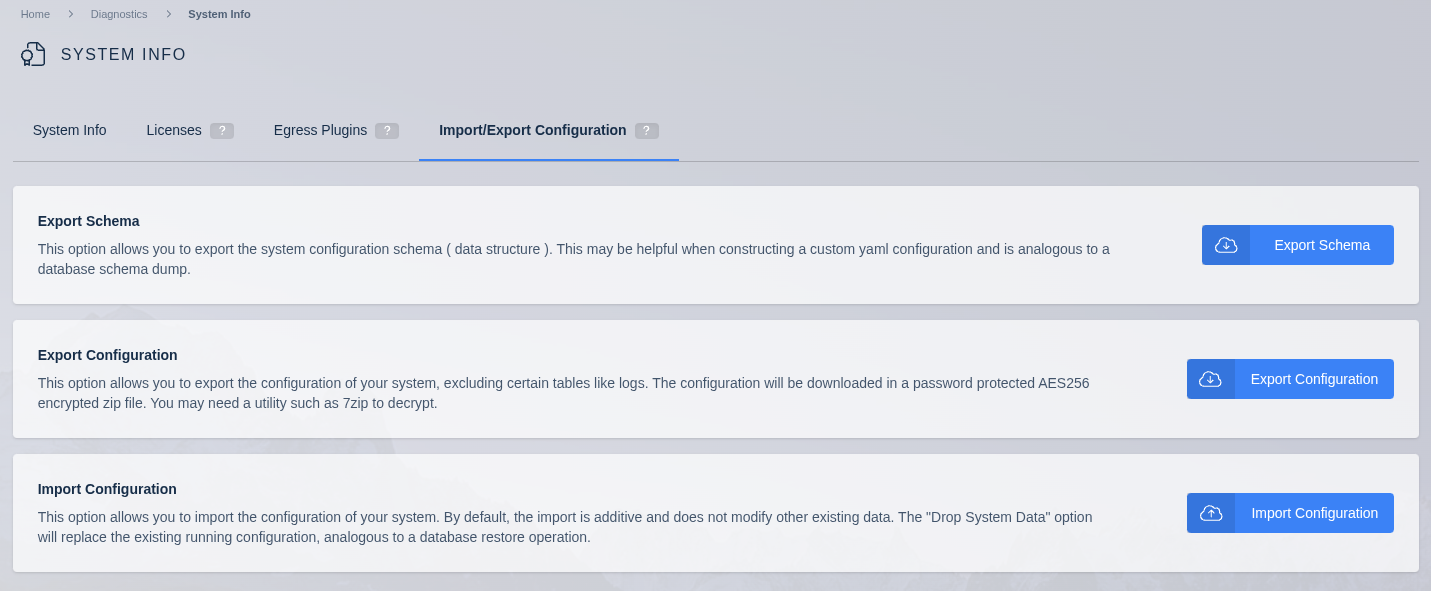
- Navigate to the Import/Export Config tab under Diagnostics -> System Info.
- Click Import Configuration.
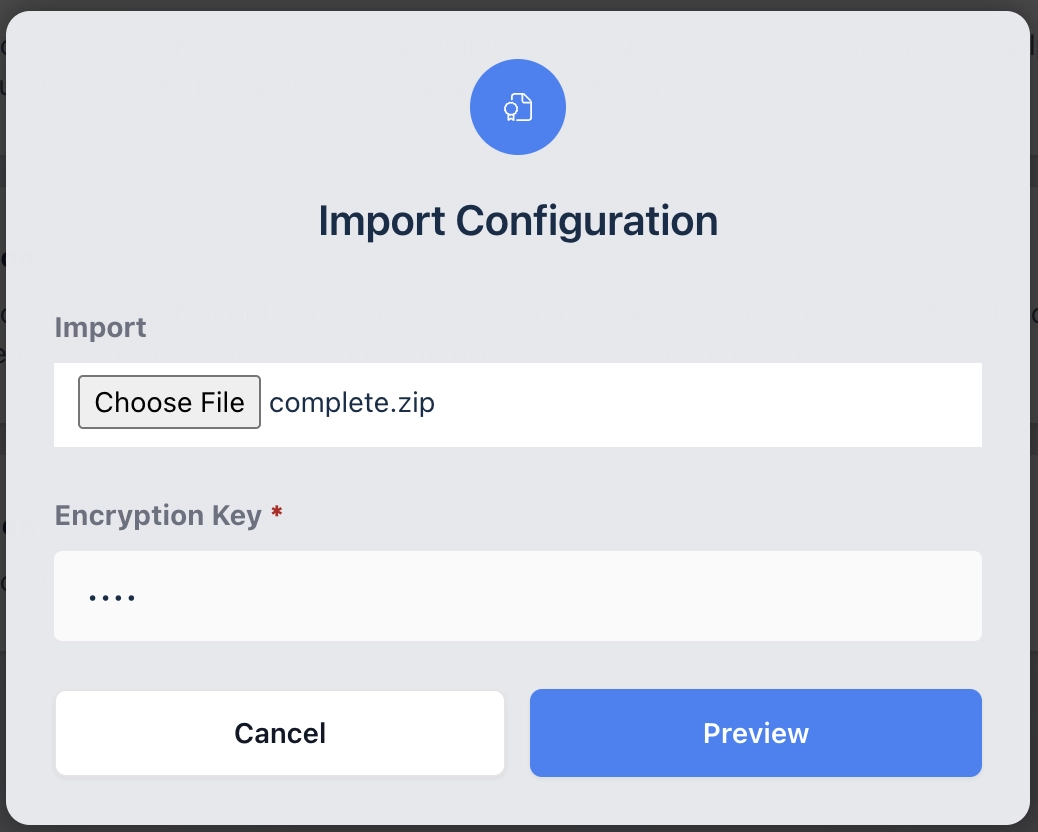
- Select the export ZIP file.
- Enter the encryption password used during export.
- Click Next to proceed to the preview.
Step 2: Preview and Configure
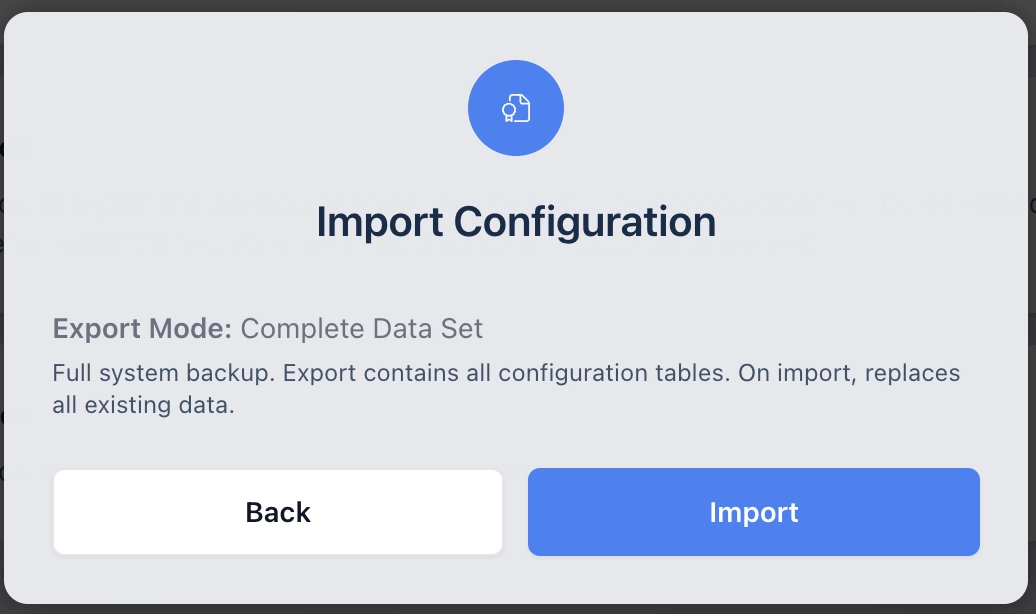
The system decrypts and analyzes the import file, then displays:
- The detected export mode (Complete Data Set, Partial Data Set, Autoscale Configs, or Deployment Configuration).
- A description of what will happen when the import is applied.
- Mode-specific configuration options, detailed in the sections below.
Review the preview carefully before clicking Import to apply the changes.
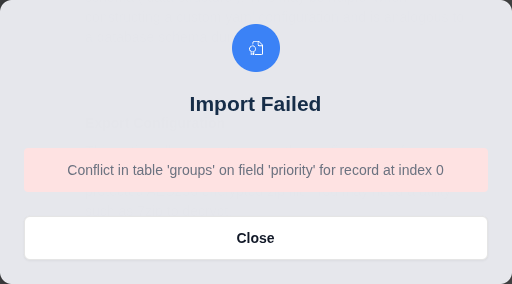
If the import is unsuccessful, no changes are applied to the system. If the error was permanent, i.e. due to bad data or a server-side error, it will be shown in the dialog. Retryable errors (e.g. request timeout) will trigger a notification, but the import form will allow you to re-attempt the import action. Additional information from the Kasm API may be available in the body of the network request.
Import Behavior by Export Mode
Complete Data Set Import
Importing a Complete Data Set replaces ALL existing system configuration data. This is a destructive operation.
All previous configurations will be removed and replaced with those in the provided import data. This may cause the admin to be logged out.
A Complete Data Set import reflects the database as it was at export time, including any active sessions, servers, and agents recorded at that moment. If imported onto a different deployment, the UI may show sessions, servers, or agents that do not actually exist on the new system. These stale records may need to be manually cleaned up after the import completes. If preserving runtime state is a concern, consider using the Deployment Configuration export mode instead, which is designed for migration scenarios and handles servers and agents separately.
If the export contained tokenized UUIDs, new UUIDs will be generated for all tokenized entries during import.
Partial Data Set Import
Importing a Partial Data Set merges the imported data additively with the current system without modifying preexisting data. If Kasm is unable to import the new data without conflicts, the import will be rolled back without any modifications to the system's data.
See Conflict Resolution for details on how duplicate records are handled.
If the export contained tokenized UUIDs, new UUIDs will be generated for all tokenized entries during import.
Autoscale Config Import
Importing an Autoscale Configs export merges the imported data with the existing system. The import preview provides additional configuration options:
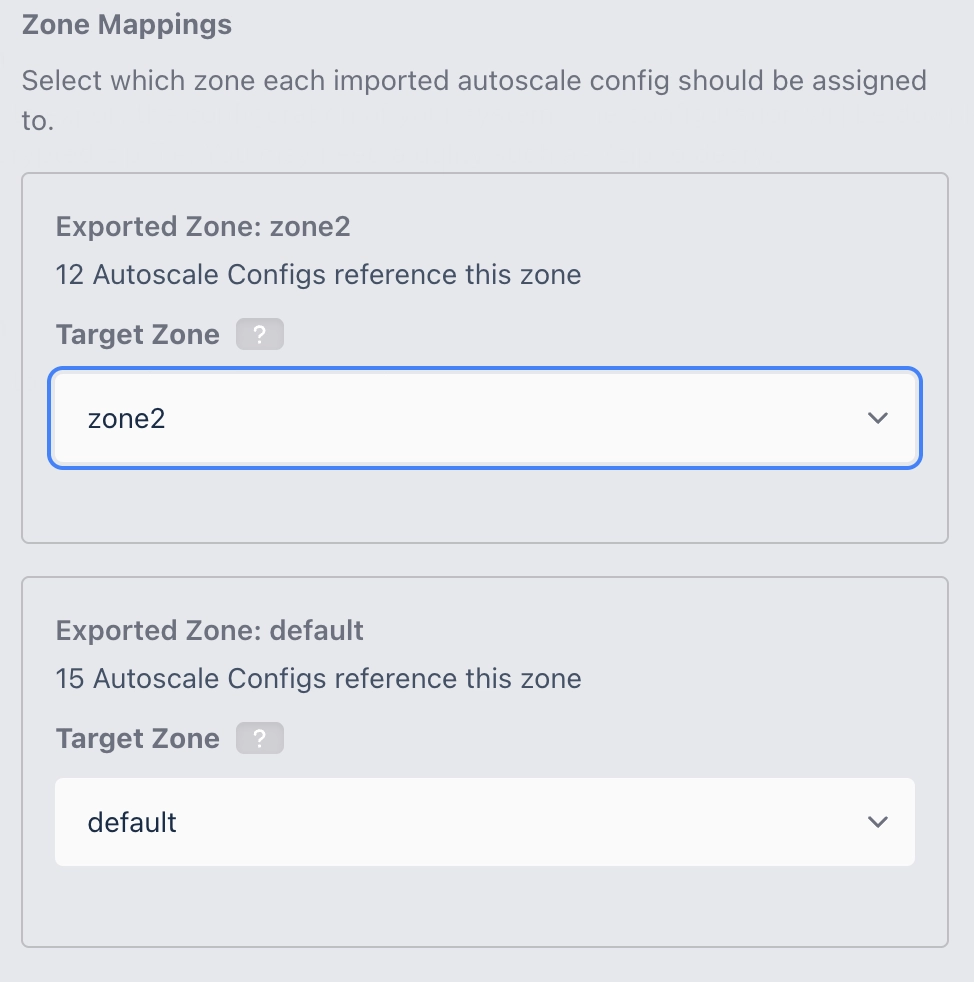
Zone Mappings
Imported autoscale configurations reference specific zones. During import, the system presents a mapping interface where you can:
- Accept auto-matched zones -- zones from the import that match existing zones by name are automatically pre-selected.
- Map to a different zone -- select a different existing zone as the target.
- Create a new zone -- if there is no name conflict with an existing zone, you can choose to create a new one from the import data. When a name conflict exists, the imported reference must be mapped to an existing zone.
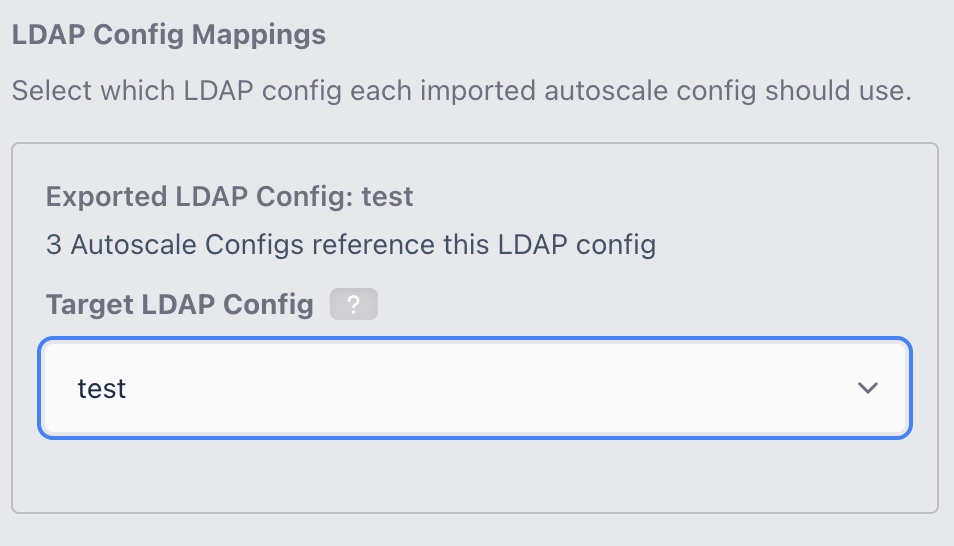
LDAP Config Mappings
Similarly, imported autoscale configurations that reference LDAP configurations present a mapping interface where you can:
- Accept auto-matched LDAP configs -- LDAP configs from the import that match by name are automatically pre-selected.
- Map to a different LDAP config -- select a different existing LDAP config.
- Create a new LDAP config -- if there is no name conflict with an existing LDAP config, you can create a new one from the import data. When a name conflict exists, the imported reference must be mapped to an existing LDAP config or skipped.
- Skip -- choose not to import the LDAP config reference.
Enabled State on Import
For Autoscale Configs and Deployment Configuration imports that contain autoscale configurations, the import preview exposes an Imported Autoscale Configs setting:
- Import as disabled (default) -- all imported autoscale configurations are forced to
enabled = falseregardless of their state in the export. Administrators can review and re-enable them individually after the import completes. - Keep original enabled state -- each imported autoscale configuration preserves the
enabledvalue from the export.
The default avoids unexpected provisioning activity when a large number of active configurations are imported onto a new deployment. Use Keep original enabled state when performing a backup restore or blue/green cutover where the imported deployment should begin servicing traffic immediately.
Complete and Partial imports do not expose this setting; any autoscale configurations they contain always retain their original enabled value from the export.
Name Conflict Resolution
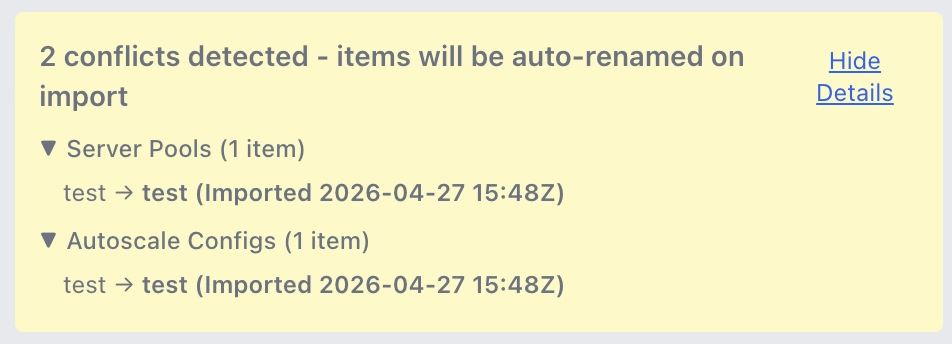
When imported resources have names that conflict with existing resources, the import preview displays a collapsible warning showing:
- The total number of conflicts detected.
- A detailed breakdown grouped by resource type (Server Pools, Autoscale Configs, Provider Configs, DNS Provider Configs).
- The original name and the new name that will be assigned on import.
Conflicting resources are automatically renamed with a datetime-stamped suffix, for example: MyConfig (Imported 2026-03-20 14:30Z).
Deployment Configuration Import
Importing a Deployment Configuration replaces existing non-ephemeral data while preserving runtime state. The import preview provides two additional toggle options:
- Overwrite Manager Token -- When enabled, replaces the current manager authentication token with the one from the export. When disabled (default), the current manager token is preserved. Disable this to avoid disrupting manager authentication during migration.
- Overwrite API Private and Public Key Pair -- When enabled, replaces the current API key pair with the one from the export. When disabled, the current keys are preserved. Disable this to avoid disrupting API authentication during migration.
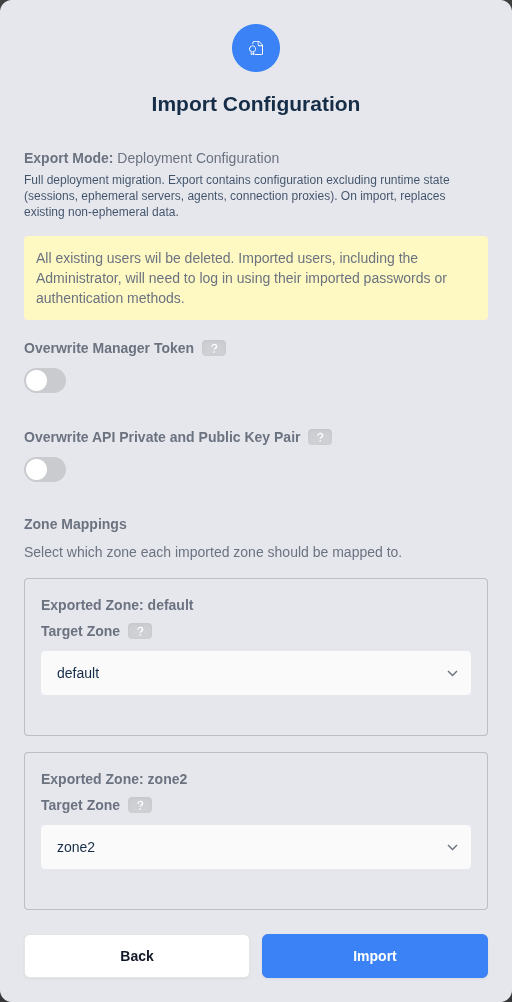
Existing users are deleted before import. All users, including the Administrator, will need to log in using their imported passwords or authentication methods.
Non-Autoscaled Agents are preserved during Deployment Configuration import. All servers are replaced by the import data.
Tokenized Exports
The import feature will generate new UUIDs for any tokenized UUIDs in the import data. If the tokenization data is incomplete, the import will be rolled back without making any changes to the existing system data. Refer to the section on UUID tokenization for more details.
Conflict Resolution
Conflict resolution behavior depends on the export mode of the imported data.
Partial Data Set Conflict Resolution
For Partial Data Set imports, the system provides simple deduplication and conflict resolution for the following tables:
Records affected by the following logic will be removed from the import data; they will not be merged into the existing data.
| Resource | Table | Notes |
|---|---|---|
| System Settings | settings | Records for system settings that are already configured will be dropped from import data. |
| Groups | groups | Groups conflicting by name will be dropped from import data. Other import records will be pointed to the existing group. |
| Group Settings | group_settings | Records for group settings that are already configured will be dropped from import data. |
| Group Permissions | group_permissions | Duplicates of existing Group Permissions will be dropped from import data. |
| Users | users | Users conflicting by username will be dropped from import data. Other import records will be pointed to the existing user. |
| Group Membership | user_groups | Import will skip assigning an existing user to an existing group of which it is already a member. |
| Zones | zones | Zones conflicting by zone_name will be dropped from import data. Other import records will be pointed to the existing zone. |
Autoscale Config Conflict Resolution
For Autoscale Config imports, conflicting resources are automatically renamed rather than dropped. The renaming uses a datetime-stamped suffix:
- Format:
ResourceName (Imported YYYY-MM-DD HH:MMZ)(UTC time,Zdenotes Zulu/UTC) - If that name is also taken, a counter is appended:
ResourceName (Imported YYYY-MM-DD HH:MMZ) 2 - Applies to: Server Pools, Autoscale Configs, Provider Configs, and DNS Provider Configs.
Conflicts and their proposed renames are displayed in the import preview before the import is applied.
Complete Data Set and Deployment Configuration
Conflict resolution is not applicable for these modes, as existing data is replaced during import.
Example: Complete System Restore
This example assumes that the ZIP file provided for import contains a complete Kasm system configuration export. See the corresponding export example for more information.
This type of import will destroy the existing Kasm system configuration data.
-
Log into the Workspace UI as an administrator.
-
From the Admin panel, select Diagnostics -> System Info from the menu.
-
Navigate to the Import/Export Config tab and click Import Configuration.
-
Step 1: Select the complete export ZIP file and enter the password. Click Next.
-
Step 2: The preview shows Complete Data Set mode and warns that all existing data will be replaced. Review the preview.
-
Click Import.
If successful, all previous configurations will be removed and replaced with those in the provided import data. This may cause the admin to be logged out.
Example: Import Autoscale Configurations
This example assumes that the ZIP file provided for import was exported using the Autoscale Configs export mode. See the corresponding export example for more information.
-
Log into the Workspace UI as an administrator.
-
From the Admin panel, select Diagnostics -> System Info from the menu.
-
Navigate to the Import/Export Config tab and click Import Configuration.
-
Step 1: Select the autoscale export ZIP file and enter the password. Click Next.
-
Step 2: The preview shows Autoscale Configs mode. Review and configure:
- Verify zone mappings -- adjust if the auto-matched zones are not correct.
- Verify LDAP config mappings -- adjust or skip as needed.
- Review any name conflicts in the collapsible details section.
-
Click Import.
If successful, new autoscale configurations and related resources will be created. Conflicting names will be auto-renamed as shown in the preview. Other system configuration data remains unmodified.
Example: Deployment Migration Import
This example assumes that the ZIP file provided for import was exported using the Deployment Configuration export mode. See the corresponding export example for more information.
-
Log into the Workspace UI as an administrator.
-
From the Admin panel, select Diagnostics -> System Info from the menu.
-
Navigate to the Import/Export Config tab and click Import Configuration.
-
Step 1: Select the deployment configuration export ZIP file and enter the password. Click Next.
-
Step 2: The preview shows Deployment Configuration mode. Configure:
- Overwrite Manager Token -- disable if you want to preserve the current manager authentication token.
- Overwrite API Private and Public Key Pair -- disable if you want to preserve the current API keys.
-
Click Import.
If successful, the deployment configuration will be updated while preserving runtime state such as active sessions and host servers.