Import system configuration
Overview
The import interface restores or migrates a Kasm Workspaces deployment by applying a previously exported configuration. It uses a two-step workflow: upload and decrypt the package, then preview and configure the import before applying it. The interface expects a password-protected ZIP package that contains an export_data.yaml file in YAML format, the same output produced by the configuration export. This guide walks through the workflow, the import behavior for each export mode, and conflict resolution.
Only tables from the same application and database version are compatible. For more information, see configuration schema versioning.
Prerequisites
Before you begin, confirm the following:
- Administrator access to the Kasm Workspaces deployment.
- An export ZIP package produced by the configuration export.
- The encryption password used during export.
Import workflow
Step 1: upload and decrypt
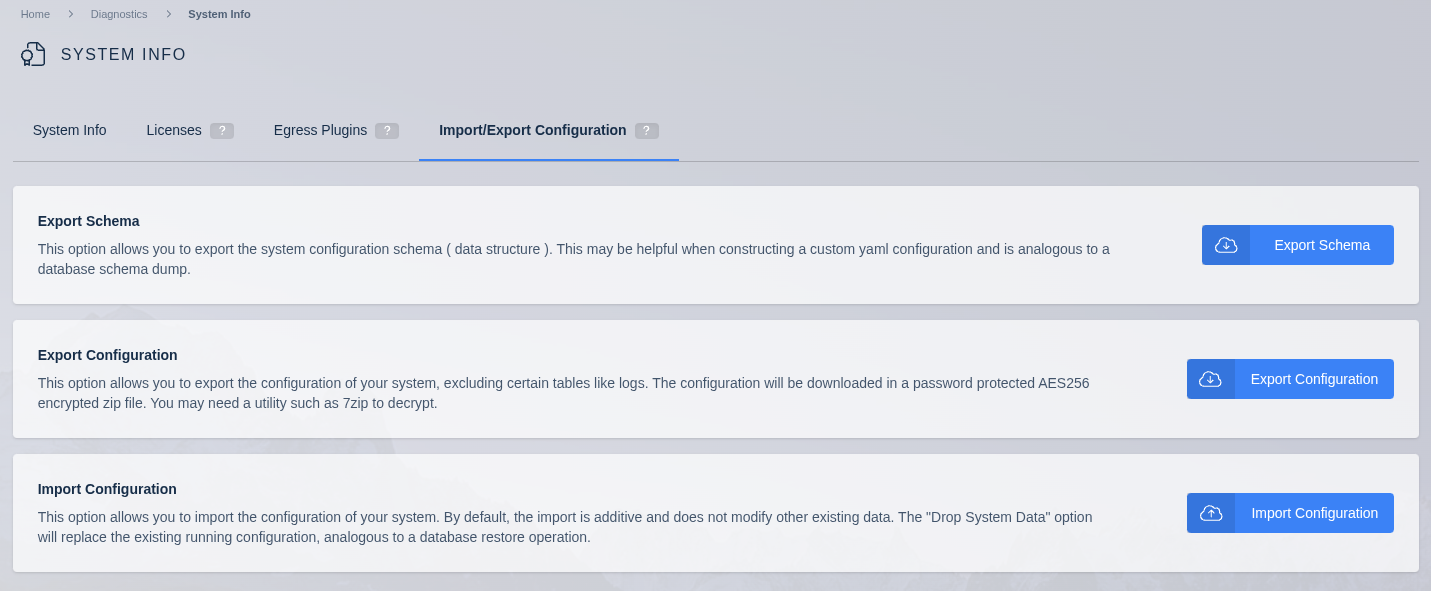
- Open the Import/Export Config tab under Diagnostics > System Info.
- Click Import Configuration.
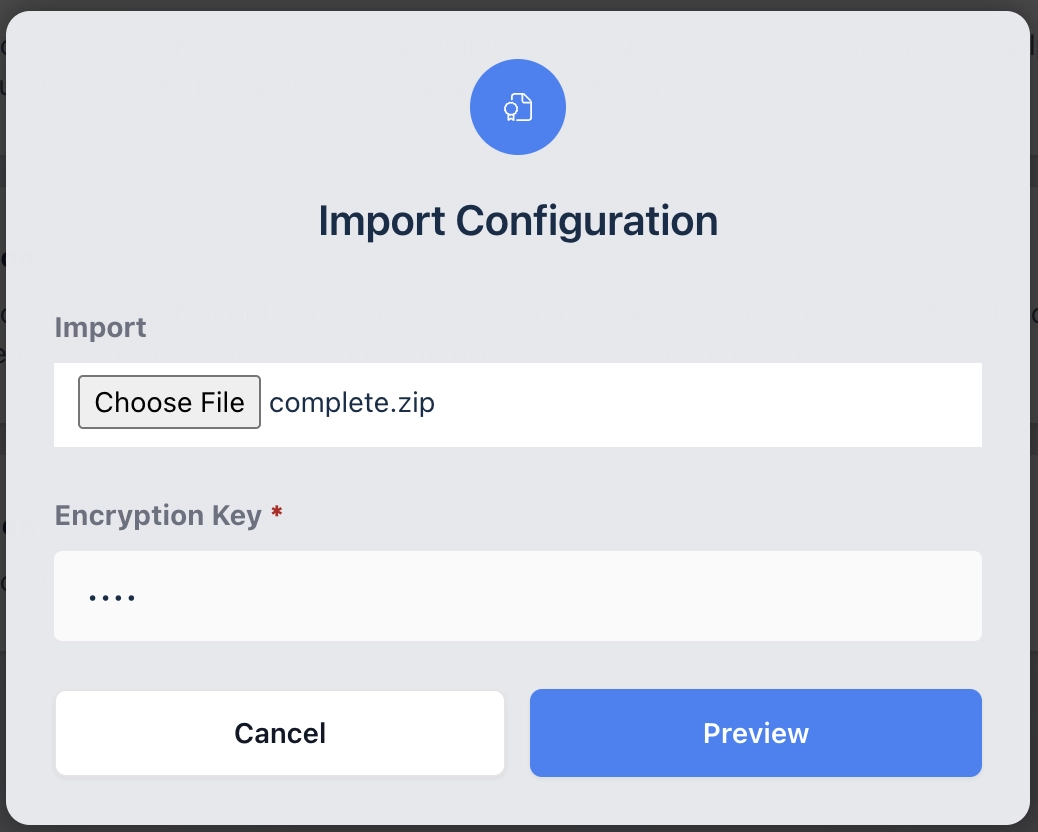
- Select the export ZIP file.
- Enter the encryption password used during export.
- Click Next to proceed to the preview.
Step 2: preview and configure
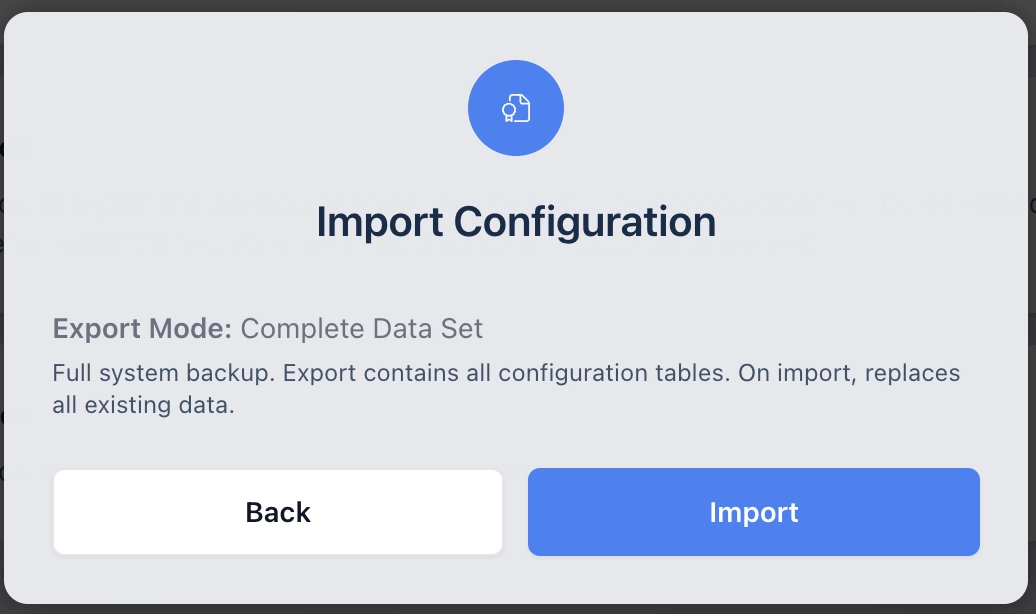
The system decrypts and analyzes the import file, then displays:
- The detected export mode: Complete Data Set, Partial Data Set, Autoscale Configs, or Deployment Configuration.
- A description of what happens when the import is applied.
- Mode-specific configuration options, detailed in the sections below.
Review the preview carefully before you click Import to apply the changes.
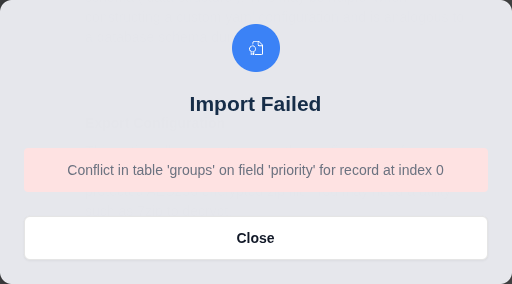
When the import is unsuccessful, the system applies no changes. A permanent error, such as bad data or a server-side error, appears in the dialog. A retryable error, such as a request timeout, triggers a notification, and the import form lets you re-attempt the import. Additional information from the Kasm API may appear in the body of the network request.
Import behavior by export mode
Complete data set import
Importing a Complete Data Set replaces ALL existing system configuration data. This is a destructive operation.
All previous configurations are removed and replaced with those in the provided import data. This may log out the administrator.
A Complete Data Set import reflects the database as it was at export time, including any active sessions, servers, and agents recorded at that moment. When imported onto a different deployment, the UI may show sessions, servers, or agents that do not exist on the new system. These stale records may need manual cleanup after the import completes. When preserving runtime state is a concern, use the Deployment Configuration export mode instead. It is designed for migration scenarios and handles servers and agents separately.
When the export contained tokenized UUIDs, Kasm generates new UUIDs for all tokenized entries during import.
Partial data set import
Importing a Partial Data Set merges the imported data additively with the current system without modifying preexisting data. When Kasm cannot import the new data without conflicts, the import rolls back without any modifications to the system data.
For details on how duplicate records are handled, see conflict resolution.
When the export contained tokenized UUIDs, Kasm generates new UUIDs for all tokenized entries during import.
Autoscale config import
Importing an Autoscale Configs export merges the imported data with the existing system. The import preview provides additional configuration options.
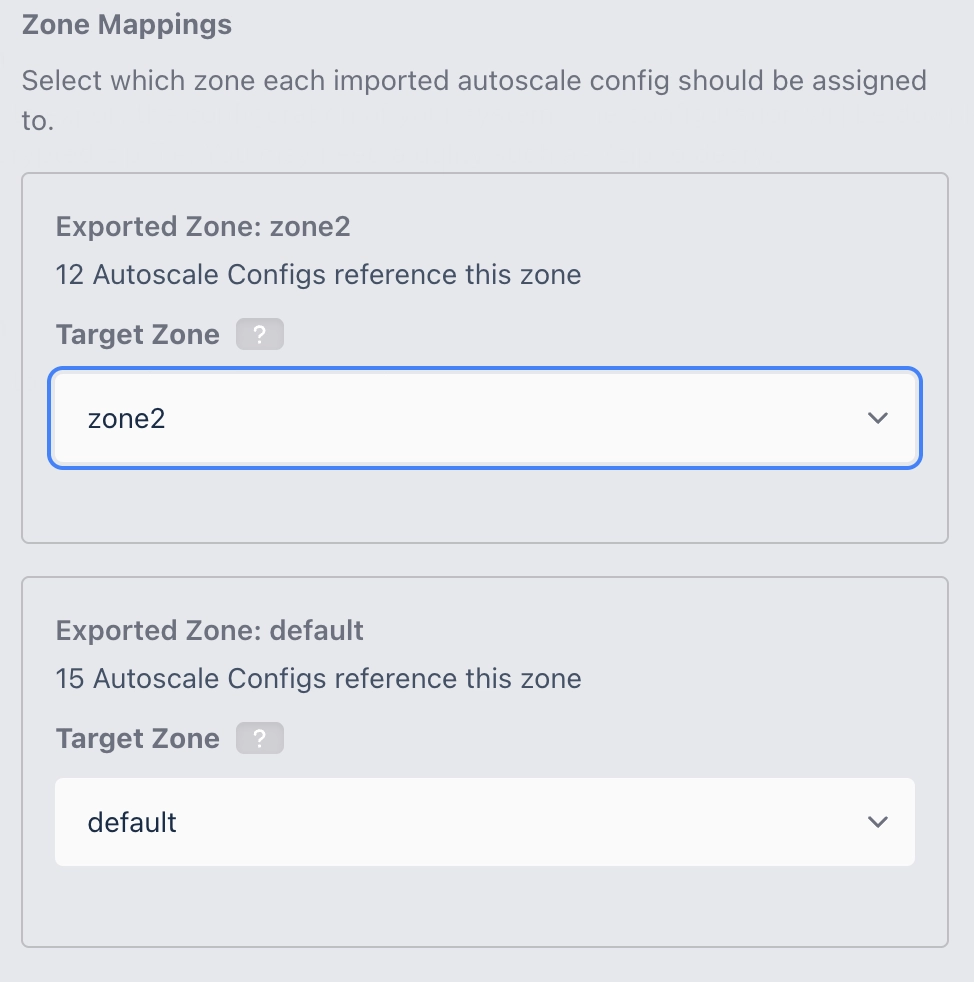
Zone mappings
Imported AutoScale configurations reference specific zones. During import, the system presents a mapping interface where you can:
- Accept auto-matched zones. Zones from the import that match existing zones by name are pre-selected automatically.
- Map to a different zone. Select a different existing zone as the target.
- Create a new zone. When there is no name conflict with an existing zone, create a new one from the import data. When a name conflict exists, map the imported reference to an existing zone.
LDAP config mappings
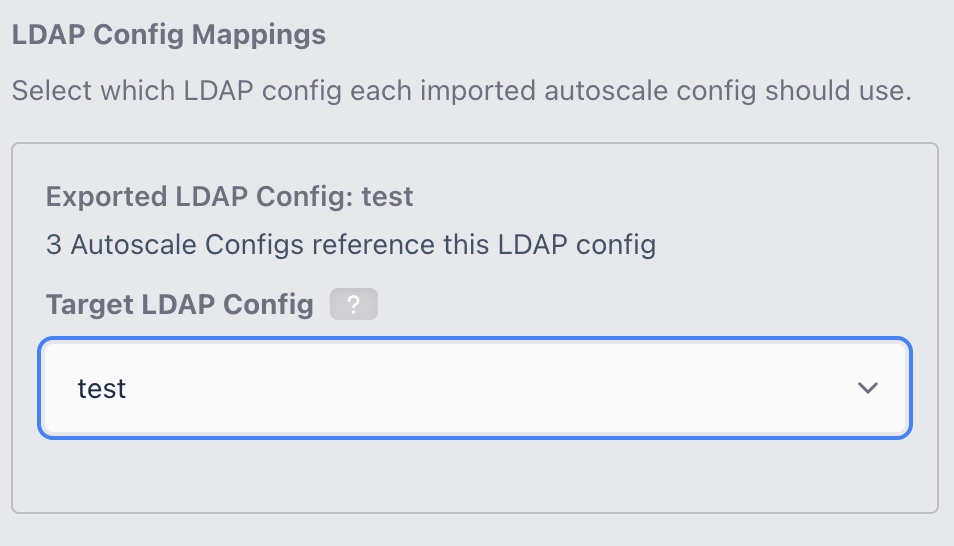
Imported AutoScale configurations that reference LDAP configurations present a mapping interface where you can:
- Accept auto-matched LDAP configs. LDAP configs from the import that match by name are pre-selected automatically.
- Map to a different LDAP config. Select a different existing LDAP config.
- Create a new LDAP config. When there is no name conflict with an existing LDAP config, create a new one from the import data. When a name conflict exists, map the imported reference to an existing LDAP config or skip it.
- Skip. Choose not to import the LDAP config reference.
Enabled state on import
For Autoscale Configs and Deployment Configuration imports that contain AutoScale configurations, the import preview exposes an Imported Autoscale Configs setting:
- Import as disabled (default). All imported AutoScale configurations are forced to
enabled = falseregardless of their state in the export. Review and re-enable them individually after the import completes. - Keep original enabled state. Each imported AutoScale configuration preserves the
enabledvalue from the export.
The default avoids unexpected provisioning activity when a large number of active configurations are imported onto a new deployment. Use Keep original enabled state for a backup restore or blue/green cutover where the imported deployment should begin servicing traffic immediately.
Complete and Partial imports do not expose this setting. Any AutoScale configurations they contain always retain their original enabled value from the export.
Name conflict resolution
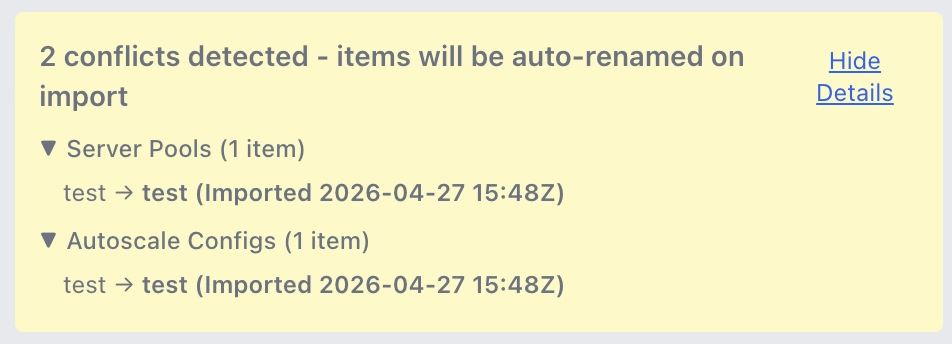
When imported resources have names that conflict with existing resources, the import preview displays a collapsible warning that shows:
- The total number of conflicts detected.
- A detailed breakdown grouped by resource type: Server Pools, Autoscale Configs, Provider Configs, and DNS Provider Configs.
- The original name and the new name assigned on import.
Conflicting resources are renamed automatically with a datetime-stamped suffix, for example MyConfig (Imported 2026-03-20 14:30Z).
Deployment configuration import
Importing a Deployment Configuration replaces existing non-ephemeral data while preserving runtime state. The import preview provides two additional toggle options:
- Overwrite Manager Token. When enabled, replaces the current manager authentication token with the one from the export. When disabled (default), the current manager token is preserved. Disable this to avoid disrupting manager authentication during migration.
- Overwrite API Private and Public Key Pair. When enabled, replaces the current API key pair with the one from the export. When disabled, the current keys are preserved. Disable this to avoid disrupting API authentication during migration.
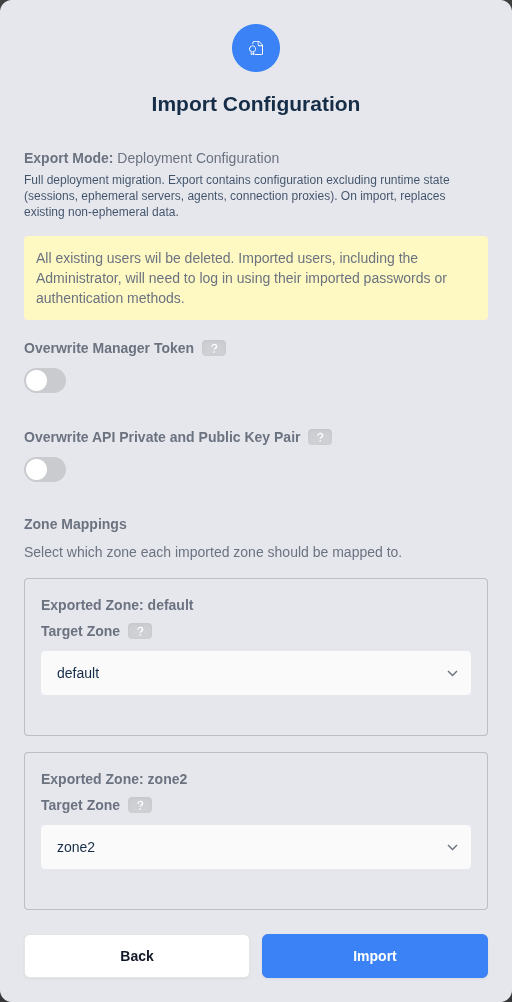
Existing users are deleted before import. All users, including the administrator, must log in using their imported passwords or authentication methods.
Non-AutoScaled Agents are preserved during a Deployment Configuration import. All servers are replaced by the import data.
Tokenized exports
The import feature generates new UUIDs for any tokenized UUIDs in the import data. When the tokenization data is incomplete, the import rolls back without making any changes to the existing system data. For more details, see UUID tokenization.
Conflict resolution
Conflict resolution behavior depends on the export mode of the imported data.
Partial data set conflict resolution
For Partial Data Set imports, the system provides simple deduplication and conflict resolution for the following tables.
Records affected by the following logic are removed from the import data. They are not merged into the existing data.
| Resource | Table | Notes |
|---|---|---|
| System Settings | settings | Records for system settings that are already configured are dropped from import data. |
| Groups | groups | Groups conflicting by name are dropped from import data. Other import records are pointed to the existing group. |
| Group Settings | group_settings | Records for group settings that are already configured are dropped from import data. |
| Group Permissions | group_permissions | Duplicates of existing group permissions are dropped from import data. |
| Users | users | Users conflicting by username are dropped from import data. Other import records are pointed to the existing user. |
| Group Membership | user_groups | The import skips assigning an existing user to an existing group of which it is already a member. |
| Zones | zones | Zones conflicting by zone_name are dropped from import data. Other import records are pointed to the existing zone. |
Autoscale config conflict resolution
For Autoscale Config imports, conflicting resources are renamed automatically rather than dropped. The renaming uses a datetime-stamped suffix:
- Format:
ResourceName (Imported YYYY-MM-DD HH:MMZ), where the time is UTC andZdenotes Zulu/UTC. - When that name is also taken, a counter is appended:
ResourceName (Imported YYYY-MM-DD HH:MMZ) 2. - Applies to Server Pools, Autoscale Configs, Provider Configs, and DNS Provider Configs.
Conflicts and their proposed renames appear in the import preview before the import is applied.
Complete data set and deployment configuration
Conflict resolution does not apply to these modes, because existing data is replaced during import.
Example: complete system restore
The example below assumes the ZIP file for import contains a complete Kasm system configuration export. For more information, see the corresponding export example.
This type of import destroys the existing Kasm system configuration data.
- Log into the Workspaces UI as an administrator.
- From the Admin panel, select Diagnostics > System Info.
- Open the Import/Export Config tab and click Import Configuration.
- Step 1: select the complete export ZIP file and enter the password. Click Next.
- Step 2: the preview shows Complete Data Set mode and warns that all existing data will be replaced. Review the preview.
- Click Import.
On success, all previous configurations are removed and replaced with those in the provided import data. This may log out the administrator.
Example: import autoscale configurations
The example below assumes the ZIP file for import was exported using the Autoscale Configs export mode. For more information, see the corresponding export example.
- Log into the Workspaces UI as an administrator.
- From the Admin panel, select Diagnostics > System Info.
- Open the Import/Export Config tab and click Import Configuration.
- Step 1: select the AutoScale export ZIP file and enter the password. Click Next.
- Step 2: the preview shows Autoscale Configs mode. Review and configure:
- Verify zone mappings, and adjust them if the auto-matched zones are not correct.
- Verify LDAP config mappings, and adjust or skip them as needed.
- Review any name conflicts in the collapsible details section.
- Click Import.
On success, Kasm creates new AutoScale configurations and related resources. Conflicting names are renamed automatically as shown in the preview. Other system configuration data stays unmodified.
Example: deployment migration import
The example below assumes the ZIP file for import was exported using the Deployment Configuration export mode. For more information, see the corresponding export example.
- Log into the Workspaces UI as an administrator.
- From the Admin panel, select Diagnostics > System Info.
- Open the Import/Export Config tab and click Import Configuration.
- Step 1: select the deployment configuration export ZIP file and enter the password. Click Next.
- Step 2: the preview shows Deployment Configuration mode. Configure:
- Overwrite Manager Token. Disable this to preserve the current manager authentication token.
- Overwrite API Private and Public Key Pair. Disable this to preserve the current API keys.
- Click Import.
On success, the deployment configuration is updated while runtime state such as active sessions and host servers is preserved.
Common troubleshooting steps
- The import fails with a permanent error. Review the error shown in the dialog and the body of the network request. The system applies no changes when an import fails.
- A retryable error appears, such as a timeout. Re-attempt the import from the form. No partial changes are applied.
- The import is rejected for version mismatch. Confirm the export came from the same application and database version. See configuration schema versioning.
- Stale sessions or servers appear after a complete restore. Clean up the stale records manually, or use the Deployment Configuration mode for migrations to handle runtime state separately.