Docker Agents
An Agent is any compute resource where a user's containerized Workspace can be provisioned. The compute resource needs the Kasm Agent role installed.
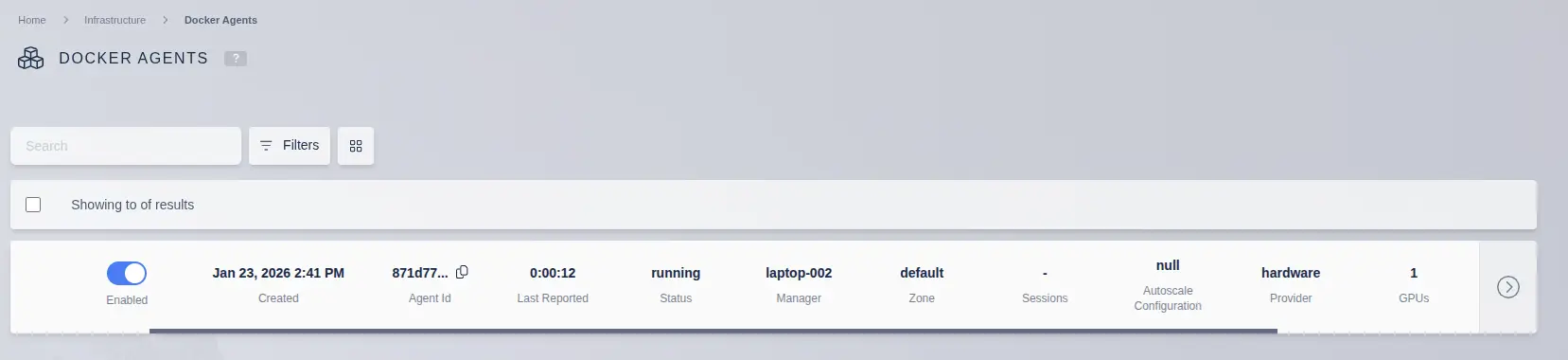
View Agents
View a list of Agents by selecting Infrastructure -> Docker Agents from the Kasm UI.

Agent Actions
Clicking the arrow for the session will present a list of potential actions:
- Edit - Edit and view details for the selected Agent.
- Delete Sessions - Mark all sessions on the Agent as "deleting". The Sessions will be deleted in a few moments. Sessions resumed from a stopped state will have the previous files intact, but previously running programs will need to be restarted.
- Delete - Delete the Agent from the Kasm Deployment.
- Drain - Mark the Agent as "Draining". An Agent in Draining mode will not allow new sessions to be created. Once all existing sessions on the Agent are closed, the agent will be Deleted. (This Option is only Applicable to Agents created from an Autoscale Pool)
Agent Details
More details about an individual Agent can be seen by clicking the Edit (pencil) icon under the Details and Usage tabs.
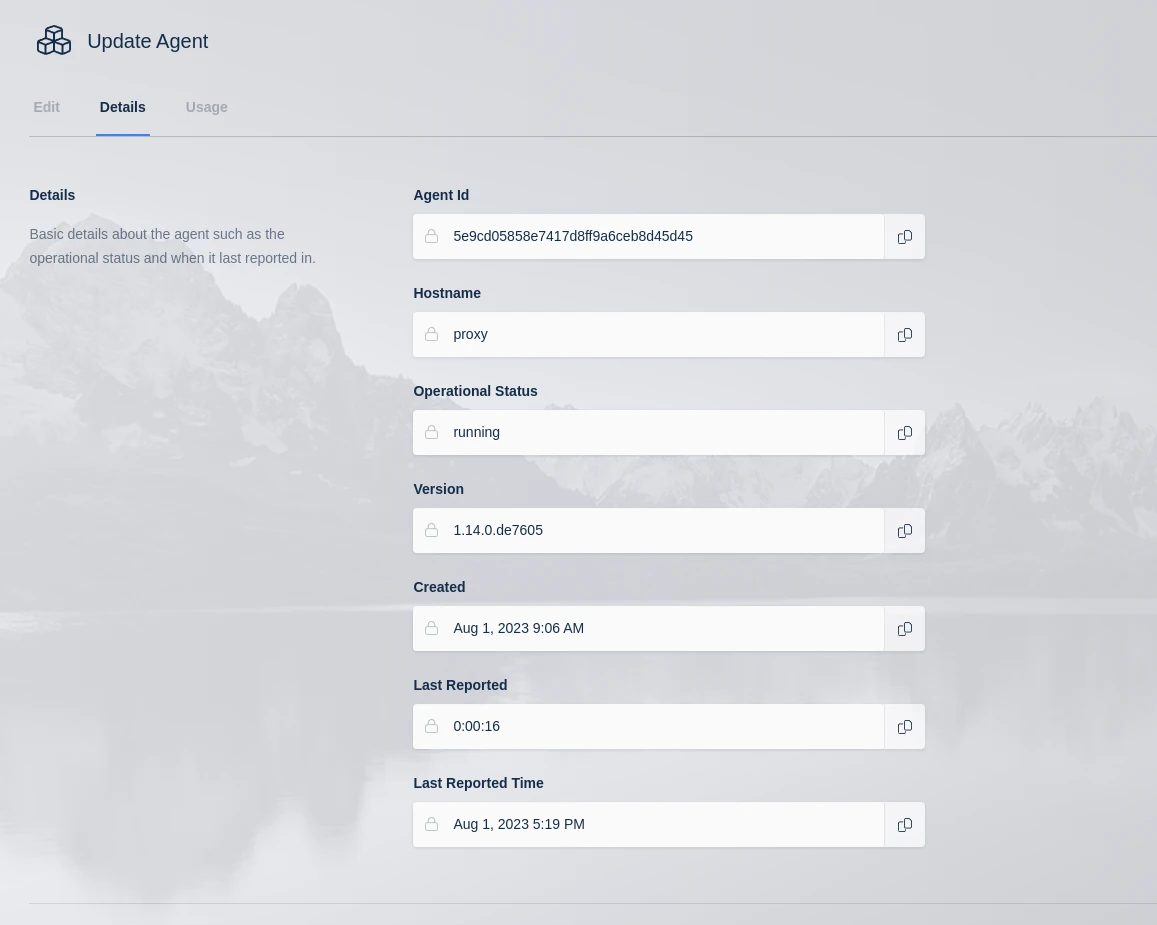
The bar chart shows two different stats for RAM and CPU respectively. It shows how much RAM/CPU is currently being utilized and it shows how much is currently allocated. If you have an agent that has 6 CPUs, is overriden to 12 CPUs, and has two desktops allocated, 1 at 2 CPUs and 1 at 3 CPUs, it will show 5 of 12 CPUs are allocated. It will also show what the current CPU utilization was during the last checkin.
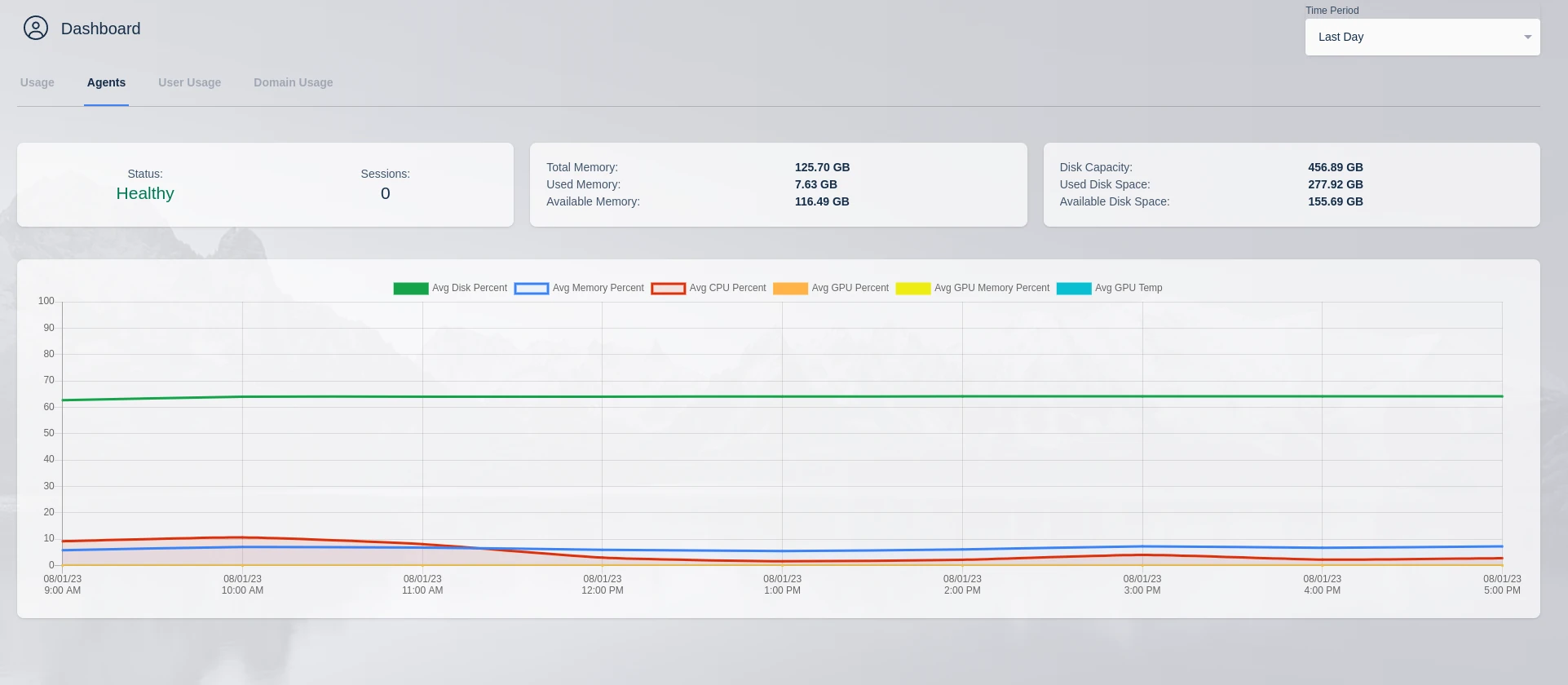
Agent Chart
Historical CPU, Memory, and disk utilization can be tracked for an Agent by viewing the Dashboard in the Kasm UI.
Agent Settings
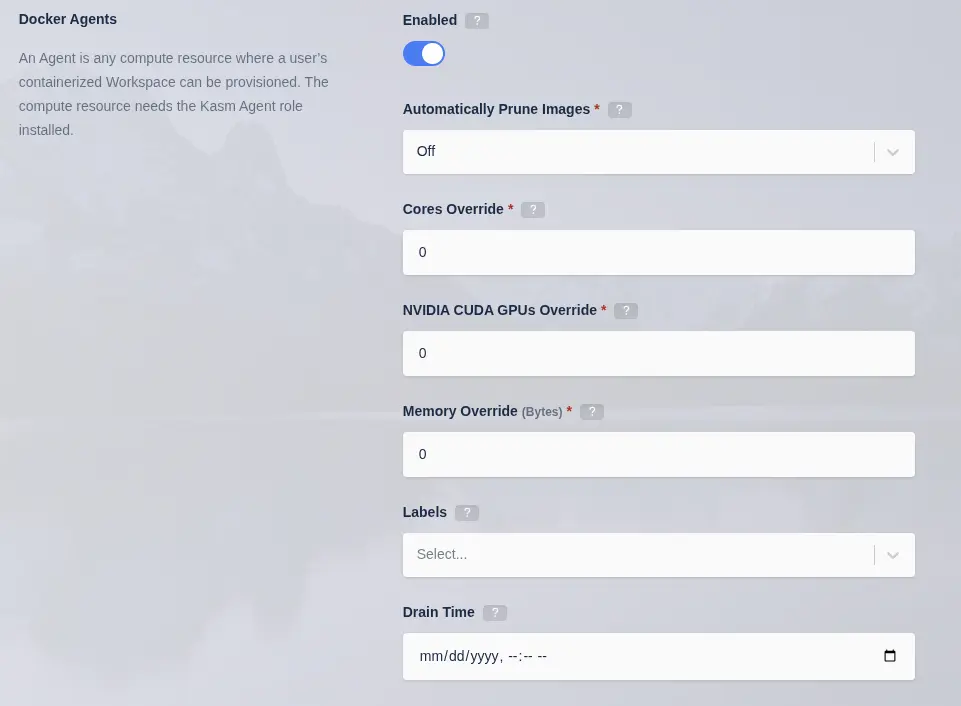
Agent settings may be configured from the Kasm UI by selecting Infrastructure -> Agents -> Edit (Pencil Icon)
| Field | Description |
|---|---|
| Enabled | When checked, the Agent will service requests to create sessions. When disabled, the Agent will not be considered for requests to create more sessions. This is useful to "drain" sessions from an agent prior to maintenance. |
| Automatically Prune Images | Instruct the Agent to automatically delete (prune) unneeded images. Only Kasm Workspaces images are pruned. Off - Pruning is disabled. Normal - Prune untagged (dangling) images. Aggressive Prune untagged images and any image that is no longer defined in the application. |
| Cores Override | Instruct the system to treat the Agent as if it has this number of CPU Cores. This is useful to tactically oversubscribe the Agent. 0 indicates no-override. The system will use the actual CPU Cores of the system. |
| NVIDIA CUDA GPUs Override | Instruct the system to treat the Agent as if it has this number of NVIDIA CUDA GPUs. This is useful to tactically oversubscribe the Agent. 0 indicates no-override. The system will use the actual number of GPUs for the system. |
| Memory Override | Instruct the system to treat the Agent as if it has this amount of Memory (in bytes). This is useful to tactically oversubscribe the Agent. 0 indicates no-override. The system will use the actual memory of the system. |
| Drain Time | The time when this Agent switches to "Draining" mode. In Draining mode, the Agent will not accept any new sessions and once all active sessions have ended, the Agent will be automatically deleted. |
| Labels | Labels assigned to this Agent. These labels can be used to control where Workspace sessions are launched. You can specify these labels in a Workspace's "Include Labels" or "Exclude Labels" settings to ensure sessions run only on certain agents. |
CPU / Memory / GPU Override
An Agent reports how much RAM, CPU cores, and GPU resources are available on the system. If an Agent has 6 CPU cores and 6 GB of RAM and all Images are set to 1 CPU and 1 GB of RAM, only 6 sessions can be provisioned on the Agent at one time.
You can, however, override CPU, RAM, and GPU resources to allow for oversubscribing.
Here you are able to override the CPU, GPU, and RAM. A value of 0 means no override. If an agent server has 6 CPUs, you can, for example, configure an override of 12 CPUs. This would allow you to provision 12 instances of a user desktop, if each image was set to 1 CPU. The agent would still need 12 GB of RAM to provision 12 users if each image was set to 1GB of RAM. You can also override RAM in the same manner as CPUs. It is important to ensure your servers have a SWAP partition adequate in size to overcome over utilization of RAM. Not having a swap file can result in user desktops being destroyed when RAM is over subscribed. Overriding the GPU count allows the agent to assign more user sessions to a one or more GPUs. The system must have at least one physical GPU to override.
For both CPU and GPU override, the setting allows administrators to oversubscribe resources. However, it does not allow administrators to provide more resources to a single session than a system has. For example, if a system has 1 GPU and the GPU override was set to 10, that would allow 10 sessions requiring 1 GPU each to be created. The system, however, will not allow an image set to 10 GPUs to be assigned to an agent that has only 1 physical GPU, even of an override of 10 GPUs is used.
GPU Support
In the Update Agent form, there is a GPU Hardware section, this allows you to see the GPUs detected on the system and what features that GPU supports. From here you can enable and disable features on each GPU. In the example screenshot below, the NVIDIA GPU supports video encoding acceleration, but the administrator has disabled it. Disabling a feature will ensure that GPU is not assigned to containers for the selected feature.

Workspaces supports passing through NVIDIA based GPUs to streaming containers. Workspaces utilizes the NVIDIA container toolkit. For a full list of supported GPUs and operating systems see https://docs.nvidia.com/datacenter/cloud-native/gpu-operator/platform-support.html. The NVIDIA drivers and container toolkit must be installed on all Workspaces Agent servers with GPUs intended to pass through to containers. GPUs can be used within a streaming container for a number of purposes, to include graphics, gaming, running applications that use CUDA, and developing with GPU accelerated frameworks such as Pytorch or Tensorflow. Using Workspaces allows organizations to easily manage and provide access to GPU backed resources. Follow the GPU How-To for a detailed walk through of a deployment.
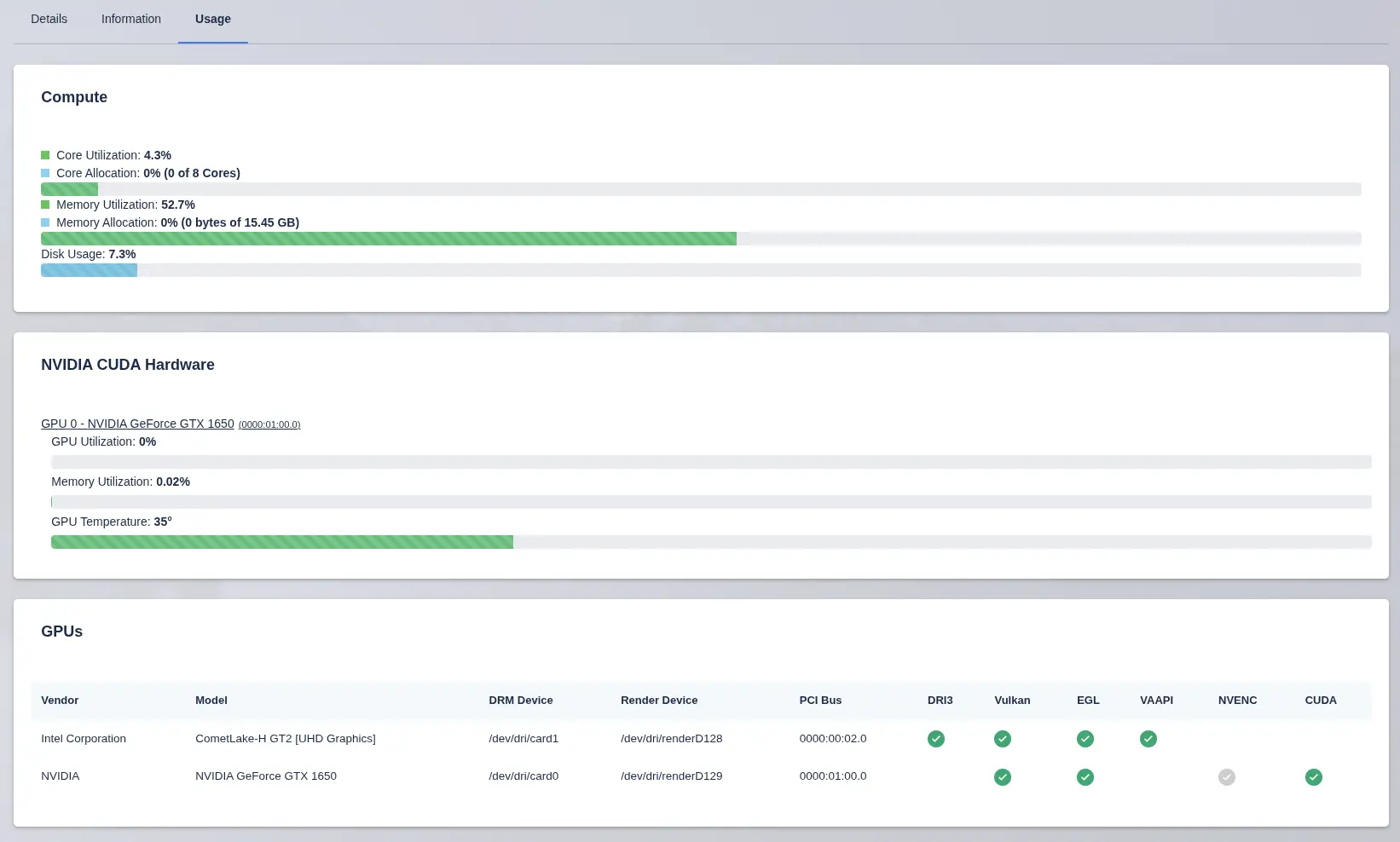
Workspaces allows administrators to see how many GPUs an agent has. The number displayed only includes NVIDIA CUDA GPUs as seen by the NVIDIA container runtime. Other GPUs can be seen in the Agent details view.
Administrators can view all GPU details of an agent in the Update GPU form, Usage tab. NVIDIA CUDA hardware is displayed in the middle section with usage statistics. All GPUs are shown in the button GPU section along with what features that GPU supports. In this example screenshot, the NVIDIA GPU supports NVENC, however, it has been disabled by the administrator. Features can be enabled/disabled in the Details tab of the same view.
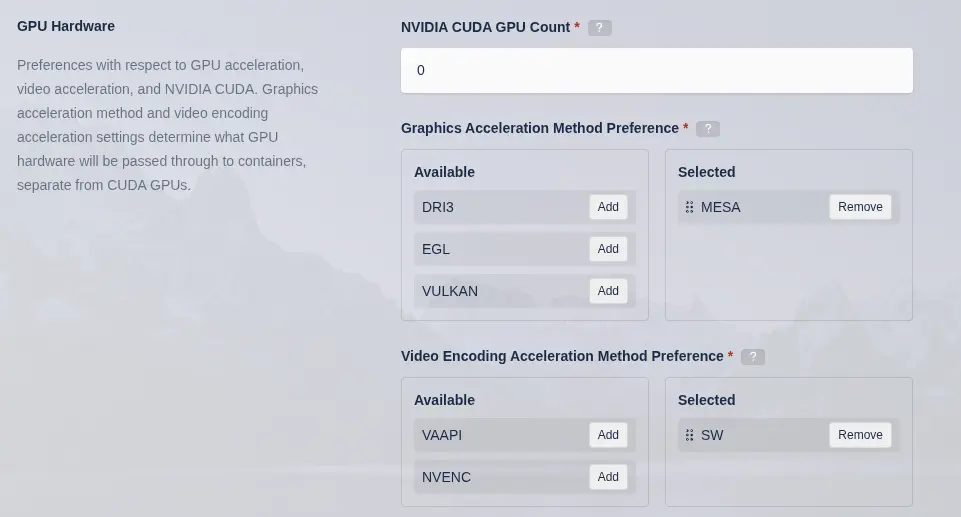
Workspaces images allow defining GPU requirements. Set the number of GPUs this container should be assigned and/or what graphics and video acceleration methods are required. A requested session using this image will only be provisioned on an agent that has the number of selected CUDA GPUs or a GPU with the requested features. Only NVIDIA GPUs are explicitly passed through and have a count defined. Other GPUs are automatically passed through based on what features are needed, for example VAAPI video acceleration.
GPU Accelerated Graphics
Kasm Workspaces Images may support DRI3, EGL, and/or VULKAN for GPU acceleration. The Workspace Image settings allow you to specify which to use. DRI3 is natively supported by KasmVNC and is the preferred method, however, DRI3 is not supported by NVIDIA. Intel and AMD GPUs generally support DRI3. NVIDIA GPUs generally support EGL and VULKAN, with the exception of enterprise grade GPUs that may not have DRM devices exposed. EGL is supported with the use of VirtualGL while Vulkan is supported through the use of Zink. Virtual GL is generally pre-installed on Kasm maintained Workspace image that are based on Ubuntu. Zink is generally included in the MESA package that is installed on all Kasm maintained Workspaces images. Testing with your specific application and desktop environment is needed to know which graphics acceleration method is the right choice for you. You must be using an image that is based on a Kasm Workspaces image version 1.19.0 or higher. See our Workspace Images documentation for details on which core images support which GPU features.
The security of multi-tenant container GPU acceleration is not well established. This feature should be used with caution and with full understanding of the potential security implications. These features are being provided for by the GPU manufacturer and are merely being orchestrated by Kasm Workspaces. Kasm Technologies Inc provides no warranty of the security of such features provided by GPU vendors. Kasm Technologies recommends that GPUs not be shared between different security contexts and/or boundaries. NVIDIA provides the MIG feature on enterprise grade GPUs for creating smaller instances from a single GPU, which Kasm supports.
GPU Video Acceleration
Kasm detects support for VAAPI and NVENC hardware based video encoding/decoding acceleration. You can enable these features on Workspaces Image settings and the appropriate DRM devices will be passed through to any resulting containers. KasmVNC currently supports VAAPI for h.264 and h.265 encoding and will automatically use the hardware when detected.
NVIDIA MIG Support
NVIDIA Multi-Instance GPU (MIG) is a feature available on select NVIDIA data center GPUs (such as the A100 and H100) that allows a single physical GPU to be partitioned into multiple isolated GPU instances. Each MIG instance functions as an independent GPU slice with dedicated compute, memory, and bandwidth resources. MIG enables more efficient and secure GPU utilization by allowing multiple Workspaces or user sessions to securely share the same GPU hardware without contention or interference.
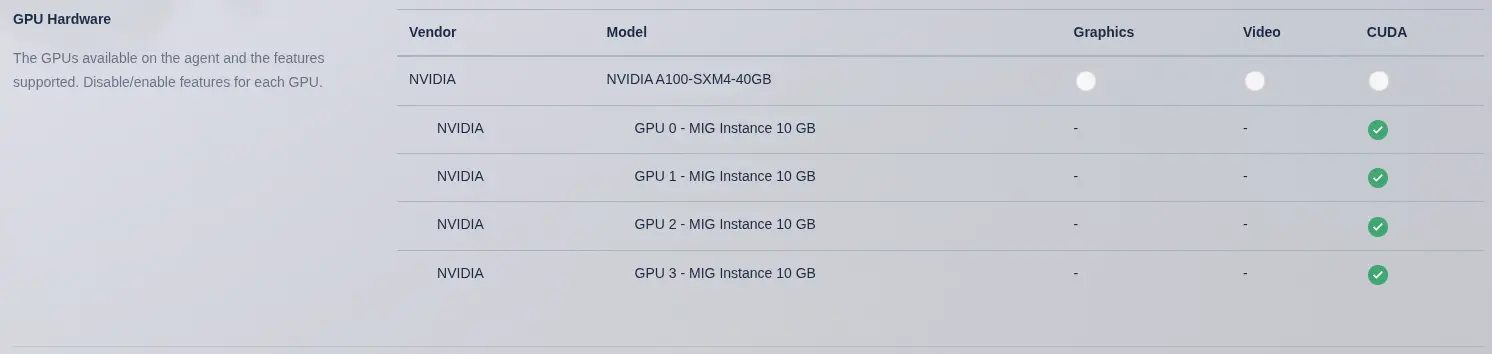
Kasm automatically disables the physical GPU from being used by Kasm sessions when MIG instances are detected, as seen in this screenshot. MIG instances will be listed under the physical GPU, indented slightly as shown here.
Enabling MIG on supported NVIDIA GPUs
-
Use
nvidia-smicommand to list GPUs and get the GPU index for the target GPU. Each GPU has a unique index, usually starting at 0. For this demonstration below, we will use0. -
Check if your GPU supports the MIG feature, change your
-i 0to reference your GPU index if not 0.
# This GPU supports MIG but it is current disabled.
nvidia-smi -i 0 --query-gpu=pci.bus_id,mig.mode.current --format=csv
pci.bus_id, mig.mode.current
00000000:00:04.0, Disabled

# This GPU does not support the MIG feature
nvidia-smi -i 0 --query-gpu=pci.bus_id,mig.mode.current --format=csv
pci.bus_id, mig.mode.current
00000000:21:00.0, [N/A]
- Enable MIG
sudo nvidia-smi -i 0 -mig 1
Warning: MIG mode is in pending enable state for GPU 00000000:00:04.0:Not Supported
Reboot the system or try nvidia-smi --gpu-reset to make MIG mode effective on GPU 00000000:00:04.0
All done.
-
Reboot the system.
-
List available MIG .
nvidia-smi mig -lgip
+-------------------------------------------------------------------------------+
| GPU instance profiles:                                                        |
| GPU   Name               ID    Instances   Memory     P2P    SM    DEC   ENC  |
|                                Free/Total   GiB              CE    JPEG  OFA  |
|===============================================================================|
|   0  MIG 1g.5gb          19     7/7        4.75       No     14     0     0   |
|                                                               1     0     0   |
+-------------------------------------------------------------------------------+
|   0  MIG 1g.5gb+me       20     1/1        4.75       No     14     1     0   |
|                                                               1     1     1   |
+-------------------------------------------------------------------------------+
|   0  MIG 1g.10gb         15     4/4        9.75       No     14     1     0   |
|                                                               1     0     0   |
+-------------------------------------------------------------------------------+
|   0  MIG 2g.10gb         14     3/3        9.75       No     28     1     0   |
|                                                               2     0     0   |
+-------------------------------------------------------------------------------+
|   0  MIG 3g.20gb          9     2/2        19.62      No     42     2     0   |
|                                                               3     0     0   |
+-------------------------------------------------------------------------------+
|   0  MIG 4g.20gb          5     1/1        19.62      No     56     2     0   |
|                                                               4     0     0   |
+-------------------------------------------------------------------------------+
|   0  MIG 7g.40gb          0     1/1        39.38      No     98     5     0   |
|                                                               7     1     1   |
+-------------------------------------------------------------------------------+
- Create MIG instances. In this example, I chose the 1g.10gb profile to create 4 instances, each with 10GB of VRAM.
sudo nvidia-smi mig -cgi 1g.10gb,1g.10gb,1g.10gb,1g.10gb -C
Successfully created GPU instance ID  4 on GPU  0 using profile MIG 1g.10gb (ID 15)
Successfully created compute instance ID  0 on GPU  0 GPU instance ID  4 using profile MIG 1g.10gb (ID  0)
Successfully created GPU instance ID  3 on GPU  0 using profile MIG 1g.10gb (ID 15)
Successfully created compute instance ID  0 on GPU  0 GPU instance ID  3 using profile MIG 1g.10gb (ID  0)
Successfully created GPU instance ID  5 on GPU  0 using profile MIG 1g.10gb (ID 15)
Successfully created compute instance ID  0 on GPU  0 GPU instance ID  5 using profile MIG 1g.10gb (ID  0)
Successfully created GPU instance ID  6 on GPU  0 using profile MIG 1g.10gb (ID 15)
Successfully created compute instance ID  0 on GPU  0 GPU instance ID  6 using profile MIG 1g.10gb (ID  0)
- Verify that
nvidia-smishows the newly created instances.
nvidia-smi
Tue Mar 31 13:13:13 2026
+-----------------------------------------------------------------------------------------+
| NVIDIA-SMI 590.48.01              Driver Version: 590.48.01      CUDA Version: 13.1     |
+-----------------------------------------+------------------------+----------------------+
| GPU  Name                 Persistence-M | Bus-Id          Disp.A | Volatile Uncorr. ECC |
| Fan  Temp   Perf          Pwr:Usage/Cap |           Memory-Usage | GPU-Util  Compute M. |
|                                         |                        |               MIG M. |
|=========================================+========================+======================|
|   0  NVIDIA A100-SXM4-40GB          Off |   00000000:00:04.0 Off |                   On |
| N/A   33C    P0             44W /  400W |     119MiB /  40960MiB |     N/A      Default |
|                                         |                        |              Enabled |
+-----------------------------------------+------------------------+----------------------+

+-----------------------------------------------------------------------------------------+
| MIG devices:                                                                            |
+------------------+----------------------------------+-----------+-----------------------+
| GPU  GI  CI  MIG |              Shared Memory-Usage |        Vol|        Shared         |
|      ID  ID  Dev |                Shared BAR1-Usage | SM     Unc| CE ENC  DEC  OFA  JPG |
|                  |                                  |        ECC|                       |
|==================+==================================+===========+=======================|
|  0    3   0   0  |              30MiB /  9984MiB    | 14      0 |  1   0    1    0    0 |
|                  |               0MiB /  6105MiB    |           |                       |
+------------------+----------------------------------+-----------+-----------------------+
|  0    4   0   1  |              30MiB /  9984MiB    | 14      0 |  1   0    1    0    0 |
|                  |               0MiB /  6105MiB    |           |                       |
+------------------+----------------------------------+-----------+-----------------------+
|  0    5   0   2  |              30MiB /  9984MiB    | 14      0 |  1   0    1    0    0 |
|                  |               0MiB /  6105MiB    |           |                       |
+------------------+----------------------------------+-----------+-----------------------+
|  0    6   0   3  |              30MiB /  9984MiB    | 14      0 |  1   0    1    0    0 |
|                  |               0MiB /  6105MiB    |           |                       |
+------------------+----------------------------------+-----------+-----------------------+

+-----------------------------------------------------------------------------------------+
| Processes:                                                                              |
|  GPU   GI   CI              PID   Type   Process name                        GPU Memory |
|        ID   ID                                                               Usage      |
|=========================================================================================|
|  No running processes found                                                             |
+-----------------------------------------------------------------------------------------+
Changing Manager Token
An administrator may wish to change the token that Agents use to check into the manager. The steps outlined below will change the token on each of the agents and on the manager.
Changing the Manager token involves restarting Kasm services and will result in an interruption in service.
First, enter the Kasm Admin UI -> Settings -> Global and change the value of "Token" in the manager settings to your new desired token.
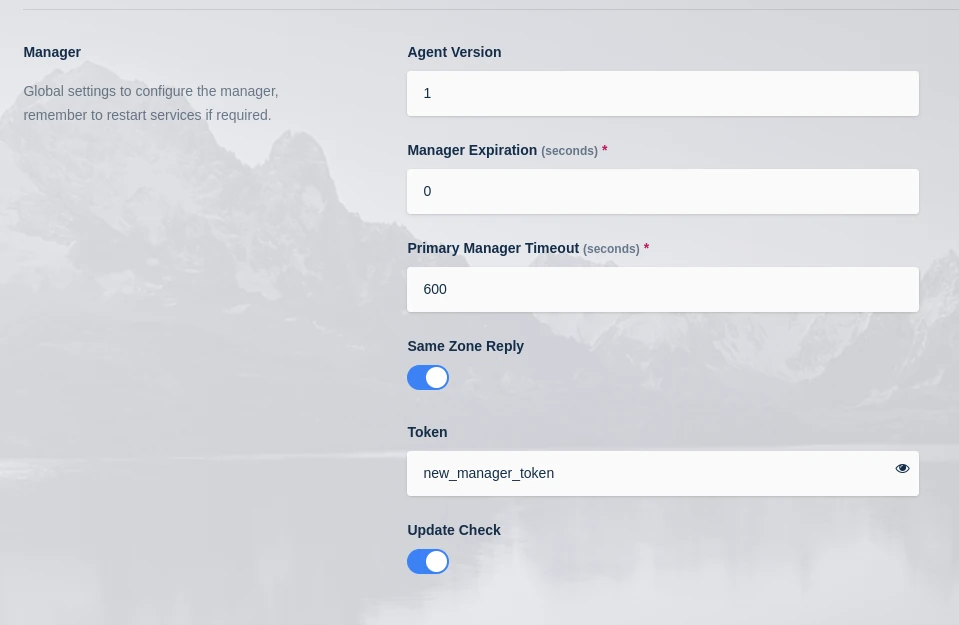
Login to each server with the agent role and complete the following steps:
Stop the Agent Services
sudo systemctl stop kasm
Replace the value of 'token' in the agent config with the new manager token.
sudo vi /opt/kasm/current/conf/app/agent/agent.app.config.yaml
Start the Agent Services
sudo systemctl start kasm
After one minute the Agents should all be checked back into the Manager as shown in the "Infrastructure" -> "Agents" page in the Kasm Admin UI.