Progressive Web App (PWA)
Kasm Workspaces installed as a Progressive Web App (PWA) allows users to use the Kasm Workspaces platform as a web-based application that behaves like a native desktop or mobile app, without requiring traditional installation. By leveraging modern browser capabilities, Kasm can be “installed” as a PWA, allowing users to launch remote workspaces (such as browsers, desktops, or applications) in a more seamless and app-like experience.
This enhances the user experience by making applications feel more like locally installed software while preserving all the benefits of secure, centrally managed workspaces.
Enable PWA Install
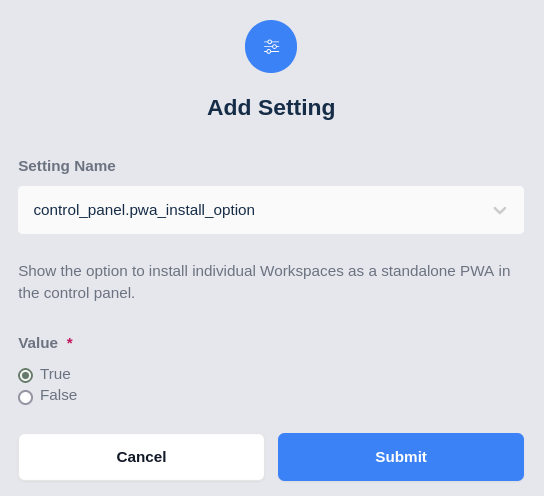
In order to give users the option to install the per-workspace PWAs, the control_panel.pwa_install_option group setting must be enabled. Go to Access Management -> Groups -> Select the group and click edit -> Settings -> Add Setting -> Add the "control_panel.pwa_install_option" and set the value to "True".
Prerequisite Requirements
In order for workspaces to show as an installable PWA it must be served from a secure HTTPS connection and with trusted certificates.
Customization
Valid installed JSON manifest
Kasm workspaces provides a working manifest, if you want to make changes for branding then you can swap out the icons found in the manifest.
img/favicon.png
Icons
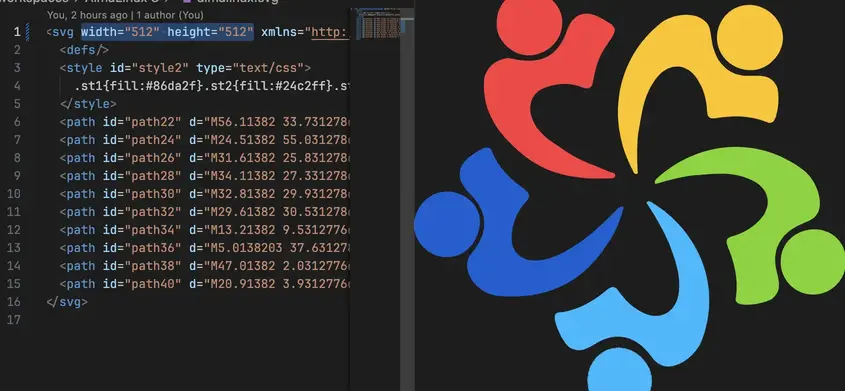
In order for an icon to be used, it must be square with an exact 1:1 ratio. If the image type is an svg, then the svg should also specify height and width attributes in the source. If it isn't, the PWA can still be installed, it just won't use the image for the app icon.