Progressive Web App (PWA)
A Progressive Web App (PWA) lets users run Kasm Workspaces as a web-based application that behaves like a native desktop or mobile app. Users gain an app-like entry point without a traditional software installation. Modern browsers provide the capabilities that make this delivery model possible.
When Kasm Workspaces is installed as a PWA, users launch remote workspaces such as browsers, desktops, or applications through a seamless, app-like experience. The endpoint receives the interactive experience, while workspace activity remains inside the governed, centrally managed workspace boundary.
This delivery model improves adoption by making secure workspaces feel like locally installed software. Users keep the convenience of a native app while the deployment preserves zero endpoint persistence and centralized governance.
How a PWA is installed
Browsers display a Kasm Workspaces workspace as an installable PWA only when two conditions are met. Both conditions support the trusted, app-like experience that users expect.
- The workspace is served over a secure HTTPS connection.
- The connection presents trusted certificates.
When these conditions are satisfied, the browser offers the install option for each workspace that the group setting enables.
Enable the PWA install option
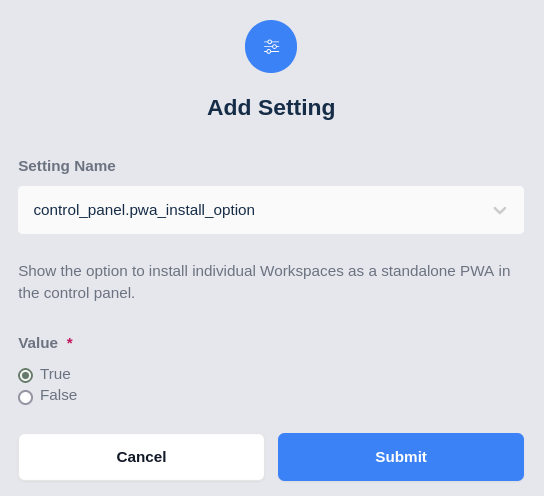
The install option is controlled by a group setting. To give users the option to install per-workspace PWAs, an administrator enables the control_panel.pwa_install_option group setting.
Configure the setting from Access Management > Groups. Select the group, click Edit, then open Settings. Click Add Setting, add control_panel.pwa_install_option, and set the value to True.
Customization options
Kasm Workspaces provides a working JSON manifest, so PWA delivery requires no manifest authoring. Administrators can adjust branding by swapping the icons referenced in the manifest.
Manifest icon
To rebrand the installed PWA, replace the icon used by the manifest:
img/favicon.png
Icon requirements
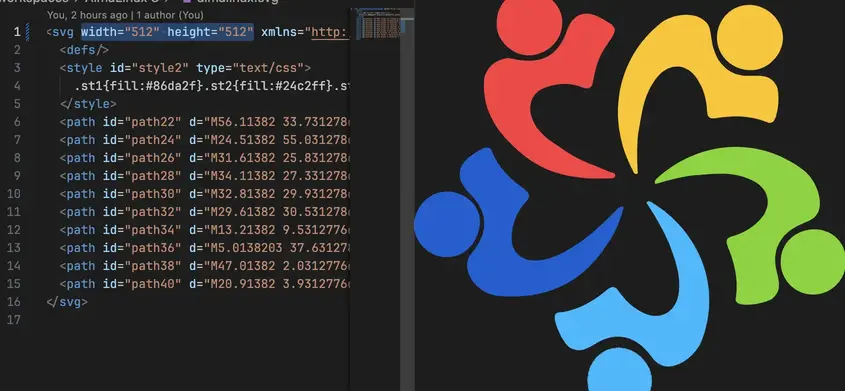
The PWA uses an icon only when the image meets specific requirements. An icon must be square, with an exact 1:1 ratio. For an SVG, the source must also specify height and width attributes. When the image does not meet these requirements, the PWA still installs, but it does not use the image for the app icon.
Deploy PWAs at scale
For centralized rollout to managed Windows endpoints, administrators can push PWAs through Active Directory rather than relying on manual installation. The guide to deploying PWAs with Group Policy covers the full procedure using Google Chrome and Microsoft Edge ADMX templates.