Auto-Opening RDP files for each Client OS
Windows
Windows will query Group Policy to determine whether it should prompt the user for verification when opening an RDP connection. There are also configuration options for individual browsers that cause the browser to launch the RDP connection immediately after the RDP configuration file download completes.
Kasm automatically generates a signed RDP file using the certificate and private key in Server Settings. To avoid Windows warning that the Kasm RDP file is provided by an untrusted/unknown publisher, you must do the following:
- Install either the certificate generated by Kasm or an applicable CA certificate on the client machine in the trusted certificate store.
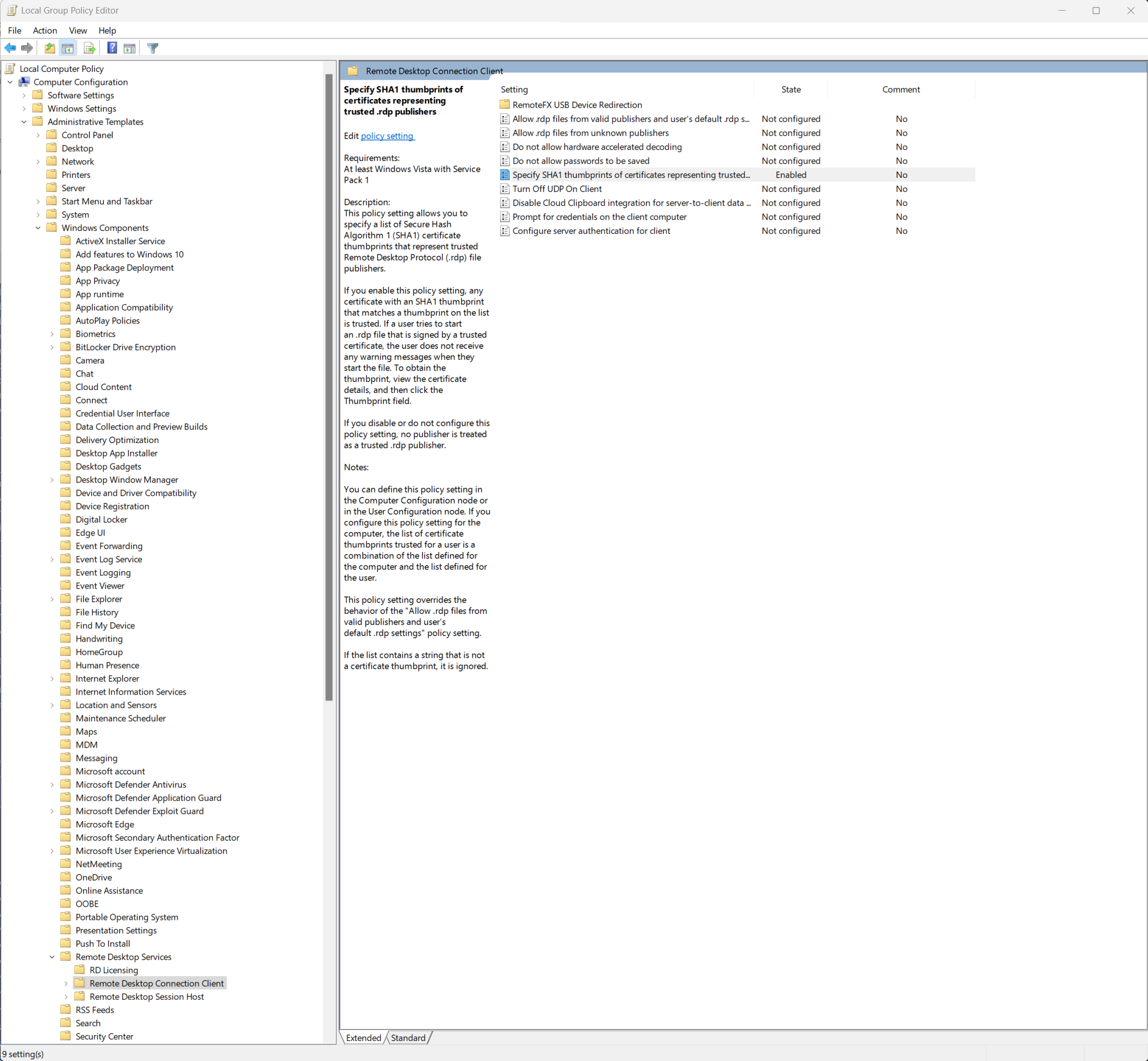
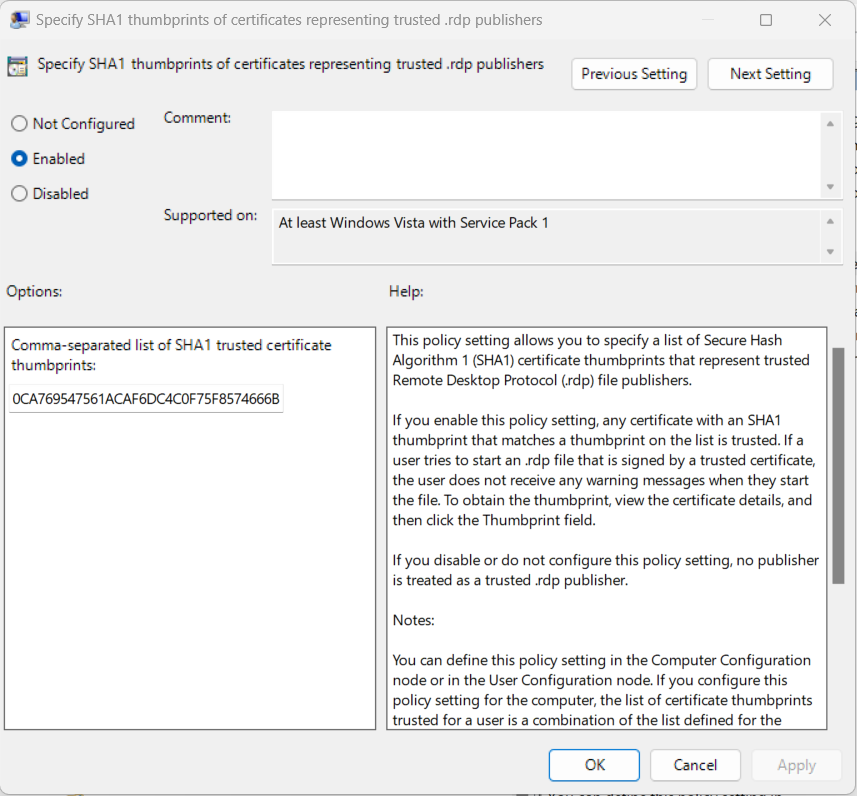
- Add the SHA1 thumbprint of the certificate as a trusted RDP publisher in Group Policy.
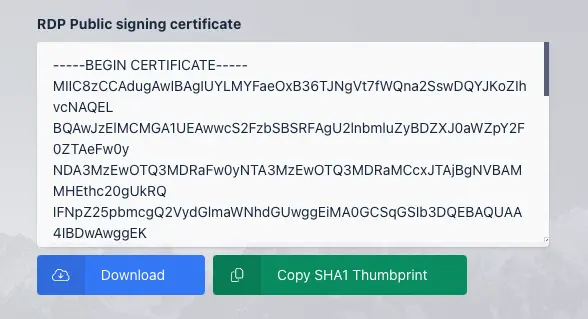
To make things easier, Kasm provides a button to download the certificate and a button to copy the SHA1 thumbprint to your clipboard in order to add to your group policy. Navigate to this element in Kasm Workspaces by clicking "Settings > Global" in the left-hand menu, then scrolling down to the "Connections" section.
Install the Certificate
- Download the RDP certificate using the button shown above
- Double-click the downloaded
.cerfile to open it - Click Install Certificate...
- Select "Local Machine" (which requires Administrator privileges), or "Current User"
- Select "Place all certificates in the following store"
- Click Browse
- Choose "Trusted Root Certification Authorities"
- Click OK
- Click Next
- Click Finish
- Wait for the import to finish, indicated by a pop-up with the message, "The import was successful."
Alternatively, you can push the certificate to the trust store of a domain-joined machine using Group Policy:
Computer Configuration -> Windows Settings -> Security Settings -> Public Key Policies -> Trusted Root Certification Authorities
Add SHA1 Thumbprint as Trusted RDP Publisher
Group Policy location:
Computer Configuration -> Administrative Templates -> Windows Components -> Remote Desktop Services -> Remote Desktop Connection Client -> Specify SHA1 thumbprints of certificates representing trusted .rdp publishers
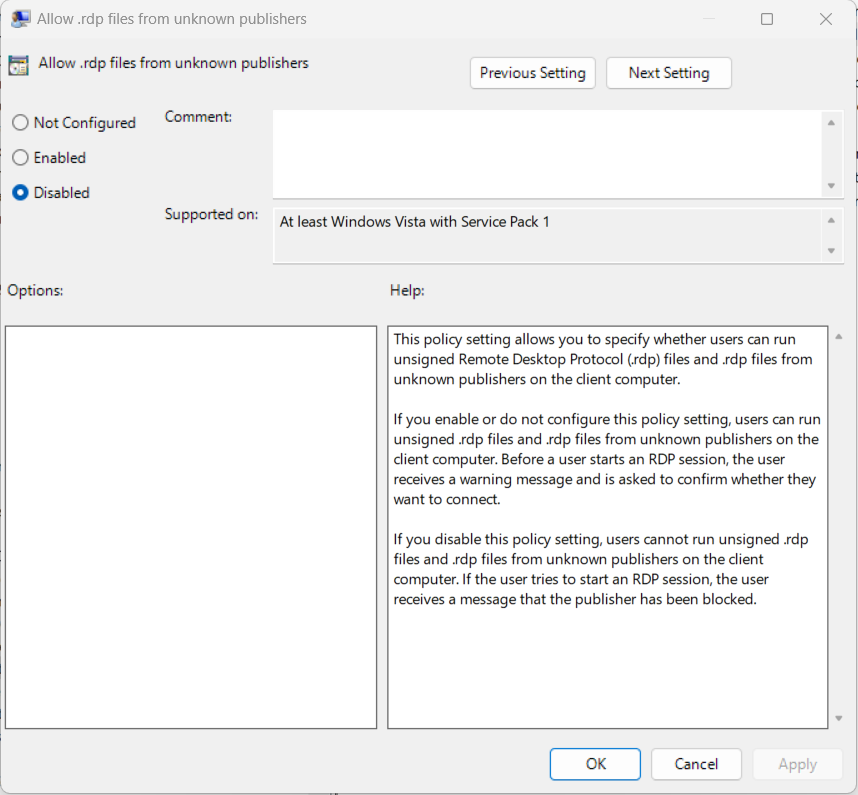
To prevent a user from modifying a signed RDP file and then attempting to create a connection to the RDP target, there is another group policy setting that can be enabled: Computer Configuration -> Administrative Templates -> Windows Components -> Remote Desktop Services -> Remote Desktop Connection Client -> Allow .rdp files from unknown publishers.
This GPO setting has the side effect of preventing a user from opening any RDP file not signed by a verified publisher, including those created by the user.
Google Chrome
Option 1
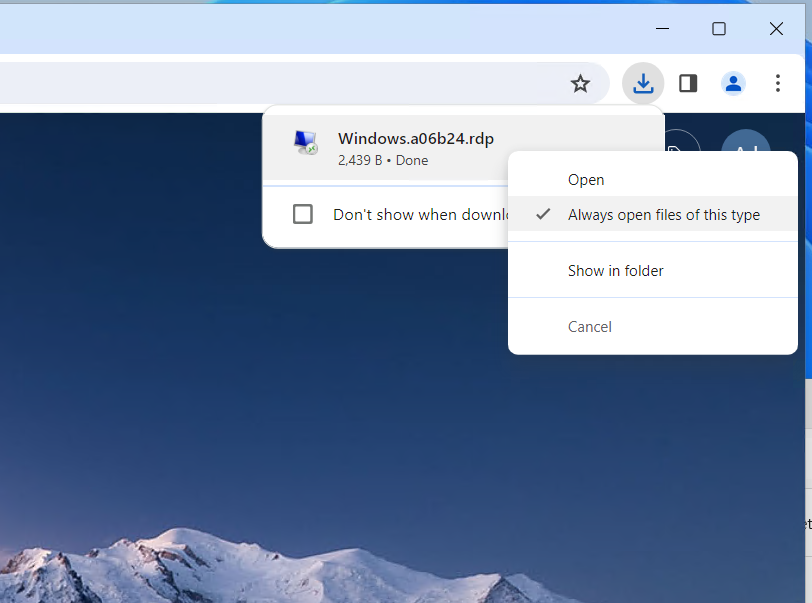
The user right-clicks the rdp file in the download list and selects Always open files of this type.
Option 2
The user or an administrator sets a registry entry.
- Registry Key:
Software\Policies\Google\Chrome\AutoOpenFileTypes - Registry Subkey: An index number
- Registry Value: A file extension
For example: Software\Policies\Google\Chrome\AutoOpenFileTypes\1 = rdp.
Firefox
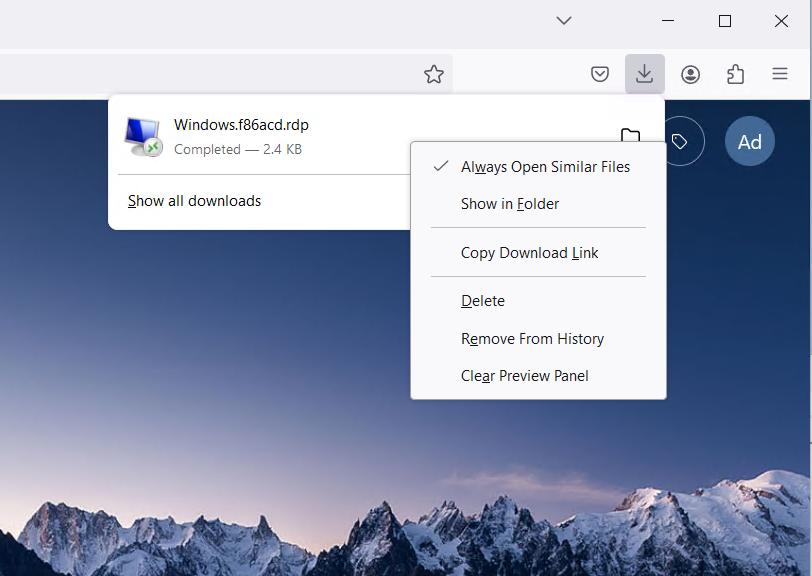
When right-clicking the RDP file download, the option Always Open Similar Files sets Firefox to automatically open RDP files in the default client.
ChromeOS
The Chromebook (or other host running ChromeOS) must be joined to a Google Workspace Enterprise account. The administrator can set Chrome managed policies to ensure that Chrome will automatically open the RDP file upon download.
You must install separate RDP client software on the ChromeOS host in order for the user to be able to make the RDP connection.
Otherwise, these instructions will only result in the .rdp file being opened automatically by the text editor.
Google Workspace configuration
- Log into the Google Workspace account at
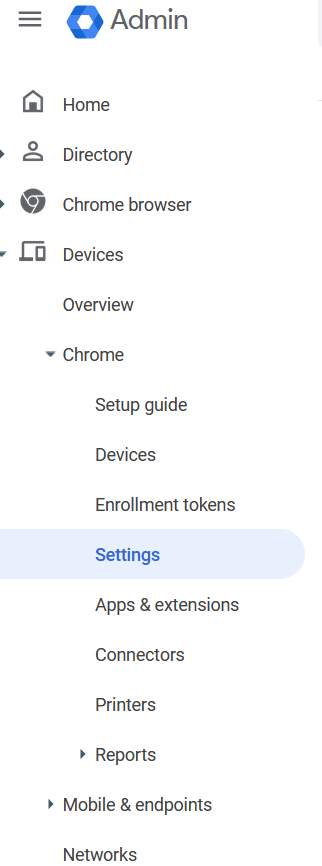
admin.google.com. - Navigate to Devices -> Chrome -> Settings.
- Select the User & browser settings tab.
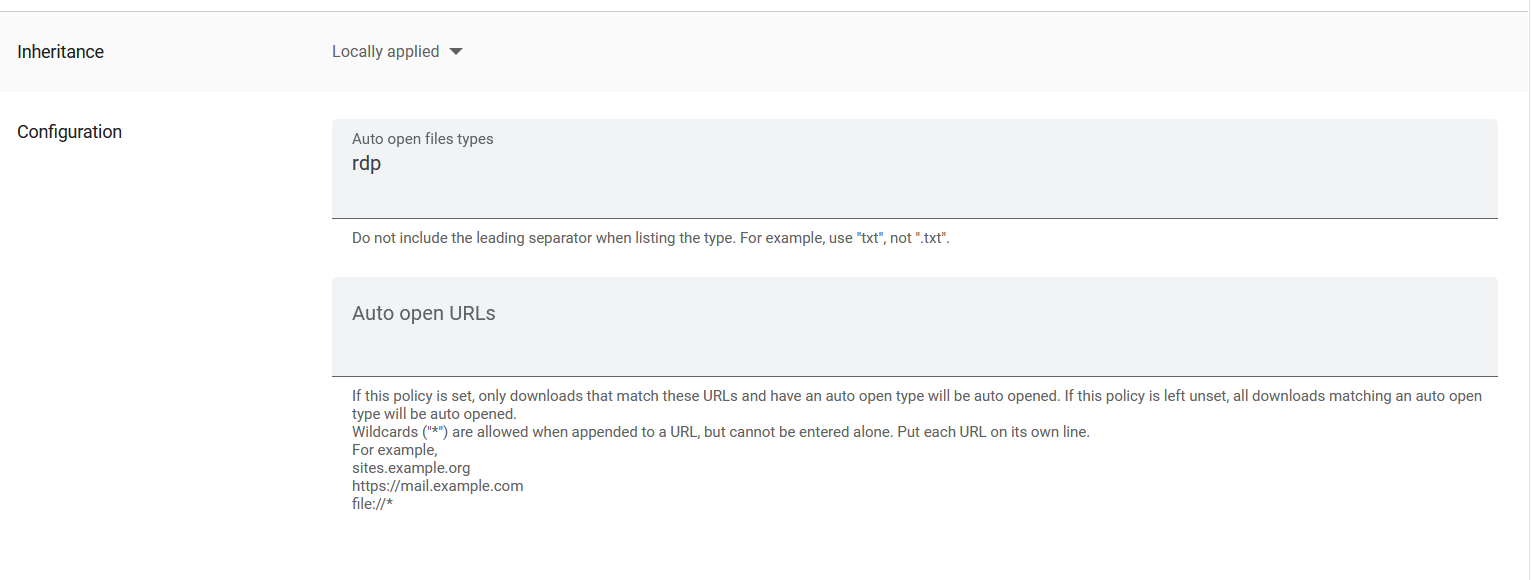
- Scroll down to the Content section and select Auto open downloaded files.
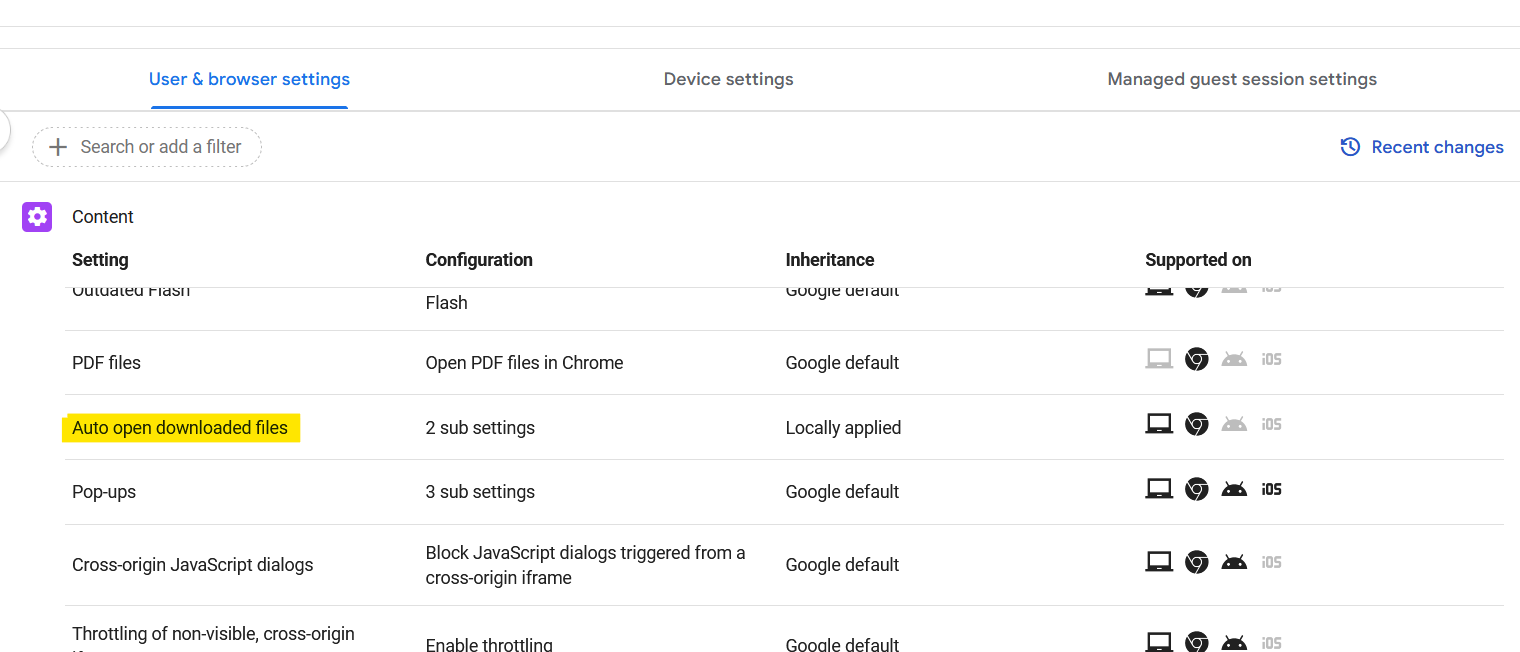
- Add RDP to the Auto open file types. The administrator can also restrict this setting to the URL of the Kasm deployment, e.g.
https://kasm.example.com/*.
MacOS
On macOS the RDP connection is loaded as a URL rather than a downloadable file. An RDP client that supports the rdp:// URL scheme (such as Microsoft Remote Desktop) must be installed.
Google Chrome
By default Chrome will show a confirmation dialog each time an rdp:// URL is opened. To have Chrome automatically launch the RDP client without the dialog, set the AutoLaunchProtocolsFromOrigins policy. Replace https://kasm.example.com with your Kasm deployment URL:
defaults write com.google.Chrome AutoLaunchProtocolsFromOrigins -array '{ protocol = rdp; allowed_origins = ("https://kasm.example.com"); }'
Chrome must be fully restarted (not just the tab) for the policy to take effect. You can verify the policy is active by navigating to chrome://policy in Chrome.
Firefox
Create the distribution directory and policies file at /Applications/Firefox.app/Contents/Resources/distribution/policies.json. The file must be owned by root. Replace https://kasm.example.com with your Kasm deployment URL:
sudo mkdir -p "/Applications/Firefox.app/Contents/Resources/distribution"
sudo tee "/Applications/Firefox.app/Contents/Resources/distribution/policies.json" << 'EOF'
{
  "policies": {
    "AutoLaunchProtocolsFromOrigins": [
      {
        "protocol": "rdp",
        "allowed_origins": [
          "https://kasm.example.com"
        ]
      }
    ]
  }
}
EOF
sudo chown -R root:wheel "/Applications/Firefox.app/Contents/Resources/distribution"
Firefox must be fully restarted for the policy to take effect. You can verify the policy is active by navigating to about:policies in Firefox.
Safari
Safari does not provide an enterprise policy or command-line setting to suppress the external protocol confirmation dialog. On the first rdp:// URL launch Safari will prompt the user to allow the RDP client to open. For MDM-managed devices a configuration profile can be deployed to allowlist the rdp:// URL scheme.