Auto Scaled
Kasm Workspaces can auto-scale VMs in supported Cloud Providers/Hypervisors. The VM Provider documentation provides a reference for the individual fields of each supported cloud provider/hypervisor. This document provides guidance for both Windows and Linux deployments, since each cloud environment has different idiosyncrasies.
Servers auto-scaled by Kasm should be seen as individual servers connected to via RDP. Kasm Workspaces provides session handling and ensures users a distributed to the pool of servers. Kasm auto-scaling is not supported as a way to scale RDS deployments.
AutoScaling is available in the Community and Enterprise editions only.
Auto Scaling Pool
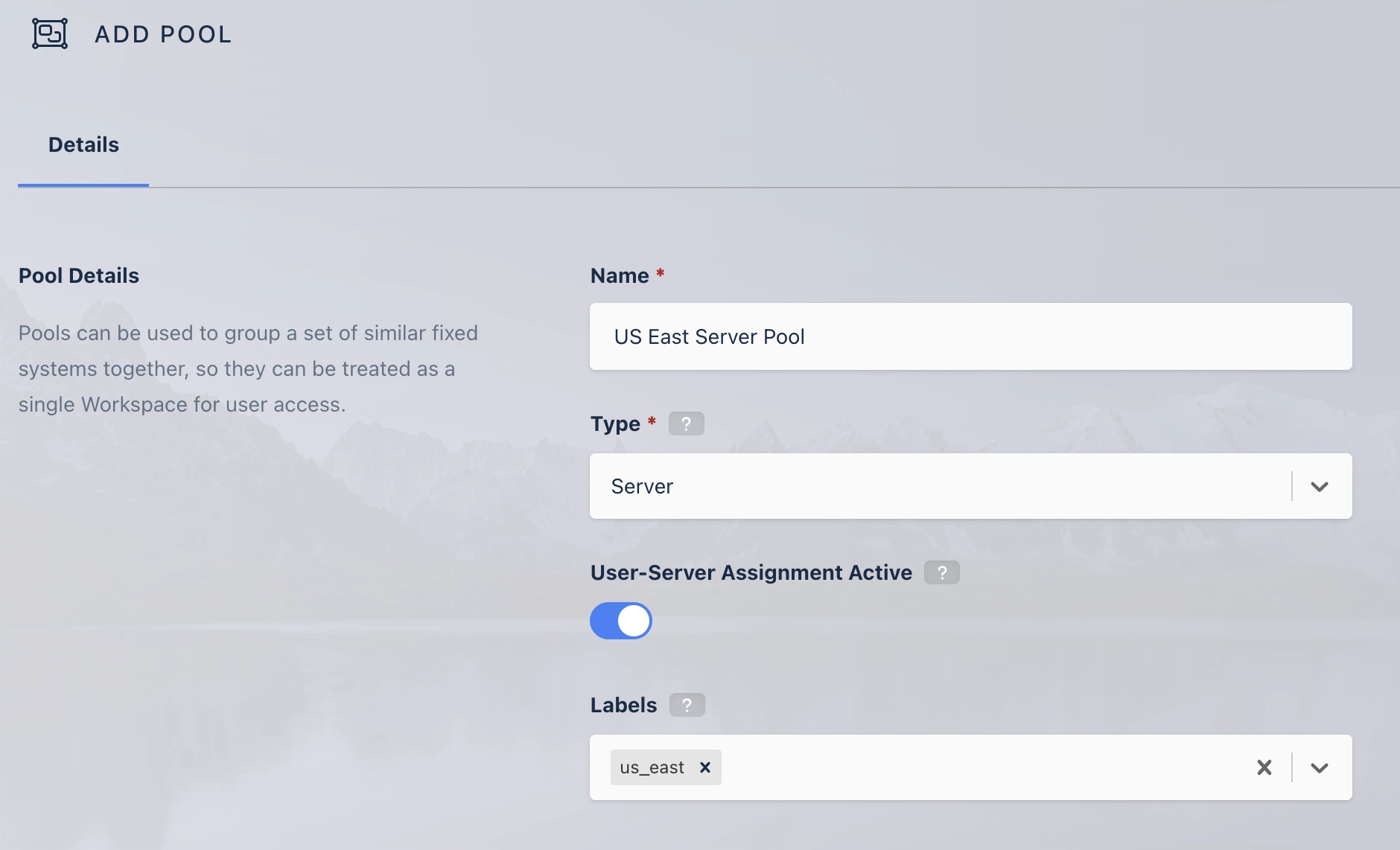
Before you can create an auto-scaling configuration, you need to create a Pool that will be the target of the auto-scaling. A pool can have multiple auto-scaling configurations, allowing you to, for example, auto scale servers in Azure and AWS and have the VMs be part of the same pool that users will get assigned to. A more typical scenario, however, is to create one pool per Cloud environment, per region.
To create a Pool, in the Admin Dashboard go to Infrastructure, Pools, and click the Add button on the Pool list.
- Provide a Name
- Select
Serveras the Type - Press Save
Auto Scale Configuration
Auto-Scale configurations have two parts, the AutoScale Details and the VM Provider Details. The AutoScale details are common to any cloud provider/hypervisor.
To create an auto-scale configuration...
- Navigate to Infrastructure->Pools
- From the Pool list, click the arrow icon next to the desired pool and click Edit
- Scroll to the bottom of the Pool Configuration page to the AutoScale Configuration list and click the Add button.
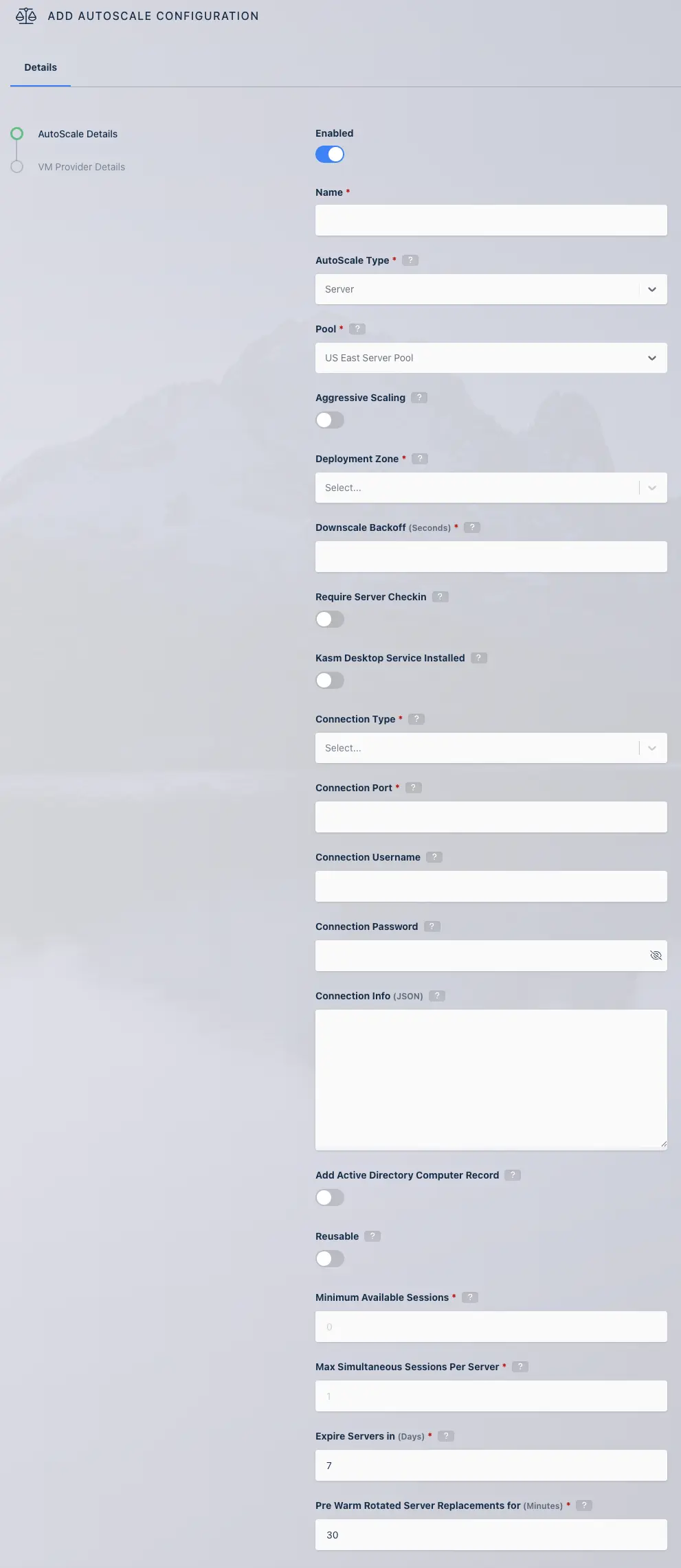
- Enter a Name
- Check the Enabled box
- Select the Deployment Zone, by default there is a single zone called
default. - Select RDP as the connection type.
- Enter the Connection Port, RDP uses port 3389 by default.
- Enter an appropriate value for the username and password fields. See the authentication documentation for your OS:
Windows-Specific Configuration
- The connection info can be left empty, unless you are using RemoteApp.
- If desired, enable the Create Active Directory Computer Record setting. See the Join Active Directory guide for more details.
- Check the reusable box if you want VMs to be re-used after a user terminates their session. For privacy reasons, servers should only be reusable if single sign-on is configured. See the Windows Authentication documentation for guidance on SSO.
Linux-Specific Configuration
- The connection info can be left empty.
- Check the reusable box if you want VMs to be re-used after a user terminates their session. For privacy reasons, servers should only be reusable if single sign-on is configured. See the Linux Authentication documentation for guidance on SSO.
Common Configuration
- Set a desired Minimum Available Sessions, this is the number of available sessions you want at all times. For example, if each server could support up to 4 concurrent sessions and you set Minimum Available Sessions to 10, Kasm would ensure that across all servers there are at least 10 open sessions available. As soon as the number of available sessions drops below this number, additional VMs will be provisioned.
- Set the Max Simultaneous Sessions Per Server to the desired limit. Kasm will ensure each server will only be assigned this maximum number of current user sessions.
Multiple concurrent RDP sessions require a Windows operating system that supports this feature. Kasm will ensure each server is only assigned the maximum number of current user sessions specified.
VM Provider Configuration
The VM Provider Configuration settings are specific to the Cloud Service Provider or Hypervisor being used for autoscaling. Kasm Workspaces supports autoscaling across multiple Cloud Service Providers and Hypervisors. For a full list of supported providers and detailed setup instructions reference the VM Provider Configs documentation.
VM Startup Scripts
Each VM Provider has special caveats around how their startup scripts are handled, see VM Provider Config for details on your target environment. The startup script will have access to Kasm managed variables listed below.
Windows Startup Scripts
Windows startup scripts use PowerShell and can utilize the following variables:
Startup Script Variables (Windows)
| Variable Name | Description |
|---|---|
| ad_join_credential | If the auto-scale configuration is set to join the VM to an Active Directory domain, Kasm creates the AD record and sets a random password that can only be used for joining the VM to the domain. This can then be used in a Powershell startup script to complete the process of joining the system to the domain. |
| checkin_jwt | JSON Web Token used to register components like the Kasm Desktop Service. |
| connection_username | If the auto-scale configuration is set to use a static username for Kasm user sessions, the username will be contained in this variable. |
| connection_password | If the auto-scale configuration is set to use a static password for Kasm user sessions, this variable will contain the password. |
| domain | If the auto-scale configuration is set to join the VM to an Active Directory domain, this variable will contain the name of the domain. |
| server_id | The UUID created by Kasm for the new server which can be found in the Server's "Server Id" field within the Kasm UI. |
| server_hostname | The server name generated by Kasm for the auto-scaled VM. This is also the name of the computer object added to Active Directory by Kasm when "Create Active Directory Computer Record" is enabled. |
| upstream_auth_address | The resolvable hostname, IP, or FQDN of the KASM API server which can be found in the "Upstream Auth Address" of the Zone configuration in the Kasm UI. |
Linux Startup Scripts
Linux startup scripts use bash and can utilize the following variables:
Startup Script Variables (Linux)
| Variable Name | Description |
|---|---|
| connection_username | If the auto-scale configuration is set to use a static username for Kasm user sessions, the username will be contained in this variable. |
| connection_password | If the auto-scale configuration is set to use a static password for Kasm user sessions, this variable will contain the password. |
| ad_join_credential | If the auto-scale configuration is set to join the VM to an Active Directory domain, Kasm creates the AD record and sets a random password that can only be used for joining the VM to the domain. |
| domain | If the auto-scale configuration is set to join the VM to an Active Directory domain, this variable will contain the name of the domain. |
| upstream_auth_address | The resolvable hostname, IP, or FQDN of the KASM API server. |
| checkin_jwt | The registration token (JWT) created by Kasm for the newly created server. |
If your Linux script uses curly brackets, aside from Kasm variables, you must escape them by doubling them up.
Example:
configure_xyz() {{
  echo "[INFO] ..."
}}
Join Active Directory
Auto-scaled servers can be configured to automatically join Active Directory. This is a two-step process which involves Kasm first creating a Computer Object in Active Directory within a specified AD container. When the Computer Object is created, a random single-use password is generated that can only be used to join the computer to the domain. The final step of joining the computer to the domain is facilitated through the startup script.
For a complete example see the Domain Join section in the Kasm Windows VM Startup Script Repository.
LDAP Configuration 1.19.0
For Kasm to create the Computer Object in Active Directory and generate the domain join credential, an LDAP Configuration must be defined.
You can use the same LDAP configuration that is used to authenticate users or you can create a different LDAP configuration used specifically for joining and removing systems. If you use a separate LDAP configuration, leave it disabled so that it cannot be used for authentication purposes.
- Create an LDAP Configuration that will be used for user authentication to Kasm.
- Create an LDAP Configuration that will be used to create computer objects in AD. The service account used by this LDAP configuration must have permissions to create and remove computers from the domain.
- In the Auto-scale Configuration, select SSO User Accounts for the Connection Credential Type.
- In the Auto-scale Configuration, enable Add Active Directory Computer Record.
- In the LDAP Config select the LDAP configuration created in Step 2.
- In the Active Directory Computer OU DN, enter the AD OU Distinguished Name.
Example:OU=Computers,DC=example,DC=local - Enable Recursively Cleanup Active Directory Computer Record if you anticipate the Computer objects having child objects.
This can prevent
notAllowedOnNonLeaferrors when cleaning Azure VMs. - Click Next to save the auto-scale configuration.
- The next page is the VM Provider configuration. Scroll down to the startup script. See the example in the VM Startup Script, which is a Powershell script that will add the VM to the domain specified by the LDAP configuration. Each VM Provider has different caveats for script formats and execution, see VM Provider Config for details on your target environment.
FSLogix Container Profiles
Auto-scaled Windows VMs can utilize FSLogix Profile Containers to maintain persistent user profiles across sessions, providing a consistent user experience as servers are dynamically created and assigned. When provided a profile storage location, Kasm's VM Startup Scripts will install the latest version of FSLogix and configure the VM to use FSLogix Profile Containers.
To utilize FSLogix with Kasm Auto-Scale Startup Scripts:
- Ensure that the FSLogix prerequisites are met
- Create a storage location (Azure Files or SMB share)
- Provide the storage location as a argument to the startup script. For examples and additional configuration options see the FSLogix section of the Kasm Windows VM Startup Script Repository.
Workspace
To provide users access to the auto-scaled server pool, you must create a Workspaces.
- Navigate to Worksapces -> Workspaces
- Click the Add Workspace button at the top of the Workspaces list.
- Select
Poolfrom the Workspace Type. - Provide a Friendly Name and Description.
- Check the Enable box.
- In the Pool drop down, select the Pool you created earlier.
- In the RDP Client Options dropdown, select one of:
- Web native client to access the instance using Kasm's in browser access method.
- RDP local client to access the instance using the client endpoint's RDP client software authenticated through the Kasm RDP gateway.
- Click Save.
You should now see the Workspaces on the user dashboard.