Direct RDP Login
Overview
Users typically interact with a Kasm Workspace by logging into the web UI and connecting to a session either in the browser, or by downloading an RDP file for thick client access.
In some situations there may be limited or no access to a web browser, or normal web traffic may be restricted. In these cases, Kasm can be configured to allow an RDP client to connect directly to Kasm and authenticate user by their Kasm username and password.
Configuration
In order to enable direct RDP login, there are several configurations which must be present and there should be at least one valid RDP-enabled workspace.
These instructions assumes we have a working Kasm install and an available RDP Windows or Linux target.
Zone Configuration
In this section we will configure the default Zone to allow direct RDP login.
- Log in to Kasm as administrator.
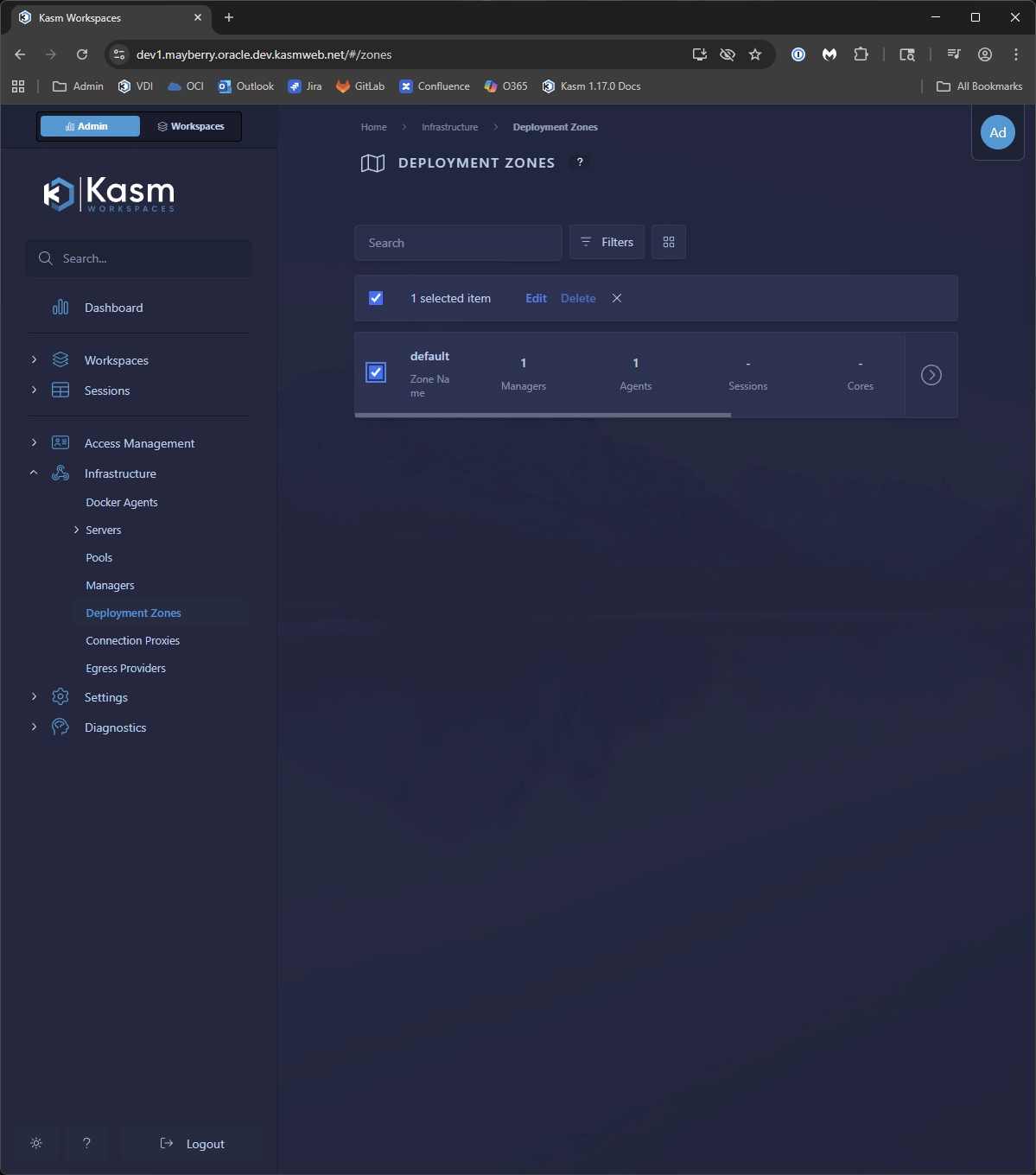
- Navigate to Infrastructure -> Deployment Zones, select the "default" zone record and select "Edit"
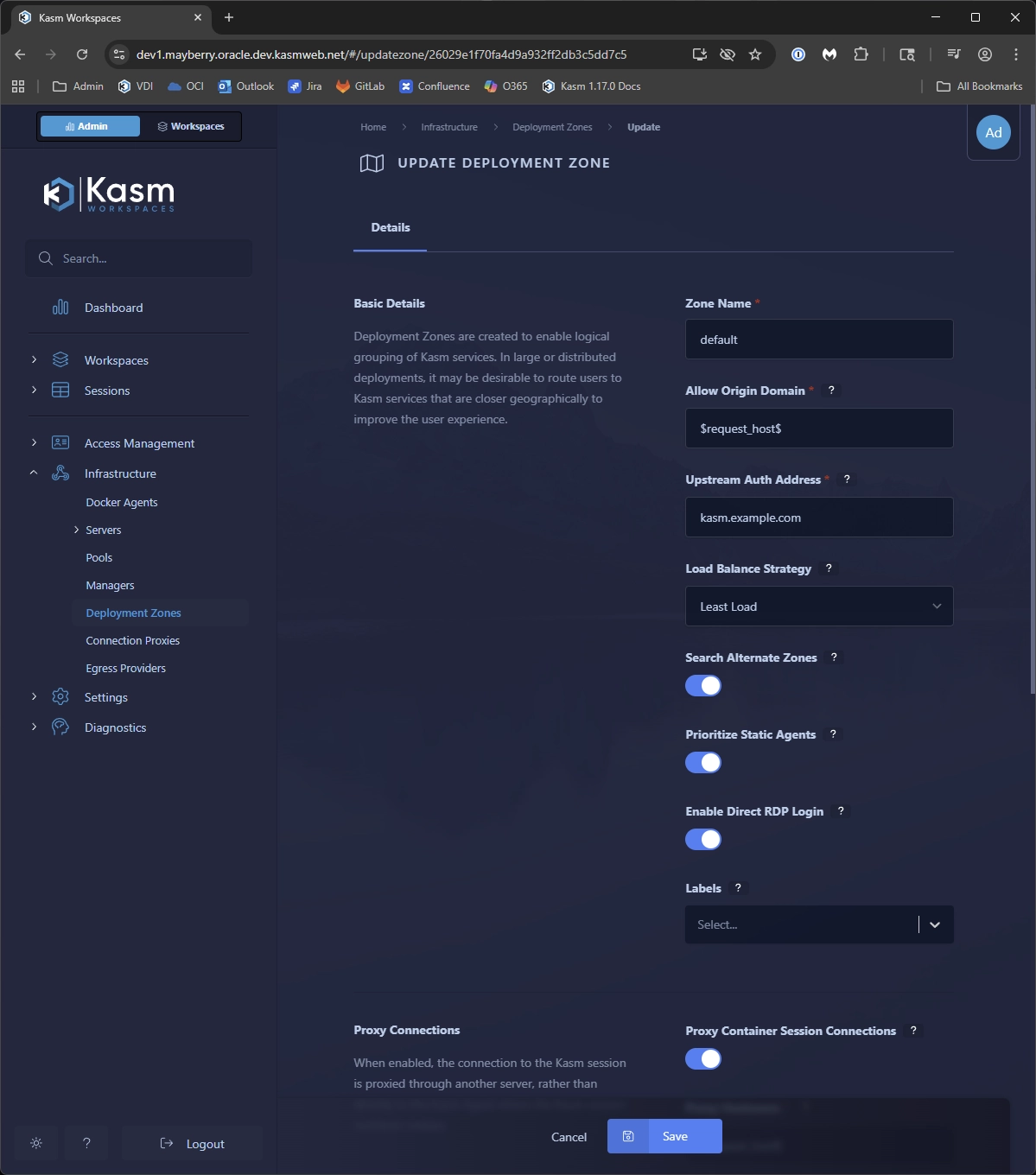
- Set "Kasm Authorization Domain" to the parent domain of the Web App and Agent servers, e.g.,
kasm.example.com. - Under the "Basic Details" section, find and enable the toggle labeled "Enable Direct RDP Login"
- Click the "Save" button at the bottom of the page
Group Settings
In this section we will configure the "All Users" group to allow users to utilize direct RDP login.
- Log in to Kasm as administrator.
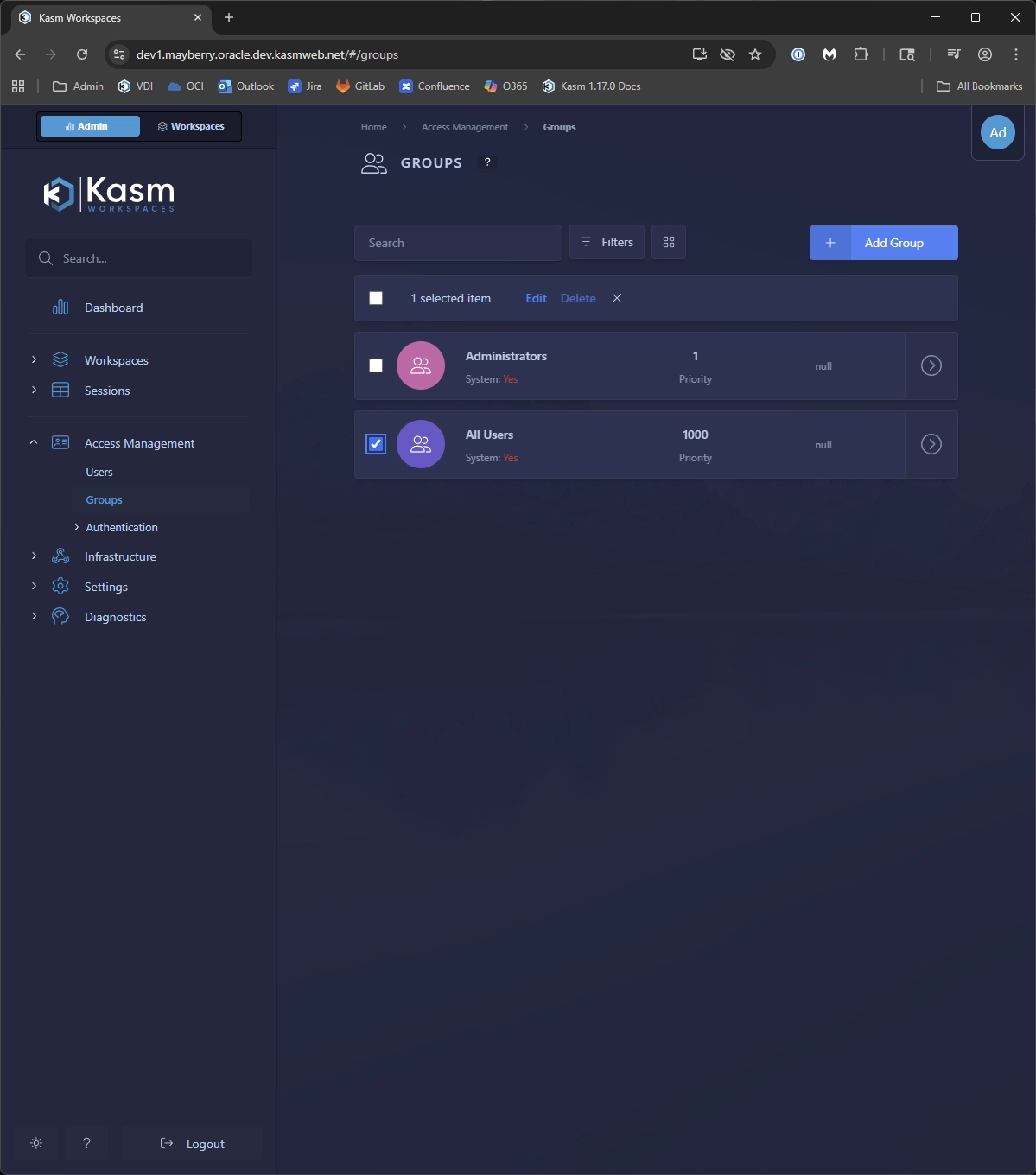
- Navigate to Access Management -> Groups
- Select the "All Users" record and select "Edit", then select the "Settings" tab across the top of the page
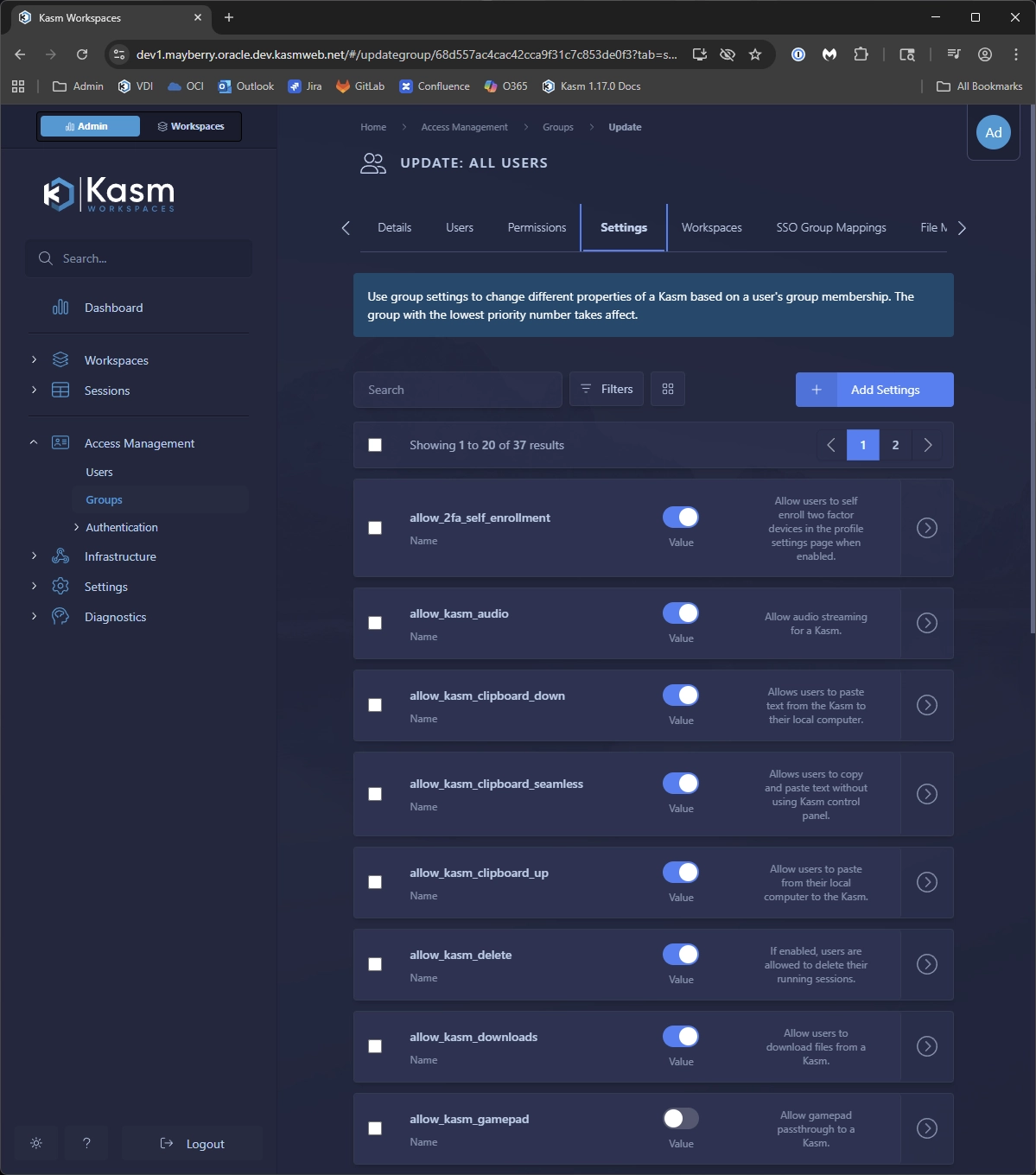
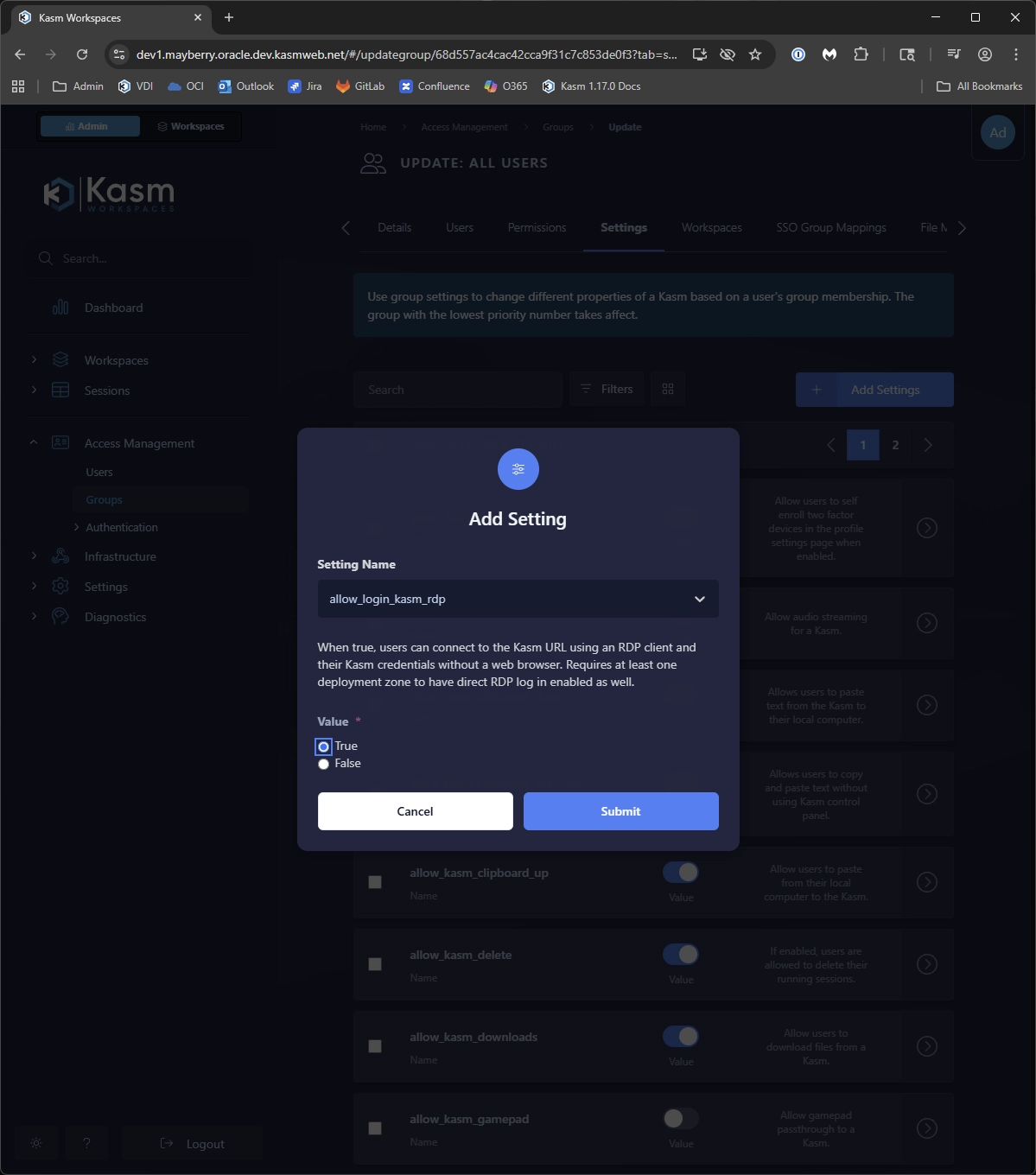
- Click on the "Add Settings" button, then use the "Setting Name" input box to find and add the
allow_login_kasm_rdpsetting with a value of "True"
Target Workspace
In this section we will configure a Workspace which allows RDP client connections.
- Log in to Kasm as administrator.
- Navigate to Infrastructure -> Servers -> Server
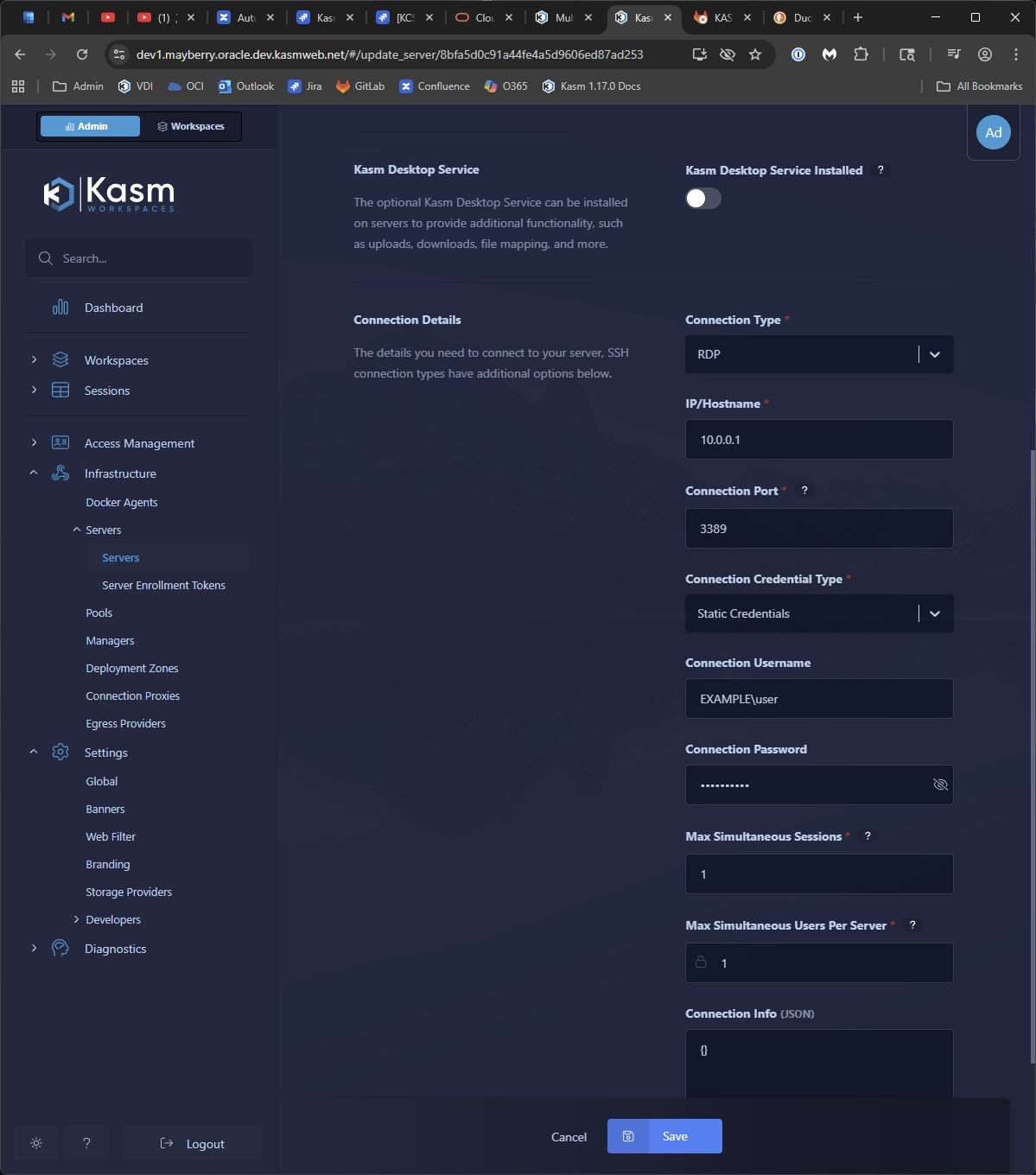
- Click on the "Add Server" button and complete the form while paying special attention to the following settings
- Deployment Zone: our selected zone must match the one configured earlier (in our case there is only one option)
- Connection Type: must be RDP
- Once we have added our Server configuration, we then navigate to Workspaces --> Workspaces
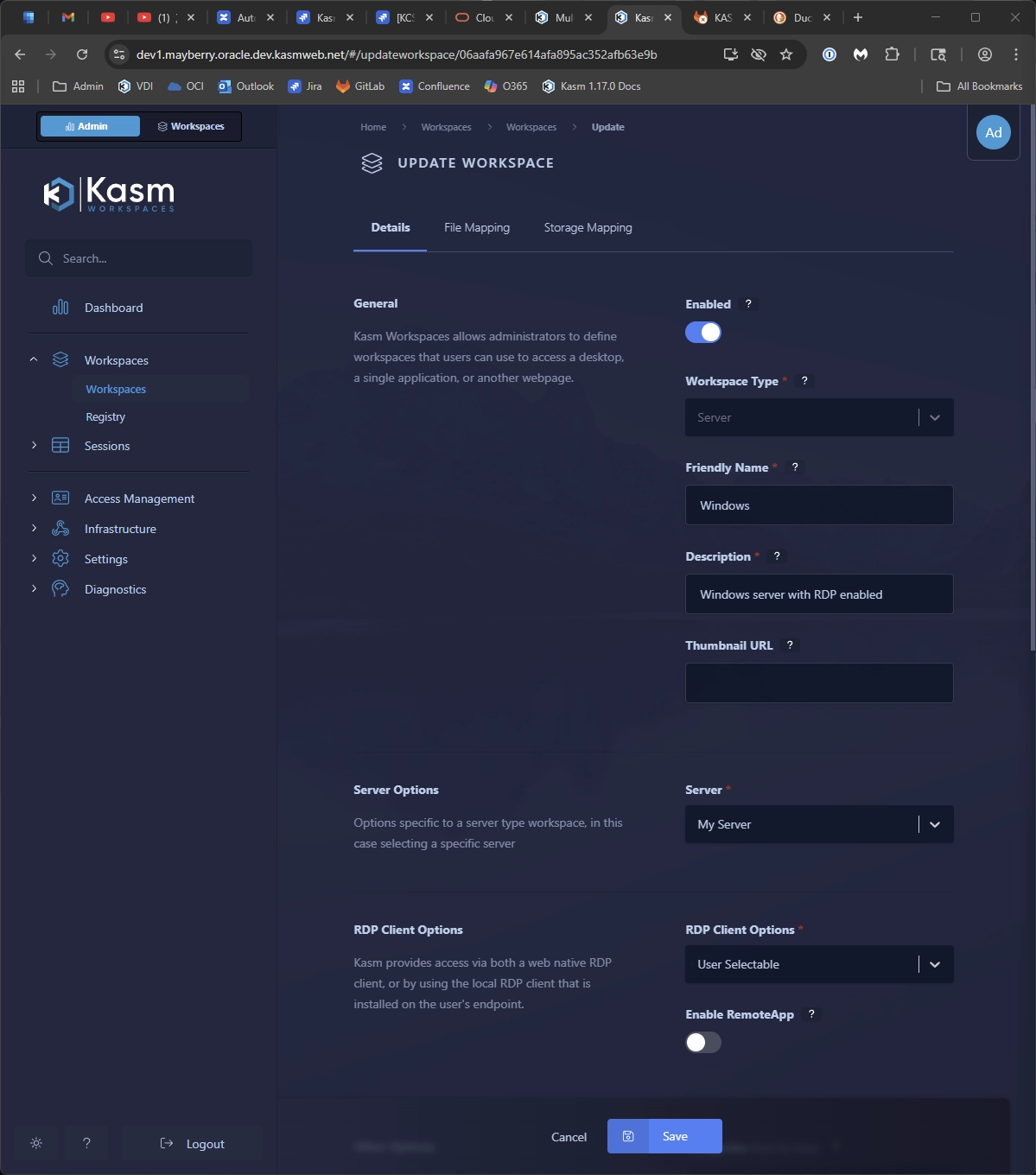
- Click on the "Add Workspace" button and complete the form, again ensuring some specific settings
- Workspace Type: must be Server
- Server: select our configured Server from the previous steps
- RDP Client Options: this can be either "User Selectable" or "RDP local client"
Usage
Now that we have Kasm set up to enable direct RDP login, we can initiate connections purely through RDP using our Kasm user credentials. Note that direct RDP login only supports username and password with no MFA support at this time (future updates may add more options).
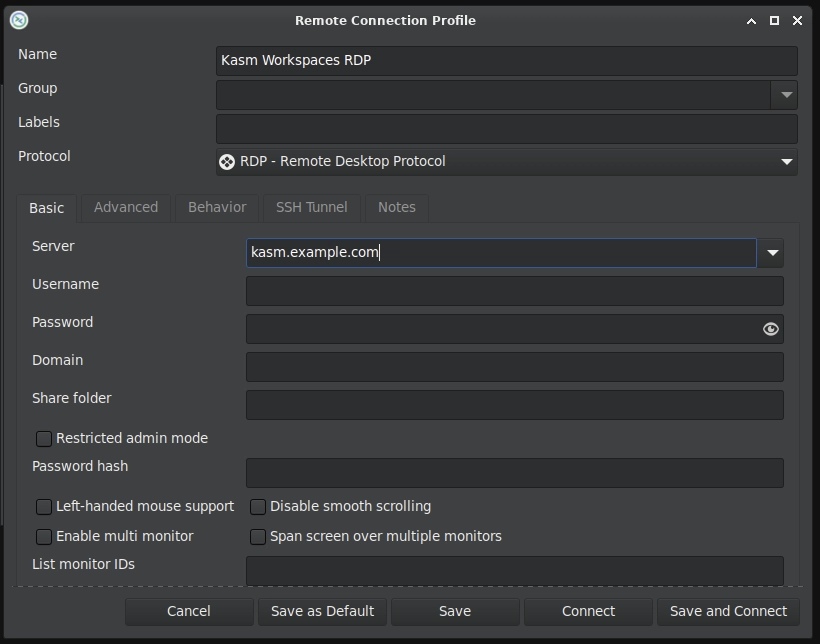
- Launch any RDP client (screenshots will be using Remmina from an Ubuntu desktop)
- Enter our server hostname or IP address, e.g.,
kasm.example.com- Some clients allow for setting the username and password before connecting, but for this test we will leave all such options blank
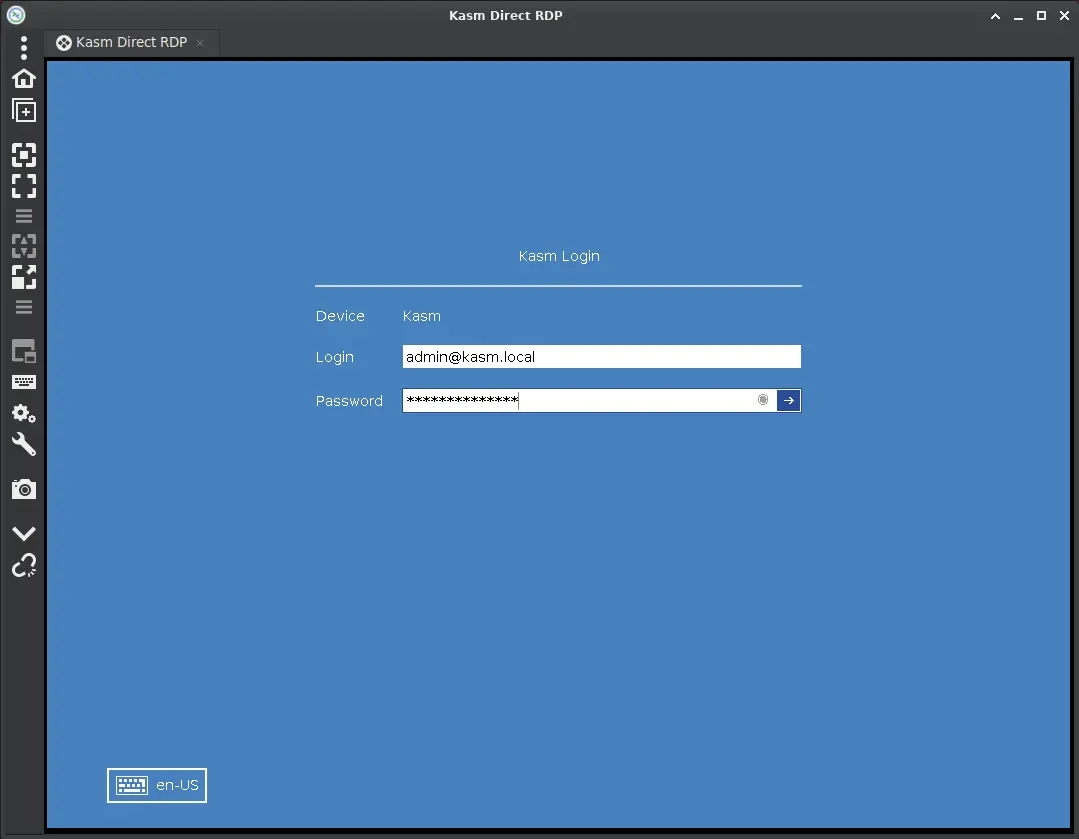
- When prompted, enter your Kasm username and password
- We are presented a list of available RDP workspaces which includes the Server we configured earlier
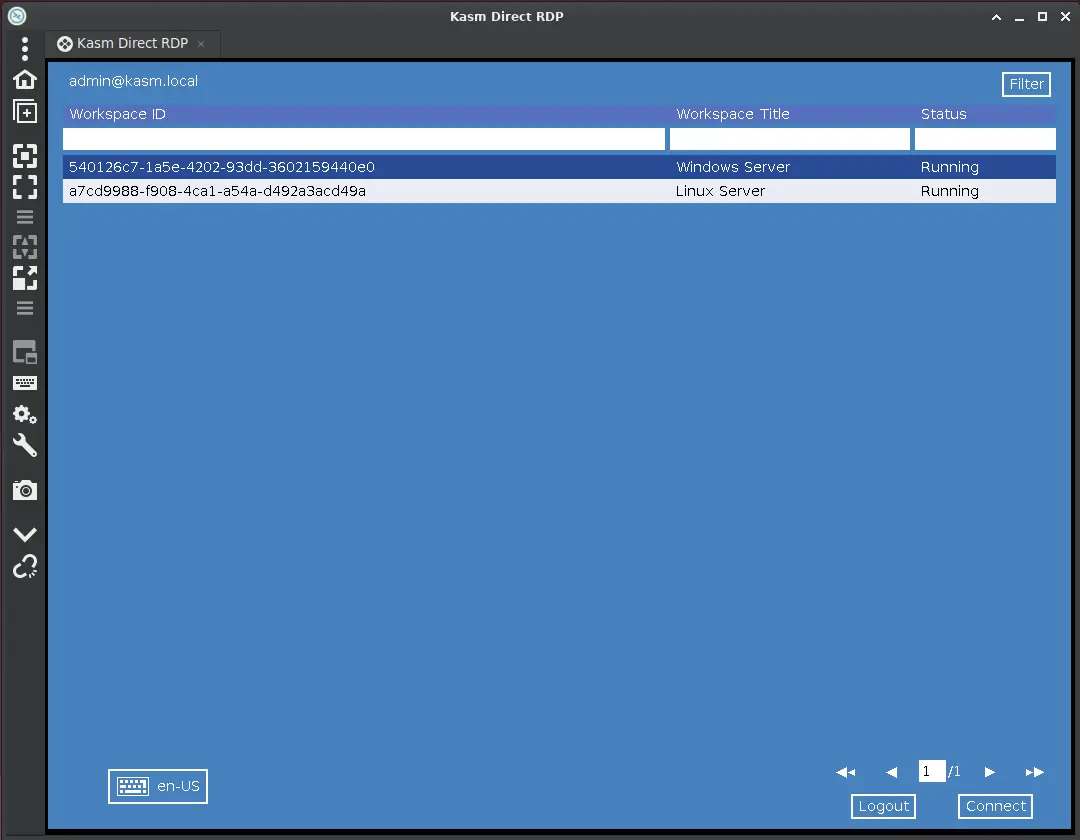
- Select our server using keyboard (up/down arrow and Enter) or mouse inputs (double click)
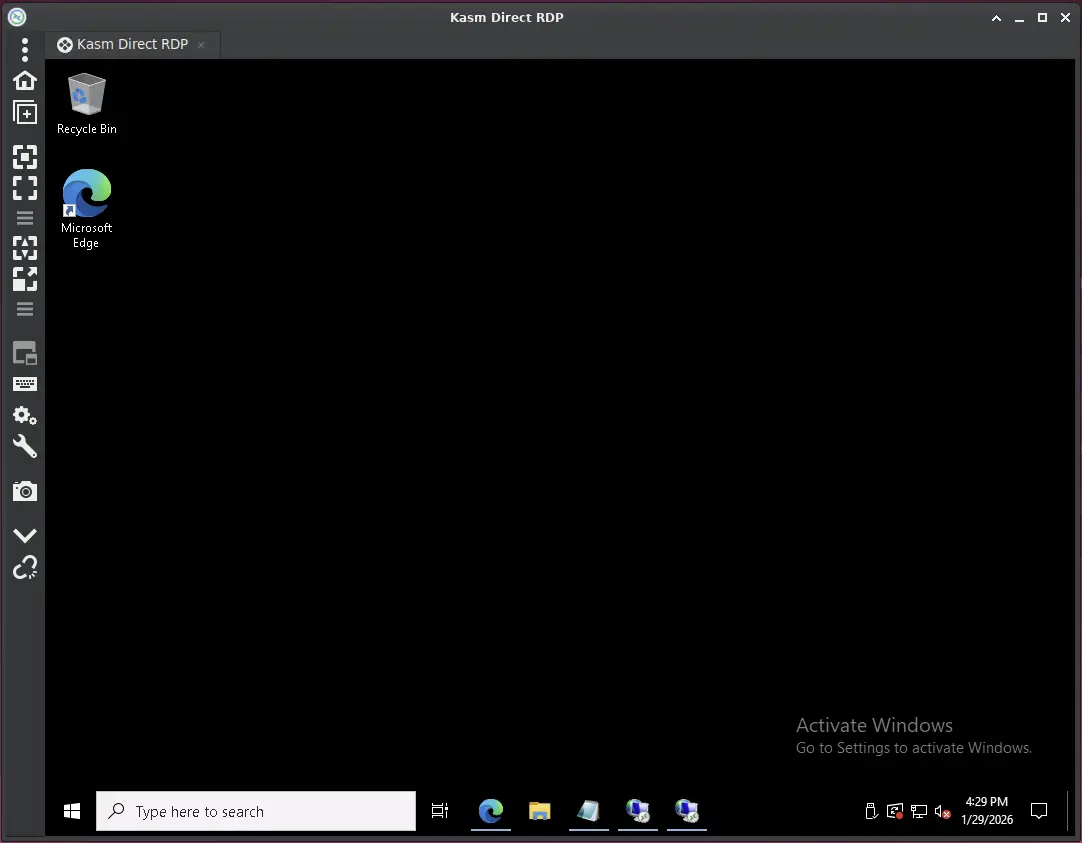
- Verify we are placed into a full RDP session with the target Server
Notes
- As mentioned above, we can save our Kasm credentials in our RDP client for faster access but we must be aware of the security implications of storing these credentials since most clients will not encrypt them