Configure direct RDP login for Kasm Workspaces clients
Overview
Users typically reach a Kasm Workspace by logging in to the web UI and connecting in the browser or through a downloaded RDP file. In environments with limited or no browser access, direct RDP login lets an RDP client connect to Kasm and authenticate the user by Kasm username and password. This guide configures the deployment zone, the group setting, and a target Workspace so users can launch RDP workspaces without the web app.
Prerequisites
- A working Kasm Workspaces deployment with administrator access.
- An available Windows or Linux RDP target.
- At least one RDP-enabled Workspace, or the ability to create one as part of this guide.
Solution approach
This guide progresses through the following phases:
- Configure the deployment zone for direct RDP login.
- Enable the group setting for direct RDP login.
- Configure a target Workspace.
- Connect with an RDP client.
Detailed steps
Configure the deployment zone for direct RDP login
Configure the default zone to allow direct RDP login.
- Log in to Kasm as an administrator.
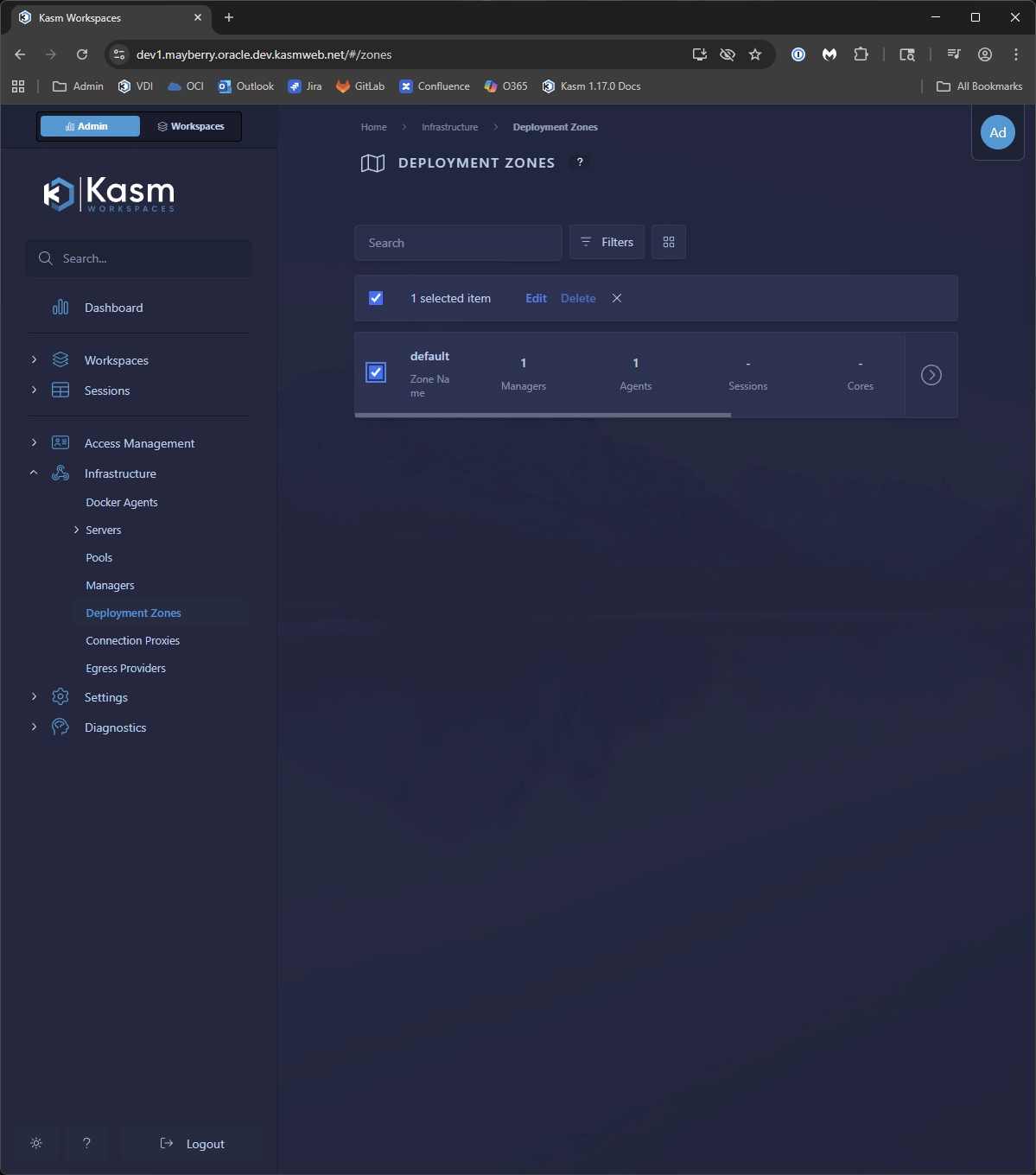
- Navigate to Infrastructure, then Deployment Zones, select the
defaultzone, and click Edit.
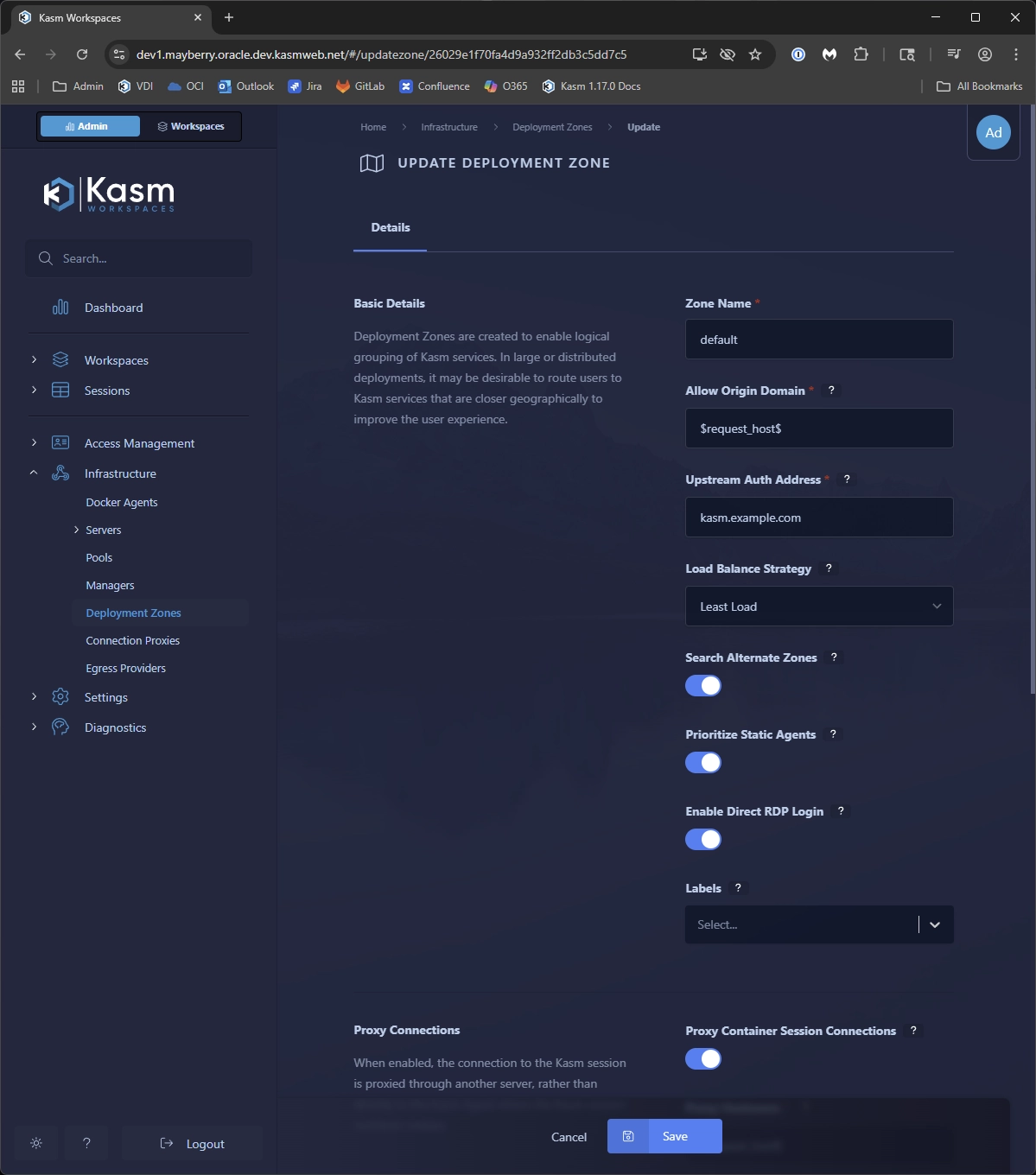
- Set Kasm Authorization Domain to the parent domain of the Web App and Agent servers, for example
kasm.example.com. - Under Basic Details, enable the Enable Direct RDP Login toggle.
- Click Save at the bottom of the page.
Enable the group setting for direct RDP login
Configure the All Users group so members can use direct RDP login.
- Log in to Kasm as an administrator.
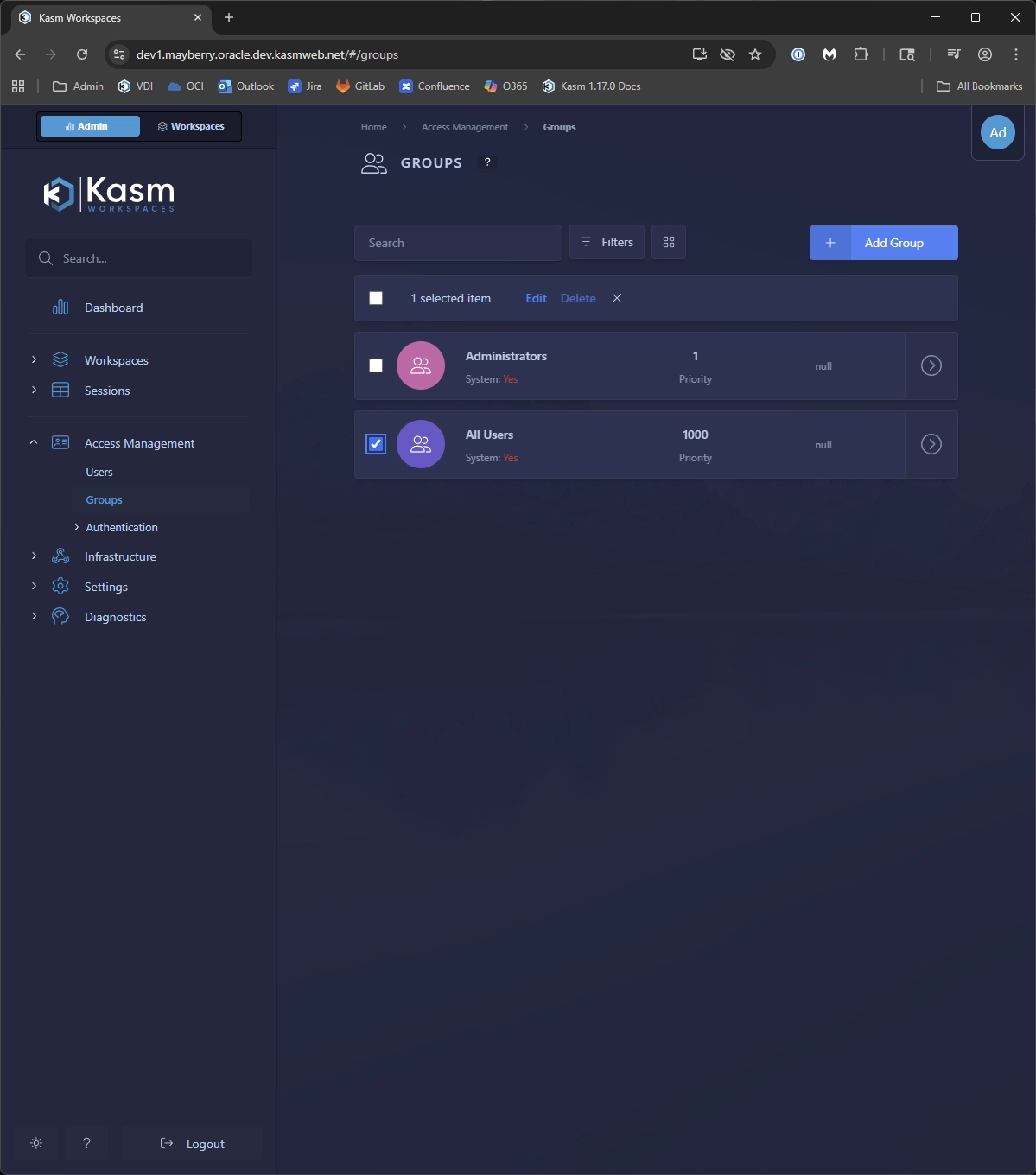
- Navigate to Access Management, then Groups.
- Select the All Users group, click Edit, and select the Settings tab.
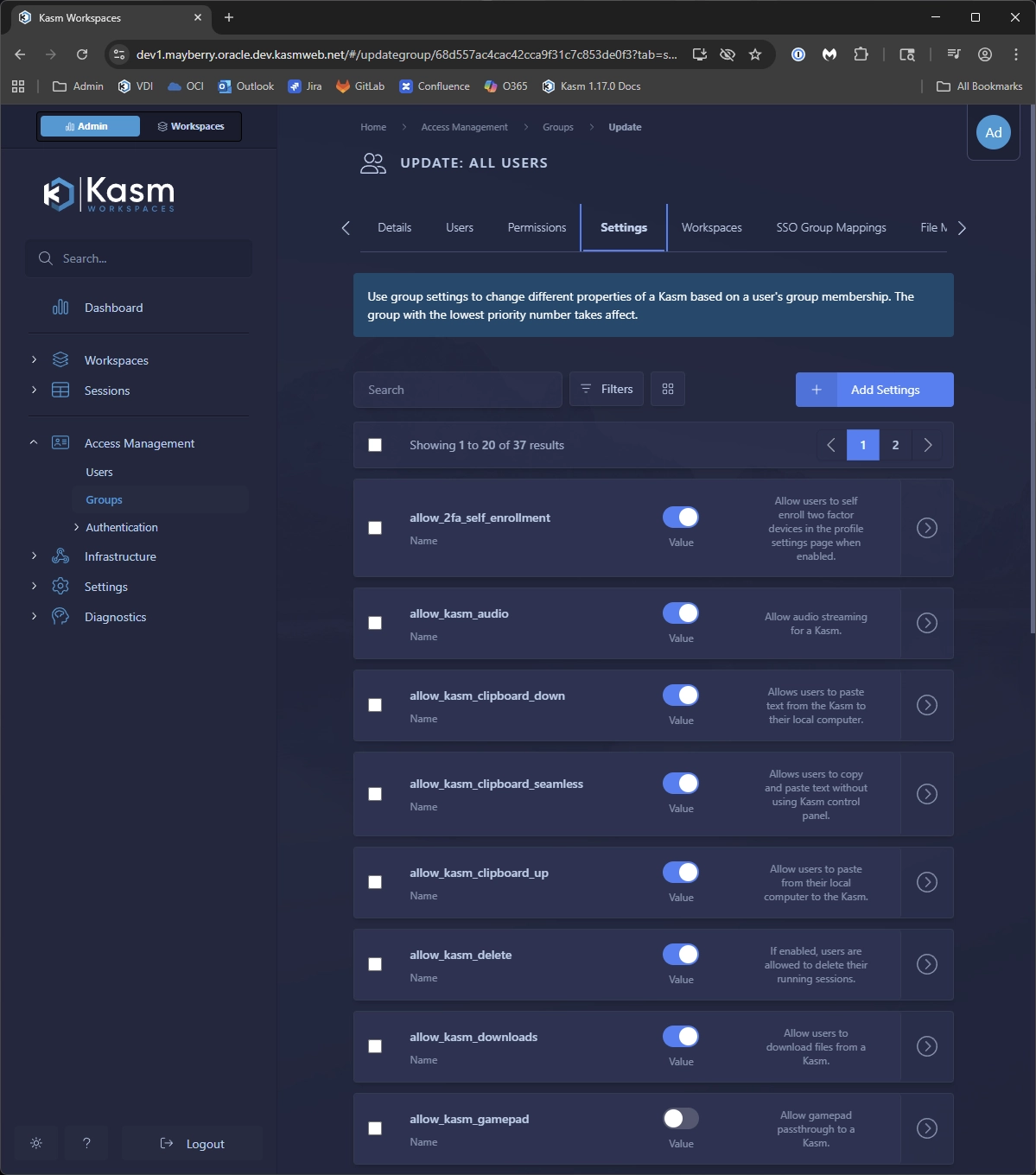
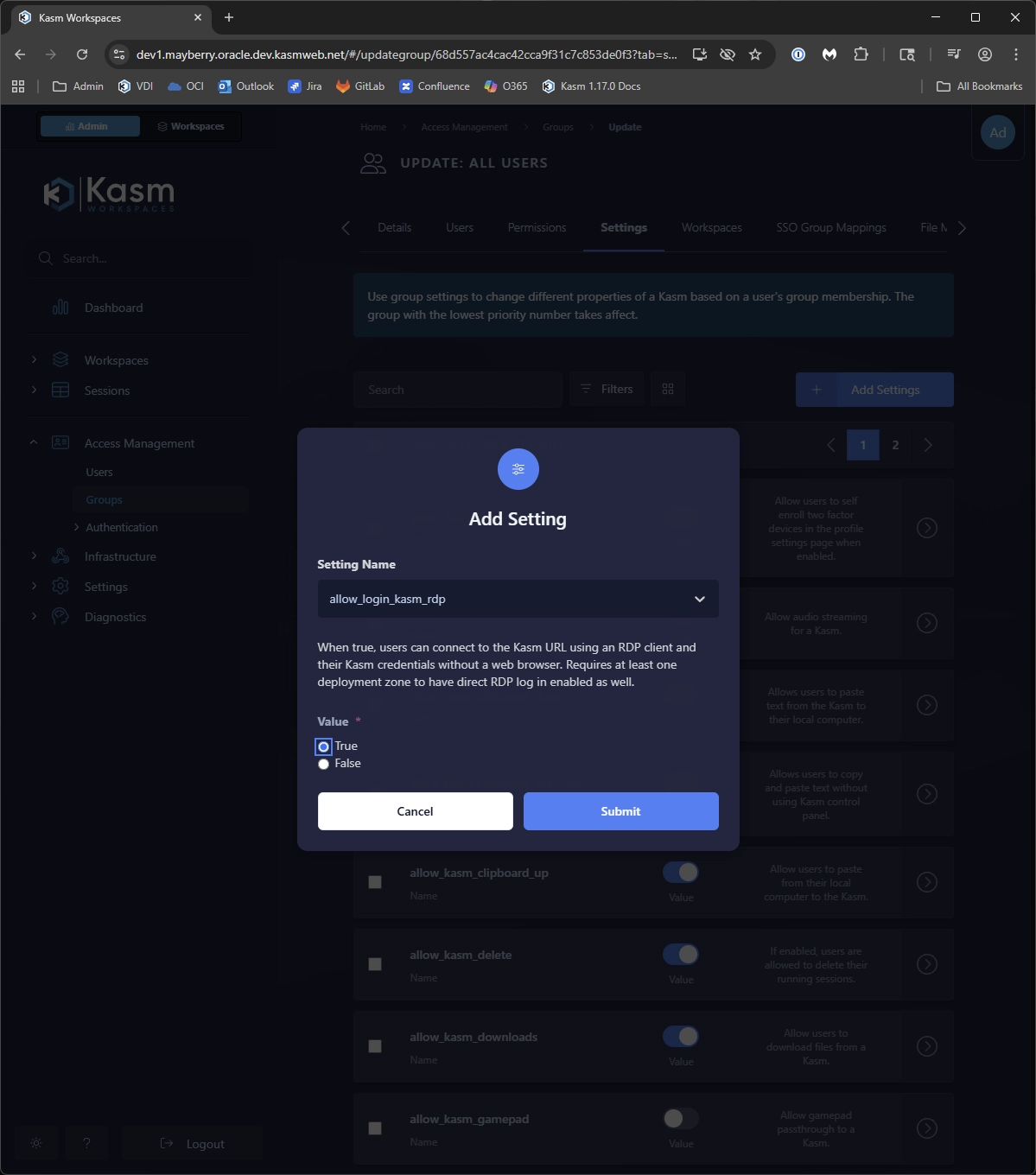
- Click Add Settings, then use the Setting Name box to find and add the
allow_login_kasm_rdpsetting with a value ofTrue.
Configure a target Workspace
Configure a Workspace that allows RDP client connections.
- Log in to Kasm as an administrator.
- Navigate to Infrastructure, then Servers.
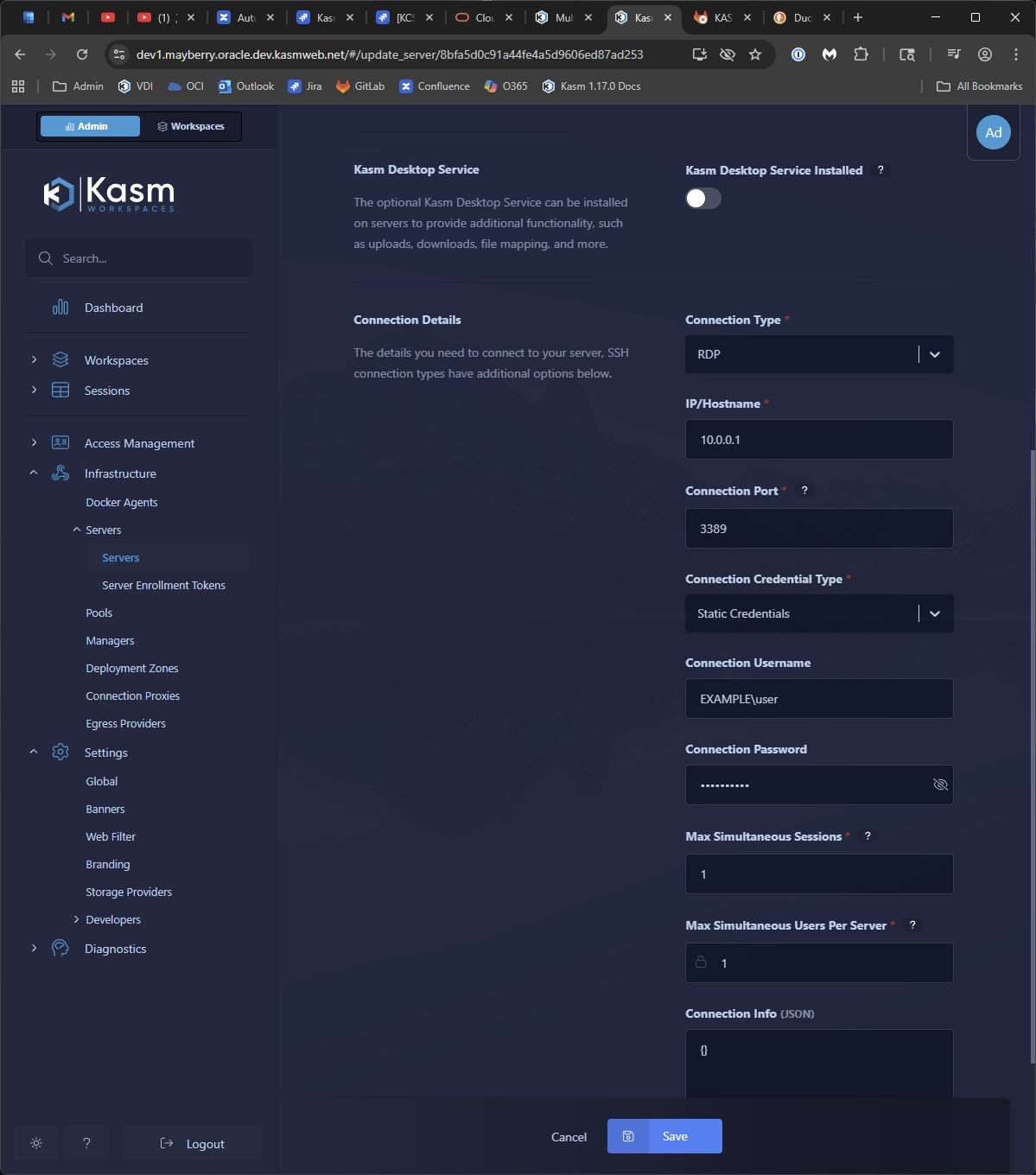
- Click Add Server and complete the form, with attention to the following settings:
- Deployment Zone: the zone configured earlier.
- Connection Type: RDP.
- Navigate to Workspaces, then Workspaces.
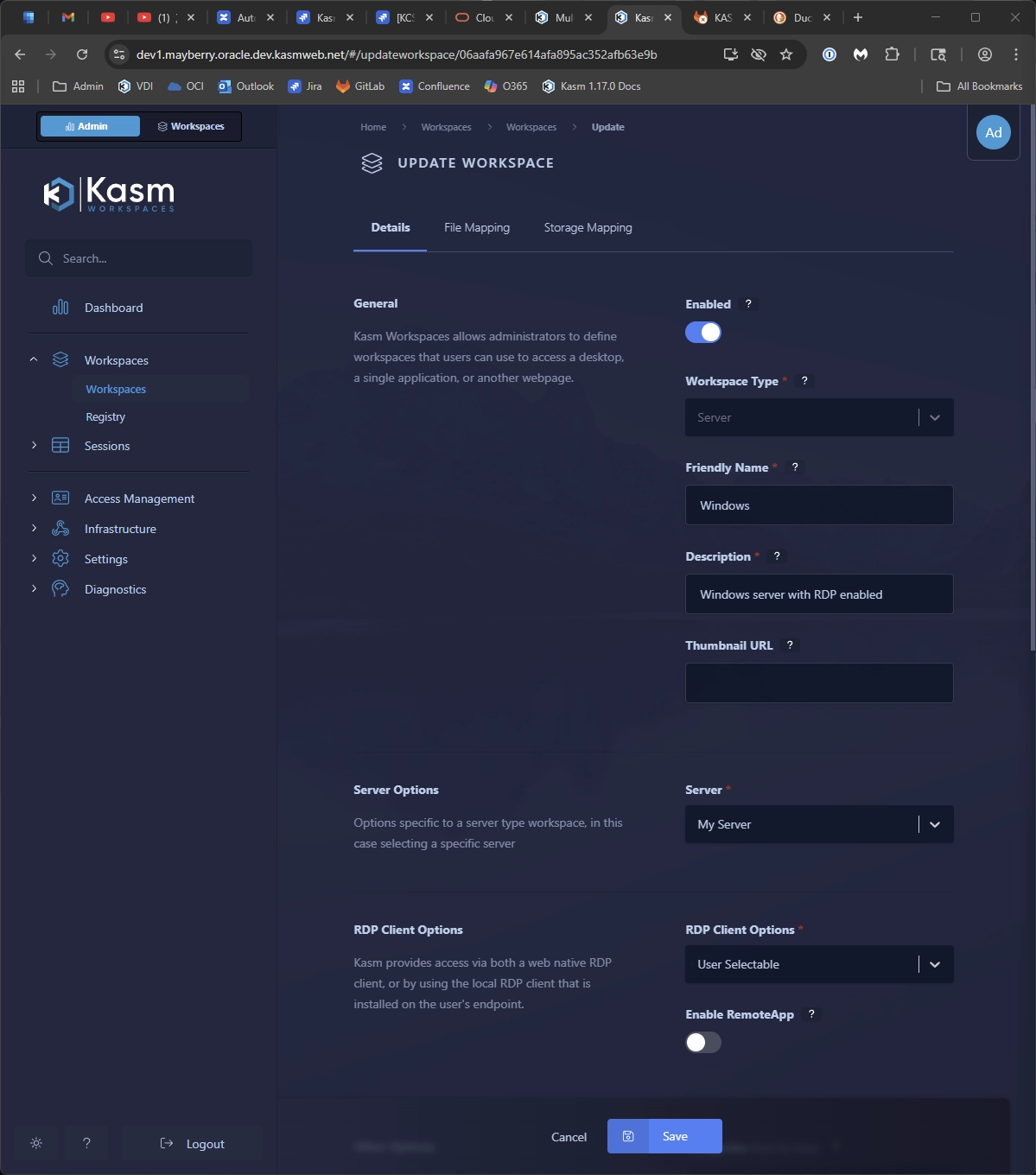
- Click Add Workspace and complete the form, with attention to the following settings:
- Workspace Type: Server.
- Server: the server configured in the previous step.
- RDP Client Options: User Selectable or RDP local client.
Connect with an RDP client
With direct RDP login configured, users connect through RDP using their Kasm credentials. Direct RDP login supports username and password only, with no multi-factor authentication support at this time.
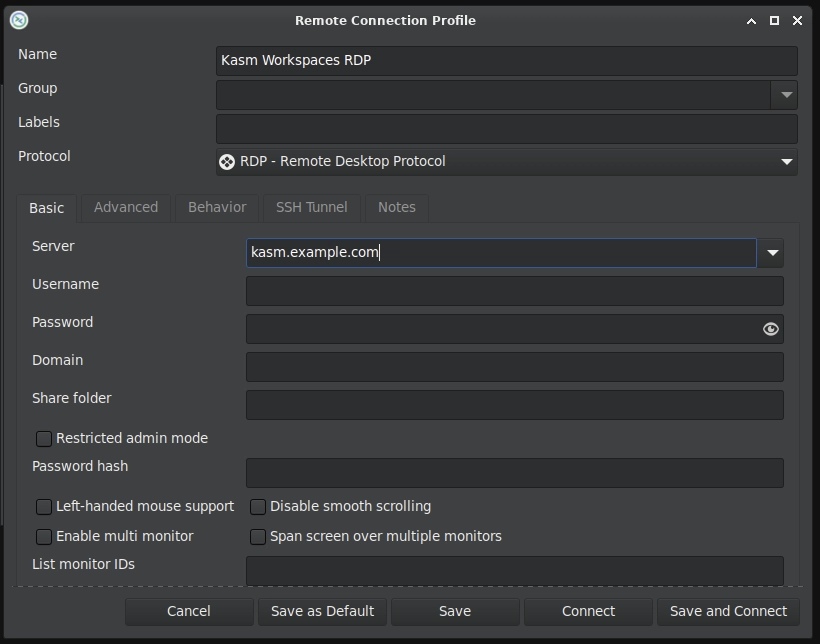
- Launch an RDP client. The screenshots use Remmina on an Ubuntu desktop.
- Enter the server hostname or IP address, for example
kasm.example.com. Leave the username and password blank for this test, even when the client allows setting them in advance.
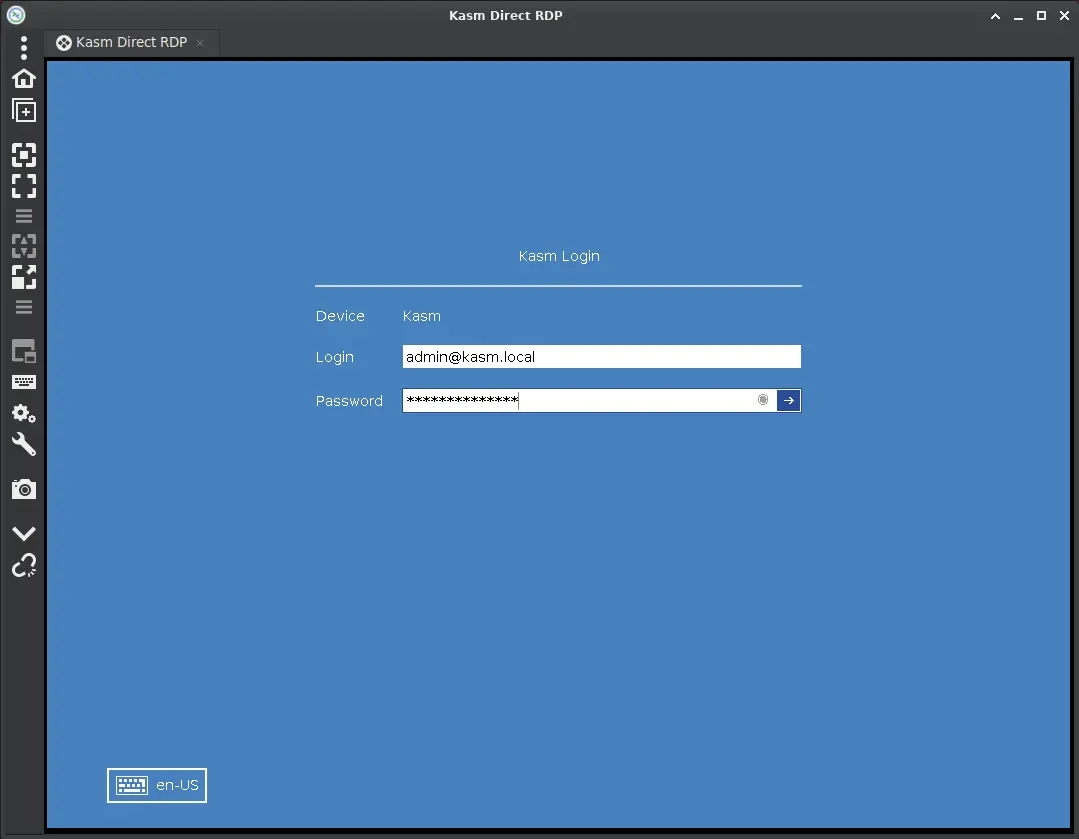
- When prompted, enter your Kasm username and password.
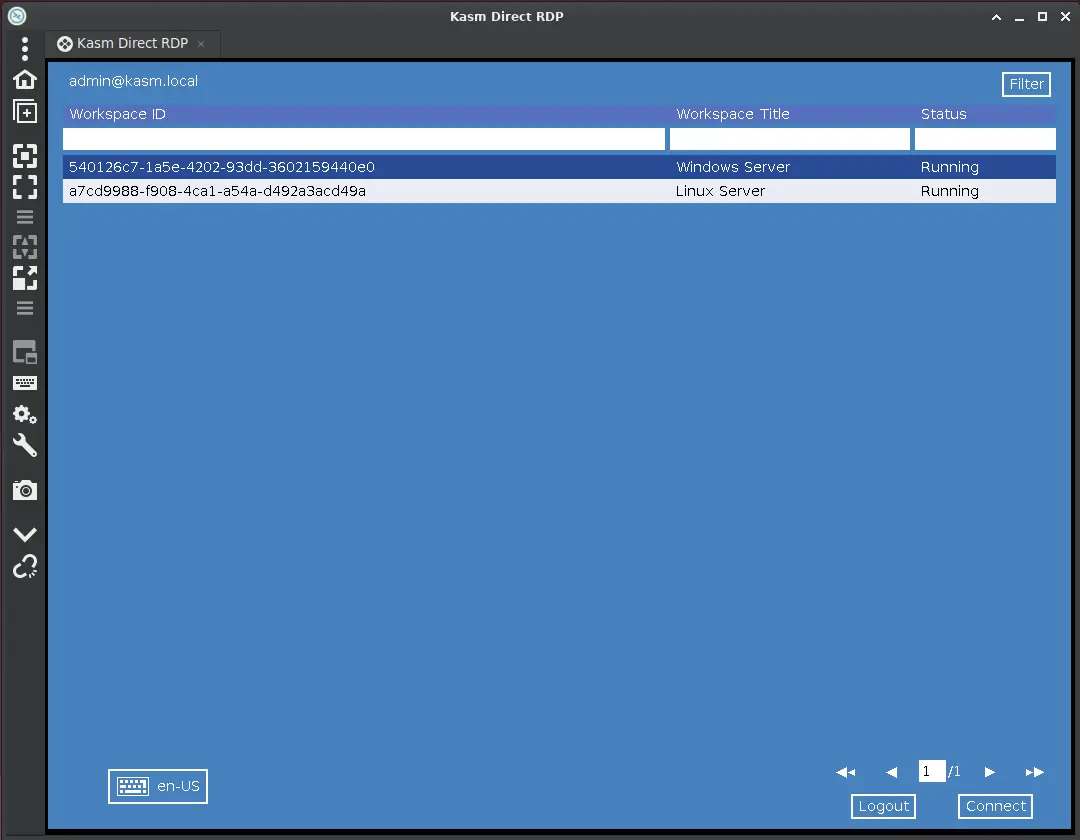
- Review the list of available RDP workspaces, which includes the server configured earlier.
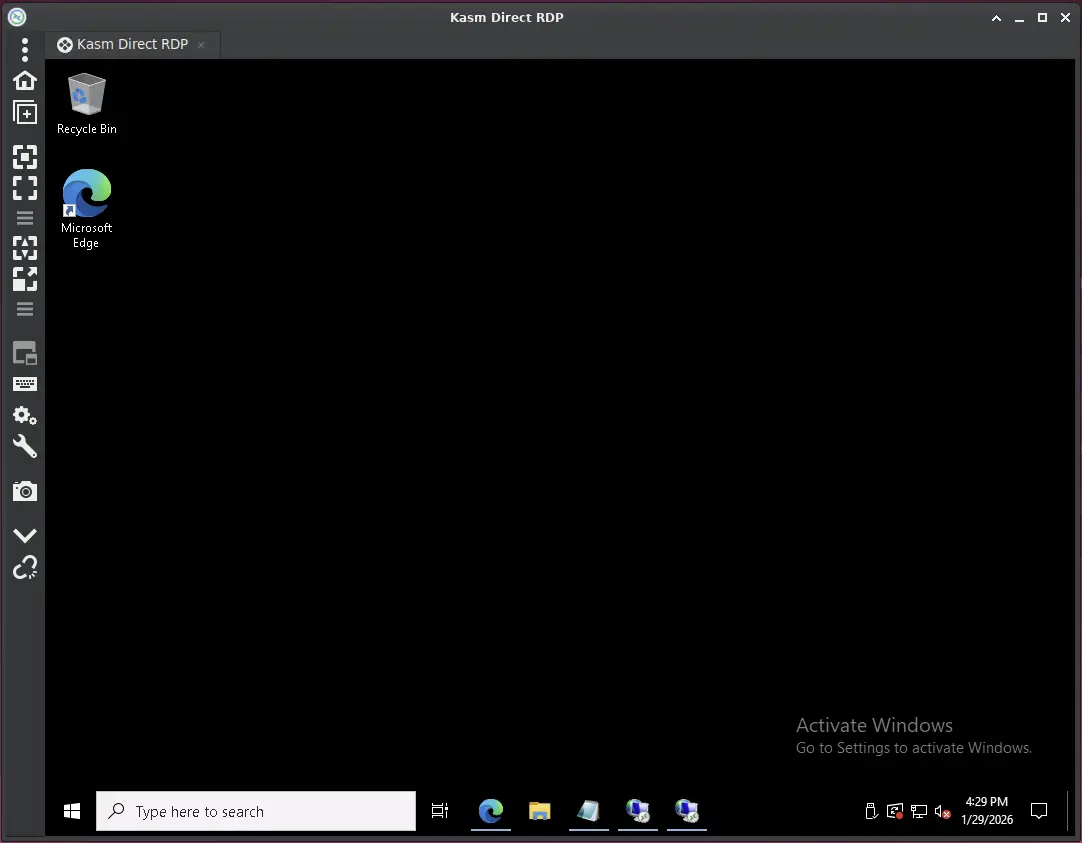
- Select the server with the keyboard (the up and down arrows and Enter) or the mouse (double-click).
- Confirm that a full RDP session opens to the target server.
Common troubleshooting steps
- The RDP login page does not appear. Confirm that Enable Direct RDP Login is on for the zone and that Kasm Authorization Domain matches the deployment domain.
- A user authenticates but sees no workspaces. Confirm that
allow_login_kasm_rdpis set toTruefor the user's group and that an RDP-enabled Workspace exists. - Stored credentials are a security concern. Most RDP clients do not encrypt saved credentials. Save Kasm credentials in the client only when the security implications are acceptable.