Kasm Desktop Service
Kasm Desktop Service is a service that provides additional capabilities to users that are connected to the desktop through Kasm Workspaces:
- Upload files to the remote desktop
- Download files from the remote desktop
- See a preview screenshot of the desktop in the Kasm Workspaces dashboard
- Run bash scripts on session start, session end, or service start
- Kasm managed local users and credentials
- File Mapping
- Supports multiple concurrent users on the same system
Installation
The Kasm Desktop Service can be installed using one of the installers below. Service files and scripts are placed in /opt/kasm-desktop-service/, configuration and certificates in /etc/kasm-desktop-service/, and logs in /var/log/kasm-desktop-service/. You should use the latest version that supports the version of Kasm Workspaces you have installed.
.deb Packages
| Installer Version | Installer Links | Kasm Workspaces Compatibility | SHA256 |
|---|---|---|---|
| Developer Preview | amd64 arm64 | develop | Rolling. Checksums available here |
| 1.8 | amd64 arm64 | 1.19.0 | amd64: 25613f3979eb2596c3d7a289d2e49fa26670fc77397615f3f53afbf59f959e32 arm64: 10d16e3a632f273f61f7d12d5997088bf175eb355c30e254c423581ec666f54c |
After downloading, install with (replace the filename with the one you downloaded):
sudo apt-get update -y
sudo apt-get install -y ./kasm-desktop-service.deb
.rpm Packages
| Installer Version | Installer Links | Kasm Workspaces Compatibility | SHA256 |
|---|---|---|---|
| Developer Preview | amd64 arm64 | develop | Rolling. Checksums available here |
| 1.8 | amd64 arm64 | 1.19.0 | amd64: 50c0774fc1183f1a5844fabf53dc7e12bf358cc827633c16fd3be418fd1f6d26 arm64: 79a937a2ac6a36517ae152502e3a392a655352af902012ea383f350b5dd4f719 |
After downloading, install with (replace the filename with the one you downloaded):
sudo dnf install -y ./kasm-desktop-service.rpm
When installing KDS on RHEL-based operating systems, it is recommended to enable the EPEL repository beforehand, as it is required for installing certain dependencies( eg. rclone, gnome-screenshot).
It is also recommended to use RHEL 9, as RHEL 10 is still maturing at this time. Additionally, please install the recommended gnome-screenshot package, if available, as it is required for the screenshot API. Since some desktop environments have not yet fully matured, this dependency is currently provided as optional in RPM packages.
The Developer Preview Build of the Kasm Desktop Service listed above should only be used with the developer preview build of Kasm Workspaces on non-production systems.
The documentation on this page is for the latest version of the installer listed in the table above and may not be accurate for older versions.
The Kasm Desktop Service uses HTTPS/SSL to communicate with the rest of the Kasm Workspace services. For ufw and firewall-cmd firewall services, the KDS installer will attempt to open TCP port 4902. Ensure that firewalls and/or cloud security groups allow the following connections:
| Direction | Protocol | Port | Use |
|---|---|---|---|
| Inbound | TCP | 4902 | Control communication from Kasm Services |
| Inbound | TCP | 3389 | RDP connection from the user or Kasm Services |
| Outbound | TCP | 443 (default) | KDS communication to Kasm Services |
The following instructions are for static servers.
- Login to Kasm as an administrator
- Create a new Server, you can optionally make the server part of a Pool
- Ensure the
Kasm Desktop Service Installedoption is enabled when creating the server. - On the server, download the appropriate version of the Kasm Desktop Service from the table above.
- Run the installer. The installer does not prompt for registration details — it installs the service and starts it.
- After installation completes, register the service by running:
sudo bash /opt/kasm-desktop-service/scripts/register_wizard.sh --register
If a graphical display is available, a GUI dialog will appear. Over SSH or on a headless system, it will prompt on the command line.
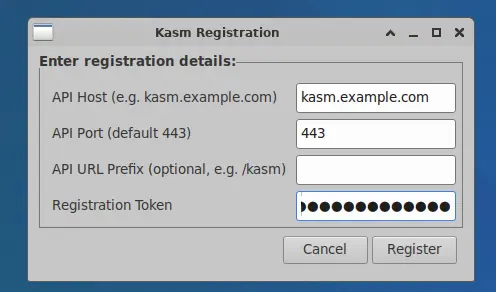
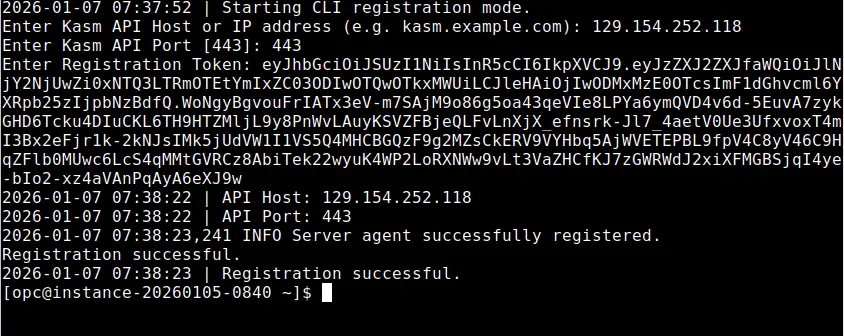
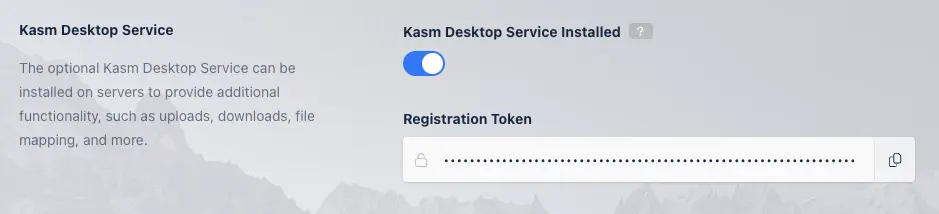
- Enter the Kasm API host, port (default 443), and the Registration Token. In the Kasm Admin UI, navigate to Infrastructure → Servers → Servers, find the target server and click Edit. In the Kasm Agent section, press the copy button on the Registration Token field.
- (Optional) Enter the API path prefix if your Kasm deployment is hosted behind a path-based proxy (for example, /kasmapp).
Registration Troubleshooting
During registration, the Kasm Desktop Service will attempt to connect to the Kasm Workspaces deployment. During the registration process the following checks are performed.
- Can the Kasm Desktop Service talk to the Kasm Workspaces deployment on the specified port and hostname.
- Can the Kasm Workspaces deployment talk to the Kasm Desktop Service on port 4902 using the hostname/IP specified in the Server record in Kasm Workspaces.
- Is the registration token digitally signed by the Kasm Workspaces deployment, not expired, and assigned to the server being registered.


If any of these conditions fail, you will get an error message during registration. Please attempt to correct issues such as DNS resolution of hostname, firewall rules, or expired registration token. You can retry registration with the following command:
sudo bash /opt/kasm-desktop-service/scripts/register_wizard.sh --register
If the network check fails, update your firewall rules to allow the required ports (see the table above), then restart the service before retrying:
sudo systemctl restart kasm-desktop.service
You can then prompt another network check from Kasm Workspaces using the following:
sudo bash /opt/kasm-desktop-service/scripts/register_wizard.sh --network-check
Scripted Installation
The installation and registration of the Kasm Desktop Service can also be scripted.
The installation is non-interactive — no registration prompts occur during apt install or dnf install. After installing, register using one of the commands below.
Register with interactive command-line prompts:
sudo bash /opt/kasm-desktop-service/scripts/register_wizard.sh --register --no-gui
Register without interactive input:
# Note: set the variables used in the following command with values appropriate for your deployment
sudo bash /opt/kasm-desktop-service/scripts/register_wizard.sh --register --no-gui \
    --api-host="$API_HOST" \
    --api-port="$API_PORT" \
    --token="$REG_TOKEN" \
    --api-url-prefix="$API_URL_PREFIX"  # optional: only needed if Kasm is behind a path-based proxy
After re-registering, restart the service for changes to take effect:
sudo systemctl restart kasm-desktop.service
The registration command will auto-detect the absence of a display, e.g. when you are using a SSH session. In this scenario, it will use --no-gui by default and prompt on the command line for the registration details.
The service directory /opt/kasm-desktop-service/ will have its own isolated userspace as per the systemd file. For the best possible security, ensure that normal users do not have read access to the Kasm service directories (/opt/kasm-desktop-service/ and /etc/kasm-desktop-service/) as they contain potentially sensitive information.
XRDP Setup
Kasm Desktop Service on Linux requires XRDP with XFCE for reliable multi-user operation, below script can be used to setup the environment.
#!/usr/bin/env bash
set -euo pipefail

sudo apt update -y || true
sudo apt install -y \
  xrdp \
  xfce4 \
  xfce4-goodies \
  dbus-x11 \
  xorg \
  x11-xserver-utils

# Allow XRDP to access SSL certs
sudo adduser xrdp ssl-cert

# Enable and start XRDP
sudo systemctl enable xrdp
sudo systemctl restart xrdp

# Set XFCE as default session for all dynamic users
sudo bash -c 'echo "xfce4-session" > /etc/skel/.xsession'
sudo bash -c 'echo "xfce4-session" > /etc/skel/.Xsession'
sudo chmod 644 /etc/skel/.xsession /etc/skel/.Xsession

# Ensure XRDP launches XFCE reliably
sudo bash -c 'cat >/etc/xrdp/startwm.sh <<EOF
#!/bin/sh
unset DBUS_SESSION_BUS_ADDRESS
unset WAYLAND_DISPLAY
export XDG_SESSION_TYPE=x11
export \$(dbus-launch)
xfce4-session
EOF'
sudo chmod +x /etc/xrdp/startwm.sh

# Disable screen locking (critical for dynamic users)
sudo mkdir -p /etc/xdg/xfce4/xfconf/xfce-perchannel-xml

sudo bash -c 'cat >/etc/xdg/xfce4/xfconf/xfce-perchannel-xml/xfce4-screensaver.xml <<EOF
<?xml version="1.0" encoding="UTF-8"?>
<channel name="xfce4-screensaver" version="1.0">
  <property name="lock" type="empty">
    <property name="enabled" type="bool" value="false"/>
  </property>
  <property name="blank-delay" type="int" value="0"/>
  <property name="lock-delay" type="int" value="0"/>
  <property name="idle-delay" type="int" value="0"/>
</channel>
EOF'

sudo bash -c 'cat >/etc/xdg/xfce4/xfconf/xfce-perchannel-xml/xfce4-power-manager.xml <<EOF
<?xml version="1.0" encoding="UTF-8"?>
<channel name="xfce4-power-manager" version="1.0">
  <property name="xfce4-power-manager" type="empty">
    <property name="dpms-enabled" type="bool" value="false"/>
    <property name="show-tray-icon" type="bool" value="false"/>
  </property>
</channel>
EOF'

# Fix Polkit color-manager permission prompts
sudo mkdir -p /etc/polkit-1/localauthority/50-local.d
sudo bash -c 'cat >/etc/polkit-1/localauthority/50-local.d/45-allow-colord.pkla <<EOF
[Allow Colord All Users]
Identity=unix-user:*
Action=org.freedesktop.color-manager.*
ResultActive=yes
EOF'

sudo systemctl restart xrdp
The Wayland environment is not supported.
SSL Certificates
As part of the installation, the service is assigned an SSL certificate. Kasm utilizes a self sign certificate for the service. You can optionally replace the auto generated self-signed certs with certs that are signed by your organization's CA. The cert and key need to be in PEM format and are stored at /etc/kasm-desktop-service/certs.
Upgrade
When running the installer on a machine with an existing Kasm Desktop Service an upgrade will be performed. The existing configuration file, as well as the certificates and any files in the upload and download folders will be preserved.
After upgrading, restart the service for changes to take effect:
sudo systemctl restart kasm-desktop.service
Uninstall
To uninstall the Kasm Desktop Service, use apt remove. This stops the service, disables it and removes the package files while preserving configuration files and logs.
To also remove configuration files and logs, use apt purge instead of apt remove (Debian/Ubuntu). On RPM-based systems, use dnf remove, which always removes configuration files and logs.
apt purge / dnf remove will delete /opt/kasm-desktop-service/, /etc/kasm-desktop-service/, and /var/log/kasm-desktop-service/. This cannot be undone.
Configuration
The Kasm Desktop Service (KDS) on Linux uses the configuration file located at /etc/kasm-desktop-service/config.yaml. This is the local configuration file created during a fresh installation. All KDS components and services read from and communicate using this file. The configuration file located under /opt/kasm-desktop-service/config.yaml is only used during installation to generate the local copy and is not used at runtime.
Below is an annotated example of a configuration as generated during registration:
# server HTTP(s) configuration
ssl: true
port: 4902
server_private_key: "/etc/kasm-desktop-service/certs/key.pem"
server_public_key: "/etc/kasm-desktop-service/certs/cert.pem"

# path to JWT's RSA certificate for token verification
jwt_public_key: "/etc/kasm-desktop-service/certs/jwt.pem"

# path to upload/download folders
upload_dir: "/opt/kasm-desktop-service/Upload"
download_dir: "/opt/kasm-desktop-service/Download"
multi_user: true
user_sso: false
debug: false
api_host: "kasm.example.net"
api_port: 443

# below is optional
api_url_prefix : "/kasm"
Settings
| Name | Description |
|---|---|
| ssl | Enables SSL for the services. Kasm Workspaces only supports communications with this service over SSL. |
| port | The port to run the services on. Kasm Workspaces uses port 4902 for this service by default. |
| server_private_key | The private key used for the SSL service. |
| server_public_key | The public key used for the SSL service. |
| jwt_public_key | The public key used to authenticate API calls received from Kasm Workspaces. |
| upload_dir | Directory to place files uploaded by users. |
| download_dir | Directory to allow users to download files from. |
| multi_user | Boolean indicating the Linux instance the service is installed on will support multiple users |
| user_sso | Boolean indicating that users in Kasm are mapped to Linux users through SSO. |
| api_host | The hostname or ip address of an API server or load balancer in front of Kasm API servers. |
| api_port | The port number used for your deployments API Servers, port 443 by default. |
| api_url_prefix | (Optional) The path prefix for API requests if Kasm is hosted behind a path-based proxy (e.g., /kasmapp). |
| registered | Has the agent already been registered with the deployment. |
| script_path | Directory where scripts are located. |
| server_id | The UUID of the server in Kasm Workspaces. |
The multi_user and user_sso are updated automatically when the service checks into the deployment, based on the configuration in
Kasm Workspaces for this server.
Uploads and Downloads on Multi-user Systems
When a user uploads files from their local computer to the remote Kasm Linux session, the file is placed in the Downloads directory of their home path. When a user wants to download a file from the remote Kasm Linux session to their local computer, they can use the control panel. The control panel will display files located in the Downloads directory of their home path.
When using Prompt User authentication, uploaded and downloaded files are not placed into the user's home or profile directory (for example, /home/<username>/Downloads on Linux).
Instead, files are stored in the default upload and download directories configured for the Kasm Desktop Service.
When using Static Credentials authentication, both a download directory (for example, ~/Downloads) that does not exist or is not owned by the authenticated user and a missing Connection Username (which leaves the Kasm Desktop Service unable to resolve a session username, so it falls back to a default of username not found) cause uploaded and downloaded files to be stored in the default upload and download directories configured for the Kasm Desktop Service (by default /opt/kasm-desktop-service/Upload and /opt/kasm-desktop-service/Download) rather than in the user's home directory.
Authentication of Service
All requests to the application must contain a JWT token parameter that will be verified against the provided JWT key.
The JWT key (also referred to as the API Cert) is generated upon Kasm Workspaces installation and can be retrieved from Kasm Settings panel section.
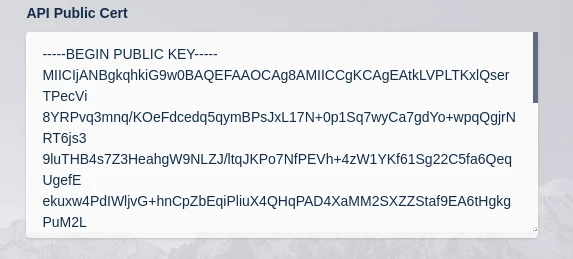
The public JWT token is retrieved during registration. If you change the JWT cert and key on your Kasm Workspaces deployment, you will need to re-register your Kasm Desktop Service.
Scripts
Kasm utilizes a number of scripts and provides administrators hooks to execute their own scripts during certain events. When scripts get executed by the Kasm Service, environment variables are automatically injected so that your script has access to contextually relevant information. See the variables section for more details.
The default location for scripts is /opt/kasm-desktop-service/scripts. File Mapping can be used to manage custom scripts within the Kasm UI. With this directory there are the following sub directories with the following purposes.
Script Directories
| Directory | Description |
|---|---|
| builtin | Scripts ran by the Kasm Service to execute specific actions. See the following section for details. |
| service_startup | Scripts placed here will automatically be executed when the Kasm service starts. |
| session_start | Scripts placed here will automatically be executed before a user session starts. |
| session_end | Scripts placed here will automatically be executed before a user session is terminated. |
Builtin Scripts
The following builtin scripts exist for the defined purpose.
These built-in scripts require a resolved username variable. As a result, they are not executed for Prompt User connections, where no system username is available.
create_local_account.sh This script is executed during session creation, if Dynamic Local Account SSO is configured. This script creates a local account for the requesting user, if it does not already exist, and retrieves a one-time random password to set for the user account. The API call to retrieve the one-time password uses a JWT token that is defined in a builtin variable. The JWT token has short expiration time and can only be used once to retrieve the one-time password.
The script also creates a user-specific environment file at $HOME/.kasm_env and configures it to be sourced by standard shell startup files, making the variables available to all interactive shells. The user can modify this file, e.g. to comment-out variables they do not want loaded in interactive sessions. Storing sensitive variable values in this file is discouraged.
logoff_user.sh This script will log the user off the session when the user deletes their Kasm session.
Dynamic session users are added to the sudo group, but the per-session account password is generated by Kasm and used only for the RDP handshake. It is never shown to the user, so interactive sudo prompts (for example, sudo apt install ...) cannot be answered, and software installs fail even though the user has sudo rights. Choose the option below that fits your deployment.
- Install manually (recommended)
- Autoscaled servers
- Per-session script
SSH into the server and install the required packages system wide. The software is then available to every session, with no changes to sudo or to the Kasm scripts.
sudo apt-get install -y <package>
For autoscaled pools you cannot install on each ephemeral VM by hand, so modify the autoscale startup script to install the required packages when the VM is provisioned, or grant the dynamically created user passwordless sudo so they can install packages themselves.
To grant passwordless sudo, add a sudoers drop-in for the session user in create_local_account.sh, immediately after the account is created:
# Allow the Kasm session user to install software without knowing the
# Kasm-generated password. Validated with visudo before it takes effect.
sudoers_file="/etc/sudoers.d/kasm-${username}"
echo "${username} ALL=(ALL) NOPASSWD: ALL" | sudo tee "$sudoers_file" > /dev/null
sudo chmod 0440 "$sudoers_file"
sudo visudo -cf "$sudoers_file" || { echo "Invalid sudoers entry; removing"; sudo rm -f "$sudoers_file"; }
logoff_user.sh deletes the account with userdel -r, which does not remove files under /etc/sudoers.d/. Add a matching cleanup line next to the userdel call so a reused dynamic username cannot inherit passwordless root:
rm -f "/etc/sudoers.d/kasm-${username}"
If a user needs specific packages, use a session_start script to install them into the dynamically created user's session when the session starts.
NOPASSWD: ALL grants unrestricted passwordless root for the life of the session. If sessions only need to install software, scope the rule to the package manager instead, keeping the visudo validation and the logoff cleanup either way:
echo "${username} ALL=(ALL) NOPASSWD: /usr/bin/apt, /usr/bin/apt-get, /usr/bin/dpkg, /usr/bin/snap" | sudo tee "$sudoers_file" > /dev/null
load_persistent_profile.sh This script is called during session creation, before a user connects and after create_local_account.sh is called (if required). The script is empty in the current version but provides the administrator the ability to define their own hook to load persistent profiles from users using third party solutions. The script has access to builtin variables defined below.
save_persistent_profile.sh This script is called during session termination, after the user is logged out. The script is empty in the current version but provides the administrator the ability to define their own hook to save persistent profiles for users using third party solutions. The script has access to builtin variables defined below.
map_storage.sh
This script is called during session creation, before a user connects and after create_local_account.sh is called (if required). This script is used to map in Cloud Storage definitions for users. This script has access to builtin variables in addition to a storage_mapping variable, which contains the storage mapping definition in JSON format. This script is called for each storage mapping that is applicable to the user that is creating the session. All storage mappings are placed on the user's Desktop. If, for example, a Storage Mapping with a target of /OneDrive would be mapped to /home/<username>/Desktop/OneDrive on a Linux system. This script requires rclone.
unmap_storage.sh
This script is called during session termination, after the user is logged off. The script removes any mapped Cloud Storage volumes that were added with the map_storage script. This script has access to builtin variables in addition to a storage_mapping variable, which contains the storage mapping definition in JSON format. This script is called for each storage mapping that is applicable to the user that is creating the session.
Variables
The following variables are builtin and available for any script executed by the Kasm Service.
| Name | Description |
|---|---|
| user_id | The Kasm User ID for the user creating/terminating the session. |
| username | The username of the user creating/terminating the session. |
| kasm_id | The Kasm session ID for the session being created/terminated. |
| kasm_user | (session_start scripts only) The Kasm username starting the session. |
| jwt_token | A limited access and short lived JWT token that can be used to make API calls to Kasm. |
| api_host | The IP address or hostname of the API server or load balancer for the API servers. |
| api_port | The port number of the API server. |
| api_url_prefix | (Optional) The path prefix for API requests if Kasm is hosted behind a path-based proxy. |
These variables can be referenced in scripts defined by the administrator.
The full output of any script that runs, including its exit code, is logged.
Logging
By default, all log messages are written to standard output and captured by systemd/journald. Administrators can inspect service logs using:
journalctl -u kasm-desktop.service
Registration and installation logs are available under:
/var/log/kasm-desktop-service/
In addition, all application logs are also sent to the Kasm Workspaces deployment and can be viewed in the Kasm Admin UI under Diagnostics->Logging.
Launching a GUI application
GUI applications can be launched manually by users from within an active XRDP session. When automating application startup with Kasm Desktop Service, GUI applications are typically launched using session_start scripts located at:
/opt/kasm-desktop-service/scripts/session_start/
XRDP assigns X11 displays dynamically for each user session, so automated scripts cannot assume a static display such as :0 and must determine the active DISPLAY at runtime. In addition, the desktop environment (XFCE) may not be fully initialized when the script executes, requiring scripts to wait for the session to become ready before launching applications.
Below is a simple example of launching a GUI application using a simple session_start script,
#!/usr/bin/env bash
set -euo pipefail

echo "[gui-start] Starting GUI app launcher..."

# Provided by KDS
username="$username"
home="/home/$username"
AUTH="$home/.Xauthority"
uid=$(id -u "$username")

# Needed for GUI apps
export XDG_RUNTIME_DIR="/run/user/$uid"
export DBUS_SESSION_BUS_ADDRESS="unix:path=${XDG_RUNTIME_DIR}/bus"

# Find REAL XRDP DISPLAY for this user
find_display() {
    # Find displays owned by the user
    for d in $(pgrep -au "$username" Xorg | grep -o ":[0-9]\+"); do
        # Check if XFCE window manager is running on this display
        if sudo -u "$username" DISPLAY="$d" XAUTHORITY="$AUTH" \
            pgrep -u "$username" xfwm4 >/dev/null 2>&1; then
            echo "$d"
            return
        fi
    done
}

# Wait for DISPLAY
for i in {1..30}; do
    DISP=$(find_display)
    if [[ -n "${DISP:-}" ]]; then
        export DISPLAY="$DISP"
        export XAUTHORITY="$AUTH"
        echo "[gui-start] Using DISPLAY=$DISPLAY"
        break
    fi
    echo "[gui-start] Waiting for XRDP display..."
    sleep 1
done

if [[ -z "${DISPLAY:-}" ]]; then
    echo "[gui-start] FAIL: Could not detect XRDP display"
    exit 1
fi

# Wait for XFCE session
for i in {1..20}; do
    if pgrep -u "$username" xfwm4 >/dev/null &&
       pgrep -u "$username" xfce4-session >/dev/null; then
        echo "[gui-start] XFCE session ready"
        break
    fi
    echo "[gui-start] Waiting for XFCE startup..."
    sleep 1
done


# LAUNCH the GUI app -- using a game as example
APP="/usr/games/chromium-bsu"

# Ensure installed
if [[ ! -x "$APP" ]]; then
    echo "[gui-start] Installing chromium-bsu..."
    apt-get update -y && apt-get install -y chromium-bsu
fi

echo "[gui-start] Launching chromium-bsu..."
sudo -u "$username" DISPLAY="$DISPLAY" XAUTHORITY="$AUTH" "$APP" >/dev/null 2>&1 &

echo "[gui-start] GUI app launched."
exit 0