Kasm Desktop Service for Linux
The Kasm Desktop Service is a service that adds capabilities for users connected to a desktop through Kasm Workspaces:
- Upload files to the remote desktop.
- Download files from the remote desktop.
- Show a preview screenshot of the desktop in the Kasm Workspaces dashboard.
- Run bash scripts on session start, session end, or service start.
- Manage local Linux users and credentials.
- Map files through File Mapping.
- Support multiple concurrent users on the same system.
Video Tutorial
Installation
Install the Kasm Desktop Service with one of the installers below. The installer places service files and scripts in /opt/kasm-desktop-service/, configuration and certificates in /etc/kasm-desktop-service/, and logs in /var/log/kasm-desktop-service/. Use the latest version that supports your installed version of Kasm Workspaces. The documentation on this page reflects the latest installer version and may not be accurate for older versions.
.deb packages
| Installer version | Installer links | Kasm Workspaces compatibility | SHA256 |
|---|---|---|---|
| Developer Preview | amd64 arm64 | develop | Rolling. Checksums available here |
| 1.8 | amd64 arm64 | 1.19.0 | amd64: 25613f3979eb2596c3d7a289d2e49fa26670fc77397615f3f53afbf59f959e32 arm64: 10d16e3a632f273f61f7d12d5997088bf175eb355c30e254c423581ec666f54c |
After downloading, install with the following command. Replace the filename with the one you downloaded.
sudo apt-get update -y
sudo apt-get install -y ./kasm-desktop-service.deb
.rpm packages
| Installer version | Installer links | Kasm Workspaces compatibility | SHA256 |
|---|---|---|---|
| Developer Preview | amd64 arm64 | develop | Rolling. Checksums available here |
| 1.8 | amd64 arm64 | 1.19.0 | amd64: 50c0774fc1183f1a5844fabf53dc7e12bf358cc827633c16fd3be418fd1f6d26 arm64: 79a937a2ac6a36517ae152502e3a392a655352af902012ea383f350b5dd4f719 |
After downloading, install with the following command. Replace the filename with the one you downloaded.
sudo dnf install -y ./kasm-desktop-service.rpm
On RHEL-based operating systems, enable the EPEL repository beforehand, because it is required for certain dependencies, such as rclone and gnome-screenshot. Use RHEL 9, because RHEL 10 is still maturing at this time. Install the gnome-screenshot package where available, because it is required for the screenshot API. Some desktop environments have not yet fully matured, so this dependency is currently optional in the RPM packages.
Use the developer preview build of the Kasm Desktop Service only with the developer preview build of Kasm Workspaces, and only on non-production systems.
The Kasm Desktop Service uses HTTPS to communicate with the other Kasm Workspaces services. For the ufw and firewall-cmd firewall services, the installer attempts to open TCP port 4902. Allow the following connections in firewalls and cloud security groups.
| Direction | Protocol | Port | Use |
|---|---|---|---|
| Inbound | TCP | 4902 | Control communication from Kasm services |
| Inbound | TCP | 3389 | RDP connection from the user or Kasm services |
| Outbound | TCP | 443 (default) | Service communication to Kasm services |
Install and register the service
These instructions apply to static servers.
-
Sign in to Kasm as an administrator.
-
Create a new server. You can optionally add the server to a pool.
-
Enable the Kasm Desktop Service Installed option when you create the server.
-
On the server, download the appropriate version of the Kasm Desktop Service from the table above.
-
Run the installer. The installer does not prompt for registration details. It installs the service and starts it.
-
After installation completes, register the service:
sudo bash /opt/kasm-desktop-service/scripts/register_wizard.sh --registerWhen a graphical display is available, a GUI dialog appears. Over SSH or on a headless system, the wizard prompts on the command line.
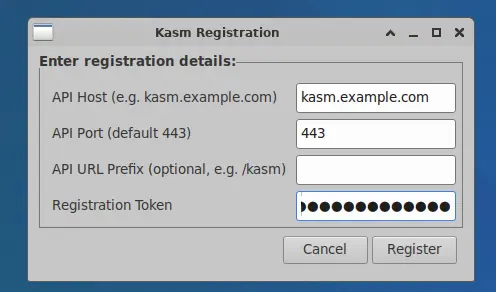
Kasm Desktop Service registration (GUI) 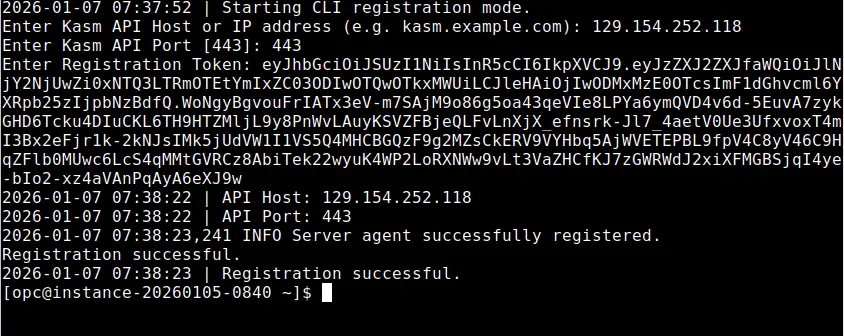
Kasm Desktop Service registration (CLI over SSH) -
Enter the Kasm API host, the port (443 by default), and the registration token. In the Kasm Admin UI, go to Infrastructure > Servers > Servers, find the target server, and click Edit. In the Kasm Agent section, click the copy button on the Registration Token field.
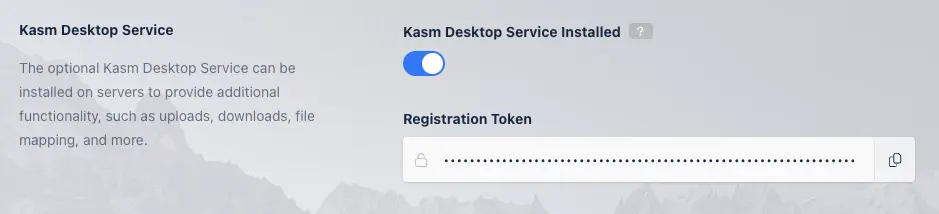
Registration Token field in the Kasm server Agent settings -
Optional: enter the API path prefix if the deployment is hosted behind a path-based proxy, for example
/kasmapp.
Registration troubleshooting
During registration, the Kasm Desktop Service connects to the Kasm Workspaces deployment. The registration process performs the following checks:
- The Kasm Desktop Service can reach the Kasm Workspaces deployment on the specified port and hostname.
- The Kasm Workspaces deployment can reach the Kasm Desktop Service on port 4902, using the hostname or IP address in the server record.
- The registration token is digitally signed by the deployment, is not expired, and is assigned to the server being registered.


When any check fails, registration shows an error. Correct issues such as DNS resolution of the hostname, firewall rules, or an expired registration token. Retry registration with the following command:
sudo bash /opt/kasm-desktop-service/scripts/register_wizard.sh --register
When the network check fails, update your firewall rules to allow the required ports, then restart the service before retrying:
sudo systemctl restart kasm-desktop.service
Run another network check from Kasm Workspaces with the following command:
sudo bash /opt/kasm-desktop-service/scripts/register_wizard.sh --network-check
Scripted installation
You can script the installation and registration of the Kasm Desktop Service. The installation is non-interactive, with no registration prompts during apt install or dnf install. After installing, register with one of the commands below.
Register with interactive command-line prompts:
sudo bash /opt/kasm-desktop-service/scripts/register_wizard.sh --register --no-gui
Register without interactive input:
# Note: set the variables used in the following command with values appropriate for your deployment
sudo bash /opt/kasm-desktop-service/scripts/register_wizard.sh --register --no-gui \
    --api-host="$API_HOST" \
    --api-port="$API_PORT" \
    --token="$REG_TOKEN" \
    --api-url-prefix="$API_URL_PREFIX"  # optional: only needed if Kasm is behind a path-based proxy
After you re-register, restart the service for the changes to take effect:
sudo systemctl restart kasm-desktop.service
The registration command auto-detects the absence of a display, for example during an SSH session. In that case, the command uses --no-gui by default and prompts on the command line for the registration details.
The service directory /opt/kasm-desktop-service/ has its own isolated userspace, as defined in the systemd file. For the best security, confirm that standard users do not have read access to the Kasm service directories, /opt/kasm-desktop-service/ and /etc/kasm-desktop-service/, because they contain potentially sensitive information.
XRDP setup
The Kasm Desktop Service on Linux requires XRDP with XFCE for reliable multi-user operation. Use the following script to set up the environment.
#!/usr/bin/env bash
set -euo pipefail

sudo apt update -y || true
sudo apt install -y \
  xrdp \
  xfce4 \
  xfce4-goodies \
  dbus-x11 \
  xorg \
  x11-xserver-utils

# Allow XRDP to access SSL certs
sudo adduser xrdp ssl-cert

# Enable and start XRDP
sudo systemctl enable xrdp
sudo systemctl restart xrdp

# Set XFCE as default session for all dynamic users
sudo bash -c 'echo "xfce4-session" > /etc/skel/.xsession'
sudo bash -c 'echo "xfce4-session" > /etc/skel/.Xsession'
sudo chmod 644 /etc/skel/.xsession /etc/skel/.Xsession

# Ensure XRDP launches XFCE reliably
sudo bash -c 'cat >/etc/xrdp/startwm.sh <<EOF
#!/bin/sh
unset DBUS_SESSION_BUS_ADDRESS
unset WAYLAND_DISPLAY
export XDG_SESSION_TYPE=x11
export \$(dbus-launch)
xfce4-session
EOF'
sudo chmod +x /etc/xrdp/startwm.sh

# Disable screen locking (critical for dynamic users)
sudo mkdir -p /etc/xdg/xfce4/xfconf/xfce-perchannel-xml

sudo bash -c 'cat >/etc/xdg/xfce4/xfconf/xfce-perchannel-xml/xfce4-screensaver.xml <<EOF
<?xml version="1.0" encoding="UTF-8"?>
<channel name="xfce4-screensaver" version="1.0">
  <property name="lock" type="empty">
    <property name="enabled" type="bool" value="false"/>
  </property>
  <property name="blank-delay" type="int" value="0"/>
  <property name="lock-delay" type="int" value="0"/>
  <property name="idle-delay" type="int" value="0"/>
</channel>
EOF'

sudo bash -c 'cat >/etc/xdg/xfce4/xfconf/xfce-perchannel-xml/xfce4-power-manager.xml <<EOF
<?xml version="1.0" encoding="UTF-8"?>
<channel name="xfce4-power-manager" version="1.0">
  <property name="xfce4-power-manager" type="empty">
    <property name="dpms-enabled" type="bool" value="false"/>
    <property name="show-tray-icon" type="bool" value="false"/>
  </property>
</channel>
EOF'

# Fix Polkit color-manager permission prompts
sudo mkdir -p /etc/polkit-1/localauthority/50-local.d
sudo bash -c 'cat >/etc/polkit-1/localauthority/50-local.d/45-allow-colord.pkla <<EOF
[Allow Colord All Users]
Identity=unix-user:*
Action=org.freedesktop.color-manager.*
ResultActive=yes
EOF'

sudo systemctl restart xrdp
The Wayland environment is not supported.
SSL certificates
The installation assigns an SSL certificate to the service. Kasm uses a self-signed certificate by default. You can replace the auto-generated self-signed certificates with certificates signed by your organization's certificate authority. The certificate and key must be in PEM format and are stored at /etc/kasm-desktop-service/certs.
Upgrade
Running the installer on a machine with an existing Kasm Desktop Service performs an upgrade. The upgrade preserves the existing configuration file, the certificates, and any files in the upload and download folders. After you upgrade, restart the service for the changes to take effect:
sudo systemctl restart kasm-desktop.service
Uninstall
To uninstall the Kasm Desktop Service, use apt remove. This stops the service, disables it, and removes the package files while preserving configuration files and logs.
To also remove configuration files and logs, use apt purge instead of apt remove on Debian and Ubuntu. On RPM-based systems, use dnf remove, which always removes configuration files and logs.
apt purge and dnf remove delete /opt/kasm-desktop-service/, /etc/kasm-desktop-service/, and /var/log/kasm-desktop-service/. This cannot be undone.
Configuration
The Kasm Desktop Service on Linux uses the configuration file located at /etc/kasm-desktop-service/config.yaml. This is the local configuration file created during a fresh installation. All KDS components and services read from and communicate using this file. The configuration file located under /opt/kasm-desktop-service/config.yaml is only used during installation to generate the local copy and is not used at runtime.
The following example shows a configuration as generated during registration.
# server HTTP(s) configuration
ssl: true
port: 4902
server_private_key: "/etc/kasm-desktop-service/certs/key.pem"
server_public_key: "/etc/kasm-desktop-service/certs/cert.pem"

# path to JWT's RSA certificate for token verification
jwt_public_key: "/etc/kasm-desktop-service/certs/jwt.pem"

# path to upload/download folders
upload_dir: "/opt/kasm-desktop-service/Upload"
download_dir: "/opt/kasm-desktop-service/Download"
multi_user: true
user_sso: false
debug: false
api_host: "kasm.example.net"
api_port: 443

# below is optional
api_url_prefix: "/kasm"
Settings
| Name | Description |
|---|---|
ssl | Enables SSL for the service. Kasm Workspaces supports communication with this service over SSL only. |
port | The port to run the service on. Kasm Workspaces uses port 4902 for this service by default. |
server_private_key | The private key used for the SSL service. |
server_public_key | The public key used for the SSL service. |
jwt_public_key | The public key used to authenticate API calls received from Kasm Workspaces. |
upload_dir | Directory for files uploaded by users. |
download_dir | Directory that users can download files from. |
multi_user | Boolean indicating that the Linux instance supports multiple users. |
user_sso | Boolean indicating that Kasm users are mapped to Linux users through SSO. |
api_host | The hostname or IP address of an API server or load balancer in front of the Kasm API servers. |
api_port | The port number used for the deployment's API servers, port 443 by default. |
api_url_prefix | Optional. The path prefix for API requests if Kasm is hosted behind a path-based proxy, for example /kasmapp. |
registered | Indicates whether the agent is already registered with the deployment. |
script_path | Directory where scripts are located. |
server_id | The UUID of the server in Kasm Workspaces. |
Kasm updates multi_user and user_sso automatically when the service checks in with the deployment, based on the server configuration in Kasm Workspaces.
Uploads and downloads on multi-user systems
When a user uploads files from their local computer to the remote Kasm Linux session, Kasm places the files in the Downloads directory of their home path. When a user downloads a file from the remote Kasm Linux session, the control panel displays the files in the Downloads directory of their home path.
The default upload and download directories of the Kasm Desktop Service are used instead of the user's home directory in two cases. First, with Prompt User authentication over Web Native RDP, Kasm does not place files in the user's home directory, for example /home/<username>/Downloads. Second, with Static Credentials authentication, files fall back to the defaults when the download directory does not exist or is not owned by the authenticated user, or when the Connection Username is missing and the service cannot resolve a session username.
Service authentication
Every request to the application must contain a JWT token parameter, which Kasm verifies against the provided JWT key. The JWT key, also called the API Cert, is generated when Kasm Workspaces is installed and can be retrieved from the Kasm Settings panel.
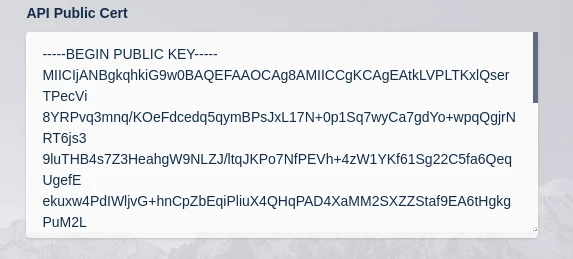
The public JWT token is retrieved during registration. When you change the JWT certificate and key on the deployment, re-register the Kasm Desktop Service.
Scripts
Kasm uses a number of scripts and provides administrators hooks to run their own scripts during certain events. When the Kasm service runs a script, it injects environment variables so that the script has access to contextually relevant information. For more details, see the variables section.
The default location for scripts is /opt/kasm-desktop-service/scripts. Use File Mapping to manage custom scripts in the Kasm UI. This directory contains the following subdirectories.
Script directories
| Directory | Description |
|---|---|
builtin | Scripts run by the Kasm service to perform specific actions. See the following section for details. |
service_startup | Scripts placed here run automatically when the Kasm service starts. |
session_start | Scripts placed here run automatically before a user session starts. |
session_end | Scripts placed here run automatically before a user session ends. |
Built-in scripts
The following built-in scripts exist for the stated purpose.
These built-in scripts require a resolved username variable. As a result, they do not run for Prompt User connections, where no system username is available.
create_local_account.sh runs during session creation when dynamic local account SSO is configured. The script creates a local account for the requesting user if one does not already exist, then retrieves a one-time random password to set for the account. The API call that retrieves the one-time password uses a JWT token defined in a built-in variable. The JWT token has a short expiration and can be used only once to retrieve the password.
The script also creates a user-specific environment file at $HOME/.kasm_env and configures standard shell startup files to source it, which makes the variables available to all interactive shells. The user can modify this file, for example to comment out variables they do not want loaded in interactive sessions. Storing sensitive variable values in this file is discouraged.
logoff_user.sh logs the user off the session when the user deletes their Kasm session.
Dynamic session users are added to the sudo group, but Kasm generates the per-session account password and uses it only for the RDP handshake. The password is never shown to the user, so interactive sudo prompts, for example sudo apt install ..., cannot be answered, and software installs fail even though the user has sudo rights. Choose the option below that fits your deployment.
- Install manually (recommended)
- AutoScaled servers
- Per-session script
SSH into the server and install the required packages system wide. The software is then available to every session, with no changes to sudo or to the Kasm scripts.
sudo apt-get install -y <package>
For AutoScaled pools, you cannot install on each ephemeral VM by hand. Modify the AutoScale startup script to install the required packages when the VM is provisioned, or grant the dynamically created user passwordless sudo so they can install packages themselves.
To grant passwordless sudo, add a sudoers drop-in for the session user in create_local_account.sh, immediately after the account is created:
# Allow the Kasm session user to install software without knowing the
# Kasm-generated password. Validated with visudo before it takes effect.
sudoers_file="/etc/sudoers.d/kasm-${username}"
echo "${username} ALL=(ALL) NOPASSWD: ALL" | sudo tee "$sudoers_file" > /dev/null
sudo chmod 0440 "$sudoers_file"
sudo visudo -cf "$sudoers_file" || { echo "Invalid sudoers entry; removing"; sudo rm -f "$sudoers_file"; }
logoff_user.sh deletes the account with userdel -r, which does not remove files under /etc/sudoers.d/. Add a matching cleanup line next to the userdel call so a reused dynamic username cannot inherit passwordless root:
rm -f "/etc/sudoers.d/kasm-${username}"
When a user needs specific packages, use a session_start script to install them into the dynamically created user's session when the session starts.
NOPASSWD: ALL grants unrestricted passwordless root for the life of the session. When sessions only need to install software, scope the rule to the package manager instead, and keep the visudo validation and the logoff cleanup either way:
echo "${username} ALL=(ALL) NOPASSWD: /usr/bin/apt, /usr/bin/apt-get, /usr/bin/dpkg, /usr/bin/snap" | sudo tee "$sudoers_file" > /dev/null
load_persistent_profile.sh runs during session creation, before a user connects and after create_local_account.sh runs if required. The script is empty in the current version. It provides administrators a hook to load persistent profiles for users with third-party solutions. The script has access to the built-in variables defined below.
save_persistent_profile.sh runs during session termination, after the user is logged out. The script is empty in the current version. It provides administrators a hook to save persistent profiles for users with third-party solutions. The script has access to the built-in variables defined below.
map_storage.sh runs during session creation, before a user connects and after create_local_account.sh runs if required. The script maps cloud storage definitions for users. The script has access to the built-in variables and to a storage_mapping variable, which contains the storage mapping definition in JSON format. Kasm calls the script for each storage mapping that applies to the user creating the session. Kasm places all storage mappings on the user's desktop. For example, a storage mapping with a target of /OneDrive maps to /home/<username>/Desktop/OneDrive on a Linux system. This script requires rclone.
unmap_storage.sh runs during session termination, after the user is logged off. The script removes any mapped cloud storage volumes that map_storage.sh added. The script has access to the built-in variables and to a storage_mapping variable, which contains the storage mapping definition in JSON format. Kasm calls the script for each storage mapping that applies to the user creating the session.
Variables
The following variables are built in and available to any script run by the Kasm service.
| Name | Description |
|---|---|
user_id | The Kasm User ID for the user creating or terminating the session. |
username | The username of the user creating or terminating the session. |
kasm_id | The Kasm session ID for the session being created or terminated. |
kasm_user | The Kasm username starting the session. Available in session_start scripts only. |
jwt_token | A limited-access, short-lived JWT token that can be used to make API calls to Kasm. |
api_host | The IP address or hostname of the API server or load balancer for the API servers. |
api_port | The port number of the API server. |
api_url_prefix | Optional. The path prefix for API requests if Kasm is hosted behind a path-based proxy. |
Reference these variables in administrator-defined scripts. Kasm logs the full output of any script that runs, including its exit code.
Logging
By default, Kasm writes all log messages to standard output, which systemd and journald capture. Inspect service logs with journalctl -u kasm-desktop.service. Registration and installation logs are available under /var/log/kasm-desktop-service/. Kasm also sends application logs to the deployment, where you can view them in the Kasm Admin UI under Diagnostics > Logging.
Launching a GUI application
Users can launch GUI applications manually from within an active XRDP session. To automate application startup with the Kasm Desktop Service, use session_start scripts located at /opt/kasm-desktop-service/scripts/session_start/.
XRDP assigns X11 displays dynamically for each user session, so automated scripts cannot assume a static display such as :0 and must determine the active DISPLAY at runtime. In addition, the desktop environment (XFCE) may not be fully initialized when the script runs, so scripts must wait for the session to become ready before they launch applications.
The following example launches a GUI application with a simple session_start script.
#!/usr/bin/env bash
set -euo pipefail

echo "[gui-start] Starting GUI app launcher..."

# Provided by KDS
username="$username"
home="/home/$username"
AUTH="$home/.Xauthority"
uid=$(id -u "$username")

# Needed for GUI apps
export XDG_RUNTIME_DIR="/run/user/$uid"
export DBUS_SESSION_BUS_ADDRESS="unix:path=${XDG_RUNTIME_DIR}/bus"

# Find REAL XRDP DISPLAY for this user
find_display() {
    # Find displays owned by the user
    for d in $(pgrep -au "$username" Xorg | grep -o ":[0-9]\+"); do
        # Check if XFCE window manager is running on this display
        if sudo -u "$username" DISPLAY="$d" XAUTHORITY="$AUTH" \
            pgrep -u "$username" xfwm4 >/dev/null 2>&1; then
            echo "$d"
            return
        fi
    done
}

# Wait for DISPLAY
for i in {1..30}; do
    DISP=$(find_display)
    if [[ -n "${DISP:-}" ]]; then
        export DISPLAY="$DISP"
        export XAUTHORITY="$AUTH"
        echo "[gui-start] Using DISPLAY=$DISPLAY"
        break
    fi
    echo "[gui-start] Waiting for XRDP display..."
    sleep 1
done

if [[ -z "${DISPLAY:-}" ]]; then
    echo "[gui-start] FAIL: Could not detect XRDP display"
    exit 1
fi

# Wait for XFCE session
for i in {1..20}; do
    if pgrep -u "$username" xfwm4 >/dev/null &&
       pgrep -u "$username" xfce4-session >/dev/null; then
        echo "[gui-start] XFCE session ready"
        break
    fi
    echo "[gui-start] Waiting for XFCE startup..."
    sleep 1
done


# LAUNCH the GUI app -- using a game as example
APP="/usr/games/chromium-bsu"

# Ensure installed
if [[ ! -x "$APP" ]]; then
    echo "[gui-start] Installing chromium-bsu..."
    apt-get update -y && apt-get install -y chromium-bsu
fi

echo "[gui-start] Launching chromium-bsu..."
sudo -u "$username" DISPLAY="$DISPLAY" XAUTHORITY="$AUTH" "$APP" >/dev/null 2>&1 &

echo "[gui-start] GUI app launched."
exit 0