OneDrive Storage Provider Setup
The OneDrive Storage Provider allows end-users to map in their OneDrive storage into container-based sessions. Access is provided via Microsoft's OAuth interface using the Rclone Docker volume plugin.
Reference Docs:
- https://rclone.org/onedrive/
- https://docs.microsoft.com/en-us/azure/active-directory/develop/quickstart-register-app
- https://docs.microsoft.com/en-us/azure/active-directory/develop/active-directory-v2-protocols
Creating a Microsoft OAuth App
- Login to the Microsoft Azure Portal: https://portal.azure.com//
- Select Azure Active Directory.

- Select App Registrations.

- Select New Registration.
- Give the app a Name (e.g
Kasm OneDrive Example). - In the Supported account types select Accounts in any organizational directory (Any Azure AD directory - Multitenant) and personal Microsoft accounts (e.g. Skype, Xbox).
- In the Redirect URI, select Web, then enter the following URL , substituting the hostname of the Kasm
deployment
https://kasm.example.com/api/cloud_storage_callback
warning
In this example, we walk through creating an integration where any Microsoft user can auth with the Kasm app. This is ideal for a public facing deployment. Other options are available for single-tenant and multi-tenant configurations.

- On the next page, the Application (client) ID is shown, save this value as the Client ID to be used in the next section.
- Select Add a certificate or secret next to Client credentials.

- Select the Client secrets tab, then slick New client secret.
- Enter a description and expiration then click Add.
- The credentials are shown, save the Value as the Client Secret to be used in the next section.

- From the Manage menu on the left hand side, select API Permissions.
- Select Add a Permission.

-
In the new window Select Microsoft Graph, then Delegated permissions.
-
Add all of the following permissions.
Files.ReadFiles.Read.AllFiles.ReadWriteFiles.ReadWrite.Alloffline_accessSites.Read.AllUser.Read

- Select the Overview section of the Azure app, then Select Endpoints. Note the
OAuth 2.0 authorization endpoint (v2)andOAuth 2.0 token endpoint (v2)values for use in the next steps. Note: these will differ depending on the type of App created in the prior section (Internal vs Public vs Multi-Tenant)

Kasm Storage Provider Config
- Log into the Kasm UI as an administrator.
- Select Settings -> Storage -> Add.
- Update the form with the following entries, using the Client ID and Client Secret gathered in the previous section.
| Name | OneDrive |
|---|---|
| Storage Provider Type | OneDrive |
| Enabled | checked |
| Client ID | <client id> |
| Client Secret | <client secret> |
| Authorization URL | <OAuth 2.0 authorization endpoint (v2) value from Microsoft OAuth App> |
| Authorization URL Options | {"prompt" : "consent"} |
| Token URL | <OAuth 2.0 token endpoint (v2) value fom Microsoft OAuth App> |
| Redirect URL | https://<hostname>/api/cloud_storage_callback |
| Scope | .. code-block:: text Files.Read Files.ReadWrite Files.Read.All Files.ReadWrite.All Sites.Read.All offline_access openid email profile |
| Root Drive URL | https://graph.microsoft.com/v1.0/me/drive/root |
| Default Target | /onedrive |
| Volume Config | { "driver" : "rclone", "driver_opts" : { "type" : "onedrive", "uid" : "1000", "gid" : "1000", "allow_other" : "true" } } |
| Mount Config | {} |
- Click Save to save the changes.
OneDrive Storage Mapping Configuration
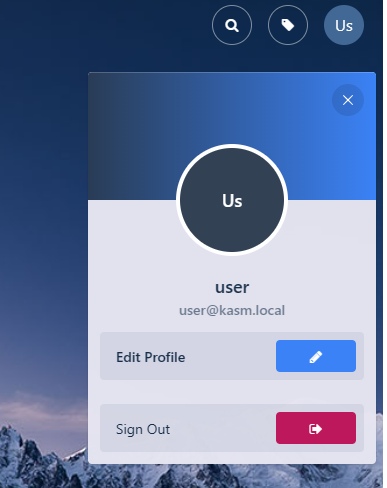
- From any page, select the profile icon at the top right of the page.
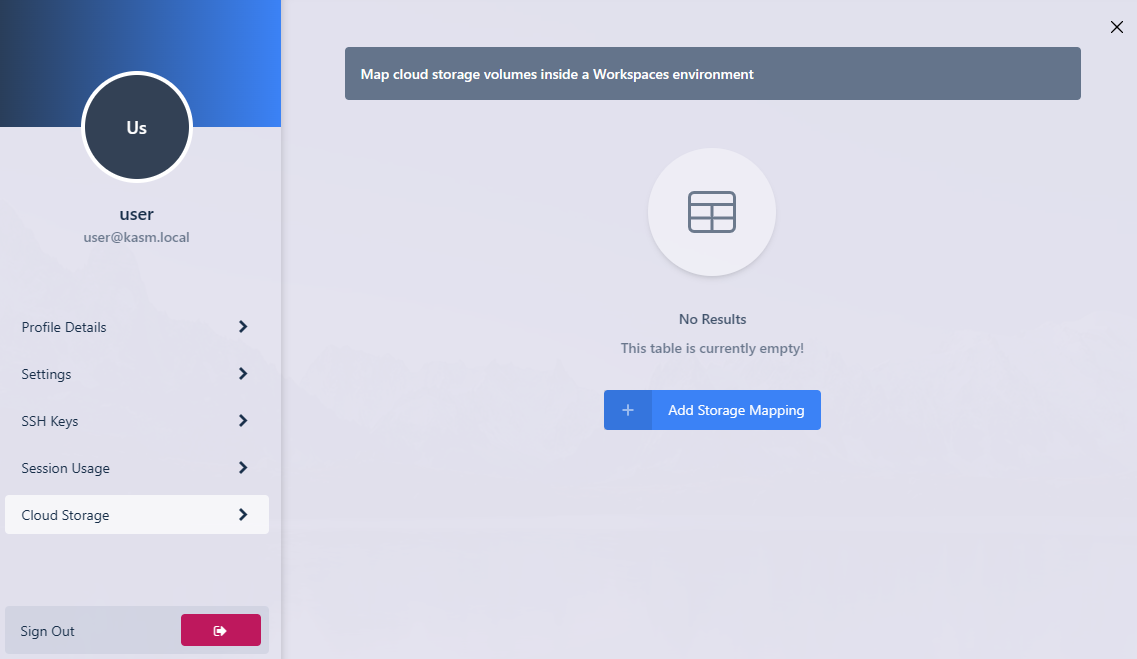
- Select the Cloud Storage section, then Add Storage Mapping.
- Select OneDrive from the dropdown, then select Next.

- The Microsoft Login page will appear. Login with the desired account.

- A consent screen will appear requesting access to the necessary permissions to access OneDrive.

- A redirect will occur to the Workspaces dashboard. The new storage mapping can be seen in the Cloud Storage section of the profile.

- Launch a new container-based session. Verify OneDrive is mapped inside the session at
the
/onedrivelocation.
