S3 Storage Provider Setup
The S3 Storage Provider can be used to allow users to map in their S3 buckets into their container-based Kasm Session. Access is provided via the Rclone Docker volume plugin.
Reference Docs:
Kasm Storage Provider Config
- Log into the Kasm UI as an administrator.
- Select Settings -> Storage -> Add.
- Update the form with the following entries
| Name | S3 |
|---|---|
| Storage Provider Type | S3 |
| Enabled | checked |
| Default Target | /s3 |
| Volume Config | { "driver" : "rclone", "driver_opts" : { "type" : "s3", "s3-provider" : "AWS", "s3-env-auth" : "false", "s3-region" : "us-east-1", "uid" : "1000", "gid" : "1000", "allow_other" : "true" } } |
| Mount Config | {} |
Note
Many of the storage provider examples include default storage driver options used by rclone. These have been observed to work well with Kasm in its default configuration, but may be adjusted by administrators as needed. Please note, the available options often vary based on provider plugin (e.g Gdrive vs OneDrive)
The Rclone Docker Plugin is installed by default as part the standard Workspace install.
More information about rclone driver options may be found at https://rclone.org/docker/
- Click Save to save the changes.
S3 Storage Mapping Configuration
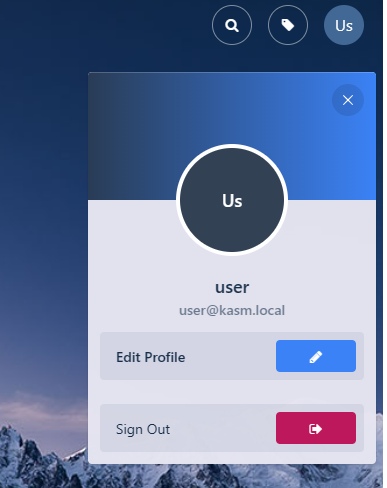
- From any page, select the profile icon at the top right of the page.
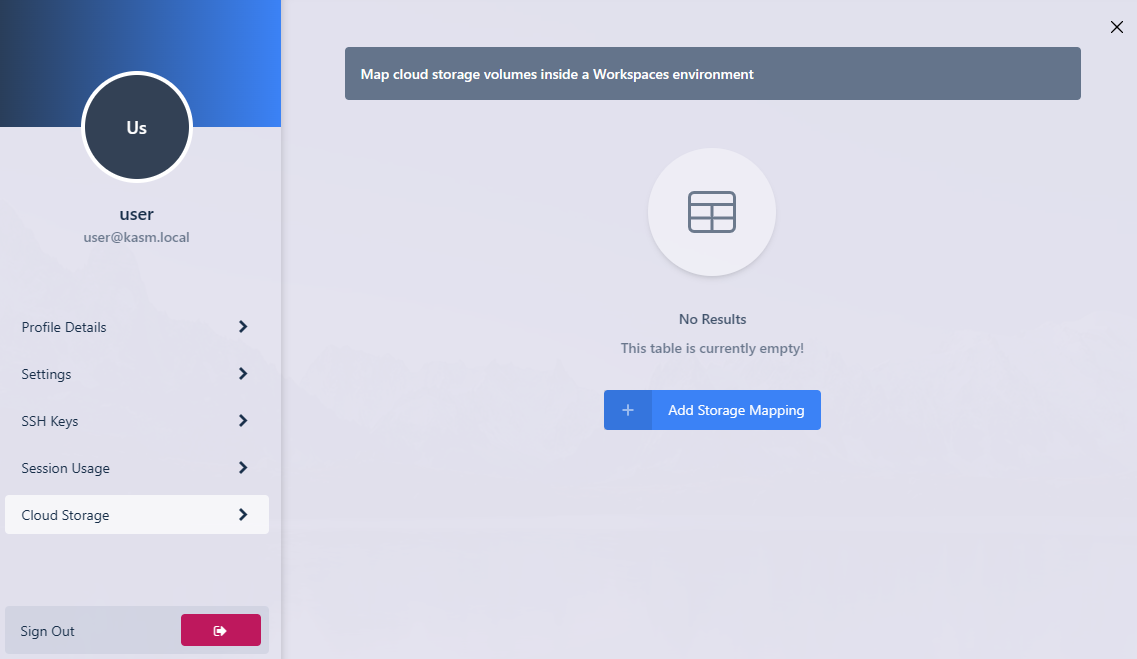
- Select the Cloud Storage section, then Add Storage Mapping.
- Select S3 from the dropdown. Enter the S3 Access Key ID , S3 Secret Access Key and S3 Bucket, select Next.

- If successful, the user will be redirected to the Workspaces dashboard. The new storage mapping can be seen in the Cloud Storage section of the profile.

- Launch a new container-based session. Verify the S3 bucket(s) are mapped inside the session at the
/s3location.
