Active Directory
Active Directory / OpenLDAP
The following section gives an example of a typical LDAP configuration of users and groups using Active Directory.
Consider the following domain “kasm.core” with the following structure
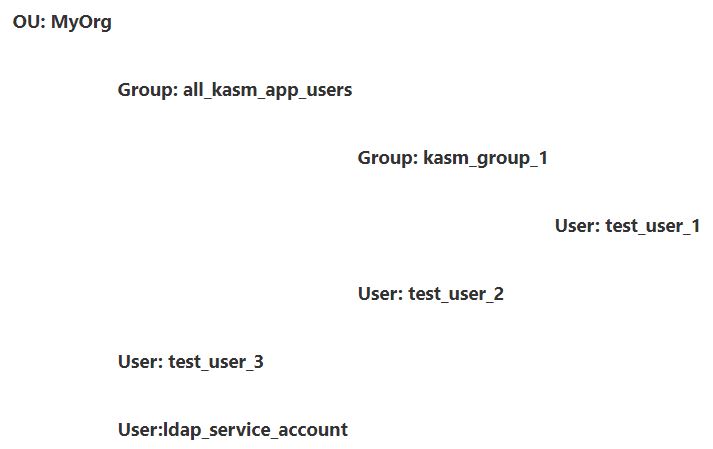
- MyOrg : Top level OU in the kasm.core domain
- all_kasm_app_users : Security Group under the MyOrg OU that houses all users and groups that should be allowed access to the Kasm App. If a user is not a member of this group they should not be allowed to log into the app.
- kasm_group_1 : A Security group that is a member of the all_kasm_app_users Group. Members of this group should automatically be mapped to a group in Kasm named Ldap Group 1
- Test_user_1 : A user that is a member of kasm_group_1
- Test_user_2 : A user that is a member of all_kasm_app_users. This user should be allowed to access the Kasm app but is not automatically placed in to special groups
- test_user_3 : This user is not a member of the all_kasm_app_users group and therefore not be allowed to log in to the Kasm application
- ldap_service_account : This user will be used as a service or ‘bot’ account do to LDAP queries
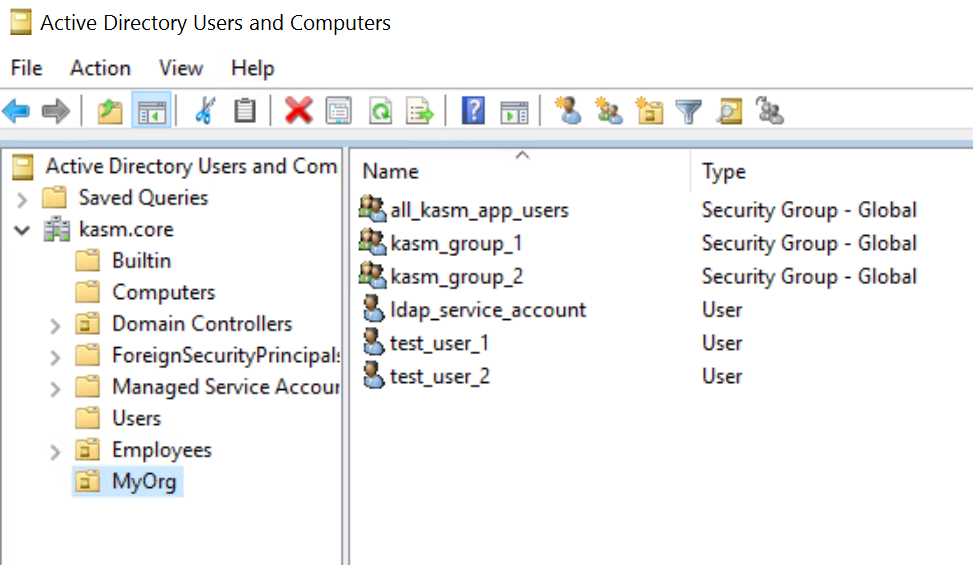
Configure the LDAP Configuration (Active Directory)
- Log into the Kasm Web UI as an administrator
- Click Access Management -> Authentication -> LDAP
- Click on Add Configuration
- The configurations for Microsoft Active Directory are as follows
| Property | Value |
|---|---|
| Name | Kasm Test LDAP Settings |
| URL | ldaps://ldap.kasm.core:636 |
| Search Base | OU=MyOrg,DC=kasm,DC=core |
| Search Filter | &(objectClass=user)(sAMAccountName={0})(memberof:1.2.840.113556.1.4.1941:=CN=all_kasm_app_users,OU=MyOrg,DC=kasm,DC=core) |
| Group Membership Filter | &(objectClass=group)(member:1.2.840.113556.1.4.1941:={0}) |
| Email Attribute | |
| Service Account DN | CN=ldap_service_account,OU=MyOrg,DC=kasm,DC=core |
| Service Account Password | password |
| Search Subtree | Checked |
| Auto Create App User | Checked |
| Enabled | Checked |
The placeholder '{0}' is substituted with a user's username (ex: test_user_1@kasm.core). The placeholder '{0}' is required to appear in the Search Filter. A Search Filter must result in exactly one user result.
1.2.840.113556.1.4.1941 is a special OID allowing for recursive enumeration of objects. Effectively this allows users to be determined to members of members. Otherwise the user would need to be a direct member of the specified group. See Microsoft Docs for details
Configure the LDAP Configuration (OpenLDAP / IDM)
- Log into the Kasm Web UI as an administrator
- Click Access Management -> Authentication -> LDAP
- Click on Add Configuration
- The configurations for OpenLDAP or IDM are as follows
| Property | Value |
|---|---|
| Name | Kasm Test LDAP Settings |
| URL | ldaps://ldap.kasm.core:636 |
| Search Base | OU=MyOrg,DC=kasm,DC=core |
| Search Filter | (&(objectClass=posixAccount)(uid={0}) |
| Group Membership Filter | (&(objectClass=groupOfNames)(member={0})) |
| Email Attribute | |
| Service Account DN | CN=ldap_service_account,OU=MyOrg,DC=kasm,DC=core |
| Service Account Password | password |
| Search Subtree | Checked |
| Auto Create App User | Checked |
| Enabled | Checked |
Kasm only supports the "groupOfNames" or "groupOfUniqueNames" objectClasses in OpenLDAP/IDM, linking to a "posixGroup" objectClass is not currently supported.
Configure an LDAP Enabled Group
The following settings can be used to create a group in Kasm named “LDAP Group 1”. It will be mapped to LDAP group kasm_group_1. When LDAP users that are members of kasm_group_1 sign in they will automatically be put in the LDAP Group 1 Kasm group.
Settings for the group creation screen:
| Property | Description |
|---|---|
| Name | LDAP Group 1 |
| Description | Group mapped to kasm_group_1 in Active Directory |
| Priority | 100 |
Settings for the SSO Group Mapping screen
| Property | Description |
|---|---|
| SSO Provider | LDAP - Kasm Test LDAP Settings |
| Assign All Users | Unchecked |
| Group Attributes | CN=kasm_group_1,OU=MyOrg,DC=kasm,DC=core |
Verifying Configurations
Discovering and Authenticating Users
- Log into the Kasm Web UI as an administrator
- Click Access Management -> Authentication -> LDAP
- Click the arrow for the LDAP Configuration you want to test and then Test LDAP Connection
- Enter test_user_1@kasm.core and the correct password
- The test should succeed. test_user_1 is a member of kasm_group_1 which is a member of all_kasm_app_users
- Enter test_user_2@kasm.core and the correct password
- The test should succeed. test_user_2 is a member of all_kasm_app_users
- Enter test_user_3@kasm.core and the correct password
- The test should fail. test_user_3 is NOT a member of all_kasm_app_users group or any group that is a member of that group
Group Assignment
- Log out of the Kasm Application and Log in as test_user_1@kasm.core
- Click Profile. Notice the user is a member of All Users ( set by default) and LDAP Group 1
- Log out of the Kasm Application and Log in as test_user_2@kasm.core
- Login will succeed.
- Click Profile. Notice the user is only a member of the All Users Group (Set by default) but is not a member of any additional groups
- Log out of the Kasm Application. Attempt to log in as test_user_3@kasm.core
- Access is denied. test_user_3 is not a member of the required all_kasm_app_user group so is denied access because the LDAP query cant find the user.