Licensing
Kasm Workspaces provides licensing options for evaluation and production deployments with different user, capacity, procurement, and operational requirements.
Community Edition lets teams validate Kasm Workspaces in their own environment before purchasing. Commercial licensing is available through Named User and Concurrent Session models, allowing organizations to align licensing with actual usage.
Choose the Licensing Model That Fits Your Environment
Kasm Workspaces provides licensing options for evaluation, dedicated user access, and shared session capacity. Choose the model that best aligns with your deployment stage and usage pattern.
Free for testing, nonprofit, and eligible non-commercial use.
Best for: Validating architecture, application compatibility, and operational fit before purchasing.
Capacity model: Up to 5 concurrent sessions and community support through the public issue tracker.
Licensed by the number of registered users.
Best for: A defined group of users who access Kasm Workspaces regularly.
Capacity model: Scales with the number of licensed users.
Licensed by the number of sessions running at the same time.
Best for: Contractors, shift workers, occasional users, shared services, or distributed teams.
Capacity model: Scales with peak concurrent session demand.
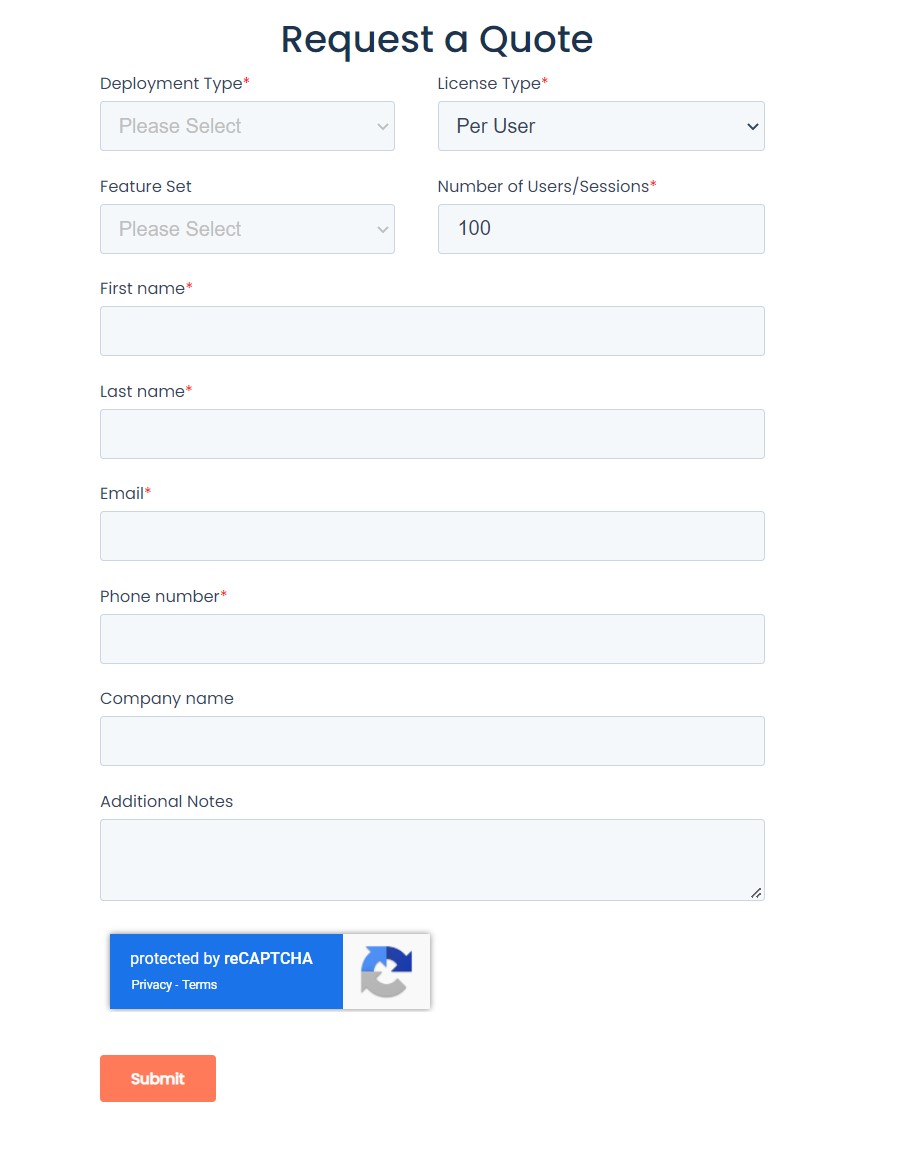
Requests for Kasm Workspaces pricing can be submitted at kasm.com/quote.
Buying a License
There are two paths to a license, depending on how your organization handles procurement.
Purchase through instant checkout
This path is fastest when a purchase does not need to route through a separate invoicing process.
-
Use our checkout process, which issues an activation key immediately on completion.
-
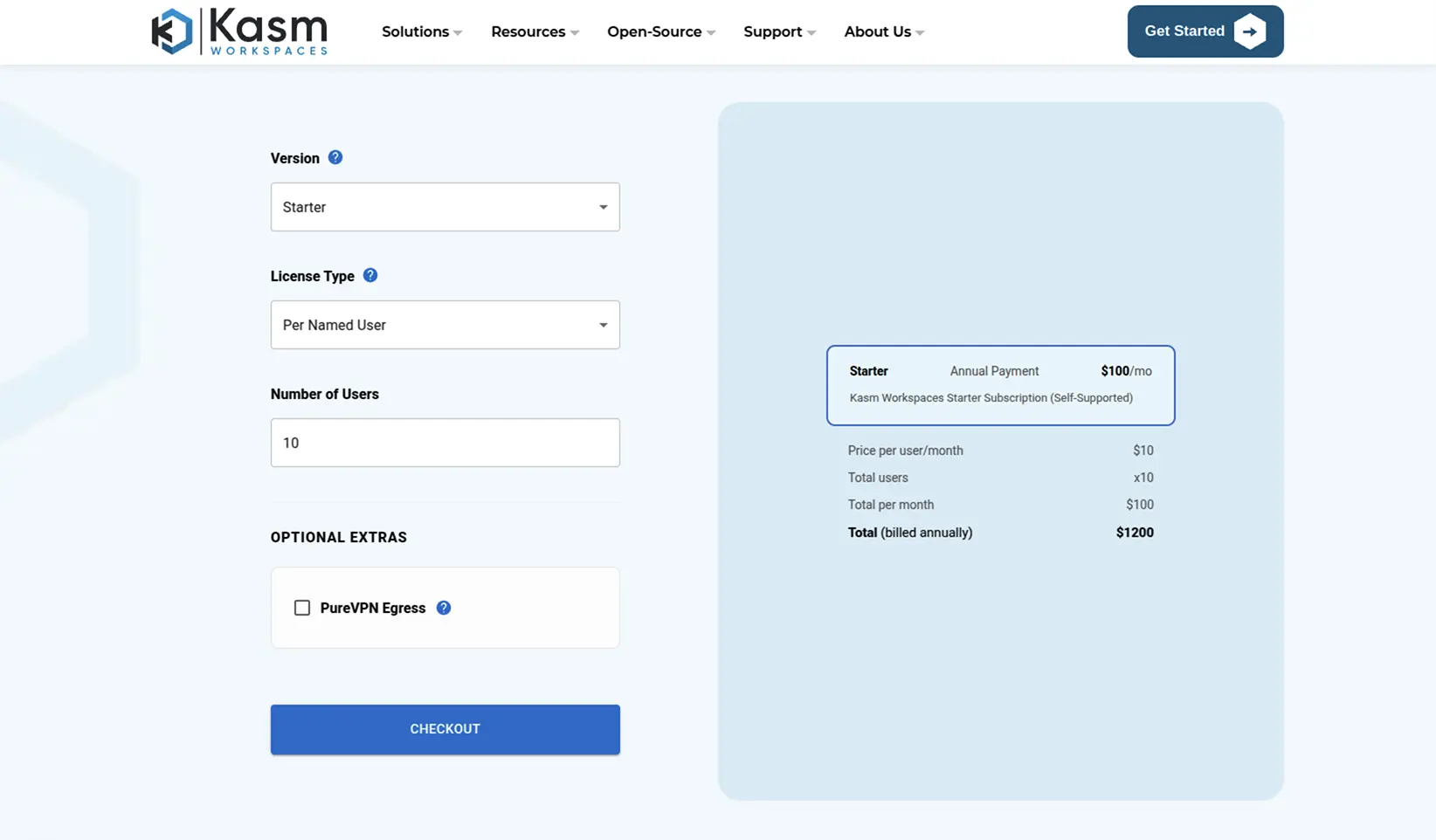
Select the license type and number of users, and choose whether to add PureVPN egress. Click CHECKOUT.
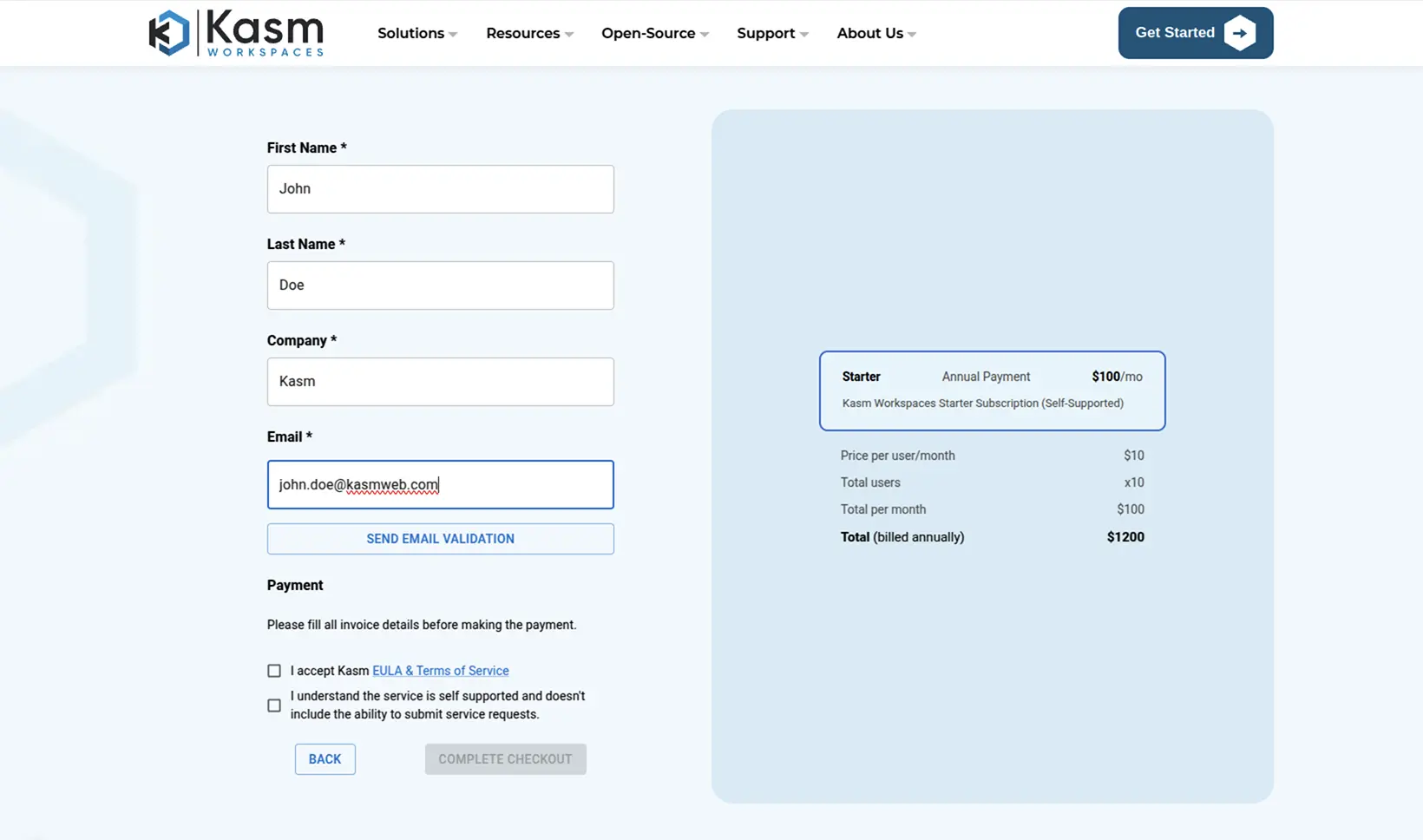
- Enter your email and click SEND EMAIL VERIFICATION.
-
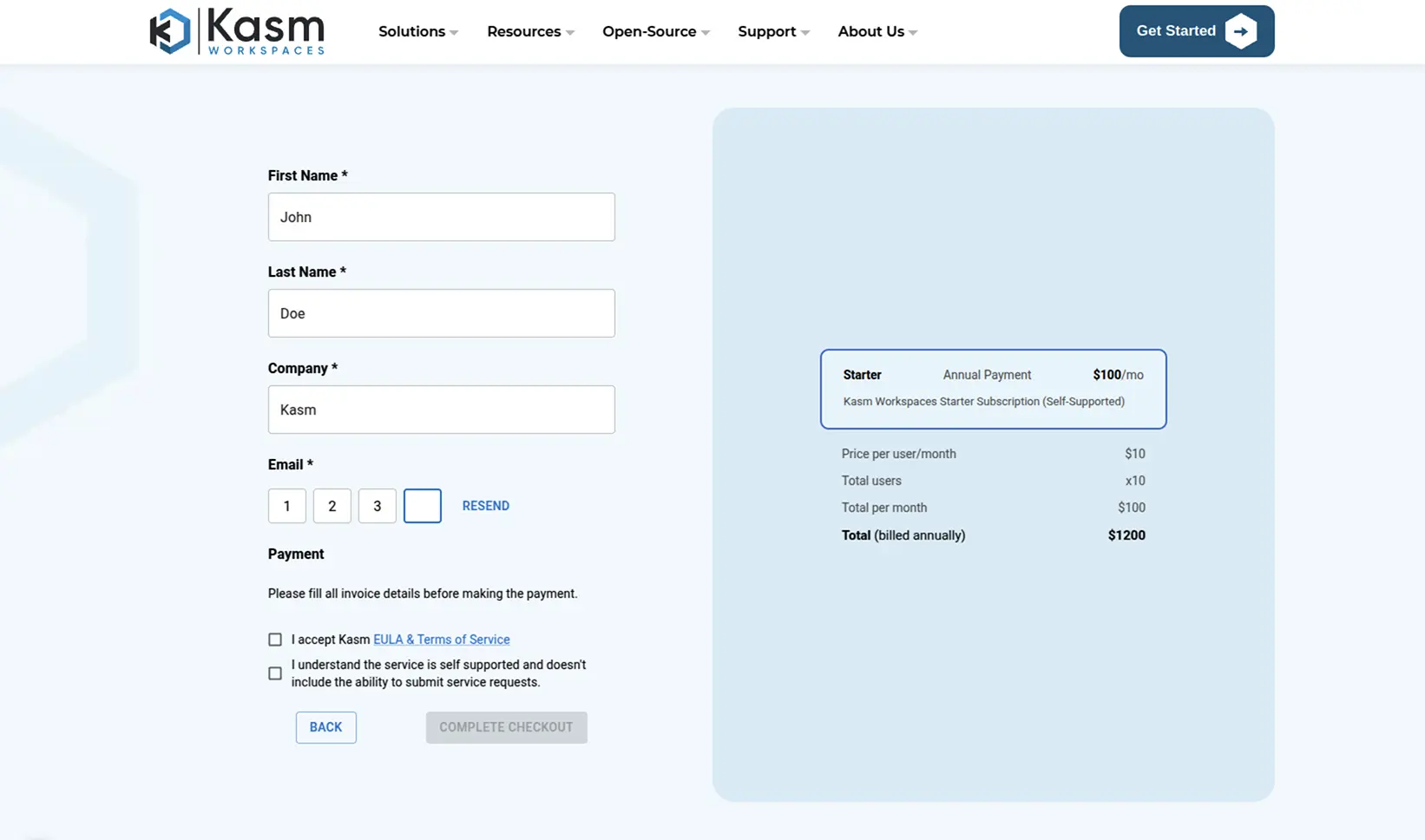
Kasm Technologies sends a one time verification code to that email address.
-
Enter the code, and the credit card information section will appear.
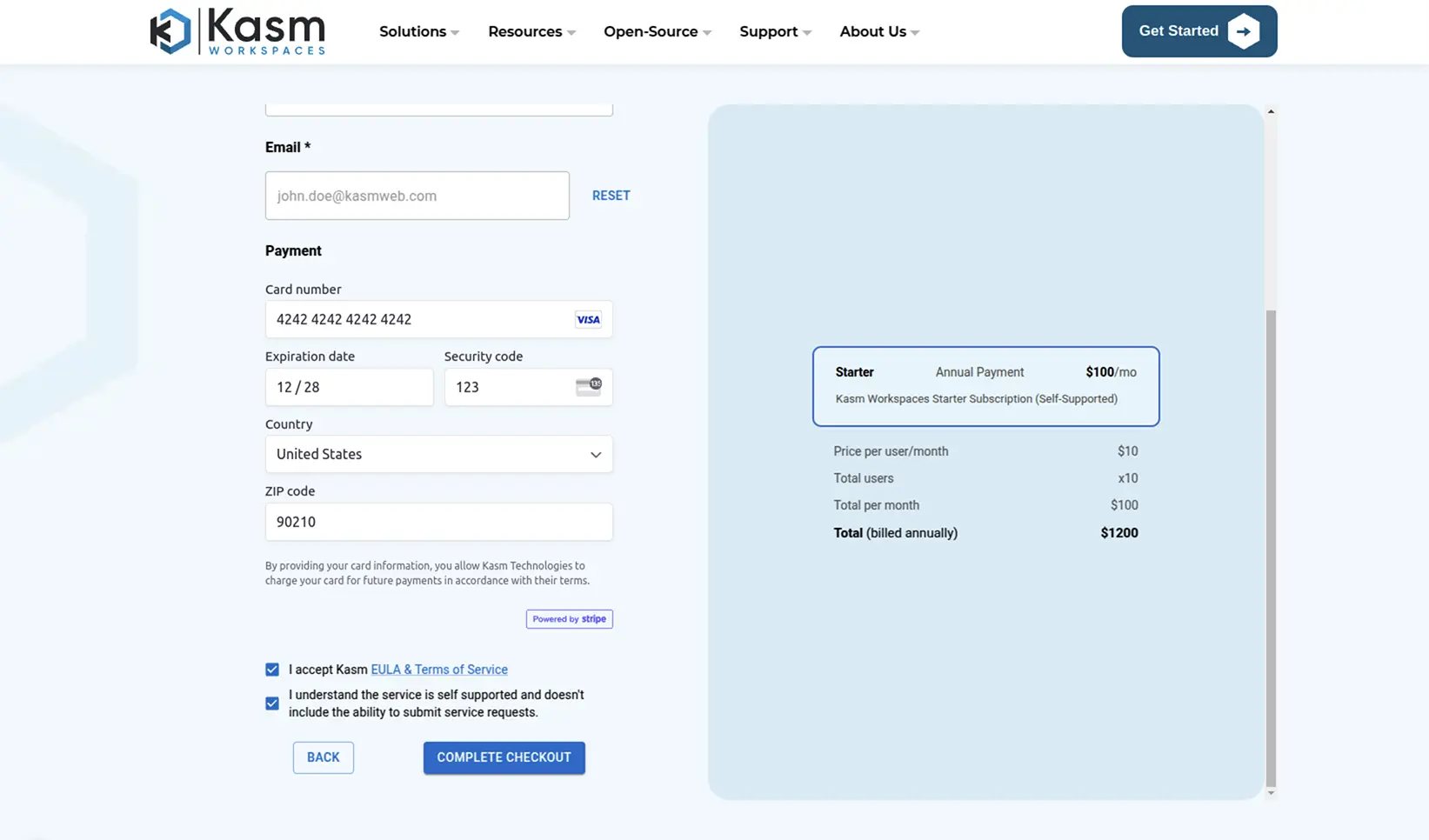
- Enter your credit card information, review and accept the EULA, and click COMPLETE CHECKOUT.
Request an invoice
If your purchasing process requires a formal invoice rather than a card transaction, request a quote instead. This routes the purchase through our standard invoicing process rather than instant checkout.
Adding a license
If you have an activation key it can be passed to the installation script and activation will be completed on your behalf as part of the install.
Create a file for the activation key e.g. activation_key.txt and paste in the activation key you received in your confirmation email.
When running the install.sh use the parameter -a or --activation-key-file so your command might look something like this sudo bash kasm_release/install.sh -a activation_key.txt.
This will not work with an offline air-gapped install, as Kasm Workspaces must contact an activation server to complete licensing your installation.
In a multi server install this option only applies to the database role.
To license an existing Kasm Workspaces installation, you will need the activation key provided at the time of purchase.
Getting the license key for an offline Kasm Workspaces installation
If your installation does not have outbound internet access, use the Kasm Workspaces activation tool to convert your activation key into a license key before continuing. This keeps the activation step self-contained even when the server itself is air-gapped.
-
Retrieve the activation key you received at the time of purchase.
-
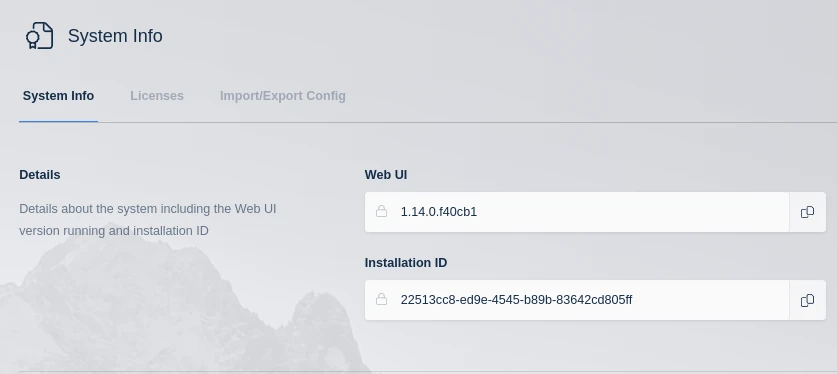
Retrieve your Installation ID from the Kasm Workspaces installation:
-
Navigate to the web application.
-
Navigate to Diagnostics -> System Info and locate the entry for Installation ID.
-
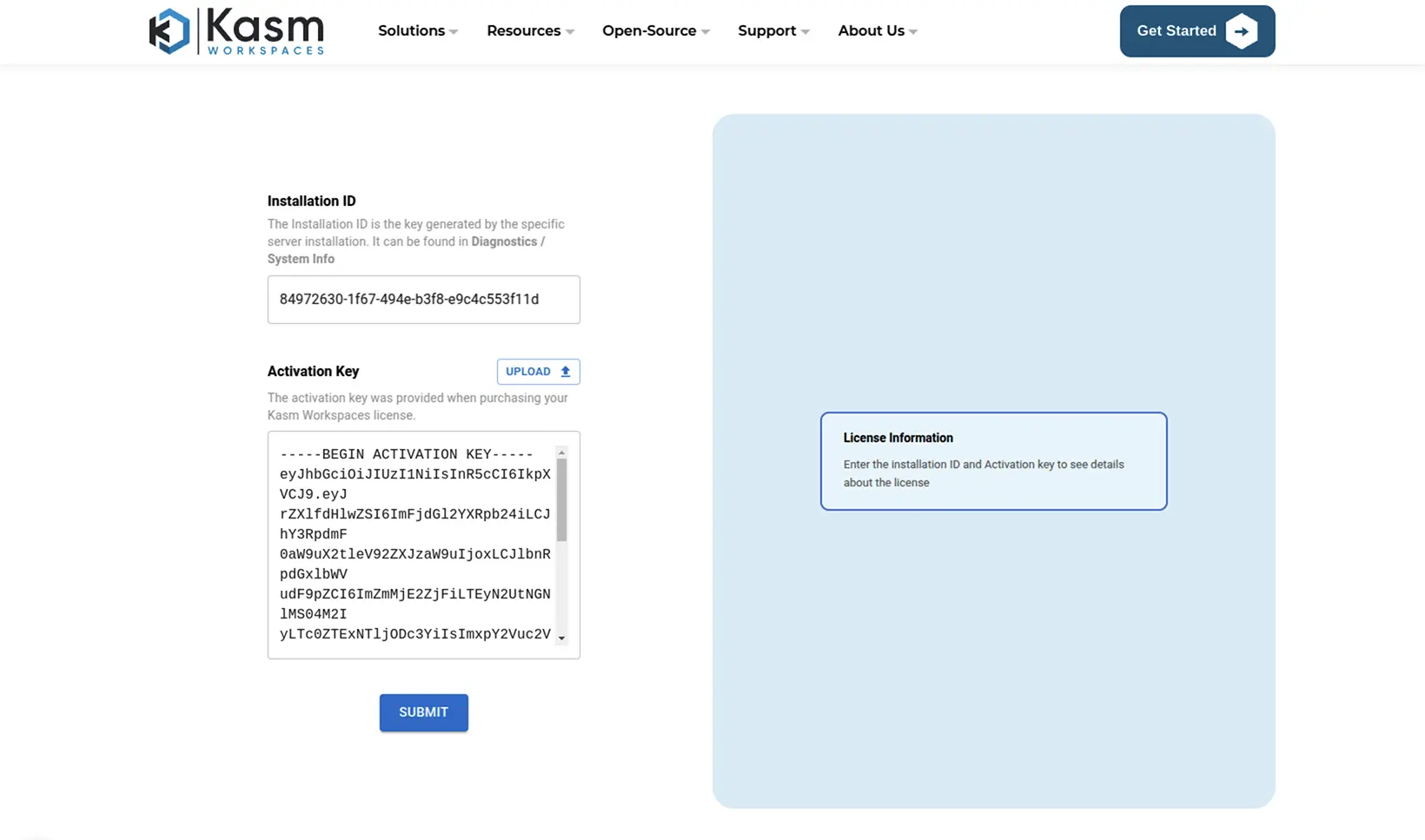
- Navigate to the Kasm Workspaces activation tool.
-
Paste in the Installation ID and the activation key.
-
Click Submit.
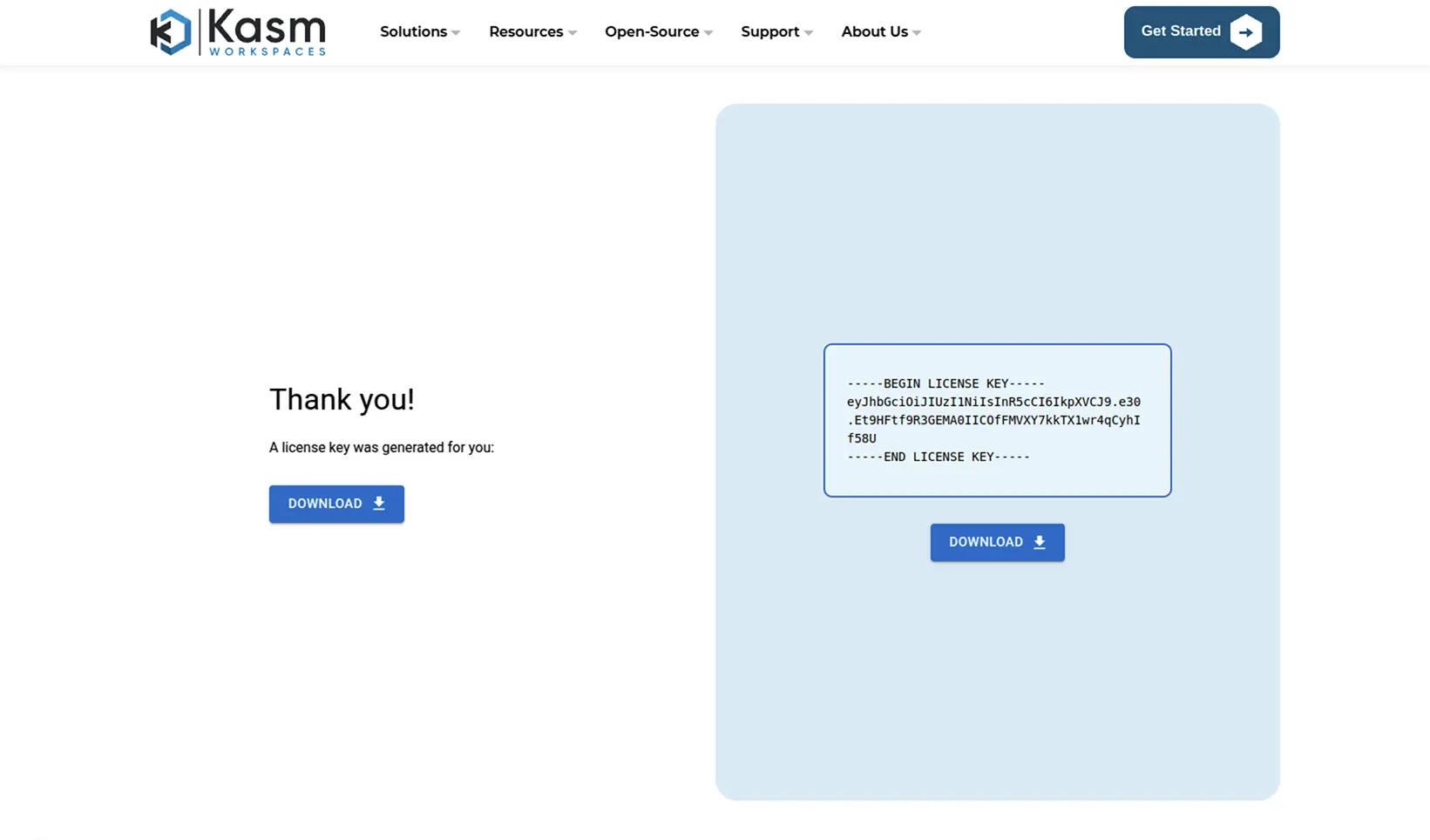
Licensing the Kasm Workspaces installation
-
Navigate to the web application.
-
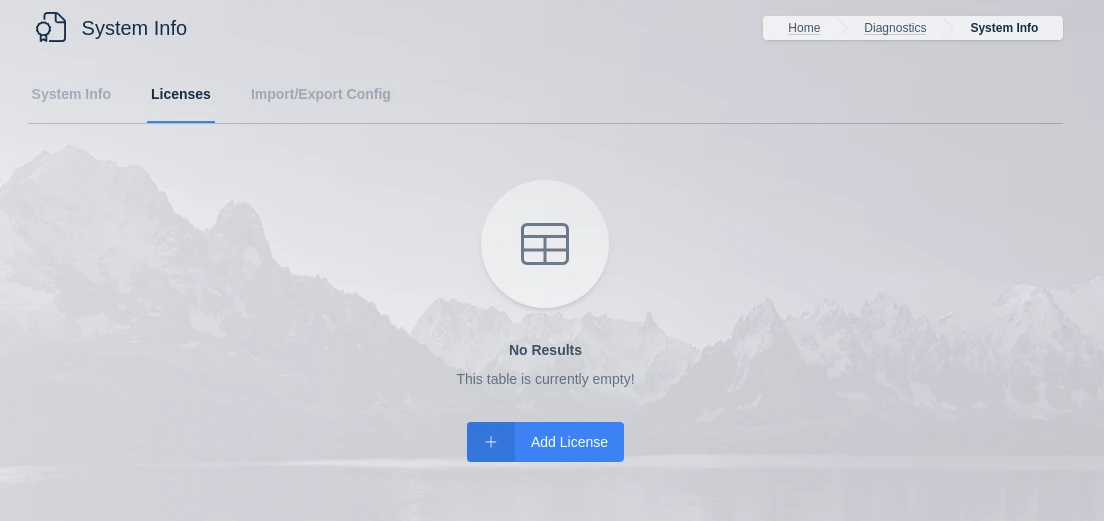
Navigate to Diagnostics -> System Info -> Licenses tab.
-
Select Add License from the Licenses tab.
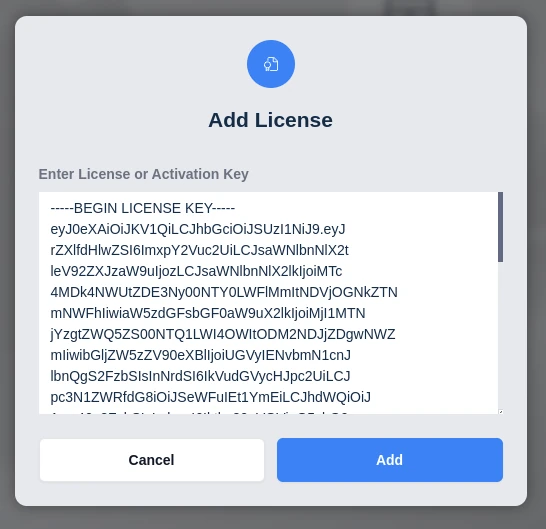
- Copy the activation key or license key into the box and click Add.
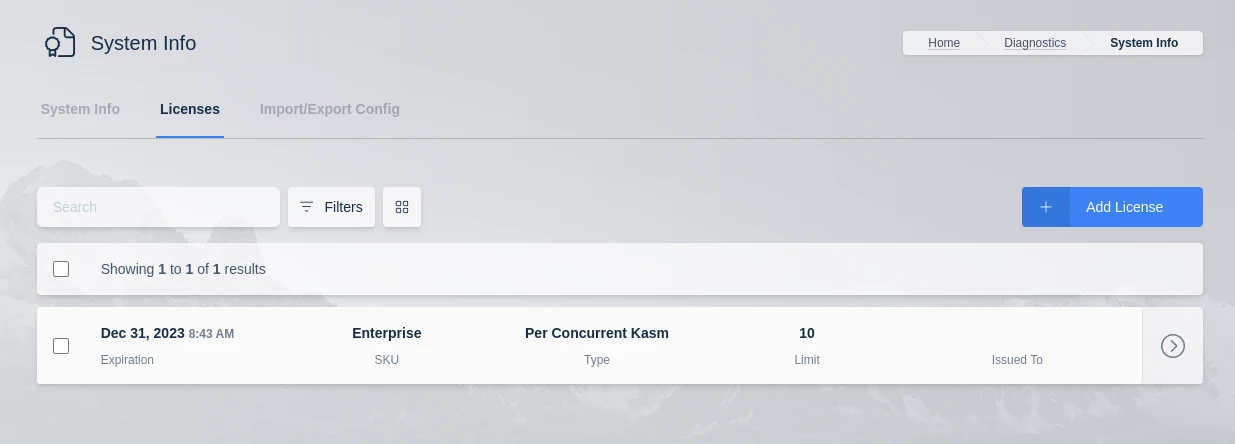
- The license information appears in the Licenses card.
Programmatically applying a license
For teams that manage infrastructure through automation rather than manual UI steps, licensing fits into the same deployment pipeline as the rest of the install. This applies to systems with outbound access to the Kasm license servers at https://license.kasmweb.com.
Programmatically apply a license during install
Use this approach to activate a deployment as part of installation. For a multi-server installation, apply it when installing the Database Role. See the Multi-Server Installation Guide for more detail.
-
Save the Activation Key to a file on the deployment server (for example,
/tmp/activation_key.txt). -
During install, add the
--activation-key-fileargument pointing to that file:
sudo bash /tmp/kasm_release/install.sh --activation-key-file /tmp/activation_key.txt
-
Log into the Kasm UI as an administrator to confirm the key applied.
-
Navigate to Diagnostics -> System Info -> Licenses tab.
-
The license should be visible.
Programmatically apply a license after install
Use this approach to license an existing deployment with an Activation Key, using the Licensing Developer API Endpoints.
-
Log into the Kasm UI as an administrator.
-
Select Settings -> Developers and click Add API Key. Fill out the form to generate an
API_KEYandAPI_KEY_SECRET. -
Call the /api/public/activate endpoint. A
curlexample:
curl -X POST -H "Content-Type: application/json" -d '{
    "api_key": "{{api key}}",
    "api_key_secret": "{{api key secret}}",
    "activation_key": "-----BEGIN ACTIVATION KEY-----eyJ0eXAiOiJ-----END ACTIVATION KEY-----"
}' https://<kasm.server>/api/public/activate
Kasm partners may be issued special Activation Keys that support the seats and issued_to fields in this call.
When an Activation Key is purchased, its entitlement carries a high water mark of seats (for example, 100 concurrent users or 500 concurrent sessions). Those seats can be split across multiple Workspaces installations if needed. One deployment might use 25 concurrent users while another uses 40, for instance. The issued_to field is informational and can help attribute a license key in later reporting.
To split seats this way, specify the number in the API call:
curl -X POST -H "Content-Type: application/json" -d '{
    "api_key": "{{api key}}",
    "api_key_secret": "{{api key secret}}",
    "seats": 10,
    "issued_to": "Environment X"
    "activation_key": "-----BEGIN ACTIVATION KEY-----eyJ0eXAiOiJ-----END ACTIVATION KEY-----"
}' https://<kasm.server>/api/public/activate
Administrators can call the API multiple times to add more seats to an existing deployment as needs grow.
-
Log into the Kasm UI as an administrator to confirm the key applied.
-
Navigate to Diagnostics -> System Info -> Licenses tab.
-
The license should be visible.