Kasm Performance
There are several factors that can influence the performance of a Workspaces session. Performance can refer to compute capacity assigned to a workspace or it could refer to the streaming performance of the session with regards to bandwidth usage or quality of the stream.
Workspace Settings
The individual workspaces can be configured for the desired resource utilization of the server. To learn how to configure the individual Workspaces go to Workspaces. To learn how to tune Kasm resources to handle more concurrent sessions, see Agents.
Minimum Workspace Settings
These settings can be used to save the most resources on the server and bandwidth.
- Setting the video settings to low
- disabling audio
- Max resolution of 1024 x 768
- Firefox only container
- 0.5 core and 768 MB of RAM
Standard Workspace Settings
These settings can be used to provide a good default user experience.
- Setting the video settings to medium
- Enabling Audio
- No Resolution restriction
- 1.5 core and 2 GB of RAM
KasmVNC Streaming
KasmVNC is used to provide the stream of the remote desktop to the user's browser. There are several factors that can affect streaming quality and bandwidth usage.
Streaming Mode
KasmVNC supports different streaming modes. The following screenshot shows the Group Setting kasmvnc_mode_preference setting which controls which modes are supported and their order of preference.
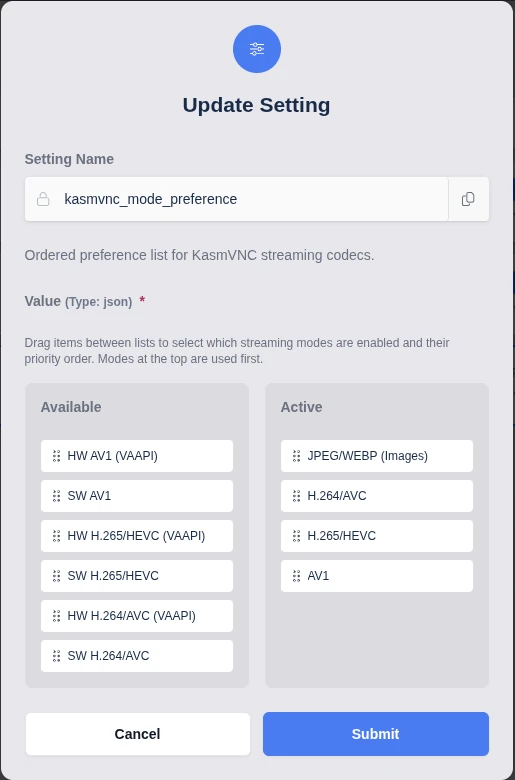
The screenshot shows the default allow list and preference order. The JPEG/WEBP (Images) is the default streaming mode and provides the most compatible solution for both the client and server-side.
Generally speaking, however, most modern hardware on both the client and server-side will perform better with h.264 and KasmVNC will automatically fall back to image mode if there is a failure on either side.
KasmVNC supports H.264 (AVC), H.265 (HEVC), and AV1 streaming modes. Each codec can operate in either a software-encoded mode (CPU-based, available on all systems) or a hardware-accelerated mode backed by VAAPI or NVENC for improved performance and lower CPU usage.
The following streaming modes are available to select, they are shown in the order that they will be attempted using default settings. To override this order you need to select a target group, go to the settings tab,
and add a kasmvnc_mode_preference setting. Users will be able to switch between streaming modes in the session control panel, if the streaming mode is allowed per the group setting and the backend server and client
both support the target streaming mode. With default settings, all streaming modes are allowed, but the connection starts in JPEG/WEBP mode.
| Streaming Mode | Default | Description |
|---|---|---|
| JPEG/WEBP (Images) | true | Most widely compatible mode, it cannot be disabled, but it can be moved to a lower preference. |
| H.264/AVC | true | Includes all h.264 streaming modes that the backend server will support. |
| HW H.264/AVC (VAAPI/NVENC) | implicit | Hardware accelerated h.264 encoding using VAAPI or NVENC. Requires supported hardware server-side. |
| SW H.264/AVC | implicit | Software based h.264 encoding. This encoder will work on most hardware. |
| H.265/HEVC | true | Includes all h.265 streaming modes that the backend server will support. |
| HW H.265/HEVC (VAAPI/NVENC) | implicit | Hardware accelerated h.265 encoding using VAAPI or NVENC. Requires supported hardware server-side. |
| SW H.265/HEVC | implicit | Software based h.265 encoding. This encoder will work on most hardware. |
| AV1 | true | Includes all AV1 streaming modes that the backend server will support. |
| HW AV1 (VAAPI/NVENC) | implicit | Hardware accelerated AV1 encoding using VAAPI or NVENC. Requires supported hardware server-side. |
| SW AV1 | implicit | Software based AV1 encoding. |
Hardware Accelerated Video Encoding
Hardware encoding availability depends on the underlying GPU and driver support. Intel GPUs generally provide the most complete VAAPI support (including AV1 on newer Xe/Arc hardware), AMD GPUs support H.264 and H.265 broadly with more limited AV1 availability on newer generations, and NVIDIA GPUs support hardware encoding through NVENC rather than native VAAPI. For detailed, up-to-date information on supported hardware, drivers, and codec capabilities, refer to the FFmpeg documentation and vendor-specific resources:
- FFmpeg VAAPI Hardware Acceleration
- Intel Media Driver – Supported Platforms
- Mesa Radeon VAAPI Documentation
- NVIDIA Video Encode and Decode Support Matrix
If agent systems have supported hardware, they can be passed into the Workspace containers, KasmVNC will automatically detect and use supported hardware.
First check what renderD devices your system has available and take note of what group the renderD device belongs to.
ubuntu@laptop-002:~$ ls -l /dev/dri
total 0
drwxr-xr-x 2 root root        120 Jan 13 12:50 by-path
crw-rw---- 1 root video  226,   0 Jan 13 12:50 card0
crw-rw---- 1 root video  226,   1 Jan 13 12:50 card1
crw-rw---- 1 root render 226, 128 Jan 13 12:50 renderD128
crw-rw---- 1 root render 226, 129 Jan 13 12:50 renderD129
You can use the utility vainfo to check if an Intel or AMD device is supported by VAAPI. vainfo does not validate NVENC support.
This example system has an Intel GPU and NVIDIA GPU. The output shows that the Intel GPU is supported by VAAPI while the NVIDIA GPU is not supported by VAAPI.
ubuntu@laptop-002:~$ sudo vainfo --display drm --device /dev/dri/renderD128
libva info: VA-API version 1.20.0
libva info: Trying to open /usr/lib/x86_64-linux-gnu/dri/iHD_drv_video.so
libva info: Found init function __vaDriverInit_1_20
libva info: va_openDriver() returns 0
vainfo: VA-API version: 1.20 (libva 2.12.0)
vainfo: Driver version: Intel iHD driver for Intel(R) Gen Graphics - 24.1.0 ()
vainfo: Supported profile and entrypoints
      VAProfileMPEG2Simple            :	VAEntrypointVLD
      VAProfileMPEG2Main              :	VAEntrypointVLD
      VAProfileH264Main               :	VAEntrypointVLD
      VAProfileH264Main               :	VAEntrypointEncSliceLP
      VAProfileH264High               :	VAEntrypointVLD
      VAProfileH264High               :	VAEntrypointEncSliceLP
      VAProfileJPEGBaseline           :	VAEntrypointVLD
      VAProfileJPEGBaseline           :	VAEntrypointEncPicture
      VAProfileH264ConstrainedBaseline:	VAEntrypointVLD
      VAProfileH264ConstrainedBaseline:	VAEntrypointEncSliceLP
      VAProfileVP8Version0_3          :	VAEntrypointVLD
      VAProfileHEVCMain               :	VAEntrypointVLD
      VAProfileHEVCMain10             :	VAEntrypointVLD
      VAProfileVP9Profile0            :	VAEntrypointVLD
      VAProfileVP9Profile2            :	VAEntrypointVLD
ubuntu@laptop-002:~$ sudo vainfo --display drm --device /dev/dri/renderD129
libva info: VA-API version 1.20.0
libva info: Trying to open /usr/lib/x86_64-linux-gnu/dri/nvidia_drv_video.so
libva info: va_openDriver() returns -1
vaInitialize failed with error code -1 (unknown libva error),exit
You will also need to know the group number of the group that owns the device, in this example it is
the render group. On this system the group number is 993.
ubuntu@laptop-002:~$ getent group render
render:x:993:
To pass the /dev/dri/renderD128 device into a user Workspaces, navigate to the Admin panel in Kasm Workspaces, click on Workspaces,
find the target Workspace Image and click Edit. Scroll down to the Docker Run Configuration Override setting and in the
appropriate device mapping and group_add setting. The below example passes in the device /dev/dri/renderD128 and adds
group 993 to the resulting containers.
{
  "hostname": "kasm",
  "devices": [
    "/dev/dri/renderD128:/dev/dri/renderD128:rw"
  ],
  "group_add": [
    "993"
  ]
}
All agents that this Workspaces can run in must be identical with respect to the device location and group id the device is owned by.
Bandwidth and CPU Utilization Tests
All of the following tests were performed on medium stream quality, which is capped at 24 fps for each streaming mode. All streaming modes use negligable bandwidth and CPU when no movement occurs on the screen.
Playing Video Fullscreen (Software Encoding) This test is playing video full screen within the session. The resolution is 1080p for both the video being played and the user's KasmVNC session. This test was performed on a server with an AMD EPYC 7J13 CPU without support for hardware based encoding.
| Streaming Mode | KasmVNC CPU | Client CPU | Frame Rate | Bandwidth |
|---|---|---|---|---|
| SW H.264/AVC | 74% | 3.5% | 21 fps | 14.35 MBit/s |
| SW H.265/HEVC | 230% | 3.5% | 13.2 fps | 6.53 MBit/s |
| JPEG/WEBP | 64% | 18% | 21 fps | 33.48 MBit/s |
Playing Video Fullscreen (Hardware Encoding) This test is playing video full screen within the session. The resolution is 1080p for both the video being played and the user's KasmVNC session. This test was performed on a server with an i5-10400H CPU using the Intel embedded GPU.
| Streaming Mode | KasmVNC CPU | Client CPU | Frame Rate | Bandwidth |
|---|---|---|---|---|
| HW H.264/AVC (VAAPI) | 43% | 1.5% | 22 fps | 7.78 MBit/s |
Medium movement (Software Encoding) This test running glxgears in full screen, which generates moderate movement with a lot of solid colors, providing a good facsimile to users using browsers or office applications within a session. The resolution is 1080p for both the video being played and the user's KasmVNC session. This test was performed on a server with an AMD EPYC 7J13 CPU without support for hardware based encoding.
| Streaming Mode | KasmVNC CPU | Client CPU | Frame Rate | Bandwidth |
|---|---|---|---|---|
| SW H.264/AVC | 69% | 3.5% | 24 fps | 9.85 MBit/s |
| SW H.265/HEVC | 260% | 3.5% | 21.6 fps | 12.69 MBit/s |
| JPEG/WEBP | 64% | 18% | 24 fps | 8.22 MBit/s |
Lowest Bandwidth Utilization
This tests uses the lowest quality settings available to achieve the lowest bandwidth utilization, for situations where users may be connecting over low bandwidth links.
The Low streaming quality was used. The test was playing a 1080p resolution video in full screen.
| Streaming Mode | KasmVNC CPU | Client CPU | Frame Rate | Bandwidth |
|---|---|---|---|---|
| SW H.264/AVC | 48% | 3.5% | 20 fps | 1.01 MBit/s |
| HW H.264/AVC (VAAPI) | 36% | 1.5% | 20 fps | 731 KBit/s |
| SW H.265/HEVC | 175% | 3.5% | 21.6 fps | 531 KBit/s |
| JPEG/WEBP | 72% | 4.7% | 24 fps | 9.82 MBit/s |
Conclusion
From these test results you can see that hardware based h.264 encoding provides the highest compression at the lowest CPU utilization on the server-side. H.265 encoding provides the lowest bandwidth usage on low quality settings, at the cost of roughly 3 times the CPU utilization of h.264. The default JPEG/WEBP stream mode generally consumes more bandwidth, but has the broadest compatibility for both clients and servers.
GPU Passthrough
To support hardware based acceleration of h.264 and h.265 video encoding, a GPU must be passed through that supports VAAPI or NVENC. Intel and AMD based GPUs generally support VAAPI. NVIDIA GPUs use NVENC and require the NVIDIA container runtime. See our Intel/AMD GPU Guide and NVIDIA GPU Guide for more.