Kasm Performance
Kasm Workspaces performance covers two independent dimensions: the compute capacity assigned to each workspace, and the streaming behavior that delivers the remote desktop to the browser. This page lists the recommended resource profiles, the available KasmVNC streaming modes, hardware-encoding support, and measured benchmark results for each mode.
Workspace resource profiles
Each workspace is configured for a target resource utilization on the server. The following profiles serve as starting points for two common goals: minimizing resource and bandwidth consumption, or providing a balanced default experience.
| Setting | Minimum profile | Standard profile |
|---|---|---|
| Video quality | Low | Medium |
| Audio | Disabled | Enabled |
| Maximum resolution | 1024 x 768 | No restriction |
| Container scope | Firefox only | Full desktop |
| CPU allocation | 0.5 core | 1.5 core |
| Memory allocation | 768 MB | 2 GB |
The Minimum profile saves the most server resources and bandwidth. The Standard profile provides a balanced default user experience.
To configure these values on a workspace, see Workspaces. To tune Kasm resources for more concurrent sessions, see Agents.
KasmVNC streaming
KasmVNC delivers the remote desktop stream to the user's browser. Streaming quality and bandwidth depend on the selected streaming mode, the streaming quality level, and the encoding hardware available on the agent.
Streaming modes
KasmVNC supports multiple streaming modes. The Group Setting named kasmvnc_mode_preference controls which modes are permitted and their order of preference.
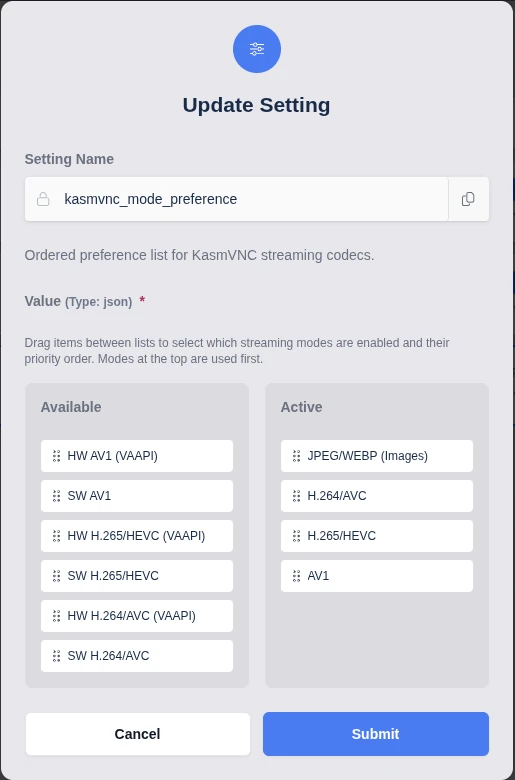
KasmVNC supports H.264 (AVC), H.265 (HEVC), and AV1 codecs. Each codec operates in a software-encoded mode (CPU-based, available on all systems) or a hardware-accelerated mode backed by Video Acceleration API (VAAPI) or NVIDIA Encoder (NVENC).
The following table lists the available streaming modes in the default order of attempt. With default settings, all modes are permitted and the connection starts in JPEG/WEBP mode. Users can switch modes from the session control panel when the target mode is permitted by the group setting and supported by both the agent and the client.
| Streaming mode | Default | Description |
|---|---|---|
| JPEG/WEBP (Images) | true | Most widely compatible mode. Cannot be disabled, but can be moved to a lower preference. |
| H.264/AVC | true | Includes all H.264 streaming modes that the agent supports. |
| HW H.264/AVC (VAAPI/NVENC) | implicit | Hardware-accelerated H.264 encoding using VAAPI or NVENC. Requires supported hardware server-side. |
| SW H.264/AVC | implicit | Software-based H.264 encoding. Works on most hardware. |
| H.265/HEVC | true | Includes all H.265 streaming modes that the agent supports. |
| HW H.265/HEVC (VAAPI/NVENC) | implicit | Hardware-accelerated H.265 encoding using VAAPI or NVENC. Requires supported hardware server-side. |
| SW H.265/HEVC | implicit | Software-based H.265 encoding. Works on most hardware. |
| AV1 | true | Includes all AV1 streaming modes that the agent supports. |
| HW AV1 (VAAPI/NVENC) | implicit | Hardware-accelerated AV1 encoding using VAAPI or NVENC. Requires supported hardware server-side. |
| SW AV1 | implicit | Software-based AV1 encoding. |
The Default column uses two values:
true: the mode is included in the default allow list as a selectable parent mode.implicit: the mode is not a separate default entry. Availability follows from the parent codec entry and from the hardware supported by the agent.
The exact accepted values and matching semantics of the kasmvnc_mode_preference group setting are configured per group in the Kasm Workspaces administrator interface. Confirm the current value set with your deployment before relying on a specific ordering.
The following video demonstrates configuring group-level streaming mode preferences, including priority lists for hardware-accelerated AV1, H.264, and H.265.
How does KasmVNC select a streaming mode?
KasmVNC negotiates a streaming mode at connection time, then falls back when the preferred mode is unavailable on the agent or the client. The following flowchart shows the negotiation order for a codec-based preference.
Description: The connection reads the configured preference order. For each preferred codec, KasmVNC checks for a supported hardware encoder on the agent. When a hardware encoder is present, it uses the hardware-accelerated codec. When no hardware encoder is present, it tries the software encoder, provided both the agent and the client support it. When no codec path succeeds, the connection falls back to JPEG/WEBP image mode, which works on all clients and servers.
Key takeaways:
- The connection starts in JPEG/WEBP mode by default and upgrades to a codec when both sides support it.
- Hardware-accelerated encoding requires a supported GPU passed into the workspace container.
- JPEG/WEBP image mode is the universal fallback and cannot be disabled.
Streaming quality levels
The streaming quality level sets the target bitrate and frame rate ceiling for the selected mode. The benchmark results below were captured at the Medium level, which caps frame rate at 24 frames per second (fps) per mode.
| Quality level | Typical use |
|---|---|
| Low | Low-bandwidth links where bandwidth matters most. |
| Medium | Balanced default for most sessions. |
| High | Higher visual fidelity where bandwidth is plentiful. |
Hardware-accelerated video encoding
Hardware encoding availability depends on the agent GPU and its driver support. The following table summarizes vendor support at a high level.
| GPU vendor | Acceleration path | Codec support summary |
|---|---|---|
| Intel | VAAPI | Most complete VAAPI support, including AV1 on newer Xe/Arc hardware. |
| AMD | VAAPI | Broad H.264 and H.265 support, with more limited AV1 on newer generations. |
| NVIDIA | NVENC | Hardware encoding through NVENC rather than native VAAPI. |
Vendor codec support changes with GPU generation and driver version. Confirm current support against the vendor and FFmpeg resources before relying on a specific codec.
For detailed, current information on supported hardware, drivers, and codec capabilities, refer to the following resources:
- FFmpeg VAAPI Hardware Acceleration
- Intel Media Driver supported platforms
- Mesa Radeon VAAPI documentation
- NVIDIA Video Encode and Decode support matrix
When an agent has supported hardware passed into the workspace container, KasmVNC detects and uses the hardware encoder. The section below describes how GPU passthrough maps a render device from the agent into the workspace.
The following video demonstrates selecting graphics acceleration APIs and hardware-accelerated video encoding methods for a workspace.
GPU passthrough for hardware encoding
Hardware-accelerated H.264, H.265, and AV1 encoding requires a GPU that supports VAAPI or NVENC, passed into the workspace container. Intel and AMD GPUs generally support VAAPI. NVIDIA GPUs use NVENC and require the NVIDIA container runtime.
GPU passthrough maps a render device from the agent into the workspace through the Docker Run Configuration Override setting. The mapping requires the render device path and the numeric id of the group that owns the device. Both values come from the agent host.
The render devices appear under /dev/dri/, where each renderD device is owned by a group such as render. The following example shows the device listing on an agent.
ubuntu@laptop-002:~$ ls -l /dev/dri
total 0
drwxr-xr-x 2 root root        120 Jan 13 12:50 by-path
crw-rw---- 1 root video  226,   0 Jan 13 12:50 card0
crw-rw---- 1 root video  226,   1 Jan 13 12:50 card1
crw-rw---- 1 root render 226, 128 Jan 13 12:50 renderD128
crw-rw---- 1 root render 226, 129 Jan 13 12:50 renderD129
The vainfo utility reports whether an Intel or AMD device is supported by VAAPI and which VAAPI profiles and entrypoints it provides. The vainfo utility does not validate NVENC support. The following example system has an Intel GPU and an NVIDIA GPU. The output shows the Intel GPU supported by VAAPI and the NVIDIA GPU not supported by VAAPI.
ubuntu@laptop-002:~$ sudo vainfo --display drm --device /dev/dri/renderD128
libva info: VA-API version 1.20.0
libva info: Trying to open /usr/lib/x86_64-linux-gnu/dri/iHD_drv_video.so
libva info: Found init function __vaDriverInit_1_20
libva info: va_openDriver() returns 0
vainfo: VA-API version: 1.20 (libva 2.12.0)
vainfo: Driver version: Intel iHD driver for Intel(R) Gen Graphics - 24.1.0 ()
vainfo: Supported profile and entrypoints
      VAProfileMPEG2Simple            :	VAEntrypointVLD
      VAProfileMPEG2Main              :	VAEntrypointVLD
      VAProfileH264Main               :	VAEntrypointVLD
      VAProfileH264Main               :	VAEntrypointEncSliceLP
      VAProfileH264High               :	VAEntrypointVLD
      VAProfileH264High               :	VAEntrypointEncSliceLP
      VAProfileJPEGBaseline           :	VAEntrypointVLD
      VAProfileJPEGBaseline           :	VAEntrypointEncPicture
      VAProfileH264ConstrainedBaseline:	VAEntrypointVLD
      VAProfileH264ConstrainedBaseline:	VAEntrypointEncSliceLP
      VAProfileVP8Version0_3          :	VAEntrypointVLD
      VAProfileHEVCMain               :	VAEntrypointVLD
      VAProfileHEVCMain10             :	VAEntrypointVLD
      VAProfileVP9Profile0            :	VAEntrypointVLD
      VAProfileVP9Profile2            :	VAEntrypointVLD
ubuntu@laptop-002:~$ sudo vainfo --display drm --device /dev/dri/renderD129
libva info: VA-API version 1.20.0
libva info: Trying to open /usr/lib/x86_64-linux-gnu/dri/nvidia_drv_video.so
libva info: va_openDriver() returns -1
vaInitialize failed with error code -1 (unknown libva error),exit
The numeric group id that owns the device is required for the mapping. In this example the owning group is render, and the group id is 993. The group id is host-specific. The value is read from the agent rather than copied from the example value.
ubuntu@laptop-002:~$ getent group render
render:x:993:
The device is passed into a workspace through the Docker Run Configuration Override setting on the workspace image, located in the Workspaces section of the Kasm Workspaces administrator interface. The setting takes the device mapping and the group_add value. The following example maps /dev/dri/renderD128 into the resulting containers and adds group 993.
{
  "hostname": "kasm",
  "devices": [
    "/dev/dri/renderD128:/dev/dri/renderD128:rw"
  ],
  "group_add": [
    "993"
  ]
}
Every agent that this workspace can run on must be identical with respect to the device location and the group id that owns the device.
Benchmark results
The following benchmarks compare server CPU usage, client CPU usage, frame rate, and bandwidth across streaming modes. All tests ran at Medium stream quality, capped at 24 fps per mode. All modes use negligible bandwidth and CPU when no movement occurs on the screen.
Benchmark numbers are specific to the test hardware, software version, and video source, and they can change between releases. Treat them as relative comparisons between modes rather than absolute guarantees. Confirm current figures against your own deployment.
Video playback, full screen, software encoding
The test plays video full screen within the session at 1080p for both the source video and the KasmVNC session. The server uses an AMD EPYC 7J13 CPU without hardware encoding support.
| Streaming mode | KasmVNC CPU | Client CPU | Frame rate | Bandwidth |
|---|---|---|---|---|
| SW H.264/AVC | 74% | 3.5% | 21 fps | 14.35 MBit/s |
| SW H.265/HEVC | 230% | 3.5% | 13.2 fps | 6.53 MBit/s |
| JPEG/WEBP | 64% | 18% | 21 fps | 33.48 MBit/s |
Video playback, full screen, hardware encoding
The test plays video full screen within the session at 1080p for both the source video and the KasmVNC session. The server uses an i5-10400H CPU with the Intel embedded GPU.
| Streaming mode | KasmVNC CPU | Client CPU | Frame rate | Bandwidth |
|---|---|---|---|---|
| HW H.264/AVC (VAAPI) | 43% | 1.5% | 22 fps | 7.78 MBit/s |
Medium movement, software encoding
The test runs glxgears full screen, which generates moderate movement with large solid-color regions, a close approximation of users running browsers or office applications within a session. The resolution is 1080p for the session. The server uses an AMD EPYC 7J13 CPU without hardware encoding support.
| Streaming mode | KasmVNC CPU | Client CPU | Frame rate | Bandwidth |
|---|---|---|---|---|
| SW H.264/AVC | 69% | 3.5% | 24 fps | 9.85 MBit/s |
| SW H.265/HEVC | 260% | 3.5% | 21.6 fps | 12.69 MBit/s |
| JPEG/WEBP | 64% | 18% | 24 fps | 8.22 MBit/s |
Lowest bandwidth utilization
The test uses the lowest quality settings to achieve the lowest bandwidth, for users connecting over low-bandwidth links. The Low streaming quality level was used while playing a 1080p video full screen.
| Streaming mode | KasmVNC CPU | Client CPU | Frame rate | Bandwidth |
|---|---|---|---|---|
| SW H.264/AVC | 48% | 3.5% | 20 fps | 1.01 MBit/s |
| HW H.264/AVC (VAAPI) | 36% | 1.5% | 20 fps | 731 KBit/s |
| SW H.265/HEVC | 175% | 3.5% | 21.6 fps | 531 KBit/s |
| JPEG/WEBP | 72% | 4.7% | 24 fps | 9.82 MBit/s |
Interpreting the results
The benchmarks indicate the following relationships between modes on the test hardware:
- Hardware-based H.264 encoding gives the highest compression at the lowest server CPU usage.
- H.265 encoding gives the lowest bandwidth at low quality settings, at roughly three times the CPU usage of H.264.
- JPEG/WEBP generally consumes more bandwidth but offers the broadest client and server compatibility.