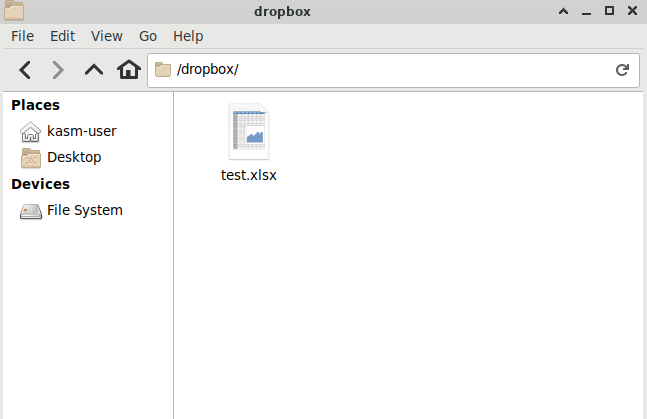
Dropbox storage mapping configuration
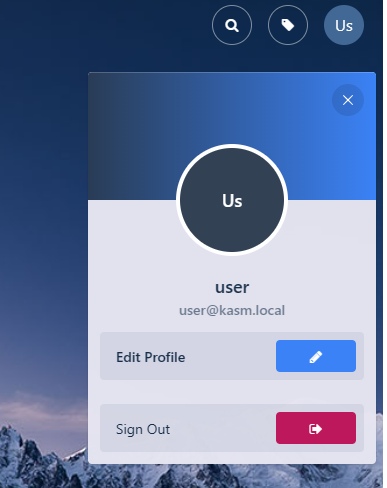
- From any page, select the profile icon at the top right.
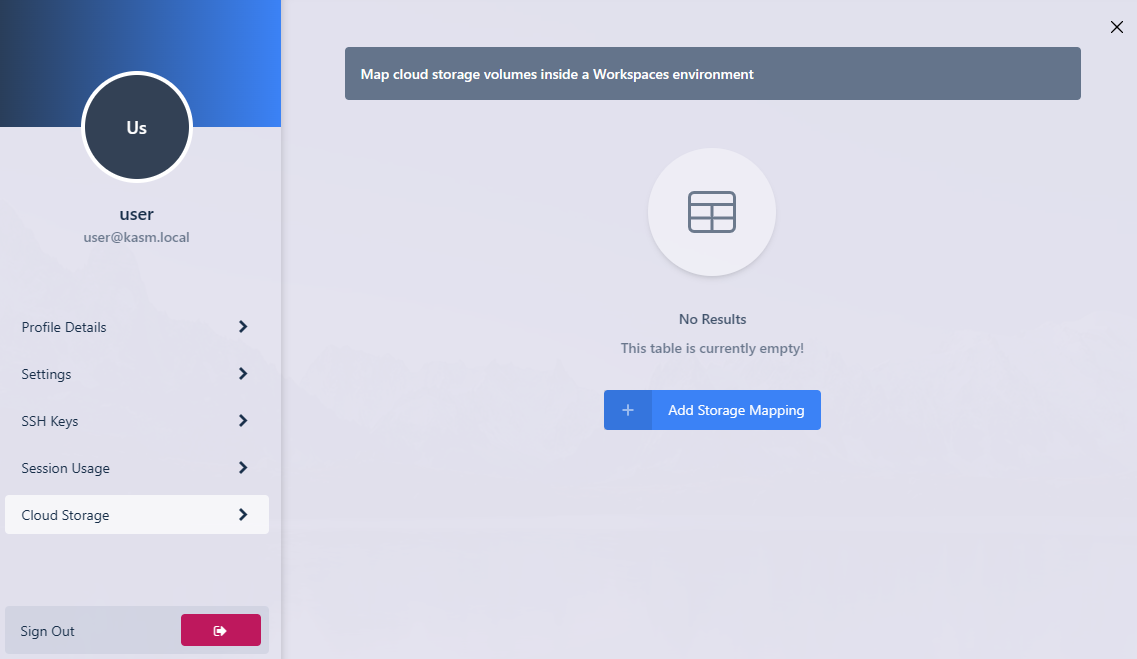
- Select the Cloud Storage section, then Add Storage Mapping.
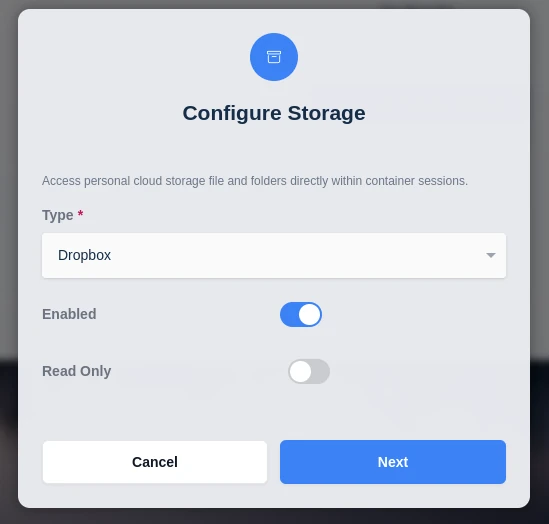
- Select Dropbox from the drop-down, then select Next.
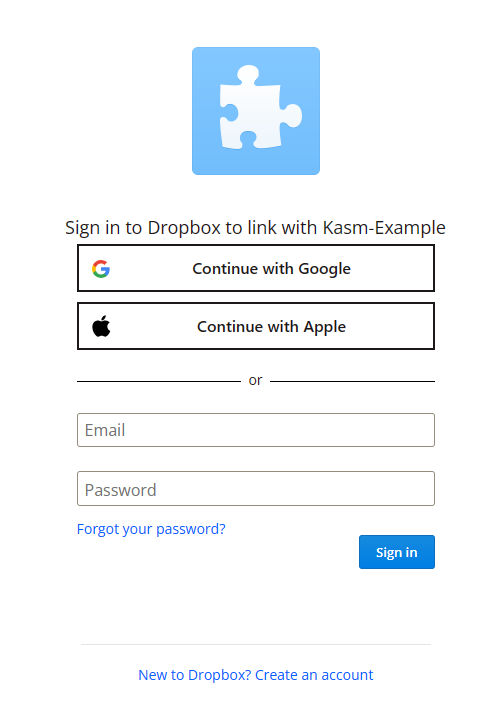
- The Dropbox login page appears. Log in with the desired account.
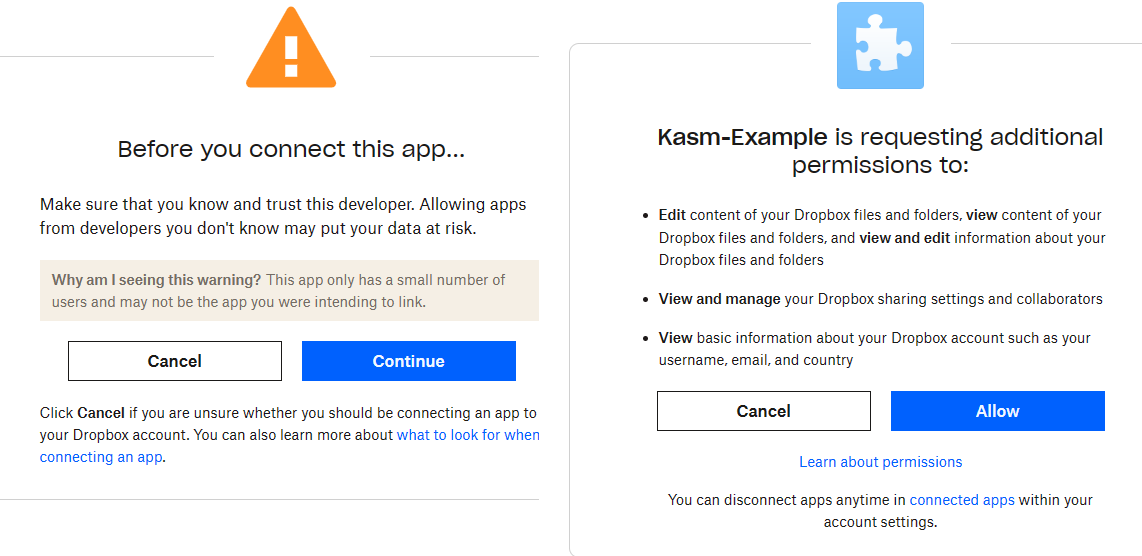
- Dropbox asks for consent to provide access to the account. Approve the request.
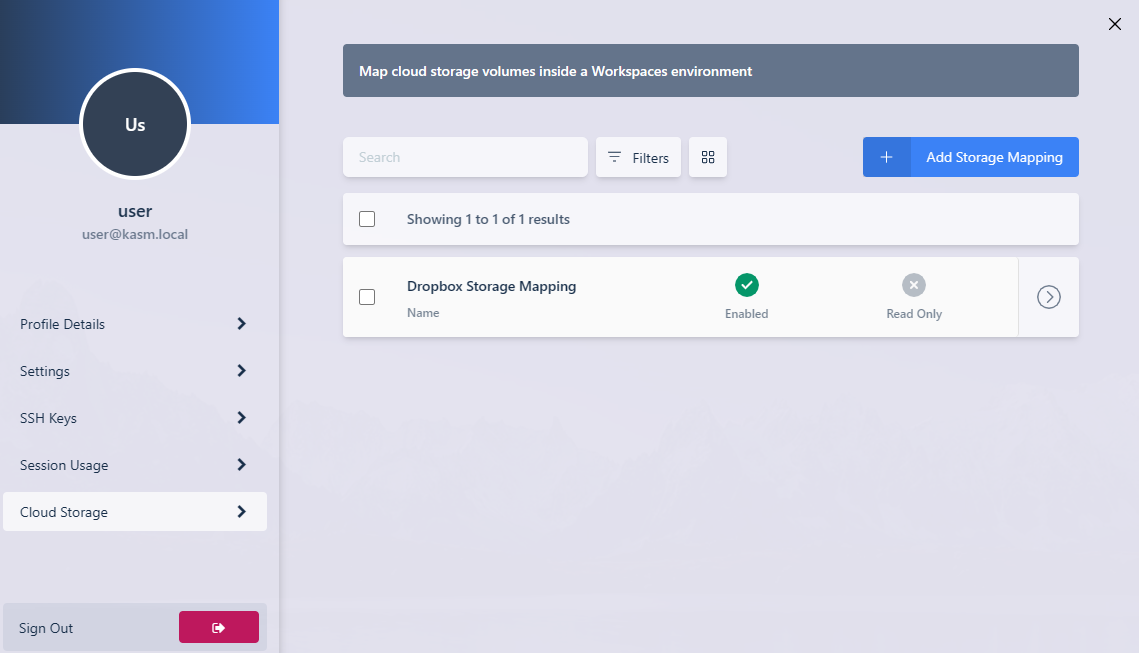
- On success, Kasm redirects you to the Workspaces dashboard. The new storage mapping appears in the Cloud Storage section of the profile.
- Launch a new container-based session. Confirm that Dropbox is mapped inside the session at the
/dropboxlocation.