Dedicated Kasm Proxy (optional)
In a standard Multi Server installation the Proxy service that handles pointing the client to the correct agent server
is included with the Web App role along with all other client UI and routing. The need might arise to have many proxies spread out over different geographic locations while keeping a single web endpoint serving static web content with the Proxy serving the Kasm Workspaces session. To facilitate this there is a proxy installation role that installs and configures a web proxy to direct end users to the correct agent to spin up a Kasm Workspaces session.
Proxy Overview
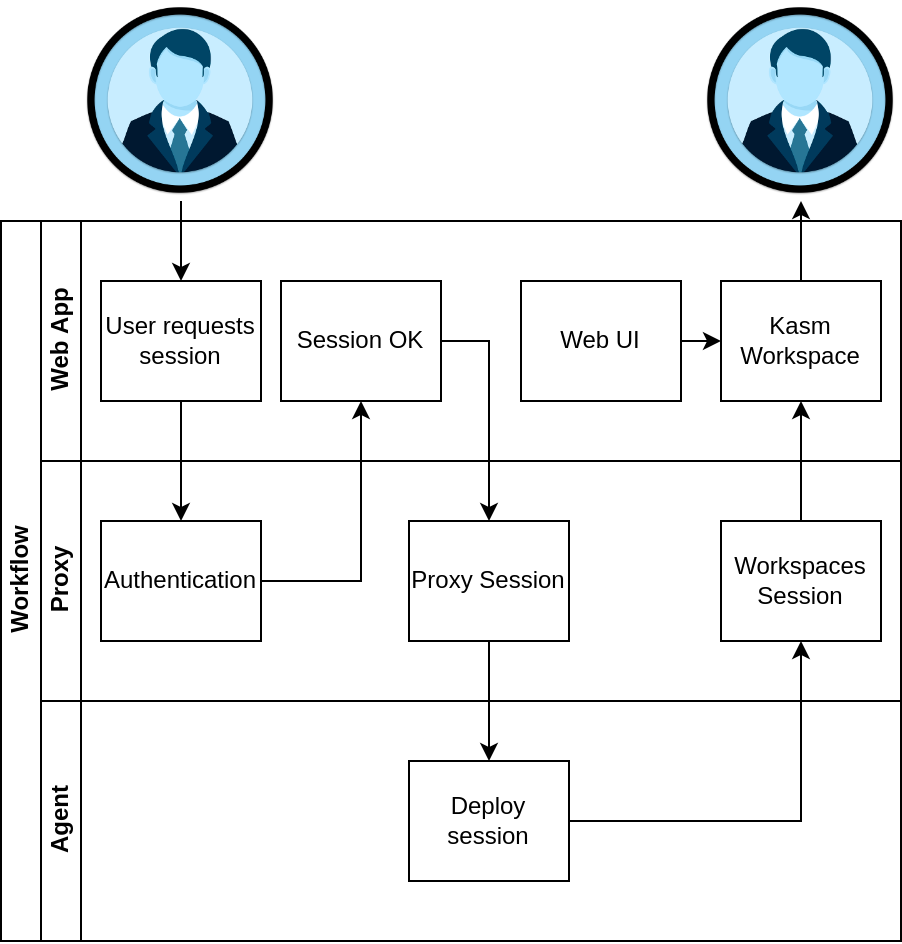
The user follows the same workflow when launching a workspace and on the backend we direct them to the correct Agent/s, but unlike a standard Multi Server Deployment the Workspaces Session is routed through the Proxy in the user's geographic region to reduce latency.
Proxy installation
This guide assumes you have a running Multi Server deployment of Kasm Workspaces and have a basic understanding of domain/SSL management. For help with SSL certificates please see Custom Certificates
The following steps can be followed to install the proxy role to a server:
- Ensure the Proxy server has a domain name pointed to it and a legitimate SSL certificate.
- Download the latest version of Kasm Workspaces to /tmp.
- Extract the package and execute the installation.
- Post install, configure Kasm Workspaces via the Web UI to use the new Proxy.
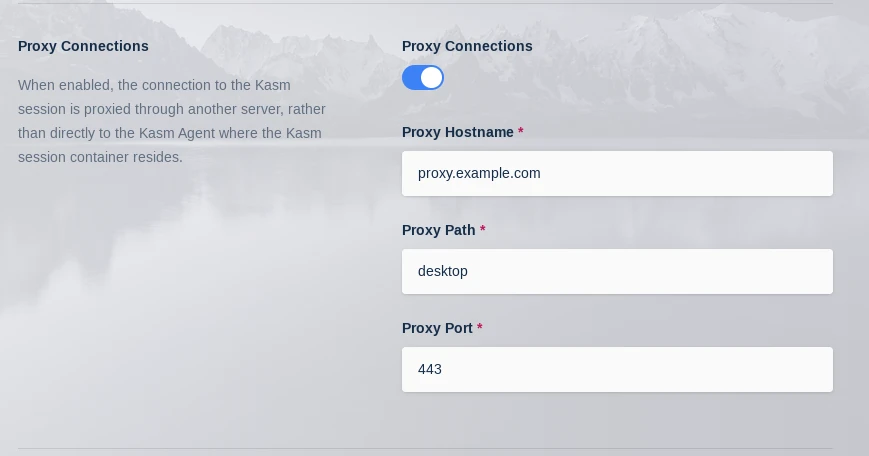
In this example we assume the proxy domain is proxy.example.com and the Web App hosting the API server is located at workspaces.example.com.
Proxy Server installation
It is important that the agents in your Multi Server installation can be accessed by this Proxy server deployment ensure connectivity to the Agent server from the Proxy server before installation.
In order to install the proxy role you will need the following information:
- Web App server URL — the hostname of the server running the
appserverrole (for example,workspaces.example.com). This endpoint is used for authentication and is required to enforce strict CORS policies. - OTel bearer token — the OTel token printed at the end of the Database Server install and passed to the
appservernode with--otel-token. Pass the same token here so this proxy node reports telemetry to the same collector.
- Rolling
- Initial Build
cd /tmp \
&& curl --fail-early \
    -fO https://kasm-static-content.s3.amazonaws.com/kasm_release_1.19.0-latest.tar.gz \
    -fO https://kasm-static-content.s3.amazonaws.com/kasm_release_1.19.0-latest.sha256sum \
&& sha256sum --check --ignore-missing kasm_release_1.19.0-latest.sha256sum \
&& tar -xf kasm_release*-latest.tar.gz \
&& sudo bash kasm_release/install.sh --role proxy --api-hostname workspaces.kasmweb.com --otel-token [OTEL_TOKEN] --otel-collector-hostname workspaces.kasmweb.com
cd /tmp \
&& curl --fail-early \
    -fO https://kasm-static-content.s3.amazonaws.com/kasm_release_1.19.0.tar.gz \
    -fO https://kasm-static-content.s3.amazonaws.com/kasm_release_1.19.0.sha256sum \
&& sha256sum --check --ignore-missing kasm_release_1.19.0.sha256sum \
&& tar -xf kasm_release*.tar.gz \
&& sudo bash kasm_release/install.sh --use-static-images --role proxy --api-hostname workspaces.kasmweb.com --otel-token [OTEL_TOKEN] --otel-collector-hostname workspaces.kasmweb.com
Post Install Configuration
With the proxy running you will need to login to your Kasm Workspaces installation as an administrator and navigate to Admin->Settings->Global->Authentication->Kasm Auth Domain. Change this setting to example.com and click Save.
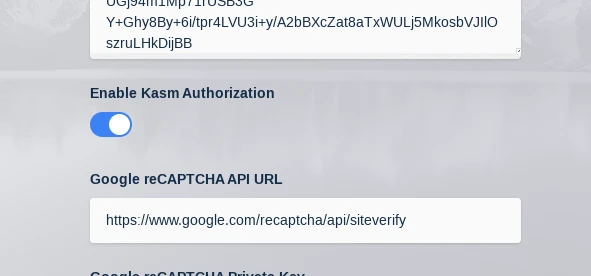
Next navigate to Admin->Infrastructure->Zones->Click the arrow next to the zone you want to point to the Proxy->Edit Set Proxy Hostname to proxy.example.com
While in this menu also set Upstream Auth Address to workspaces.example.com
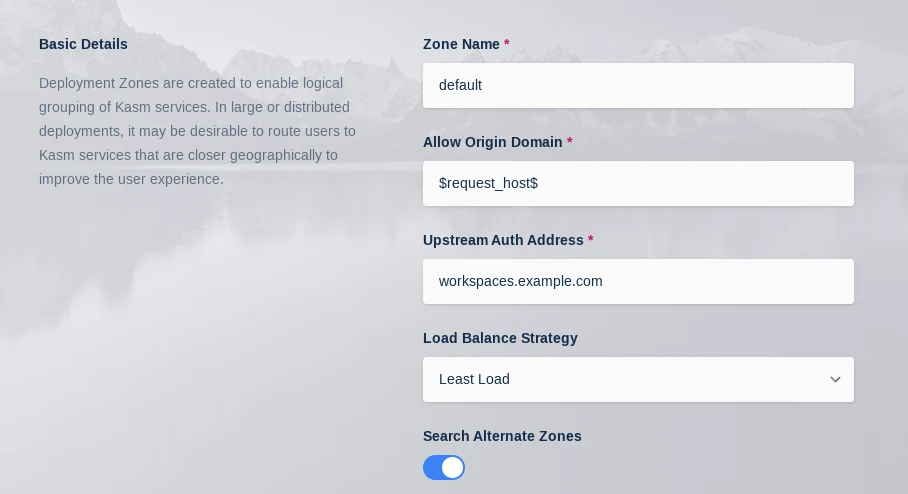
With these setting changed we need to restart the API server container on the Web App server/s:
sudo docker restart kasm_api
When a user now deploys a Kasm Workspace their streaming session will be served up by this new external proxy instead of the default one deployed with the Web App role.