Connection Proxies
The Connection Proxy component is the gateway between users and resources they want to access that utilize RDP, SSH or traditional VNC. Container based desktops and apps do not utilize the Connection Proxy component. The proxy role is comprised of 3 different containers, which have different responsibilities. Connection proxies are automatically registered with the Kasm deployment when installing the Connection Proxy component on a server. For Kubernetes deployments, Kasm will always show a single instance of each component type.
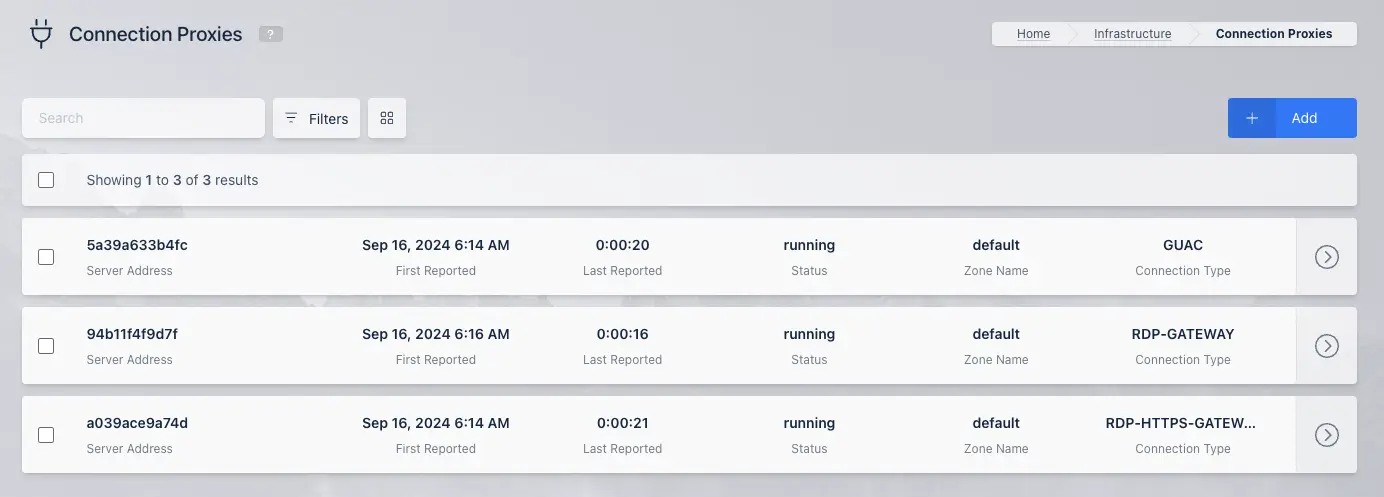
Components
Guacamole (GUAC)
Kasm utilizes a custom compiled build of Apache guacd in combination with our own micro service for controlling guacd. Guacd is used for web-native connections to backend RDP, VNC, and SSH servers. Kasm spawns 1 guacd service per core on the system and automatically load distributes sessions between the services, providing for better use of system resources on multi-core systems. Administrators can override this default of 1 guacd service per core by using the --guac-cluster-size N flag on installation, where N signifies the number of guacd instances you wish to be running on the system.
RDP Gateway
Added in Kasm Workspaces 1.16.0, the RDP Gateway provides a proxy capability allowing users to use a client-side RDP thick client to connect to Kasm Windows workspaces. This provides several features that are not possible with Kasm's web native RDP access method, including smart card, USB, and webcam passthrough from the user's client machine into the Kasm session while maintaining Kasm's DLP protections.
Windows, Linux, ChromeOS, and macOS clients are supported, however the instructions to configure a seamless experience differ by OS. See Auto-Opening RDP Files for more details.
Kasm Technologies has tested the Microsoft client on Windows and macOS and the XtraLogic client on ChromeOS, however any RDP client software should be compatible. The chosen client must support the desired features; for instance, not all clients support smart card passthrough.
RDP HTTPS Gateway
The RDP HTTPS Gateway allows for RDP connections to traverse over HTTPS, primarily used to facilitate connections through enterprise security firewalls and other security devices. The RDP HTTPS Gateway follows the Microsoft Remote Desktop Gateway Server Protocol. The Kasm RDP HTTPS Gateway does not understand the RDP protocol itself, but rather tunnels the underlying RDP protocol through web based transport. Because this component does not understand RDP, it is used in conjunction with the RDP Gateway covered in the above section.
RDP Native Connections
By default, when a client connects to a Kasm session with an RDP client, it will come first to the RDP HTTPS Gateway, then to the RDP Gateway, and finally to the destination server. Administrators can disable the RDP Gateway or the RDP HTTPS Gateway to reduce overhead, however, there are consequences for disabling either. Disabling the RDP HTTPS Gateway will mean clients will connect to Kasm using the RDP protocol, which may not be allowed through some firewalls that are not in your control. If this is not an issue in your environment, or the environments where clients will connect from, then this may be a good way of increasing the performance of the connection proxy server and thus improving user experience. Admins can uncheck the Enable RDP HTTPS Gateway setting in Zone Settings to achieve this.
Conversely, the RDP Gateway can be disabled by the administrator by unchecking the Enable RDP HTTPS Gateway DLP option in the Zone Settings. RDP traffic will then directly flow from the RDP HTTPS Gateway to the destination server, without traversing the RDP Gateway component which facilitates DLP and SSO features. Disabling the RDP Gateway can significantly reduce bandwidth consumption and improve end-user experience with the following drawbacks:
- Data Loss Prevention controls will not be enforced by Kasm. These include settings such as allowing clipboard, uploads, and downloads. Many of these settings can also be enforced through Windows Group Policy.
- SSO is only supported when the RDP traffic goes through the RDP Gateway. Without the RDP Gateway users will get prompted to input credentials. Smartcard authentication into Windows will continue to work with the RDP HTTPS Gateway DLP disabled.
- Static credentials assigned to a server in Kasm are not passed through in RDP sessions when the RDP Gateway is disabled.
- Microsoft RemoteApp support with the RDP Gateway disabled is not a supported configuration.
Load Balancing
When a zone has multiple connection proxies registered, Kasm selects one using the Proxy Load Balance Strategy configured on the Zone. The strategy applies equally to GUAC, RDP Gateway, and RDP HTTPS Gateway proxy types.
| Strategy | Behaviour |
|---|---|
| Least Sessions (default) | Routes to the proxy with the fewest active sessions. Spreads load evenly as sessions accumulate. |
| Most Sessions | Routes to the proxy with the most active sessions. Useful for bin-packing workloads before spinning up additional proxies. |
| Least Load | Routes to the proxy with the lowest average CPU and memory utilisation. |
| Most Load | Routes to the proxy with the highest average CPU and memory utilisation. Useful for consolidation scenarios. |
| Random | Selects a proxy at random with no preference for session count or system load. |
Jitter
To prevent thundering-herd problems when many sessions start simultaneously, Kasm applies a small jitter to all strategies except Random. The top candidates from the sorted list (at least 2, up to 20% of the pool) are shuffled before the first healthy proxy is selected. This means the absolute best proxy is not always chosen, a near-peer may be picked instead, which distributes bursts more evenly across the pool.
Health checks and failover
Before assigning a proxy, Kasm performs an HTTP health check against each candidate in order. The first proxy that responds healthy is used. If no proxy passes the health check, Kasm falls back to the highest-ranked proxy as a best-effort assignment, ensuring sessions are never silently dropped due to a transient health check failure. Unhealthy proxies are skipped automatically, providing seamless failover without administrator intervention.
For GUAC sessions, Kasm also tracks which proxy a session was originally assigned to. On reconnect, the existing proxy is reused if it is still healthy, avoiding unnecessary session migration. If it is no longer healthy, a new proxy is selected via the configured strategy and the session record is updated.
Session count source
Session counts used for load balancing decisions, and displayed in the admin console are read directly from the Kasm database, not from metrics self-reported by proxy agents. This is intentional: because Kasm cannot independently verify that a remote agent's reported state accurately reflects what is actually running on that server, the database record is treated as the authoritative source of truth. A session is counted only when it has been recorded as active in the database; agent-reported load figures (CPU, memory) are used solely for the Least Load and Most Load strategies.
Enabling and disabling individual Connection Proxies
Administrators can disable a specific Connection Proxy instance to take it out of rotation for maintenance without stopping the underlying service or host. This is separate from the zone-level Enable RDP HTTPS Gateway and Enable RDP HTTPS Gateway DLP settings covered in RDP Native Connections, which control an entire role for a zone rather than a single proxy instance.
A disabled proxy is excluded from selection for new and reconnecting sessions, using the same health checks and failover logic. This applies the same way across all three proxy types: GUAC, RDP Gateway, and RDP HTTPS Gateway.
Disabling does not actively migrate sessions already connected through that proxy. A session keeps using the proxy it originally connected through, regardless of that proxy's Enabled state. Disabling a proxy only removes it from consideration for new connections; it does not interrupt an existing one. The session moves to another enabled proxy of the same type only once its connection to the disabled proxy is itself interrupted, for example when the disabled proxy is stopped or restarted for maintenance. This is expected: disabling a proxy to take it down for maintenance means existing sessions may briefly drop when it actually goes down, then reconnect through another enabled proxy.
When Enable RDP HTTPS Gateway and Enable RDP HTTPS Gateway DLP are both on, every native RDP session passes through two Connection Proxies in sequence: it enters through an RDP HTTPS Gateway, which then hands the connection to an RDP Gateway that relays it to the destination server and enforces DLP. The RDP HTTPS Gateway prefers the RDP Gateway on its own host and otherwise uses another enabled RDP Gateway in the same zone that it can reach.
Both proxy types must therefore stay available for new connections and for reconnects. Disabling the last enabled proxy of either type in a zone blocks new native RDP connections in that zone, even when the other type still has enabled proxies. In the Connection Proxies list, a session in this mode is counted against the RDP Gateway that relays it, not the RDP HTTPS Gateway it entered through, so check both types before disabling a proxy that has active sessions behind it.
A GUAC proxy or an RDP Gateway is only ever replaced by another enabled proxy of the same type in the zone of the destination server. Enabled proxies in other zones are never selected, even when they are healthy. The RDP HTTPS Gateway is the one exception: it is selected from the zone of the Web App server that received the connection, so it does not have to be in the same zone as the server.
If a zone has no other enabled proxy of a given type and you need to disable one without new connections failing, register a temporary Connection Proxy of that type in the same zone first, then disable the original. Sessions already connected through the disabled proxy still reconnect with a brief interruption when that proxy actually stops; they are not moved while their connection is up.
The underlying session is never terminated solely because its Connection Proxy was disabled or became unavailable. If the proxy is the last enabled proxy of its type in the zone with active sessions, Kasm requires confirmation before disabling, since there is no other proxy for those sessions to fail over to; confirming disables the proxy and stops the affected sessions.
Architecture
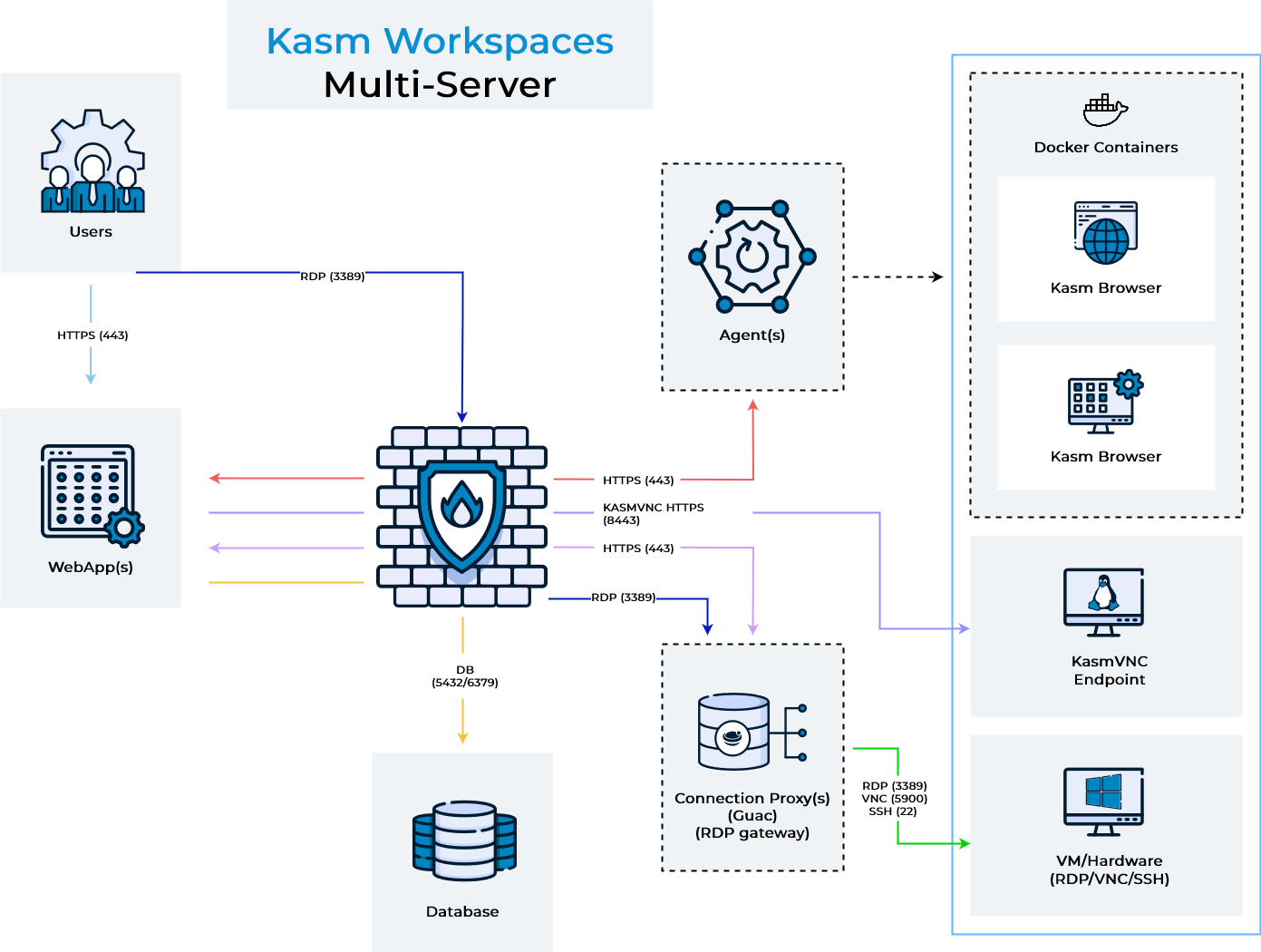
The above diagram shows the architecture and user flow of traffic. For Kasm guac sessions, when a user connection to a remote session comes in (shown in light blue), the request can optionally be load balanced between multiple web app servers. The Web App server queries the database for a list of connection proxy servers responsible for the Kasm Deployment Zone that the requested server is in, along with each proxy's current session count. The proxy is selected according to the zone's Proxy Load Balance Strategy (see Load Balancing above), with a health check performed per candidate. The user's HTTPS connection is then proxied to the selected connection proxy server (light purple line). This sequence of events ensures resiliency in the event of networking or server issues with a single connection proxy.
For Kasm RDP gateway sessions, when a user connection to a remote session comes in (shown in light blue), the request can optionally be load balanced between multiple web app servers. The Web App server queries the database for a list of potential RDP gateway connection proxy servers responsible for the Kasm Deployment Zone, along with session counts. The proxy is selected using the zone's Proxy Load Balance Strategy and health-checked. When a healthy server is found the Web App server builds an RDP file targeting the selected RDP gateway server and presents it to the user's browser for download. The user's RDP client then makes a connection over HTTPS (443) or 3389, depending on whether the RDP HTTPS Gateway is enabled, to the Kasm RDP gateway service (dark blue line), which is then proxied to the RDP target. This sequence ensures resiliency in the event of networking or server issues with a single RDP gateway connection proxy.
When the connection from the user enters either the RDP gateway or guac connection proxy, it performs an authentication request up to the Web App Role server (light purple line) to authenticate the user, authorize that the user has access to the requested server, and to download connection details for the server. The connection proxy then performs an RDP connection to the remote server (green line).
Single server deployments have all roles installed on a single server. For multi-server deployments, you should consider deploying at least 2 connection proxy servers per Kasm deployment zone. Kasm will automatically load balance users across proxies according to the configured strategy and provide automatic failover should one stop responding.