Deployment Zones
Overview
A deployment zone is a logical grouping of Kasm services that controls where sessions run and how user traffic reaches them. Large or distributed deployments use zones to place workspaces near the users who connect to them, which improves the user experience. Zones also separate trust boundaries, so administrators can isolate tenants or security enclaves and align workspace execution with network and policy requirements. This guide configures zone settings, assigns services to a zone, and validates that placement behaves as expected.
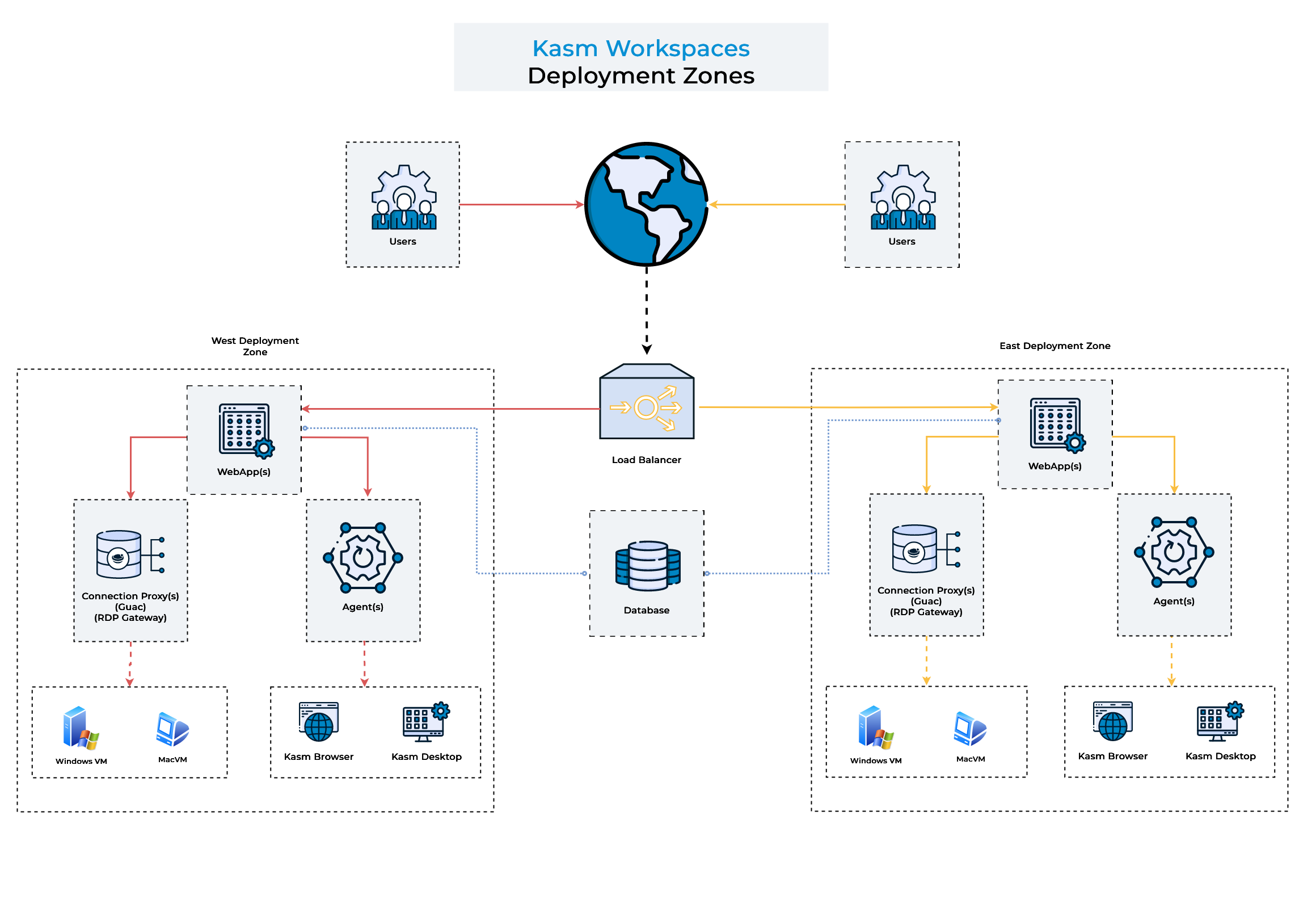
Administrators direct user traffic to a chosen zone with standard routing, DNS, load balancing, or other networking techniques. Multiple zones allow administrators to:
- Provision end-user sessions in the zone the user connects to. When a user connects to the Kasm UI, the server provisions the session on agents in the same zone. The server falls back to agents in other zones only when every agent in the current zone is full or unavailable.
- Restrict certain Workspaces to provision only on agents within a given zone. See Add or edit a Workspace. This option is most useful when zones represent network enclaves that only certain Workspaces and users should reach.
Prerequisites
- A Kasm Workspaces deployment with administrator access to the Infrastructure dashboard.
- The deployment zones you want to manage. Zones are created at Web App installation time. To add a zone, see Install the Web App role.
- Access to the configuration files on each API server host, with permission to stop and start Kasm services.
Solution approach
This guide progresses through the following phases:
- Define the configuration for an existing zone.
- Assign Kasm services to the zone.
- Validate session placement and routing.
Detailed steps
Configuring deployment zones
An administrator updates the settings for an existing zone in the UI. The settings control load balancing, proxy behavior, and RDP gateway routing for every service in the zone.
Deployment zones are created only at Web App installation time. To add a new zone, follow the Web App installation instructions.
Defining zone configurations
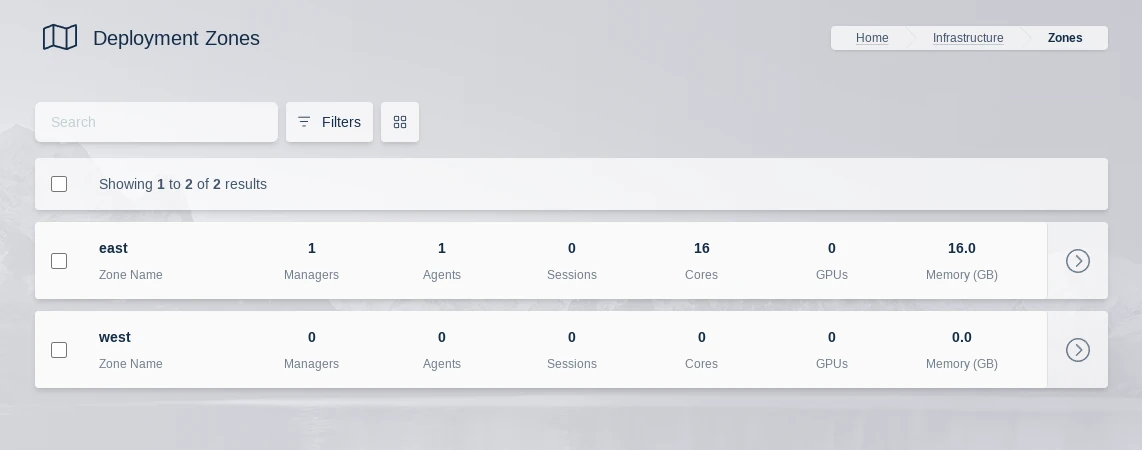
To open the zone settings, select Infrastructure, then Zones, and edit the target zone.
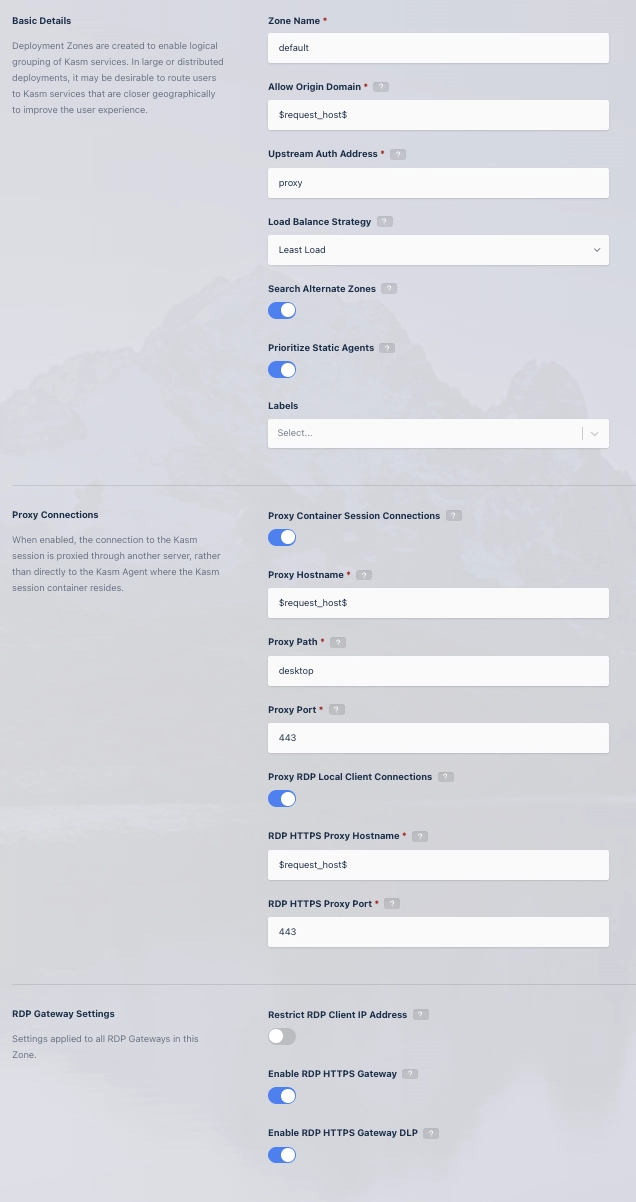
The following table describes each zone configuration option.
| Field | Description | Default Value |
|---|---|---|
| Zone Name | The name given to the Zone. | |
| Allow Origin Domain | Connections to Kasm sessions are restricted to authorized Origins. This value is the authorized origin domain. | "$request_host$" |
| Upstream Auth Address | Connections to Kasm sessions are authenticated against a Kasm API server. This value is the address of the server. | "proxy" |
| Load Balance Strategy | Determines how the system prioritizes Agents when a user requests a new Kasm session: • Least Load: Prioritizes Agents with the least consumed CPU/Memory. • Most Load: Prioritizes Agents with the most consumed CPU/Memory. • Least Kasms: Prioritizes Agents with the fewest active sessions. • Most Kasms: Prioritizes Agents with the most active sessions. For Server Pools of type "Server", load is based on session count to configured supportable sessions. For SSH, RDP, and RemoteApp sessions, a server the user already has an active session on is preferred over this strategy, provided that server has not reached its configured session capacity. | Least Load |
| Proxy Load Balance Strategy | Determines how the system selects a Connection Proxy when a user requests a session that requires one (GUAC, RDP Gateway, or RDP HTTPS Gateway). • Least Sessions (default): Routes to the proxy with the fewest active sessions. • Most Sessions: Routes to the proxy with the most active sessions. • Least Load: Routes to the proxy with the lowest average CPU and memory utilisation. • Most Load: Routes to the proxy with the highest average CPU and memory utilisation. • Random: Selects a proxy at random. A small jitter is applied to all strategies except Random so that near-peer proxies share burst traffic. | Least Sessions |
| Search Alternate Zones | Allows the system to search for resources in alternate Zones if the same-Zone Agents cannot satisfy the session request. Same-Zone Agents are always preferred. | Enabled |
| Prioritize Static Agents | Prefers using fixed Agents before utilizing auto-scaled Docker Agents. | Enabled |
| Labels | Labels assigned to all servers and agents in this zone. These labels can be used to control where Workspace sessions are launched. You can specify these labels in a Workspace's Include Labels or Exclude Labels settings to ensure sessions run only on certain servers or agents. | None |
| Proxy Connections | When enabled, the user connects to the Kasm session through a proxy server. When disabled, connections go directly to the Kasm Agent hosting the session. | Enabled |
| Proxy Hostname | Hostname of the proxy server used when Proxy Connections are enabled. | "$request_host$" |
| Proxy Path | The base path appended to the Kasm connection URL when using Proxy Connections. | "/desktop" |
| Proxy Port | The port used for the proxy server. If set to 0, Kasm Workspaces will try to detect the correct port from window.location.port. | "0" |
| Proxy RDP Local Client Connections | When enabled, RDP connections from native RDP clients are proxied through Kasm Web App servers to the RDP Gateway, allowing use of a single domain. When disabled, clients connect directly to the Guac role, which requires public IP and DNS. This setting applies only if Enable RDP HTTPS Gateway is also enabled. | Enabled |
| RDP HTTPS Proxy Hostname | Hostname/IP of the load balancer or proxy in front of the HTTPS-based RDP Gateway. | "$request_host$" |
| RDP HTTPS Proxy Port | Port number of the load balancer or proxy for the HTTPS-based RDP Gateway. | "443" |
| Restrict RDP Client IP Address | Enforces that the client's IP for the RDP connection matches the IP of the API call that initiated the session. Not compatible with changing IPs (e.g., via load balancers, proxies, or tunnels like Cloudflare). | Disabled |
| Enable RDP HTTPS Gateway | When enabled, uses HTTPS RDP Gateway protocol. When disabled, standard RDP over port 3389 is used. | Disabled |
| Enable RDP HTTPS Gateway DLP | Sends HTTPS RDP connections through Data Loss Prevention (DLP). This may affect performance/scalability. Disabling DLP disables some Kasm data protection features and breaks single sign-on. Applies only if Enable RDP HTTPS Gateway is enabled. | Disabled |
The default value $request_host$, shown for several settings above, automatically references the domain or host used in the URL that accesses the Kasm deployment. For example, when users access Kasm through https://east.kasm.server, $request_host$ resolves to east.kasm.server.
Assigning zone configurations
Agents are assigned the zone of whichever manager they are currently checked in to. After you define a zone, configure the Kasm services to join it. The deployment zone setting for API servers (kasm_api, kasm_manager) is set in their configuration file. The default zone is named default.
To confirm the current zone, check the zone_name value in the API configuration file.
grep zone_name /opt/kasm/current/conf/app/api/api.app.config.yaml
      zone_name: east
-
Stop all Kasm services on the host.
sudo systemctl stop kasm -
Edit the
zone_nameproperty in the API configuration file.vi /opt/kasm/current/conf/app/api/api.app.config.yaml -
Restart the Kasm services.
sudo systemctl start kasm
Validating session placement and routing
- Connect to the Kasm UI through the URL or load balancer mapped to the target zone.
- Launch a session and confirm it provisions on an agent in the expected zone.
- Review the agent assignments under Infrastructure, then Agents, to confirm each agent reports the correct zone.
Common troubleshooting steps
- Sessions provision in the wrong zone. Confirm that the manager each agent checks in to belongs to the intended zone, because agents inherit the zone of their manager. Verify the
zone_namevalue inapi.app.config.yamlon each API server. - Sessions fall back to another zone unexpectedly. Confirm that same-zone agents have available capacity. When every agent in a zone is full or unavailable and Search Alternate Zones is enabled, the server provisions in an alternate zone.
- Sessions fail to load behind a reverse proxy. Confirm that the Proxy Port value matches the port the client uses. The port is relative to the client, so set it to the public port, such as
443, when a load balancer fronts an internal port. - RDP connections fail with
Invalid Request. Wrong client IP.Disable Restrict RDP Client IP Address when connections pass through a load balancer, proxy, or tunnel that changes the client IP.