Configure volume mappings in Kasm Workspaces sessions
Overview
Administrators configure folders to map inside a Kasm session each time it is provisioned, using the Volume Mappings field on a Kasm Workspace. This guide maps a host folder, /mnt/kasm_user_share, into the Kasm Desktop workspace as /share, which acts as a file share. All users who can provision the workspace can access this folder.
Prerequisites
- A working Kasm Workspaces deployment with administrator access and
sudoon the host. - For multi-server deployments, a shared storage solution reachable from every Agent host. See Using NFS.
Solution approach
This guide progresses through the following phases:
- Create the host directory.
- Configure the Workspace volume mapping.
- Verify functionality.
Detailed steps
Create the host directory
On the Kasm Workspaces server, create the directory and change the ownership to user and group 1000.
For a multi-server deployment, /mnt/kasm_user_share should reference a shared storage solution, such as NFS, HDFS, GFS, SMB, or SSHFS, to ensure data continuity. The path must be accessible from every Agent host. See Using NFS for configuration.
sudo mkdir -p /mnt/kasm_user_share
echo "test" | sudo tee /mnt/kasm_user_share/test.txt
sudo chown -R 1000:1000 /mnt/kasm_user_share/
Configure the Workspace volume mapping
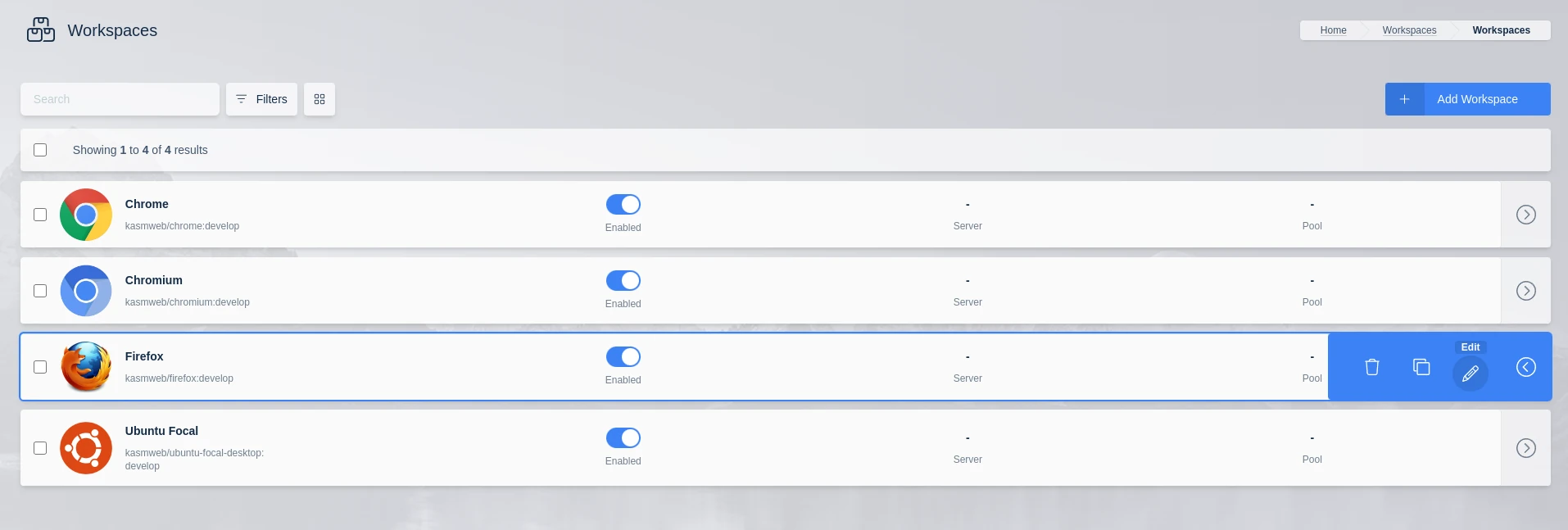
From the administrator dashboard, click Workspaces, then Workspaces, and select a Workspace to edit.
Scroll to Volume Mappings (JSON) and use the following configuration:
{
   "/mnt/kasm_user_share":{
      "bind":"/share",
      "mode":"rw",
      "uid": 1000,
      "gid": 1000,
      "required": true,
      "skip_check": false
   }
}
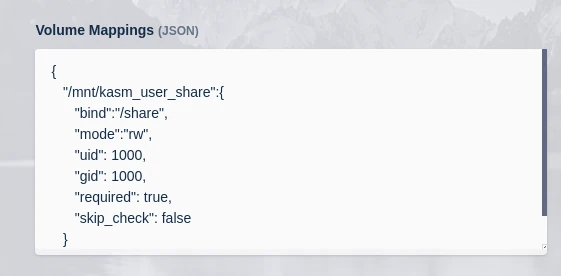
Click Save. The /share directory is now available to any user who launches this Workspace.
This guide maps a single volume, but you can define multiple volume mappings:
{
   "/mnt/kasm_user_share1":{
      "bind":"/share1",
      "mode":"rw",
      "uid": 1000,
      "gid": 1000,
      "required": true
   },
   "/mnt/kasm_user_share2":{
      "bind":"/share2",
      "mode":"rw",
      "uid": 1000,
      "gid": 1000,
      "required": true
   }
}
Verify functionality
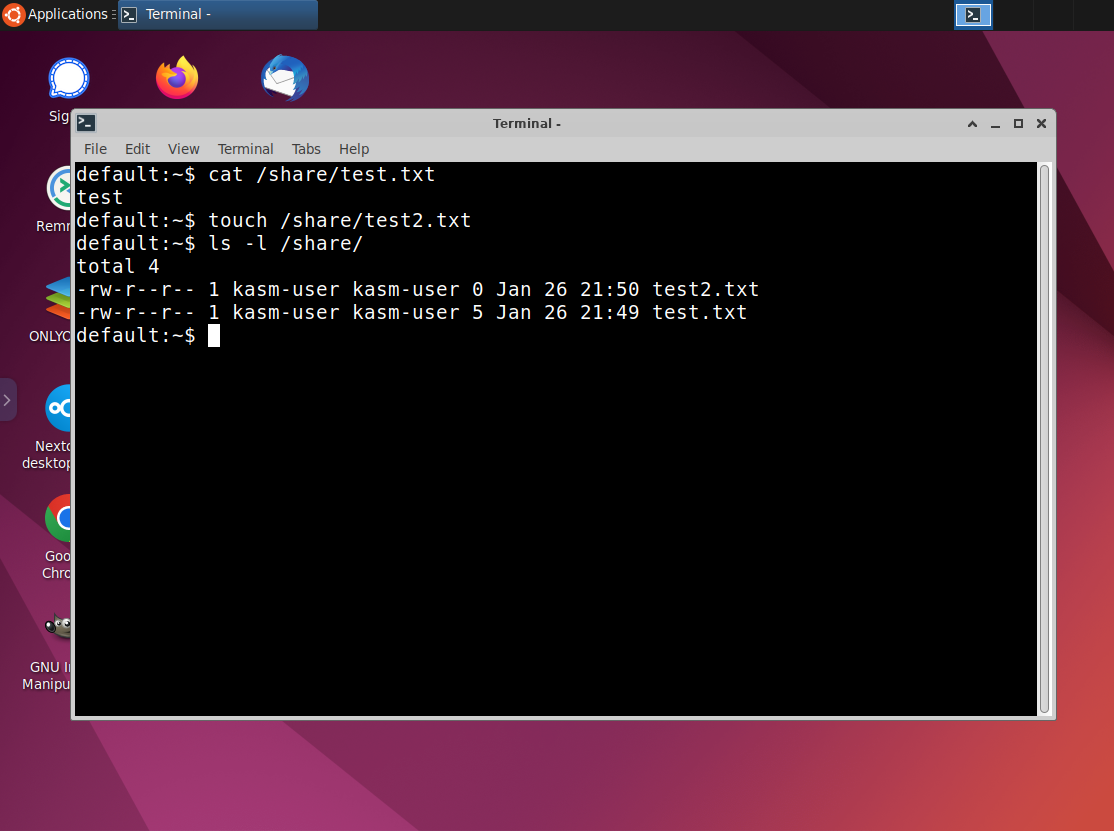
- Launch the Workspace that the volume mapping was added to.
- Confirm that the user can read and write to the
/sharelocation.
User and image tokens
The volume mapping config supports the following user and image tokens in the mapping name and bind attribute. These let an administrator create a unique share location per user.
{username}: the username of the user provisioning the session, for exampleuser@kasm.local.{user_id}: the user ID of the user provisioning the session, for example6c0535dc02eb49c4a556cae9816a585d.{custom_attribute_1}: the custom attribute 1 value from the user.{custom_attribute_2}: the custom attribute 2 value from the user.{custom_attribute_3}: the custom attribute 3 value from the user.{image_id}: the image, or Workspace, ID used for the session, for example9de4ea298f064e6999c5b9b164e2c04c.
{
   "/mnt/kasm_user_share/{image_id}/{user_id}":{
      "bind":"/share/{username}",
      "mode":"rw",
      "uid": 1000,
      "gid": 1000,
      "required": true,
      "skip_check": false
   }
}
Volume mapping configuration options
| Option | Description |
|---|---|
bind | The path inside the Kasm session where the volume is mounted. |
mode | rw for read-write, ro for read-only. |
uid | The Linux user ID ownership given to the volume, applied to the folder on the host. The uid must be 1000 for the Kasm container user to access the files. |
gid | The Linux group ID ownership given to the volume, applied to the folder on the host. The gid must be 1000 for the Kasm container user to access the files. |
required | When true, the volume must be accessible to provision the Kasm session. When false, the system provisions the session even when connectivity to the volume cannot be established. The default is true. |
timeout | When a Kasm session is provisioned, the system attempts to connect to the volume and waits this many seconds before deeming connectivity failed. The default is 10 seconds. |
skip_check | When a Kasm session is provisioned, the system connects to the volume and confirms the ownership matches the uid:gid with a chown. On some file systems, such as read-only mounts, this check fails. Set this to true to skip the check. The default is false. |
Configure volume mapping at a group level
Volume mappings can also be applied as a group setting, which is useful when a specific set of users should have the mapping. When applied at the group level, all sessions created by members of the group have the mapping applied.
From the administrator menu, click Access Management, then Groups, and click Edit on the desired group.

Select the Settings tab, click Add Settings, and select volume_mapping from the drop-down.
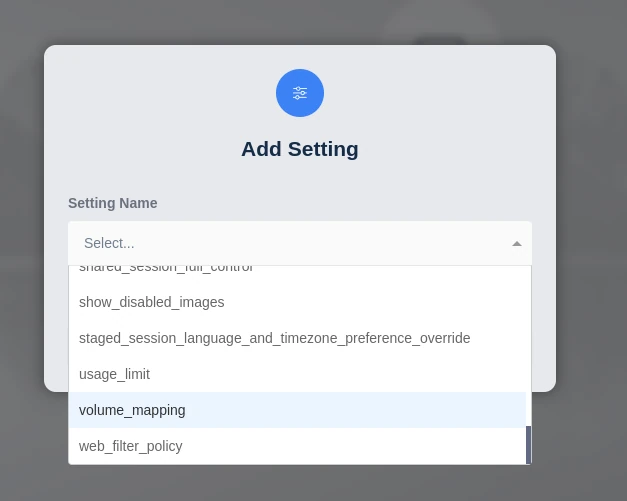
Enter this example to mount /mnt/kasm_user_share from the host to /share in all containers launched by the group:
{
   "/mnt/kasm_user_share":{
      "bind":"/share",
      "mode":"rw",
      "uid": 1000,
      "gid": 1000,
      "required": true,
      "skip_check": false
   }
}
Click Submit.
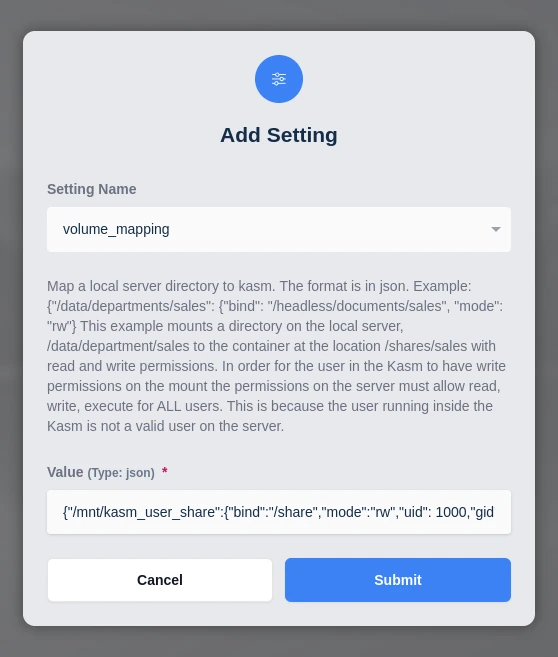
All sessions created by members of this group now have the mapping applied.
Video example
This video shows an example of using volume mapping to create an organizational share.