Storage mappings
Storage mappings let administrators create and attach custom and ephemeral Docker volumes in Kasm Workspace containers. This feature can also let end users map popular cloud storage services such as Google Drive, Dropbox, Nextcloud, and OneDrive. To use storage mappings, administrators first create storage providers, which contain the volume and mount configurations, along with the applicable settings for supported cloud storage providers.
The process is as follows:
- The administrator configures a storage provider, for example Google Drive.
- The administrator creates storage mappings that use the storage provider. The mappings can be placed on a user, group, or Workspace object.
- The administrator can allow end users to create their own storage mappings by configuring the following group settings:
allow_user_storage_mapping: when enabled, the user can configure their own storage mappings from their profile. When disabled, new user configuration is not allowed, and previously configured mappings are not used when new sessions are created.max_user_storage_mappings: the maximum number of storage mappings a user can register to their account.read_only_user_storage_mappings: when enabled, any storage mappings configured on the user account are forced to read-only.
- When allowed by group settings, end users configure storage mappings to the registered providers from the cloud storage section of the profile widget.
- When a container-based Workspaces session is created, a Docker volume is created on the agent and mounted inside the session, based on the storage provider and storage mapping configurations. The remote files become available within the session.
- When the session is destroyed, the Docker volume is also destroyed.
Storage providers
| Field | Description |
|---|---|
| Name | A custom name given to the storage provider. |
| Storage Provider Type | Workspaces supports several cloud storage provider types, including Dropbox, Google Drive, Nextcloud, OneDrive, S3, and Kasm Profile Sync. Many of these implementations use the Rclone Docker volume plugin, which is installed automatically as part of Workspaces. A Custom type lets administrators create additional interfaces as needed. |
| Enabled | When disabled, any storage mappings that reference this storage provider are not used when creating new sessions. |
| Default Target | The folder path where storage mappings created with this provider are mounted inside the Kasm session. Use an absolute path, for example /dropbox. |
| Volume Config | A JSON structure that represents the volume to create during a session. See Volume config for details. |
| Mount Config | A JSON structure that represents how the volume is mounted into a session. See Mount config for details. |
| Client ID | The Client ID for OAuth-based storage provider types, for example Google Drive. |
| Client Secret | The Client Secret for OAuth-based storage provider types, for example Google Drive. |
| Authorization URL | The authorization URL for OAuth-based storage provider types, for example Google Drive. |
| Token URL | The token URL for OAuth-based storage provider types, for example Google Drive. |
| Redirect URL | The URL an OAuth provider uses to redirect the user back to Workspaces, in the format https://<hostname>/api/cloud_storage_callback. |
| Scopes | The scopes to request for OAuth-based storage providers. Enter one entry per line. |
| Webdav URL | Nextcloud only. The base WebDAV URL for the Nextcloud deployment, for example https://<hostname>:<port>/remote.php/dav/file/. |
| Root Drive URL | OneDrive only. The OAuth URL used to query the OneDrive user's root drive, for example https://graph.microsoft.com/v1.0/me/drive/root. |
On Windows, the target directory is relative to the user's Desktop within their profile. So /dropbox is placed at C:\Users\kasm-user\Desktop\dropbox for the user kasm-user.
Storage mappings on VM-based sessions are applied only when the server is configured with user Single Sign-On (SSO) enabled. Storage mappings are applied per user at the OS level. When user SSO is active, Kasm users map to corresponding user accounts, which lets the service scope mappings to each user's file system.
To enable this, set the Connection Credential Type to SSO User Accounts in the server configuration, which sets user_sso to true in the Kasm Desktop Service configuration file. This value synchronizes automatically when the service checks in and does not require manual changes. When needed, you can override user_sso manually in the service configuration file after registration. See the Linux service configuration and the Windows service configuration for details. Without proper user isolation, storage mappings may be applied incorrectly or insecurely across sessions.
Volume config
The volume config is a JSON structure that represents how the Docker volume is created. The available options are defined by the Docker SDK for Python create_volume.
{
     "driver" : "rclone",
     "driver_opts" : {
         "type" : "s3",
         "s3-provider" : "AWS",
         "s3-env-auth" : "false",
         "s3-region" : "us-east-1",
         "uid" : "1000",
         "gid" : "1000",
         "allow_other" : "true"
      }
}
Mount config
The mount config is a JSON structure that represents how the Docker volume is mounted, or mapped, into the container session. The available options are defined by the Docker SDK for Python Mount.
Kasm assigns the only two required parameters, target and source, automatically, because they reference the Default Target and the volume created by the Volume Config. In most cases, set this to an empty dictionary unless you have advanced needs.
Variable substitution
The following variables can be templated into the storage mapping Default Target and Volume Config properties to support additional use cases. Variable substitution is not compatible with session staging.
{username}: the username of the user provisioning the session, for exampleuser@kasm.local.{user_id}: the user ID of the user provisioning the session, for example6c0535dc02eb49c4a556cae9816a585d.{image_id}: the image, or Workspace, ID used for the session, for example9de4ea298f064e6999c5b9b164e2c04c.{user_crypt_password}: a cryptographic key used with Rclone's crypt provider, in place of the--crypt-passwordattribute.{user_crypt_salt}: a cryptographic key used with Rclone's crypt provider, in place of the--crypt-password2attribute.
Configuration examples
- Set up the Dropbox storage provider
- Set up the Google Drive storage provider
- Set up the Nextcloud storage provider
- Set up the OneDrive storage provider
- Set up the S3 storage provider
- Set up a custom storage provider
Troubleshooting
Failures to provision sessions
If something goes wrong with the storage mapping during session creation, the user typically receives an Unexpected Error message.
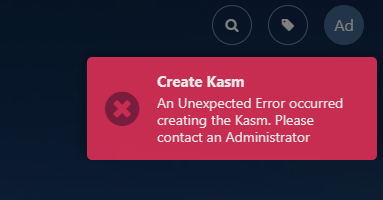
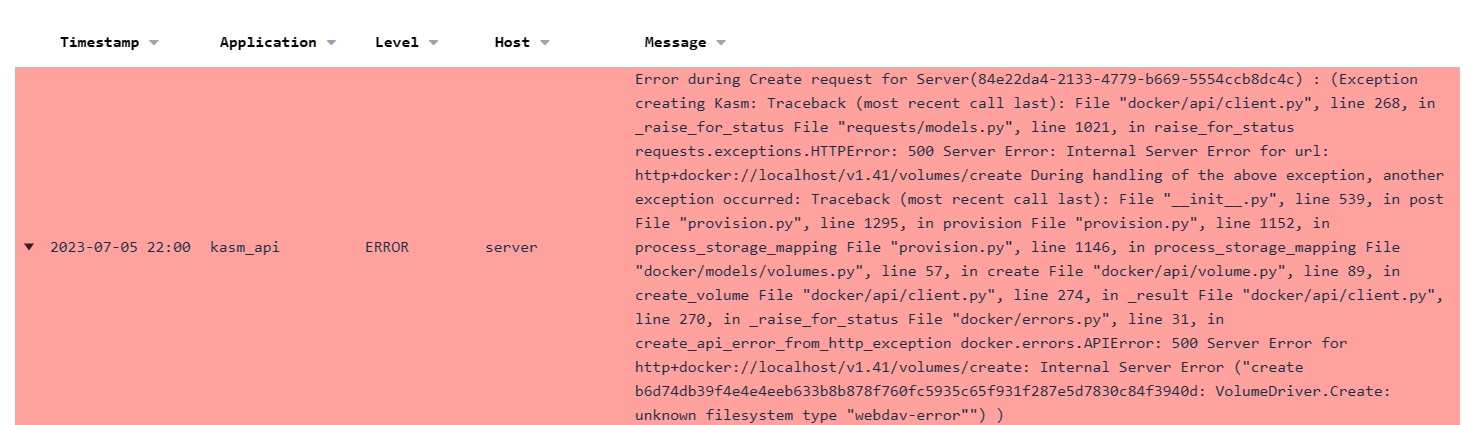
Review the application logs for errors, either in the application dashboard or by tailing the kasm_api and kasm_agent containers while reproducing the error:
sudo docker logs -f kasm_agent
sudo docker logs -f kasm_api
In this example, a driver option in the Volume Config was configured incorrectly.
File browser shortcuts (bookmarks)
Kasm Workspaces images support file browser shortcuts in Thunar through the environment variable CLOUD_MOUNTS, in the format:
CLOUD_MOUNTS="<Default Target>|<type>,<Default Target2>|<type2>"
By default, Workspaces creates the CLOUD_MOUNTS environment variable automatically, based on the configured storage mappings. To override this behavior, define the CLOUD_MOUNTS environment variable manually through docker-run-config.
This environment variable is a comma-separated and pipe-separated list of mounts and their type. The type sets an emblem icon on the folder shortcut for easier identification, with the supported types:
- s3
- nextcloud
- onedrive
- gdrive
- dropbox
- kasm (a placeholder emblem when the Kasm Workspaces logo is preferred)
To configure this in Kasm Workspaces, navigate to Admin, then Workspaces, then Edit, then Docker Run Config Override (JSON). This example configures a shortcut for every storage mapping type:
{
    "environment": {
        "CLOUD_MOUNTS" : "/s3|s3,/nextcloud|nextcloud,/onedrive|onedrive,/gdrive|gdrive,/dropbox|dropbox"
    }
}
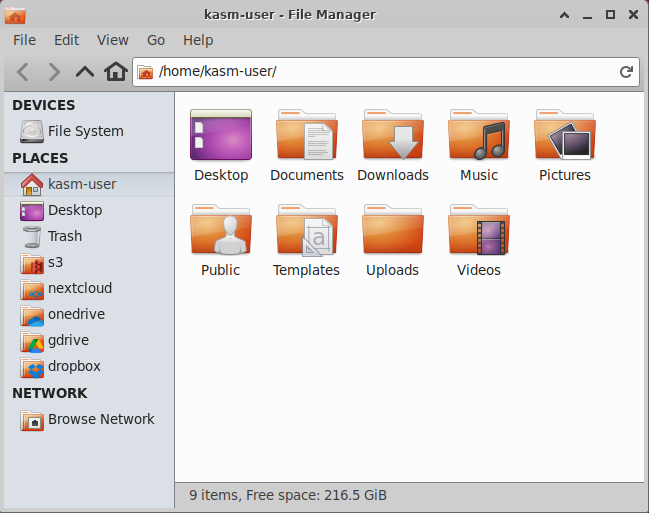
When you use the examples above, this environment variable can be passed as is to most Workspaces images, and it shows only the paths available in the Workspace at startup.
When you use the Kasm-provided browser images, such as kasmweb/chrome or kasmweb/firefox, disable the restricted file chooser so users can access the cloud mounts. Define the KASM_RESTRICTED_FILE_CHOOSER environment variable manually through docker-run-config. Setting the value to 0 disables the restrictions, so the user can access the cloud mounts and the rest of the file system.
{
    "environment": {
        "KASM_RESTRICTED_FILE_CHOOSER" : "0"
    }
}