Building Custom Images
Overview
Custom workspaces let you deliver the exact software, configuration, and desktop experience your users need. This guide builds a custom Docker image from a Kasm core image, then progresses from a minimal customization to installed software, automatic startup, branding, single-application mode, and a private registry. The result is a robust, repeatable image that you can register as a workspace and update on a schedule with no user downtime.
This build process is the preferred method for creating sustainable, highly automated images. For a quick alternative that captures the state of an active session, see create-image-from-session. To keep deployed images current automatically, see Image Maintenance Process.
Custom images import from an existing Default or Core Docker Image published by the Kasm Technologies team. The Core Docker images contain the minimal configurations necessary for the Docker images to work within the platform. The kasmweb/core-ubuntu-jammy image is the preferred core image and is based on Ubuntu 22.04 LTS. Most programs that install on Ubuntu can install inside this image. The exceptions are programs delivered as containers themselves, such as Snaps and some FlatPaks.
A Git repository with several example Dockerfiles that demonstrate how to build full desktop or single-application images is available on GitHub.
Prerequisites
Before you begin, confirm the following:
- Administrator access to the Kasm Workspaces deployment, with permission to register workspaces.
- Working knowledge of Docker and shell scripting to add custom software and configurations.
- A server with the Kasm Agent installed, or a separate build host with Docker. You can run these steps on the server that runs the Agent.
- The base image tag that matches your deployed Kasm version. Base custom images on a rolling tag so the image receives regular program and security updates, for example
kasmweb/core-ubuntu-jammy:[[release]]-rolling-dailyorkasmweb/core-ubuntu-jammy:[[release]]-rolling-weekly.
The Kasm team publishes new editions of the core image at every release cycle. The Kasm team also maintains rolling updates for all published images. Base custom images on a rolling tag and run a scheduled build so the custom image receives regular program and security updates. Build your image on the appropriate tag for your deployed Kasm version, for example kasmweb/core-ubuntu-jammy:[[release]]-rolling-daily or kasmweb/core-ubuntu-jammy:[[release]]-rolling-weekly.
FROM kasmweb/core-ubuntu-jammy:1.19.0
You can also base a custom image on any of the default images published. See Default Docker Images for a list.
If you build directly on the Kasm Workspaces server or Agent, disable Automatically Prune Images for the applicable Agent. See Agent Settings for more details.
Solution approach
This guide progresses through the following phases:
- Build and register a baseline image.
- Install software into the image.
- Launch an application automatically on session start.
- Brand the desktop background.
- Build a single-application workspace.
- Push the image to a container registry.
- Present a custom launch form.
Detailed steps
Build and register a baseline image
The baseline Dockerfile has a predefined section where customizations are added. Do not modify the statements before and after that section. This example adds a single customization. It creates a file named hello.txt on the desktop.
-
Create a file named
Dockerfilewith the following contents.FROM kasmweb/core-ubuntu-jammy:1.19.0USER rootENV HOME /home/kasm-default-profileENV STARTUPDIR /dockerstartupENV INST_SCRIPTS $STARTUPDIR/installWORKDIR $HOME######### Customize Container Here ###########RUN touch $HOME/Desktop/hello.txt######### End Customizations ###########RUN chown 1000:0 $HOMERUN $STARTUPDIR/set_user_permission.sh $HOMEENV HOME /home/kasm-userWORKDIR $HOMERUN mkdir -p $HOME && chown -R 1000:0 $HOMEUSER 1000 -
Build the image.
sudo docker build -t sublime-text:example -f Dockerfile . -
Log into the Kasm UI as an administrator and register a new workspace. Select the Workspaces panel and click Add Workspace. You can also use the arrow menu to clone the configuration of an existing workspace.
tipKasm Workspaces does not assume the tag
latestas many other Docker tools do. Docker images from older versions may not be compatible with newer versions, which reduces the benefit of alatesttag. The Kasm team recommends a tag that reflects the version of the core image used as a base. Kasm Workspaces expects an explicit tag in the workspace configuration for Docker Image. -
When you finish editing the details of the workspace, click Save to create the new workspace.
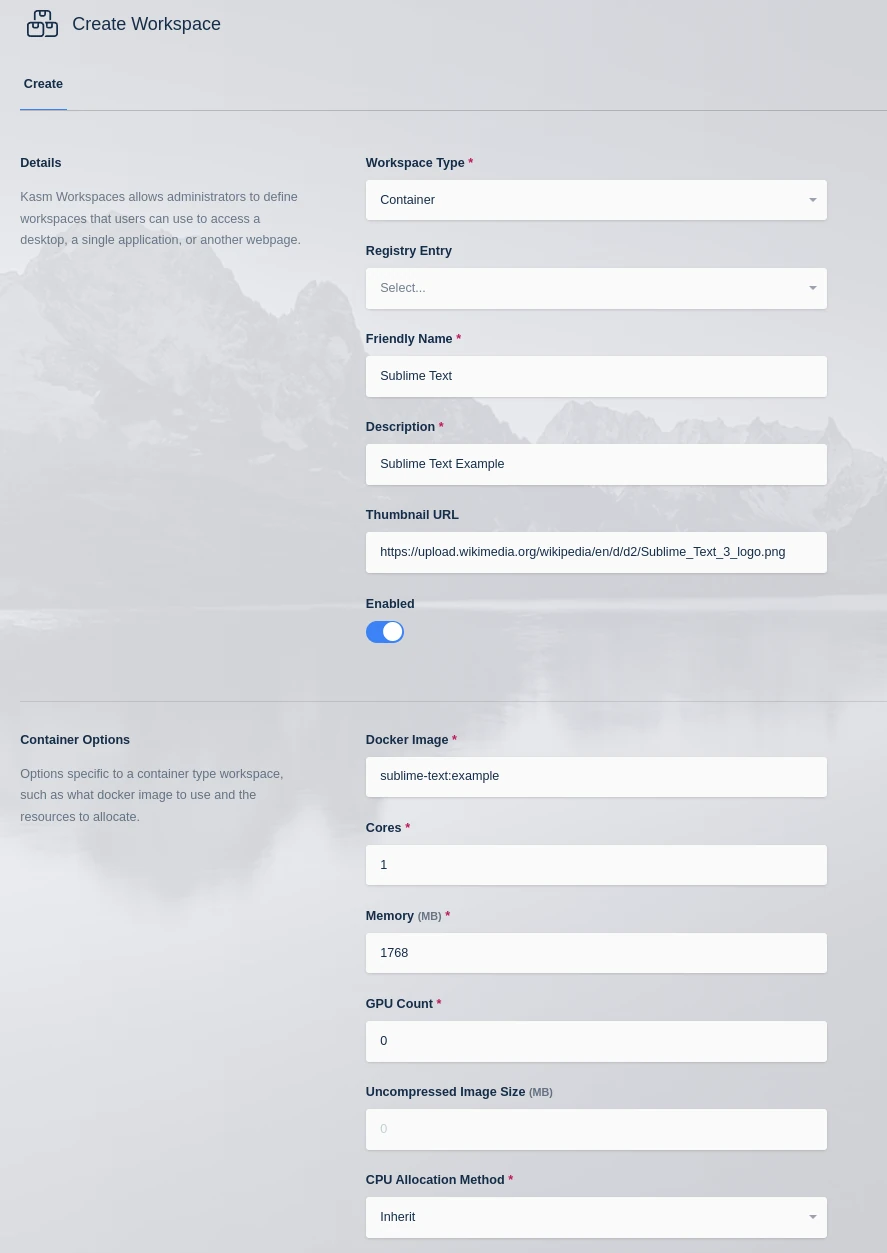
Register New Image -
From the Kasm Dashboard, click the Sublime Text image.

New Image Available -
A new pop-up appears in the UI with a LAUNCH SESSION button. Click it to launch the Kasm session.
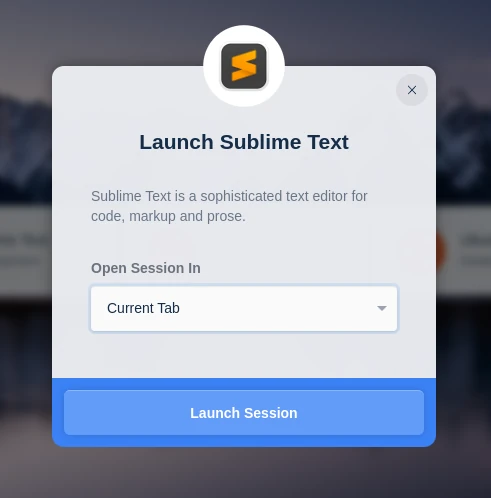
Launch Session -
A new session is created with the hello.txt file you created.
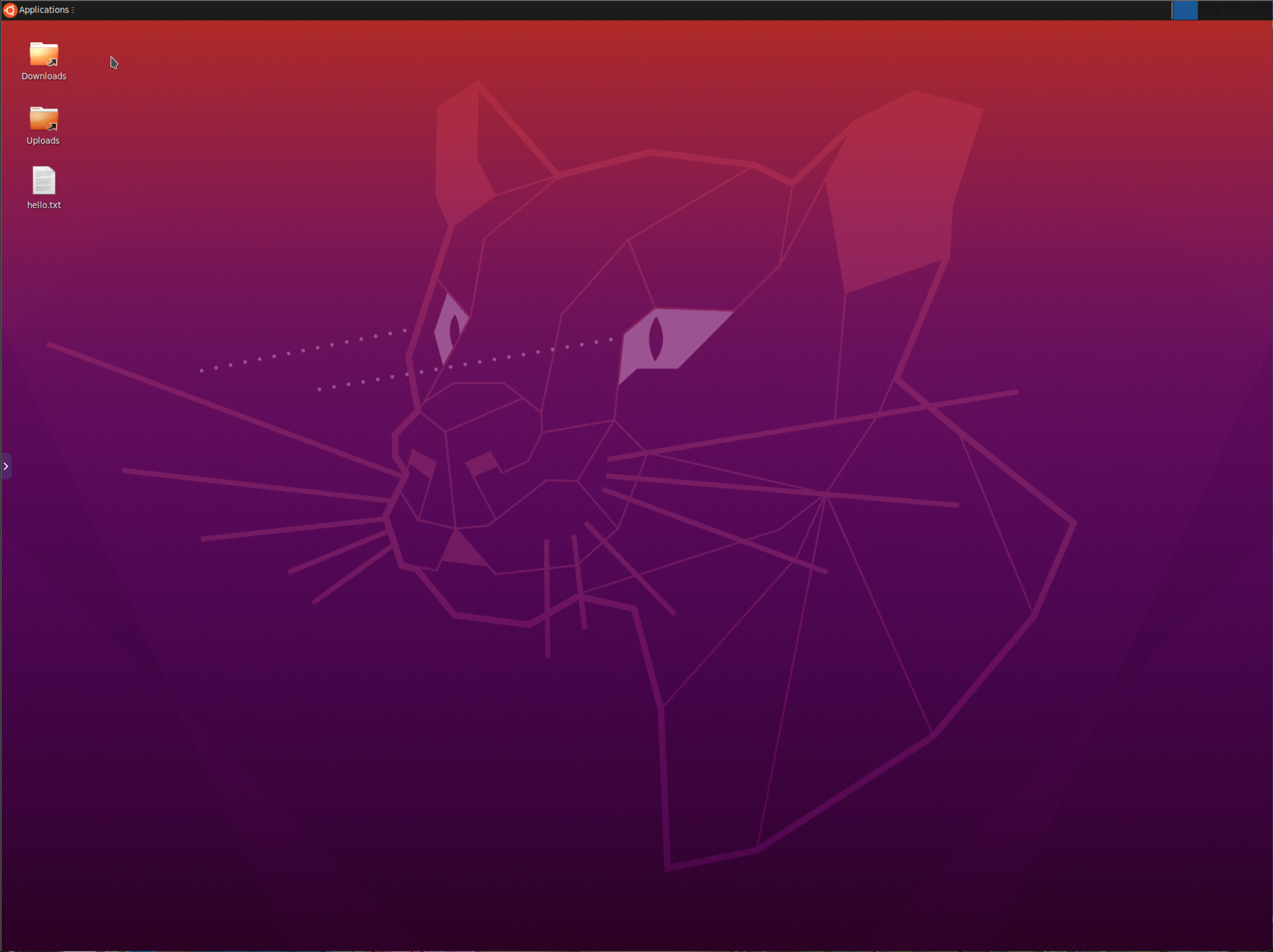
Running the custom Image
Install software into the image
Now do something more useful. Update the Dockerfile to install Sublime Text.
-
Update the
Dockerfilewith the following contents.FROM kasmweb/core-ubuntu-jammy:1.19.0USER rootENV HOME /home/kasm-default-profileENV STARTUPDIR /dockerstartupENV INST_SCRIPTS $STARTUPDIR/installWORKDIR $HOME######### Customize Container Here ###########RUN wget -qO - https://download.sublimetext.com/sublimehq-pub.gpg | apt-key add - \\&& apt-get update \\&& apt-get install -y apt-transport-https \\&& echo "deb https://download.sublimetext.com/ apt/stable/" | tee /etc/apt/sources.list.d/sublime-text.list \\&& apt-get update \\&& apt-get install sublime-text \\&& cp /usr/share/applications/sublime_text.desktop $HOME/Desktop/ \\&& chmod +x $HOME/Desktop/sublime_text.desktop \\&& chown 1000:1000 $HOME/Desktop/sublime_text.desktop######### End Customizations ###########RUN chown 1000:0 $HOMERUN $STARTUPDIR/set_user_permission.sh $HOMEENV HOME /home/kasm-userWORKDIR $HOMERUN mkdir -p $HOME && chown -R 1000:0 $HOMEUSER 1000Create a desktop iconCreating desktop icons is a common need. This example shows how applications, when installed, often place a
.desktopfile in/usr/share/applications. This file can often be copied without modification to the desktop$HOME/Desktop/. Mark the file as executable and change the ownership to user and group1000.Reference:
-
Rebuild the image, create a new session, and verify that Sublime Text is installed and an icon is present on the desktop.
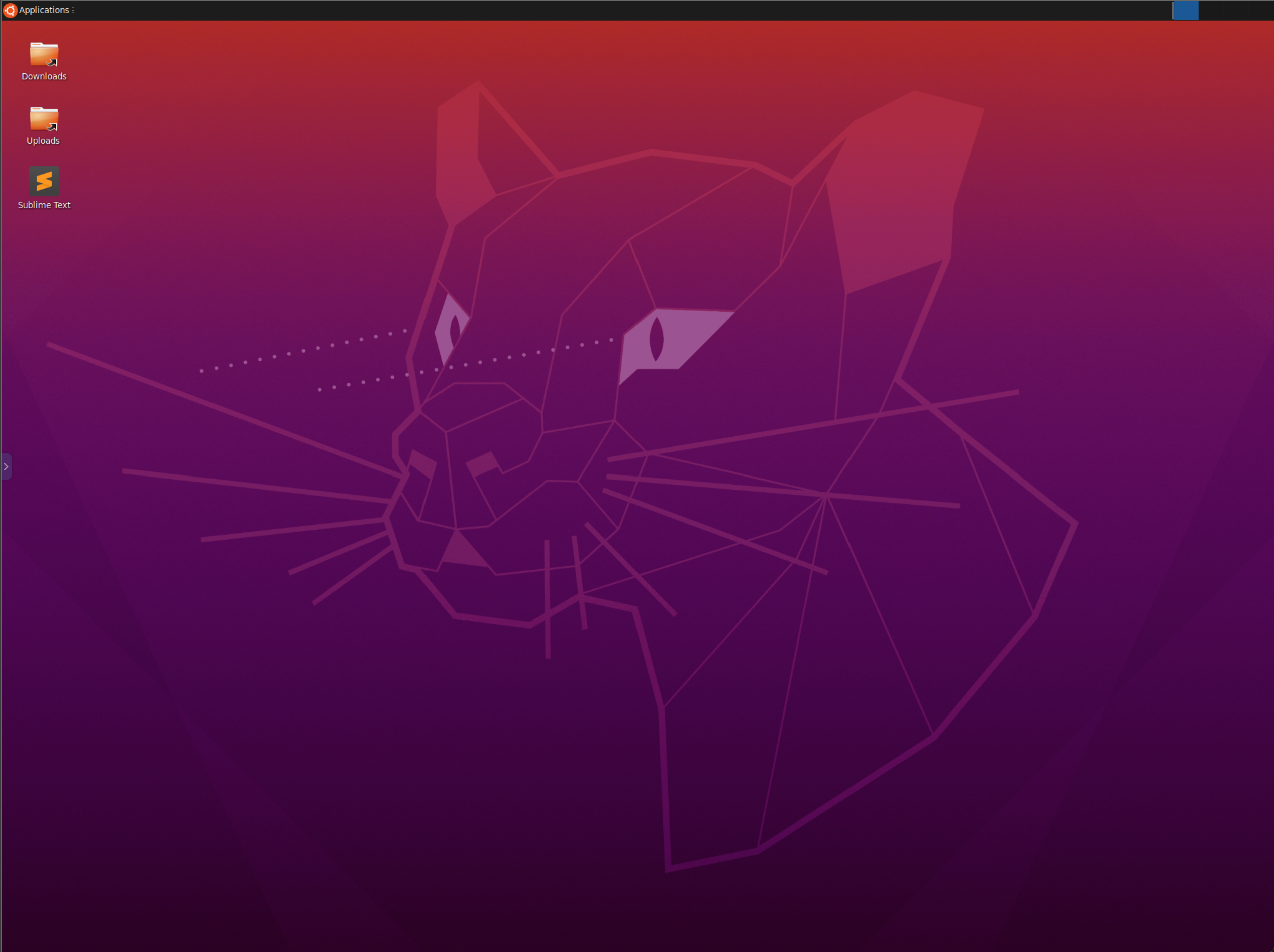
Sublime Text is Installed
Launch an application automatically on session start
Use the custom_startup.sh interface point to launch Sublime Text when the session starts. Create the script and mark it executable. This script runs in the standard user (1000) context when the session starts. Use the built-in command /usr/bin/desktop_ready to ensure Sublime Text starts after the Kasm desktop environment.
-
Update the
Dockerfilewith the following contents.FROM kasmweb/core-ubuntu-jammy:1.19.0USER rootENV HOME /home/kasm-default-profileENV STARTUPDIR /dockerstartupENV INST_SCRIPTS $STARTUPDIR/installWORKDIR $HOME######### Customize Container Here ###########RUN wget -qO - https://download.sublimetext.com/sublimehq-pub.gpg | apt-key add - \\&& apt-get update \\&& apt-get install -y apt-transport-https \\&& echo "deb https://download.sublimetext.com/ apt/stable/" | tee /etc/apt/sources.list.d/sublime-text.list \\&& apt-get update \\&& apt-get install sublime-text \\&& cp /usr/share/applications/sublime_text.desktop $HOME/Desktop/ \\&& chmod +x $HOME/Desktop/sublime_text.desktop \\&& chown 1000:1000 $HOME/Desktop/sublime_text.desktopRUN echo "/usr/bin/desktop_ready && /opt/sublime_text/sublime_text &" > $STARTUPDIR/custom_startup.sh \\&& chmod +x $STARTUPDIR/custom_startup.sh######### End Customizations ###########RUN chown 1000:0 $HOMERUN $STARTUPDIR/set_user_permission.sh $HOMEENV HOME /home/kasm-userWORKDIR $HOMERUN mkdir -p $HOME && chown -R 1000:0 $HOMEUSER 1000 -
Rebuild the image and create a new session. Sublime Text starts automatically.
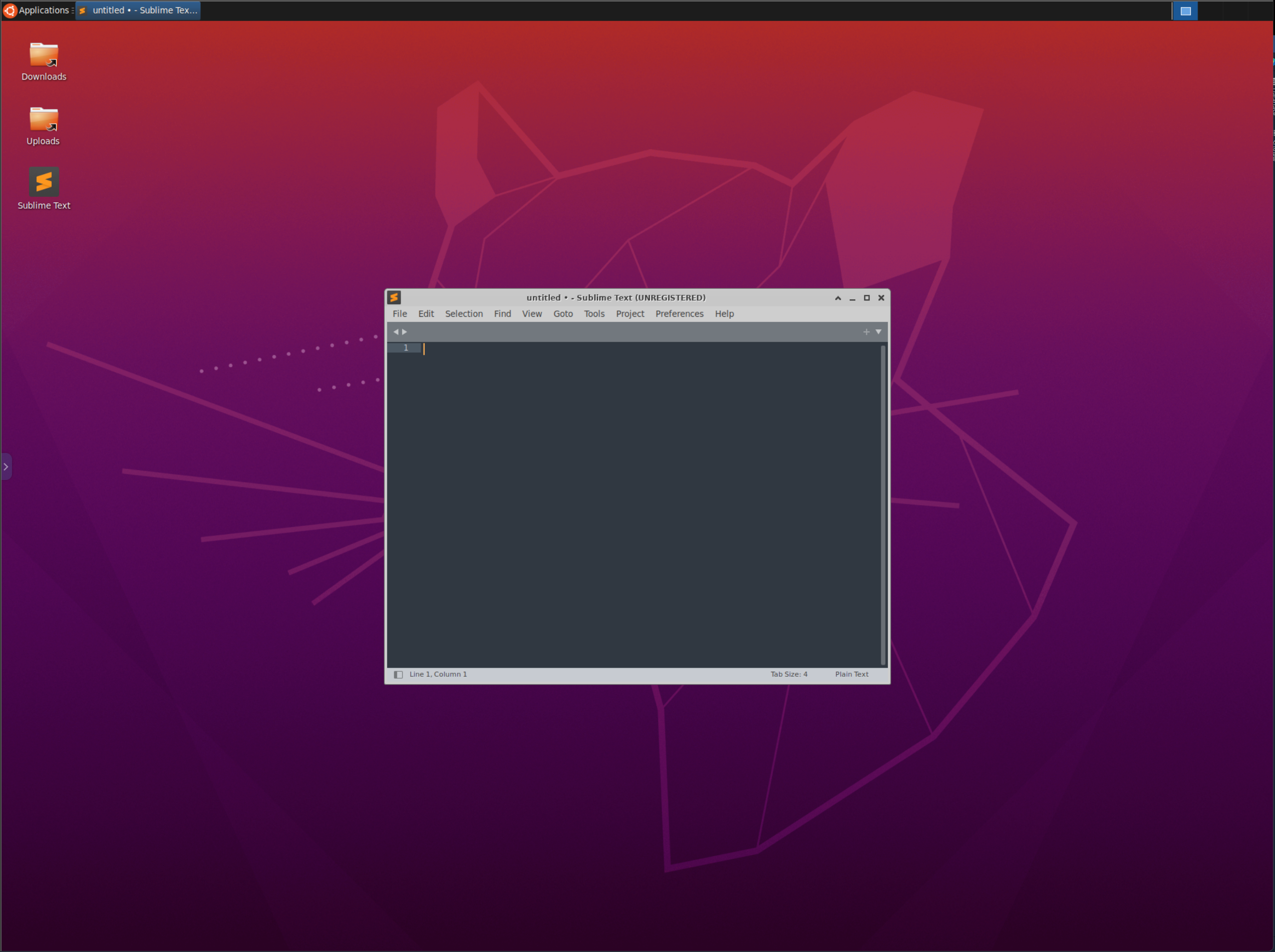
Sublime Text Started Automatically
Brand the desktop background
Change the background by overwriting the /usr/share/backgrounds/bg_default.png file.
-
Update the
Dockerfilewith the following contents.FROM kasmweb/core-ubuntu-jammy:1.19.0USER rootENV HOME /home/kasm-default-profileENV STARTUPDIR /dockerstartupENV INST_SCRIPTS $STARTUPDIR/installWORKDIR $HOME######### Customize Container Here ###########RUN wget -qO - https://download.sublimetext.com/sublimehq-pub.gpg | apt-key add - \\&& apt-get update \\&& apt-get install -y apt-transport-https \\&& echo "deb https://download.sublimetext.com/ apt/stable/" | tee /etc/apt/sources.list.d/sublime-text.list \\&& apt-get update \\&& apt-get install sublime-text \\&& cp /usr/share/applications/sublime_text.desktop $HOME/Desktop/ \\&& chmod +x $HOME/Desktop/sublime_text.desktop \\&& chown 1000:1000 $HOME/Desktop/sublime_text.desktopRUN echo "/usr/bin/desktop_ready && /opt/sublime_text/sublime_text &" > $STARTUPDIR/custom_startup.sh \\&& chmod +x $STARTUPDIR/custom_startup.shRUN wget https://cdn.hipwallpaper.com/i/92/9/0Ts6mr.png -O /usr/share/backgrounds/bg_default.png######### End Customizations ###########RUN chown 1000:0 $HOMERUN $STARTUPDIR/set_user_permission.sh $HOMEENV HOME /home/kasm-userWORKDIR $HOMERUN mkdir -p $HOME && chown -R 1000:0 $HOMEUSER 1000 -
Rebuild the image and create a new session. Sublime Text starts automatically.
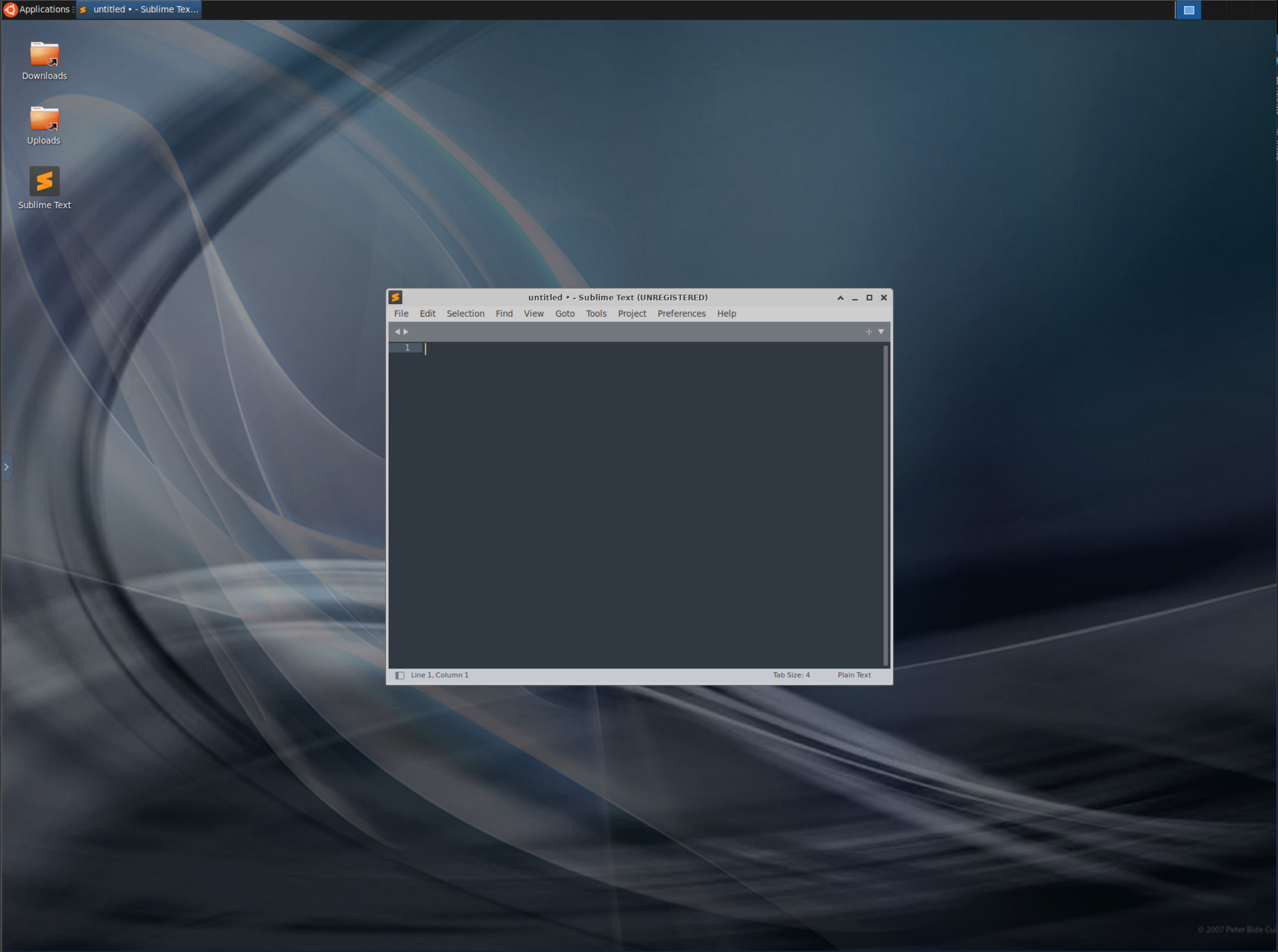
Custom Desktop Background
Build a single-application workspace
You can configure a container-based workspace to launch in single-application mode using XFCE. When a single-app workspace launches, it opens a specific application automatically on session start, for example Firefox, and only that application is usable. The traditional desktop interface is disabled, which prevents users from interacting with panels and menus or launching additional applications. XFCE configurations make this possible.
Several popular applications are already available as single-app workspaces in the official Workspaces registry. Examples include Firefox, Chrome, Brave, Slack, Telegram, and Zoom.
-
Start by writing a custom Dockerfile for your single-app workspace. Use the
kasmweb/core-ubuntu-jammyimage as the base image when creating a single-app workspace. If you use a different image, you must manually load the image with the single-app XFCE config files available on the GitHub repository.FROM kasmweb/core-ubuntu-jammy:1.19.0-rolling-weeklyUSER rootENV HOME /home/kasm-default-profileENV STARTUPDIR /dockerstartupENV INST_SCRIPTS $STARTUPDIR/installWORKDIR $HOME######### Customize Container Here #################### End Customizations ###########RUN chown 1000:0 $HOMERUN $STARTUPDIR/set_user_permission.sh $HOMEENV HOME /home/kasm-userWORKDIR $HOMERUN mkdir -p $HOME && chown -R 1000:0 $HOMEUSER 1000 -
Set the single-app XFCE config files as your default XFCE config and remove the
xfce4-panel.FROM kasmweb/core-ubuntu-jammy:1.19.0-rolling-weeklyUSER rootENV HOME /home/kasm-default-profileENV STARTUPDIR /dockerstartupENV INST_SCRIPTS $STARTUPDIR/installWORKDIR $HOME######### Customize Container Here ############# --> Update the desktop environment to be optimized for a single applicationRUN cp $HOME/.config/xfce4/xfconf/single-application-xfce-perchannel-xml/* $HOME/.config/xfce4/xfconf/xfce-perchannel-xml/## --> Optionally, set a background imageRUN cp /usr/share/backgrounds/bg_kasm.png /usr/share/backgrounds/bg_default.png## --> Remove the xfce4-panelRUN apt-get remove -y xfce4-panel######### End Customizations ###########RUN chown 1000:0 $HOMERUN $STARTUPDIR/set_user_permission.sh $HOMEENV HOME /home/kasm-userWORKDIR $HOMERUN mkdir -p $HOME && chown -R 1000:0 $HOMEUSER 1000 -
Write installation logic as a bash script to install the custom application of your choice. As an example, to install Discord, write an installation bash script like the following and name it
install_discord.sh. For another example, see this Chromium install script.#!/usr/bin/env bashset -ex# Install Discord from debapt-get updatecurl -L -o discord.deb "https://discord.com/api/download?platform=linux&format=deb"apt-get install -y ./discord.debrm discord.deb# Default config valuesmkdir -p $HOME/.config/discord/echo '{"SKIP_HOST_UPDATE": true}' > $HOME/.config/discord/settings.json# Desktop file setupsed -i "s@Exec=/usr/share/discord/Discord@Exec=/usr/share/discord/Discord --no-sandbox@g" /usr/share/applications/discord.desktopcp /usr/share/applications/discord.desktop $HOME/Desktop/chmod +x $HOME/Desktop/discord.desktop# Cleanupif [ -z ${SKIP_CLEAN+x} ]; thenapt-get autocleanrm -rf \/var/lib/apt/lists/* \/var/tmp/* \/tmp/*fi# Cleanup for app layerchown -R 1000:0 $HOMEfind /usr/share/ -name "icon-theme.cache" -exec rm -f {} \; -
Write a
custom_startup.shscript that automatically launches your custom application on workspace startup. For another example, see this Chromium startup script.#!/usr/bin/env bashset -exSTART_COMMAND="/usr/share/discord/Discord"PGREP="Discord"export MAXIMIZE="true"export MAXIMIZE_NAME="Discord"MAXIMIZE_SCRIPT=$STARTUPDIR/maximize_window.shDEFAULT_ARGS="--no-sandbox"ARGS=${APP_ARGS:-$DEFAULT_ARGS}options=$(getopt -o gau: -l go,assign,url: -n "$0" -- "$@") || exiteval set -- "$options"while [[ $1 != -- ]]; docase $1 in-g|--go) GO='true'; shift 1;;-a|--assign) ASSIGN='true'; shift 1;;-u|--url) OPT_URL=$2; shift 2;;*) echo "bad option: $1" >&2; exit 1;;esacdoneshift# Process non-option arguments.for arg; doecho "arg! $arg"doneFORCE=$2kasm_exec() {if [ -n "$OPT_URL" ] ; thenURL=$OPT_URLelif [ -n "$1" ] ; thenURL=$1fi# Since we are execing into a container that already has the browser running from startup,# when we don't have a URL to open we want to do nothing. Otherwise a second browser instance would open.if [ -n "$URL" ] ; then/usr/bin/filter_ready/usr/bin/desktop_readybash ${MAXIMIZE_SCRIPT} &$START_COMMAND $ARGS $OPT_URLelseecho "No URL specified for exec command. Doing nothing."fi}kasm_startup() {if [ -n "$KASM_URL" ] ; thenURL=$KASM_URLelif [ -z "$URL" ] ; thenURL=$LAUNCH_URLfiif [ -z "$DISABLE_CUSTOM_STARTUP" ] || [ -n "$FORCE" ] ; thenecho "Entering process startup loop"set +xwhile truedoif ! pgrep -x $PGREP > /dev/nullthen/usr/bin/filter_ready/usr/bin/desktop_readyset +ebash ${MAXIMIZE_SCRIPT} &$START_COMMAND $ARGS $URL &set -efisleep 1doneset -xfi}if [ -n "$GO" ] || [ -n "$ASSIGN" ] ; thenkasm_execelsekasm_startupfiIn the
custom_startup.shscript above, theSTART_COMMANDcontains the command that starts the application. ThePGREPvalue contains the name of the application process, which can be a partial name of the process. The startup script uses this value to check the application and re-open it if it crashes or the user closes it. SetMAXIMIZEto true to maximize the application automatically. This requires that you also configure theMAXIMIZE_WINDOWname to match the window name of your application. -
Copy both the install script and the custom startup script to your image.
FROM kasmweb/core-ubuntu-jammy:1.19.0-rolling-weeklyUSER rootENV HOME /home/kasm-default-profileENV STARTUPDIR /dockerstartupENV INST_SCRIPTS $STARTUPDIR/installWORKDIR $HOME######### Customize Container Here ############# Update the desktop environment to be optimized for a single applicationRUN cp $HOME/.config/xfce4/xfconf/single-application-xfce-perchannel-xml/* $HOME/.config/xfce4/xfconf/xfce-perchannel-xml/## Optionally, set a background imageRUN cp /usr/share/backgrounds/bg_kasm.png /usr/share/backgrounds/bg_default.png## Remove the xfce4-panelRUN apt-get remove -y xfce4-panel## --> Copy installation scriptCOPY ./install_discord.sh $INST_SCRIPTS/discord/## --> Run installation scriptRUN bash $INST_SCRIPTS/discord/install_discord.sh && rm -rf $INST_SCRIPTS/discord/## --> Copy custom_startup.sh script to the startup directory inside the imageCOPY ./custom_startup.sh $STARTUPDIR/custom_startup.sh## --> Make it executableRUN chmod +x $STARTUPDIR/custom_startup.sh## --> Set permissionsRUN chmod 755 $STARTUPDIR/custom_startup.sh######### End Customizations ###########RUN chown 1000:0 $HOMERUN $STARTUPDIR/set_user_permission.sh $HOMEENV HOME /home/kasm-userWORKDIR $HOMERUN mkdir -p $HOME && chown -R 1000:0 $HOMEUSER 1000Kasm executes the script
$STARTUPDIR/custom_startup.shautomatically on workspace startup, which launches the application. -
Build the image.
sudo docker build -t my_custom_singleapp_image -f Dockerfile .
Push the image to a container registry
To simplify image management, use a Docker container registry. This example uses a container registry provided by GitLab.
-
Log in to the Docker container registry. You are prompted for a username and password. GitLab provides the ability to create Personal Access Tokens with permissions limited to read and write permissions to the registry.
sudo docker login registry.gitlab.com -
Build the image, using the registry location as part of the image name.
sudo docker build -t registry.gitlab.com/my-company/my-project/sublime-text:example -f Dockerfile . -
Push the image to the registry.
sudo docker push registry.gitlab.com/my-company/my-project/sublime-text:example -
Register the image in Kasm by creating a new workspace that points to the Docker image. Enter the GitLab username in the Docker Registry Username field and the GitLab password or access token in the Docker Registry Password field.
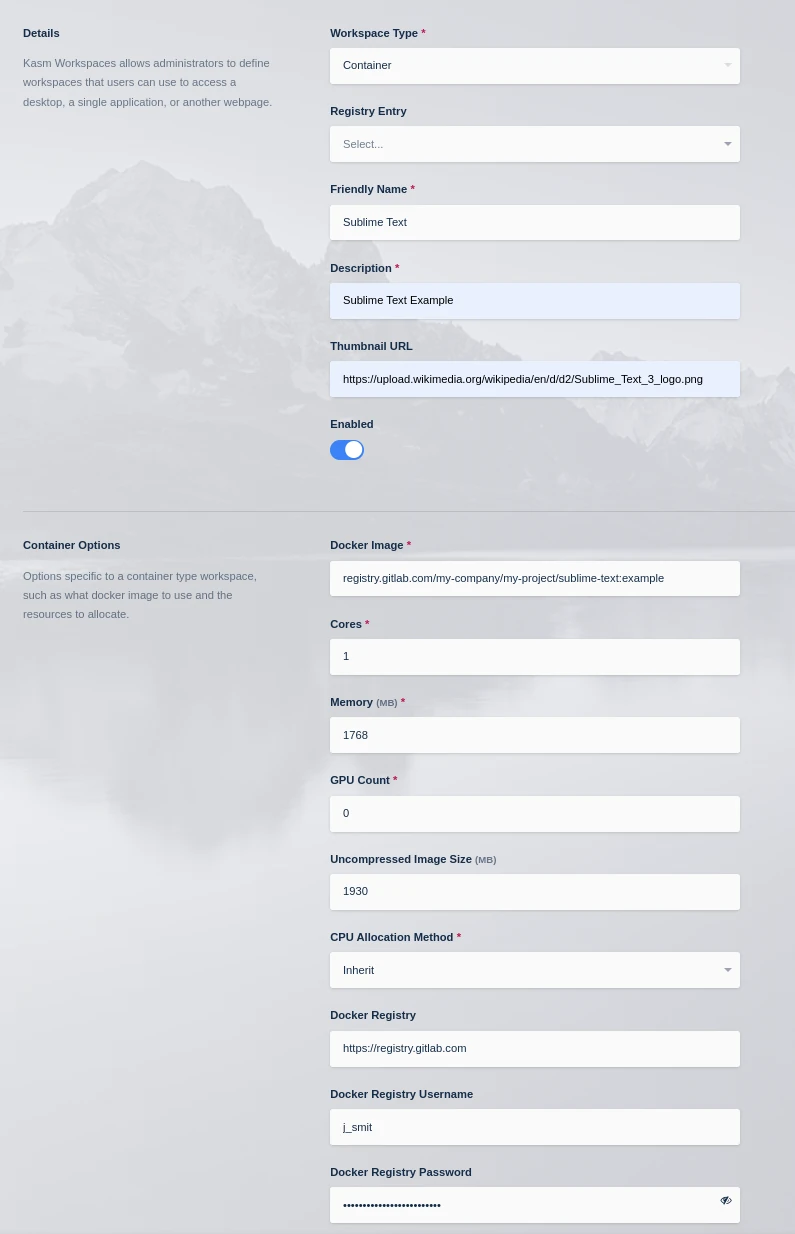
Using a Docker Container Registry
Present a custom launch form
Administrators can present custom forms to users when a workspace launches. A custom form is helpful when creating advanced turnkey solutions for a given workspace. In the following example, a form element gets an authentication key for a Tailscale VPN connection. The workspace container then uses this key to establish the connection.
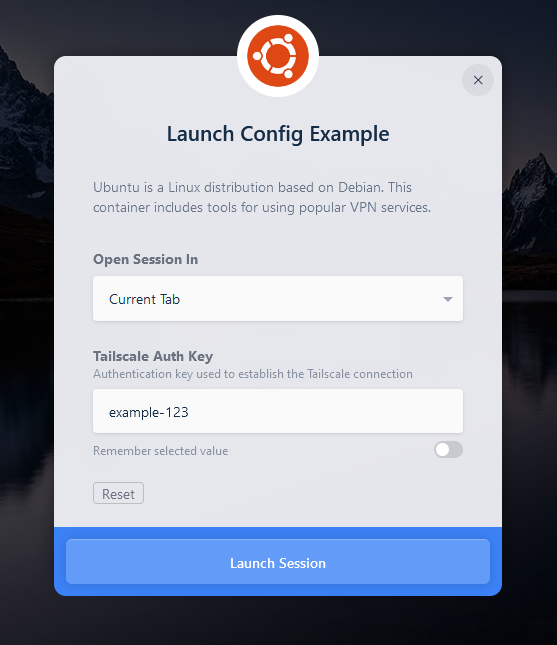
See Workspace Launch Forms for more details.
Understanding kasm-default-profile
In the Dockerfile template used above, the pre-customization steps set the HOME environment variable to /home/kasm-default-profile.
ENV HOME /home/kasm-default-profile
The post-customization steps set the HOME directory to /home/kasm-user, which is the profile directory used when the container starts.
ENV HOME /home/kasm-user
This process supports the Persistent Profiles feature. When a container does not use persistent profiles, or the first time a user creates a session when persistent profiles are enabled, the /home/kasm-user directory is empty. When the container starts, if the path /home/kasm-user is empty, the container copies the default profile from /home/kasm-default-profile to /home/kasm-user. When persistent profiles are enabled, the /home/kasm-user directory is not empty for the user's next session.
The copy script resides within the core images and can be adjusted if necessary. View it in the workspaces-core-images GitHub repository.
General Docker images
Kasm Workspaces is intended primarily for UI streaming containers. However, Workspaces can also orchestrate containers using any image. Images that are not based on one of the Kasm-maintained core images are incompatible with some features:
- Web Filtering
- URL Categorization
- Connecting to the container through the UI
By default, Workspaces applies a restart policy of 'unless-stopped' to containers, which means the container restarts automatically unless it is manually stopped. This may or may not be desired. To launch containers that perform a task and exit, override the default restart policy.
Workspaces also runs every container as USER 1000 unless overridden.
In the Workspaces Admin UI, navigate to Workspaces, edit the desired Workspace, and in the Docker Run Config Override (JSON) field, set the restart policy to 'on-failure' and optionally the container user as shown here.
{"restart_policy":{"Name":"on-failure","MaximumRetryCount":5}, "user": "root"}
With this policy applied, when a user creates an instance of this image, it is removed automatically when the container finishes running.
Routing image traffic through a VPN
To route an image's traffic through a sidecar VPN container, see VPN Sidecar Containers.
Common troubleshooting steps
- A newly built image is pruned before it can launch. When you build directly on the Kasm server or Agent, disable Automatically Prune Images for that Agent. See Agent Settings.
- The workspace fails to start or the image is reported as not found. Kasm requires an explicit tag in the workspace Docker Image field. Kasm does not assume the
latesttag. Specify a tag that reflects the version of the core image used as a base. - A desktop icon does not appear or does not launch. Confirm that the
.desktopfile is copied to$HOME/Desktop/, marked executable, and owned by user and group1000. - The application does not start automatically. Confirm that
custom_startup.shis placed in$STARTUPDIR, is executable, and calls/usr/bin/desktop_ready. For single-app workspaces, verify thatSTART_COMMANDandPGREPmatch the installed application. - Pushing to the registry fails with an authentication error. Confirm that you are logged in with
docker loginand that the GitLab access token has read and write permissions to the registry. - A custom-built image is missing core features such as web filtering or UI connection. Base the image on a Kasm core image. Images that are not based on a core image are incompatible with some platform features.