Custom Branding
Overview
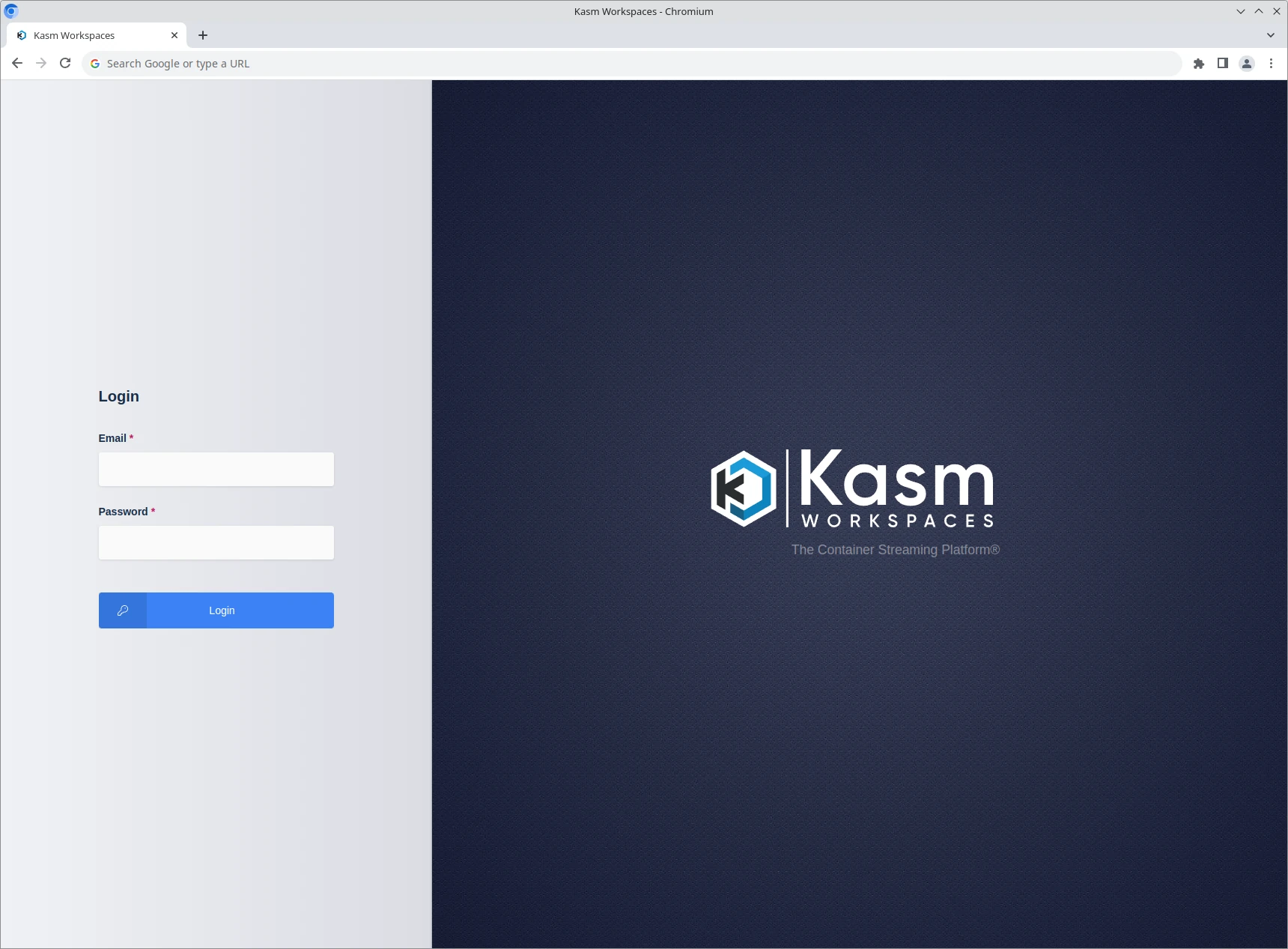
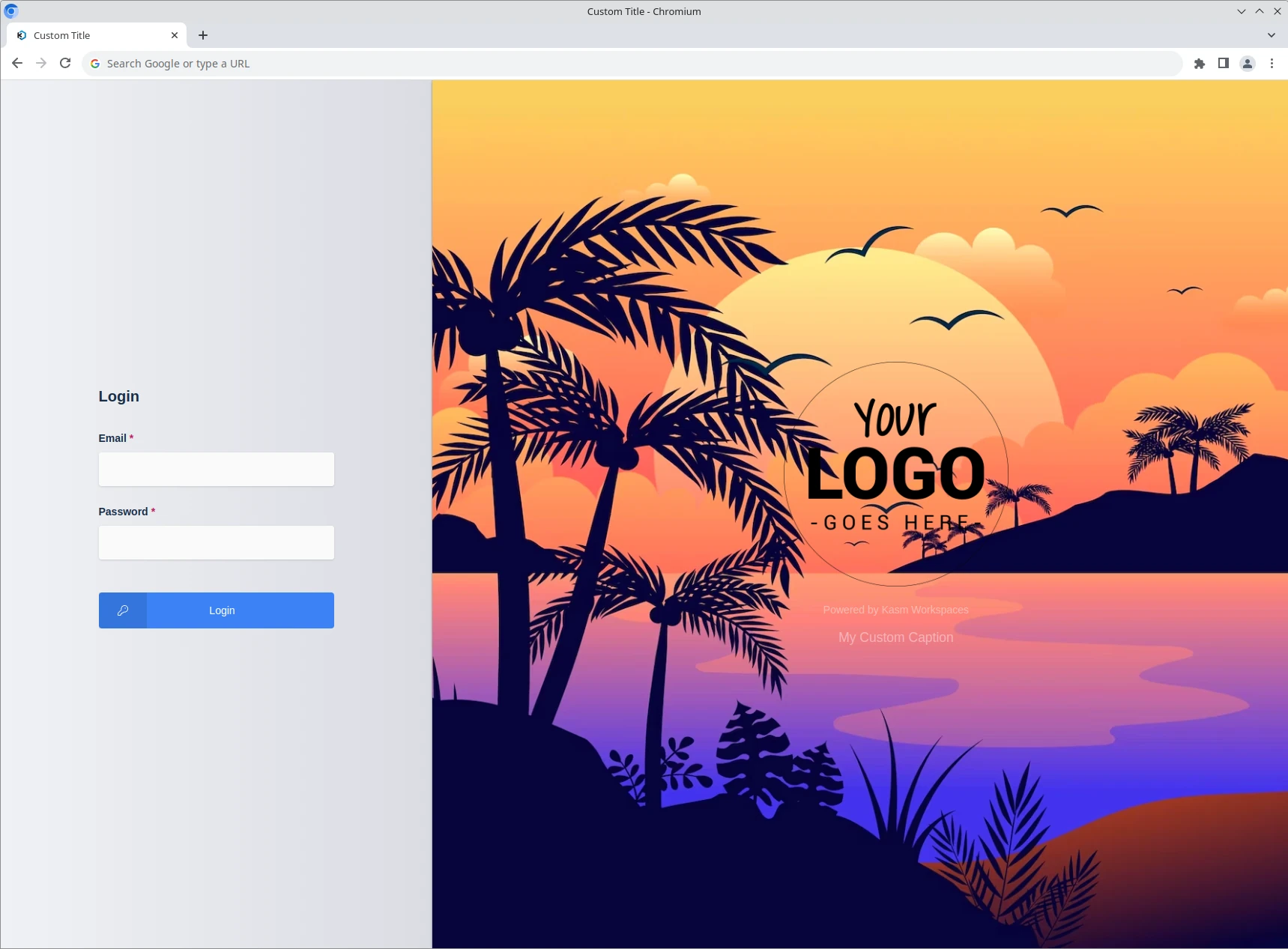
Kasm Workspaces lets administrators replace the default look with custom branding that reflects an organization's identity. This guide configures application branding, which controls logos, login text, and backgrounds based on the hostname users access, and session branding, which controls the desktop background inside a workspace. A branded deployment presents a consistent, professional experience to users and external audiences. As a result, the platform feels like an extension of the organization rather than a generic tool.
Prerequisites
Before you begin, confirm the following:
- Administrator access to the Kasm Workspaces deployment, with permission to manage branding settings.
- Application branding requires Kasm Workspaces Enterprise.
- Hosted image URLs for any custom logos, favicons, and backgrounds you intend to use. Favicon images must be square so that the progressive web app (PWA) is installable.
- For session branding, the ability to build a custom image or apply file mappings. See Building a Custom Image and Using File Mapping to Change the Default Background of a Workspace.
Solution approach
This guide progresses through the following phases:
- Configure application branding per hostname.
- Configure session branding for the workspace background.
- Reference the available default backgrounds.
Detailed steps
Configure application branding
Kasm Workspaces lets administrators define multiple branding configurations. The system selects a configuration based on the URL hostname the user accesses the deployment with.
Application branding is available in Kasm Workspaces Enterprise.
- In the Kasm Workspaces UI, go to Settings > Branding.
- Review the existing branding configurations in the list.
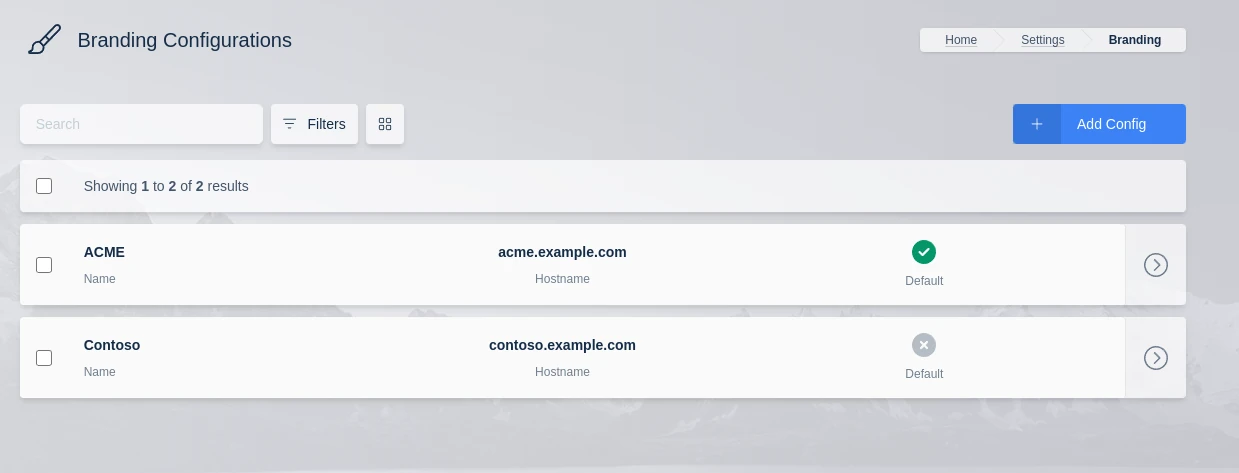
- Add a new configuration or edit an existing one to open the branding options.
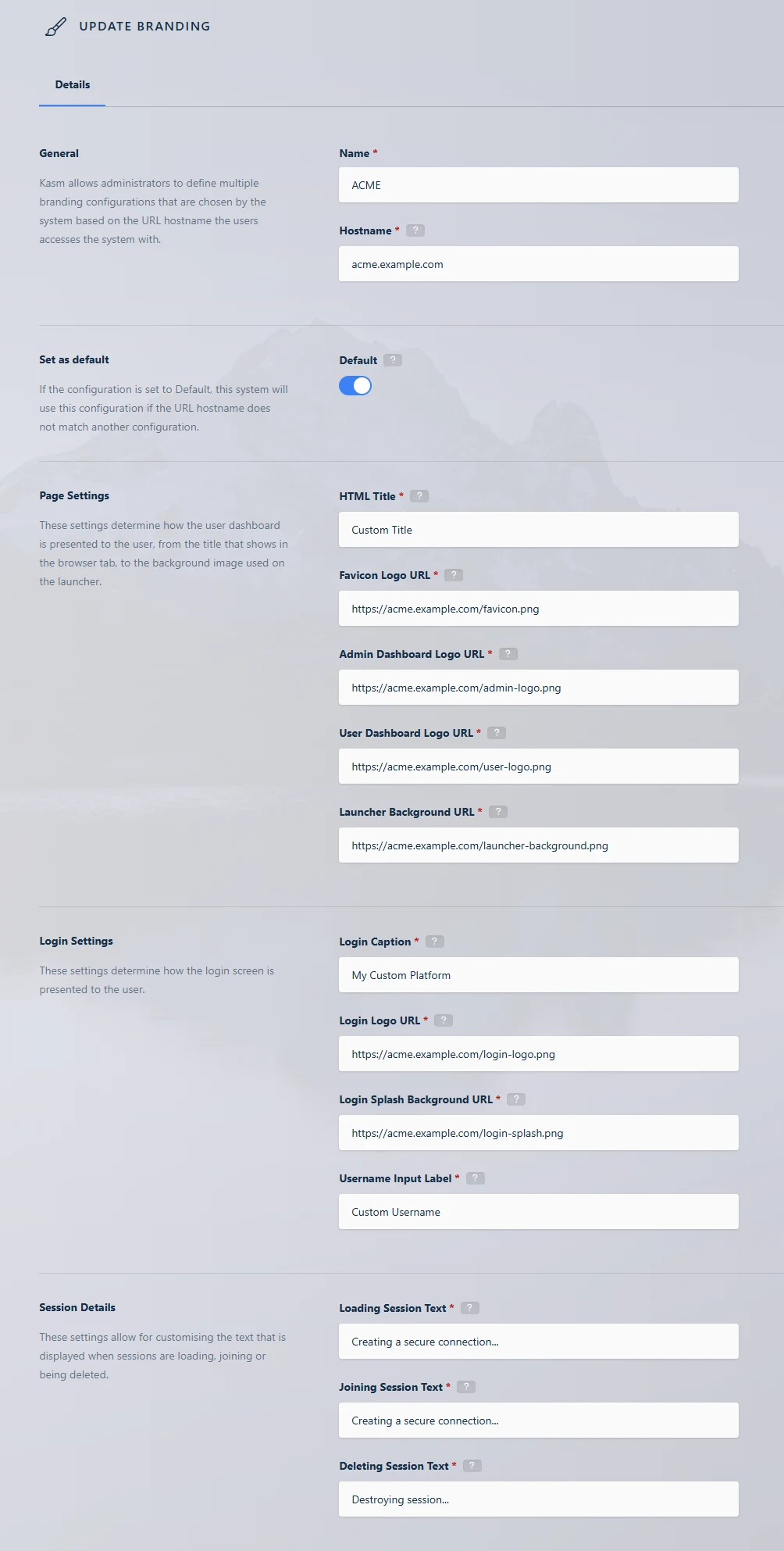
- Set the fields described in the following table, then save the configuration.
| Name | Description |
|---|---|
| Name | The name for the configuration. |
| Hostname | The hostname of the URL used to access the Kasm deployment is used to map the appropriate branding config. |
| Favicon Logo URL | URL for the favicon logo image, this image is also used for the global PWA icon, icons must be square for the PWA to be installable. |
| Admin Dashboard Logo URL | URL for the logo shown in the sidebar on the admin pages. |
| User Dashboard Logo URL | URL for the logo shown on the user dashboard, this is often the same as the admin dashboard logo, but doesn't have to be. |
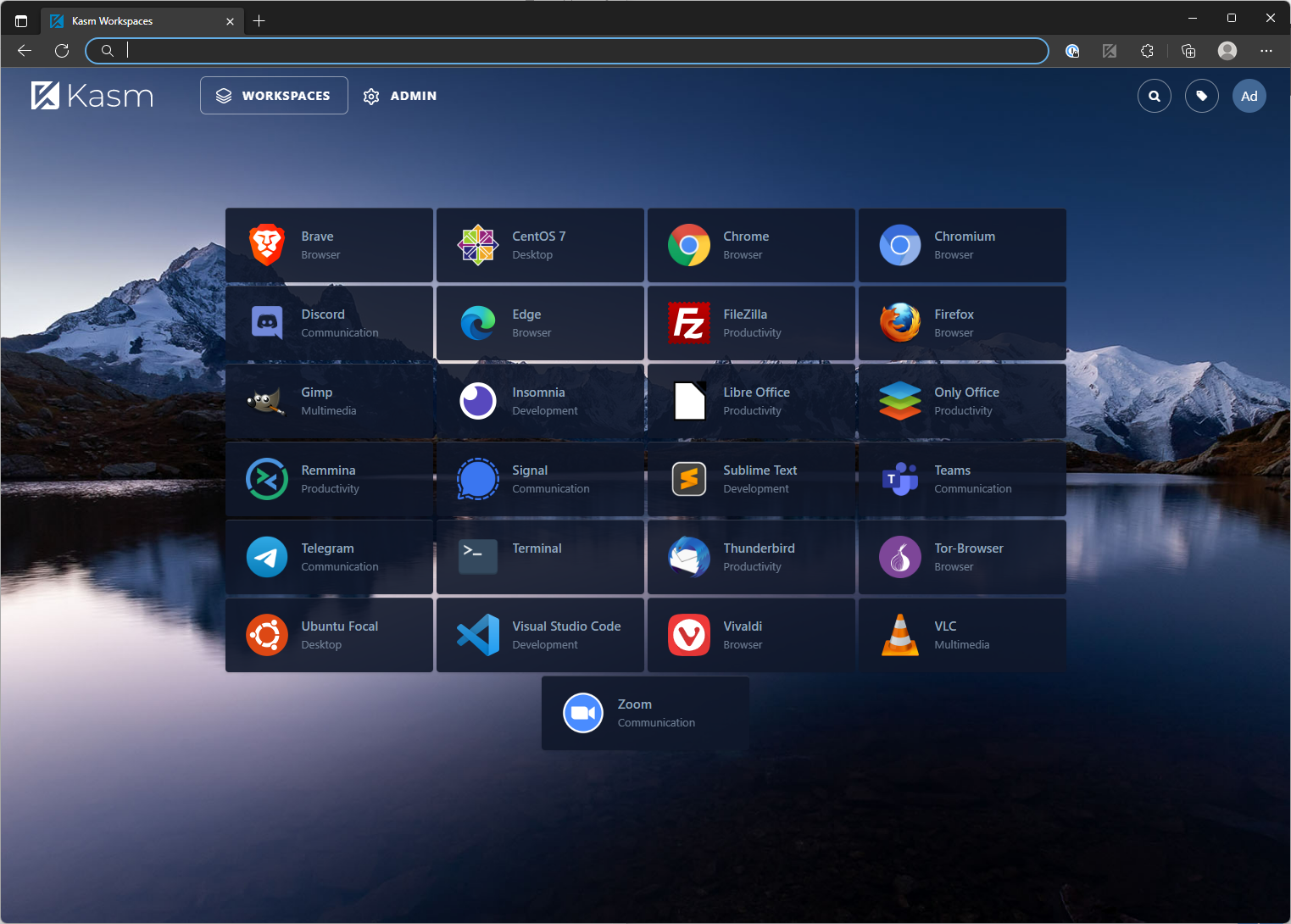
| Launcher Background URL | URL for the background image for the Workspaces launcher. See Default Backgrounds for a list of available default images. |
| HTML Title | HTML document title, this is also set as the global PWA title. |
| Login Caption | Caption displayed under the login logo. |
| Login Logo URL | URL for the login logo image. If a custom logo is used, the phrase "Powered By Kasm" will be displayed under the new logo. |
| Login Splash Background URL | URL for the login splash background image. |
| Username Input Label | Label for the username input field on the login page. |
| Loading Session Text | The text to display while the user is connecting to a session. |
| Joining Session Text | The text to display while the user is joining a shared session. |
| Destroying Session Text | The text to display when the session is being destroyed. |
| Default | If the configuration is set to Default, this system will use this configuration if the URL hostname does not match another config. |
Changes to branding may take up to 90 seconds to apply, because the system caches certain requests. When you regularly change and test branding settings, use the following steps to observe the changes:
- Wait 90 seconds after you make the configuration change.
- Log out of the Kasm UI.
- Navigate the browser to the login page, then do a hard refresh of the page. A hard refresh is typically CTRL+F5. Alternatively, clear the browser cache.
- Log in and verify the changes.
Configure session branding
Session branding controls the desktop background shown inside a workspace container. Change the default background by Building a Custom Image or Using File Mapping to Change the Default Background of a Workspace.
- Prepare a replacement background image. The recommended resolution is 1920x1080 px.
- Replace the following file inside the image:
/usr/share/backgrounds/bg_default.png
- To brand casting links, set the Launcher Background URL on the casting page.
Reference default backgrounds
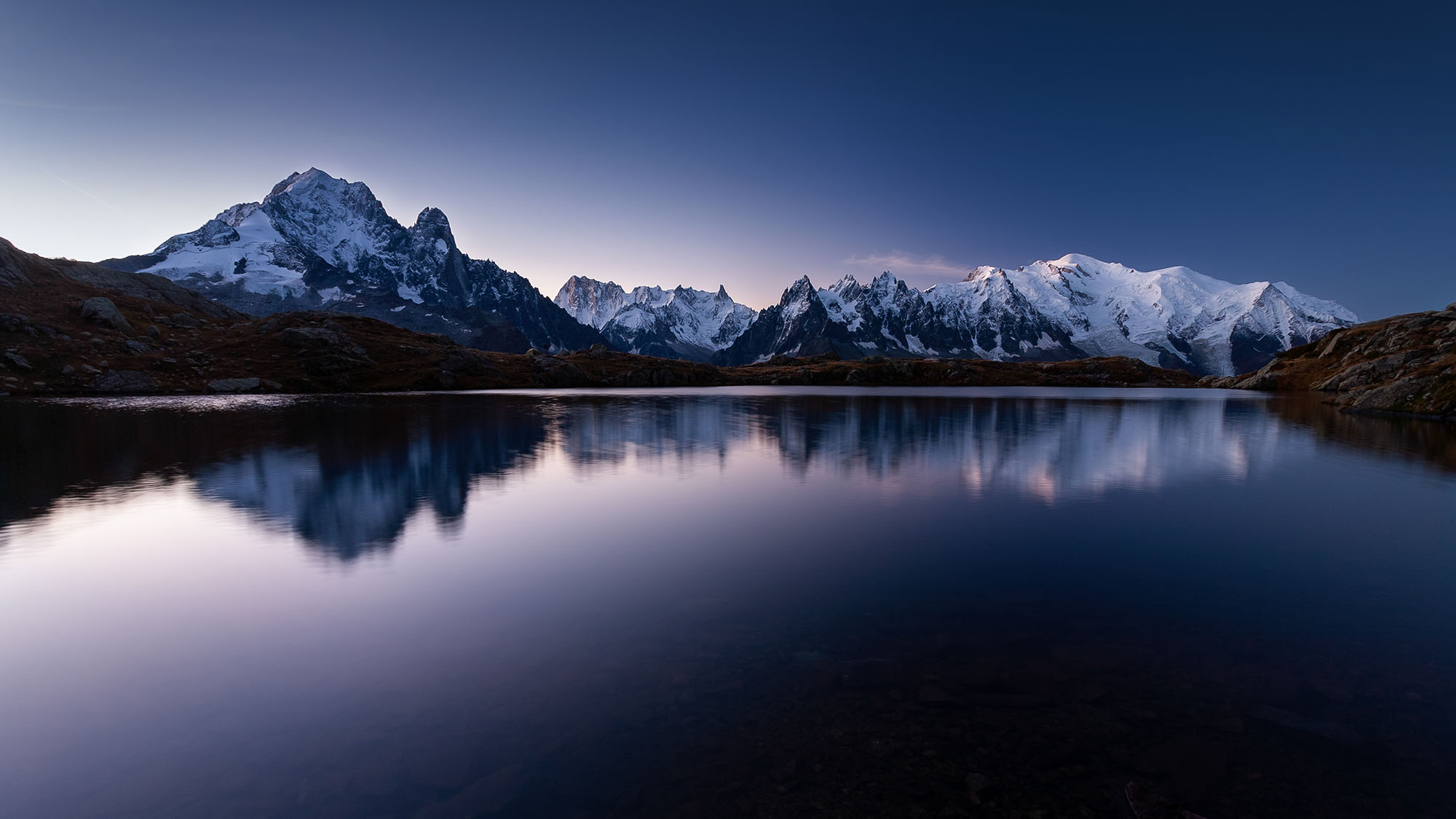
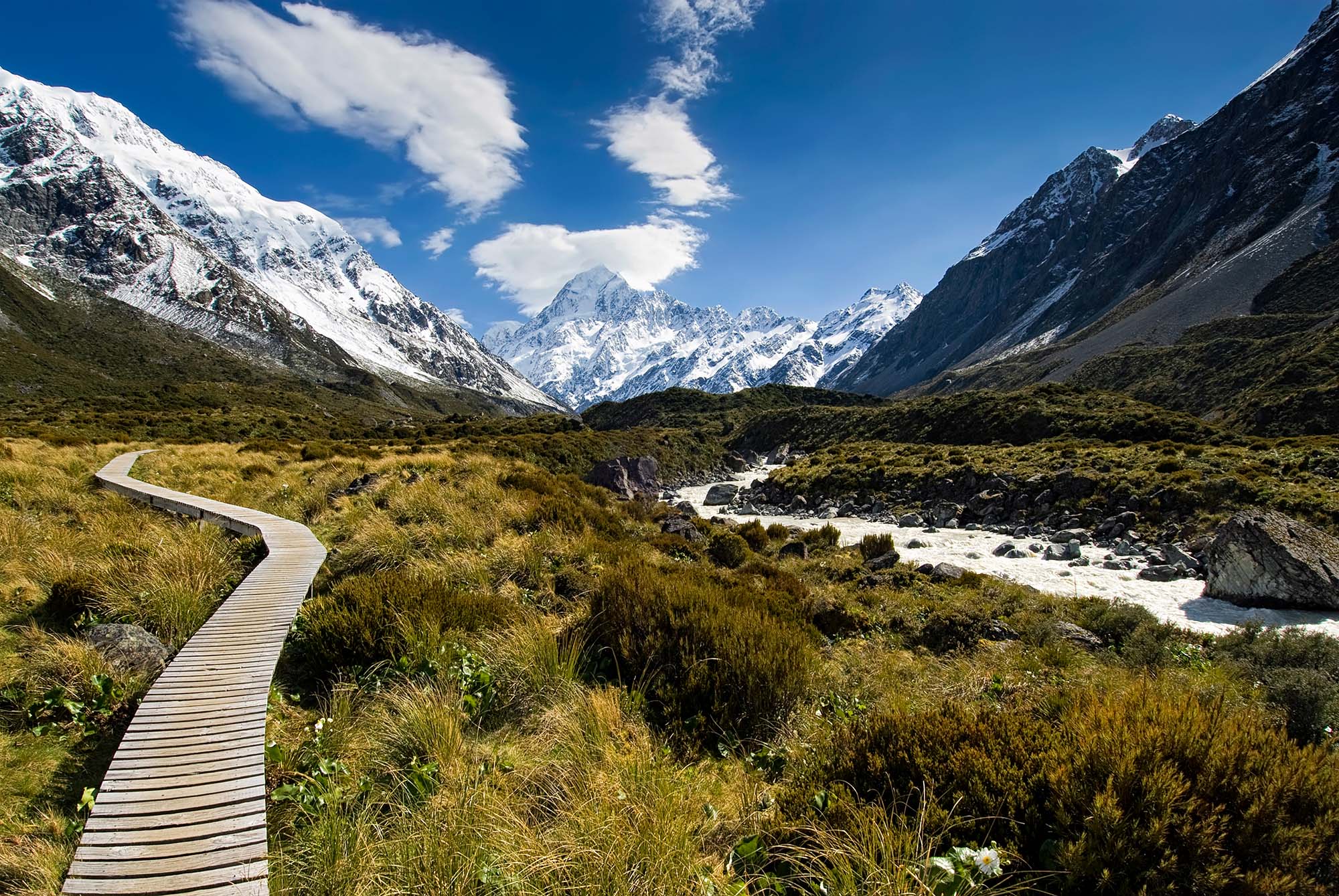
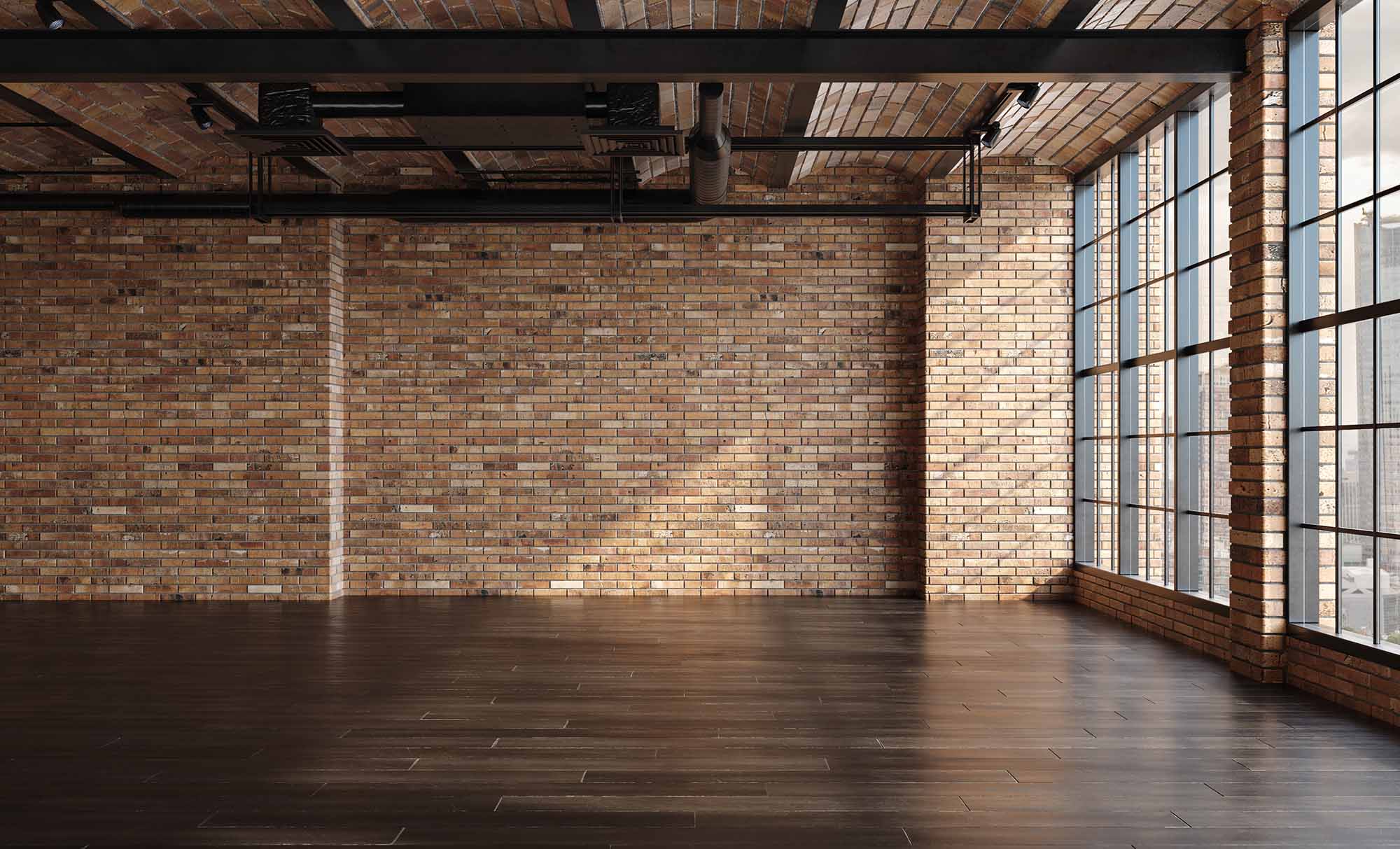
Workspaces includes a number of default backgrounds. The following previews show each image and the relative URL you can use in the configurations.









Common troubleshooting steps
- Branding changes do not appear. The system caches certain requests, so changes may take up to 90 seconds to apply. Wait 90 seconds, log out, hard refresh the login page with CTRL+F5 or clear the browser cache, then log in again.
- The wrong branding configuration loads. The system maps a configuration by the URL hostname users access. Confirm that the Hostname field matches the access URL. Set one configuration as Default to cover hostnames that match no other config.
- The PWA does not install with the custom favicon. The favicon image must be square. Replace the Favicon Logo URL image with a square version.
- The Branding settings are unavailable. Application branding requires Kasm Workspaces Enterprise. Confirm the deployment license includes Enterprise features.
- The custom session background does not display. Confirm that the replacement image overwrites
/usr/share/backgrounds/bg_default.pngin the workspace image, or that the file mapping targets that path.