Session Casting
Overview
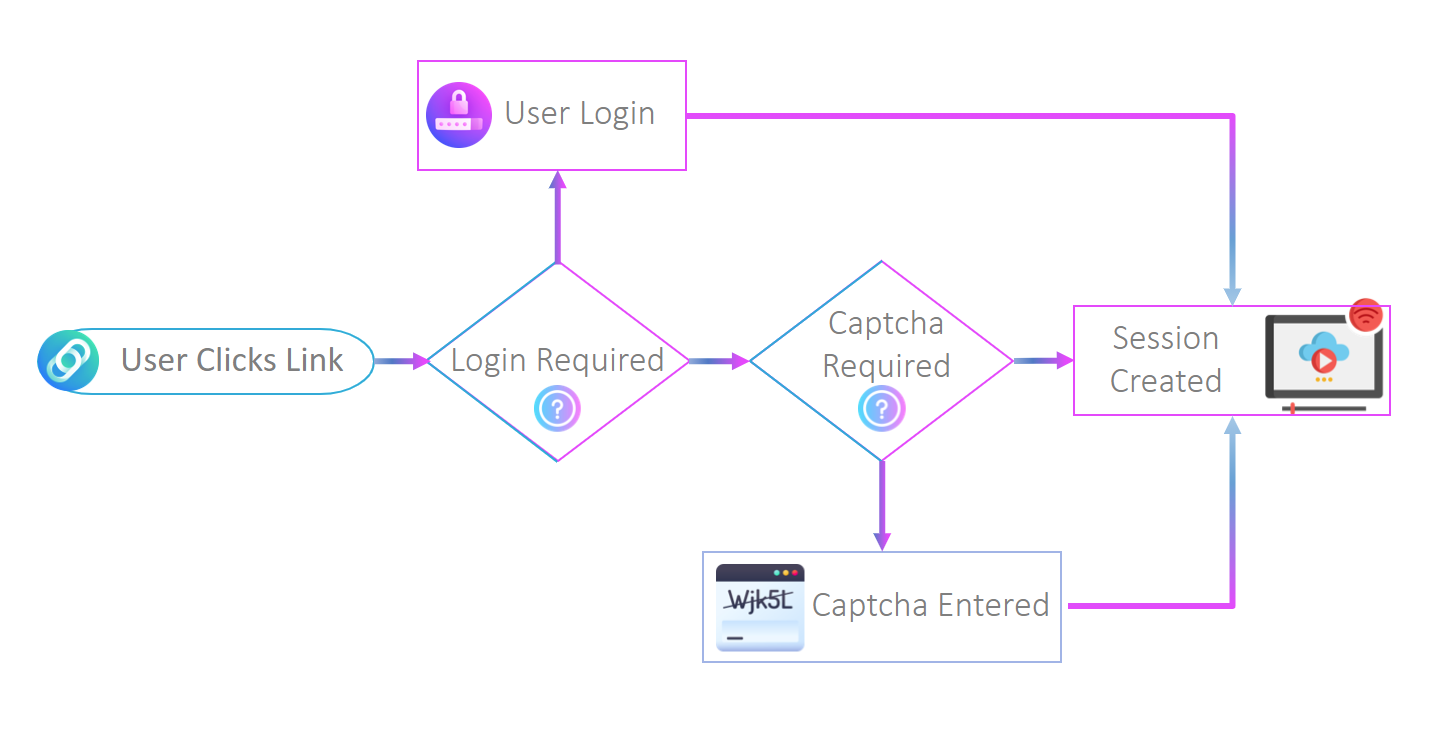
Session Casting lets administrators expose external-facing URLs that launch a Kasm session automatically. These Casting URLs can run without authentication and stay protected by reCAPTCHA, referrer rules, and IP rate limits. This guide configures a Casting Config, applies access and security controls, and optionally maps URL parameters to a Microsoft RemoteApp. As a result, you can offer no-auth access to a Kasm environment while keeping abuse and resource usage under control.
Prerequisites
Before you begin, confirm the following:
- Administrator access to the Kasm Workspaces deployment, with permission to manage Casting Configs.
- A Workspace to serve through the Casting URL. For RemoteApp casting, use a Server or Pool Workspace backed by a Windows Server running RDP with a registered RemoteApp, or a Windows RDS deployment.
- For reCAPTCHA protection, the Google reCAPTCHA Private Key and Google reCAPTCHA Site Key values set in the Server Settings.
Solution approach
This guide progresses through the following phases:
- Create a Casting Config.
- Apply access and security controls.
- Test the Casting URL.
- Configure a Microsoft RemoteApp through casting.
Detailed steps
Create a Casting Config
- Log into the Kasm Web UI as an administrator.
- Click Sessions > Casting.
- Click Add Config.
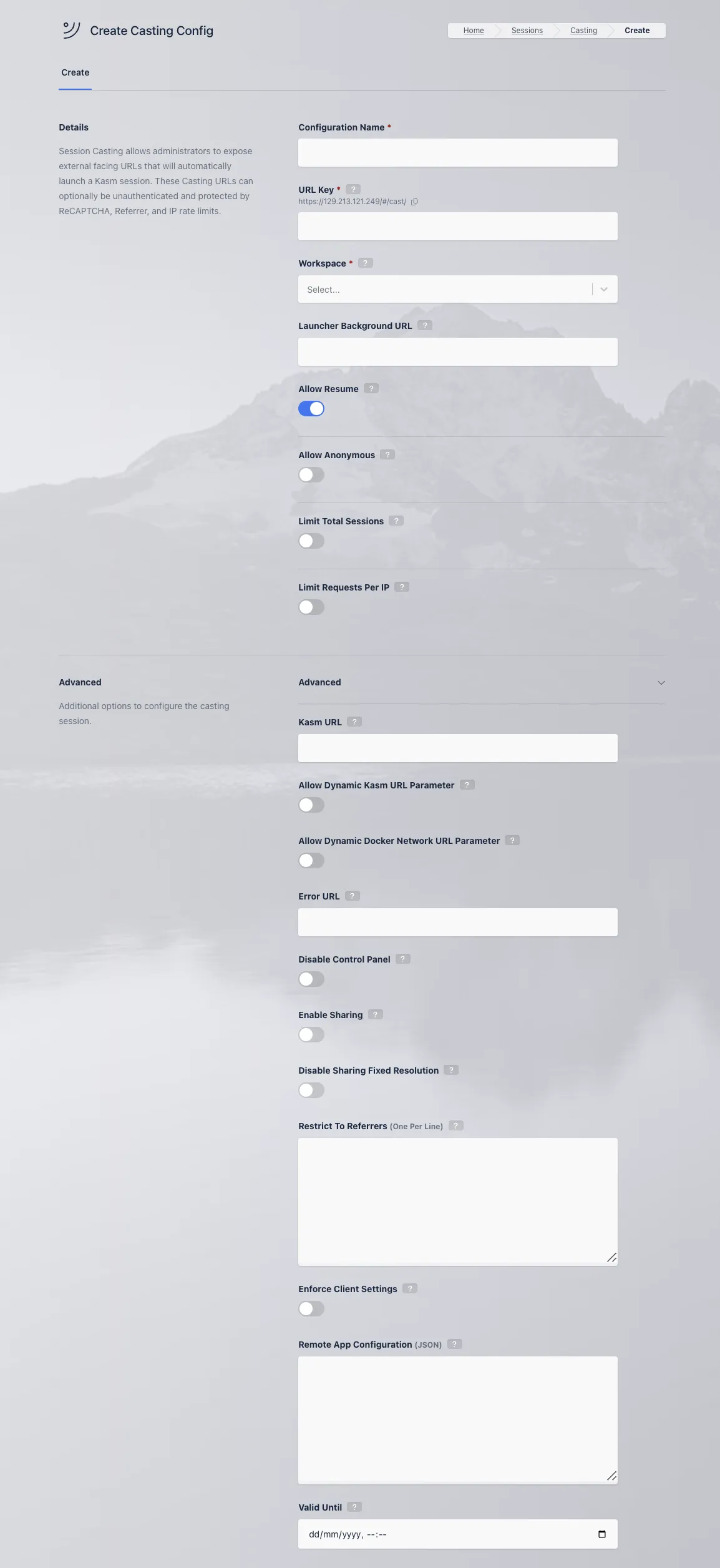
The following table describes each field on the Casting Config form.
| Name | Description |
|---|---|
| Configuration Name | The unique name to reference this specific configuration. For administration purposes only. |
| URL Key | The unique identifier for a Casting URL. If 123abc is the key, users will launch sessions via the following URL https://my.kasm.server/#/cast/**123abc** |
| Workspace | The Kasm Worksapce to use for the created sessions. |
| Launcher Background URL | URL for the background image for the Workspaces launcher. See the "Default Backgrounds" section of Custom Branding for a list of available default images. |
| Allow Resume | When enabled, authenticated users who already have a running session will have their session resumed instead of having a new session created when connecting to the same Casting URL |
| Allow Anonymous | If checked, requests to the Casting URL will not require authentication. Instead the system will create an anonymous users account for each new request. |
| Require reCAPTCHA | When Allow Anonymous is enabled, administrators can choose to have requests validated by Google reCAPTCHA . To use this feature, the Google reCAPTCHA Private Key and Google reCAPTCHA Site Key properties must be set in the Server Settings. |
| Anonymous User Group | When Allow Anonymous is checked, the system will create new user accounts for each new request. These anonymous users accounts will automatically be added to the All Users Group and an additional Group defined here. Administrators can configure the appropriate Group Settings to configure permissions such as allow_kasm_downloads etc on this Group. |
| Limit Total Session | When enabled, the administrator can configure a maximum number of sessions that will be served via this Casting URL. |
| Sessions Remaining | Sets the total number of sessions that can be requested. This value will automatically decrement as new sessions are served. When the value reaches zero, users will receive an error when attempting to request subsequent sessions. |
| Limit Requests Per IP | When enabled, the system will limit the number of requests that will employ rate-limiting based on the source IP of the request. (e.g limiting requests to 1 sessions per 60 seconds) |
| Sessions Allowed | When Limit Requests Per IP is enabled, this value is used as the total number of sessions that are allowed for the given time period as defined in Within Seconds. |
| Within Seconds | When Limit Requests Per IP is enabled, this value sets the timeframe (in seconds) that is used for the source IP. |
| Kasm URL | If defined, this value will populate as the KASM_URL environment variable for created or assigned Staged Sessions. These values are often used in the Docker Exec Configs of the browser Workspaces. |
| Allow Dynamic Kasm URL Parameter | When checked, the user is allowed to append a kasm_url query argument to the cast url. e.g https://kasm.server/#/cast/123?kasm_url=example.com If present the system will use this value as the KASM_URL. When used in conjunction with Allow Resume, this will open a new tab with the specified KASM_URL when the session is resumed. |
| Allow Dynamic Docker Network URL Parameter | When checked, the user is allowed to append a docker_network query argument to the cast url. e.g https://kasm.server/#/cast/123?docker_network=example_network The Workspace used must have Allow Network Selection enabled. |
| Error URL | If defined, the user will be pushed to this URL when an error (such as IP rate limit violation) occurs. Redirection to an external site is only supported if this value begins with a scheme (https://); scheme-less URLs will be treated as paths relative to the Kasm installation. If left blank, an internal error page is shown. |
| Disable Control Panel | When checked, the Control Panel widget is not shown for the sessions. |
| Disable Tips | When checked, the Tips dialogue is not shown when a user enters a session. |
| Enable Sharing | When checked, this session will automatically have sharing activated. |
| Disable Shared Fixed Resolution | When checked and the session is in sharing mode, the resolution will be dynamic. The resolution is typically fixed when a session enters sharing mode. |
| Restrict to Referrers | Administrators may chose to restrict where the Casting URLs can be accessed from. If a user were to click a Casting URL link that was embedded on a 3rd party website, the system can detect the website domain. It the address is not in the list defined in this setting, the request will be denied. Enter one domain (e.g acme.com) per line. If the option is left blank, requests from all domains are accepted. |
| Enforce Client Settings | When enabled, the client settings listed below will be enforced on the session , overriding the client settings attached to the user's group(s). |
| Allow Audio | When enabled, the staged session will support streaming audio from the session to the user. |
| Audio Default On | When disabled, the audio service will be muted by default. |
| Allow Downloads | When enabled, the staged session will allow download files from the session to their local computer via the control panel download widget. |
| Allow Clipboard Down | When enabled, the staged session will allow copying data from the session to the users local computer via the clipboard. |
| Allow Clipboard Up | When enabled, the staged session will allow copying data from the user’s local computer to the session. |
| Allow Microphone | When enabled, the staged session will allow the user to pass their local microphone into the session. |
| Allow Uploads | When enabled, the staged session will allow the user to upload files from their local computer to the session via the upload widget in the control panel. |
| Allow Gamepads | When enabled, the created session will allow the user to pass through gamepads from their local computer to the session via the gamepads widget in the control panel. |
| Allow Sharing | When enabled, the user will be able to place their session in sharing mode. |
| Allow Kasm WebAuthn Passthrough | When enabled, the session will pass WebAuthn requests through to a FIDO2 security key on the user's local device. Applies to container-based workspaces only. See FIDO2 security key passthrough. |
| Allow Kasm SSH Agent Passthrough | When enabled, the session will forward the SSH agent on the user's local device into the session. Applies to container-based workspaces only. See SSH-agent passthrough. |
| IME Default On | When enabled, IME mode will be enabled by default if the doesnt already have a local preference set. |
| Remote App Configuration (JSON) | When defined this configures Microsoft RDS/RDP remoteApp settings. See the Configure a Microsoft RemoteApp through casting section for details. |
| Valid Until | When defined, the casting link will only be valid until this time, after which the client will be presented with an error. |
| Direct Install URL | Workspaces and casting links can be installed as standalone PWA applications, this is the direct url that can be used for automatic installation via management systems such as Windows Group Policy and Chrome Managed Policies. |
- Fill out the form, then click Save. A list of all Casting Configs is shown.
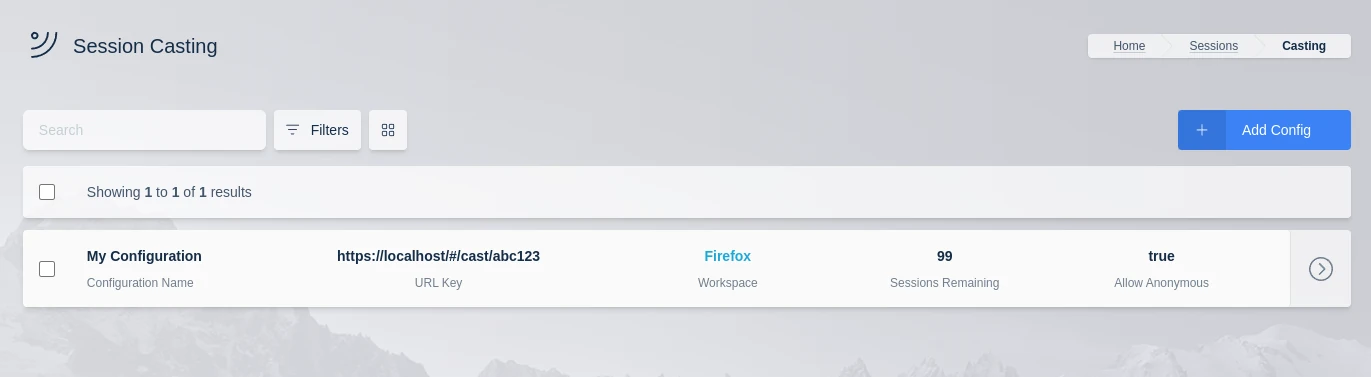
Apply access and security controls
- To allow no-auth access, select Allow Anonymous. The system creates an anonymous user account for each new request.
- To validate anonymous requests with Google reCAPTCHA, select Require reCAPTCHA. Confirm the reCAPTCHA keys are set in the Server Settings.
- To set permissions for anonymous accounts, choose an Anonymous User Group. The system adds each anonymous account to the All Users Group and to this Group.
- To cap total usage, enable Limit Total Session and set Sessions Remaining. The value decrements as sessions are served, and reaching zero returns an error.
- To rate-limit by source IP, enable Limit Requests Per IP, then set Sessions Allowed and Within Seconds.
- To restrict where the Casting URL can be launched from, enter one allowed domain per line under Restrict to Referrers.
Restrict to Referrers is not a strict access-control mechanism and should not be the sole safeguard for a Casting Config.
If the selected Workspace is configured with persistent profiles, and the Casting Config enforces authentication, the session launched will always load the user's persistent profile.
Test the Casting URL
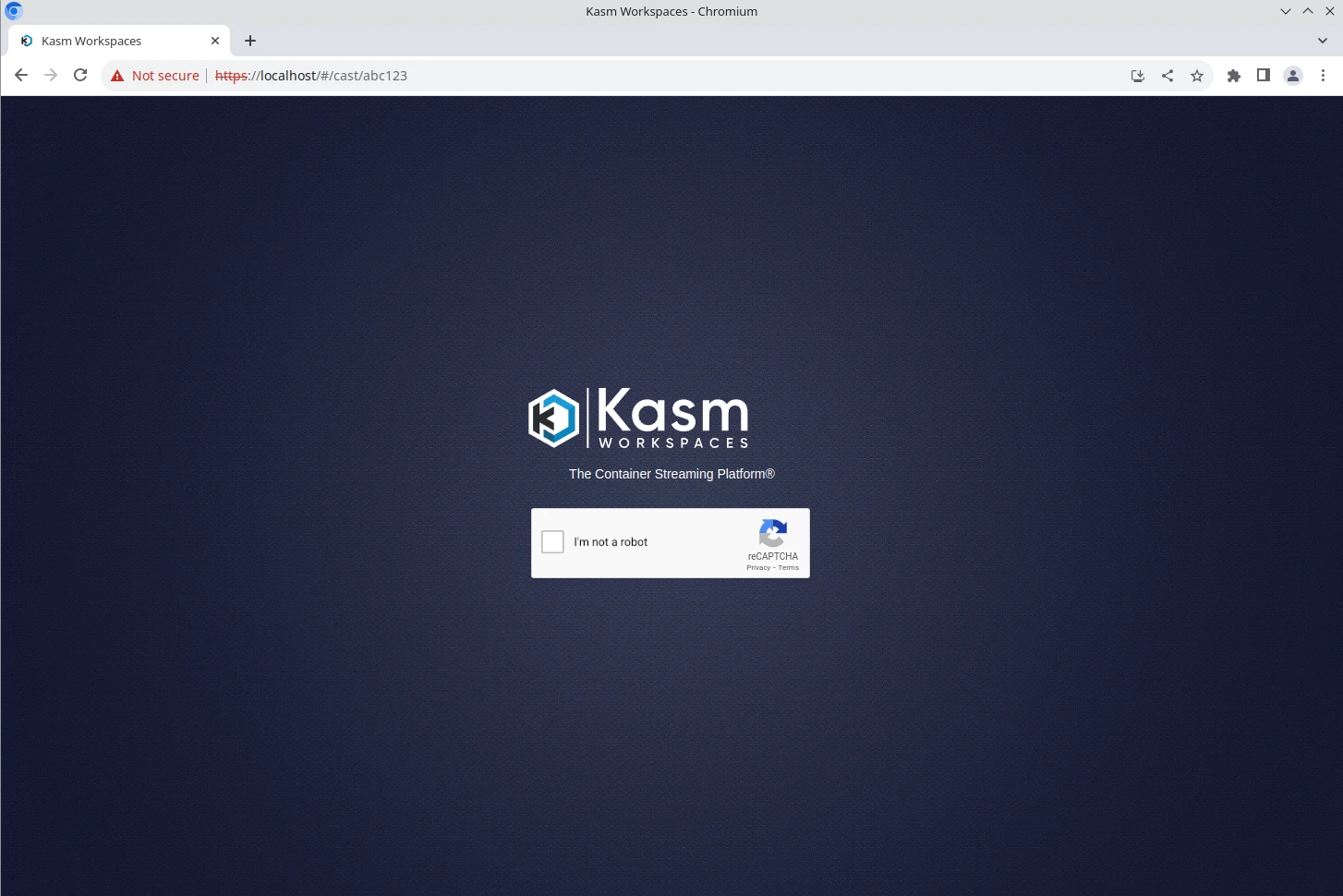
- Open a new browser window and navigate to the defined URL. For example, https://my.kasm.server/#/cast/123abc.
- If reCAPTCHA is enabled, complete the reCAPTCHA check.
- Confirm that the session launches.
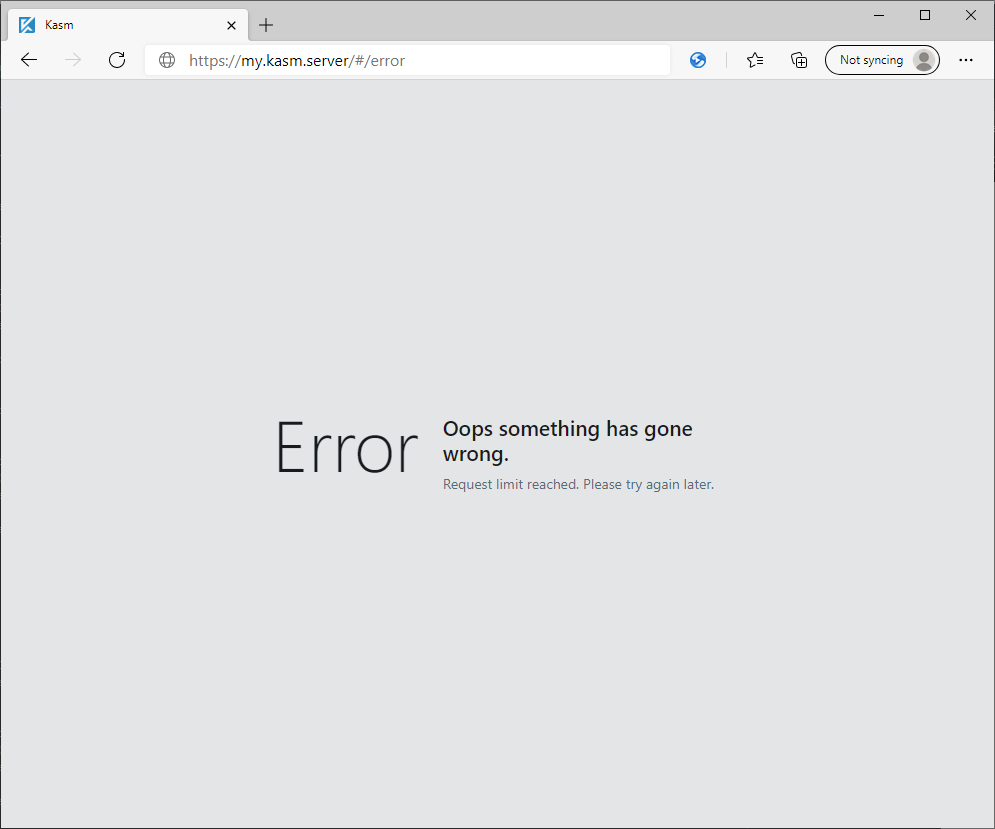
When an error prevents a session from loading through a Casting URL, the system sends the user to an internal error page with an appropriate message. To redirect the user to a page of your choosing instead, configure the Error URL setting in the Casting Config.
Configure a Microsoft RemoteApp through casting
The Remote App Configuration section defines characteristics of a casting session that control the remote application name and arguments. These values inject into the remote-app and remote-app-args fields of the RDP session connection details. You can map URL parameters to remote application arguments. The following example defines Microsoft Excel as a remote app, and the target file is passed in with the URL as a parameter.
{
  "remote_app_name": "||Microsoft Excel",
  "args": [
    {
      "url_param_name": "file",
      "value_pattern": "([a-zA-Z]:\\\\)([^\\x00-\\x1F\\*\\\"/:<>\\?\\\\\\|]+\\\\)*([^\\x00-\\x1F\\*\\\"/:<>\\?\\\\\\|]+\\.(xls|xlsx|csv))",
      "required": true
    }
  ]
}
The example sets the Microsoft RemoteApp name to "||Microsoft Excel". This value must match the RemoteApp name defined on the server. See the RemoteApp guide for more information.
The example also defines a single argument passed in with a URL parameter named file. The value_pattern field is optional and defines a regular expression. The example regular expression validates that the provided URL parameter value matches a Windows file path. If the regular expression does not match the value, the user gets an error page. Use this pattern to protect against inappropriate usage, such as command injection attempts. You can also use it to limit file path directories or file extensions.
In the example, the filename is encoded in the target URL with the file parameter name. If the Casting configuration key is excel, the URL is:
https://127.0.0.1/#/cast/excel?file=C%3A%5CUsers%5CPublic%5CDocuments%5CUbuntu_Security.xlsx
The following table defines all available options for each argument defined in the args array.
| Name | Description |
|---|---|
| url_param_name | (optional) The URL parameter name to expect in the casting link URL. The value of this parameter will be used as the argument value. |
| required | (optional) Defines whether the argument is required. The default value is false. If it is required and the url_param_name is defined, the user will get an error page if the URL did not contain a URL parameter matching the url_param_name. |
| argument_name | (optional) The command line switch/argument name to specify. |
| value | (optional) Defines a static value for the argument. If not defined, the value will be provided by a URL parameter, if url_param_name is defined. If neither is defined, only the argument_name will be provided, which can be useful for switches/arguments that have no expected values. |
| value_pattern | (optional) A regular expression to be ran on the value. If defined and the regular expression does not match, the user will be directed to an error page. |
Common troubleshooting steps
- The Casting URL prompts for authentication unexpectedly. Confirm that Allow Anonymous is enabled on the Casting Config. Without it, the system requires a signed-in user.
- Users receive an error before the session loads. Check the Sessions Remaining value and the Limit Requests Per IP settings. A zero session count or a tripped rate limit returns an error.
- A request from a partner site is denied. Confirm that the site domain is listed under Restrict to Referrers, one domain per line. An empty list accepts all domains.
- The error redirect goes to an internal page instead of your site. The Error URL must begin with a scheme such as
https://to redirect to an external site. Scheme-less values are treated as paths relative to the Kasm installation. - The RemoteApp session fails to launch the application. Confirm that the
remote_app_namevalue matches the RemoteApp name registered on the Windows Server, and that the target Workspace is a Server or Pool backed by RDP. - A RemoteApp URL parameter returns an error page. The provided value must satisfy the
value_patternregular expression. Confirm that the parameter value matches the expected pattern, such as a valid Windows file path.