File Mappings
Overview
File mappings let administrators manage files inside a user's workspace session without building custom images. A common use is to manage Chrome policies. Edit text-based files directly in the Kasm Admin UI, or upload arbitrary files up to a 5 MB limit. Arbitrary files that are scripts should use UNIX-style line endings.
File mappings apply to Workspaces, Groups, and Users. When a user creates a session, Kasm applies the file mappings in the order Workspace, Groups, then User. Only the first file mapping that targets a given destination is added to the session. Kasm skips and logs any later file mapping that targets the same destination.
The Kasm Desktop Service must be installed on Windows systems for file mapping to work. File mappings defined at the Workspace level are applied on service start.
When a user belongs to multiple Groups that define a file mapping with the same destination, the group with the lowest priority value is mapped into the user's container.
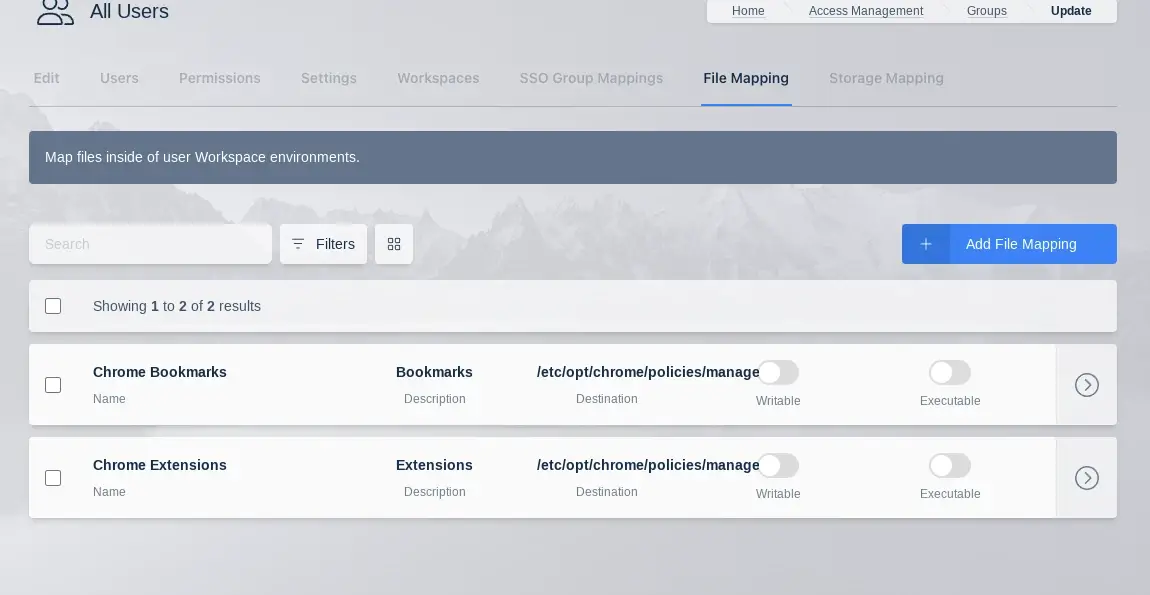
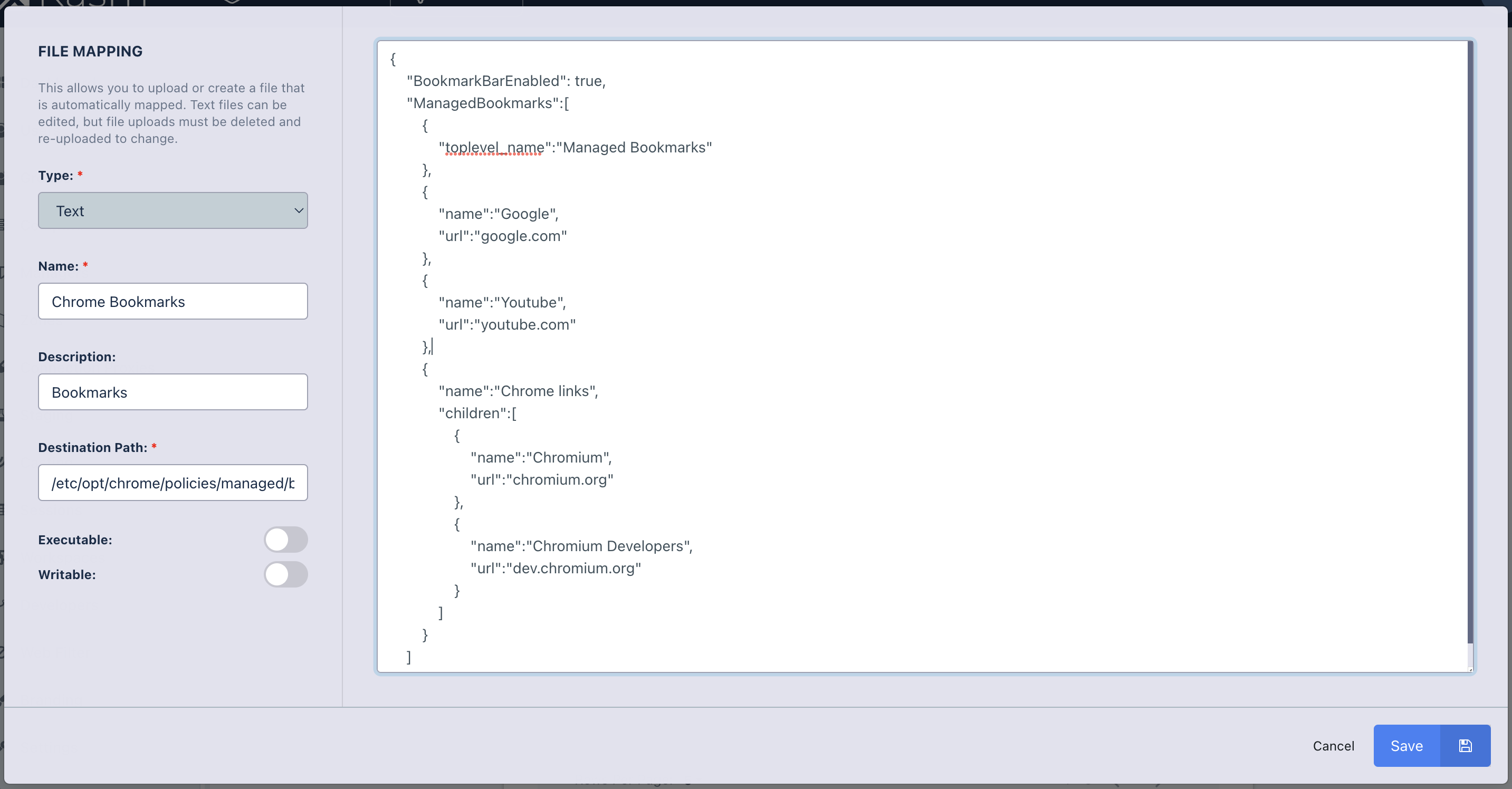
The following is an example File Mapping of a Chrome Managed Policy to define bookmarks in Chrome.
File permissions and ownership
Container sessions
File Mapping definitions can be marked as Writable and Executable. By default, a file is owned by root and the container user does not have write permissions to the file. Marking the File Mapping as Writable changes the owner to the container user and provides write access to the file. Marking the File Mapping as Executable adds the executable permission to the file.
Directories that do not already exist within the target path, will automatically be created and owned by root. For example,
if you defined a writable File Mapping with a target location of /data/bin/script.sh and the location /data/bin did not
already exist inside the container, the path /data/bin would get created with ownership belonging to root. The file,
script.sh would be owned by the container user. The result is that the user would be able to edit the file script.sh,
but would be unable to create new files within the containing directory. Permissions and ownership of existing paths will
not be modified.
Marking File Mappings as Writable is supported only when the kasm_agent container runs as root. By default, Kasm Workspaces runs the kasm_agent container as root. When security hardening is applied, the kasm_agent container runs as a non-root user. The kasm_agent detects that it is not running as root and skips changing ownership for File Mappings marked as writable.
Server sessions
In Windows and Linux server-based sessions, the destination directory where the file is created determines permissions and ownership. Files placed in a user's HOMEPATH, for example, are owned by the user. For this reason, the read-only and executable settings in the Kasm Admin UI for file mapping definitions are not effective on the server. As a workaround, use a bash session start script or PowerShell session start script to customize advanced file permissions.
User home profile
Container sessions
A user's home profile for a containerized Workspace is located at /home/kasm-user. Many applications save configurations and
other files in the user's home profile. For this reason, it is often advantageous to use File Mappings to manage files in the
users home profile. There are, however, several things to be aware of when mapping files to a users home profile.
Kasm containers use a default profile located at /home/kasm-default-profile, this directory contains the starting state for
the container users home profile. If Persistent Profiles are enabled, different
logic is used for the home directory. The following logic is followed on startup of a container.
- Persistent Profiles are not configured.
- Copy
/home/kasm-default-profileto/home/kasm-user
- Copy
- Persistent Profiles are configured and enabled.
- First time this user has started a session, no existing persistent profile for this user.
- Copy
/home/kasm-default-profileto/home/kasm-user.
- Copy
- Persistent profile already exists.
- No action taken,
/home/kasm-useris volume mapped into the container
- No action taken,
- First time this user has started a session, no existing persistent profile for this user.
Due to the above logic, it is not possible to define File Mappings that target /home/kasm-user, since that directory is
populated on container start. Instead, File Mappings should target /home/kasm-default-profile. When the container starts,
the files mapped in at /home/kasm-default-profile will be copied to /home/kasm-user.
When Persistent Profiles are enabled, users do not pick up changes to file mappings. Users must either clear their persistent profile so that the profile is recreated, or copy the specific files from /home/kasm-default-profile to /home/kasm-user.
File mappings that target a user's home profile on a Windows or Linux VM session are applied only when the server is configured with User SSO enabled. File mappings are applied per-user at the OS level. When User SSO is active, Kasm maps users to corresponding OS user accounts, so the service can correctly scope mappings to each user's profile.
To enable this, set the Connection Credential Type to SSO User Accounts in the server configuration. This sets user_sso to true in the Kasm Desktop Service configuration file. The value is synchronized automatically when the service checks in and does not require manual changes. If needed, override user_sso manually in the service configuration file after registration. For details, see the Linux service configuration and Windows service configuration. Without proper user isolation, file mappings may be applied incorrectly or insecurely across sessions.
Windows sessions
Windows home profile is typically stored under C:\Users\{username}, however, the environmental variable %HOMEPATH% contains
the actual path of the user. Environmental variables, to include %HOMEPATH% can be used in file mapping destination paths for
Windows sessions. The Kasm Desktop Service is required to be installed on the Windows server to support
file mapping. File mappings mapped into a user's home profile path are automatically deleted on session termination. Only file
mappings defined at the group and user levels can target a user's home profile. File mappings defined at the Workspace Image level
are processed on the start of the Kasm Desktop Service and thus are processed with no associated user.
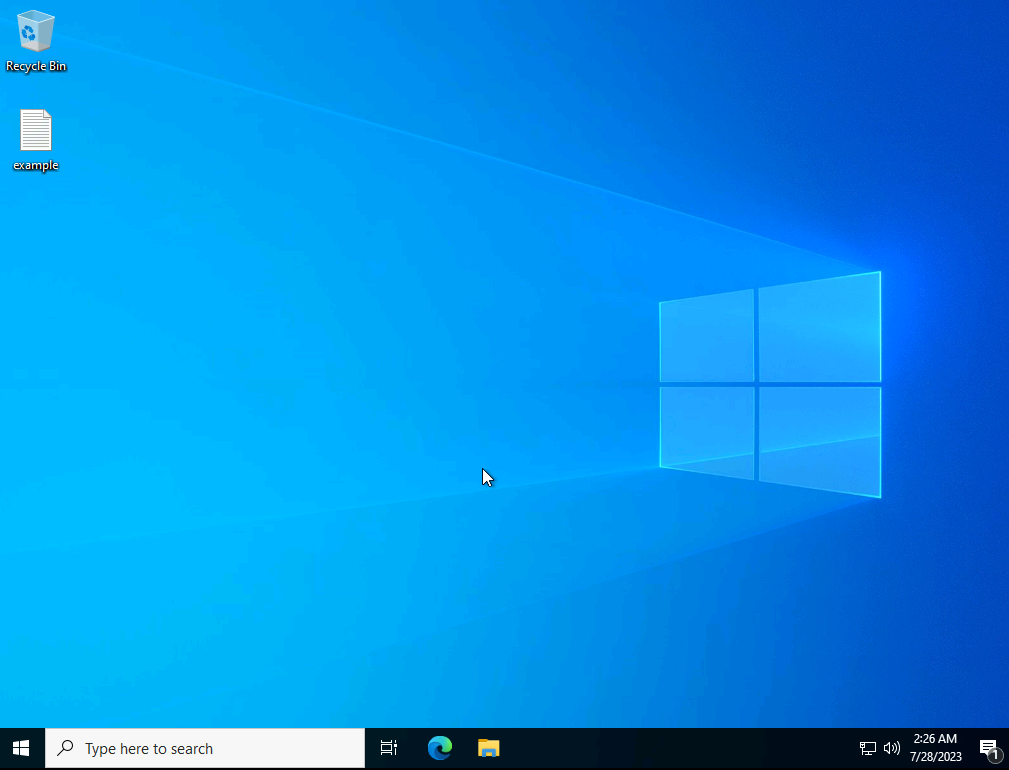
The following example shows a file mapping that places a file on a user's Desktop on a Windows system.
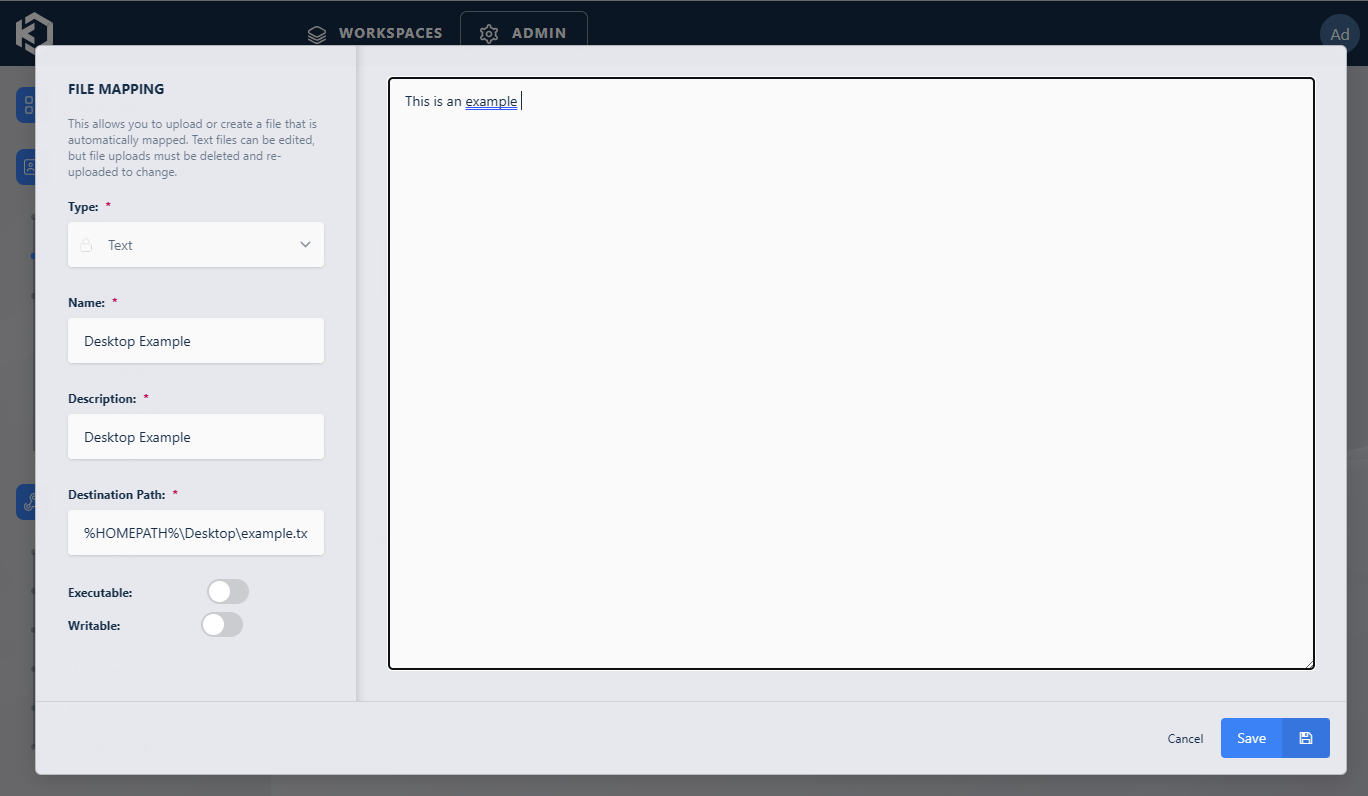
The above definition results in the file being placed on the user's desktop.
Linux VM sessions
- Linux user profiles are typically stored under
/home/{username}. Environment variables such as$HOMEor the shorthand~resolve dynamically to the active user's home directory. Use these variables when defining file mapping destination paths for Linux sessions. - The Kasm Desktop Service must be installed on the Linux VM server to support file mappings. File mappings that target a user's home directory are applied within the context of the authenticated user session.
- File mappings placed within a user's home directory are removed automatically on session termination. Only file mappings defined at the group and user levels can target a user's home directory.
- File mappings defined at the Workspace Image level are processed when the Kasm Desktop Service starts and are not associated with a specific user.
Volume mappings
File Mappings can target locations inside a Volume Mapping. Mapping to directories that do not exist on a volume mapping creates directories on the volume map that are owned by root. For example, consider a volume mapping of /mnt/nfs_share/finance:/shares/finance,
where /mnt/nfs_share/finance was the location on the host and /shares/finance was the location inside the container
and you created a File Mapping that targeted a destination of /shares/finance/does_not_exist_on_share/policy.pdf.
The file, policy.pdf would never get saved on the host at /mnt/nfs_share/finance, because it is itself a mapping
into the container. However, due to the behavior of Docker, the folder /shares/finance/does_not_exist_on_share would
get created if it did not exist and it would be owned by root. This would result in the folder being created at
/mnt/nfs/share/finance/does_not_exist_on_share on the host and/or the remote NFS share mounted to that location on the host.
File mapping usage examples
The following examples demonstrate the File Mapping feature. Each example works with the User, Group, and Workspace forms of file mapping.
Map a file to the user's desktop
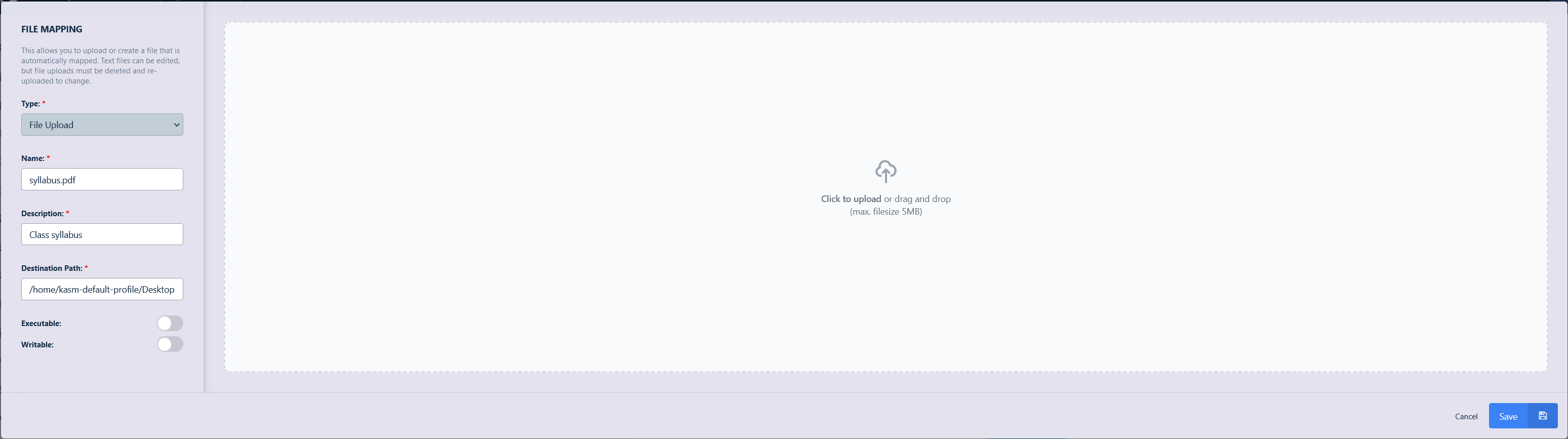
This example prepares a syllabus to map onto the desktop of an image. This removes the need to create a new image just to make the syllabus file available to students on container start.
- Clone the Workspace to be used. Here the Ubuntu Focal workspace has been cloned and named Ubuntu Focal Student Desktop. After editing the name and description click Submit.
- Click the arrow menu and select Edit and select the File Mapping tab and click Add File Mapping.
- Fill in the details of the file to be mapped and click Save.
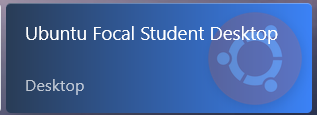
- Now select the created Workspace from the Workspaces launcher.
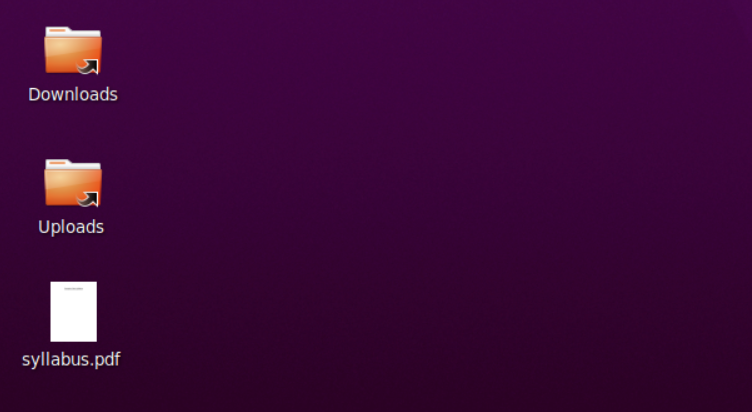
- The syllabus.pdf will be present on the Desktop.
Use file mapping to install and enable sudo
This example uses a feature in Kasm Docker images to run a bash script as root after the container starts. This script is located in the image at /dockerstartup/kasm_post_run_root.sh, and a custom version can be mapped in with the File Mapping feature. The script in this example installs the sudo binary and adds the kasm-user to the sudoers group. The file mapping feature adds sudo to any existing Kasm Workspace without creating a custom image.
- Clone the Workspace to be used. Here the Ubuntu Focal workspace has been cloned and named Ubuntu Focal Sudo Desktop. After editing the name and description click Submit.
- Click the arrow menu and select Edit and select the File Mapping tab and click Add File Mapping.
- Fill in the details of the file to be mapped ensure to mark the file as executable and click Save.
#!/usr/bin/env bashset -exapt-get updateapt-get install -y sudoecho "kasm-user ALL=(ALL) NOPASSWD: ALL" >> /etc/sudoersnotify-send "Script Complete" "sudo is now installed"
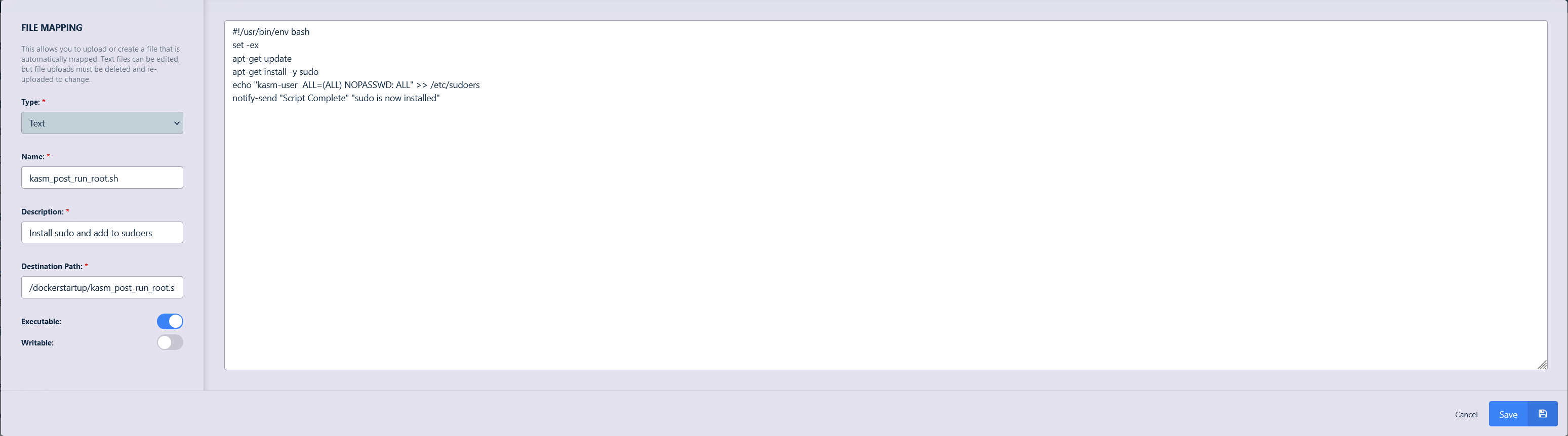
- Now select the created Workspace from the Workspaces launcher.
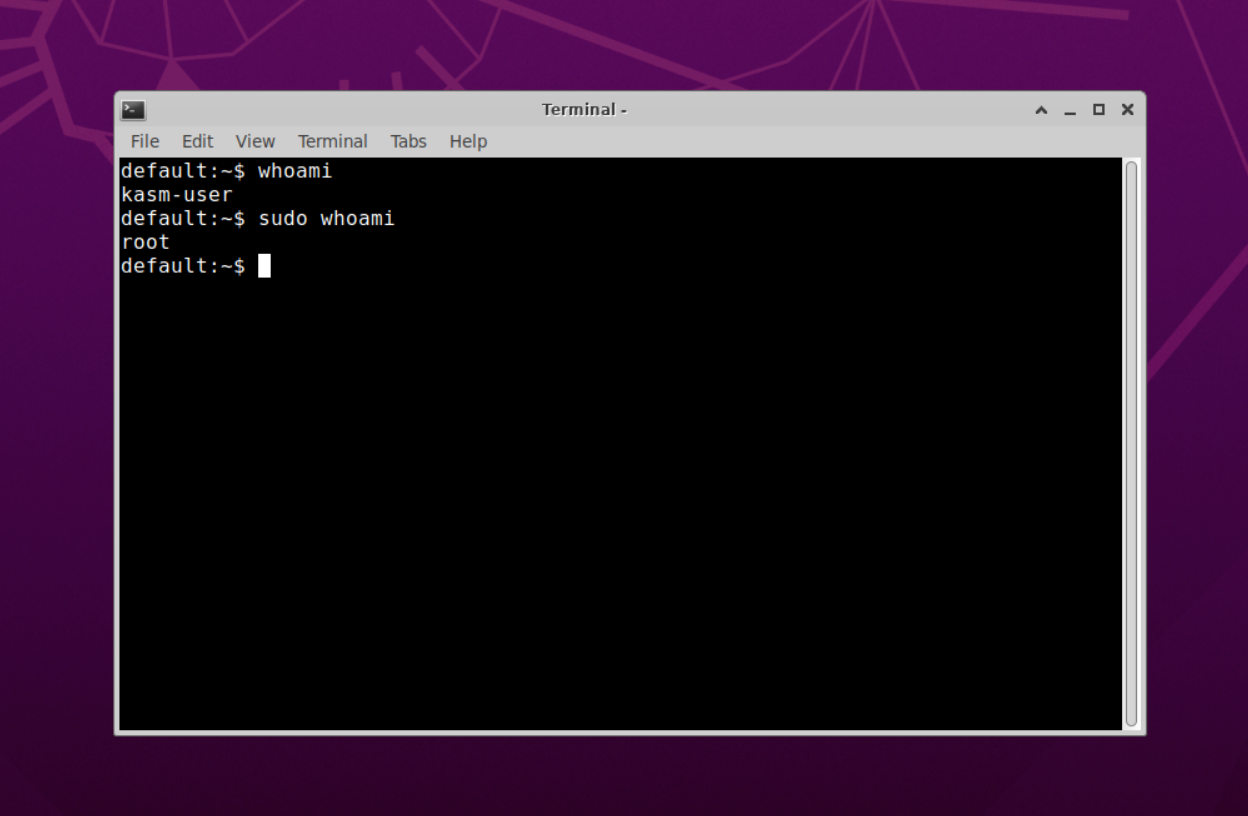
- Open the terminal and execute
sudo whoamito observe that sudo is installed and working.
Use file mapping to clone a repo and start VS Code
This example uses another script in the Kasm Docker images, the non-root user equivalent of the script in the Use file mapping to install and enable sudo example. This script is located in the image at /dockerstartup/kasm_post_run_user.sh.
- Clone the Workspace to be used. Here the Ubuntu Focal workspace has been cloned and named Ubuntu Focal VScode Desktop. After editing the name and description click Submit.
- Click the arrow menu and select Edit and select the File Mapping tab and click Add File Mapping.
- Fill in the details of the file to be mapped ensure to mark the file as executable and click Save.
#!/usr/bin/env bashset -ex/usr/bin/desktop_readygit clone https://github.com/kasmtech/KasmVNC /home/kasm-user/Desktop/KasmVNC/code --no-sandbox -a /home/kasm-user/Desktop/KasmVNC/ -g /home/kasm-user/Desktop/KasmVNC/README.md
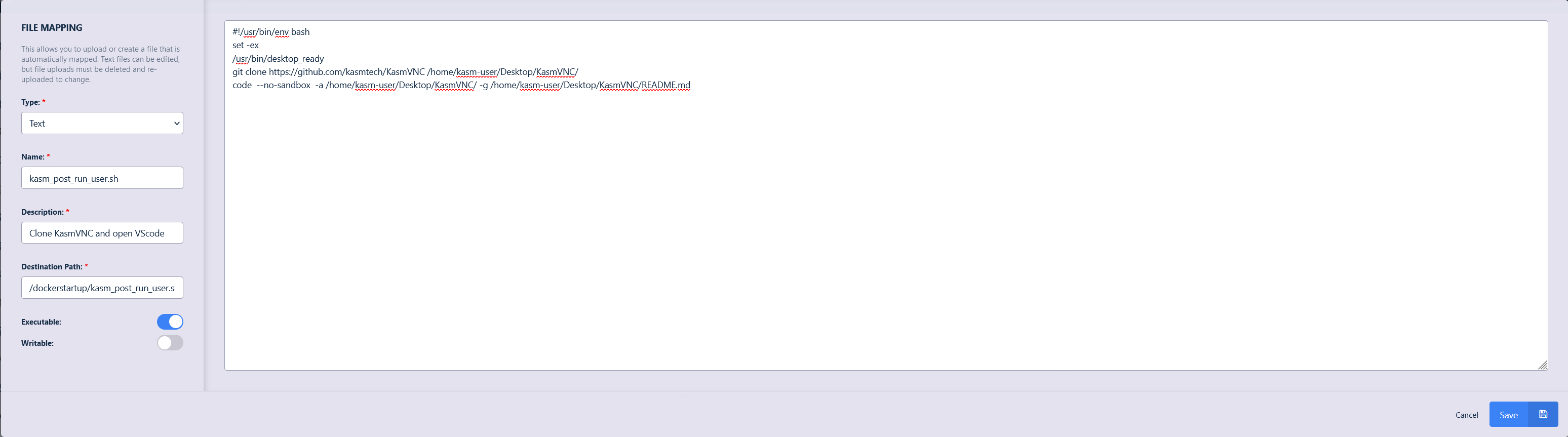
- Now select the created Workspace from the Workspaces launcher.
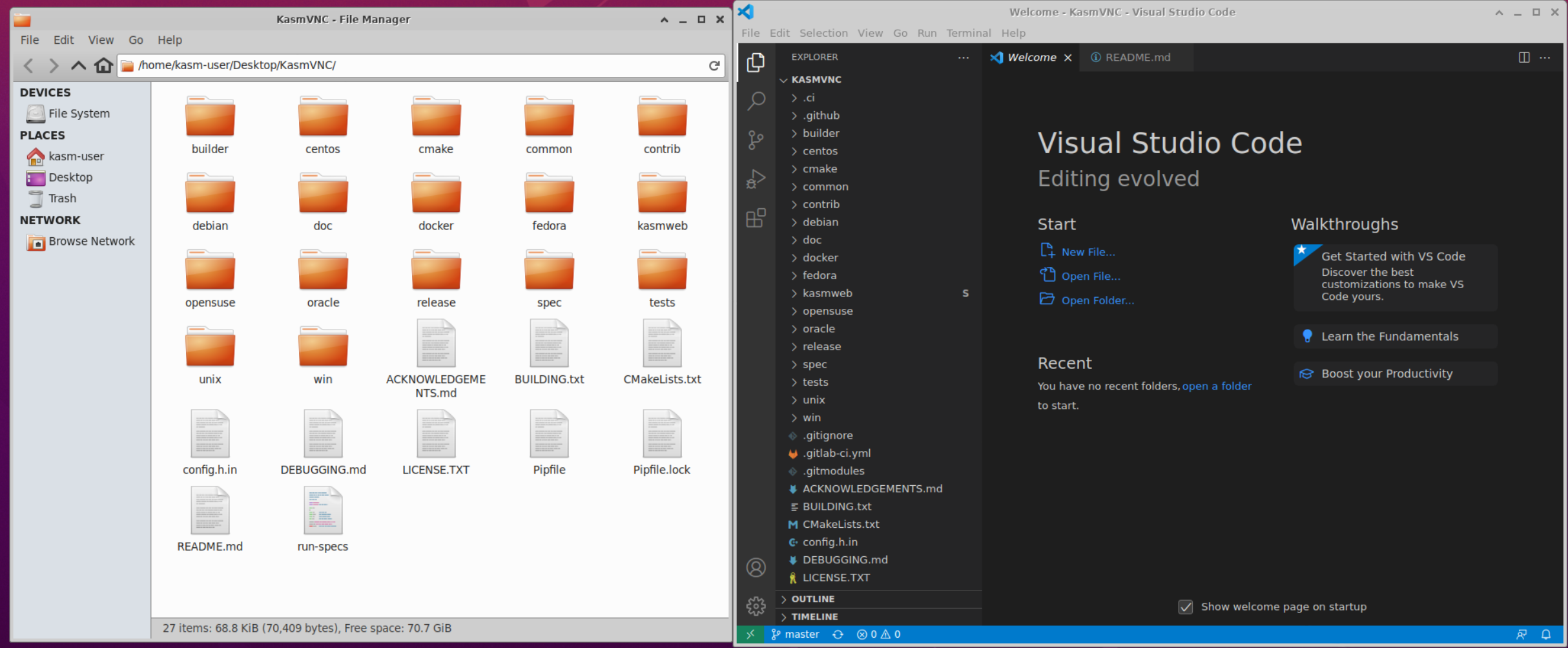
- When launching the Workspace, the KasmVNC repo will be cloned, and VScode will be opened with the KasmVNC readme.
Use file mapping to change the default background of a workspace
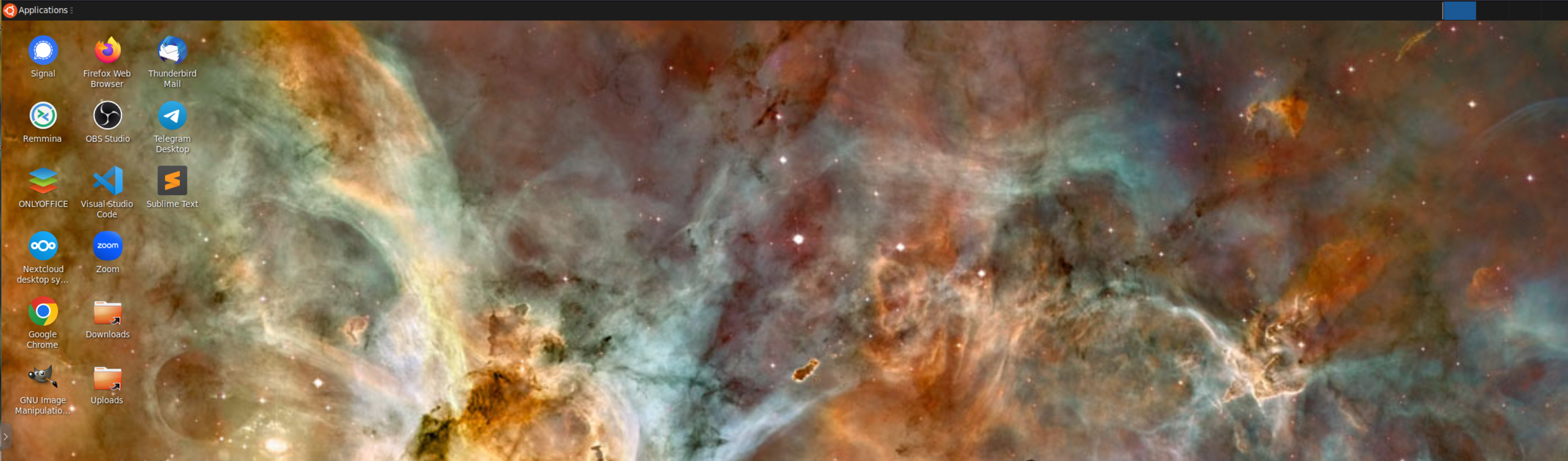
This example replaces the default background of a workspace. For Ubuntu, the background is located at /usr/share/backgrounds/bg_default.png. The location may differ for other distributions or Workspace images.
- Clone the Workspace to be used. Here the Ubuntu Focal workspace has been cloned and named Ubuntu Focal New Background Desktop. After editing the name and description click Submit.
- Click the arrow menu and select Edit and select the File Mapping tab and click Add File Mapping.
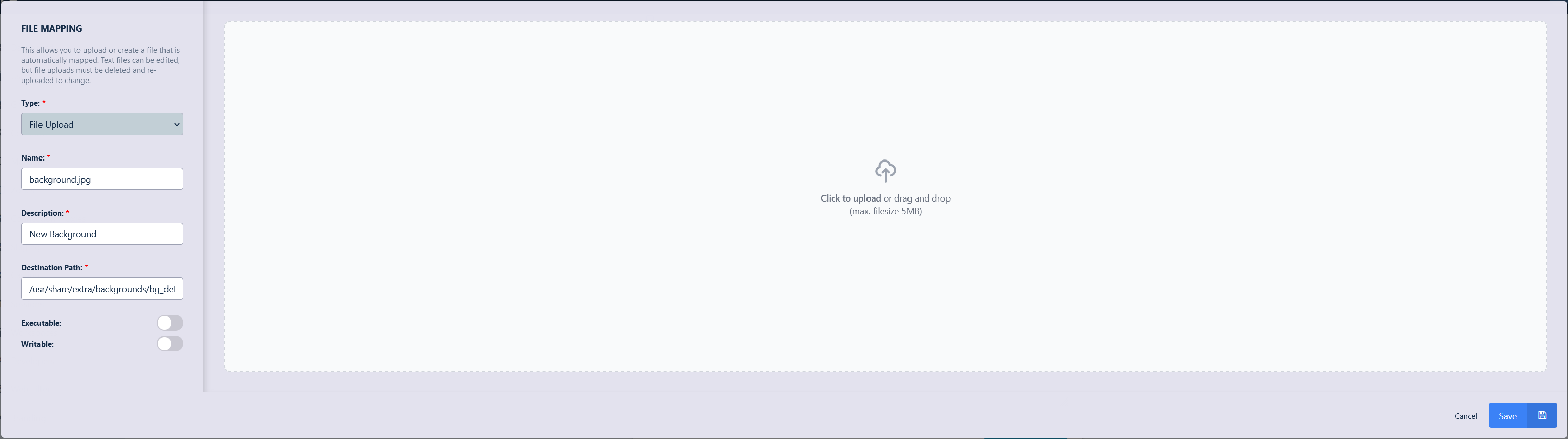
- Fill in the details of the file to be mapped ensure to mark the file as executable and click Save.
- Now select the created Workspace from the Workspaces launcher.
- When launching the Workspace observe the new background that was configured in the File Mapping.
Use file mapping to apply a custom KasmVNC watermark
This example replaces the default /etc/kasmvnc/kasmvnc.yaml configuration file in container-based workspaces.
- Clone the Workspace to be used. Here the Ubuntu Focal workspace has been cloned and named Ubuntu Focal Watermark. After editing the name and description click Submit.
- Click the arrow menu and select Edit and select the File Mapping tab and click Add File Mapping.
- Fill in the details of the file to be mapped ensure to mark the file as executable and click Save. More details about found in the Applying KasmVNC DLP Policies
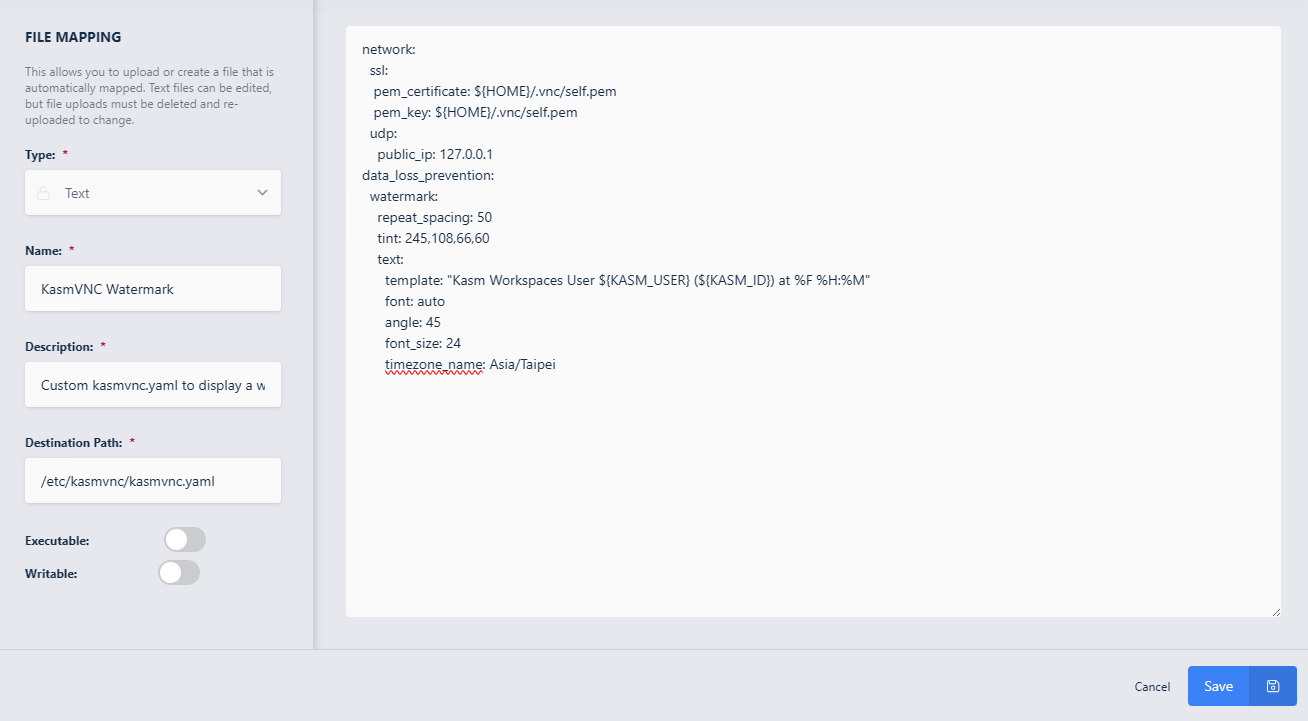
network:
  ssl:
   pem_certificate: ${HOME}/.vnc/self.pem
   pem_key: ${HOME}/.vnc/self.pem
  udp:
    public_ip: 127.0.0.1
data_loss_prevention:
  watermark:
    repeat_spacing: 50
    tint: 0,255,0,80
    text:
      template: "Kasm Workspaces User ${KASM_USER} (${KASM_ID}) at %F %H:%M"
      font: auto
      angle: 45
      font_size: 24
      timezone_name: Asia/Taipei
- When launching the Workspace observe the watermark that is applied.