Set up the Google Drive storage provider
The Google Drive storage provider lets end users map their Google Drive storage into container-based sessions. Access is provided through the Google Drive OAuth interface and the Rclone Docker volume plugin. For reference, see the Google OAuth2 documentation and the Rclone Drive documentation.
Create a Google OAuth app
- Log in to the Google Developer Console.
- From the APIs & Services menu, select OAuth consent screen.
- Select External, then click Create.
caution
This example creates an integration where any Google user can authenticate with the Google Drive storage provider, which is ideal for a public-facing deployment. Choose Internal when only users from your Google Workspace corporate account should authenticate. External types must complete a validation process before use in production systems.

- Provide values for the App Name, User support email, and Developer Contact email.
- In the Authorized Domains section, enter the top private domain of the Workspaces deployment, for example
example.com. - Click Save and Continue.

- Click Add or Remove Scopes.
- In the Update Selected Scopes window, check
.../auth/drive, then click Update. When the option is not available, addhttps://www.googleapis.com/auth/driveto the Manually add scope field and click Add To Table.

- Click Save and Continue.
- Until the app is fully verified and published, it can only authenticate specific test accounts. Click Add Users to authorize several test Google accounts.
- Click Save and Continue.
- In the APIs & Services menu, select Credentials.
- Select Create Credentials, then OAuth client ID.

- Select Web Application as the Application type, then give the client a name such as
Kasm. - Click Add URI in the Authorized redirect URIs section, and enter
https://<kasm deployment hostname>/api/cloud_storage_callback. - Click Create.

- A dialog displays a Client ID and Client Secret. Save these values for the next section. The JSON download also includes URLs needed for the next section.

- From the main menu of the Google Cloud Console, search for
Google Drive API. Open the page, then click Enable when the option is available. No action is needed when the status is already enabled.

Configure the storage provider
- Log in to the Kasm UI as an administrator.
- Select Settings, then Storage, then Add.
- Complete the form with the following entries, using the Client ID and Client Secret from the previous section:
| Field | Value |
|---|---|
| Name | Google Drive |
| Storage Provider Type | Google Drive |
| Enabled | checked |
| Client ID | <client id> |
| Client Secret | <client secret> |
| Authorization URL | https://accounts.google.com/o/oauth2/auth |
| Authorization URL Options | {"include_granted_scopes" : "true", "prompt" : "select_account consent", "access_type" : "offline"} |
| Token URL | https://oauth2.googleapis.com/token |
| Redirect URL | https://<hostname>/api/cloud_storage_callback |
| Scope | https://www.googleapis.com/auth/drive |
| Default Target | /gdrive |
| Volume Config | { "driver" : "rclone", "driver_opts" : { "type" : "drive", "uid" : "1000", "gid" : "1000", "allow_other" : "true" } } |
| Mount Config | {} |
- Click Save.
Google Drive storage mapping configuration
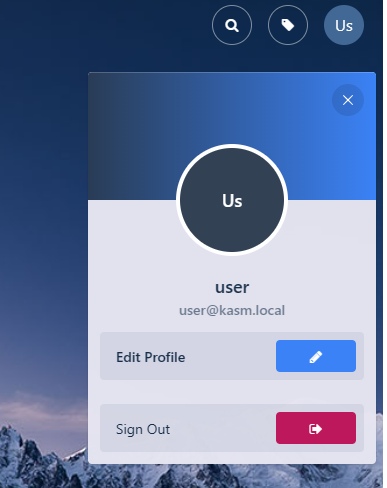
- From any page, select the profile icon at the top right.
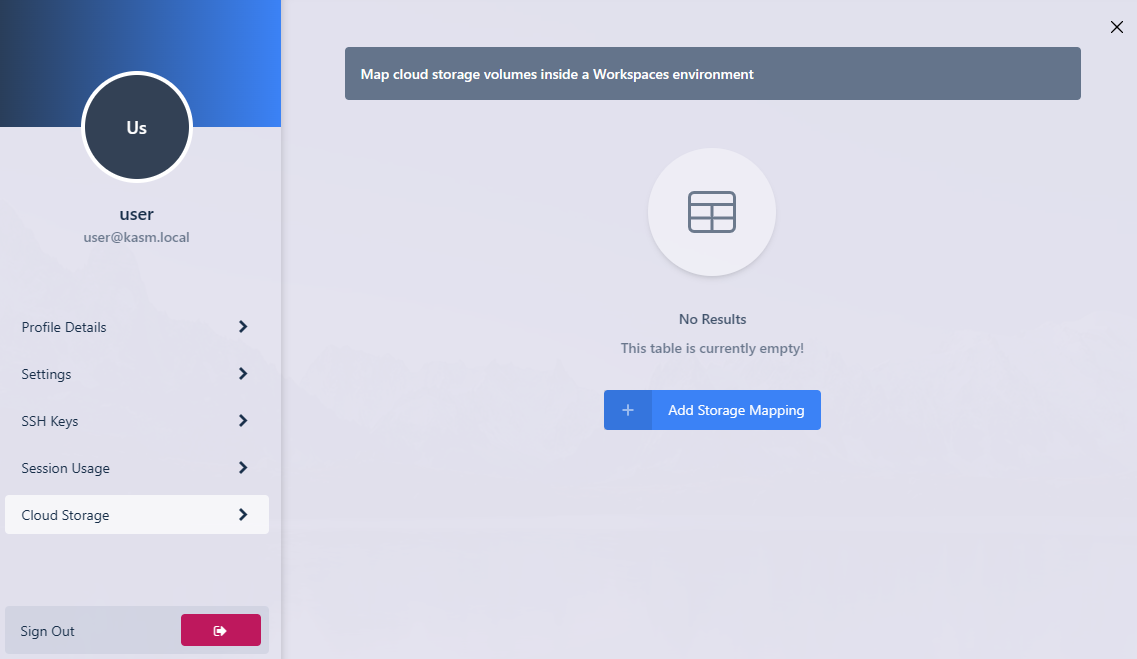
- Select the Cloud Storage section, then Add Storage Mapping.
- Select Google Drive from the drop-down, then select Next.

- The Google login page appears. Log in with the desired account. This account must be a test user from the OAuth app creation process.

- When the Google OAuth app is not yet approved, a warning appears. Click Continue.

- On success, Kasm redirects you to the Workspaces dashboard. The new storage mapping appears in the Cloud Storage section of the profile.

- Launch a new container-based session. Confirm that Google Drive is mapped inside the session at the
/gdrivelocation.
