Set up the Nextcloud storage provider
The Nextcloud storage provider lets users map their Nextcloud files into a container-based Kasm session. Access is provided through the Nextcloud WebDAV interface and the Rclone Docker volume plugin. For reference, see the Nextcloud WebDAV documentation and the Rclone WebDAV documentation.
Configure the storage provider
Complete the storage provider configuration with the following entries:
| Field | Value |
|---|---|
| Name | Nextcloud |
| Storage Provider Type | Nextcloud |
| Enabled | checked |
| Webdav URL | https://<hostname>:<port>/remote.php/dav/files/ |
| Default Target | /nextcloud |
| Volume Config | { "driver" : "rclone", "driver_opts" : { "type" : "webdav", "webdav-vendor" : "nextcloud", "uid" : "1000", "gid" : "1000", "allow_other" : "true" } } |
| Mount Config | {} |
Many of the storage provider examples include default storage driver options used by Rclone. These options work well with Kasm in its default configuration, and administrators can adjust them as needed. The available options often vary by provider plugin, for example Google Drive compared with OneDrive.
The Rclone Docker plugin is installed by default as part of the standard Workspace install. For more information about Rclone driver options, see the Rclone Docker documentation.
Nextcloud storage mapping configuration
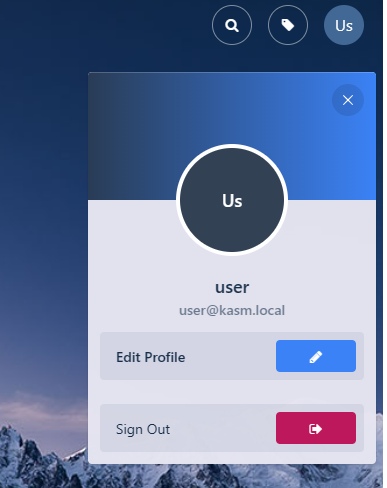
- From any page, select the profile icon at the top right.
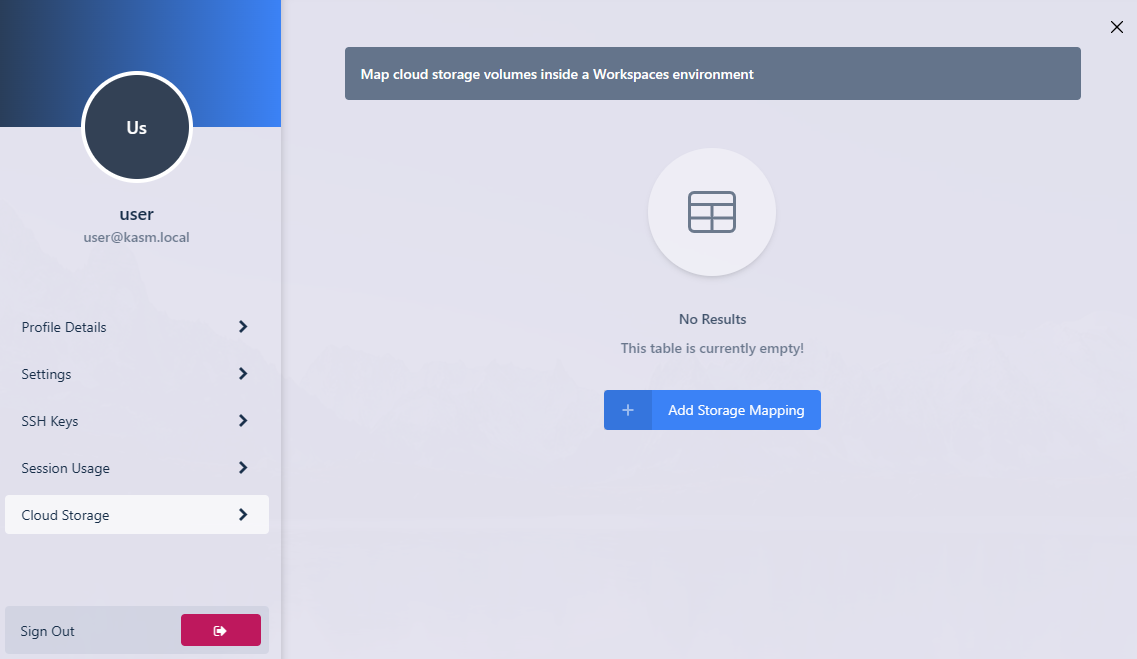
- Select the Cloud Storage section, then Add Storage Mapping.
- Select Nextcloud from the drop-down. Enter the Nextcloud Username and Nextcloud Password, then select Next.

- The new storage mapping appears in the Cloud Storage section of the profile.

- Launch a new container-based session. Confirm that the Nextcloud files are mapped inside the session at the
/nextcloudlocation.
