Set up the OneDrive storage provider
The OneDrive storage provider lets end users map their OneDrive storage into container-based sessions. Access is provided through the Microsoft OAuth interface and the Rclone Docker volume plugin. For reference, see the Rclone OneDrive documentation and the Microsoft app registration quickstart.
Create a Microsoft OAuth app
- Log in to the Microsoft Azure Portal.
- Select Azure Active Directory.

- Select App Registrations.

- Select New Registration.
- Give the app a name, such as
Kasm OneDrive Example. - In Supported account types, select Accounts in any organizational directory (Any Azure AD directory - Multitenant) and personal Microsoft accounts (e.g. Skype, Xbox).
- In the redirect URI, select Web, then enter the redirect URL, substituting the hostname of the Kasm deployment:
https://kasm.example.com/api/cloud_storage_callback.
caution
This example creates an integration where any Microsoft user can authenticate with the Kasm app, which is ideal for a public-facing deployment. Other options are available for single-tenant and multi-tenant configurations.

- On the next page, the Application (client) ID is shown. Save this value as the Client ID for the next section.
- Select Add a certificate or secret next to Client credentials.

- Select the Client secrets tab, then click New client secret.
- Enter a description and expiration, then click Add.
- The credentials are shown. Save the Value as the Client Secret for the next section.

- From the Manage menu on the left, select API Permissions.
- Select Add a Permission.

-
In the new window, select Microsoft Graph, then Delegated permissions.
-
Add all of the following permissions:
Files.ReadFiles.Read.AllFiles.ReadWriteFiles.ReadWrite.Alloffline_accessSites.Read.AllUser.Read

- Select the Overview section of the Azure app, then select Endpoints. Note the
OAuth 2.0 authorization endpoint (v2)andOAuth 2.0 token endpoint (v2)values for the next section. These values differ depending on the app type created in the previous section, that is internal, public, or multi-tenant.

Configure the storage provider
- Log in to the Kasm UI as an administrator.
- Select Settings, then Storage, then Add.
- Complete the form with the following entries, using the Client ID and Client Secret from the previous section:
| Field | Value |
|---|---|
| Name | OneDrive |
| Storage Provider Type | OneDrive |
| Enabled | checked |
| Client ID | <client id> |
| Client Secret | <client secret> |
| Authorization URL | <OAuth 2.0 authorization endpoint (v2) value from the Microsoft OAuth app> |
| Authorization URL Options | {"prompt" : "consent"} |
| Token URL | <OAuth 2.0 token endpoint (v2) value from the Microsoft OAuth app> |
| Redirect URL | https://<hostname>/api/cloud_storage_callback |
| Scope | Files.Read Files.ReadWrite Files.Read.All Files.ReadWrite.All Sites.Read.All offline_access openid email profile |
| Root Drive URL | https://graph.microsoft.com/v1.0/me/drive/root |
| Default Target | /onedrive |
| Volume Config | { "driver" : "rclone", "driver_opts" : { "type" : "onedrive", "uid" : "1000", "gid" : "1000", "allow_other" : "true" } } |
| Mount Config | {} |
- Click Save.
OneDrive storage mapping configuration
- From any page, select the profile icon at the top right.
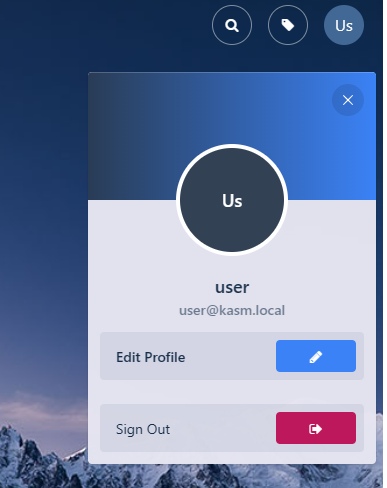
- Select the Cloud Storage section, then Add Storage Mapping.
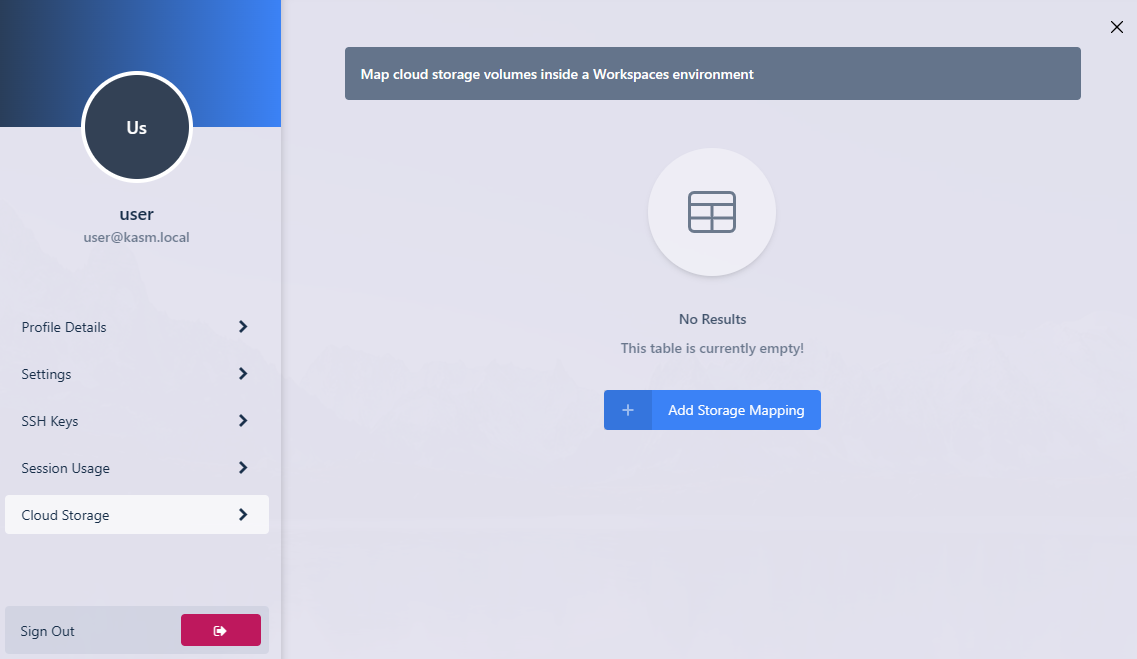
- Select OneDrive from the drop-down, then select Next.

- The Microsoft login page appears. Log in with the desired account.

- A consent screen appears that requests the permissions needed to access OneDrive. Approve the request.

- Kasm redirects you to the Workspaces dashboard. The new storage mapping appears in the Cloud Storage section of the profile.

- Launch a new container-based session. Confirm that OneDrive is mapped inside the session at the
/onedrivelocation.
