Jobs
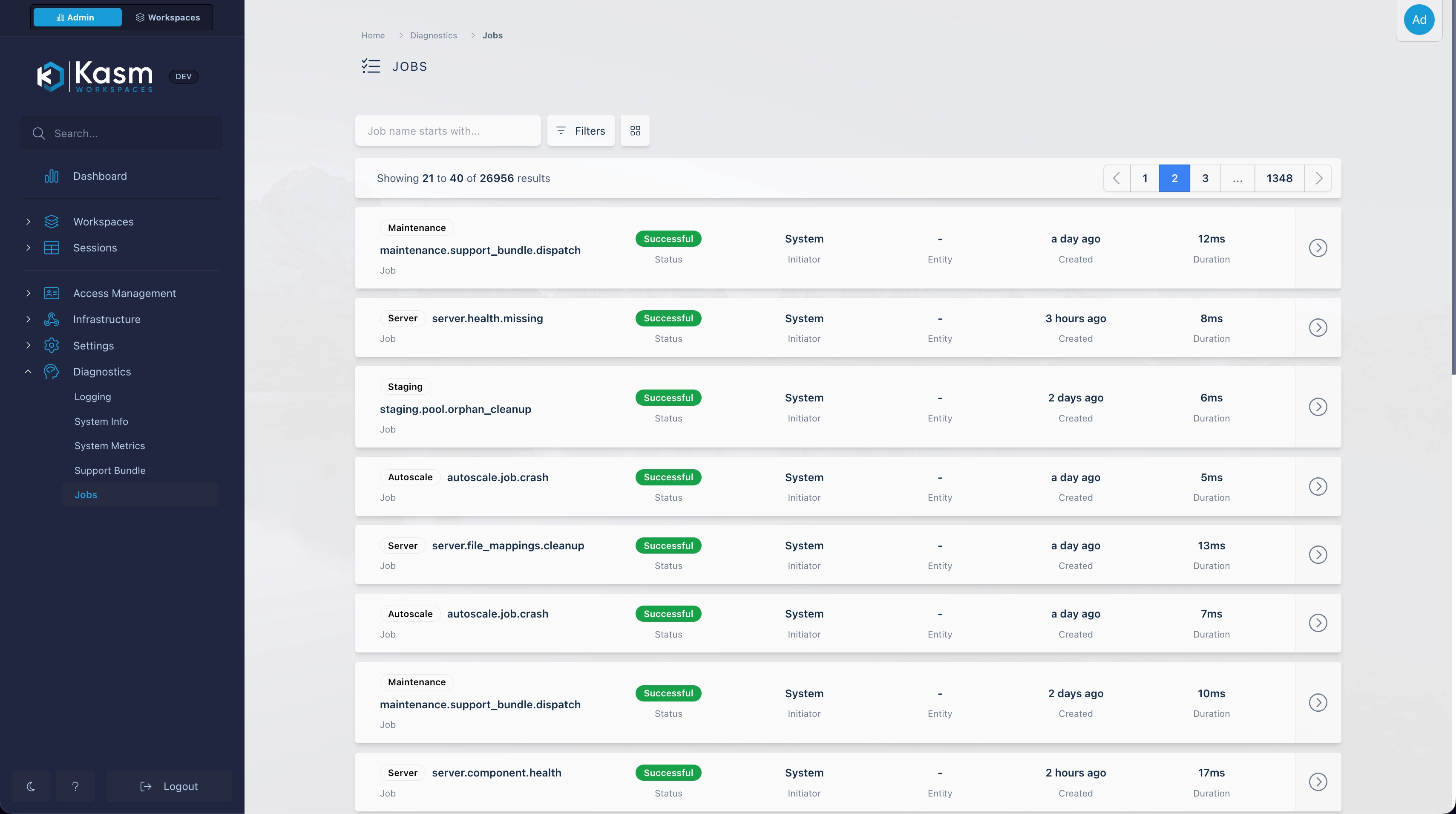
Kasm Workspaces runs much of its work as background jobs. Examples include session actions, AutoScale provisioning, server heartbeats, and scheduled maintenance. The Jobs page lists these jobs so Administrators can confirm that an action ran, see how long it took, and find out why it failed.
Open the page from Diagnostics > Jobs.
Required permissions
| Permission | Grants |
|---|---|
| Job Statuses View | View the Jobs page and every job in the list. |
| Reports View | View job logs, together with Job Statuses View. |
| Users View | Filter by a specific user and open user records from the Initiator column. |
Job logs are read from the built-in observability stack. If observability is disabled, the job list still works, but logs are not available.
Job list
Each row is one job. The list shows the newest jobs first.
| Column | Description |
|---|---|
| Job | The job name, with a badge for its type, such as Session, AutoScale, or Heartbeat. |
| Status | The current state. Failed jobs also show an error code. |
| Initiator | The user who triggered the job, or System for scheduled and internal jobs. |
| Entity | The session, server, agent, or AutoScale config the job acted on. Selecting it opens the matching record if you have permission to view it. |
| Created | When the job was queued. Hover to see the exact time. |
| Duration | How long the job ran. Running jobs update every second. |
A job moves through the following states:
- Queued: The job is waiting for a worker.
- In Progress: A worker is running the job.
- Successful: The job finished without errors.
- Failed: The job stopped with an error.
The list refreshes every 10 seconds. The rows already in the list stay in place, so they do not move while you read them. When new jobs arrive, a banner shows how many are available. Select Refresh in the banner to load them.
If an entity was deleted after the job ran, the Entity column shows a shortened ID instead of a link.
Filter jobs
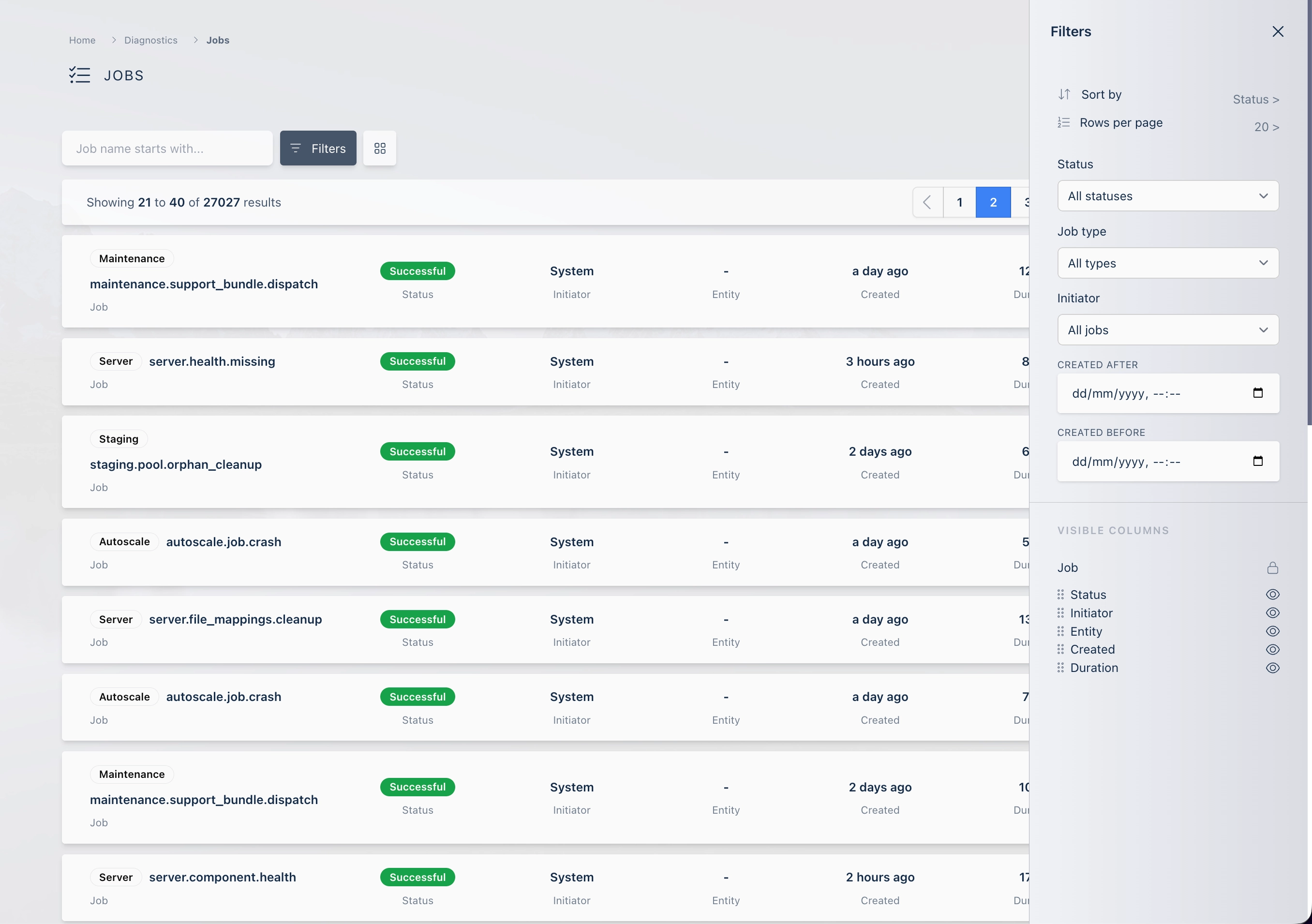
Use the search box to find jobs by name. Open the filter panel to narrow the list further:
- Status: Show only jobs in one state.
- Job type: Show only one type of job, such as Session or AutoScale.
- Initiator: Choose All jobs, System, My jobs, or Specific user. Specific user adds a searchable user list.
- Created after and Created before: Limit the list to a time range. Select Clear dates to remove both.
Job details
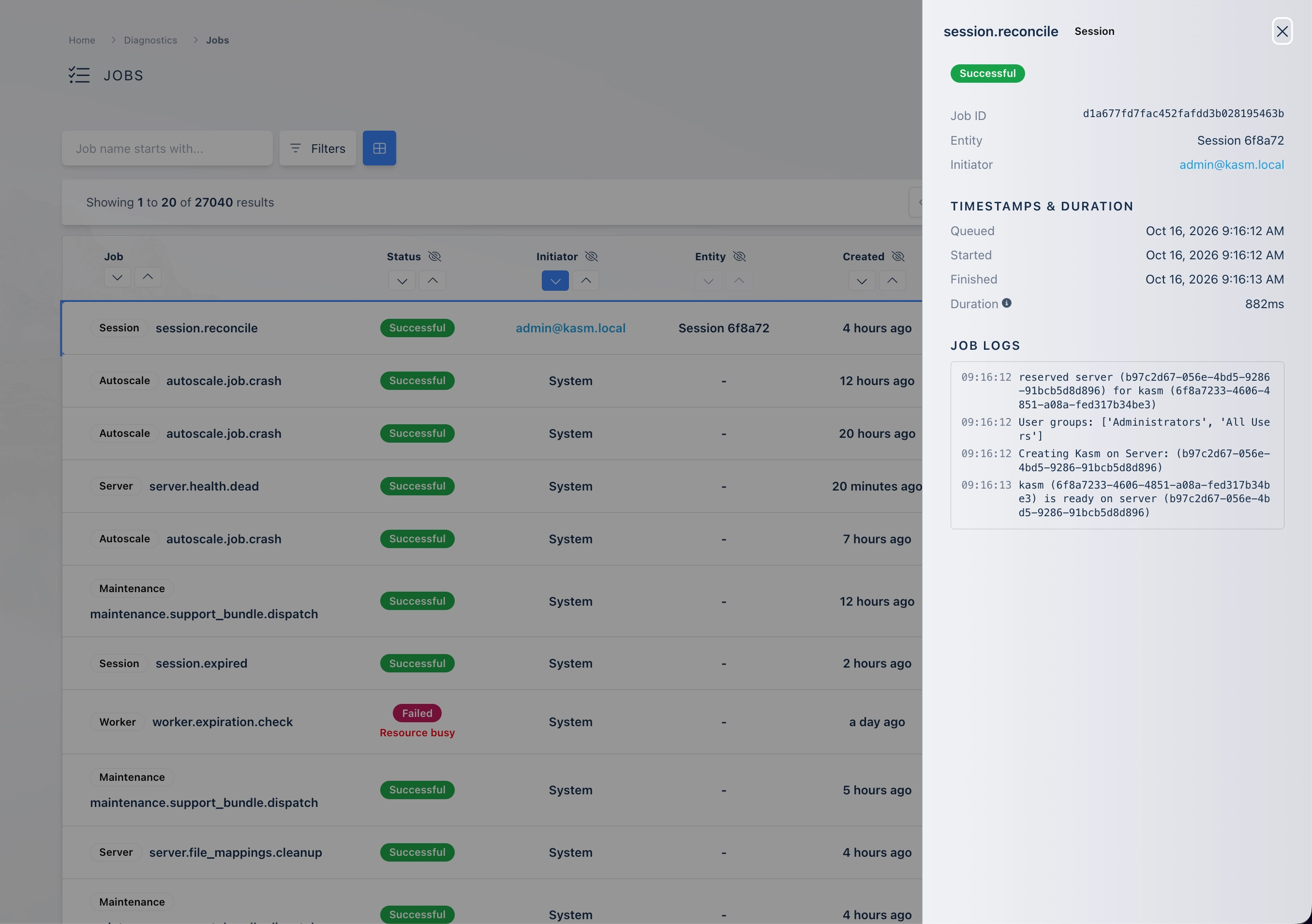
Select the view action on a row to open the job details panel. The panel stays up to date while the job runs. It shows:
- The job ID and, for jobs started by another job, the parent job ID.
- The entity and initiator, with the same links as the list.
- The queued, started, and finished times.
- The duration. Duration counts only the time the job ran and does not include time spent queued.
- For failed jobs, the error code and the error message.
Job logs
The Job logs section of the details panel shows the log entries the job wrote. While the job runs, a Live indicator appears and new entries load every few seconds. Entries with an error or critical severity are highlighted.
If the logs do not load, the panel shows one of the following messages:
| Message | Cause |
|---|---|
| You do not have permission to view job logs | The Administrator does not hold both Job Statuses View and Reports View. |
| Job logs are not available | Observability is disabled, or the log store cannot be reached. |
| No log entries yet | The job has not written any log entries. |
Job retention
Kasm Workspaces removes job records on a schedule, so the list covers recent activity only. How long a record is kept depends on the type of job. Frequent jobs, such as heartbeats, are kept for minutes. Session actions and AutoScale provisioning are kept for up to 30 days. Failed jobs are kept for at least 30 days, and no record is kept longer than 45 days.
The retention periods are set in the job_statuses category of the global settings. Keep the default values unless Kasm support advises otherwise. Longer retention for frequent jobs can grow the database quickly.