Find the cause of an error with the logging dashboard
Overview
When a workspace fails to start or a service misbehaves, the cause is usually in the logs of one Kasm Workspaces service. Routine entries, such as health checks, can bury that cause. This guide narrows the logging dashboard to the failing service and hides the routine entries with exclusion rules. The guide then shows how to read the failing entry in detail and export the surrounding logs for Kasm support.
Prerequisites
- An administrator account with the Reports View permission. Exporting logs also requires the System Export Data permission. For permission details, see common permissions.
- The approximate time the problem occurred, within the log retention period.
Solution approach
This guide progresses through the following phases:
- Narrow the search to the time and service of the problem.
- Hide routine entries with exclusion rules.
- Read the failing entry.
- Export the surrounding logs.
Detailed steps
Narrow the search to the time and service of the problem
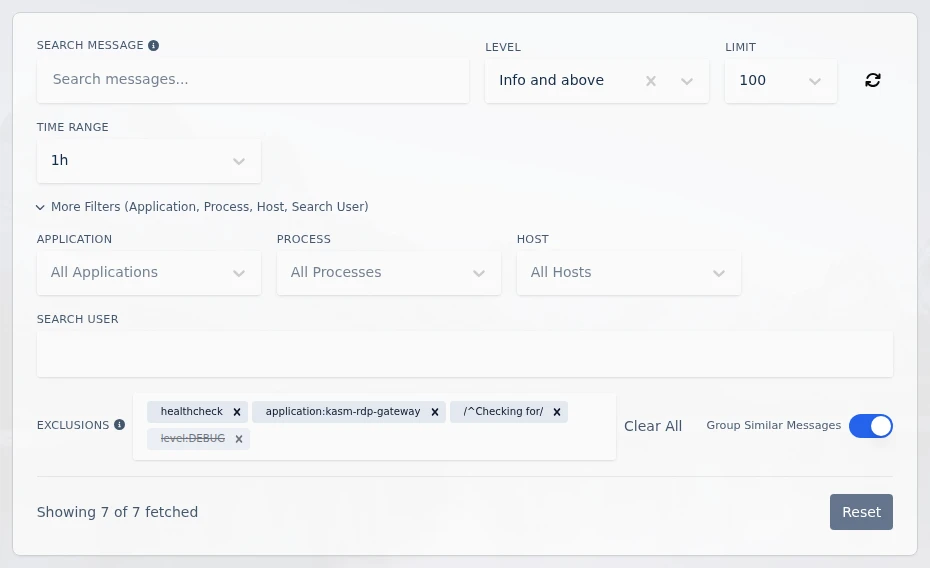
- Open Admin > Diagnostics > Logging. The Application tab opens with the last hour of Info and higher entries.
- In Time Range, select a window that covers the problem. For a known time, select Custom and enter a Start Date and End Date.
- In Level, select Error and Critical. Add Warning if the error has no obvious cause.
- Expand More Filters and select the affected services in Application. To follow one user's activity, enter their username in Search User.
- Enter a distinctive word from the error in Search Message, such as a session ID or
failed, and press Enter.
Hide routine entries with exclusion rules
- Select a routine entry in the results, such as a health check, to open its details.
- Select Actions > Exclude Messages Like This. Every entry with the same message shape disappears from the results.
- To hide a whole service or host, select Exclude This Application or Exclude This Host instead.
- To hide entries by text, type a rule in Exclusions and press Enter. For example,
healthcheckhides every message that contains "healthcheck", anduser:alice@example.comhides every entry for that user. - Select a chip to turn its rule off temporarily. Select the chip again to turn it back on.
The exclusion rules persist across page reloads until logout. For the full rule syntax, see exclusion rules.
Read the failing entry
- Turn on Group Similar Messages to collapse repeated entries into one row with a count.
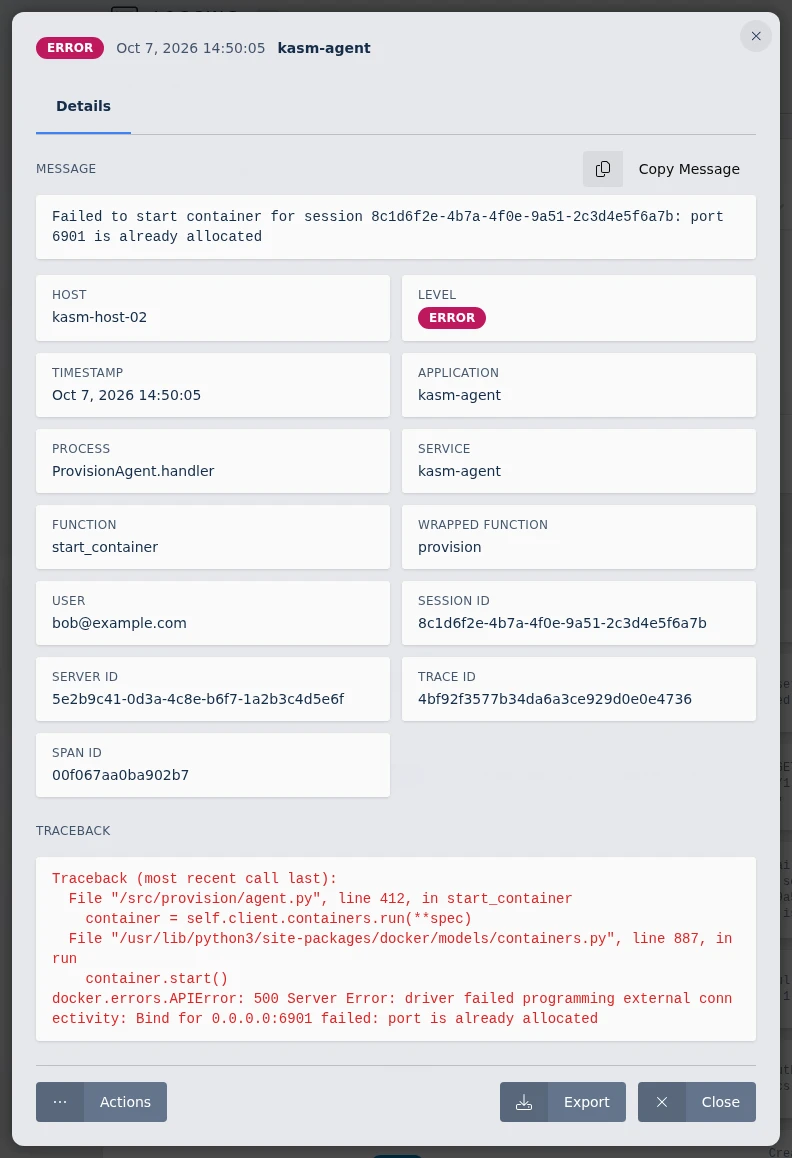
- Select the failing entry. The details show the full message, the fields the entry populates, and any traceback.
- Use the Session ID, Server ID, and Trace ID values to find related entries. Copy a value and paste it into Search Message.
- To compare the entry with other occurrences, open the Similar tab.
Export the surrounding logs
- In the entry details, select Export.
- Set Previous context and Post context to the number of seconds of logs to include before and after the entry.
- Enter a Password to encrypt the archive. Share the password with Kasm support separately from the archive.
- Keep Include system version information selected unless the version information is already known.
- Select Export. The browser downloads
diagnostics.zip.
For the archive contents, see export artifacts.
Common troubleshooting steps
| Symptom | Resolution |
|---|---|
| The results show fewer entries than the summary total. | The Limit caps the loaded entries, newest first. Raise Limit or narrow Time Range to reach older entries. |
| An exclusion rule chip is red. | The rule is not applied. Hover over the chip to see the reason, such as an unsupported regular expression, a rule over 500 characters, or enabled rules that are too long to send together. |
| An expected entry is missing. | An exclusion rule may hide it. Select each chip to turn its rule off, or select Clear All. |
A field:value rule does not hide the entries it names. | Exact matches on application, process, host, user, and function are case-sensitive. Add the rule from the entry's Actions menu, or copy the value from the entry details. |
| Reset does not bring back hidden entries. | Reset restores the filters only. Turn off or remove the exclusion rules separately. |
| The Process list is shorter than expected. | When applications are selected, Process lists only the processes those applications log. Clear Application to see every process. |
| The page shows "Could not load logs." with "invalid regex". | A regular expression rule uses syntax the server rejects. Turn off the regular expression rules one at a time to find it, then select Retry. |