Sessions
Overview
Administrators often need to act on live workspace sessions to control resource use or capture a configured environment. This guide shows how to view active sessions from the Admin panel, stop, pause, start, or delete them, and create a Docker image from a running container-based Workspace. The result is direct control over session lifecycle and a fast path to reusable workspace images.
Prerequisites
- Administrator access to the Kasm Workspaces Admin panel.
- One or more active sessions in the deployment.
- For image creation, a container-based Workspace session. The image actions do not apply to server-based or RDP, SSH, and VNC sessions.
- Optional registry credentials if you want Kasm to push a created image to a container registry.
Solution approach
This guide progresses through the following phases:
- View active sessions and available actions.
- Apply session lifecycle actions such as stop, pause, start, and delete.
- Create a Docker image from an active container-based session.
Detailed steps
View active sessions and available actions
Administrators can view the active sessions by opening the Sessions page from the Admin panel.
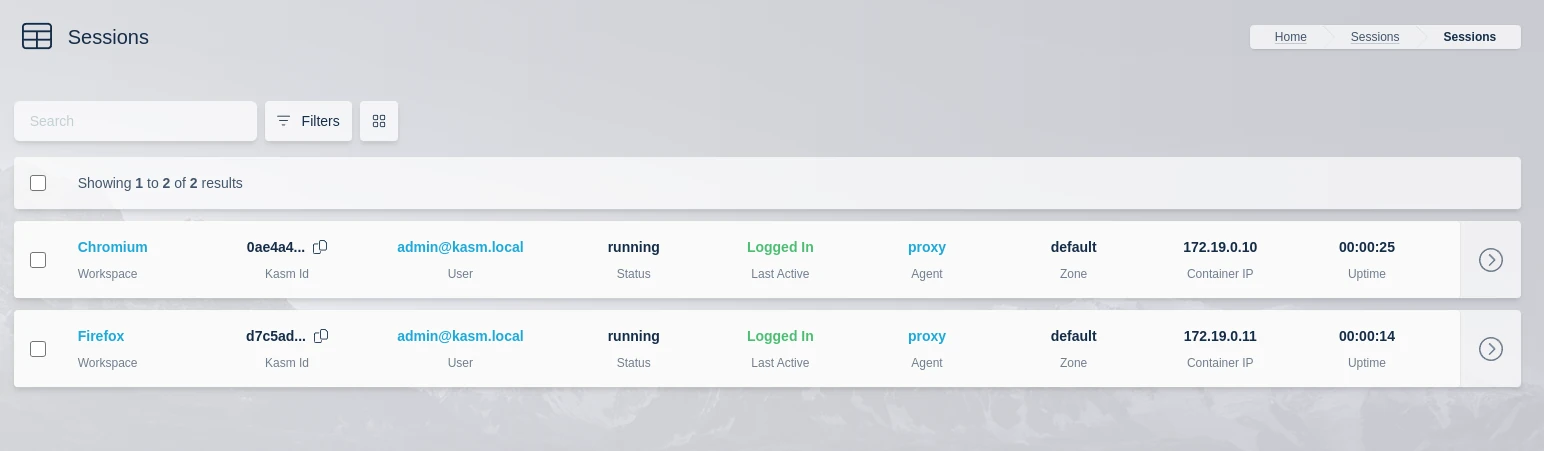
Click the arrow for a session to display the available actions:
- View - View more details about the session.
- Stop - The session is stopped, preserving the disk state. Sessions resumed from a stopped state retain the previous files, but previously running programs need to be restarted. This option applies to container-based Workspaces only.
- Pause - The session is paused, preserving the disk, process, and memory state. Paused sessions still consume resources in physical memory or swap. Sessions resumed from a paused state retain the previously launched programs, which remain active. This action applies to container-based Workspaces only.
- Start - Restart a stopped or paused session.
- Delete - The session is deleted.
Create an image from a session
Administrators can create new Docker images from active container-based Workspace sessions. A more formal build process is recommended for creating images. Creating an image from an active session is a simple alternative when a Workspace requires steps that cannot be automated.
-
From the Sessions page, click the arrow to show the actions menu.
-
Select Create Image.

- A form is displayed. The only required entry is New Docker Image (repo plus tag). A name is generated automatically with the current date and time. If registry information is provided, the system attempts a push of the newly created image.
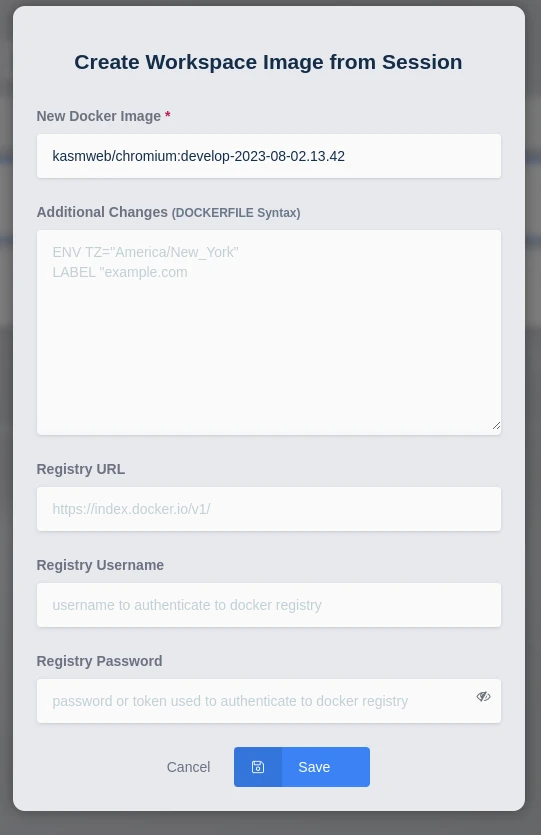
The Additional Changes field accepts a limited number of DOCKERFILE instructions that can be called during the commit.
The following instructions are supported:
CMD|ENTRYPOINT|ENV|EXPOSE|LABEL|ONBUILD|USER|VOLUME|WORKDIR
See https://docs.docker.com/engine/reference/commandline/commit/ for more details.
The following examples show Image and Registry configurations for common container registries.
- Dockerhub Example
- Gitlab Example
| Field | Value |
|---|---|
| New Docker Image | myrepo/firefox:2023-03-13.00.40 |
| Registry URL | https://index.docker.io/v1/ |
| Field | Value |
|---|---|
| New Docker Image | registry.gitlab.com/mygroup/image-repo/firefox:2023-03-13.00.40 |
| Registry URL | https://registry.gitlab.com |
When finished, click Submit.
- A task is sent to the Kasm Agent to conduct a
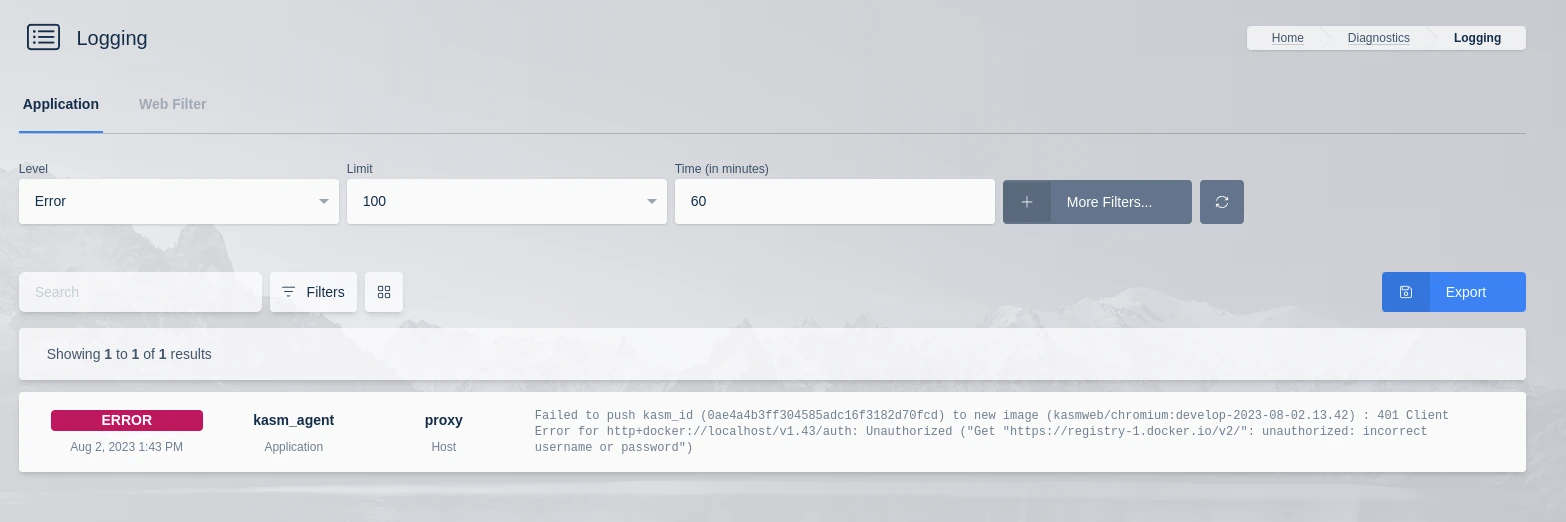
docker commitwith the new image. If a registry was configured in the previous form, the Agent also attempts adocker pushto the registry provided. This is a background task, so administrators may need to review the logs to identify failures in the process. The following example shows an error for a failed image push.
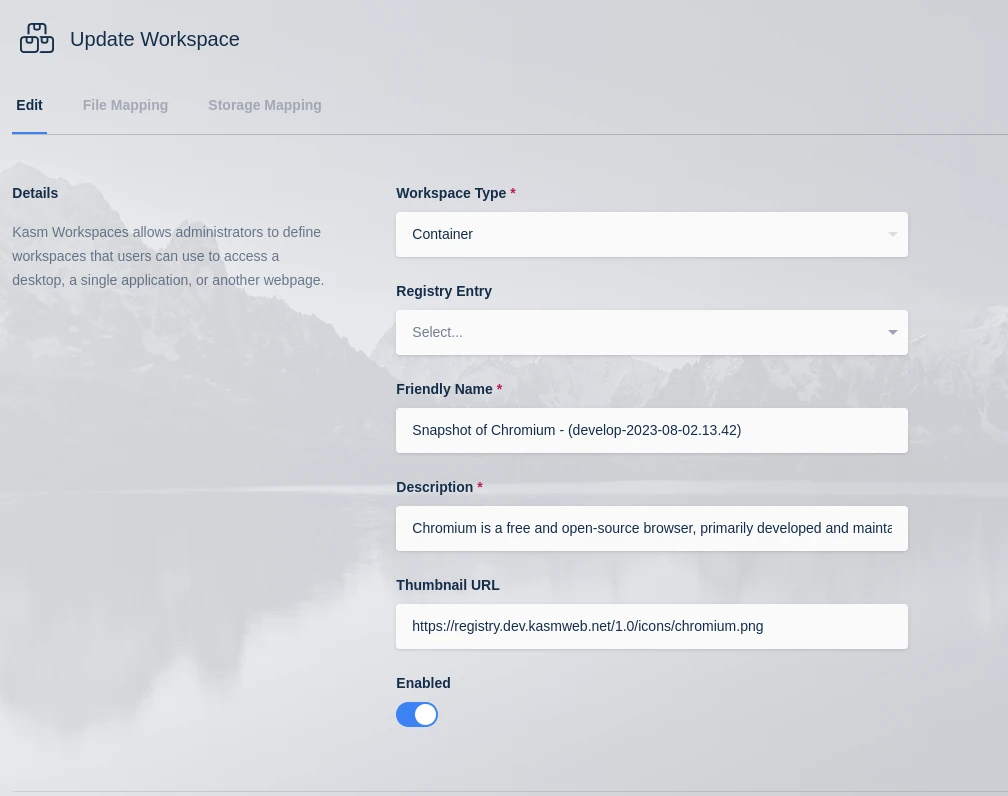
- A Workspace entry is created automatically and presented to the administrator for additional configuration. When complete, click Submit.
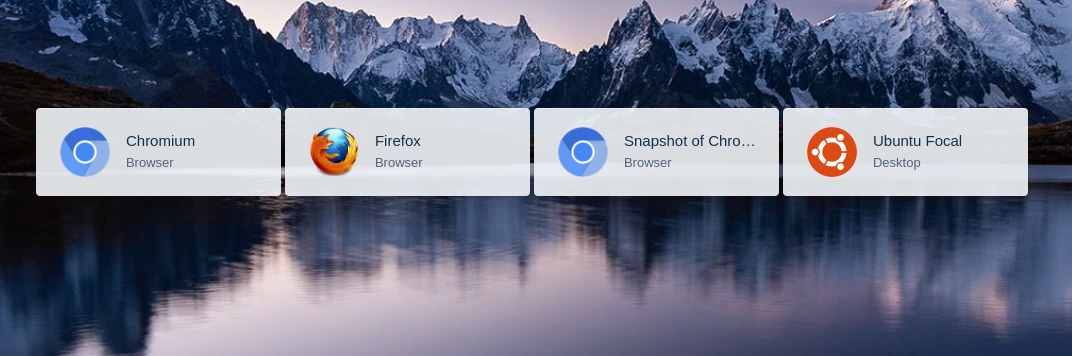
- Back on the Workspace Launcher, the new Workspace is visible (for example,
Snapshot of Firefox - (develop-2023-03-12.23.44)). If the commit succeeds, the image is marked as available. Depending on the size of the image, this process may take several minutes.
Common troubleshooting steps
- The Stop or Pause action is missing. These actions apply to container-based Workspaces only. Confirm the session runs a container-based Workspace.
- The image push fails. Image creation runs as a background task on the Kasm Agent. Review the Agent logs for the
docker pusherror and confirm the registry URL and credentials are correct. - The new Workspace is not available. Large images take several minutes to commit. Wait for the commit to finish, then confirm the Workspace is marked as available on the Workspace Launcher.