Configure Direct to Agent connections in Kasm Workspaces
Overview
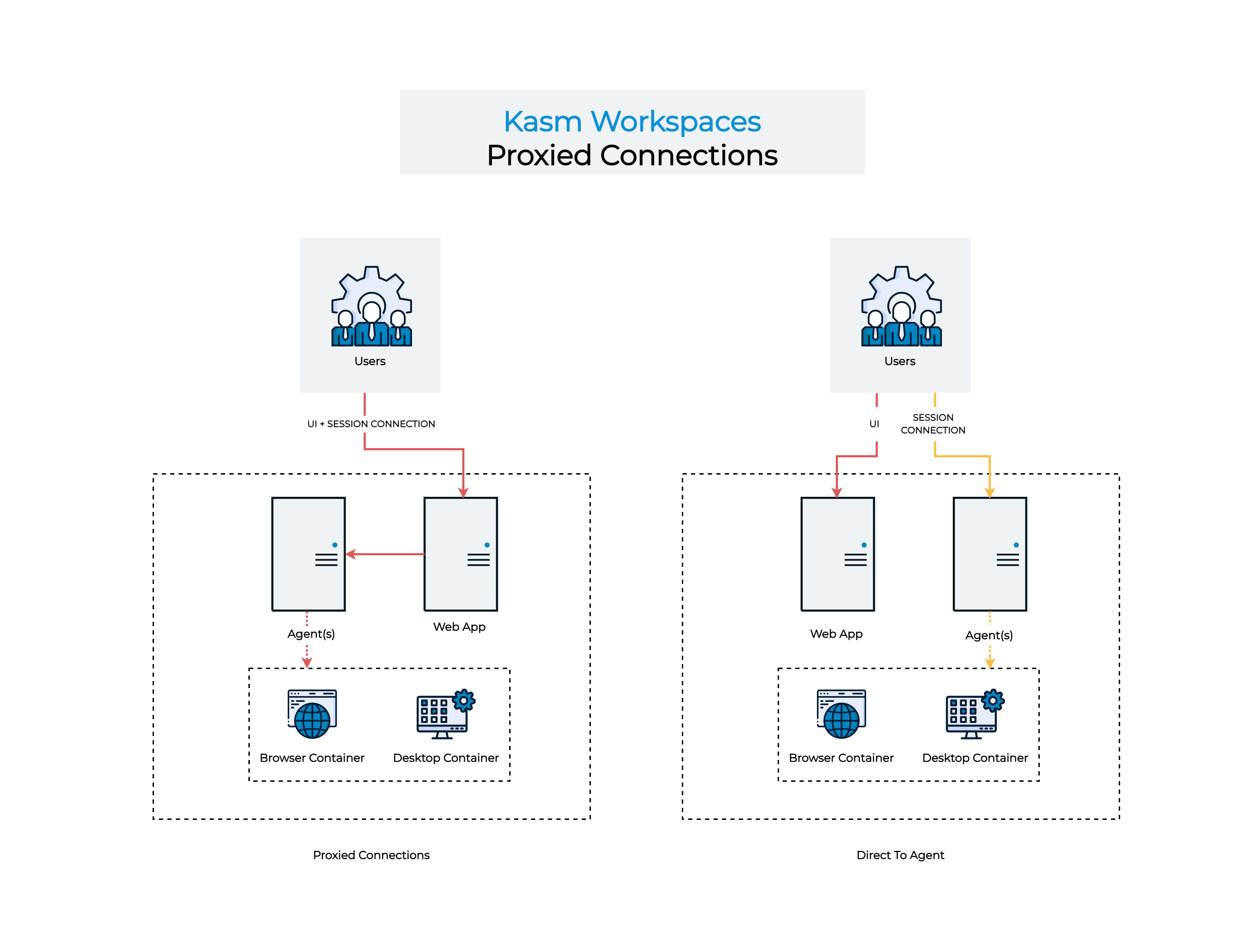
By default, Kasm Workspaces proxies every session connection through the Web App role to the Agent role. The proxy reduces complexity and works well for most deployments. At higher concurrency, routing all session traffic through the Web App adds latency and consumes Web App bandwidth that scales with every active session. This guide configures the Direct to Agent connection mode, so clients connect straight to the Agent and the Web App no longer carries session traffic. The result is lower latency and a Web App tier that scales independently of session load.
Prerequisites
- A working Kasm Workspaces deployment in a multi-server configuration.
- Administrator access to the Workspaces UI.
- Shell access to every Agent and Web App server with permission to run
sudo systemctl. - DNS records that resolve every Web App and Agent server within the same parent domain, for example
app-1.kasm.example.comandagent-1.kasm.example.com. - Network paths that allow clients and Kasm role servers to reach each Agent and Web App address over HTTPS.
- Valid certificates on every Web App and Agent server that clients trust. To install them, see Replace certificates.
Solution approach
This guide progresses through the following phases:
- Register each Agent under its DNS name.
- Disable proxy connections and set the authorization domain.
- Validate that clients connect directly to the Agent.
Detailed steps
Register each Agent under its DNS name
Configure each Agent to register with the Workspaces system using its public DNS name rather than its internal address. Repeat the following steps on every Agent.
-
Stop the services on the Agent.
sudo systemctl stop kasm -
Open the Agent configuration file.
sudo vi /opt/kasm/current/conf/app/agent/agent.app.config.yaml -
Set the
public_hostnamevalue to the public DNS name of the Agent, for exampleagent-1.kasm.example.com. -
Start the services on the Agent.
sudo systemctl start kasm -
Log in to the Workspaces UI as an administrator, then select Infrastructure > Docker Agents. Confirm that the Agent checks in under its DNS name.
Disable proxy connections and set the authorization domain
Turn off proxying for the applicable Zone, then point the authorization domain at the parent domain that the Web App and Agent servers share.
-
Log in to the Workspaces UI as an administrator.
-
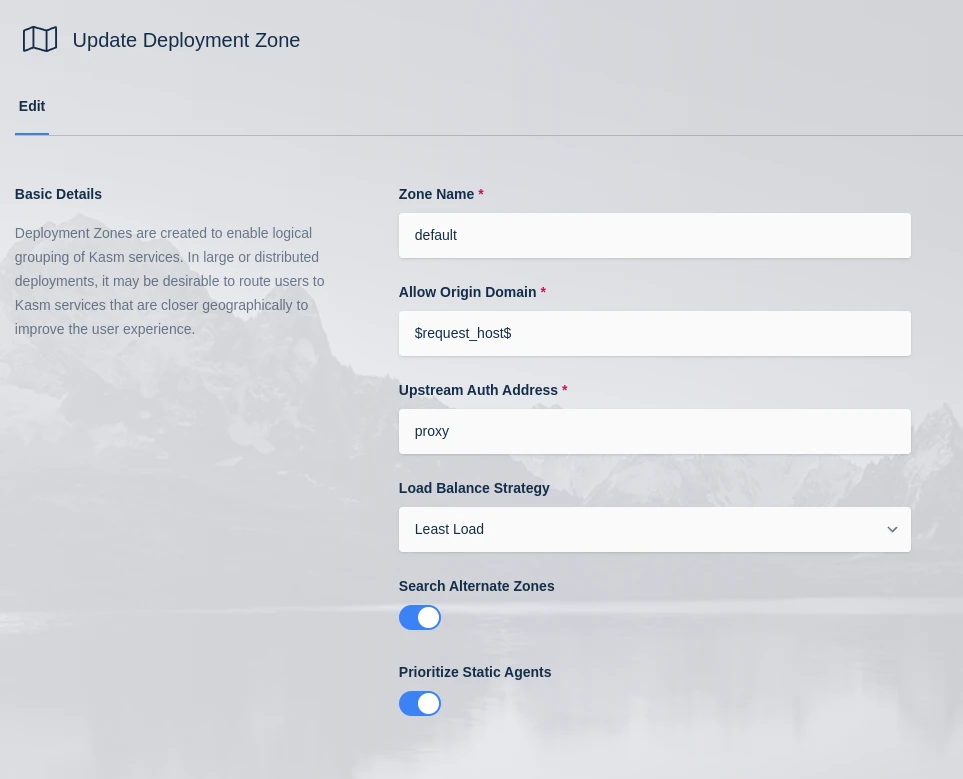
Select Infrastructure > Zones, then select Edit next to the applicable Zone.
-
Clear the Proxy Connections checkbox, then select Save.
Zone configuration -
Select Settings > Global from the Admin panel.
-
Set Kasm Authorization Domain to the parent domain of the Web App and Agent servers, for example
kasm.example.com.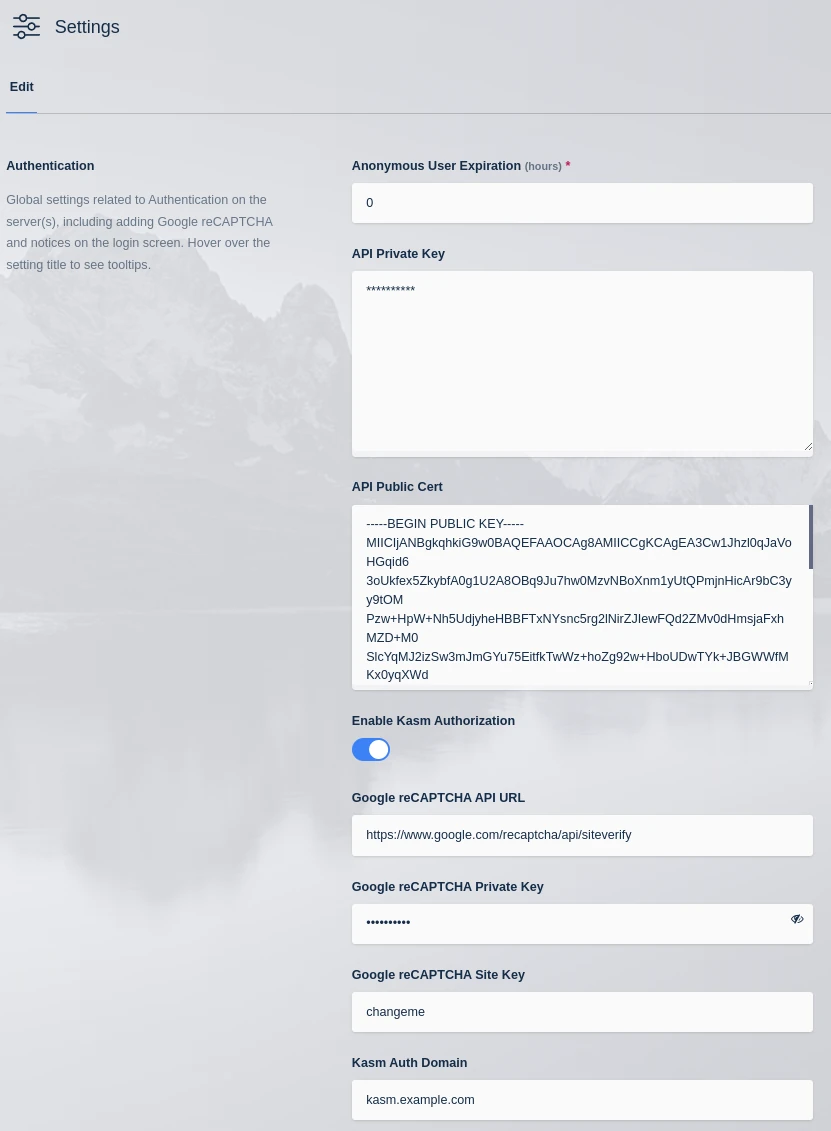
Authorization domain -
Restart the services on every Web App server.
sudo systemctl restart kasm
Validate that clients connect directly to the Agent
Confirm that new sessions route to the Agent address rather than the Web App.
-
Log out of the Workspaces UI.
-
Open a new incognito browser window, then log in to the Workspaces UI.
-
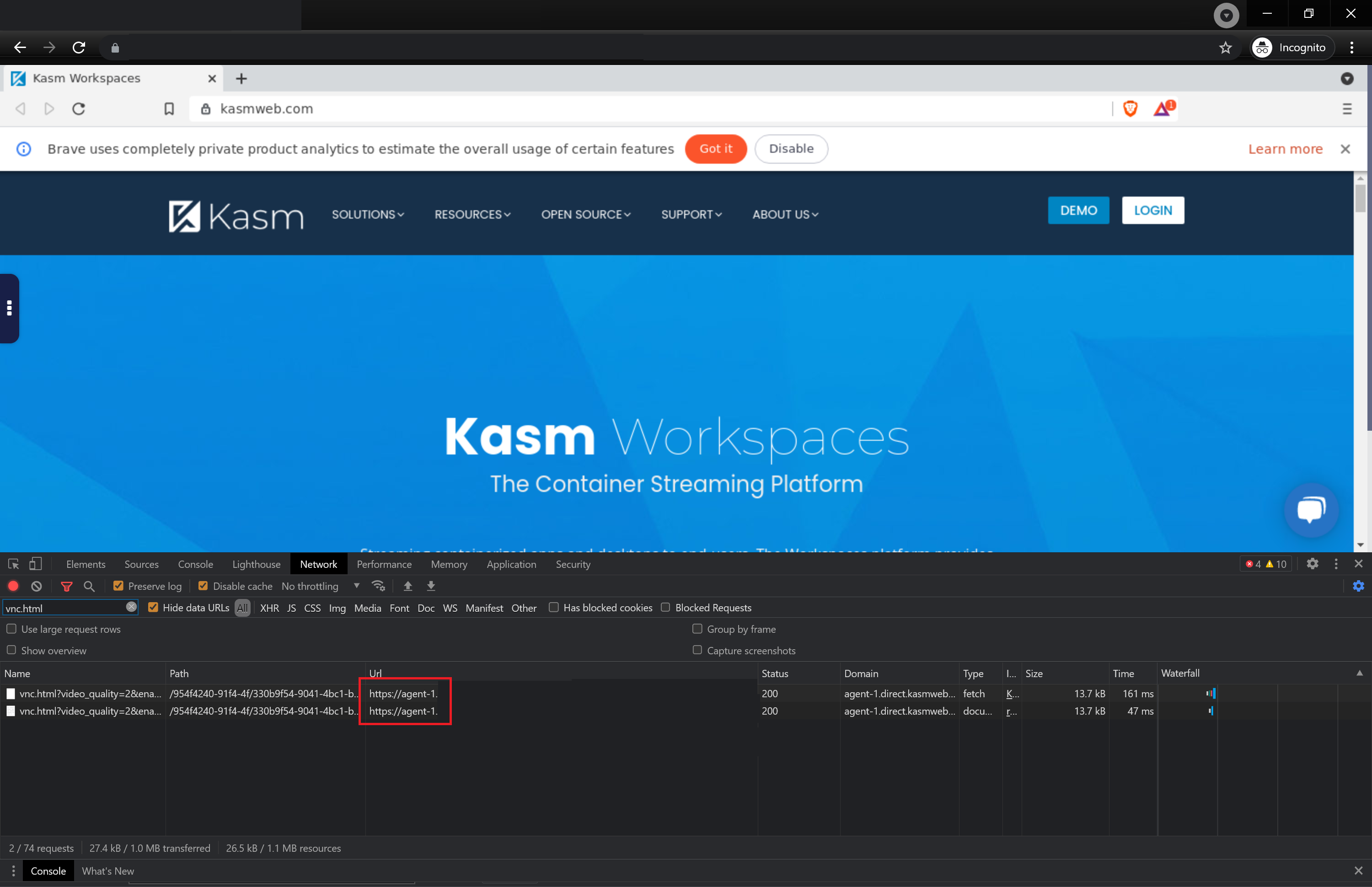
Open the browser developer tools, select the Network tab, then enter
vnc.htmlin the filter. -
Launch a new session. The request URL in the developer tools shows the Agent address as the domain.
Developer tools
Common troubleshooting steps
- The Agent checks in under an internal address. Confirm that
public_hostnameis set to the public DNS name inagent.app.config.yaml, then restart the Agent services. - Sessions fail to load after disabling the proxy. Confirm that clients resolve each Agent DNS name and reach it over HTTPS on the configured port.
- The browser reports a certificate error on the Agent address. Confirm that the Agent presents a certificate that clients trust. See Replace certificates.
- Session requests still route through the Web App. Confirm that Proxy Connections is cleared on the correct Zone and that the Web App services restarted after the change.