Preload workspace images on AutoScaled agents
Overview
When AutoScale provisions a new Docker agent, Kasm pulls each workspace image before users can launch a workspace, which adds noticeable delay to the first launch on every fresh agent. This guide eliminates that delay by preloading workspace images into the VM template that AutoScale clones, so the images are already present the moment an agent comes online. You build the template once on any VM provider, and every AutoScaled agent inherits the cached images for instant, predictable workspace launches. The result is a faster end-user experience and tighter control over provisioning time as the deployment scales.
Prerequisites
- A working Kasm Workspaces deployment with administrator access to the Admin Dashboard.
- Permission to create API keys under "Settings" -> "Developers".
- A Linux VM that you can convert into the AutoScale agent template, running Ubuntu or another supported Docker host operating system. See the Docker Ubuntu installation requirements.
- Network access from the VM to your Kasm Web App role over HTTPS.
If you use rolling images, the versions pulled during preloading reflect the latest available at that moment. After agents come online and register with Kasm, they automatically check for updates. When a newer version of a rolling image is available, Kasm updates it accordingly.
Solution approach
This guide progresses through the following phases:
- Create a read-only Kasm API key.
- Fetch and pull the workspace images on the VM.
- Convert the VM into the AutoScale agent template.
Detailed steps
Create a read-only Kasm API key
The script authenticates to the Kasm API to list your workspace images, so it needs an API key with read-only image access.
- In the Kasm Admin Dashboard, go to "Settings" -> "Developers".
- Click "Add API Key".
- Give the API key a name.
- Enable
Read Only. - Optionally, set an expiration date for the API key.
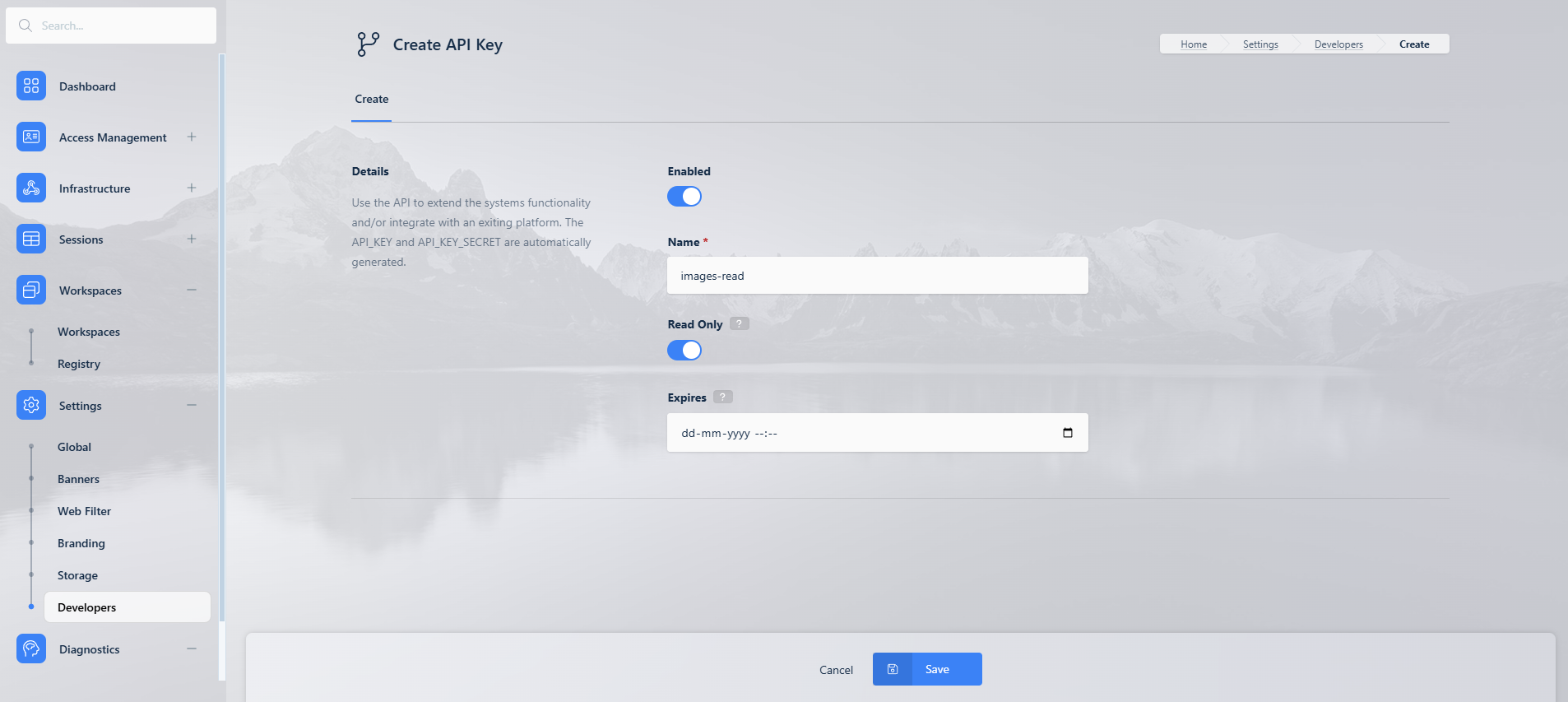
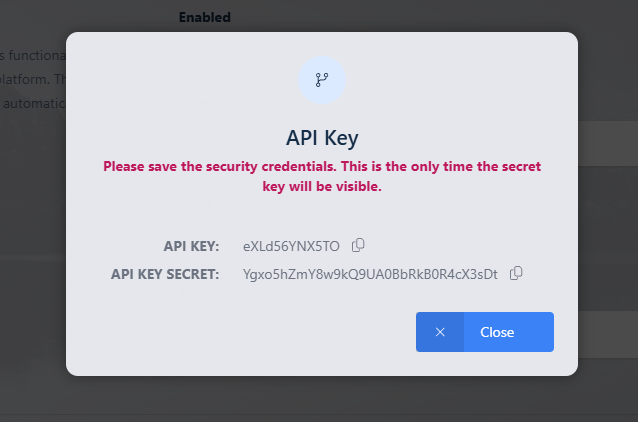
- Submit the form to generate the
API KEYandAPI KEY SECRET. Save both values securely, because you cannot view them again.
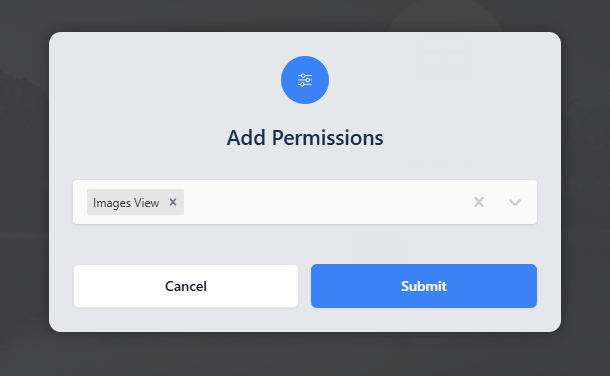
- Give the API key the
Images Viewpermission and click "Submit".
Fetch and pull the workspace images on the VM
The following bash script runs on the VM that becomes your agent template. It installs Docker CE, queries your deployment for the workspace image list, and pulls each image with docker pull. The script targets Ubuntu, so adjust the Docker installation logic if your agents run a different Linux distribution. See the Docker installation guide for Ubuntu.
-
Replace the following variables with the actual values from your Kasm deployment:
KASM_HOST: The IP address or FQDN of your Kasm deployment. In a multi-server setup, use the IP address or FQDN of your Kasm Web App role.API_KEY: The API key you generated earlier.API_KEY_SECRET: The API key secret you generated earlier.
-
Run the script on the VM:
# Install Docker on Ubuntu (ref: https://docs.docker.com/engine/install/ubuntu/)
sudo apt-get update
sudo apt-get install ca-certificates curl
sudo install -m 0755 -d /etc/apt/keyrings
sudo curl -fsSL https://download.docker.com/linux/ubuntu/gpg -o /etc/apt/keyrings/docker.asc
sudo chmod a+r /etc/apt/keyrings/docker.asc
echo \
  "deb [arch=$(dpkg --print-architecture) signed-by=/etc/apt/keyrings/docker.asc] https://download.docker.com/linux/ubuntu \
  $(. /etc/os-release && echo "${UBUNTU_CODENAME:-$VERSION_CODENAME}") stable" | \
  sudo tee /etc/apt/sources.list.d/docker.list > /dev/null
sudo apt-get update
sudo apt-get install -y docker-ce


# Kasm API variables
export API_KEY=<Your Kasm API Key>
export API_KEY_SECRET=<Your Kasm API Key Secret>
export KASM_HOST=<Your Kasm IP/FQDN>

# Fetch and pull all images
curl -sk -X POST "https://${KASM_HOST}/api/admin/get_images" \
  -H "Content-Type: application/json" \
  -d "{\"api_key\":\"${API_KEY}\",\"api_key_secret\":\"${API_KEY_SECRET}\"}" \
| jq -r '.images[] | select(.name != null) | .name' \
| while read -r image_name; do
    echo "Pulling image: $image_name"
    sudo docker pull "$image_name"
done
Convert the VM into the AutoScale agent template
After the script pulls every required workspace image, capture the VM as the template that AutoScale clones.
- Shut down the VM.
- Create a VM template from the VM, following the procedure for your VM provider.
- Point your AutoScale configuration at the new template.
When AutoScale provisions new agent VMs from this template, the workspace images are already present. This removes the image-download delay during provisioning and produces faster workspace launches.
Common troubleshooting steps
- The API call returns an authentication error. Confirm that
API_KEYandAPI_KEY_SECRETmatch the values generated for this key, and that the key has theImages Viewpermission. - No images are pulled. Verify that
KASM_HOSTpoints to the Kasm Web App role and that the VM can reach it over HTTPS. Confirm thatjqis installed on the VM. - The pull fails for specific images. Confirm that the VM can reach the container registry that hosts those workspace images, and that any private registry credentials are configured on the VM.
- Agents still pull images after provisioning. Confirm that you captured the template after the pulls completed, and that AutoScale references the correct template.