Create and manage compute pools in Kasm Workspaces
Overview
A pool groups a set of similar systems so that Kasm Workspaces treats them as a single Workspace for user access. Users see one Workspace icon on their dashboard, and Kasm distributes each session to an available system in the pool. Each system can support one or more concurrent sessions, and Kasm distributes sessions evenly across the pool. A pool can also target a supported VM provider to AutoScale servers or Docker Agents automatically. This guide creates a pool, assigns systems to it, and points AutoScale at it.
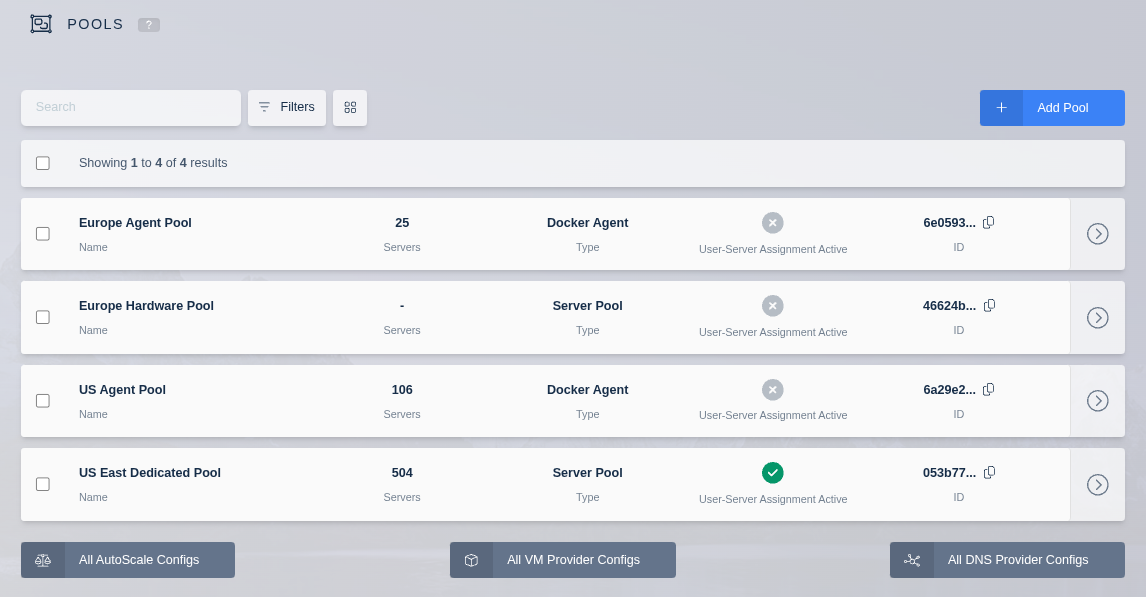
AutoScale is available in the Community and Enterprise editions only. When applicable, three links appear under the table for All AutoScale Configs, All VM Provider Configs, and All DNS Provider Configs. These show every config available, but the recommended approach is the Edit option on a specific pool.
Prerequisites
- A working Kasm Workspaces deployment with administrator access.
- Existing servers or Docker Agents to assign, or a VM provider configured for AutoScale.
Solution approach
This guide progresses through the following phases:
- Create a pool.
- Assign servers or Docker Agents to the pool.
- Target the pool with AutoScale.
Detailed steps
Create a pool
- Click Infrastructure in the navigation menu.
- Select Pools.
- Click Add at the top right of the Pools table.
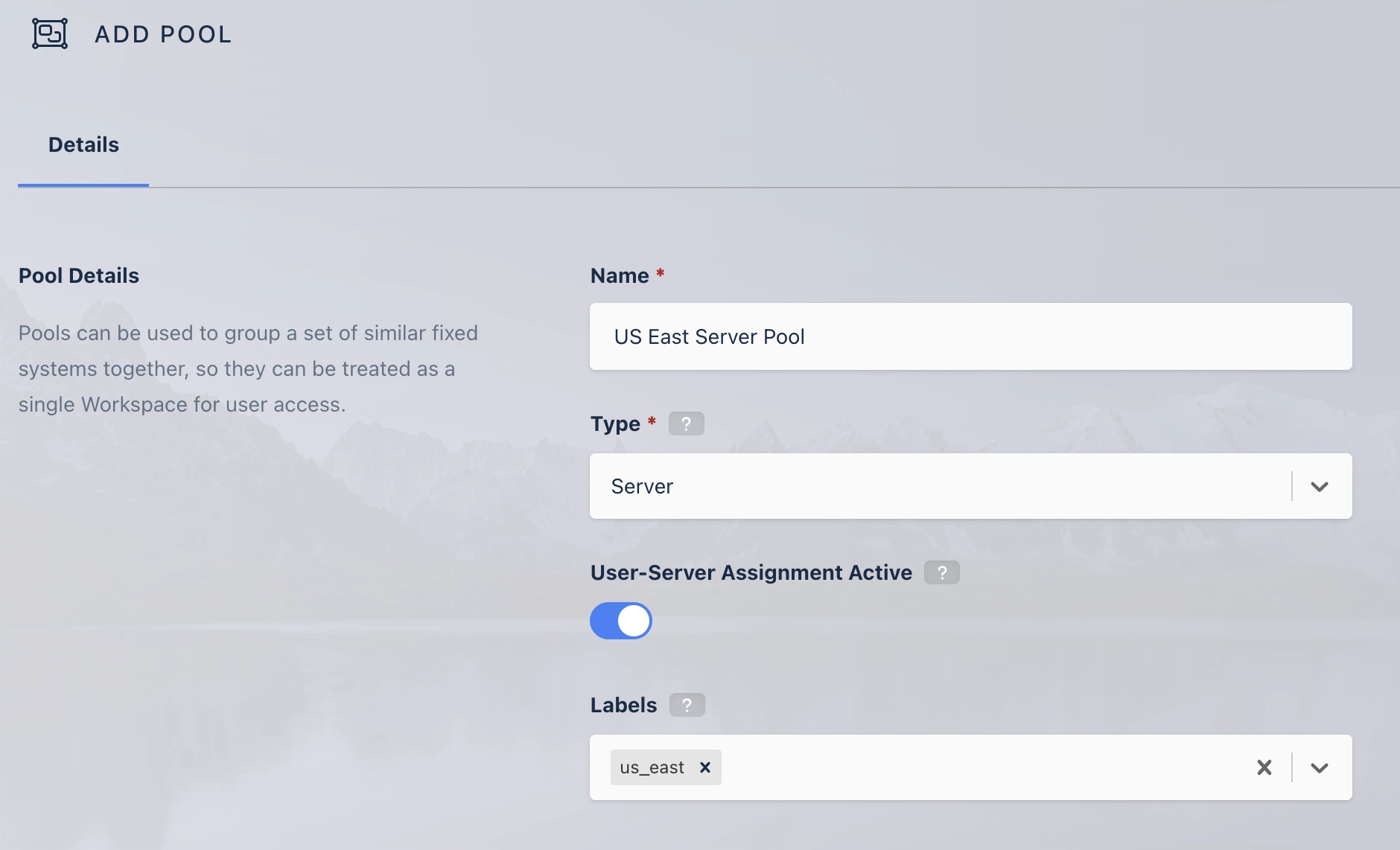
Complete the pool configuration options:
| Field | Description |
|---|---|
| Name | The name given to the pool. |
| Type | The pool type, either Docker Agent or Server. |
| Server Assignment | For Server pools only. Whether the pool allows user-server assignment. |
| Labels | Labels assigned to all servers and agents in the pool. Use these labels to control where Workspace sessions launch. Specify them in a Workspace's Include Labels or Exclude Labels settings so sessions run only on certain servers or agents. |
Assign servers or Docker Agents to the pool
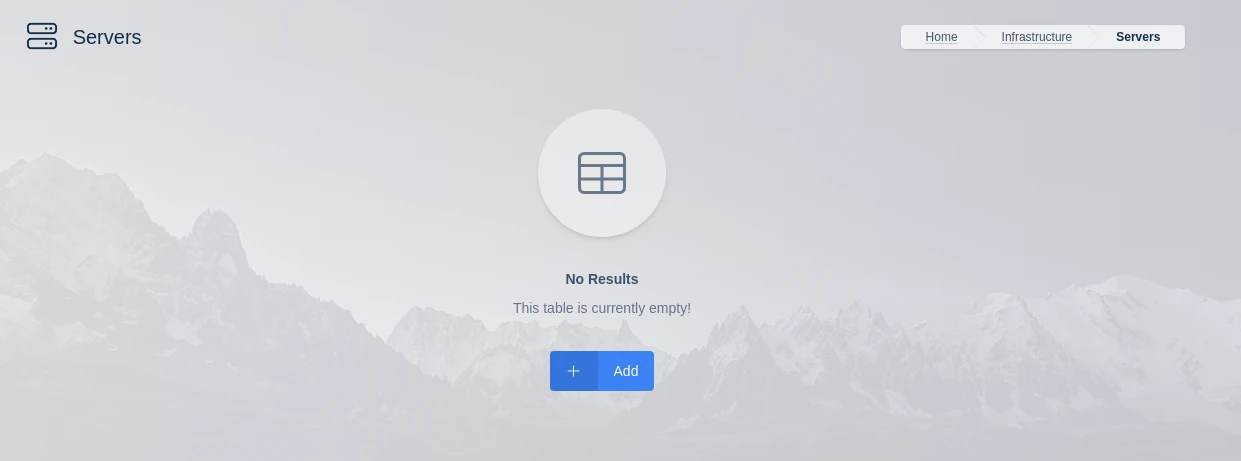
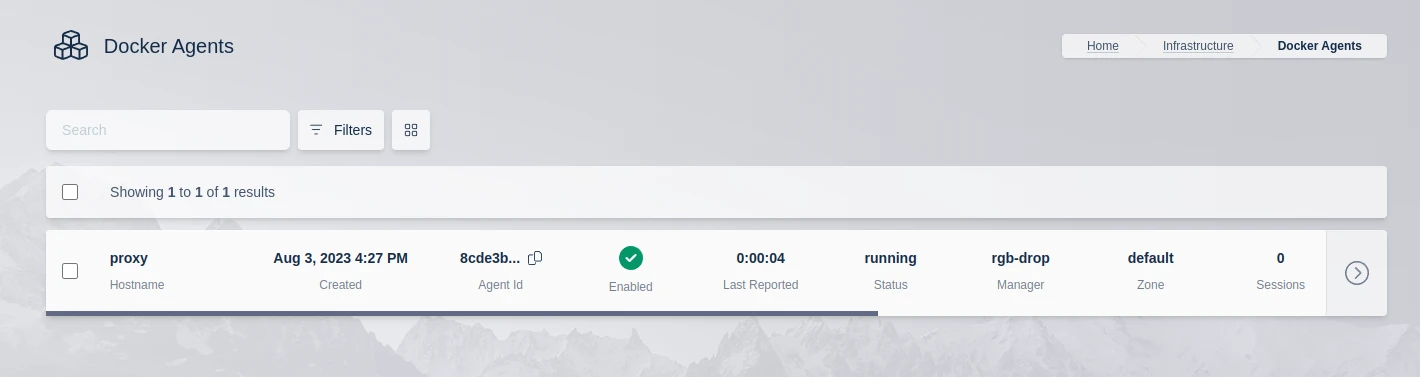
The pool edit page shows a list of the members for the pool type. The list is almost identical to the Servers or Docker Agents list, except that it shows only the members assigned to the pool. Use the Assign button to assign existing servers or agents.
For a Server pool, use the servers list:
For a Docker Agent pool, use the agents list:
Target the pool with AutoScale
The AutoScale system groups resources using pools. To provision pool members automatically, configure AutoScale against the pool. For details, see the AutoScale documentation.
Common troubleshooting steps
- The servers or agents list is empty. Confirm that the pool type matches the members you want to assign, and use the Assign button to add existing systems.
- Sessions do not launch on the expected systems. Review the pool Labels and the Workspace Include Labels and Exclude Labels settings.
- AutoScale options are missing. AutoScale is available in the Community and Enterprise editions only. Confirm the deployment edition.