Servers
A Server is a fixed or AutoScaled system that Kasm Workspaces connects users to over KasmVNC, RDP, SSH, or VNC. Kasm Workspaces manages each session and streams it to the user's browser, so existing Windows, Linux, and macOS hosts deliver remote desktops and applications without a separate client. This reference describes how to create a Server, every configuration field, the supported authentication options, template requirements, and the CSV bulk-import schema.
A Server becomes available to users through a Workspace assigned to a Group. This model lets administrators publish trusted internal systems to the right people from a single dashboard, with access governed centrally rather than per host.
Create a server
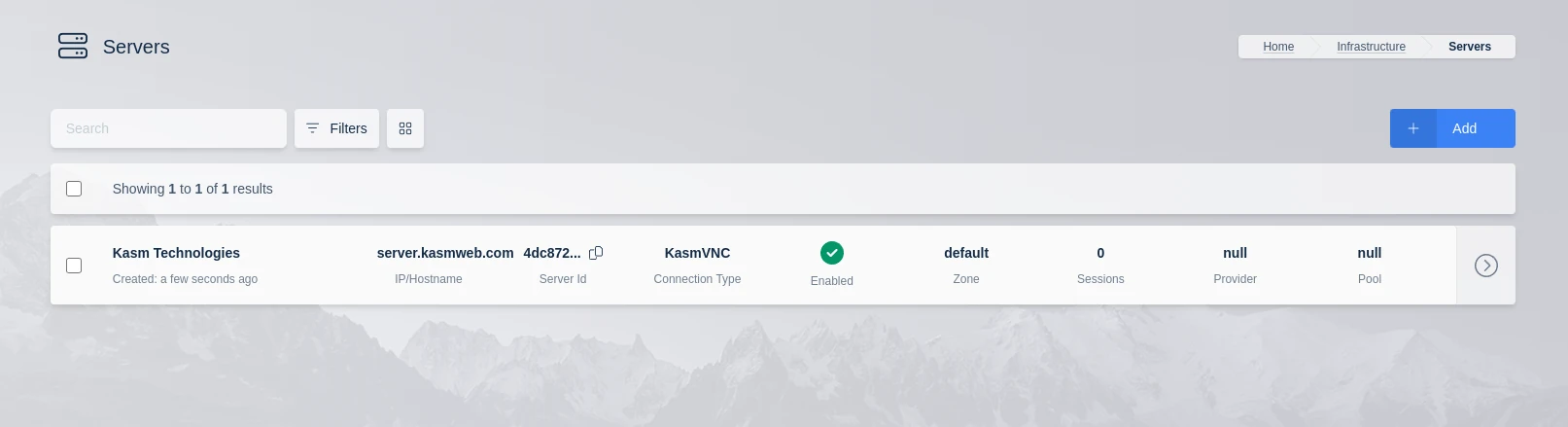
To create a Server, navigate to Infrastructure -> Servers -> Servers and select Add. Complete the required fields described in Server configuration.
To make the Server accessible to users, create a Workspace and add that Workspace to a Group. Members of the Group then launch the Server from their dashboard.
Server configuration
The following fields appear when you create or update a Server.
| Property | Description |
|---|---|
| Enabled | Show and allow connections to this Server. |
| Friendly Name | The Server name displayed to users. |
| Deployment Zone | The deployment zone to set for the Server. |
| Pool | The pool the Server belongs to. |
| Assigned User | (Optional) The User to assign to this Server. Only available for members of Server type Pools with user-server assignment enabled. |
| Drain Time | (Update view only) The time when this Server switches to "Draining" mode, in which the Server accepts no new sessions. Once all active sessions end, Kasm deletes the Server automatically. This field is editable for AutoScaled servers, so administrators can rotate a specific Server earlier than the AutoScale "Expire Servers in (Days)" setting. |
| Labels | Labels assigned to this Server. These labels control where Workspace sessions launch. Specify these labels in a Workspace's "Include Labels" or "Exclude Labels" settings to ensure sessions run only on certain servers. |
| Kasm Desktop Service | Whether this is a Windows host with Kasm Desktop Service installed. |
| Connection Type | Whether to use KasmVNC, RDP, SSH, or VNC. |
| IP/Hostname | The IP address or hostname used to connect to the Server. |
| Connection Port | The port to connect to the Server on. |
| Connection Credential Type | Determines how users are authenticated when connecting to the server. Options are Static Credentials, Prompt User, Dynamic User Accounts, SSO User Accounts, and Authenticate with Smartcard. |
| SSO Domain | Applies when Connection Credential Type is set to SSO User Accounts. Use this field to modify the username. For example, in Kasm the username may be john.smith@acme.com, but Windows may expect john.smith@acme.local. A value of localhost strips the domain name from the username, that is, john.smith. A value ending in \ prepends this field to the username, that is, acme.local\john.smith. All other values are appended to the username with @, that is, john.smith@acme.local. |
| Connection Username | The username used to connect to the Server. Only visible with the Static Credentials Connection Credential Type. |
| Connection Password | The password used to connect to the Server. Only visible with the Static Credentials Connection Credential Type. |
| Use User SSH Key | (Optional) Applies only to the SSH connection type. When selected, Kasm uses the User's SSH keys to authenticate against the Server. |
| Connection Private Key | (Optional) Applies only to the SSH connection type. The private key used to authenticate to the Server. |
| Connection Private Key Passphrase | (Optional) Applies only to the SSH connection type. The passphrase of the private key specified above. |
| Connection Info | (Optional) Additional connection info passed to the Server. For more information, see the Connections section of the global settings. |
| Max Simultaneous Sessions | The maximum number of sessions that can connect to the Server at one time. For RDP servers with RemoteApps, administrators may want to set this value higher than the Max Simultaneous Users setting to allow for multiple RemoteApps per user. |
| Max Simultaneous Users | For RDP and SSH servers, the number of concurrently connected users per Server. |
Connection Credential Types
The Connection Credential Type determines how Kasm authenticates users when connecting to the server.
| Credential Type | What it does | When to use | Requirements |
|---|---|---|---|
| Static Credentials | All users connect using the same username and password configured by the administrator. | Shared or service account scenarios. | Username and password. |
| Prompt User | Users are prompted to enter their own username and password when connecting to the server. | When each user has their own server account and Kasm should not store the user's credentials. | User credentials. |
| SSO User Accounts | Passes the user's LDAP credentials to the Windows system for authentication. | When users should log in to the Windows system using their Kasm/LDAP credentials. | Users must authenticate to Kasm using LDAP, and the Windows Server must be joined to the organization’s Active Directory (AD) domain. |
| Dynamic User Accounts | Kasm creates and manages a local account for each user. | Multi-user Windows servers where individual accounts are required. | Kasm Desktop Service must be installed and registered. |
| Authenticate with Smartcard | Authentication is performed using the user's smart card. | Environments that require smart-card authentication. | The workspace must use RDP Client Options set to RDP local client. |
Single Sign-On to Windows systems via LDAP
When users login to Kasm with Lightweight Directory Access Protocol (LDAP) authentication, they can create sessions to Windows systems that are joined to the same Active Directory domain and configured for Single Sign-On credential pass-through. To enable this behavior, set the Connection Credential Type field to SSO User Accounts. This requires that every user accessing this Server authenticates to Kasm with LDAP authentication. For a walk-through of this topic and more, see the Windows deployment guide video below.
Authentication options for SSH servers
Kasm Workspaces connects to arbitrary SSH servers using either SSH key or password authentication. The Server edit screen supports several combinations of options.
Configure the Server to use one of the following:
- Username and password authentication.
- Username with the Use User SSH Key option selected, which sends the username and the private key stored with the Kasm user.
- Username with a pasted-in private key, optionally including a passphrase when the key requires one.
To support multiple users on a single SSH server, set the Connection Credential Type field to SSO User Accounts and select the Use User SSH Key checkbox. Kasm Workspaces then sends each user's Kasm Workspaces username along with that user's Kasm Workspaces SSH key.
The connection proxy library used for SSH server connections enforces restrictions on the supported keys. The SSH key can be in OpenSSH format, which begins with -----BEGIN OPENSSH PRIVATE KEY-----, or RSA PKCS1 format, which begins with -----BEGIN RSA PRIVATE KEY----- or -----BEGIN PRIVATE KEY-----, with a key size of 2048.
When using RSA keys with some newer Linux distributions such as Ubuntu 22.04 LTS, edit the /etc/ssh/sshd_config file on the target server and add these two lines to the config:
HostKeyAlgorithms +ssh-rsa
PubkeyAcceptedKeyTypes +ssh-rsa
SSH session continuity
Kasm Workspaces uses Guacamole to provide SSH connectivity for SSH server definitions. Guacamole cannot resume SSH sessions. As a result, disconnecting from an SSH Workspace, such as by selecting Workspaces from the control panel, starts a fresh SSH session on the next Resume rather than restoring the previous one. The same behavior applies to disconnections caused by network interruptions. To preserve the session, use a utility such as screen or tmux to maintain a persistent terminal session on the server.
Tmux connection settings example
The following example configures the Kasm connection settings for a Server to use tmux for a preserved environment on an SSH server.
{
  "guac": {
    "type": "ssh",
    "settings": {
      "font-size": "11",
      "color-scheme": "gray-black",
      "font-name": "monospace",
      "scrollback": "1000",
      "command": "tmux a || tmux"
    }
  }
}
Screen connection settings example
The following example configures the Kasm connection settings for a Server to use screen for a preserved environment on an SSH server.
{
  "guac": {
    "type": "ssh",
    "settings": {
      "command": "screen -R my_session"
    }
  }
}
Create templates for the VMware vSphere provider
When using the VMware vSphere provider, the administrator must create templates on the cluster for the provider to clone from.
Linux templates
When creating Linux VM templates, ensure that:
- VMware tools are installed, either the official version or open-vm-tools.
- A public SSH certificate is installed on the machine when SSH access is desired, and the matching private key is used when creating the AutoScale configuration.
- The primary ethernet interface name is recorded when creating this template for a Docker Agent pool, because the AutoScale startup scripts need it.
Troubleshooting Linux startup script execution
VMware copies the startup script to a temporary directory on the Linux host, usually /tmp. Inside that directory, VMware creates a folder named vmware-root_ followed by a set of random numbers, for example vmware-root_437-1849036237. VMware then creates a randomly named script file inside this directory, for example vmware119.sh. VMware provides no logging facility for these scripts, so the script author can log important events by creating an adjacent file and writing to it.
When the script fails during testing of the AutoScale or VM provider configuration, the administrator can open VMware console access to the cloned machine, locate the script in the temporary directory, and run the script manually to observe its output.
Windows templates
When creating a Windows VM template, ensure that:
- VMware tools is installed.
- Remote desktop is enabled on the VM.
- Unrestricted remote scripting is enabled, because the startup script entered into the VM Config provider runs as a PowerShell script.
- The Kasm Desktop Service is installed when uploads and downloads are required from the Kasm Control Panel.
Troubleshooting Windows startup script execution
VMware copies the startup script to a temporary directory on the Windows host, usually the directory pointed to by %TEMP%. Resolve this environment variable while logged in as the user the script runs as to get an accurate location. Inside the temporary directory, VMware creates a folder named vmware-root_ followed by a set of random numbers, for example vmware-root_437-1849036237. VMware then creates a randomly named script file inside this directory, for example vmware119.sh. VMware provides no logging facility for these scripts, so the script author can log important events by creating an adjacent file and writing to it.
When the script fails during testing of the AutoScale or VM provider configuration, the administrator can open VMware console access to the cloned machine, locate the script in the temporary directory, and run the script manually to observe its output.
Bulk import
Create servers in bulk through the Import Servers button on the Server administration page.
The ensuing import wizard will expect a utf-8 encoded CSV file, with a size limit of 10,000 records.
Bulk import is an all-or-nothing operation; if any errors are found, none of the CSV data is imported into Kasm.
If there are errors in the file, the interface will present an interactive table that displays the errors alongside the CSV data. The field(s) for each error are enclosed in parentheses ( ).
Click the information button for a row to inspect the errors:
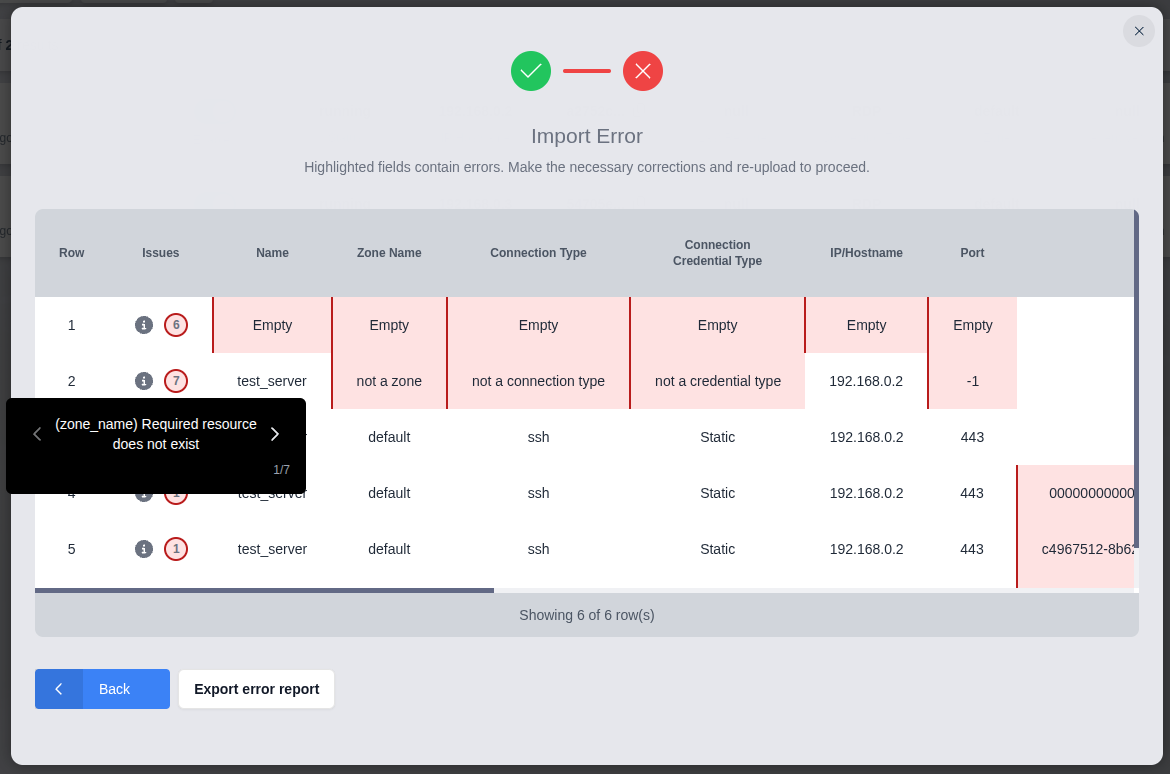
The import wizard provides the option to download the marked-up data for further inspection. This format adds an "issues" column to the beginning of the data that lists all of the errors for each row. In addition to the localized error messages shown in the import wizard, this data also includes the untranslated error message from the Kasm server for each field. The untranslated message is enclosed by square brackets [ ].
Below is an abridged sample from the exported CSV error report produced by clicking "Export error report" in the image above:
issues,name,zone_name,connection_type,connection_credential_type,ip_hostname,port,pool_id,assigned_username,windows_service_installed,connection_username,connection_password,sso_username_domain,passphrase,private_key,use_user_private_key,connection_info,max_simultaneous_sessions,max_simultaneous_users,labels
"(name) Wrong data type [Input should be a valid string]; (zone_name) Wrong data type [Input should be a valid string]; (connection_type) Bad value for enum [Input should be 'KasmVNC', 'RDP', 'VNC' or 'SSH']; (connection_credential_type) Bad value for enum [Input should be 'STATIC', 'SSO_CREATE_USER', 'SSO_USERNAME', 'SMARTCARD' or 'PROMPT_USER']; (ip_hostname) Wrong data type [Input should be a valid string]; (port) Wrong data type [Input should be a valid integer]",,,,,,,,,,,,,,,,,,,
"(zone_name) Required resource does not exist [Zone(not a zone) does not exist]; (connection_type) Bad value for enum [Input should be 'KasmVNC', 'RDP', 'VNC' or 'SSH']; (connection_credential_type) Bad value for enum [Input should be 'STATIC', 'SSO_CREATE_USER', 'SSO_USERNAME', 'SMARTCARD' or 'PROMPT_USER']; (port) Value is too small [Input should be greater than or equal to 0]; (connection_info) Invalid JSON [Value is not a valid JSON string]; (max_simultaneous_sessions) Value is too small [Input should be greater than or equal to 1]; (max_simultaneous_users) Value is too small [Input should be greater than or equal to 1]",test_server,not a zone,not a connection type,not a credential type,192.168.0.2,-1,,,,,,,,,,{test,0,0,
"(assigned_username, pool_id) Invalid combination [User assignment requires a Server Pool]",test_server,default,ssh,Static,192.168.0.2,443,,user@kasm.local,,,,,,,,,,,
The Developer API also exposes the /api/public/batch_create_server endpoint for programmatic use.
CSV formatting
Kasm Workspaces requires that imported CSV files to adhere to the following format specifications.
- The file must be
utf-8encoded. - Fields are comma-separated (
,). Commas and linebreaks inside of a double-quoted field value will be interpreted as part of the value and not as a new field or line marker. Example:a,"b,c",dwould separate into three fields,a,b,c, andd. - A header row is required.
- Empty fields, which includes those whose content is a quoted empty string (
""), will be interpreted asnull. - Double-quote characters inside of a field can be escaped with duplication. Example:
"12""34"in a CSV field would produce12"34. - All rows must have the same number of columns.
Server CSV schema
The CSV file for Server bulk imports recognizes the following columns. Optional columns may be omitted when they are not needed for any record. The descriptions from the Server configuration table above apply to these fields, except where noted.
A Server's combination of Zone, IP / Hostname, and Port is unique during import. A CSV record that duplicates an existing Server causes the import to fail.
| Column Header | Required | Default | User Property | Notes |
|---|---|---|---|---|
| name | Yes | Friendly Name | ||
| zone_name | yes | Deployment Zone | ||
| connection_type | yes | Connection Type | Values: "KasmVNC", "RDP", "VNC", and "SSH" | |
| connection_credential_type | yes | Connection Credential Type | Values: "STATIC", "SSO_CREATE_USER", "SSO_USERNAME", "SMARTCARD", "PROMPT_USER" | |
| ip_hostname | yes | IP/Hostname | ||
| port | yes | Connection Port | ||
| pool_id | No | null | Pool | This is the pool_id (UUID) of the Server Pool. |
| assigned_username | No | null | Assigned User | See notes above about pool requirements. |
| windows_service_installed | No | "false" | Kasm Desktop Service | |
| connection_username | Conditionally | null | Connection Username | See notes below. |
| connection_password | Conditionally | null | Connection Password | See notes below. |
| sso_username_domain | No | null | SSO Domain | |
| private_key | No | null | Connection Private Key | |
| passphrase | No | null | Connection Private Key Passphrase | |
| use_user_private_key | No | "false" | Use User SSH Key | Paste the contents of the SSH keyfile (inside quotes) in this field, including linebreaks. |
| connection_info | No | null | Connection Info | |
| max_simultaneous_sessions | No | 1 | Max Simultaneous Sessions | |
| max_simultaneous_users | No | 1 | Max Simultaneous Users | |
| labels | No | null | Labels | Labels assigned to this Server. These labels control where Workspace sessions launch. |
Valid credential type combinations
"KasmVNC"connections require"STATIC"credentials and values forconnection_usernameandconnection_password."RDP"connections support all types. The"SSO_CREATE_USER"credential setting requireswindows_service_installedto betrue."VNC"connections support only"STATIC"credentials."SSH"connections support"STATIC"and"SSO_USERNAME"credential types.
The following example is a valid Server CSV file containing all columns. It generates five servers:
- A KasmVNC server.
- An RDP server in a Server Pool that creates users in the SSO Domain on demand.
- A VNC server.
- An SSH server assigned to an initial User that uses the connecting User's SSH certificate for authentication.
- An SSH server that uses an encrypted SSH private key for all connections.
name,zone_name,connection_type,connection_credential_type,ip_hostname,port,pool_id,assigned_username,windows_service_installed,connection_username,connection_password,sso_username_domain,passphrase,private_key,use_user_private_key,connection_info,max_simultaneous_sessions,max_simultaneous_users,labels
KasmVNC Server,default,KasmVNC,STATIC,internal.host.local,6901,,,,test_user,SuperPassword1!,,,,,,,
RDP Server 1,default,RDP,SSO_CREATE_USER,192.168.10.24,3389,00001111-2222-3333-4444-5555-666677778888,,true,,,localssodomain,,,,,1,1,"production,windows"
VNC Server,default,VNC,STATIC,192.168.20.5,5900,,,,vnc_user,vnc_pass,,,,,,,
Personal SSH Server,default,SSH,STATIC,bob.host.local,22,,bob@local,false,,,,,,true,,24,1,"development,personal"
Shared SSH Server,default,SSH,STATIC,192.168.20.15,22,,,,,,,super_securePASSPHRASE!2,"-----BEGIN RSA PRIVATE KEY-----
Proc-Type: 4,ENCRYPTED
DEK-Info: AES-128-CBC,F399B33DA2403C6087C082C64C9ABD25

Nr/Qzem29v5dkE/bKsOOg8tJvzsSBncoiUysfZ2gpTLrILDRPMYb9fh36HrAJVSO
...
vUmKldKBvmfBFOoAUc1MqUNO8gxuEGEU37FGdiZG7EZmSSjphR3Q//zFbGyC4myl
-----END RSA PRIVATE KEY-----",,,,"shared,production"