AutoScale overview
AutoScale provisions and destroys virtual machines and Docker Agents automatically, based on real-time user demand or a defined schedule. AutoScale gives the Zero Trust Workspace Delivery platform elastic capacity that scales workspace delivery up during peak demand and down during quiet periods. As a result, the deployment meets demand without paying for idle infrastructure. AutoScale works for both full-stack virtual machines and containerized workspaces. Kasm provisions full-stack VMs into a Server Pool to support RDP, KasmVNC, VNC, and SSH sessions. Kasm also provisions Docker Agent VMs to run container-based workspaces.
AutoScale is available in the Community and Enterprise editions. For Enterprise edition details, contact a Kasm Technologies representative. For licensing information, see Licensing.
Components
Agents
Agents are the compute resources that store workspace images and start sessions on request. Kasm can AutoScale agents based on a defined schedule or real-time user demand. For more information, see Docker Agents.
Servers
Servers are the compute resources that support remote access through RDP, KasmVNC, VNC, and SSH. Kasm can AutoScale servers based on a defined schedule or real-time user demand. For more information, see Servers.
Startup scripts
Startup scripts install the Kasm components that a provisioned VM needs, such as the Kasm Agent role and the Kasm Desktop Service. Customize the scripts in the AutoScale startup scripts GitHub repository. The scripts support Debian-based and RPM-based Linux VMs, including Oracle Linux and RHEL, as well as Windows VMs.
Some cloud providers enforce strict limits on startup script (user data) size. For example, AWS EC2 allows only 16 KB of Base64-encoded user data, which is roughly 12-13 KB of actual script content. If you customize the autoscale startup scripts, verify that the result stays within your provider's limit. If your script exceeds the limit, consider hosting it externally (e.g., in an object storage bucket) and having the user data fetch and execute it at boot.
Zones
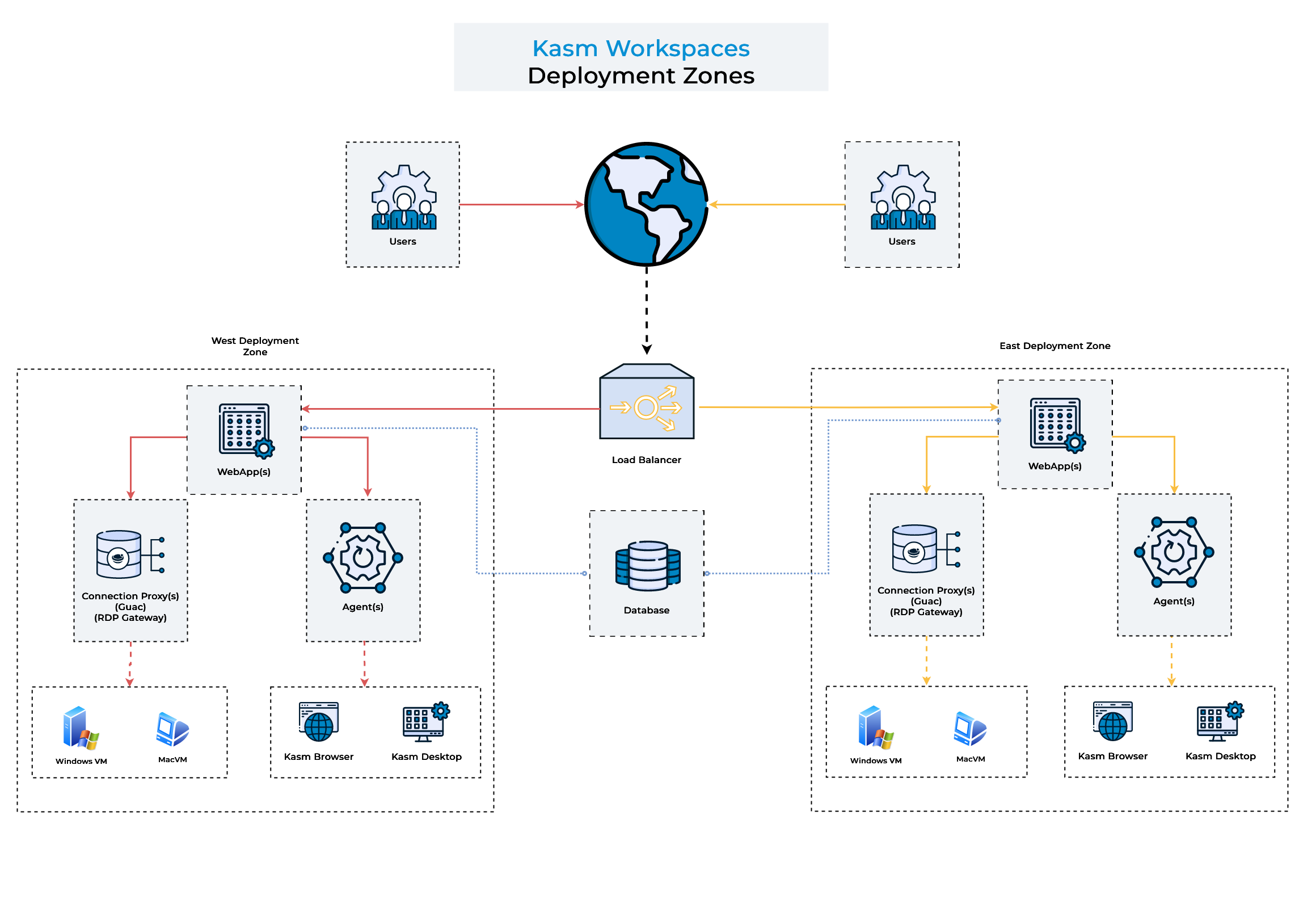
A zone is a grouping of Kasm services that supports resource management, geographic distribution, and logical segmentation. Zones are tied to the Kasm Manager role. Once a Manager is assigned to a zone, the Manager is responsible for the Kasm resources and workspace operations within that zone. For more information, see Deployment Zones.
Upstream auth address
The upstream auth address is the endpoint that newly provisioned VMs use to authenticate to Kasm. Set it to the address of the resource that hosts the Kasm API server for the zone. An incorrect value can cause authentication failures or unauthorized access. For more information, see Update Zones.
- In a single-server architecture, the address defaults to
proxy, which refers to the local proxy. Change the default to the actual IP address or FQDN of the Kasm server so that AutoScaled agents can report back to the deployment. - In a multi-server architecture, specify the IP address or FQDN of the Web App server, or of the load balancer that serves the Web App servers, for the corresponding zone.
Network communication requirements
AutoScale requires two-way connectivity between Kasm Managers and agents.
- Manager to agent. Kasm Managers reach agents on TCP port 443, or a custom configured port, for provisioning and management. Allow this outbound connection in firewalls and security groups.
- Agent to manager. Agents communicate back through the upstream auth address on TCP port 443, or a custom configured port.
Allow communication on the required ports in security groups, firewalls, and routing configurations. Without this connectivity, agents fail to provision and appear as unreachable in the system.
Pools
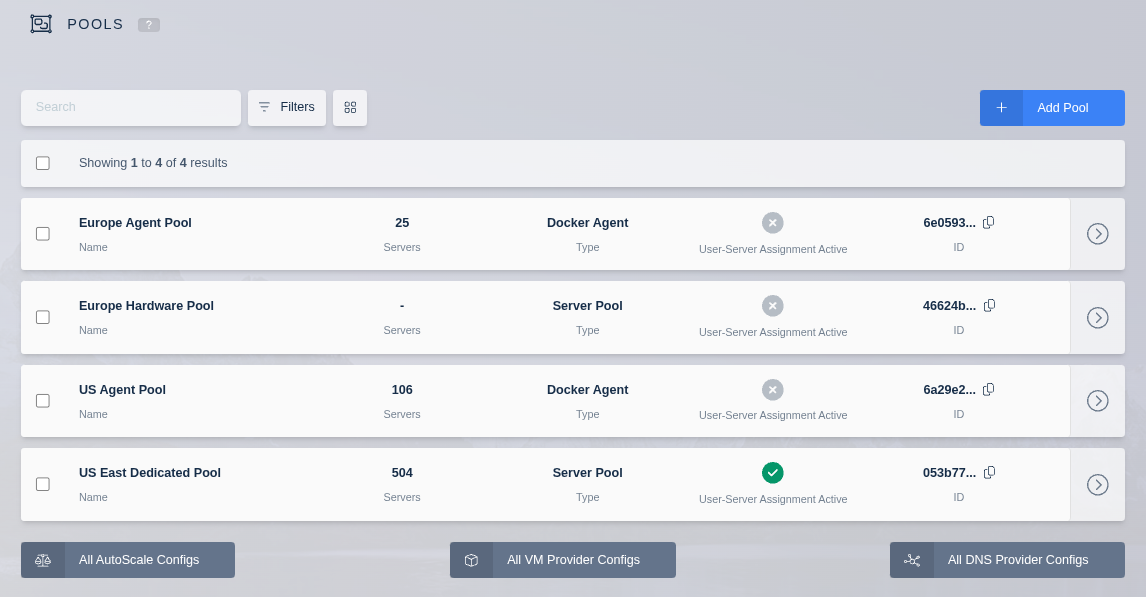
Pools group a set of similar fixed systems together, so Kasm can treat them as a single Workspace for user access. Users see a single Workspace icon on their dashboard, while their session distributes to an available server in the pool. Each server in the pool can support one or more concurrent sessions. Kasm distributes the sessions evenly over the servers.
Kasm supports two types of pools:
- Docker Agent pools: These pools contain Linux-based VMs running a Docker engine. They host Linux-based Workspaces. Each VM in a Docker Agent pool can run multiple Workspace containers.
- Server pools: These pools contain Windows-based VMs. They host Windows-based Workspaces. Each VM in a Server pool typically provides a single Windows desktop experience, often accessed through RDP.
AutoScaling is available in the Community and Enterprise editions only. When applicable, the administrator sees three links underneath the table for All AutoScale Configs, All VM Provider Configs, and All DNS Provider Configs. These links let the administrator review all available configs and make changes. The recommended approach is to use the Edit option on a specific pool.
Create pool
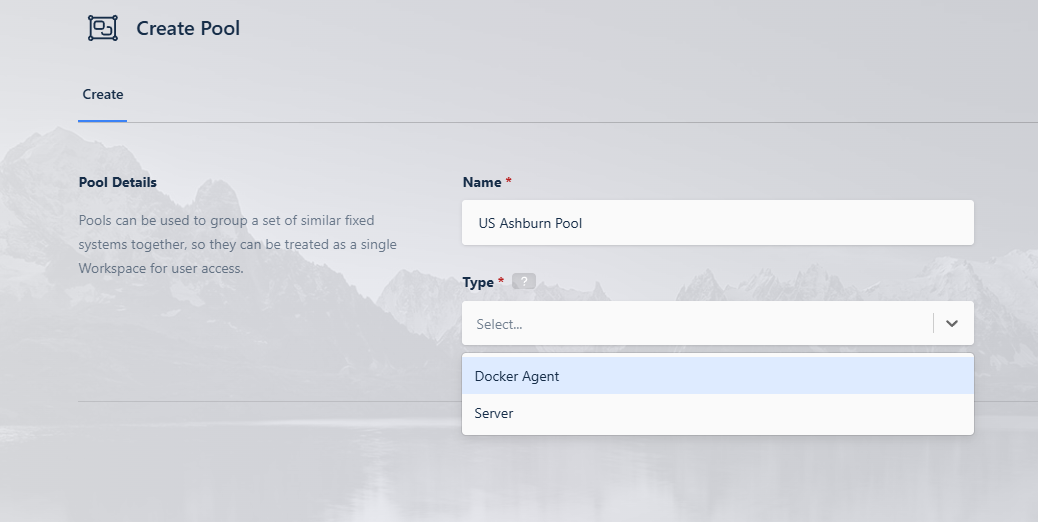
To create a pool, define its name and type in the Pools table. Complete the following steps:
- Click the Infrastructure item in the navigation menu.
- Select the Pools option in the dropdown menu.
- Select Add from the top right of the Pools table.
- Provide a name for the server pool.
- Choose the pool type, either Docker Agent or Server.
AutoScale configuration
Kasm provisions and destroys Servers and Docker Agents based on user demand. The AutoScale configuration differs slightly between Servers and Agents. Create an AutoScale configuration in one of two places in the Kasm UI.
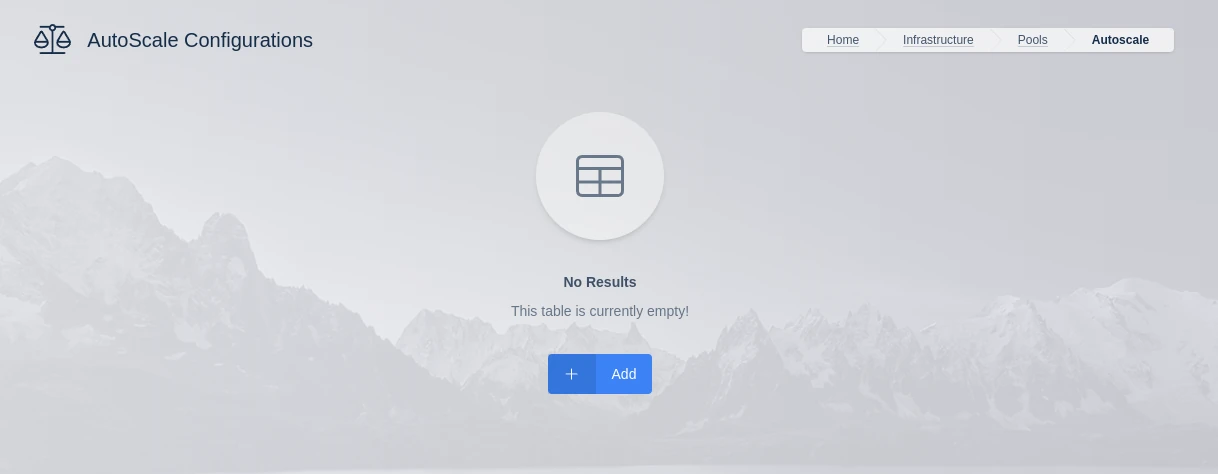
- From a Pool, go to Infrastructure > Pools, edit a Pool, open the AutoScale Configurations tab, and click Add. The AutoScale type and Pool are set automatically from the selected Pool.
- From the AutoScale list, go to Infrastructure > Pools > All AutoScale Configs, click Add, then choose the AutoScale type and Pool.
AutoScale configurations differ between Docker Agent Pools and Server Pools.
- Docker Agents are Linux VMs with the Docker Engine installed. These VMs provision and manage container-based workspaces.
- Servers are Windows and Linux compute resources that support RDP, KasmVNC, VNC, and SSH connections for full desktops or specific applications.
Select the configuration guide for your deployment:
AutoScale scheduling
AutoScale scheduling defines the periods when an AutoScale configuration is active. Use schedules to provision capacity during known busy periods and to scale down during off-hours, which reduces compute cost. Schedules support business-hour windows, overnight windows, and multi-day windows, set per configuration by day, time, and time zone. Kasm does not scale down a server that has active sessions, so scheduled changes do not interrupt users. For the full procedure, see AutoScale scheduling.
Provider-specific settings
Kasm supports AutoScaling on a variety of providers. Each provider has unique configurations that must be set up correctly for optimal performance. Select your provider to learn more: