Gather Kasm Workspaces client debugging information
Overview
Administrators sometimes need detailed connection information from a user to triage a problem. This guide gathers console logs and HAR (HTTP Archive Format) network data from the client browser. The example uses Firefox, and the steps apply similarly to Chrome and Chromium-based browsers.
caution
The data gathered by these steps contains sensitive information. Never post it to public forums. Transmit it securely to the Kasm administrator. Users should change their passwords after submitting the debugging information.
Prerequisites
- Access to Kasm Workspaces from the affected client browser.
- A way to transmit files securely to the administrator.
Detailed steps
Capture logs before the test
- Log in to Kasm Workspaces.
- Press F12 to open the browser developer tools.
- Select the Network tab and confirm that Persist Logs is checked.
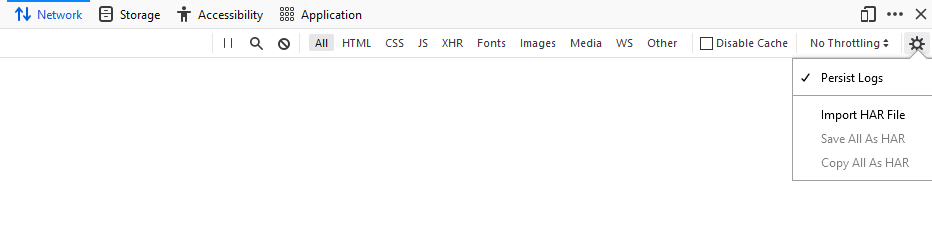
- Select the Console tab and confirm that Persist Logs is checked.

- Conduct the test that reproduces the problem.
Export logs after the test
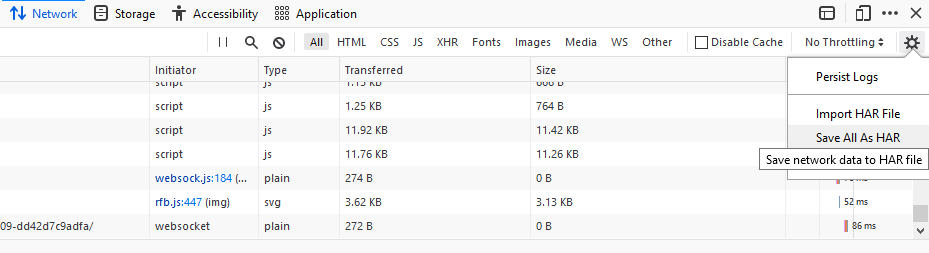
- Select the Network tab. Select the settings gear icon, then Save all as HAR.
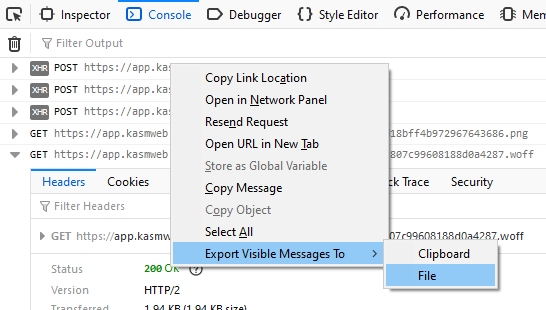
- Select the Console tab. Right-click a message, then select Export Visible Messages To, then File.
- Send the files to the Kasm administrator securely.