Run a VPN inside a custom Kasm Workspaces container
Overview
Routing container traffic through a VPN lets users reach private networks or change their egress location from inside a Kasm Workspaces session. This guide builds a custom image with a VPN client installed, then configures the Workspace so each session connects automatically. It covers two services: Tailscale with an ephemeral key, and OpenVPN connecting to NordVPN. The approach serves as an alternative to a VPN Sidecar, keeping the VPN client inside the same container as the desktop.
Kasm also publishes Workspace images with OpenVPN, WireGuard, and Tailscale built in. These provide a more streamlined workflow for VPNs inside container sessions. For details, see Bring your own VPN containers (BYOVPN).
Prerequisites
Before you begin, confirm the following:
- Administrator access to the Kasm Workspaces deployment, with permission to create Workspaces.
- Familiarity with how to build and register custom images in Kasm Workspaces.
- The connection material for your chosen service: a Tailscale ephemeral auth key, or a VPN provider account and OpenVPN connection profile.
Video tutorial
This video walks through configuring a VPN to run from inside a Kasm Workspaces container.
Solution approach
This guide progresses through the following phases:
- Build a custom image with the VPN client installed.
- Create the Workspace and set the Docker Run and Exec configurations.
- Launch the session and verify the VPN connection.
Each phase provides separate instructions for Tailscale and for OpenVPN. Use the tab for your chosen service.
Detailed steps
Build a custom image with the VPN client
- Tailscale
- OpenVPN (NordVPN)
The example Dockerfile uses kasmweb/ubuntu-jammy-desktop as the base image with the [[release]] tag, which is based on Ubuntu 22.04 LTS. Adapt the Tailscale installation logic to use other Kasm-provided images.
ARG BASE_TAG="1.19.0"
FROM kasmweb/ubuntu-jammy-desktop:$BASE_TAG
USER root

ENV HOME /home/kasm-default-profile
ENV STARTUPDIR /dockerstartup
ENV INST_SCRIPTS $STARTUPDIR/install
WORKDIR $HOME

######### Customize Container Here ###########

# Install Tailscale
RUN curl -fsSL https://pkgs.tailscale.com/stable/ubuntu/jammy.gpg | apt-key add -
RUN curl -fsSL https://pkgs.tailscale.com/stable/ubuntu/jammy.list | tee -a /etc/apt/sources.list.d/tailscale.list
RUN apt-get update && \
    apt-get install -y tailscale

# Sudo is not strictly required when using docker exec to start Tailscale, but it is needed to start Tailscale manually
RUN apt-get update \
    && apt-get install -y sudo \
    && echo 'kasm-user ALL=(ALL) NOPASSWD: ALL' >> /etc/sudoers \
    && rm -rf /var/lib/apt/list/*

######### End Customizations ###########

RUN chown 1000:0 $HOME

ENV HOME /home/kasm-user
WORKDIR $HOME
RUN mkdir -p $HOME && chown -R 1000:0 $HOME

USER 1000
The following lines add the Tailscale Ubuntu Jammy repository to apt. Tailscale publishes repositories for many other operating systems. When using a Kasm image with a different OS, find the matching package repository at pkgs.tailscale.com/stable.
RUN curl -fsSL https://pkgs.tailscale.com/stable/ubuntu/jammy.gpg | apt-key add -
RUN curl -fsSL https://pkgs.tailscale.com/stable/ubuntu/jammy.list | tee -a /etc/apt/sources.list.d/tailscale.list
Build the image:
docker build -t custom:tailscalevpn -f Dockerfile .
Optionally, push this image to a Docker registry to share it across multiple Agents.
The example Dockerfile uses kasmweb/ubuntu-jammy-desktop as the base image with the [[release]] tag, which is based on Ubuntu 22.04 LTS. Adapt the OpenVPN installation logic to use other Kasm-provided images. Changing the connection profiles used in this example supports other VPN services.
ARG BASE_TAG="1.19.0"
FROM kasmweb/ubuntu-jammy-desktop:$BASE_TAG
USER root

ENV HOME /home/kasm-default-profile
ENV STARTUPDIR /dockerstartup
ENV INST_SCRIPTS $STARTUPDIR/install
WORKDIR $HOME

######### Customize Container Here ###########

# Install OpenVPN
RUN apt-get update && \
    apt-get install -y openvpn

# Copy the NordVPN OpenVPN connection profiles
RUN cd /etc/openvpn && \
    wget https://downloads.nordcdn.com/configs/archives/servers/ovpn.zip && \
    unzip ovpn.zip && \
    rm ovpn.zip

######### End Customizations ###########

RUN chown 1000:0 $HOME
RUN $STARTUPDIR/set_user_permission.sh $HOME

ENV HOME /home/kasm-user
WORKDIR $HOME
RUN mkdir -p $HOME && chown -R 1000:0 $HOME

USER 1000
Two lines in this Dockerfile do the important work:
RUN apt-get update && apt-get install -y openvpninstalls the OpenVPN client from the default OS package repository. Adapt this for other Kasm image operating systems.RUN cd /etc/openvpn && wget ... ovpn.zip && unzip ovpn.zip && rm ovpn.zipinstalls the NordVPN configuration. Adapt this for other VPN services.
Build the image:
docker build -t custom:openvpn -f Dockerfile .
Optionally, push this image to a Docker registry to share it across multiple Agents.
Create the Workspace and set the configurations
In Kasm, create a Workspace for the new image, then apply the Docker Run and Exec configurations for your chosen service.
- Tailscale
- OpenVPN (NordVPN)
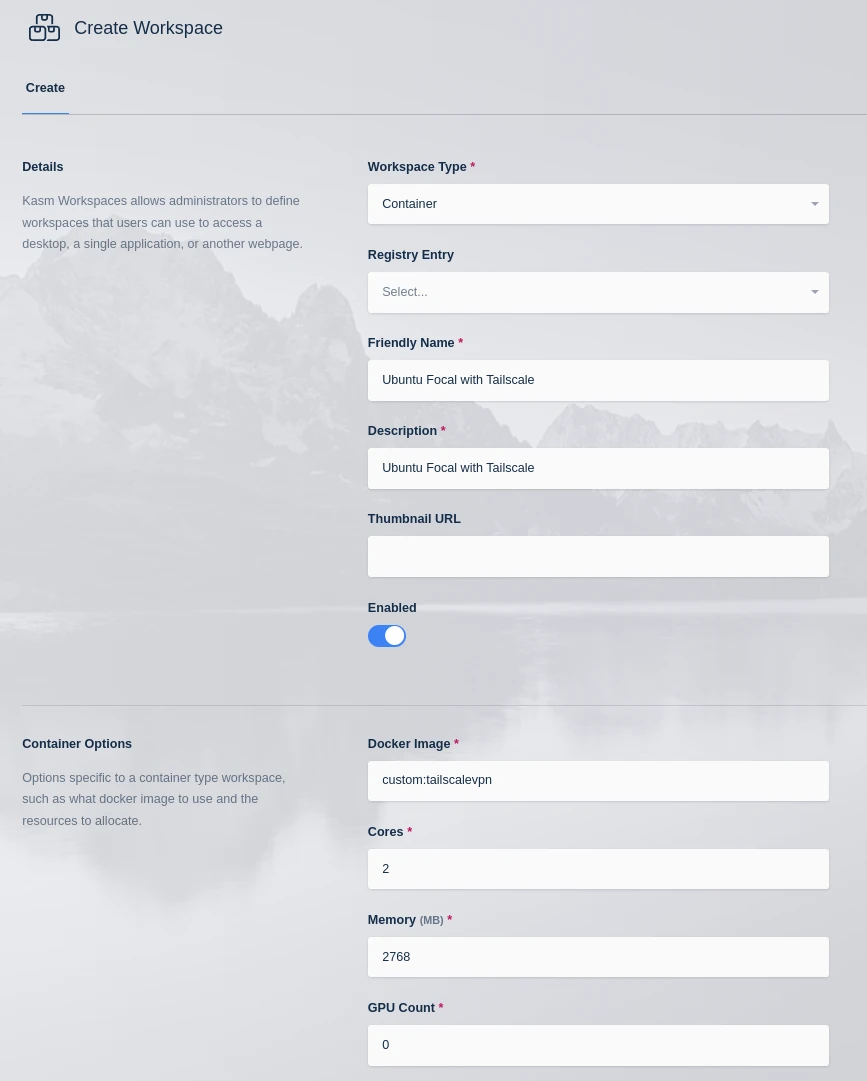
-
On the Add Workspace screen, set the Docker Run Config Override:
{"devices": ["dev/net/tun","/dev/net/tun"]}
Docker Run Config details for Ubuntu Jammy with Tailscale -
Set the Docker Exec Config. This starts
tailscaledas root. The example uses an ephemeral key so the container connects to and is removed from the Tailscale network automatically. These commands can also go in a custom startup script instead of the Docker Exec Config.{"first_launch": {"user": "root","privileged": true,"cmd": "bash -c 'tailscaled & tailscale up --authkey=tskey-abc123'"}}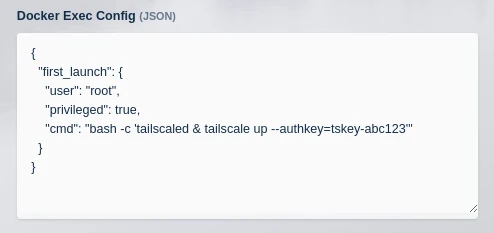
Docker Exec Config details for Ubuntu Jammy with Tailscale
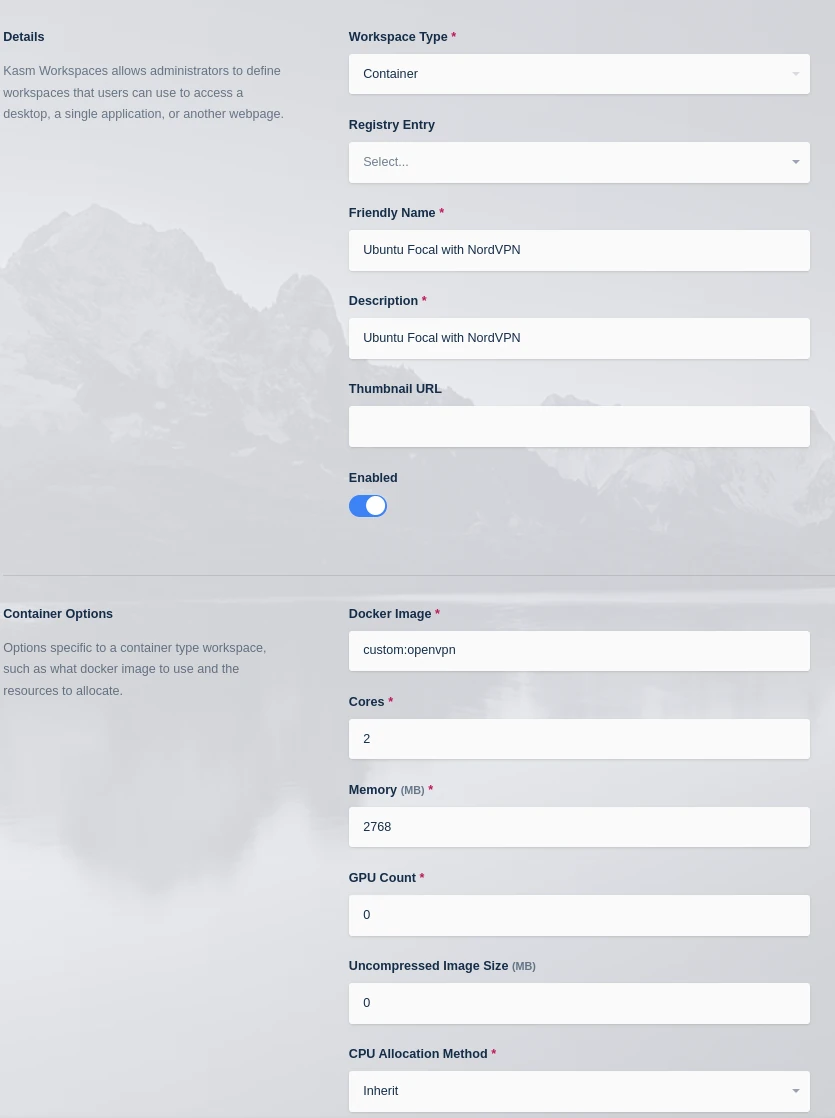
-
On the Add Workspace screen, set the Docker Run Config Override. The container must run in privileged mode so the network stack can change while the VPN connects. The example provides the container with the NordVPN DNS servers.
{"dns": ["103.86.98.100","103.86.99.100"],"devices": ["dev/net/tun","/dev/net/tun"],"user": "root","privileged": true}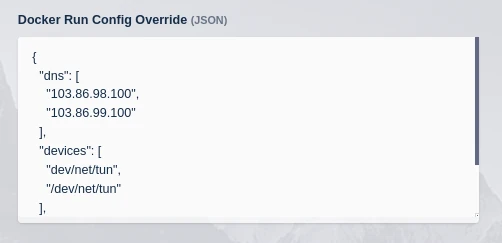
Docker Run Config details for Ubuntu Jammy with OpenVPN connecting to NordVPN -
Set the Docker Exec Config to run one of the
.ovpnfiles provided by NordVPN. Each file in the extracted zip is a NordVPN server in a different location. NordVPN provides a server recommendation tool.{"first_launch":{"cmd":"bash -c '/usr/bin/desktop_ready && xfce4-terminal -T OpenVPN -x openvpn /etc/openvpn/ovpn_tcp/us9923.nordvpn.com.tcp.ovpn'","user":"root"}}For other VPN providers, replace the
.ovpnfile with the profile for the desired endpoint. When the.ovpnfile is present on the build system, for example at/tmp/client1.ovpn, addCOPY /tmp/client1.ovpn /etc/openvpn/client1.ovpnto the Dockerfile in place of thewgetline, then point the Docker Exec Config at the new profile.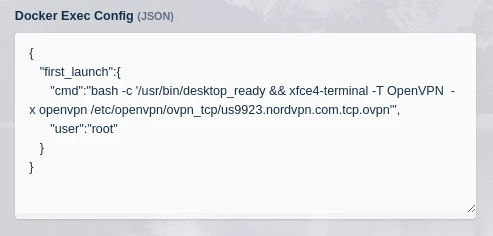
Docker Exec Config details for Ubuntu Jammy with OpenVPN connecting to NordVPN
Launch the session and verify the connection
- Tailscale
- OpenVPN (NordVPN)
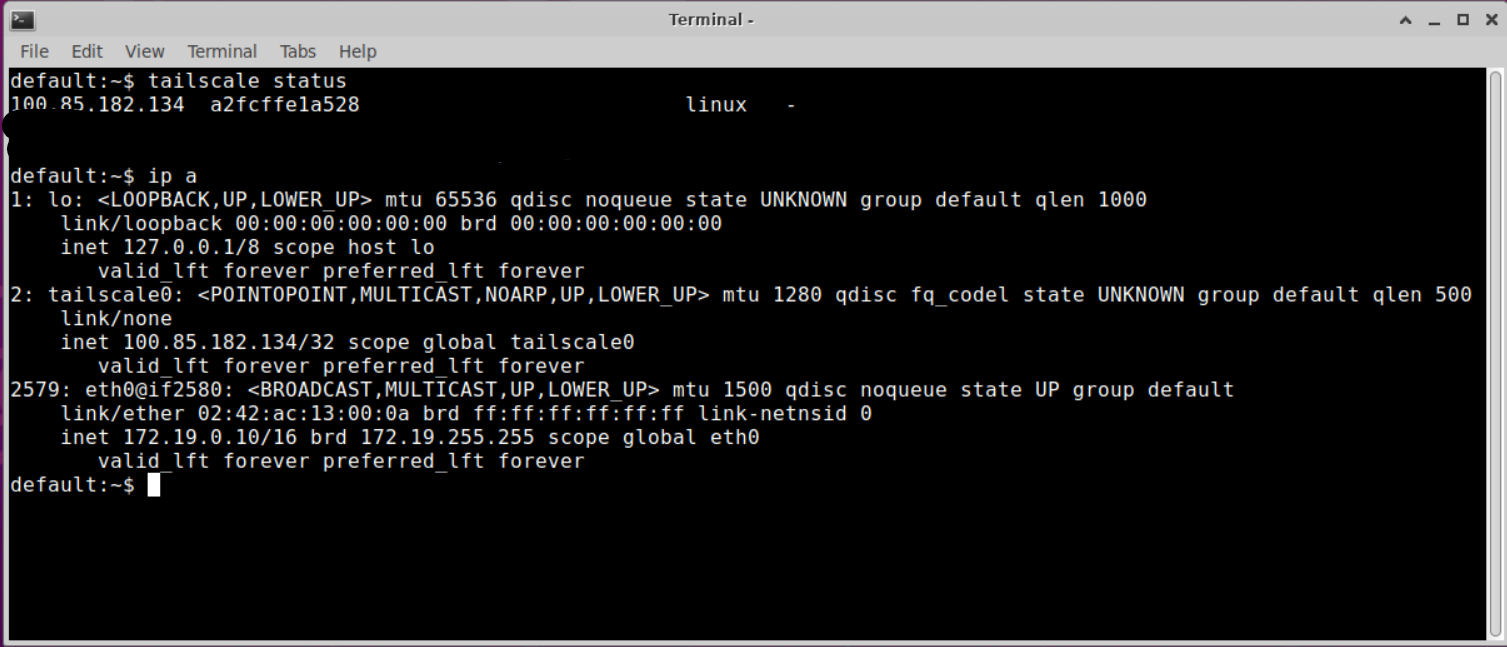
Launch the container and run tailscale status. When the configuration is correct, the status shows the container connected to the Tailscale network.
-
Launch the container. A terminal opens automatically to connect to NordVPN.
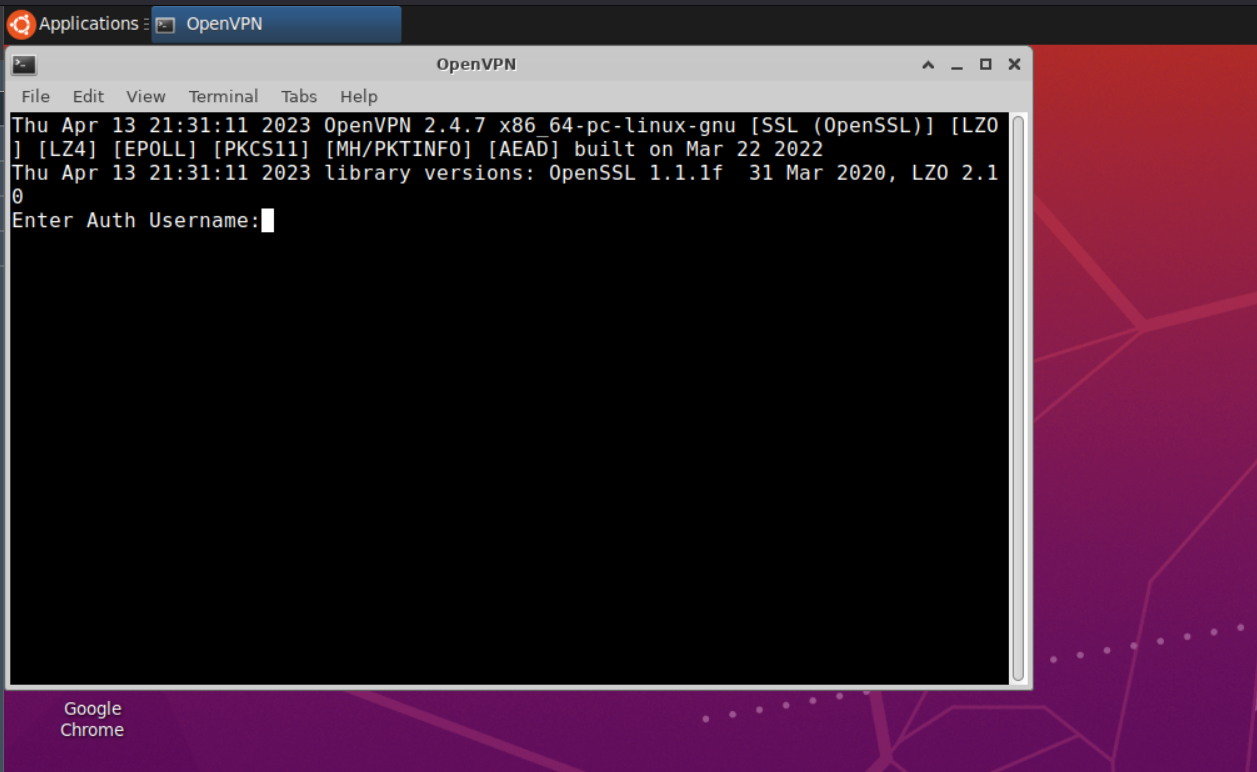
OpenVPN prompting for login credentials to NordVPN -
Enter the account login details to connect to NordVPN.
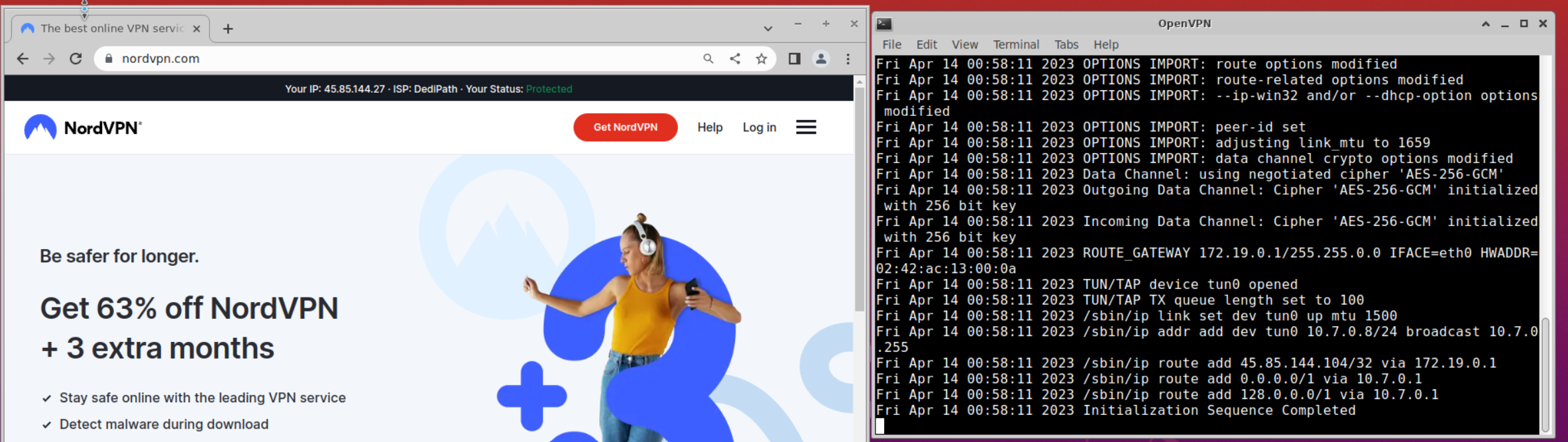
OpenVPN connected to NordVPN running inside the container
Map in OpenVPN connection profiles (optional)
Kasm Workspaces 1.13 added support for mapped files on container-based Workspaces. This feature maps in the OpenVPN connection profiles at launch instead of downloading them at image build time. The profile can be mapped at three levels:
- Workspace level. Create multiple Workspaces that each connect to a different VPN endpoint.
- Group level. Define one Workspace image and connect each user to the endpoint for their group.
- User level. Connect each user to their own specific VPN endpoint.
At the user and group levels, the file maps into all container-based sessions. Multiple OpenVPN-enabled images can share the same user or group mapping. For non-OpenVPN images, the file maps in but has no effect, because OpenVPN is not installed. The example maps in NordVPN connection profiles, and the same process applies to profiles from other VPN providers.
-
Remove the connection profile download from the Dockerfile. Delete the
RUN cd /etc/openvpn && wget ... ovpn.zip ...line from the Dockerfile shown above. -
Modify the Docker Exec Config for the image:
{"first_launch":{"cmd":"bash -c '/usr/bin/desktop_ready && xfce4-terminal -T OpenVPN -x openvpn /etc/openvpn/client1.ovpn'","user":"root"}}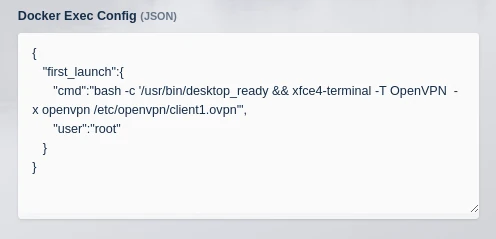
Docker Exec Config details for mapping in an OpenVPN connection profile -
Download the NordVPN connection profiles individually from nordvpn.com/ovpn, or as a bundle from the NordVPN config archive. Follow the process in file mappings to add the file to the image, group, or user as
/etc/openvpn/client1.ovpn.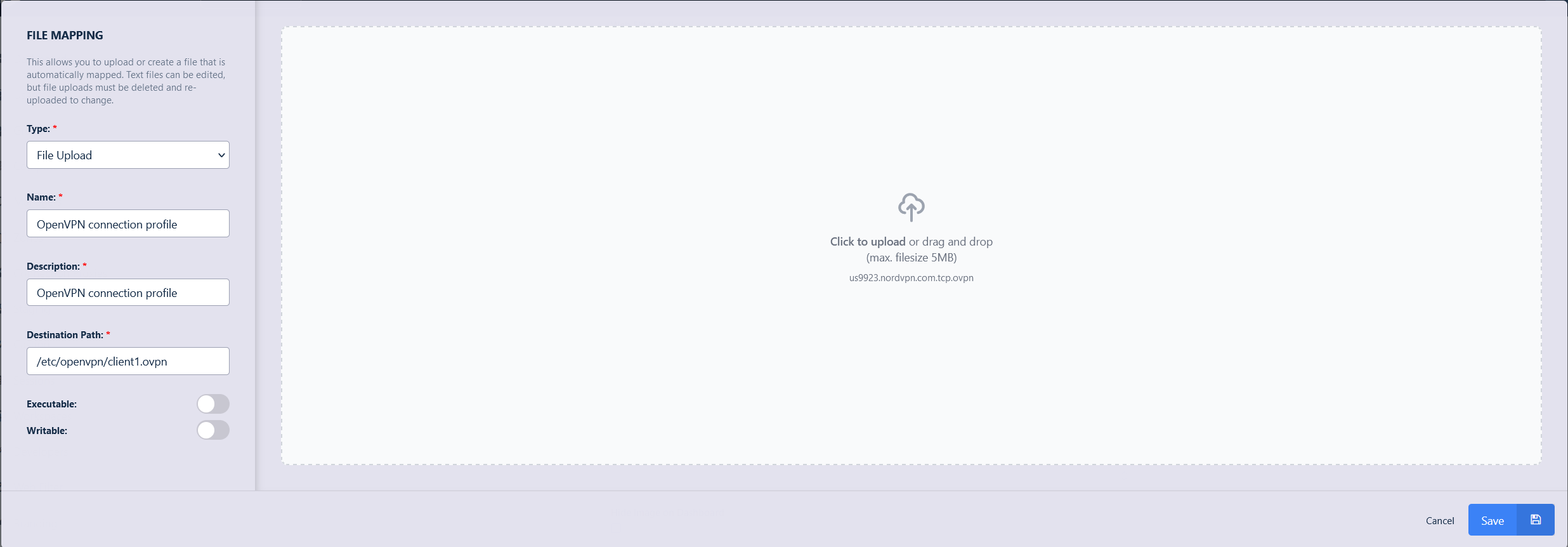
Add OpenVPN file mapping
Common troubleshooting steps
- The VPN client cannot create a tunnel interface. Confirm the Docker Run Config Override maps the
/dev/net/tundevice. OpenVPN also requires privileged mode to modify the network stack. - Tailscale does not connect. Confirm the ephemeral auth key is valid and that
tailscaledstarted. Runtailscale statusin the session to check the connection state. - A private DNS name does not resolve over the VPN. Set the DNS servers in the Docker Run Config Override to servers reachable through the tunnel, as shown for NordVPN.