AutoScale configuration (Server Pool)
This reference describes the AutoScale configuration settings for Pools of type "Server". These settings appear in the AutoScale Wizard. They govern how Kasm Workspaces connects to provisioned servers and how it scales server capacity up and down to meet session demand.
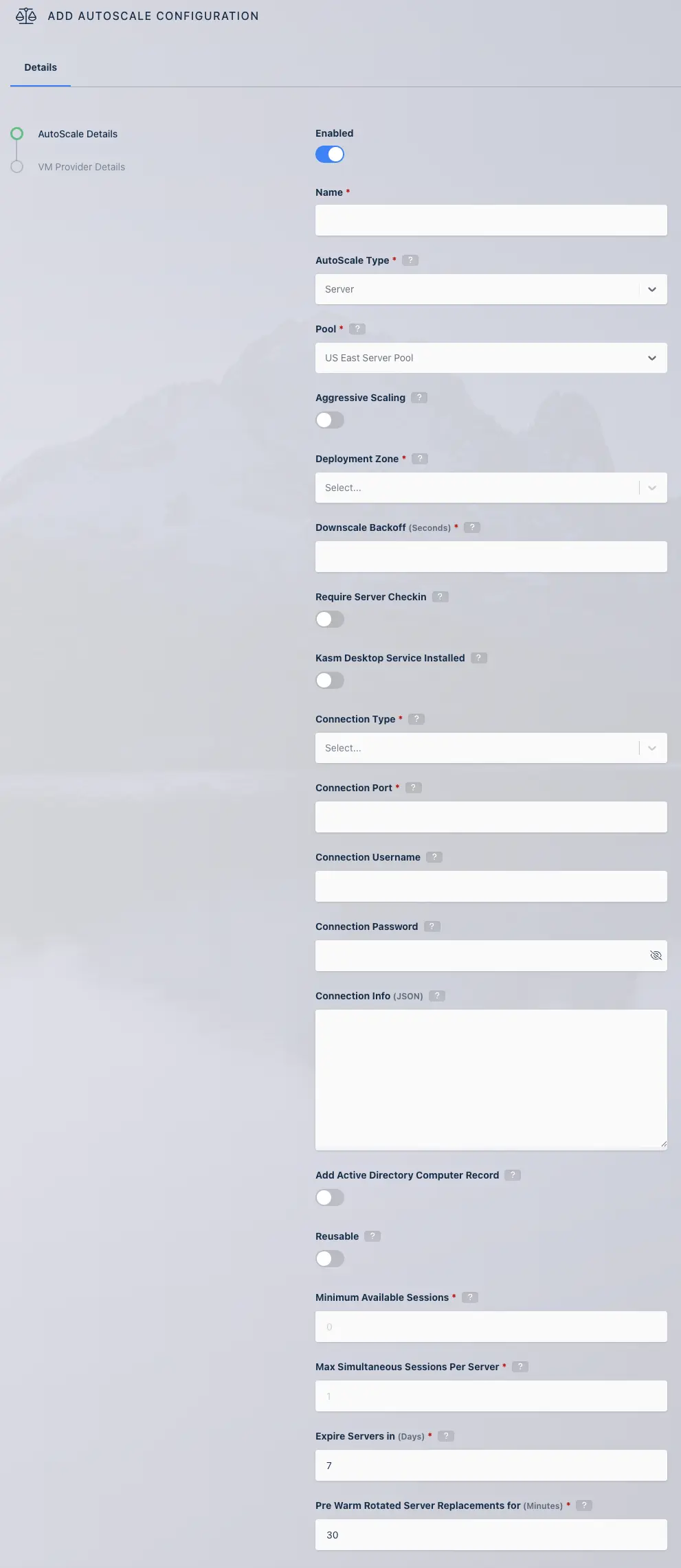
AutoScale settings for Server Pool
Many of the settings below apply to the servers that are created during AutoScaling. When you change these settings on an AutoScale config, they are not automatically applied to existing servers. Update existing servers that were created from that AutoScale config manually.
The following table describes each setting in the AutoScale configuration for a Server Pool.
| Name | Description |
|---|---|
| Enabled | Whether to enable this config or not. If disabled, AutoScaled agents from this config cannot be manually deleted. Re-enable the config to remove them. |
| Name | Name for the AutoScale config. |
| AutoScale Type | The type of AutoScale config this is, either a Docker Agent or a Server. |
| Pool | Which pool this AutoScale config is attached to. |
| Aggressive Scaling | When enabled, the system may take more expedient measures to provision raw compute resources for on-demand session requests. See Aggressive scaling for more details. |
| Deployment Zone | Which zone this AutoScale config applies to. |
| Downscale Backoff (Seconds) | This setting prevents the system from downscaling (deleting Servers) for this amount of time, in seconds, when needed. This is useful for preventing the system from thrashing up and down if the available resources hover around an interval that would typically trigger AutoScaling. |
| Require Checkin | When enabled, the system waits to receive a callback from the newly created server before it sets the server status to Running. The callback may come from the Kasm Windows Service or by calling the set_server_status API. See Require Checkin for more details. |
| Kasm Desktop Service Installed | When enabled, the system assumes the Kasm Desktop Service is installed, which enables workflows that require the agent. |
| Connection Type | Whether to use KasmVNC, RDP, VNC, or SSH. |
| Connection Port | Which port to connect on. |
| Connection Credential Type | Which type of credentials are used for this server. Options are Static Credentials, Dynamic User Accounts, SSO User Accounts, and Authenticate with Smartcard. See Single sign-on to Windows systems via LDAP and Authentication options when connecting to an SSH server. |
| SSO Domain | The domain to use for the SSO User Accounts Connection Credential Type. A blank entry passes the username to Windows exactly as it is in Kasm. A value of localhost instructs Kasm to drop any domain part from the Kasm username. For example, john_smith@example.com becomes john_smith when passed to Windows. |
| Connection Username | Which username to connect to the server with. Only visible with the Static Credentials Connection Credential Type. |
| Connection Password | Which password to connect to the server with. Only visible with the Static Credentials Connection Credential Type. |
| Use User SSH Key | Whether to use the SSH keys assigned to a Kasm user. Only applicable to the SSH connection type. |
| Connection Private Key | The private key to authenticate against the SSH server with. Only applicable to the SSH connection type. |
| Connection Private Key Passphrase | The passphrase encrypting the specified private key. Only applicable to the SSH connection type. |
| Connection Info (JSON) | Any extra connection info. |
| Create Active Directory Computer Record | Whether to create an Active Directory record or not. See Create Active Directory Computer Record. |
| Reusable | Whether the connection is reusable. |
| Minimum Available Sessions | The minimum available sessions that should be free. AutoScale more resources if under this threshold. |
| Max Simultaneous Sessions Per Server | Max sessions per server allowed. See Max simultaneous sessions per server. |
| Max Simultaneous Users | For RDP and SSH servers, the number of concurrently connected users per server. |
| Expire Servers in (Days) | The number of days until AutoScaled servers are placed into "Draining" mode and replaced with new servers. This sets each server's "Drain Time" when it is created. A value of "0" disables this function. Note: Existing AutoScaled servers are not updated when this field is changed. To apply new rotation settings to existing servers, update each server manually. |
| Pre Warm Rotated Server Replacements for (Minutes) | The number of minutes before the server's "Drain Time" that Kasm begins provisioning a replacement server. This allows time for a replacement server to be provisioned before the old server is rotated out. A value of "0" disables this function. |
After you configure these settings, click Next to enter your provider-specific details.
Max simultaneous sessions per server
For RDP and SSH servers, Max Simultaneous Sessions Per Server and Max Simultaneous Users work together. SSH and RDP support multiple sessions per user per server. For RDP, this is typically found in RemoteApp use cases. For SSH and RemoteApp servers, you may want one server to handle just two concurrent users but up to ten concurrent sessions each. These settings serve two purposes: AutoScaling and deciding where to assign new sessions.
For AutoScaling, Kasm periodically checks that it has resource availability to create Minimum Available Sessions on the existing servers in the pool. Kasm checks how many sessions and how many new users each server can handle. It uses the lower of those two values to determine how many new sessions each existing server can likely handle. If the total from all servers is less than Minimum Available Sessions, new servers are created until capacity reaches the desired level.
Kasm does not allow a single user to provision multiple RDP desktops per server. Only RemoteApps may be assigned to the same server for a single user. Kasm allows one desktop and multiple RemoteApps on the same server for a user.
Require Checkin
The Require Checkin flag ensures the system waits until a newly created server is fully ready before it allows a user session to connect. Administrators may use the AutoScale startup script to ensure the desired configurations and services are properly initialized. For example, the script can confirm that RDP is enabled and running.
For Windows sessions, administrators may use the Kasm Desktop Service. All systems may use the set_server_status API.
POST /api/set_server_status?token={checkin_jwt}
Example request:
- json
- bash
{
    "status": "running",
    "status_message": "Initialization Complete",
    "status_progress": "100"
}
curl -k -X POST -H "Content-Type: application/json" -d '{{"status": "running", "status_message": "Initialization Complete", "status_progress": "100"}}' https://{upstream_auth_address}/api/set_server_status?token={checkin_jwt}
Additional examples are available in the workspaces-autoscale-startup-scripts repo.
Create Active Directory Computer Record
As covered in the settings table above, the AutoScale configuration for a Server Pool allows the administrator to automatically join new VMs to an Active Directory domain. When the checkbox for Create Active Directory Computer Record is checked, two additional fields are shown: LDAP Config and Active Directory Computer OU DN.
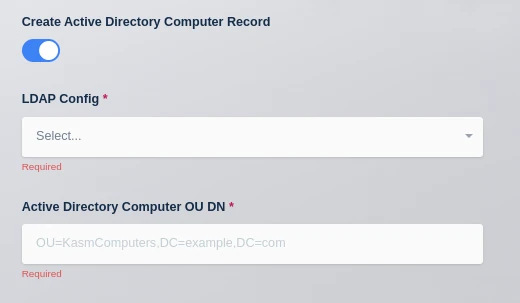
AutoScale servers can be configured to automatically join Active Directory. This is a two-step process which involves a Kasm Workspaces Web App first creating a Computer Object in Active Directory within a specified AD container.
- Kasm Workspaces creates the AD computer object and generates a temporary, single-use password.
- A VM startup script uses the injected password to join the computer to the Active Directory domain.
When the Computer Object is created, a random single-use password is generated that can only be used to join the computer to the domain. The final step of joining the computer to the domain is facilitated through a Windows Startup script. For a complete example, reference the Windows Autoscale Scripts for Kasm Workspaces repository.
Some cloud providers automatically execute this startup script when the VM boots, which makes it easy to get auto AD joining working end-to-end. Other cloud providers, such as Azure, do not automatically execute this script. See the details of each VM Config Provider.
LDAP Config
The LDAP Config drop-down allows the administrator to select which LDAP configuration to use to add the computer record to Active Directory. The LDAP configuration does not have to be enabled. This allows the administrator to use one LDAP configuration for authentication and another for AD Computer record creation. If using LDAP for end-user authentication to Kasm Workspaces, the administrator can also configure single sign-on to the Windows systems.
Active Directory Computer OU DN
This is the DN of the Active Directory Computer OU that the administrator would like the computer records placed in.
The LDAP config must use an SSL-secured LDAPS connection. Otherwise, the LDAP server does not permit Kasm to create the AD Computer record.
Single sign-on to Windows systems via LDAP
When users log in to Kasm via LDAP authentication, they can create sessions to Windows systems that are joined to the same Active Directory domain and are configured for SSO credential pass-through. The settings table above covers the Connection Credential Type field. Select the value SSO User Accounts in the AutoScale configuration for the Server Pool. This requires that all users accessing servers in this Server Pool authenticate to Kasm using LDAP authentication. See the Windows Deployment Guide video below for a walk-through of this topic and more.
Authentication options when connecting to an SSH server
Kasm Workspaces can connect to arbitrary SSH servers. It can use SSH key or password authentication. The AutoScale Config edit screen offers a few combinations of options.
The AutoScale Config can be configured to use:
- Username and password authentication.
- A username with the Use User SSH Key option selected, to send the username and private key stored with the Kasm user.
- A username with a pasted-in private key, and optionally a passphrase if the key has one.
Select the value SSO User Accounts in the Connection Credential Type field and check the Use User SSH Key checkbox. Kasm Workspaces then sends the user's Kasm Workspaces username along with the user's Kasm Workspaces SSH key. This allows easy multiple-user support on SSH servers.
The connection proxy library used for SSH server connections enforces some restrictions on the SSH keys supported. The SSH key can be in OpenSSH format, beginning with -----BEGIN OPENSSH PRIVATE KEY-----, or RSA PKCS1 format, beginning with -----BEGIN RSA PRIVATE KEY----- or -----BEGIN PRIVATE KEY-----, with a key size of 2048.
When using RSA keys with some newer Linux distributions, such as Ubuntu 22.04 LTS, you may need to edit the /etc/ssh/sshd_config file on the target server and add these two lines to the config:
HostKeyAlgorithms +ssh-rsa
PubkeyAcceptedKeyTypes +ssh-rsa
Aggressive scaling
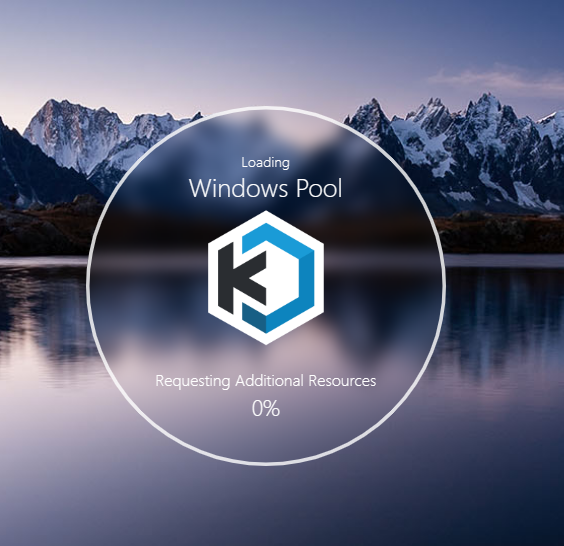
Starting in Workspaces 1.14.0, administrators can choose to leverage fully on-demand compute resources for container and server or Server Pool based sessions. When a user requests a session, and no compute is available, the system queues the request, provisions the resources according to the AutoScale configs, then fulfills the request. This prevents the user from receiving a No Resources error. Instead, the user is presented with a status indicator while the request is fulfilled, which may take several minutes. This can be used alongside the existing standby and staging mechanism. It gives the administrator more options to balance compute costs with session delivery times.
Enabling Aggressive Scaling in the AutoScale Config instructs the system to make more opportunistic choices when requesting resources, with the goal of reducing the user's wait time. This mode may result in compute resources being utilized in less cost-efficient ways. Users may end up on separate machines instead of pooled together, depending on the circumstance. This mode may also result in the system scaling slightly beyond the max instances defined on the associated VM Provider, due to the potential concurrent nature of resource provisioning.
Provider-specific settings
Kasm supports AutoScaling on a variety of providers. Each provider has unique configurations that must be set up correctly for optimal performance. Select your provider to learn more:
- AWS
- Azure
- Digital Ocean
- GCP
- Harvester
- KubeVirt
- Nutanix
- OpenStack
- Oracle Cloud (OCI)
- Proxmox
- VMware vSphere
Windows templating
To AutoScale Windows resources in Kasm Workspaces, you must first create Windows templates that serve as the base images for provisioning new instances. These templates should include necessary configurations such as licensing considerations, required drivers, guest agents, sysprep, domain join settings, and any additional software required for your deployment. Properly prepared templates ensure seamless AutoScaling and optimal resource utilization.
For more details about Windows templates, refer to the Windows AutoScale Template Creation Guide.