Session recording
This feature requires an Enterprise license. Contact a Kasm Technologies representative for details.
Overview
Compliance and monitoring programs often require a verifiable record of what users do inside their workspaces. This guide configures session recording in Kasm Workspaces to capture user activity passively, then converts the captured segments to video and uploads them to your storage bucket. Session recording covers container based workspaces and RDP, VNC, and SSH server based workspaces, so administrators gain a durable audit trail across the deployment. As a result, the organization can demonstrate oversight, investigate incidents, and meet retention requirements without changing how users work.
Prerequisites
Before you begin, confirm the following:
- An Enterprise license applied to the Kasm Workspaces deployment.
- Administrator access to the Kasm Workspaces Web UI, with permission to manage Global settings and Groups.
- An object storage bucket that is reachable from the deployment. Amazon S3 and S3 compatible providers such as GCP Cloud Storage are supported.
- Storage credentials, plus the bucket policy and IAM policy described in S3 policy configuration.
- Connection Proxies and Agents sized for the added encoding load. For guidance, see the Kasm sizing guide.
- For container based workspaces, first party Kasm published images, or images built on those first party images, with 1.15.0 tags or newer.
Session recording is not supported on staged sessions. When a user belongs to a group with record_sessions set to True and selects a workspace that has staged sessions, Kasm provisions a fresh on-demand session for that user instead.
Solution approach
This guide progresses through the following phases:
- Configure global session recording settings.
- Enable recording for the target groups.
- Configure the storage endpoint and upload path.
- Understand recording, failure, and recovery behavior.
- Configure storage CORS for downloads.
- View and audit recordings.
Detailed steps
Configure global session recording settings
Session recording stores recordings in segments on local storage first. Kasm later converts the segments to video and uploads them to the configured bucket. Set the global parameters before you enable recording for any group.
- Log into the Kasm Workspaces Web UI as an administrator.
- Click Settings > Global.
- Configure the following parameters. For full detail on each, see the recording settings reference:
- Define Object Storage Key.
- Define Object Storage Secret.
- Define Session Recording Upload Location.
- Modify Session Recording Bitrate if desired.
- Modify Session Recording Framerate if desired.
- Modify Session Recording Width if desired.
- Modify Session Recording Height if desired.
- Modify Session Recording Retention Period if desired.
- Modify Session Recording Queue Length if desired.
For container based workspaces, sudo or root access gives the user enough permissions to subvert the recording process and prevent recordings from uploading to the cloud. Avoid granting sudo or root access on workspaces that must be recorded.
Enable recording for the target groups
Recording activates per group through the record_sessions setting. Apply it to each group whose members must be recorded.
- Click Access Management > Groups.
- Edit the desired group.
- Click Settings.
- Click Add Setting.
- Search for the record_sessions setting and set it to
True.
Changes to feature licensing may take up to 10 minutes to apply, because the system caches certain requests. If sessions are still not recorded after you apply the license and complete the configuration above, check the logs for warnings or errors. When Kasm logs that the feature is not licensed, wait 10 minutes for the cache to refresh, then try again.
S3 policy configuration
This feature utilizes pre-signed URLs to facilitate uploading artifacts to S3.
The minimum S3 bucket policy required to use this feature is:
{
  "Version": "2012-10-17",
  "Statement": [
    {
      "Sid": "PolicyForAllowKasmS3UserReadWrite",
      "Effect": "Allow",
      "Principal": {
        "AWS": "<s3 persistent profile user arn>"
      },
      "Action": [
        "s3:GetObject",
        "s3:PutObject",
        "s3:ListBucket",
        "s3:DeleteObject"
      ],
      "Resource": [
         "<s3 bucket arn>",
         "<s3 bucket arn>/*"
      ]
    },
    {
      "Sid": "PolicyForAllowKasmS3UserListLocate",
      "Effect": "Allow",
      "Principal": {
        "AWS": "<s3 persistent profile user arn>"
      },
      "Action": [
        "s3:ListBucket",
        "s3:GetBucketLocation"
      ],
      "Resource": "<s3 bucket arn>"
    }
  ]
}
The minimum IAM policy for the S3 credentials used in Kasm are:
{
  "Statement": [
    {
      "Action": [
        "s3:GetObject",
        "s3:PutObject",
        "s3:ListBucket",
        "s3:DeleteObject"
      ],
      "Effect": "Allow",
      "Resource": [
        "<s3 bucket arn>",
        "<s3 bucket arn>/*"
      ]
    },
    {
      "Action": [
        "s3:ListBucket",
        "s3:GetBucketLocation"
      ],
      "Effect": "Allow",
      "Resource": "<s3 bucket arn>"
    }
  ],
  "Version": "2012-10-17"
}
S3 endpoint configuration
By default, the endpoint used for S3 access is s3.amazonaws.com. Administrators may want to specify a custom endpoint to support the following use cases:
- A private VPC Endpoint
- AWS Gov Cloud end-points
- Region specific end-points
- AWS S3 Accelerated Endpoints
- S3 Compatible Solutions
To specify a custom endpoint, format the Session Recording Upload Location path in the Workspaces settings as follows:
s3://bucket-name@endpoint/folder/{username}/{kasm_id}.mp4
The following example configures Kasm to use GCP Cloud Storage, an S3 compliant cloud storage provider, for session recording storage. Here kasm is the bucket name, storage.googleapis.com is the endpoint name, and the remainder is the path. Kasm replaces {user_id} with the Kasm user ID, replaces {image_friendly_name} with the workspace name, and replaces {start_date} with the date the user started the session.
s3://kasm@storage.googleapis.com/recordings/{user_id}/{image_friendly_name}-{start_date}.mp4
Some S3 compatible providers have additional requirements to be compatible. For instance, GCP Cloud Storage also requires the use of HMAC keys for authentication. Consult the documentation for the chosen provider to confirm that all necessary configuration is met.
S3 session recording variable substitution
The Session Recording Upload Location setting supports template variables that Kasm fills in automatically when it uploads the recording clip. The table below lists each valid template value and an example of the resulting value.
| Template name | Example Value |
|---|---|
| kasm_id | 386b2eef-9bfb-443f-9eb6-6ee3331c38b4 |
| user_id | 4dabe919-c5e9-4839-9bf3-07675f08a507 |
| username | admin@kasm.local |
| image_id | 3ea00a8b-7598-408d-8574-dbebc8304ff4 |
| image_friendly_name | windows |
| created_timestamp | 2023-12-12 21:12:45.386547 |
| created_date | 2023-12-09 |
| start_timestamp | 2023-12-13 20:27:13.853047 |
| start_date | 2023-12-10 |
| current_epoch | 1706554545220 (in millisecond resolution) |
Understand RDP, VNC, and SSH recording behavior
The Connection Proxy, which relies on Guacamole, records RDP, VNC, and SSH sessions in a rolling fashion. It breaks the data into 150MB segments. The segments are stored first in an intermediate format, then converted into a playable video using the guacenc encoding tool. These are video only recordings. Audio from the session, including what the user says into their microphone, is not recorded.
When recording is set to True and the system cannot initiate recording, Kasm does not provision the session for the user. This prevents an unrecorded session that the administrator intended to record. The system fails to initiate recording when, for example, the Connection Proxy has run out of space or the global settings are invalid.
Resource considerations
Session recording involves CPU-intensive video encoding. The Session Recording Queue Length setting controls the number of videos that can encode concurrently. Each concurrent encoding process typically uses one CPU core. Allocate adequate resources to the Connection Proxy to prevent a negative impact on session performance.
Session recording also requires local storage space for the real-time encoding of active sessions. As a general guideline, provide at least 1GB of local storage for each connected user. The system prevents new users from connecting when available local storage falls below 500MB and recording is required for the connecting user.
Recording failure and recovery
This section describes how Kasm behaves when encoding or upload fails, and how an administrator recovers.
Encoding failure
Corrupted recording files cause the encoding process to fail. When this occurs, Kasm immediately disconnects the user from the session so that the administrator can investigate. Until the administrator resolves the situation, the user sees an error screen describing the issue and cannot reconnect to the session.

All unprocessed recording files for the session remain in /opt/kasm/current/tmp/guac/recordings/ on the Connection Proxy host, with filenames beginning with the session ID. To let the session user resume the same session, the administrator must remove the session's recording files. The following snippet removes all recording files for the session 501d2a83dc044c6d9bd1c709d3a346e6 and lets that user reconnect. Session recording begins again when the user reconnects.
sudo rm -f /opt/kasm/current/tmp/guac/recordings/501d2a83dc044c6d9bd1c709d3a346e6-*
Session recordings that fail to encode properly remain on the Connection Proxy filesystem at the location above until they are manually removed. The administrator must clean up these artifacts. Otherwise, failed session recordings may fill the disk and cause storage issues.
Upload failure
When user connectivity is interrupted or a user reconnects, the system still proceeds with the encoding and upload of pending session recordings. This guarantees that no session data is lost due to these disruptions. The recorded files remain on local storage, and the system attempts to upload them periodically. The Session Recording Retention Period setting controls how long the files are retained locally.
Configure storage CORS for downloads
The download options for recording clips require CORS settings on the storage bucket. This section covers two providers, Amazon S3 and GCP Cloud Storage.
Amazon S3
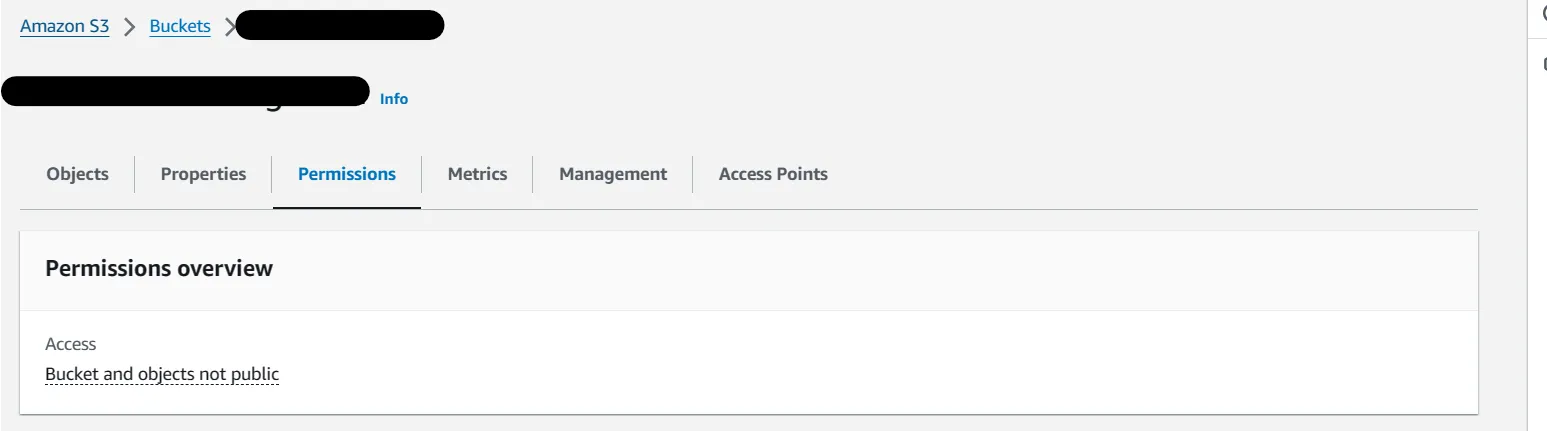
Select the Amazon S3 bucket used for storing session recordings. Open the permissions tab and scroll to the Cross-origin resource sharing (CORS) section. Click Edit and configure it as below, replacing https://kasm.acme.com with the appropriate origin, which is the Kasm domain.
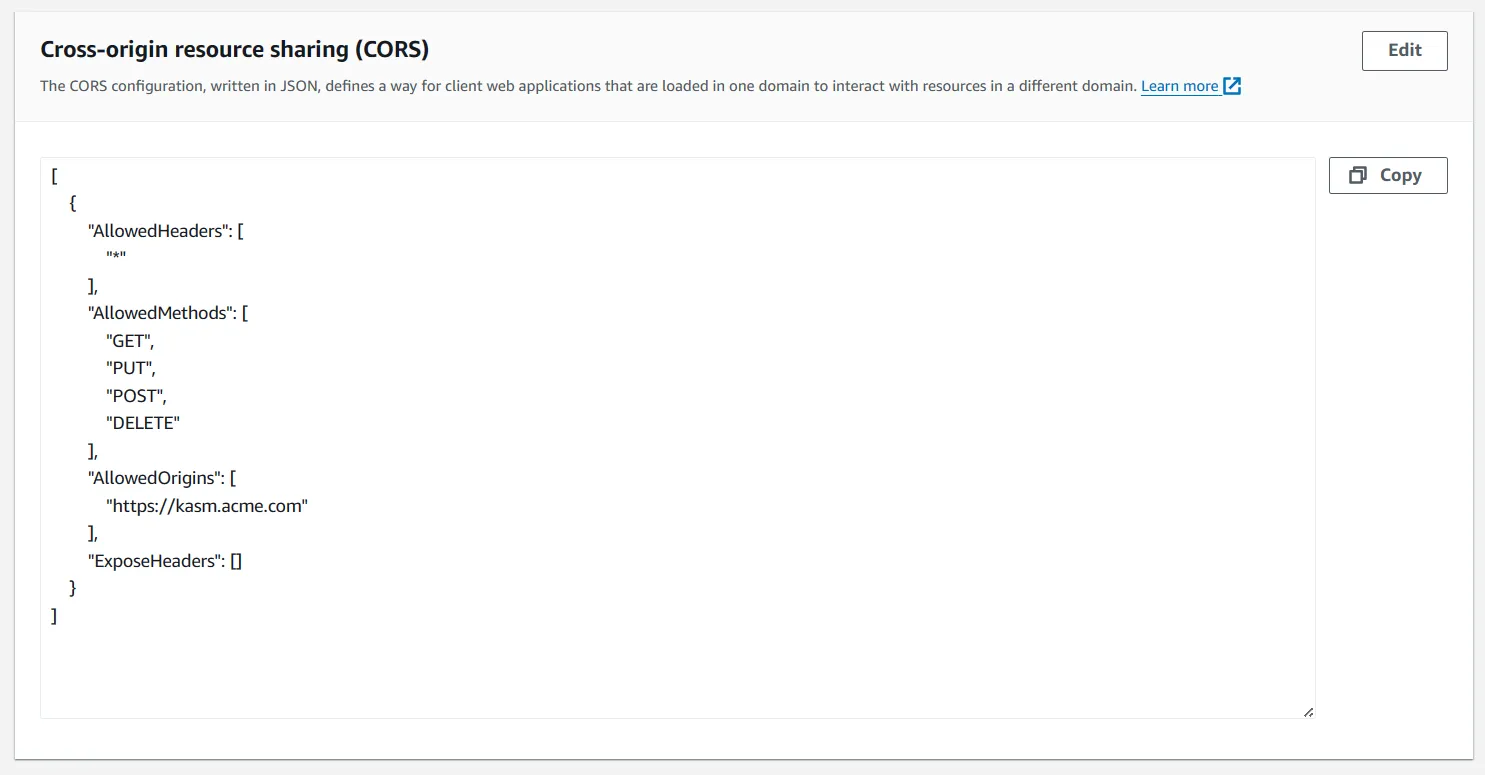
[
    {
        "AllowedHeaders": [
            "*"
        ],
        "AllowedMethods": [
            "GET",
            "PUT",
            "POST",
            "DELETE"
        ],
        "AllowedOrigins": [
            "https://kasm.acme.com"
        ],
        "ExposeHeaders": []
    }
]
GCP Cloud Storage
Like Amazon S3, GCP Cloud Storage buckets need CORS configuration applied so that Kasm can provide download access for recording clips. GCP supports bucket CORS configuration only through the command-line gcloud client. Download and install the gcloud client, then follow the instructions to apply a CORS configuration. The following is an example configuration that should work when you replace https://kasm.acme.com with the Kasm domain of the installation.
[
    {
      "origin": ["https://kasm.acme.com"],
      "method": ["GET", "PUT", "POST", "DELETE"]
    }
]
View and audit recordings
Recordings are reviewed on the session history page, which lists past sessions and exposes download and playback options.
Users need the SESSIONS_VIEW group permission to view the session history page. Users need the SESSION_RECORDINGS_VIEW group permission to view the session recordings on the session history page.
- Go to Sessions > History to display a history of all past sessions.
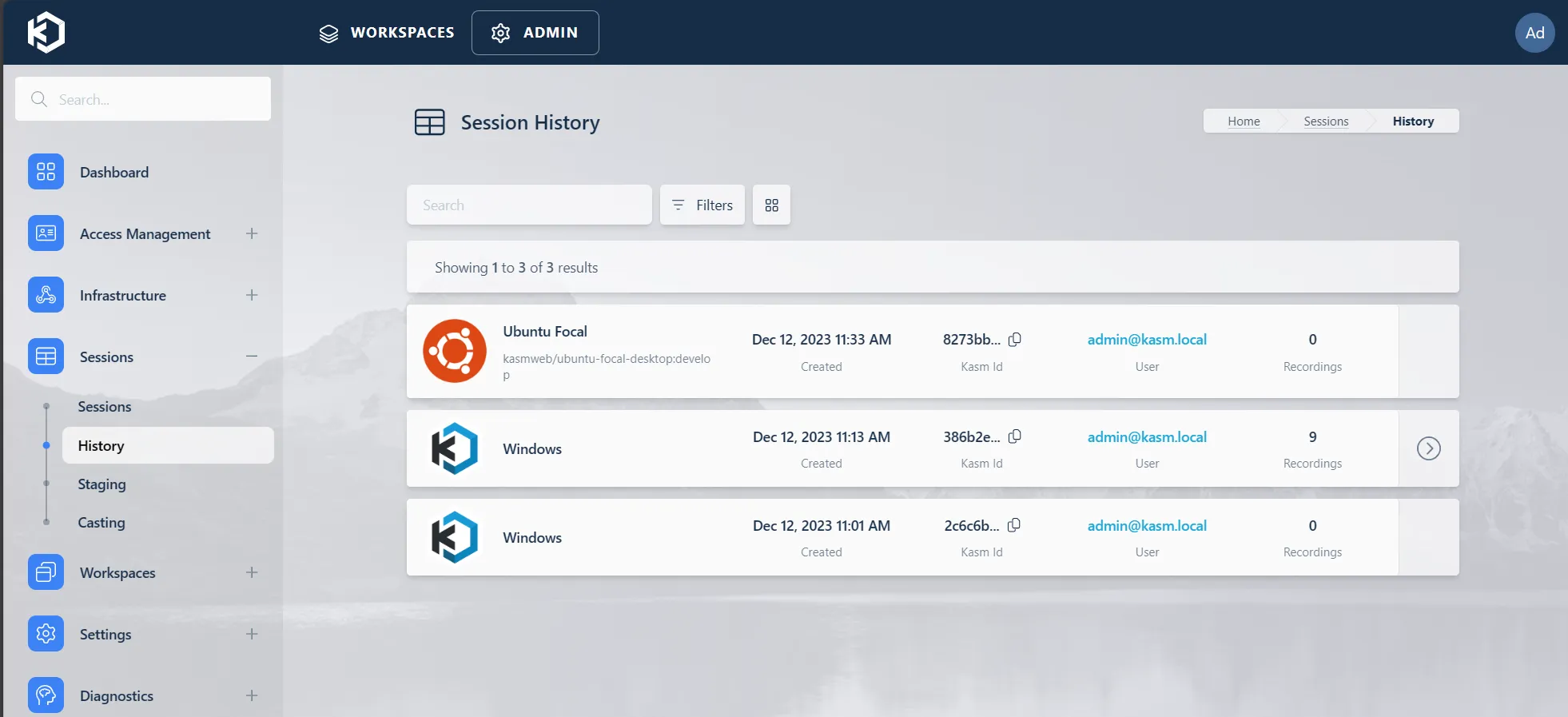
- Expand a session row using the side arrow to reveal the download and view options when recordings are available.

- Click the download button to zip and download all clips for that session. The Download All option requires the S3 bucket to be configured for CORS, as described in Configure storage CORS for downloads. Kasm generates a log similar to
User admin@kasm.local downloaded entire session: 10307f51fd2749f3a84a7aaa2f81d26ewhenever a user downloads all recordings for a session. This lets an administrator track when recordings are downloaded.

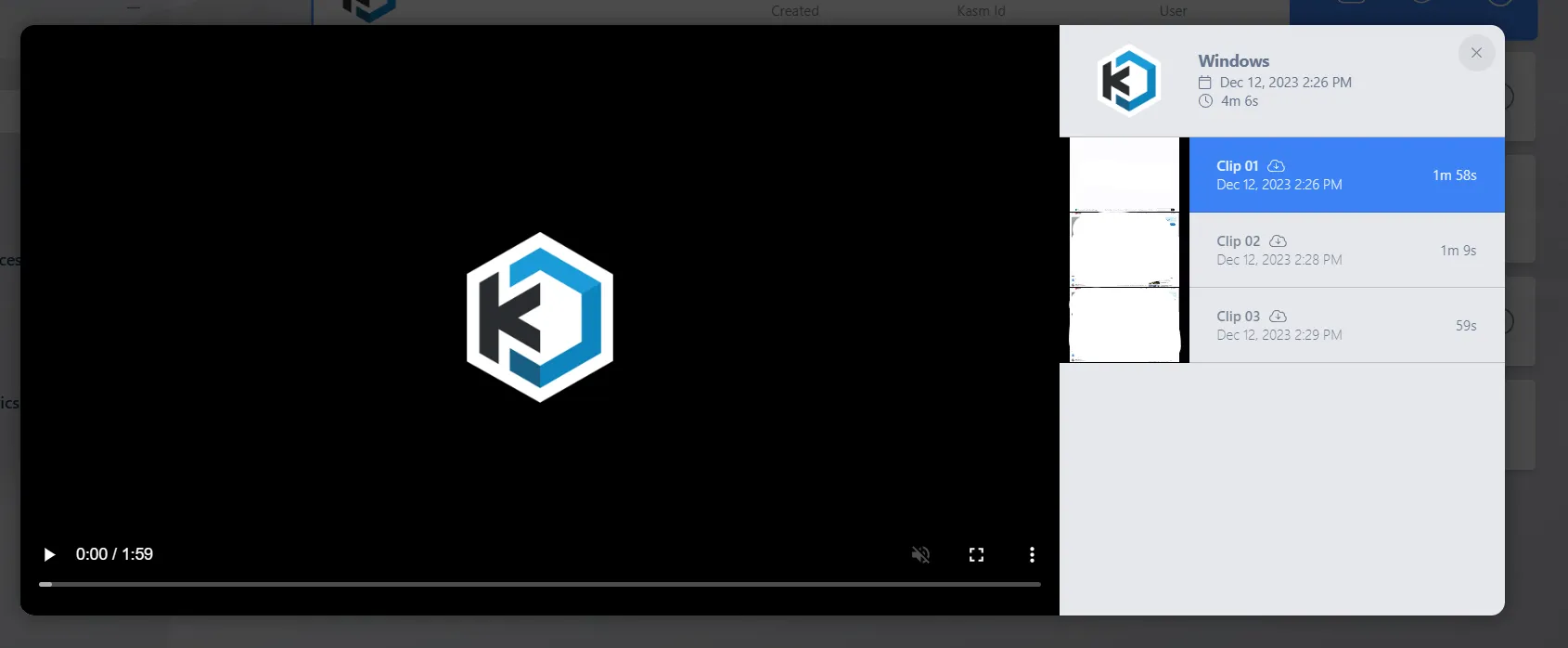
- Click the preview (eye) icon to open a screen that lists all clips for the session, with thumbnails, a per-clip download button, and a video playback window. The per-clip download button requires the S3 bucket to be configured for CORS.
- Click the video player window to start playback of the selected clip. Kasm generates a log similar to
User admin@kasm.local played 10307f51fd2749f3a84a7aaa2f81d26e video: s3://kasm_session_recordings@storage.googleapis.com/recordings/admin@kasm.local/2023-12-08/10307f51-fd27-49f3-a84a-7aaa2f81d26e.1702066120.mp4whenever a user plays a recording. This lets an administrator track when recordings are viewed. - Click the per-clip download button to download the individual clip that is selected. Kasm generates a log similar to
User admin@kasm.local downloaded 10307f51fd2749f3a84a7aaa2f81d26e video: s3://kasm_session_recordings@storage.googleapis.com/recordings/admin@kasm.local/2023-12-08/10307f51-fd27-49f3-a84a-7aaa2f81d26e.1702066120.mp4whenever a user downloads a clip. This lets an administrator track when recordings are downloaded.
Common troubleshooting steps
- Sessions are not recorded after configuration. Confirm that the Enterprise license is applied and that
record_sessionsis set toTruefor the user's group. Licensing changes are cached for up to 10 minutes. Wait for the cache to refresh, then check the logs for warnings or errors. - A recorded session fails to provision. Kasm does not provision a session it cannot record. Confirm that the Connection Proxy has free space and that the global recording settings are valid.
- The user is disconnected and cannot reconnect. A corrupted recording file caused an encoding failure. Remove the session's recording files from
/opt/kasm/current/tmp/guac/recordings/on the Connection Proxy host, then have the user reconnect. - The disk fills with recording artifacts. Failed recordings remain on the Connection Proxy filesystem until removed. Clean up the unprocessed files at the location above to free disk space.
- The Download All or per-clip download option does not work. Downloads require CORS on the storage bucket. Apply the CORS configuration for Amazon S3 or GCP Cloud Storage, replacing the origin with the Kasm domain.
- New users cannot connect when recording is required. The system blocks connections when local storage falls below 500MB. Provide at least 1GB of local storage per connected user on the Connection Proxy.
- Staged sessions are not recorded. Session recording is not supported on staged sessions. Kasm provisions a fresh on-demand session for recorded users instead.